

Smartpay: how to configure it and how automatic payments work
Complete guide to Smartpay, the SmartPMS system that automatically collects booking payments: account activation and property linking, connection with Rate plans (refundability and deposit), payment request methods and reminder calendar, security deposit with pre-authorization, behavior for direct bookings, OTAs, virtual cards and Booking Engine, payment management, costs, and settlements.
You are in the right place if…27 cases
- “How do I activate and configure Smartpay?”
- “When is the payment request sent to the guest?”
- “How can I have the guest pay a deposit for the booking and the balance later?”
- “Why is the guest asked for the full amount and not just the deposit?”
- “Can I request a security deposit automatically?”
- “How much does Smartpay cost and when does the money arrive in the account?”
- “Can I use Smartpay only for some properties?”
- “How do payments for Booking and Expedia virtual cards work?”
- “I want to use Smartpay only for the City tax without charging for the stay”
- “With Smartpay set to Not active, can the guest still pay the City tax in the Self Check-in?”
- “How do I issue a refund to the guest with Smartpay?”
- “The credit in the account is lower than what I collected”
- “Does Smartpay charge for a No-show?”
- “The guest sees Klarna in the payment link”
- “The sum of the deposit and balance links is higher than the total booking amount”
- “The balance link asks for the full amount even if the guest has to pay a deposit”
- “What are the Smartpay fees?”
- “What is the Smartpay IC++ model?”
- “Are there costs for Smartpay refunds?”
- “Can I deactivate Smartpay without penalties?”
- “How do I charge the card the guest gave me over the phone?”
- “Can I manually enter the guest's card details and collect immediately?”
- “What is manual entry in the booking Payments section?”
- “I want to use Smartpay only to send payment links manually, without automatic sending”
- “I cannot create a manual payment request from the booking”
- “Management of payment request scheduling (Smartpay)”
- “How can I set up a deposit for bookings and manage the balance upon arrival? Does the system allow this?”
Video guides · 2
Smartpay is the SmartPMS system that automatically collects payments for your bookings: it sends payment requests to the guest at the right time, charges virtual OTA cards, manages deposits and balances based on your rate plans and, if you wish, requests a security deposit at check-in.
1. What is Smartpay
Each Smartpay account corresponds to a dedicated payment account, which is created during activation through an identity verification of your company (KYC procedure managed by Stripe, the payment processor). The collected amounts are then credited to your bank account.
- Costs: no activation costs and no monthly fees. On every successful payment, a commission calculated with the IC++ (Interchange plus plus) model is applied: 1.1% standard commission, which already includes the Stripe commission and is the same for any card, plus network costs charged at cost, plus €0.20 per transaction, plus 22% VAT on the sum for companies based in Italy (for companies based in another EU country and with a valid VAT number in the VIES system, the commission is invoiced without Italian VAT, in reverse charge; for companies based outside the EU, for example in Switzerland or the UK, the commission is invoiced without VAT; for EU companies without a valid VAT number in VIES, the 22% Italian VAT applies). The details are in the FAQ on commissions.
- Credits: the collected amounts are automatically transferred to your bank account: generally, each payment arrives in a bank transfer about a week after collection, the Stripe settlement time, and transfers are sent on business days when there is something to settle. If you prefer to receive transfers once a week or once a month, you can request this from support. The first credits of a newly activated account take longer, usually 7-14 days from the first payment. After the transfer, it generally takes a few business days, depending on your bank.
- Commission invoices: they are issued monthly as standard electronic invoices and you can find them in the Interchange System (SdI) and on platform.smartness.com, under Administration > Billing > Documents.
- Security: payments are made with 3D Secure authentication, which significantly reduces the risk of disputes. Charges on virtual OTA cards are not contestable.
2. Before you start: rate plans
Smartpay does not decide on its own when and how much to collect: it follows the rules of the rate plan associated with each booking. This is why it is important that your plans are configured correctly in Settings > Property > Property settings > Units and Rates > Rate plans.
A rate plan is not a price, but a set of rules:
- Refundable (yes/no): if the flag is disabled, the rate is non-refundable and Smartpay requests the full amount upon confirmation.
- Refundable before: how many days before check-in the guest can cancel without penalty. This is also the moment from which Smartpay requests the balance.
- Penalty in case of cancellation: how much is due if the guest cancels after the deadline.
- Deposit (%): the percentage to be collected upon confirmation. It applies only to refundable plans and only if the booking arrives when free cancellation is still possible. It is calculated on the booking amount still to be paid: room price, extras and cleaning fees, excluding the city tax and net of payments already received. With 0%, no deposit is requested; with 100%, a single payment is created for the entire amount.
Keep in mind that:
- The terms of a plan are fixed for the whole year. If you want different conditions by period or by channel, create separate rate plans and open or close them in the calendar.
- For OTA bookings, Smartpay applies the rules of the SmartPMS plan to which the portal plan is mapped. If you want different rules for a portal, create a dedicated plan and map it to that portal.
- If a booking is confirmed as non-refundable (for example from a quote), Smartpay requests the full amount even if the rate plan is refundable.
- If you modify a rate plan, the new rules apply to new bookings; existing ones maintain the conditions accepted by the guest at the time of booking.
The city tax is never included in the booking payment requests (neither in the deposit nor in the balance): with Smartpay it is only collected during self check-in (see FAQs).
3. Activation and connection to properties
Go to Settings > Companies > Company settings > Smartpay configuration.
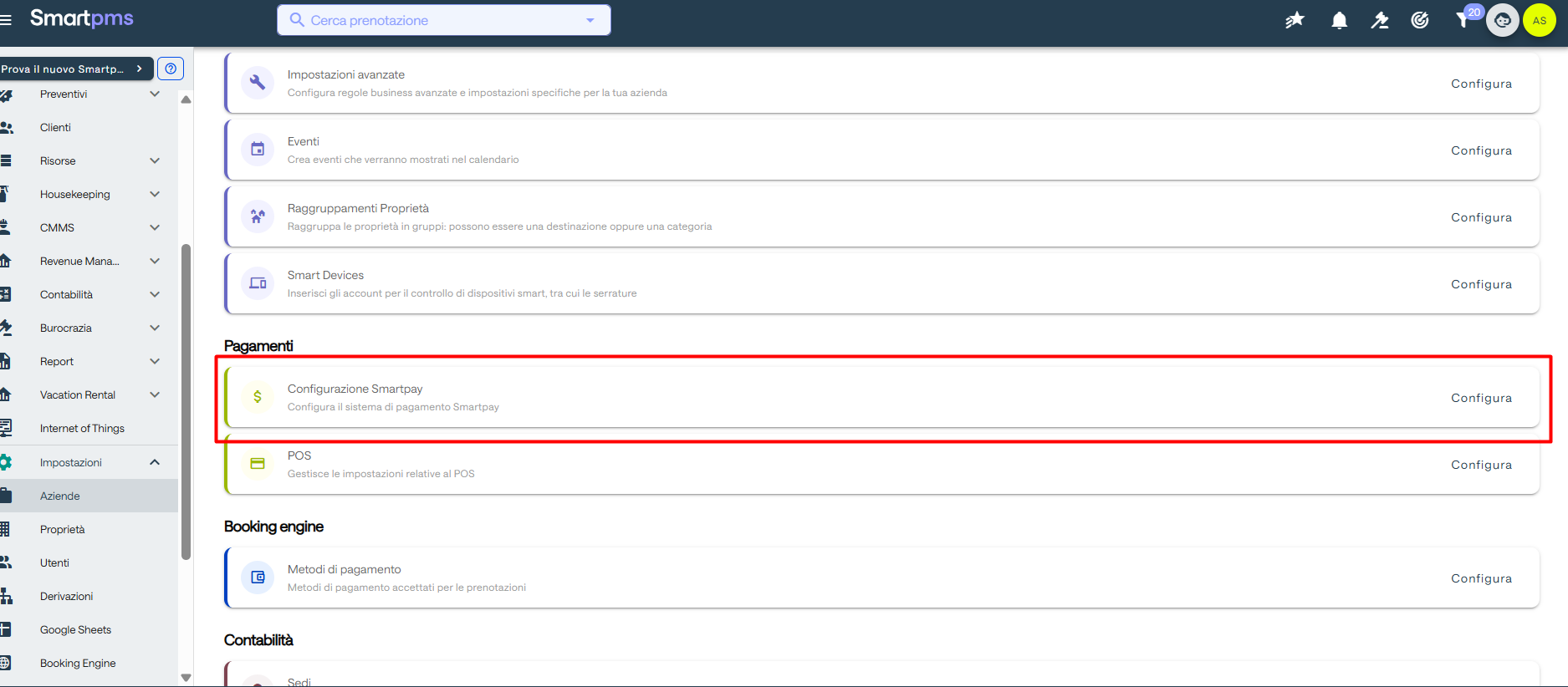
- You can create one or more Smartpay accounts for the same company. Each account is a separate payment account, with its own verification and its own IBAN.
- During activation, it is not possible to link an already existing Stripe account: a new account is created. You can still use the same company and contact details.
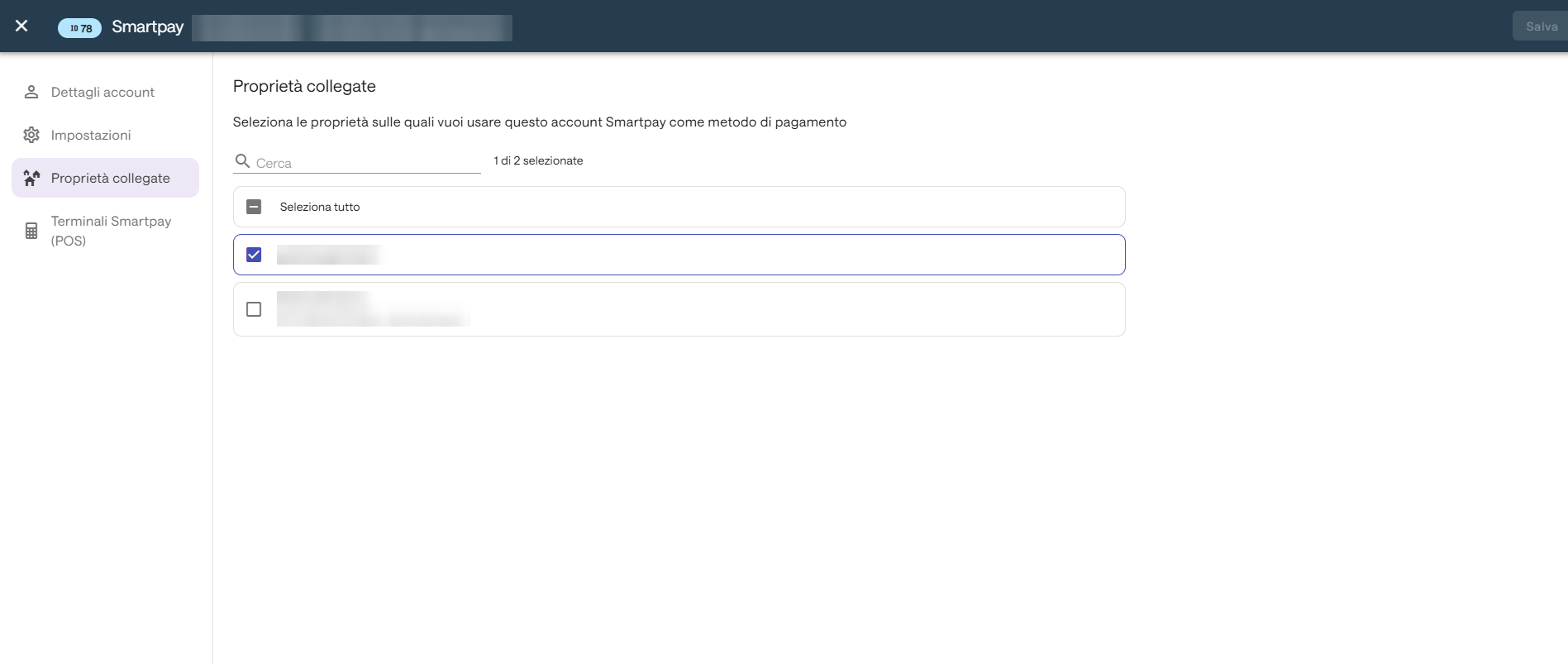
- Each Smartpay account is associated with one or more properties of the same company from the Linked properties section. Unlinked properties are not managed by Smartpay.
- If you move a property to another Smartpay account, its scheduled payments not yet collected are deleted and recreated on the new account: guests receive a new payment link.
- If you work with multiple companies (e.g., sub-companies), each must have its own Smartpay account: an account cannot be shared between different companies.
Inside the account, you will find the Account details, Settings, Linked properties, and Smartpay terminals (POS) sections. The POS is an optional product that you can order to collect payments in person with a physical terminal connected to your Smartpay account.
4. Settings
Booking payment request
Choose one of the three modes. Emails to the guest are sent at 8:00 AM (property time), except for immediate sends upon confirmation.
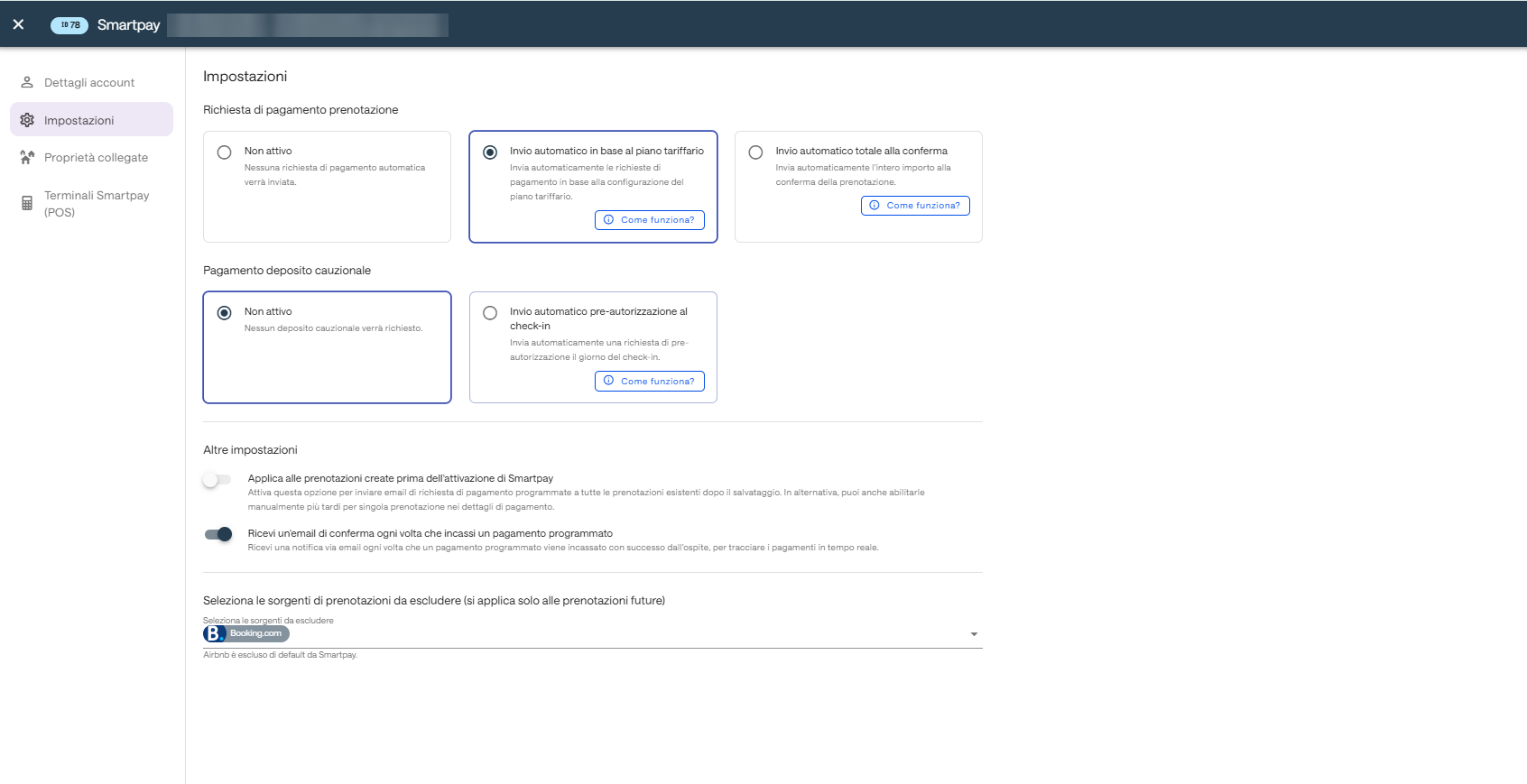
Not active: Smartpay does not manage bookings for this property: no automatic payment request, no charging of virtual cards, and no security deposit. The city tax remains payable by the guest during self check-in, if the Smartpay account is active and linked to the property: this is the configuration to use if you only want to collect the city tax with Smartpay.
Automatic sending based on the rate plan:
- Refundable bookings with deposit: upon confirmation, the guest receives a single request for the deposit, without subsequent reminders. The balance is requested from the day the booking becomes non-refundable, with reminders once a week until 3 days before check-in, then 2 days before, 1 day before, and on the day of check-in. The balance is created for the full amount of the booking and automatically reduces to the remainder when the guest pays the deposit: if the balance period is reached without the guest having paid the deposit, they are asked for the full amount. If the guest pays the full amount immediately, the deposit request is cancelled.
- Refundable bookings without deposit: the full amount is requested from the day the booking becomes non-refundable, with the same reminder schedule.
- Non-refundable bookings (or those that arrived when free cancellation has already expired): the full amount is requested immediately upon confirmation, then reminders once a week until 3 days before check-in, 2 days before, 1 day before, and on the day of check-in.
Total automatic sending upon confirmation: regardless of the rate plan and the deposit set, the full amount is always requested immediately upon confirmation, with automatic reminders until check-in (once a week until 3 days before, then 2 days before, 1 day before, and on the day of check-in).
Security deposit payment
- Not active: no security deposit is requested.
- Automatic pre-authorization sending at check-in: on the day of check-in, the guest receives a link with which they must actively authorize the hold of the amount on their card. Indicate the amount in the Pre-authorization amount field. If the booking is created when check-in has already passed, the link is sent immediately.
How pre-authorization works:
- The amount is only held on the card, not collected.
- The deposit is requested only if, when the booking arrives, there is an amount left to be paid with the guest's card. It is not requested if the booking arrives already fully paid, with a virtual OTA card, with a Bank transfer, Cash, On arrival, or Prepaid payment method, or from an excluded source.
- If the guest settles the stay after the booking is created, the already scheduled deposit remains valid and is still requested at check-in.
- If you activate Smartpay by applying it also to existing bookings, the deposit is scheduled on all future bookings, including those already fully paid.
- To collect it, open the deposit payment in the booking and choose Charge deposit: enter a reason description (mandatory) and confirm. The entire pre-authorized amount is charged.
- If you do not request any charge, the amount is not charged and the release occurs automatically the morning after check-out (by 9:00 AM CET).
- The pre-authorization has a limited duration: for stays up to 6 nights it remains valid until the day after check-out; for stays of 7 nights or more it expires 7 days after check-in. After expiration, the deposit must be managed manually and a warning appears in the booking.
Other settings
- Apply to bookings created before Smartpay activation: sends scheduled payment requests also to existing bookings, after saving. Choose carefully during the first configuration: the option cannot be activated at a later time, unless by deactivating Smartpay and reconfiguring it, an operation that cancels all payment links already planned and sent to guests. For individual bookings created before activation, you can enable payments from their payment details or create a request with Add payment request.
- Receive a confirmation email every time you collect a scheduled payment: receive a notification for every successfully collected payment.
Booking sources to exclude
Select the channels whose bookings should not be managed by Smartpay (e.g., a portal that collects and pays you the amount directly). Airbnb is excluded by default. The exclusion only concerns the automatic collection of the stay (payment requests to the guest and charging of virtual cards): the payment of the city tax in self check-in remains available even for excluded sources. The exclusion applies to future bookings; be careful: if you exclude a source that already had scheduled payments, these will be deleted.
5. How Smartpay behaves by booking type
- Direct bookings entered manually: Smartpay applies the rules seen above, unless the booking payment method is Bank transfer, Cash, On arrival, or Prepaid, or if payment on arrival is indicated: in these cases, the collection is considered managed outside the platform and no request is created. If you later change the payment method to credit card, Smartpay automatically creates the payment requests.
- Bookings from accepted quotes: the same rules as direct bookings apply. If the booking created from the quote has Bank transfer, Cash, On arrival, or Prepaid as the payment method, no request is created; by changing the method to credit card, Smartpay creates the requests according to the rate plan.
- OTA bookings with guest card: Smartpay does not automatically charge the card: a payment request link is sent to the guest, according to the rules of the chosen mode.
- OTA bookings with virtual card: Smartpay automatically charges the virtual card starting from the activation date indicated by the portal (or from the check-in date, if the portal does not indicate it), always for the full amount, even if the rate plan provides for a deposit. No email is sent to the guest and no security deposit is requested.
- Booking Engine: when the guest books, their card is saved and authorized for future charges. Non-refundable rates are charged immediately; for refundable ones, the automatic charge occurs on the day the booking becomes non-refundable. If the charge is unsuccessful (e.g., due to insufficient funds), Smartpay automatically sends a payment link to the guest.
Smartpay does not create payment requests also in the following cases: quotes and options not yet confirmed, calendar blocks, bookings with no amount to pay, bookings with check-out already passed, and bookings already paid with Smartpay from the Booking Engine or from a quote.
6. Managing payments
In the individual booking
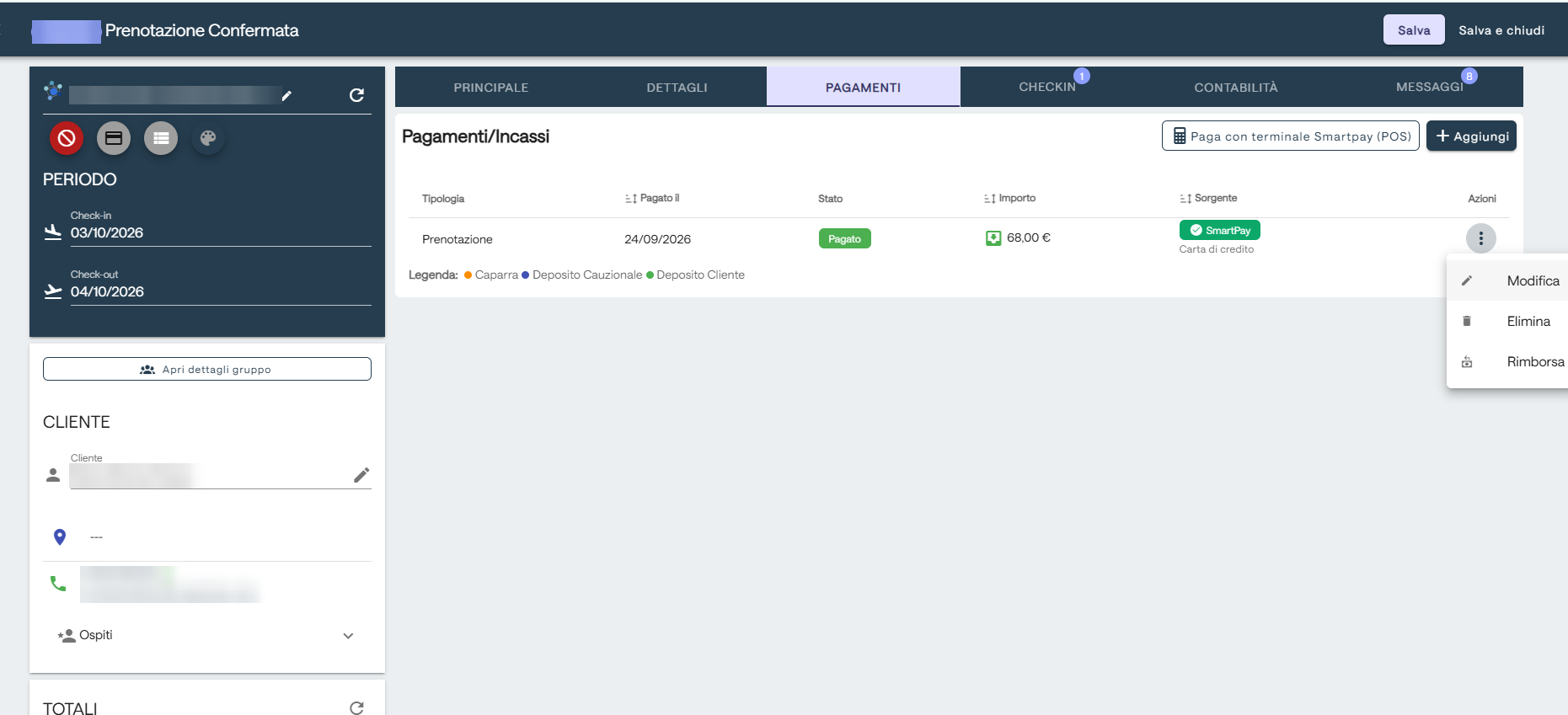
In the Payments section of the booking, you will find payments already received and those scheduled by Smartpay, with amount, dates, and status. From here you can:
- View scheduled notifications: see the dates on which the guest will receive the requests and reminders;
- Copy the payment link, to send it yourself to the guest (email, WhatsApp, or other channel);
- Delete a scheduled request;
- Add payment request: create a custom request by indicating description and amount;
- Add received payment: record a collection that occurred outside of Smartpay (bank transfer, cash);
- Manual entry: charge a card immediately for which the guest has given you the details (see below);
- Charge deposit: collect the pre-authorized security deposit;
- Mark as paid: record as paid a request that the guest has settled outside of Smartpay;
- Pay with terminal: collect in person with a Smartpay POS terminal;
- Refund: return all or part of a payment already collected.
Charging a card with Manual entry
If the guest gives you their card details, for example by phone, you can charge it immediately without sending them a link. In the Payments section of the booking:
- click Add and choose Manual entry;
- indicate the Amount to be charged, add a Description, and click Continue;
- enter the card details and click Pay.
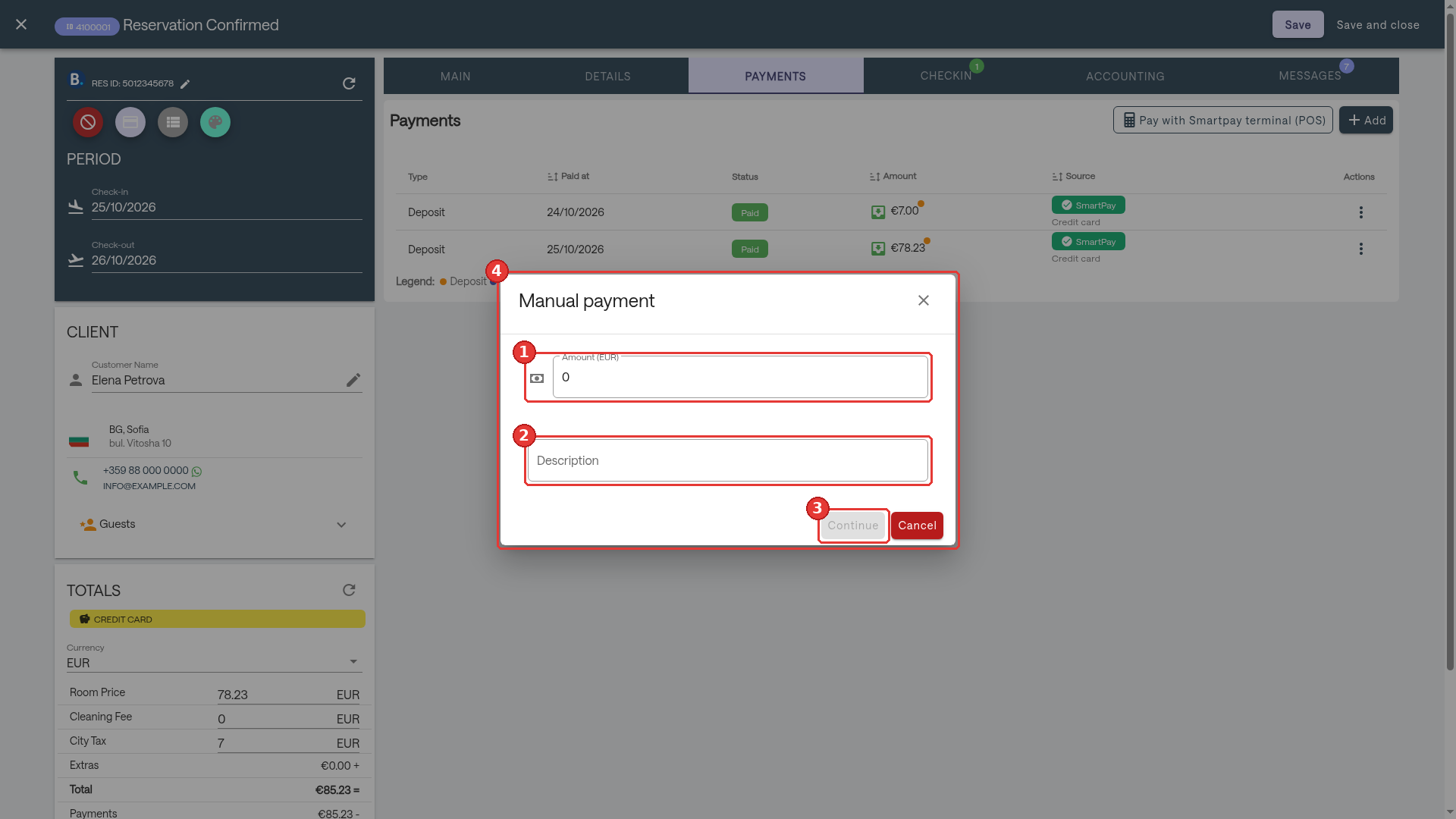
How the charge works:
- you can use any card: a real guest card or a virtual card;
- the amount is charged immediately, without the guest's confirmation with 3D Secure: use it only with their consent;
- the card's bank may still refuse the charge.
If you prefer to avoid a charge without 3D Secure, use Add payment request: the guest receives the link and confirms the payment themselves from the payment page.
Payment notifications
To see when the guest will receive the payment request and reminders, click on the eye icon on the scheduled payment: the Payment notifications window opens with the sending dates and their status.
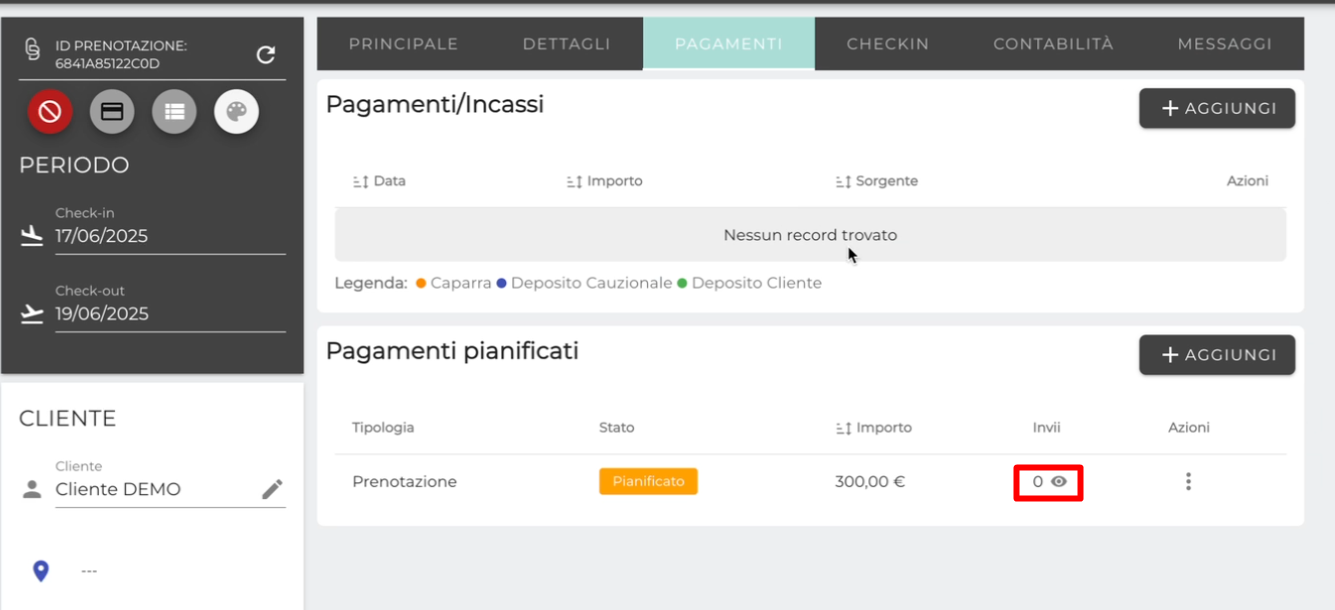
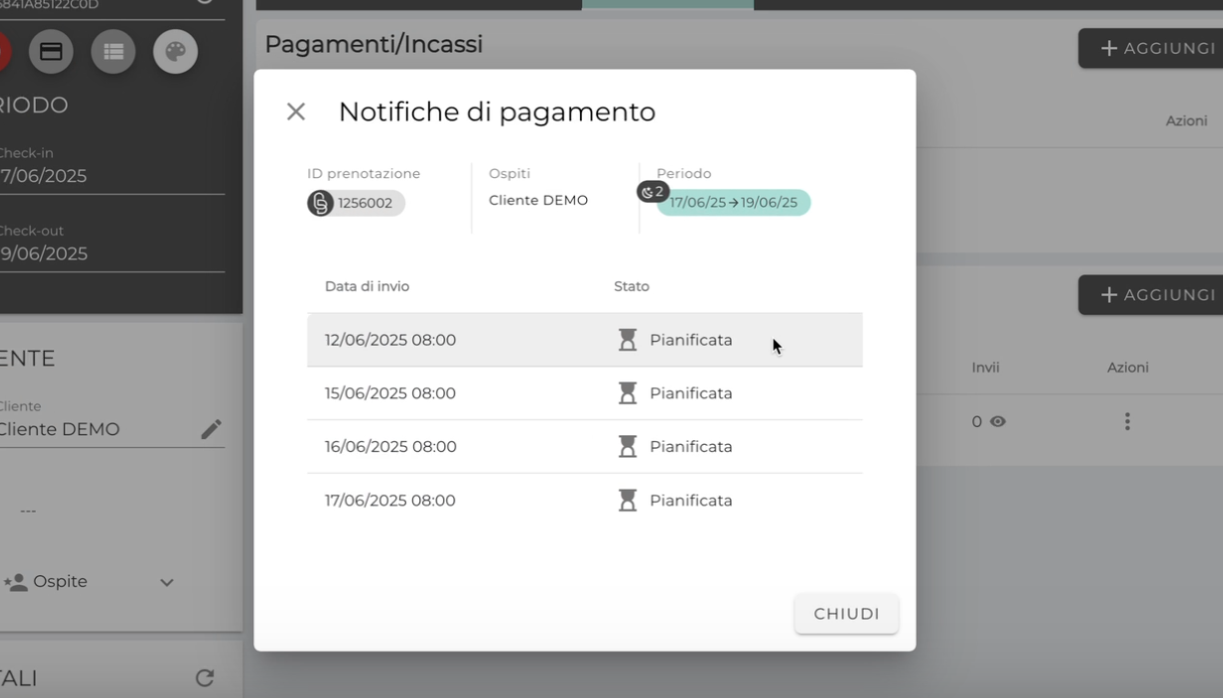
The main Payments menu collects all transactions managed by Smartpay and is the official source to verify if a payment has occurred. You can filter by date, source, and status. Even if a collection record is deleted by mistake from the booking, the payment remains visible here.
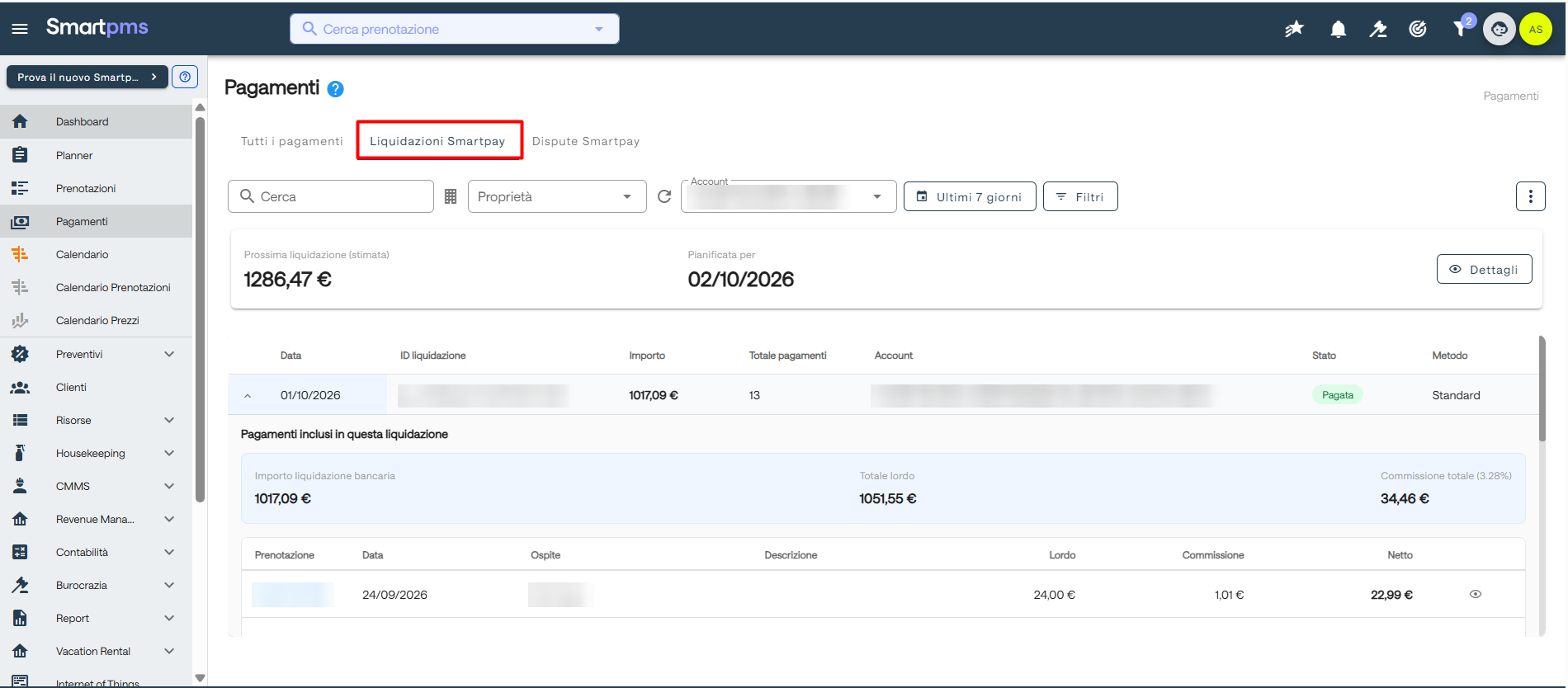
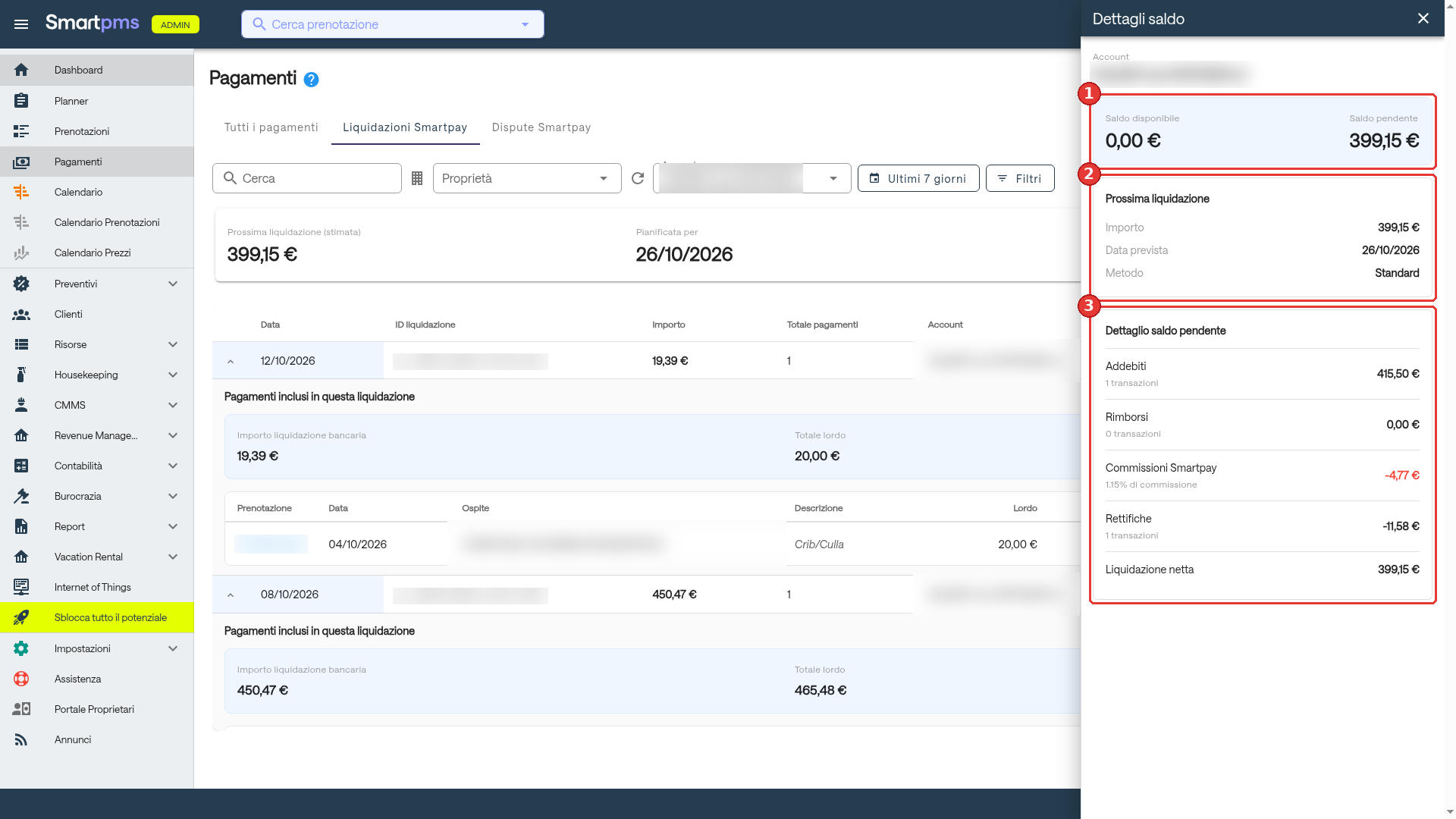
In the Smartpay settlements section, you will find, for each credit, the gross amount, the withheld commissions, and the net amount paid to your account. Clicking on Details next to the Next settlement (estimated) opens the Balance details panel, with the available balance, the pending balance, and the calculation of the next net settlement.
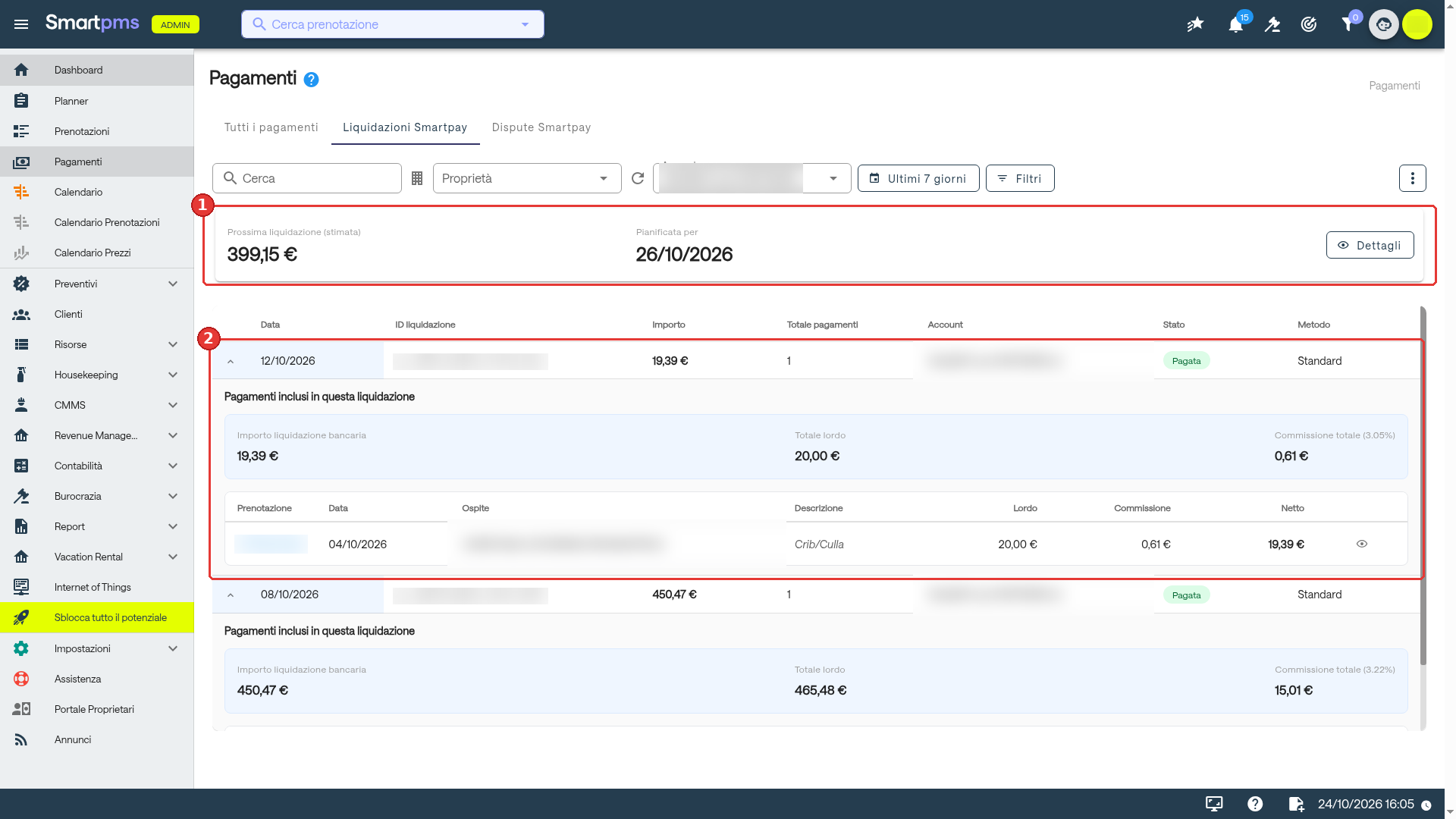
To prevent the Booking.com chat from removing payment links from messages, add the domain hub.bookpage.io to the authorized ones:
- Access your group account on the Booking.com extranet and select a property.
- Go to Property > Messaging preferences > Security settings and complete the two-factor authentication.
- Click on Add link, enter hub.bookpage.io, and confirm with Add domain.
- To apply the setting to all properties in your account, click on Apply to all properties.
Frequently asked questions
33What happens to the Smartpay payment if I change the room price before it is collected?
If the payment is still scheduled (not yet collected), Smartpay automatically updates the amount to the new booking price: you do not need to intervene manually.
If the booking includes a deposit and balance, the amounts are adjusted accordingly. If the change alters the booking's refundability conditions, Smartpay may replace the scheduled payments with new ones, keeping the total aligned with the new price.
Payments already collected are never modified: if the deposit has already been paid, only the balance still to be collected is adjusted. If the new price is lower than what the guest has already paid, consider a partial refund according to your conditions.
Why is the guest asked for the full amount even if the rate is refundable and includes a deposit?
Smartpay asks for the deposit only if, at the time of booking, free cancellation is still possible. If the booking arrives when the "Refundable before" deadline has already passed, the booking is effectively non-refundable and the full amount is requested immediately.
Example: with "Refundable before" set to 180 days from check-in, all bookings for stays in the next six months are treated as non-refundable and pay 100% upon confirmation. If you want to collect only the deposit, reduce the refundability days of the Rate plan.
Also verify that:
- in Smartpay Configuration, "Automatic sending based on the Rate plan" is selected: with "Total automatic sending upon confirmation", the full amount is always requested;
- the booking was not confirmed as non-refundable (e.g., from a quote);
- the plan deposit is not set to 100%.
On what amount is the deposit calculated?
The deposit is the percentage of the Rate plan applied to the booking amount still to be paid: room price, extras, and cleaning fees, excluding the City tax and net of payments already received.
Example: room €500, cleaning €50, City tax €20, no payment yet received, 30% deposit. The deposit is 30% of €550, i.e., €165. The balance is created for the full amount (€550) and drops to €385 as soon as the guest pays the deposit. The City tax is not included in either request.
Is the City tax included in Smartpay payments? How do I make them pay it?
No. Smartpay always excludes the City tax from booking payment requests. With Smartpay, the tax is collected during the Self Check-in: in Smartpay Configuration, you can make the tax payment in the Self Check-in mandatory, optional, or exclude it.
The tax payment via Self Check-in is available only if Smartpay is active and linked to the property. It also works on bookings from portals you have included among the excluded sources, because the exclusion only blocks the automatic collection of the stay: for example, with Booking.com excluded, the guest of a Booking.com booking can still pay the tax in the Self Check-in. Received payments appear in the Payments menu along with other collections.
If you want to use Smartpay only for the City tax, without charging for the stay, set Booking payment request to Not active: the guest will still be able to pay the tax in the Self Check-in.
Does the guest receive reminders for the deposit too?
No. The deposit request is sent only once, upon booking confirmation. Weekly reminders and those 2, 1, and 0 days from check-in concern the balance (or the full amount, if there is no deposit). If the guest does not pay the deposit, you can copy the payment link from the booking and send it to them again.
I set a deposit, but on a booking with a virtual card, the entire amount was charged. Is this normal?
Yes. OTA virtual cards are always charged for the full amount starting from the activation date indicated by the portal, regardless of the deposit provided by the Rate plan. The deposit applies only when a payment request is sent to the guest.
How do I send the payment request earlier or later?
The timing of the balance request depends on the "Refundable before" field of the Rate plan: Smartpay sends the request on the day the booking becomes non-refundable. To advance or postpone it, modify that value in Settings > Property > Property settings > Units and Rates > Rate plans.
Do not create a "payment request" message template: Smartpay does not use templates and would continue to send its own request, so the guest would receive two different emails for the same payment.
Can I have different payment rules for different channels?
Yes. Create a dedicated Rate plan with the conditions you want to apply to that channel (e.g., "Standard Booking" with 14-day refundability) and map it to the corresponding portal plan. Bookings arriving from that portal will follow the rules of the dedicated plan, while others will continue to follow existing plans.
If I modify a Rate plan, does anything change for bookings already received?
No. Existing bookings maintain the conditions valid at the time they were created, because those are the ones accepted by the guest. New rules apply to new bookings.
Can I connect my existing Stripe account?
No. During Smartpay activation, a new dedicated payment account is created. You can still enter the same company and contact details you already use.
Can I use Smartpay only for some properties or with different accounts for different properties?
Yes. In Settings > Companies > Company settings > Smartpay configuration, you can create one or more Smartpay accounts and, from the Linked properties section, associate each account with one or more properties of the same company. Unlinked properties are not managed by Smartpay.
If you move a property to another account, scheduled payments not yet collected are recreated on the new account and guests receive a new payment link.
If you manage multiple companies (e.g., sub-companies), each must have its own Smartpay account.
When do I receive the money in the account? Can I change the frequency of transfers?
Collected amounts are transferred automatically to your bank account: generally, each payment arrives in a bank transfer about a week after collection, the Stripe settlement time. Transfers start on business days when there is something to be liquidated, so with many payments, you can receive transfers almost every day. The first credits of a newly activated account take longer, usually 7-14 days from the first payment. After the transfer, it generally takes a few business days, depending on your bank.
The frequency of transfers cannot be changed from the management system, but you can ask support to change it:
- weekly, indicating the day of the week;
- monthly, indicating the day of the month (e.g., the last day of the month);
- daily, if you want to return to the standard setting.
It is not possible to choose the time of the transfer, set different cadences (e.g., every 10 days), or manually start a single transfer.
The date of the next transfer can be found in Payments > Smartpay settlements, under Next settlement (estimated).
Where can I find Smartpay fee invoices?
Fees are withheld automatically on every successful payment. Every month you receive a summary electronic invoice: it is not an amount to be paid separately. You can find it in the Interchange System and on platform.smartness.com, in Administration > Billing > Documents, from where you can also download it. The section is visible only to administrator users.
Can I know how much I paid in fees for each individual apartment?
In the detail of each Smartpay settlement, you will find the gross amount, fees, and net of each transaction. If an account is linked to multiple properties, settlements are grouped by account: to trace the accommodation of a transaction, use the booking ID indicated in the detail. At the moment, there is no fee export broken down by apartment.
Why was no payment request created for a booking?
Check these points:
- The booking property is linked to a Smartpay account (Smartpay Configuration > Linked properties) and the Booking payment request is not set to "Not active".
- The booking channel is not among the excluded sources. Airbnb is always excluded.
- The booking payment method is not Bank transfer, Cash, On arrival, or Prepaid and payment on arrival is not indicated: in these cases, the automatic request is not created.
- It is not a quote or an option not yet confirmed, a block, a booking already fully paid or already paid with Smartpay from the Booking Engine, nor a booking with check-out already passed.
- The booking was not created before Smartpay activation. In that case, enable payments from the payment details of the individual booking or create a request with "Add payment request". The option "Apply to bookings created before Smartpay activation" is chosen only at the first configuration: activating it later requires deactivating Smartpay, canceling links already planned and sent.
- If the booking is with an OTA virtual card, no request is sent to the guest: the card is charged automatically from the activation date.
If everything is correct, you can manually create a request from the booking Payments section with "Add payment request".
The guest paid by bank transfer or cash: how do I stop the reminders?
From the booking Payments section, delete the scheduled request, so Smartpay no longer sends reminders, and record the collection with "Add received payment".
If you already know during the entry phase that the guest will pay outside of Smartpay, set the payment method to Bank transfer, Cash, or On arrival: in this case, Smartpay does not create any request.
How does the security deposit work with Smartpay?
In Smartpay Configuration > Settings select "Automatic pre-authorization sending at check-in" and indicate the amount. On the day of check-in, the guest receives a link with which they must authorize the blocking of the amount on their card: the amount is not collected.
To collect it, in the Payments section of the booking choose "Charge deposit" on the deposit payment, enter the reason and confirm: the entire pre-authorized amount is charged. If you do not request the charge, the release occurs automatically the morning after check-out (by 9:00 CET).
The pre-authorization remains valid until the day after check-out for stays of up to 6 nights; for stays of 7 nights or more it expires 7 days after check-in. After expiration, the deposit must be managed manually and a warning appears in the booking. The deposit is requested only if, when the booking arrives, there is an amount left to be paid with the guest's card: it is not requested on bookings that arrive already fully paid, with an OTA virtual card, with a Bank transfer, Cash, On arrival or Prepaid payment method, or from an excluded source. If the guest settles the stay after the booking is created, the already scheduled deposit remains valid.
In the Booking.com chat, the payment link is removed: what should I do?
Booking.com blocks links to unauthorized domains. Add hub.bookpage.io to the approved domains: from the extranet, go to Property > Messaging preferences > Security settings, complete the two-factor authentication, click on Add link, enter hub.bookpage.io, and confirm with Add domain. Use "Apply to all properties" to extend it to the entire account.
Can I exclude some card circuits, for example American Express?
At the moment, it is not possible to deactivate individual card circuits in Smartpay: all supported ones are accepted.
When does the automatic collection of OTA virtual cards (VCC) occur and why does the email notification not arrive?
The automatic collection of virtual cards (VCC) transmitted by OTAs like Booking.com and Expedia is managed by Smartpay according to two precise operational logics:
- Processing times (nightly process): The automatic charging of virtual cards does not happen instantly at the time of booking, but is executed via an automated batch process during the night, starting from the activation date indicated by the portal (or from the check-in date if not specified).
- Advance bookings: the card is charged during the nightly cycle starting from the VCC unlock date.
- Last-minute bookings (for the same day): if a booking is made for the same day of arrival (e.g., in the afternoon), the card is processed in the first useful nightly cycle and will result as collected the morning after the day of arrival. If you need to verify or collect the card immediately before the nightly cycle, you can still perform the manual charge from the booking card.
- No email notification to the guest: On bookings with OTA virtual card, Smartpay automatically disables the sending of payment emails to the guest. This is because the card belongs to the OTA and the email address present in the booking is a temporary alias of the portal (e.g.,
@guest.booking.com). The guest must not receive payment links (PayByLink) or receipts. The credit is always verifiable in real-time within the booking card and in the main Payments menu of SmartPMS.
If I activate Smartpay, does it also manage portal (OTA) bookings? How do I exclude them?
Yes. When the Booking payment request is not set to "Not active", Smartpay also manages bookings arriving from portals:
- for bookings with guest card, it sends a payment request link;
- it automatically charges bookings with virtual card from the activation date indicated by the portal.
If for one or more portals you prefer to continue collecting as you do today, go to Settings > Companies > Company settings > Smartpay configuration, open the account, and select those portals in the Booking sources to exclude field. Airbnb is already excluded by default.
The exclusion applies to future bookings. If an excluded portal already had scheduled payments, these are deleted.
Do not exclude the Booking Engine source: in that case, card payment will disappear from your booking site.
In my Booking Engine, the confirmation page is blank and guests cannot book: what do I check in Smartpay?
The Booking Engine shows the guest only active payment methods. If Smartpay is the only method on your site and it is not active, at the Confirmation step there is nothing to show and the page remains blank, with any room and date.
Go to Settings > Companies > Company settings > Smartpay configuration, open the account, and check:
- Booking payment request: it must not be set to "Not active". Choose "Automatic sending based on the Rate plan" or "Total automatic sending upon confirmation";
- Linked properties: the property must be associated with the account;
- Booking sources to exclude: the Booking Engine source must not be excluded.
Save and try a booking from an incognito window: at the Confirmation step, you should see the card payment.
If you do not want to use Smartpay, you can activate another method in Settings > Booking Engine > Payments, for example, bank transfer: in this case, bookings enter Pending and you confirm them after verifying the credit.
How do I refund a Smartpay payment to the guest, even partially?
Open the booking, go to the Payments section, and on the collected payment row (status Paid), open the actions menu (⋮) and choose Refund.
In the Refund payment window, the Refund amount field is already filled with the entire paid amount:
- for a total refund, confirm as is;
- for a partial refund, enter a lower amount. You cannot exceed the payment amount.
You can make multiple partial refunds on the same payment, until the paid amount is reached.
The refund is processed in a queue: after a few moments, the payment results as Refunded. The refunded amount is subtracted from the next Smartpay settlement and appears in the total refunds of the Payments menu. The time it takes for the guest to see the credit on the card depends on their bank.
The pre-authorized security deposit is not refunded: if you do not collect it, the release is automatic.
How do I read the detail of Smartpay settlements? Why is the credit lower than the collections?
Go to Payments > Smartpay settlements and select property and account. At the top, you will find the Next settlement (estimated) and the date it is Scheduled. The table lists settlements already made: date, settlement ID, amount, number of payments, account, status (e.g., Paid or In transit), and method.
Detail of a settlement already made. Click on the row to open it: you see the Bank settlement amount, i.e., what arrived in the account, the Gross total, the Total fee, and the list of included payments with date, guest, description, gross, fee, and net.
Detail of the next settlement. Click on Details next to the next settlement: the Balance details panel opens with:
- Available balance: what can already be transferred to your account;
- Pending balance: payments collected but not yet transferred;
- Next settlement: amount, expected date, and method;
- Pending balance detail: charges (collected payments, with the number of transactions), refunds, Smartpay fees (also indicated as a percentage), and adjustments (e.g., amounts withheld for a dispute), up to the Net settlement.
Net settlement = charges − refunds − fees ± adjustments. This is why the amount that arrives in the account is lower than the total collected.
Why does the balance link ask for the full amount and, added to the deposit, exceed the booking total?
It happens when the Rate plan provides for a deposit and the guest has not yet paid it.
With a deposit, Smartpay creates two payment requests: the deposit and the balance. The balance is created for the full amount of the booking and reduces to the remainder only when the guest pays the deposit. For this reason, until the deposit is paid, in the Payments section of the booking you see two amounts whose sum exceeds the total.
If you reach the balance period (the day the booking becomes non-refundable) without the guest having paid the deposit, they are asked for the full booking amount.
The guest never pays twice:
- if they pay the deposit, the balance updates itself to the remainder and subsequent reminders report the new amount;
- if they pay the balance directly for the full amount, the deposit request is canceled.
Example: booking of €2,016.20 with 30% deposit. The deposit is €604.86 and the balance is initially €2,016.20. After paying the deposit, the balance becomes €1,411.34.
The City tax is not included in either request.
If the deposit appears paid but after a few minutes the balance still shows the full amount, contact support.
Can I activate Smartpay if my company is based outside of Italy or collects in a currency other than the euro (e.g., United Kingdom and pounds)?
Yes, if the company is based in a European country where Stripe, the payment processor on which Smartpay is based, is available. For example, you can activate it in European Union countries, the United Kingdom, and Switzerland.
During activation, in Settings > Companies > Company settings > Smartpay configuration, you indicate the company's country and complete identity verification with the documents and bank details of that country. The verification result confirms that the account is enabled.
Payment requests to guests use the booking currency: if your property works in pounds, the guest pays in pounds. Collections are then credited to the bank account you indicate during verification.
If verification fails for reasons related to the country or currency, contact support.
Can I have a guest confirm a booking with just a guarantee card, without automatic charges, and charge only when I decide?
Yes. The guest can leave the card only as a guarantee, without automatic charges: the card is saved securely and you can see it in the booking via View credit card (for security, the CVC code is visible only once). You decide if and when to collect, and then you record the payment in the Payments section.
The guest enters the card from the guest area of the booking:
- Enter the booking from the calendar with a source excluded from Smartpay, for example Direct: this way no requests or automatic charges are triggered.
- In the booking, set the payment method to Credit card. The Add credit card button in the guest area appears only with this method: with Cash, for example, it does not appear.
- Send the guest the link to the guest area with a Manual Send template that uses the dynamic field Customer - Hub Link. Do not use Customer - Portal Link, which is deprecated.
- In the booking details, the guest clicks on Add credit card and enters the card. The booking status does not change: if you entered it as Pending, you confirm it yourself.
Bookings originating from a quote
If you add Quotes to the Excluded channels of Smartpay, on the quote page the guest confirms without leaving any card. To still have the card as a guarantee, after confirmation follow steps 2, 3, and 4 on the booking created from the quote.
If, on the other hand, Smartpay remains active on quotes, the card left in a refundable quote is charged automatically when the free cancellation period ends.
If I exclude the Quotes source from Smartpay, can the guest confirm the quote by leaving only the guarantee card, without automatic charges?
No. In quotes, the card is entered only via Smartpay: if you add Quotes to the Excluded channels, the quote page no longer asks for any card, even if Credit card - View only is active among the Payment methods. The guest confirms with a bank transfer, if active, or with payment at the property.
To still have the card as a guarantee without automatic charges:
- after confirmation, in the booking created from the quote, set the payment method to Credit card;
- send the guest a Manual Send template with the dynamic field Customer - Hub Link;
- in the booking details, the guest clicks on Add credit card and enters the card. You will then find it in the booking via View credit card (the CVC code is visible only once).
Good to know:
- with Quotes excluded, the guest can no longer pay online via Smartpay from quotes;
- the exclusion does not cancel or refund payments already collected;
- if you have multiple Smartpay accounts, Quotes must be excluded on each one.
I received an email stating that my Smartpay account is limited: what should I do?
You receive this email when Stripe, the Smartpay payment processor, needs updated information about your company. There are two cases:
- in limitation: the account still works, but it must be updated by the deadline indicated in the email;
- limited: the deadline has passed or the data is no longer valid. The Blocked line in the email indicates whether new payments, transfers, or both are suspended.
Where to see what is missing and how to update it
- Log in to the management software with a user who manages company payments and click the Provide information button in the email.
- Alternatively, go to Settings > Companies > Company settings > Smartpay configuration and open the account indicated in the email.
- At the top of the payment processor section, you will find a notice with a list of what is required, for example, company or owner details, an identity document, or the bank account.
- Follow the steps in the notice and submit the data and documents. If no notice appears on the page or it is unclear what is missing, contact support by forwarding the email received.
Also check Payments > Smartpay disputes: if there is a dispute or a request for information with the status "Action required", respond from there, because these must also be managed to keep the account operational.
What happens to the collections
Amounts already collected are not lost: they remain in your Smartpay account balance and are paid into your bank account when Stripe removes the limitation. Balance and transfers are visible on the same Smartpay configuration page. As long as the account remains limited, you will receive an email reminder every few days.
How do I change the IBAN on which I receive Smartpay settlements?
You change the account yourself, from the Stripe part of your Smartpay account:
- In SmartPMS go to Settings > Companies, click on Settings of your company and, in the Payments section, on Configure next to Smartpay configuration.
- Click on the pencil icon on the Smartpay account row: the Account details card opens.
- In the Stripe account box click on Access and then on Send code: Stripe sends a code via SMS to the phone number associated with the account. Enter the code.
- In the Transfer data section click on Edit.
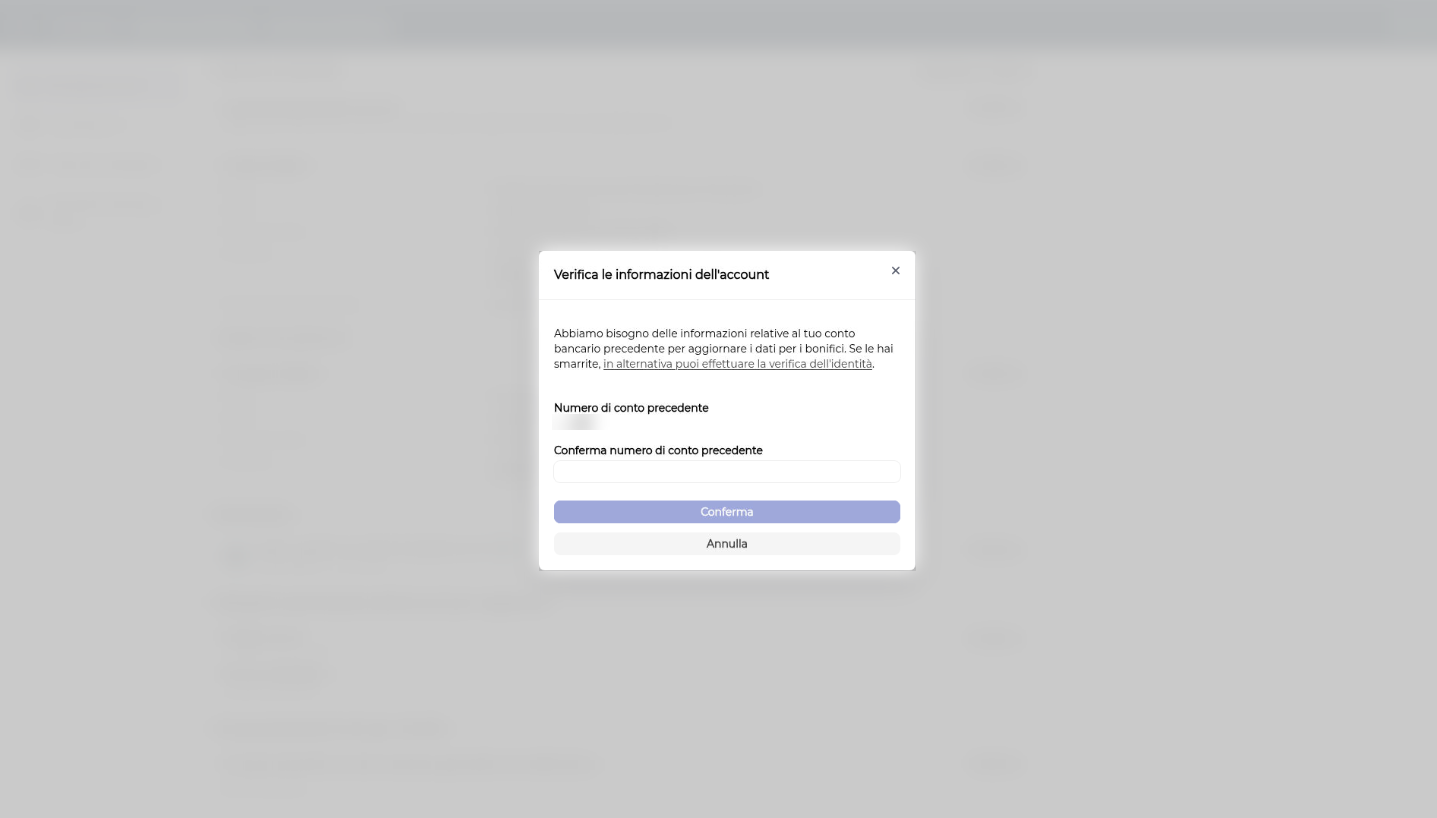
- For security, Stripe asks you to confirm the previous account number, i.e., the IBAN on which you receive transfers today. If you no longer have it, use the link for identity verification.
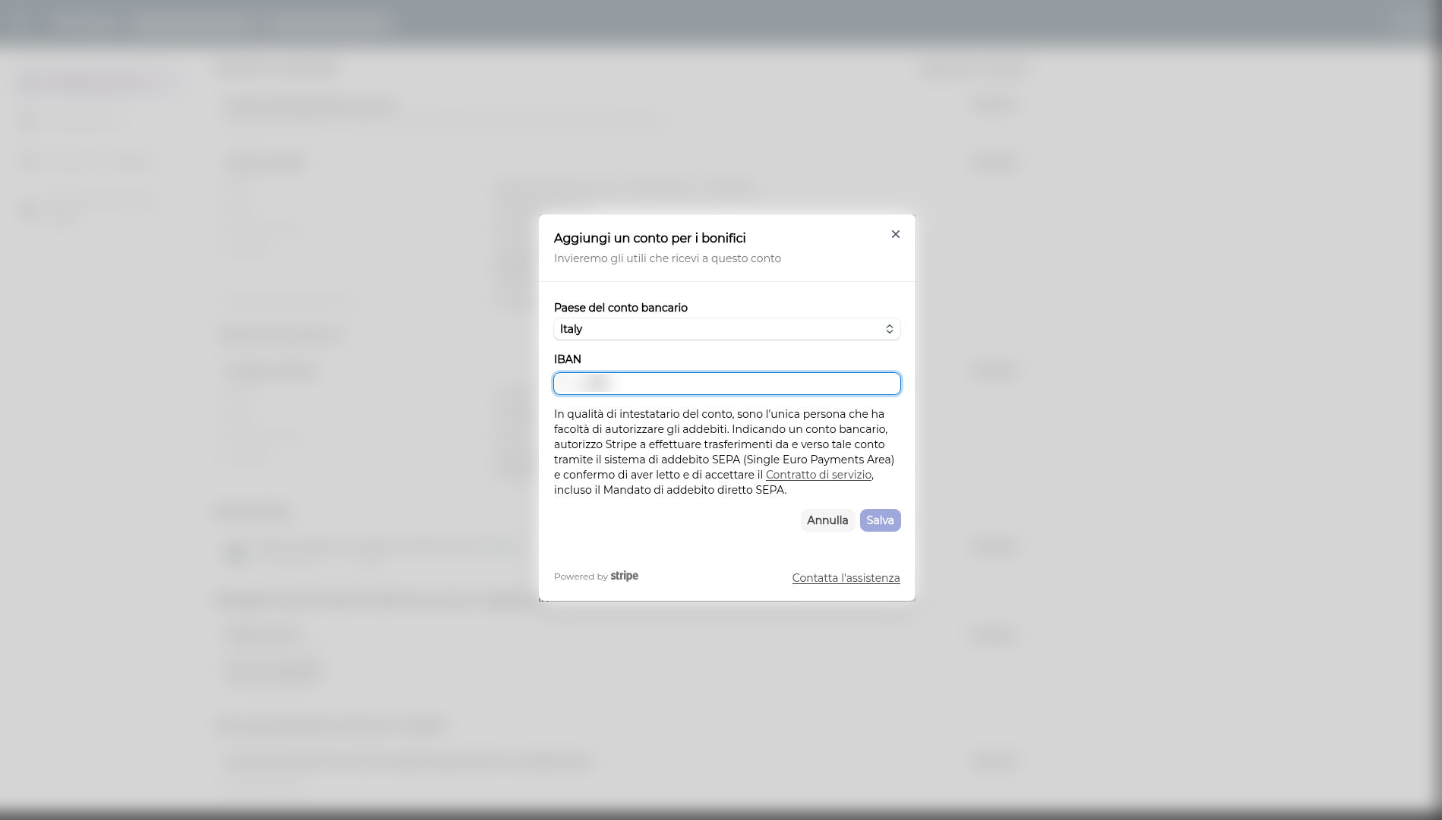
- In the Add an account for transfers window, choose the account country, enter the new IBAN, and click Save.
Do not create a new Stripe account and do not configure Smartpay again to change accounts: you would have two accounts and settlements could be blocked. A settlement already started before the change arrives in the old account.
From here you cannot change the frequency of transfers: if you want it different, contact support.
I want to use Smartpay only to send payment requests manually, without automatic sends to guests: how do I configure it?
Requests you create from the booking with Add payment request work only if Smartpay is active. With Booking payment request set to Not active, you cannot create them.
To use Smartpay only for manual requests, go to Settings > Companies > Company settings > Smartpay configuration, open the account and, in Settings:
- in Booking payment request choose Automatic sending based on the Rate plan;
- in Booking sources to exclude select all channels for which you do not want automatic requests, e.g., Direct, Booking.com, Expedia, and Quotes. Airbnb is already excluded. If you collect online from the Booking Engine, do not exclude it: otherwise, card payment will disappear from your booking page;
- leave Apply to bookings created before Smartpay activation deactivated, so existing bookings do not receive any request;
- click Save.
From that moment, bookings from excluded channels do not receive automatic requests or reminders, but you can still create a request from the Payments section of any booking with Add > Add payment request, even on those from excluded channels. Then you can copy the payment link and send it to the guest yourself.
If an error appears when saving the configuration, contact support indicating the Smartpay account.
What is the "VAT withheld on balance" that I see in Smartpay settlements? Why is the bank transfer lower?
For accounts with the IC++ commission model, from payments collected starting October 1, 2026, Smartpay sets aside on your Stripe balance the VAT due on Smartpay commissions and card network costs. This is not an extra cost: it is the same 22% VAT found in the monthly commission invoice, which is thus settled directly from the Smartpay balance instead of being paid separately.
How it works
- Every day, the amount is updated based on the current month's payments: VAT = 22% × (commissions + network costs).
- The sum remains on your Stripe balance and is deducted from the bank transfers of that period.
- When the monthly commission invoice is issued, the withheld VAT is collected to settle that invoice.
Where you can see it
- In Payments > Smartpay Settlements, the VAT withheld on balance box shows the total withheld, with the note "Already deducted from the amount above".
- The VAT on commissions and network costs detail lists the months, with the amount (commissions + network costs) and the status:
- Withheld – "Current month, updated daily" or "Invoiced, collection in progress";
- Collected – "Collected on" followed by the date.
- In the detail of a settlement, the VAT on commissions and network costs line indicates how much was set aside from that bank transfer.
- In the settlement export, there is a column dedicated to VAT.
To reconcile the account statement: bank transfer amount = gross − refunds − commissions − withheld VAT ± adjustments.
The scheduled automatic payment on the guest's card shows as "Failed": what does it mean and what should I do?
On the scheduled date, Smartpay attempted to charge the card saved by the guest, and the guest's bank declined the payment (for example, due to insufficient funds). No amount was collected.
After a decline, Smartpay does not retry the charge and does not automatically send a payment link to the guest. To collect the payment:
- send the guest a payment link from the booking, so they can pay with another card;
- or, if the guest pays in another way (for example, via bank transfer), record the payment in the booking so that the balance is correct and there are no duplicate requests.
The reason for the decline may not appear in the payment row. If you need to know why the bank declined it, write to support indicating the booking.
Related guides
Configuration
Activation
Configuration
Configuration
Configuration
How it works