

How to activate Smartpay: create the account and complete verification
Step-by-step procedure to activate Smartpay, the automatic payment collection for bookings: create the Smartpay account from company settings, accept terms, connect and verify the Stripe account, then choose payment requests, security deposits, excluded sources, and linked properties. Complete collection rules are in the general Smartpay guide.
You are in the right place if…10 cases
- “How do I activate Smartpay?”
- “Where do I create the Smartpay account?”
- “I want to automatically collect booking payments”
- “How do I connect Stripe to SmartPMS?”
- “What does Stripe ask for to verify the Smartpay account?”
- “I interrupted the Stripe verification, how do I resume it?”
- “I see a notice that my SmartPay account requires additional information”
- “I created the Smartpay account but it is not collecting payments yet”
- “Which settings should I choose when configuring Smartpay for the first time?”
- “How do I choose the properties that use Smartpay?”
Video guides · 2
With Smartpay, SmartPMS automatically collects payments for your bookings. In this guide, you will see, step by step, how to create your Smartpay account, complete verification with Stripe, and choose your initial settings.
1. How Smartpay works, in short
Smartpay follows the rules of your Rate plans and collects payments at the right time, without you having to remember:
- Virtual cards from portals (e.g., Booking.com and Expedia): Smartpay automatically charges the card for the full amount from the activation date indicated by the portal (or from check-in, if the portal does not specify one). The guest does not receive an email.
- Booking Engine: when the guest books, their card is saved securely. Non-refundable rates are charged immediately; refundable ones on the day the free cancellation period ends. If the card fails (e.g., due to insufficient funds), the guest automatically receives a payment link.
- Direct bookings and portals using the guest's card: the guest receives a payment link via email, with reminders until check-in.
The collected amounts are then transferred to your account via automatic bank transfers, net of fees: you can find them in the Payments menu, Smartpay Settlements tab.
2. Before you start
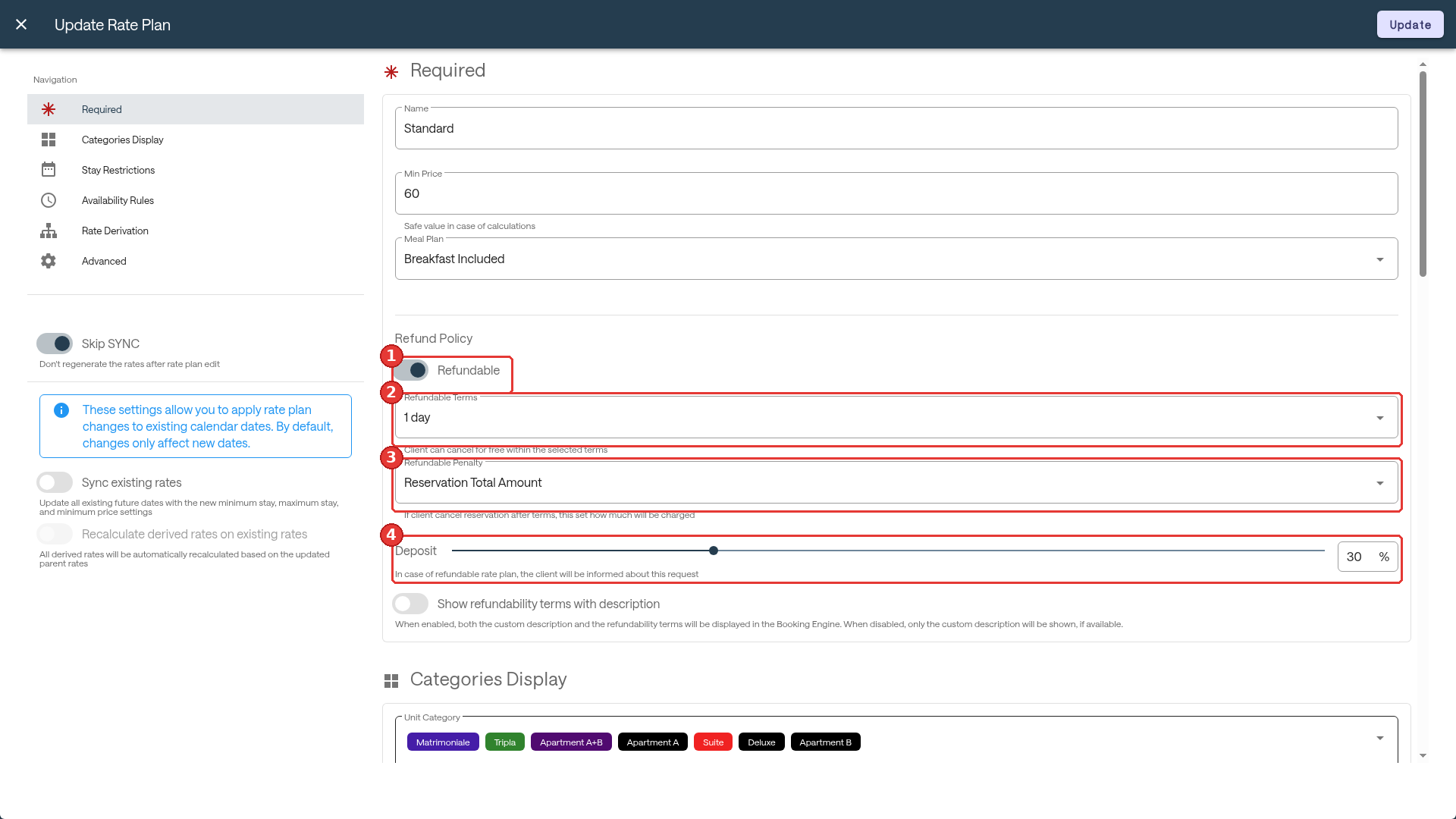
- Rate plans: check that they are correct in Settings > Property > Property settings > Units and Rates > Rate plans. For each plan, check if it is Refundable, the Refundable before field, and the Deposit percentage: Smartpay will use these rules to decide when and how much to request.
- Data to have ready for verification: company details (legal name, address, VAT number, business type, phone), details of the legal representative and beneficial owners, IBAN of the account to receive payouts, and an ID document if Stripe requests it.
- Smartpay creates a new dedicated Stripe account: you cannot connect an existing Stripe account.
3. Create the Smartpay account
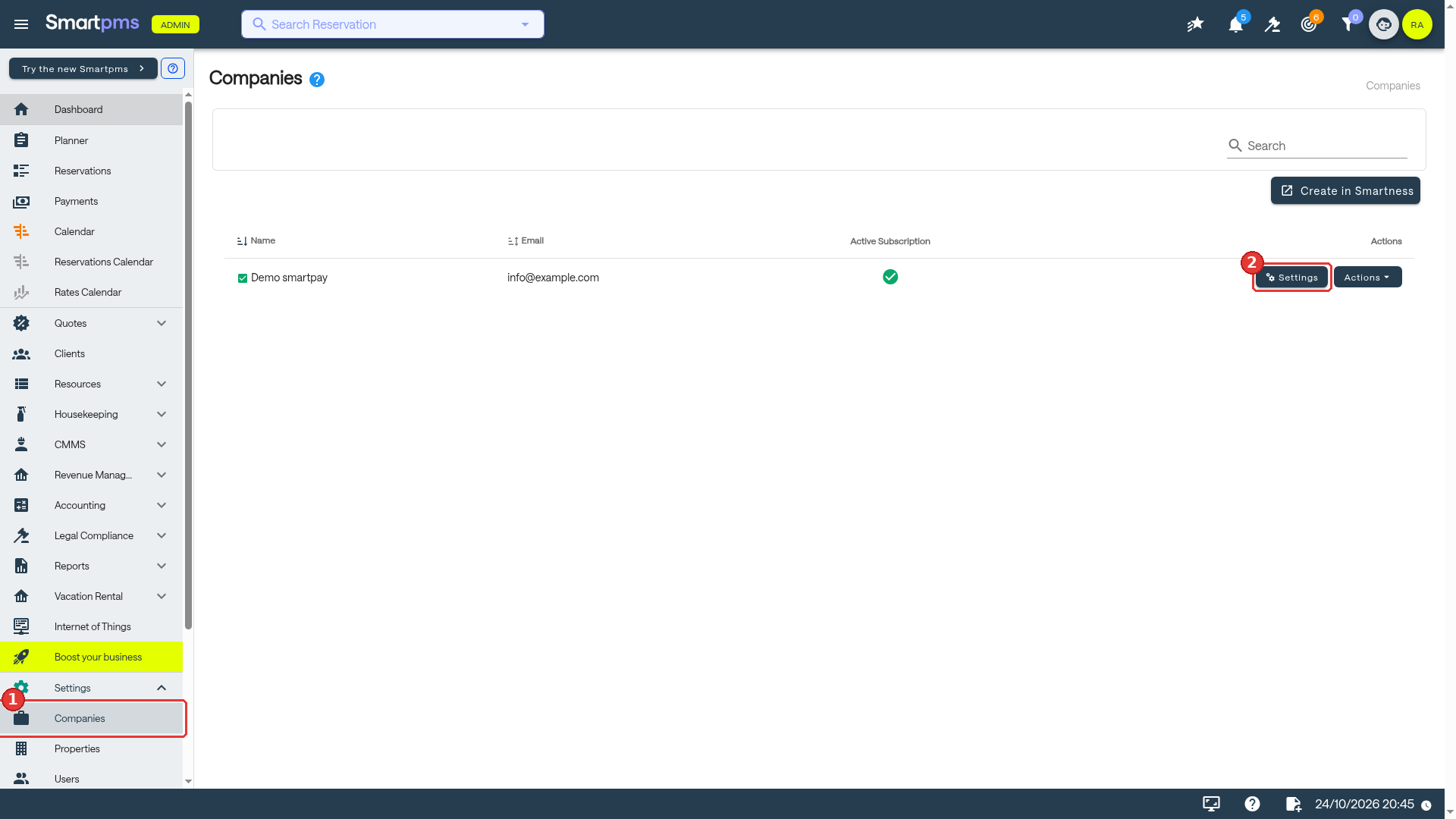
- Go to Settings > Companies (1) and click Settings (2) on the company.
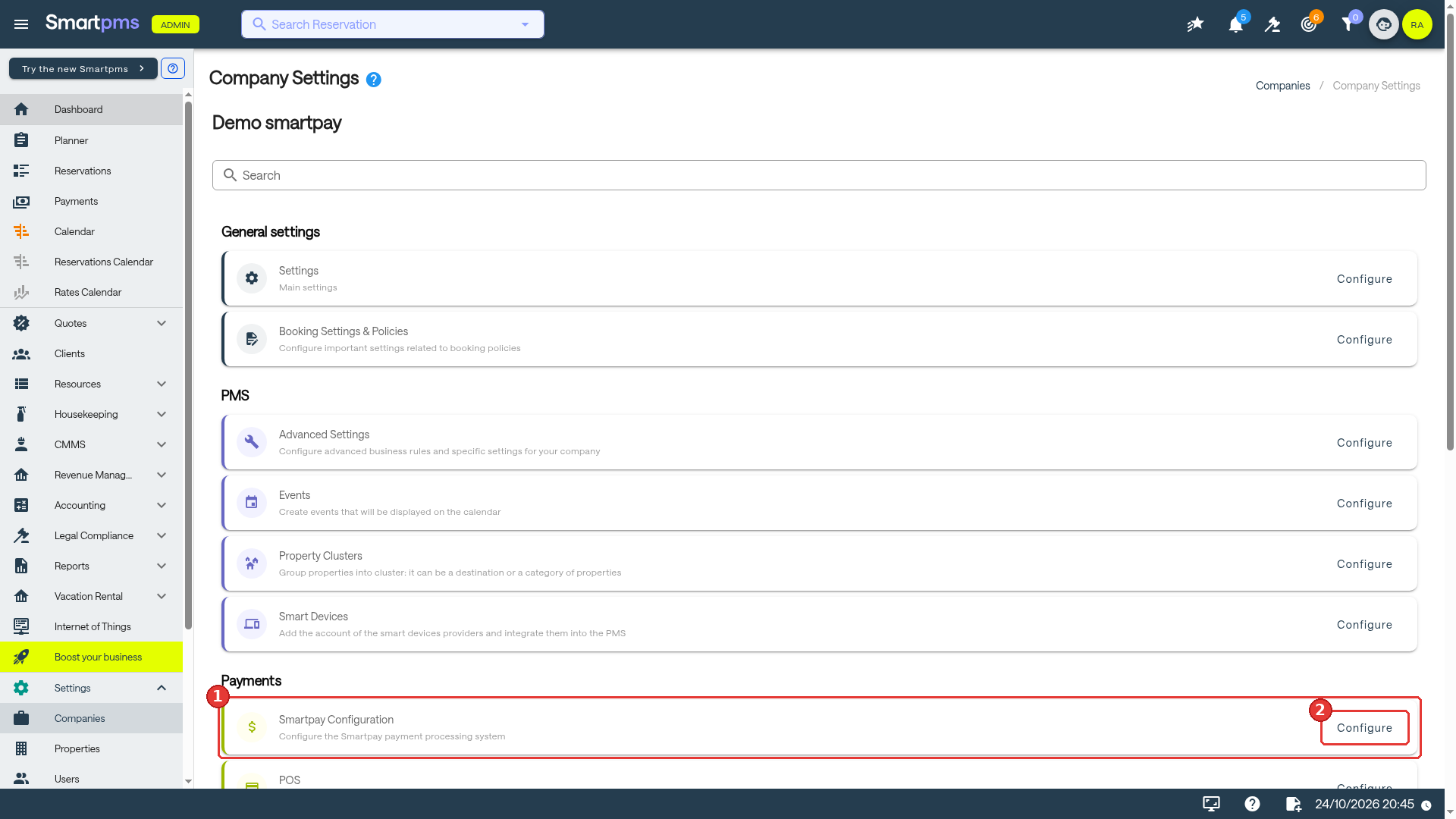
- In the payments section, you will find the Smartpay Configuration card (1): click Configure (2).
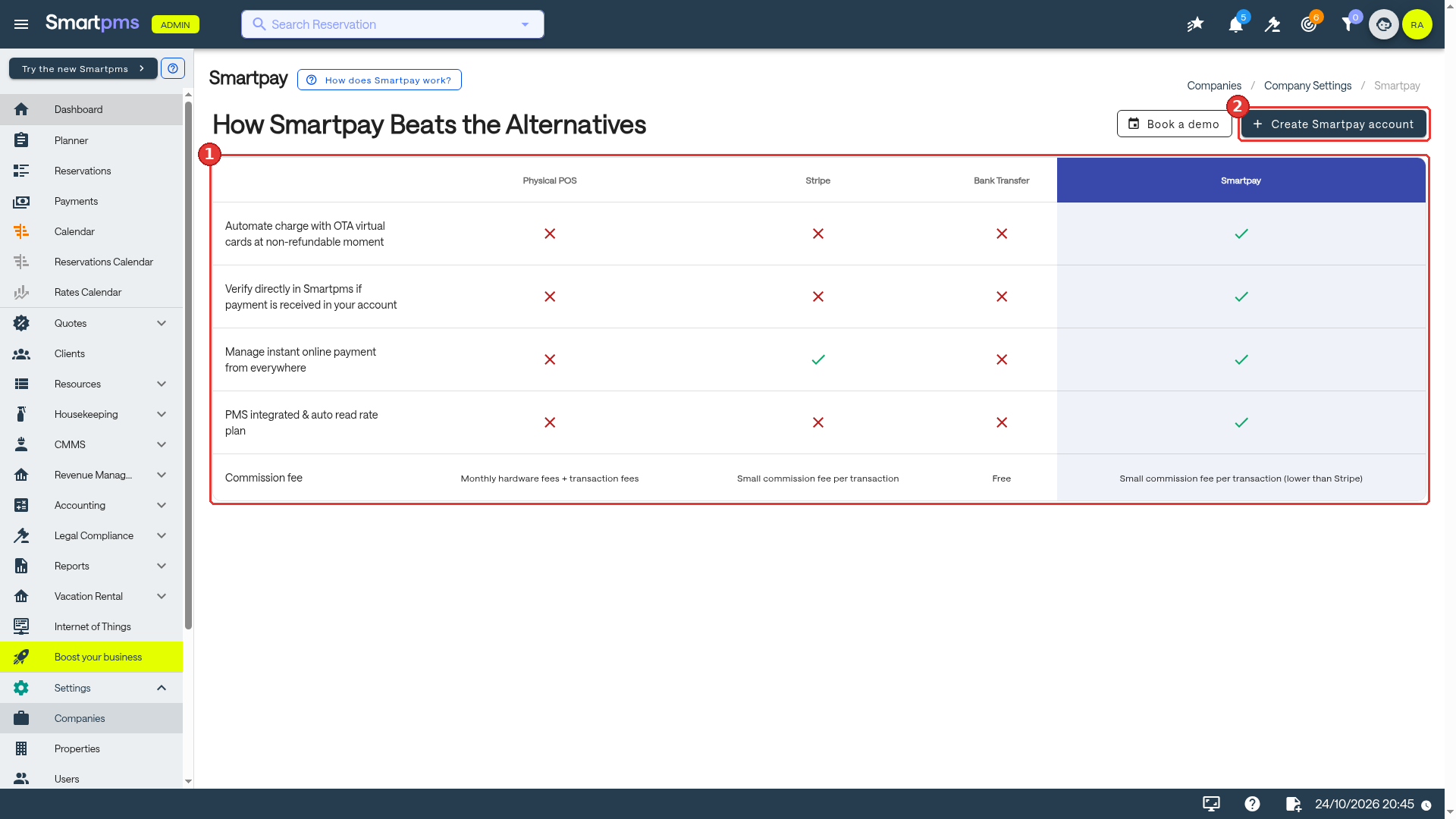
- If the company does not have an account yet, you will see a comparison of payment methods (1). Click Create Smartpay account (2).
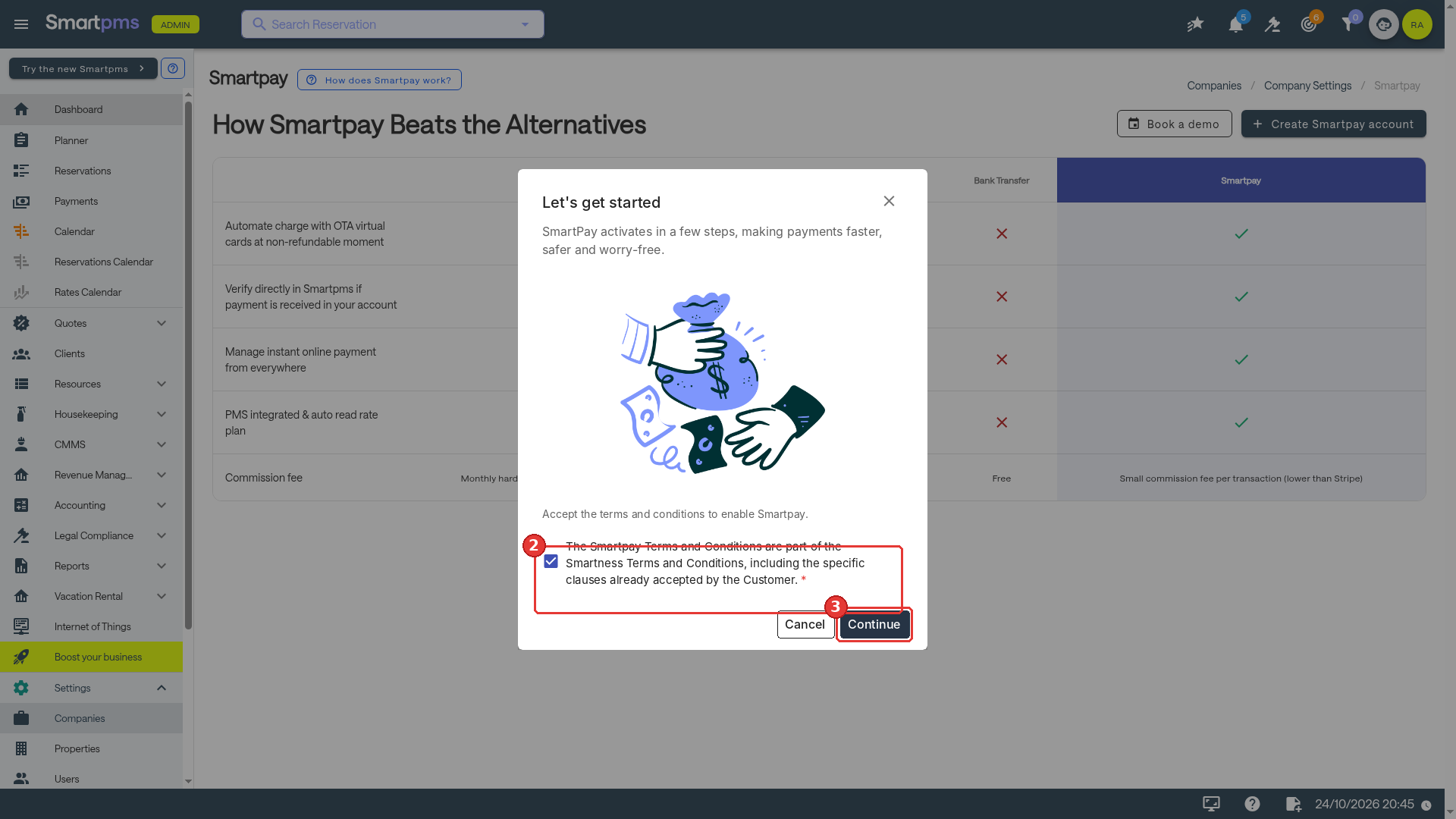
- In the Let's get started window, read the terms, check the acceptance box (2), and click Continue (3).
4. Account details and Stripe connection
The setup wizard opens in three steps: Account details, Settings, and Linked properties (1).
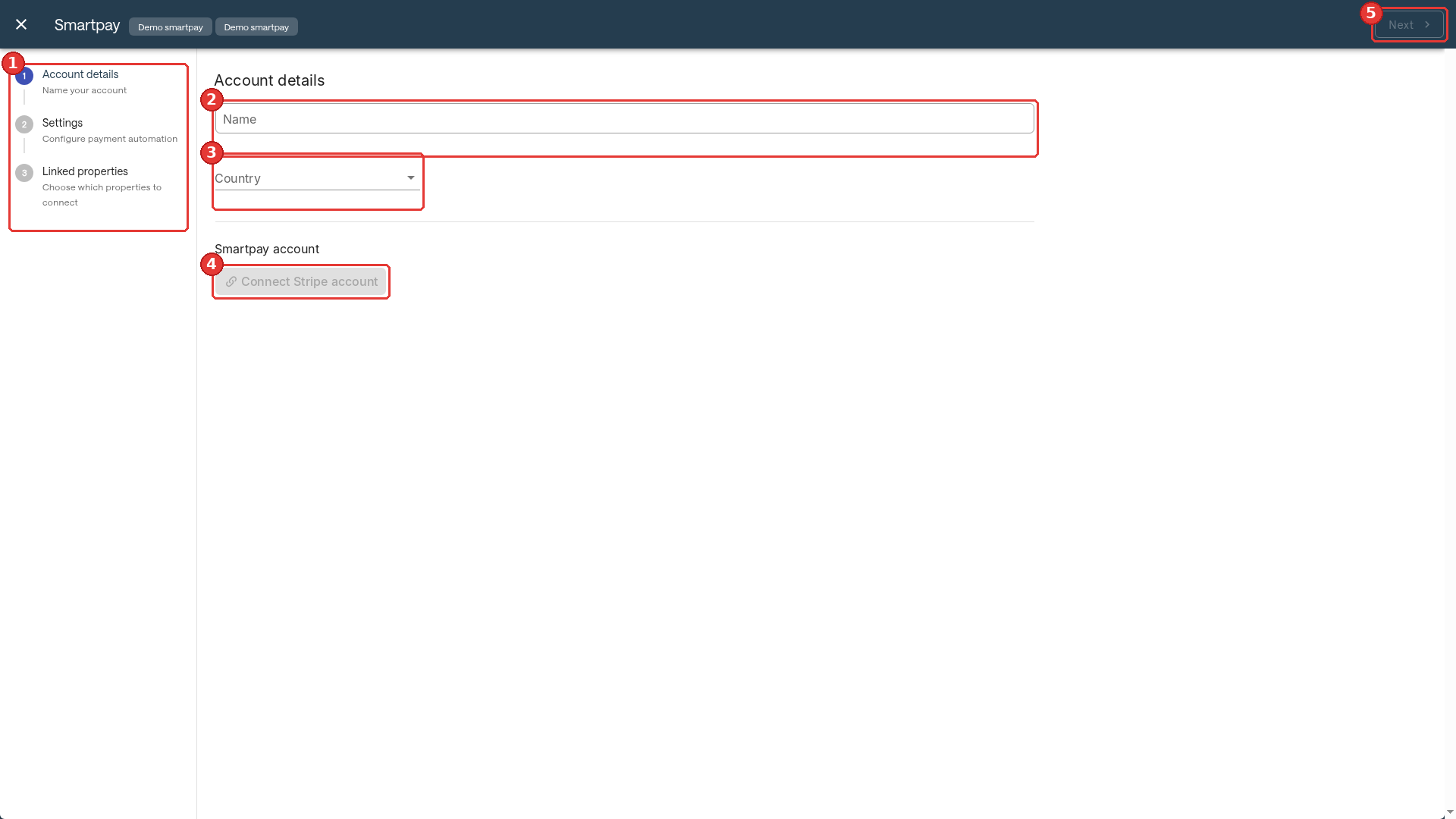
- Enter the Name of the account (2): this is the name you will recognize it by in SmartPMS, for example, the property name.
- Choose the Country (3) of the company from the list.
- Click Connect Stripe account (4).
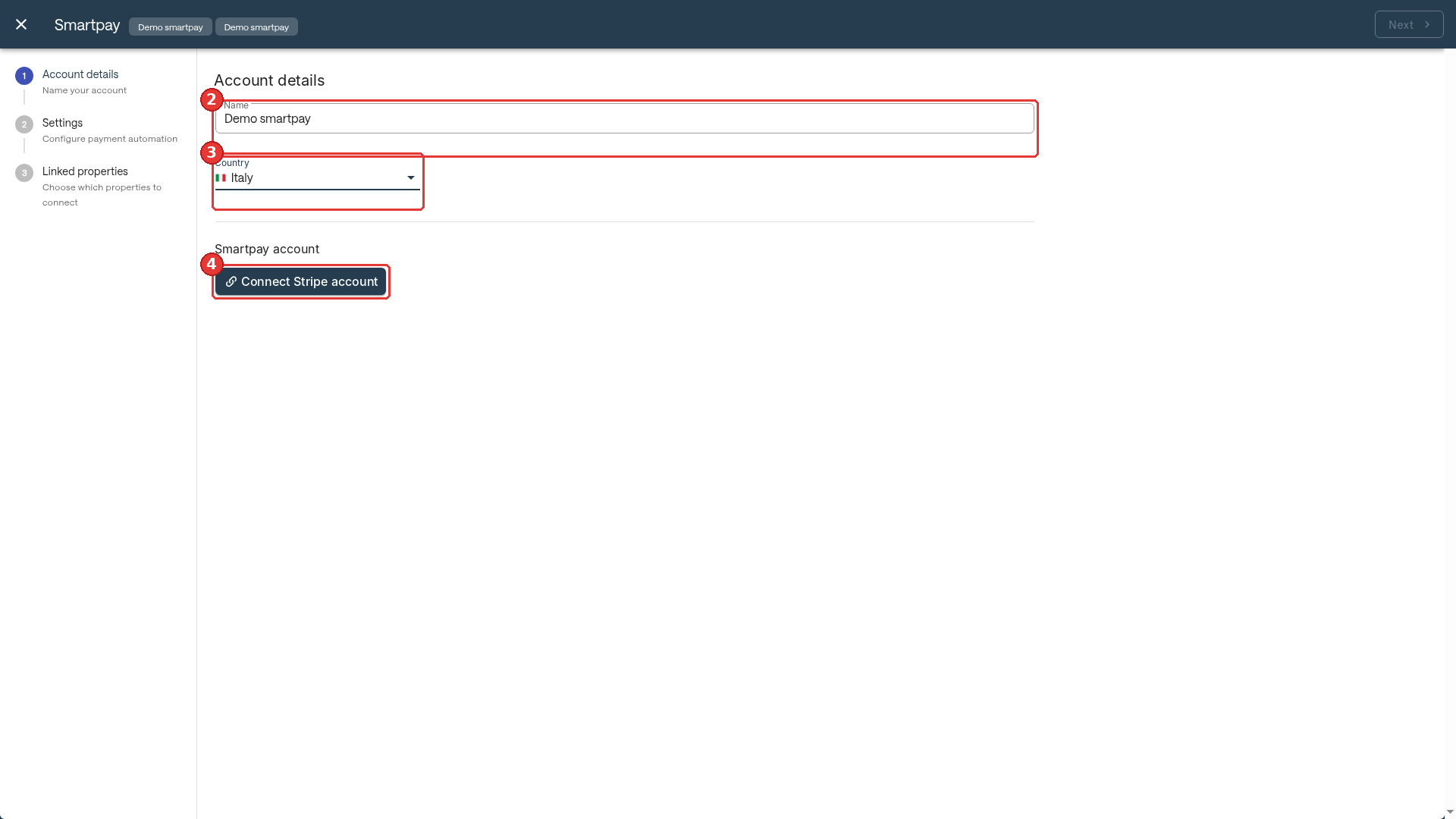
The Stripe verification process opens, the payment processor for Smartpay. Some data is already pre-filled by SmartPMS: check it and complete the missing information, up to the IBAN. Once finished, you will return to SmartPMS to continue with the settings.
5. Complete or resume verification
If you interrupt the process, or if Stripe requests more information, the account remains created but not yet enabled. To resume, open the account, Account details section: in the Stripe box (1) click Add information (2).
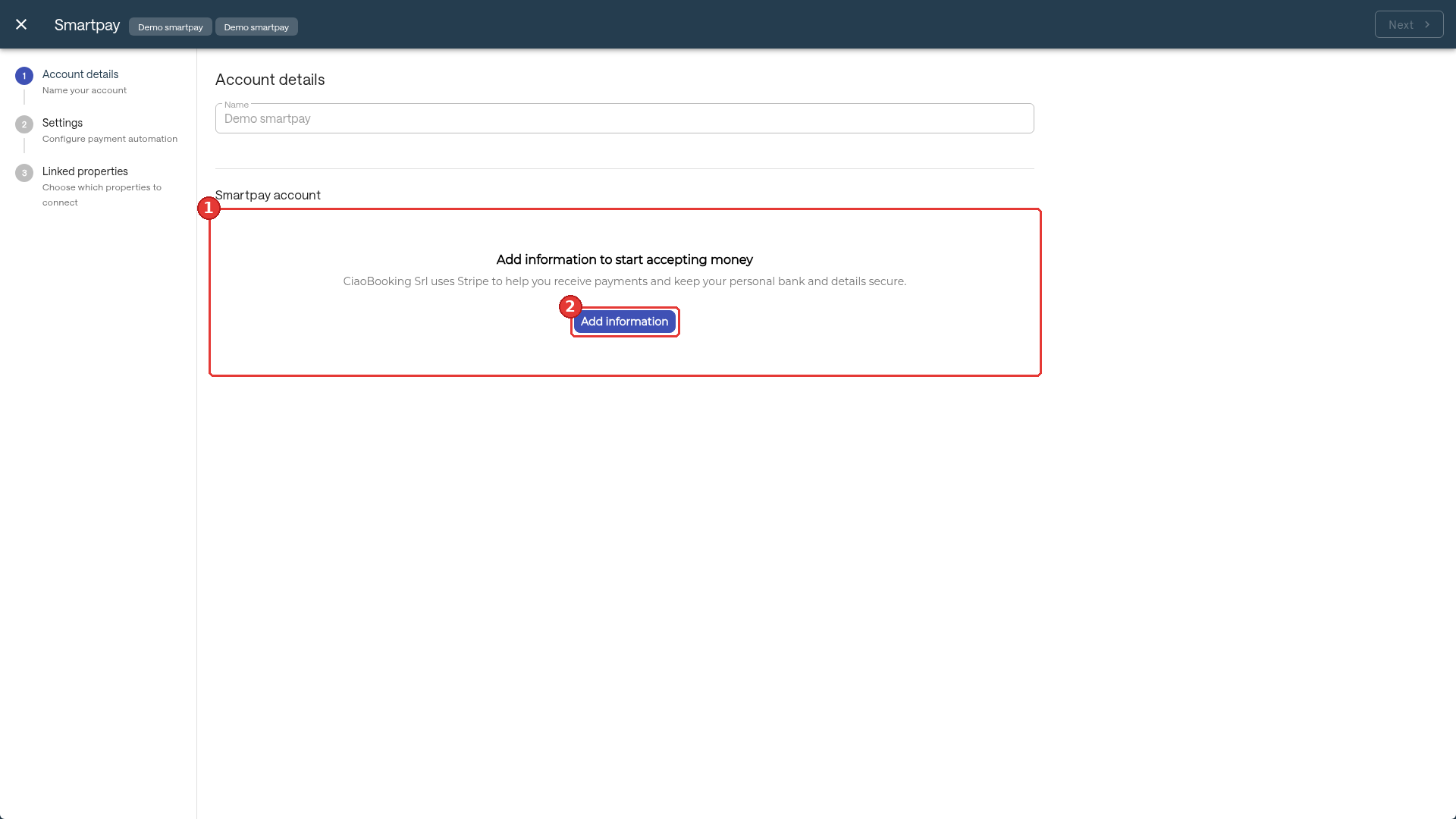
Stripe will first ask for the email address (1), then click Continue (2) and follow the screens.
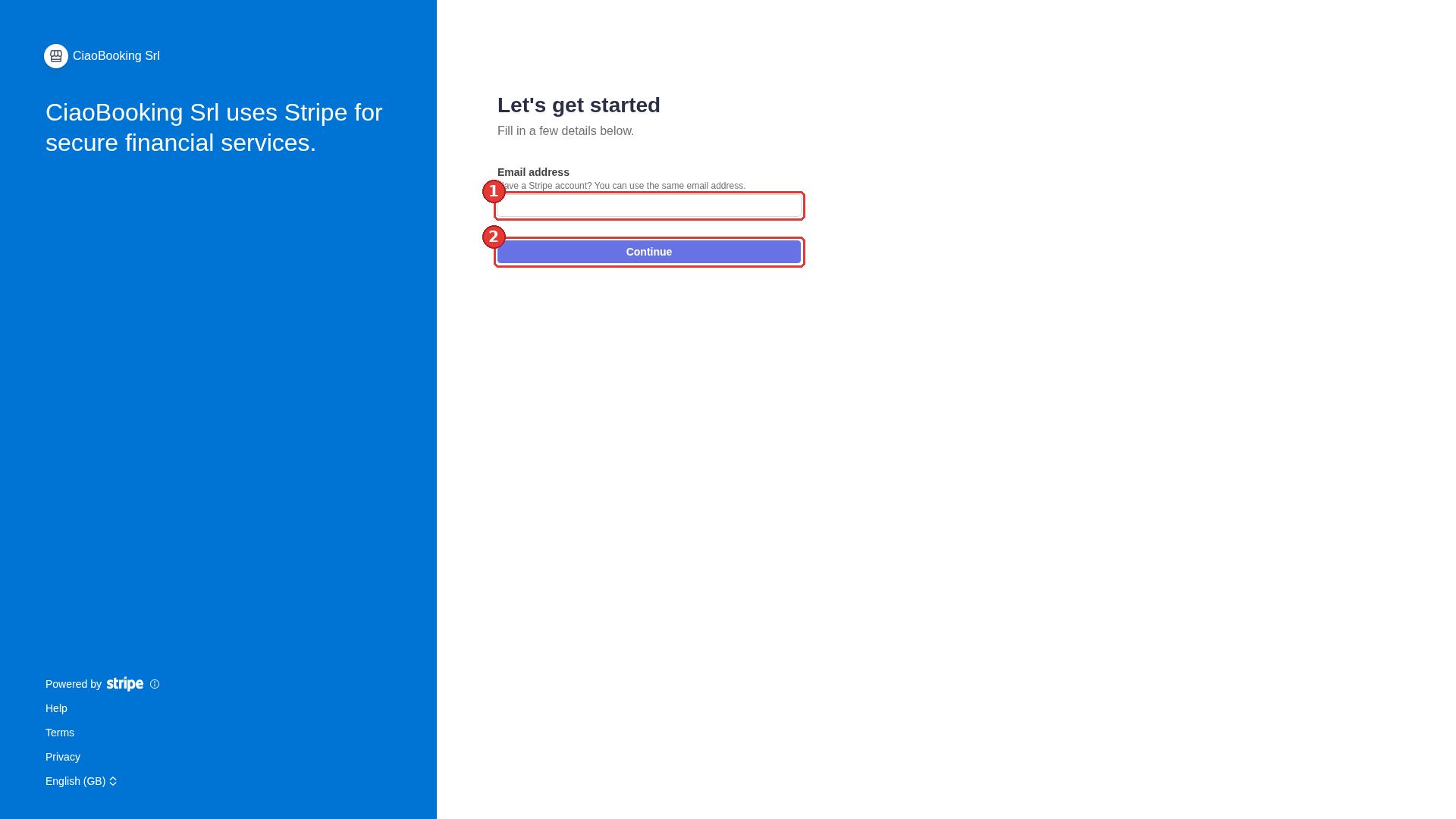
Until verification is complete, the notice "Your SmartPay account requires additional information" may appear in SmartPMS: click it to complete the data. Smartpay starts collecting payments only when Stripe has enabled the account.
6. Choose settings
Each account has four sections (1): Account details, Settings, Linked properties, and Smartpay Terminals (POS).
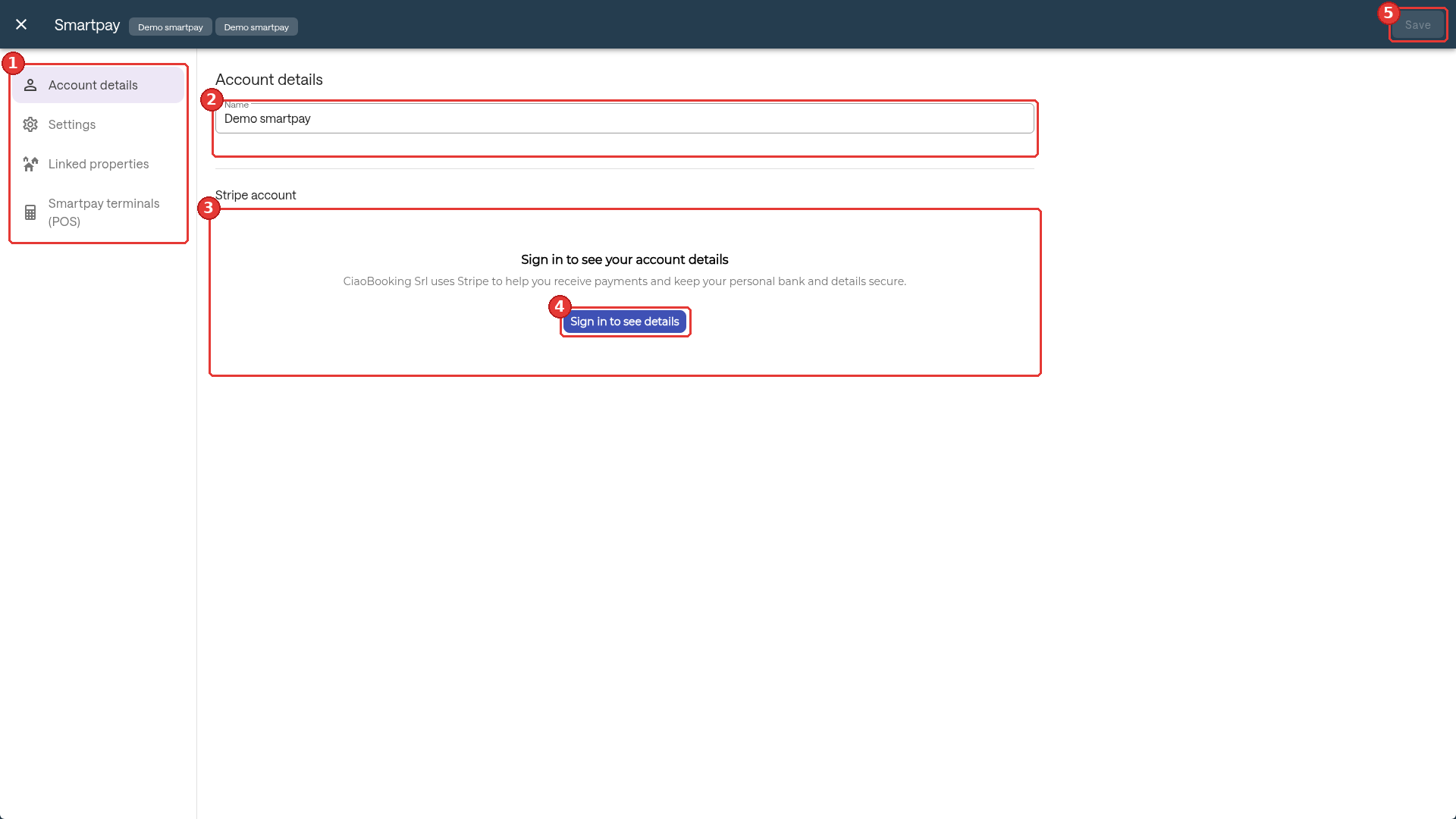
In the Settings section:
- Booking payment request: Not active (1), Automatic sending based on rate plan (2), or Total automatic sending upon confirmation (3). The second one is the most used: it follows the refundability and deposit rules of your rate plans.
- Security deposit payment: Not active (4) or Automatic pre-authorization sending at check-in (5), which blocks the amount on the guest's card without charging it.
- Apply to bookings created before Smartpay activation (6): choose carefully during the first configuration, because it cannot be activated later without reconfiguring Smartpay.
- Receive a confirmation email every time you collect a scheduled payment (7).
- Select booking sources to exclude (8): channels that Smartpay should not manage. Airbnb is excluded by default.
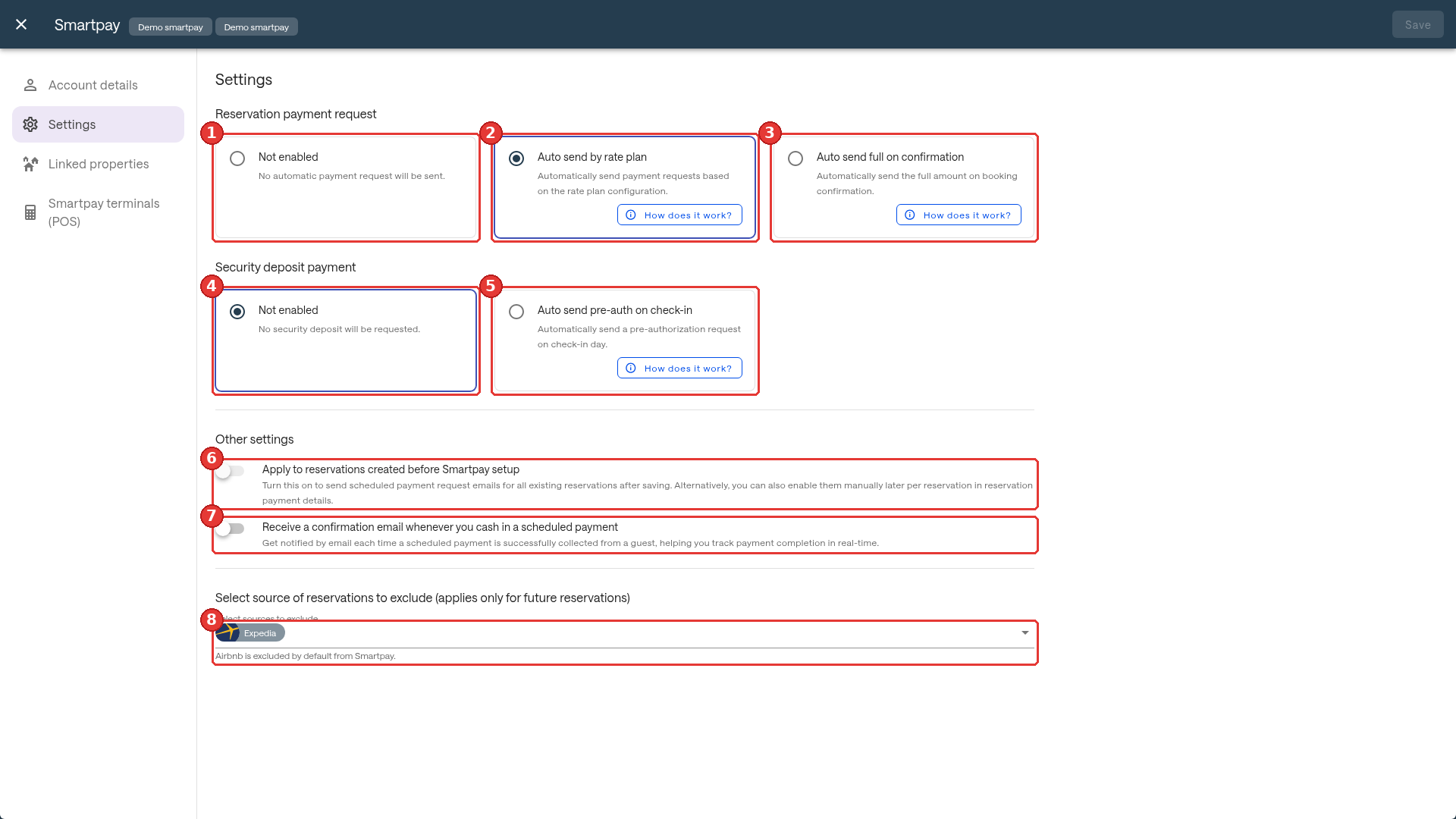
Sources are chosen from the list (9).
In the Linked properties section, check the properties that use this account: you can search for them (1), the counter (2) shows how many are selected, and each property (3) has its own checkbox. Properties that are not linked are not managed by Smartpay.
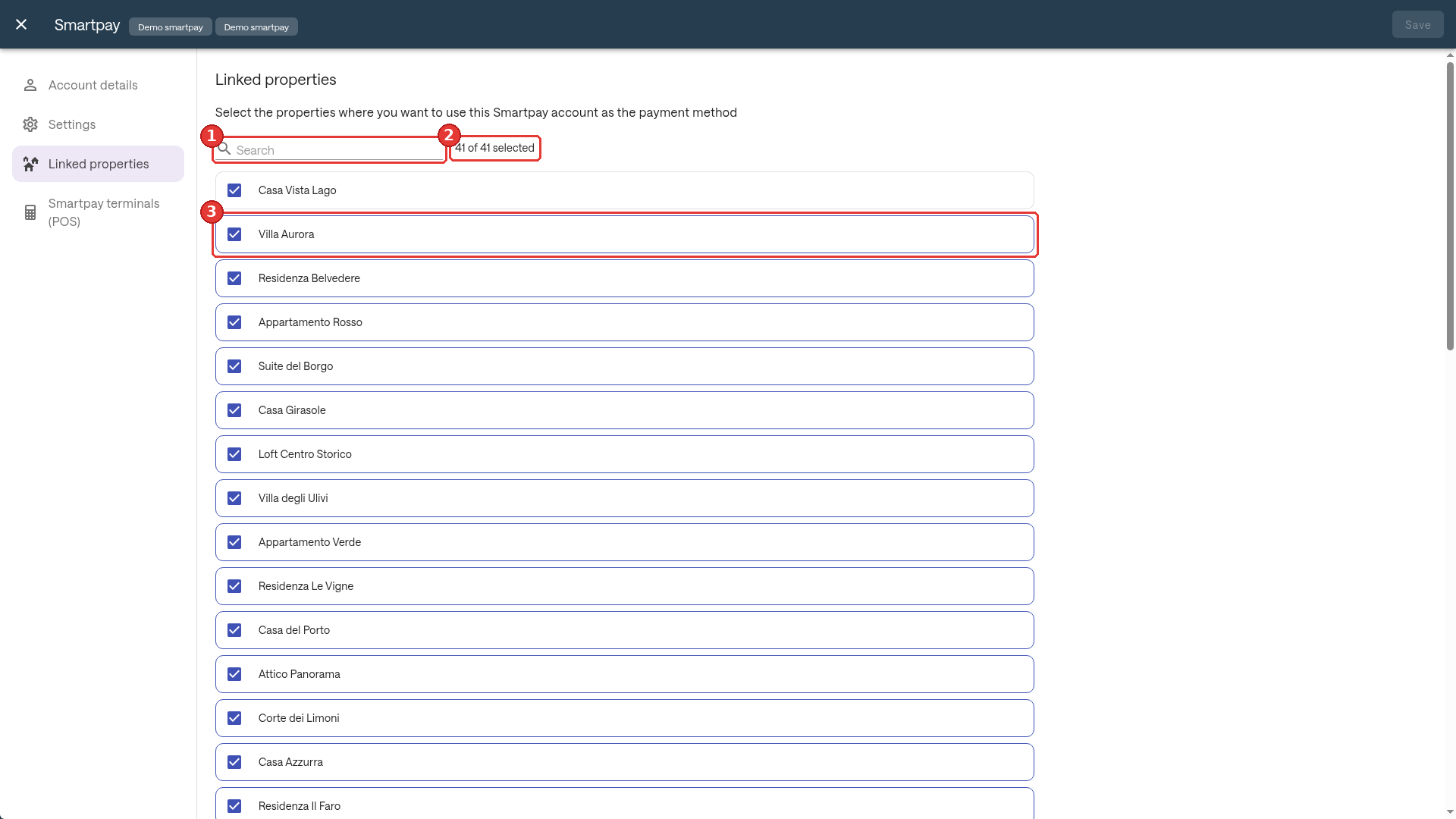
When you are finished, save. From this moment on, Smartpay manages new bookings for the linked properties according to the rules you have chosen.
7. What happens next
- In the Payments tab of each booking, you will find scheduled payments and those already collected.
- In the Payments menu, Smartpay Settlements tab, you can see the next settlement and the bank transfers already sent.
- The first payouts for a newly activated account take longer, usually 7-14 days from the first payment.
All collection rules, security deposits, costs, and daily payment management are in the complete Smartpay guide.
Related guides
Activation
Configuration
Configuration
Configuration
Configuration