

Guests Present: who is in the property on the morning of a given date
How the Guests Present list works: it lists guests in the property on the morning of the chosen date by room (including those departing, excluding those arriving), with meal plan, guests, channel, and notes, and can show rooms free for the night. It can be printed or saved as a PDF.
You are in the right place if…6 cases
- “I don't see guests arriving today in the guests present list”
- “The guests present report counts departures but not arrivals”
- “Can I export guests present to Excel”
- “I would like the list of all guests and not just the group leader”
- “A room appears as both occupied and free”
- “List of guests in the property for emergencies”
Where to find it
The report is opened from the menu Report > Guests Present. It is visible to users with the dedicated permission, assigned by default to Manager, Advanced User, and Staff roles.
What it is for
Guests Present is a room-by-room list of who is in the property on a certain date, designed to be printed. It is used by reception, the breakfast room, and housekeeping, and is also useful as an emergency list. It does not contain amounts.
Who is considered "present"
The report captures the property on the morning of the chosen date: it includes bookings with arrival before the date and departure on the date or later.
- Guests departing that day appear.
- Guests arriving that day do not appear. You can see them by choosing the following day.
Only Confirmed bookings are included: options, blocks, pending bookings, and cancelled bookings do not appear. The completed check-in is not a requirement: only dates and booking status count.
How it works
Filters

- Property: one or more (mandatory).
- Date: by default tomorrow.
- Show rooms free for the night: adds units without bookings for the night that begins on the chosen date.
The report loads by clicking Apply.
Columns
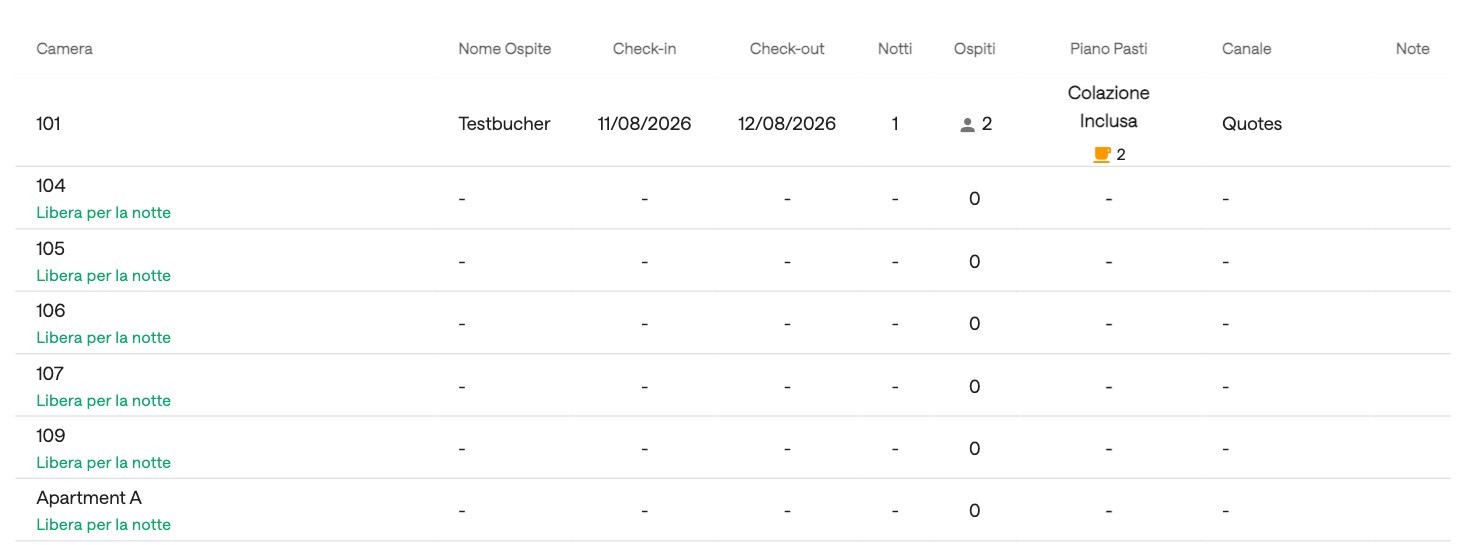
- Room: the assigned unit.
- Guest Name: the name of the booking (or client) with the Country. Only the group leader is indicated.
- Check-in / Check-out: booking dates.
- Nights: all nights of the stay, not just the remaining ones.
- Guests: adults, children, and infants.
- Meal Plan: booking treatment and quantity of breakfast, lunch, and dinner.
- Channel: source channel and any referral.
- Notes: internal notes and service notes, visible by hovering the mouse over the icon.
The rows are ordered by property and then by unit position. There are no totals.
Free rooms
With the Show rooms free for the night checkbox, units without bookings for the night that begins on the date also appear, marked as "Free for the night". A unit with an option or a block for that night is not considered free. Jolly units are excluded.
Printing
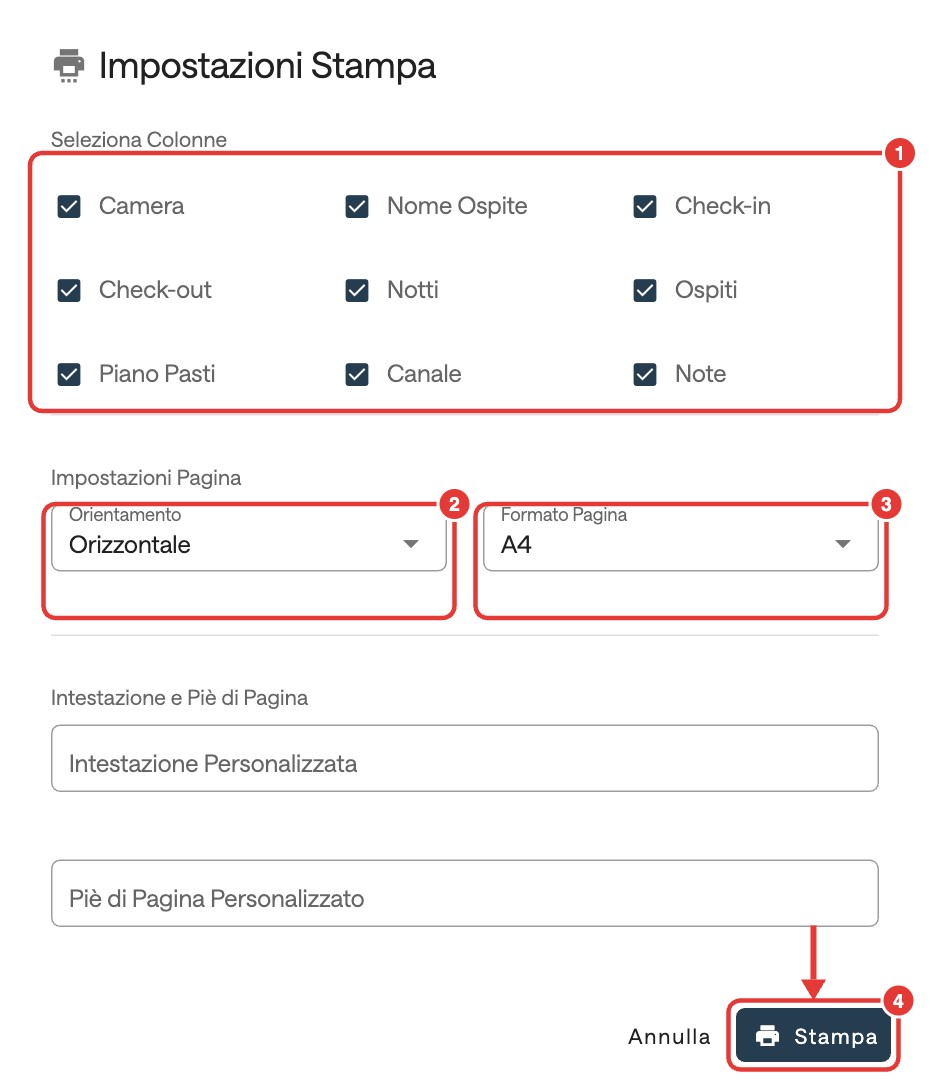
The Print button opens the Print Settings: choose columns, orientation, paper size (A4, A3, Letter, Legal), and a header or footer. From the browser's print window, you can also save as PDF. The report does not have an Excel export.
How to use it
- Open Report > Guests Present.
- Choose one or more properties.
- Choose the date: for tomorrow's breakfast, leave the proposed date.
- If you also need rooms free for the night, select the checkbox.
- Click Apply, then Print, choose the columns, and confirm.
Things to know
- Room twice: a unit with a departure on the date and no new arrival appears twice, one row for the departing guest and one as "Free for the night".
- Arrivals of the day: a unit with an arrival on the date appears neither among the occupied nor the free ones.
- Multiple properties: the rows do not indicate the property. If you need to distinguish them, generate the report one property at a time.
- Names of all guests: for the complete list of registered guests, even over a date range and exportable, use Bureaucracy > Check-In List.
- Meals: for day-by-day kitchen counts, use the Meal Report.
Frequently asked questions
3Why don't I see guests arriving today?
The report shows who is in the property on the morning of the chosen date, i.e., who slept there the previous night. Guests arriving today appear if you choose tomorrow's date.
Can I have the names of all guests?
The report shows only the group leader of the booking. For all registered guests, use Bureaucracy > Check-In List.
Can I export the list to Excel?
No, the report is printed or saved as a PDF from the print window. For an exportable list over multiple days, use Bureaucracy > Check-In List.
Related guides
How it works
Configuration
Configuration
How it works
How it works
How it works