

Fiscal documents and Revenue register: search, export, print, and email
How to find invoices, receipts, credit notes, and cancellations in Accounting > Fiscal Documents (filters and search by number), export the list to Excel for your accountant, print or download the PDF in the correct language, email the document to the customer, and read the daily Revenue register of receipts.
You are in the right place if…20 cases
- “I cannot find an invoice from previous months in Fiscal Documents”
- “How do I search for an invoice or receipt by number?”
- “I cannot find the booking by searching for the invoice number”
- “How do I record a bank transfer if I only have the invoice number?”
- “How do I export the list of invoices to Excel for the accountant?”
- “I need a list of invoices and receipts with the customers' tax code and VAT number”
- “I click Export rows but nothing downloads”
- “When exporting, an 'Error in query parameters' message appears”
- “The Export button is greyed out and cannot be clicked”
- “How do I print or download an invoice PDF?”
- “The PDF receipt comes out in English instead of Italian”
- “Company language not available when exporting the PDF”
- “How do I email the invoice to the customer?”
- “What does the envelope icon with a checkmark mean in fiscal documents?”
- “When and to which address was the invoice sent?”
- “Can I change the subject, sender, or text of the invoice email?”
- “I can no longer find the Revenue register in the Accounting menu”
- “How do I activate the revenue register?”
- “I issued the receipt but it does not appear in the Revenue register among the collections and remains red”
- “The City tax collected today is missing from the revenue register”
Purpose
In Accounting > Fiscal Documents you will find all documents issued by SmartPMS: invoices, receipts, credit notes, and cancellations. From here, you can search for them, export the list to Excel, download or print the PDF, and email it to the customer. In Accounting > Report > Revenue register you will find the day-by-day summary of receipts, useful for the revenue register.
This guide does not explain how to issue documents or how to send them to the SDI or the Revenue Agency: for this, see the guides "How to issue an electronic invoice and send it to the SDI", "How to issue a fiscal receipt and send it to the Revenue Agency", and "Electronic invoice rejected or not sent to the SDI: statuses, common errors, and how to resend it".
Before you begin
- You need a user with the Accounting functionality enabled: an administrator enables this in Settings > Users, on the user's row Edit, Functions section. Without this, the Fiscal Documents and Report items in the Accounting menu are not available.
- The Export button on the Fiscal Documents page also requires data export permission: if it is greyed out for your user, ask an administrator to check the permissions or contact support.
- The initial configuration of companies, accounting series, and Marketplace is done by the Onboarding Specialist.
1. Open the list and set filters
- In the side menu, open Accounting > Fiscal Documents.
- At the top, you will find the main filters:
- Company: limits the list to a single company. Choosing it also activates the Company Branches and Company Sectional filters.
- Type: Invoice, Credit Note, Receipt, Cancellation (you can choose more than one).
- From and To: the document date range. Upon opening, From is already filled with the first day of the current month, so you only see this month's documents.
- Search: free search (see step 2).
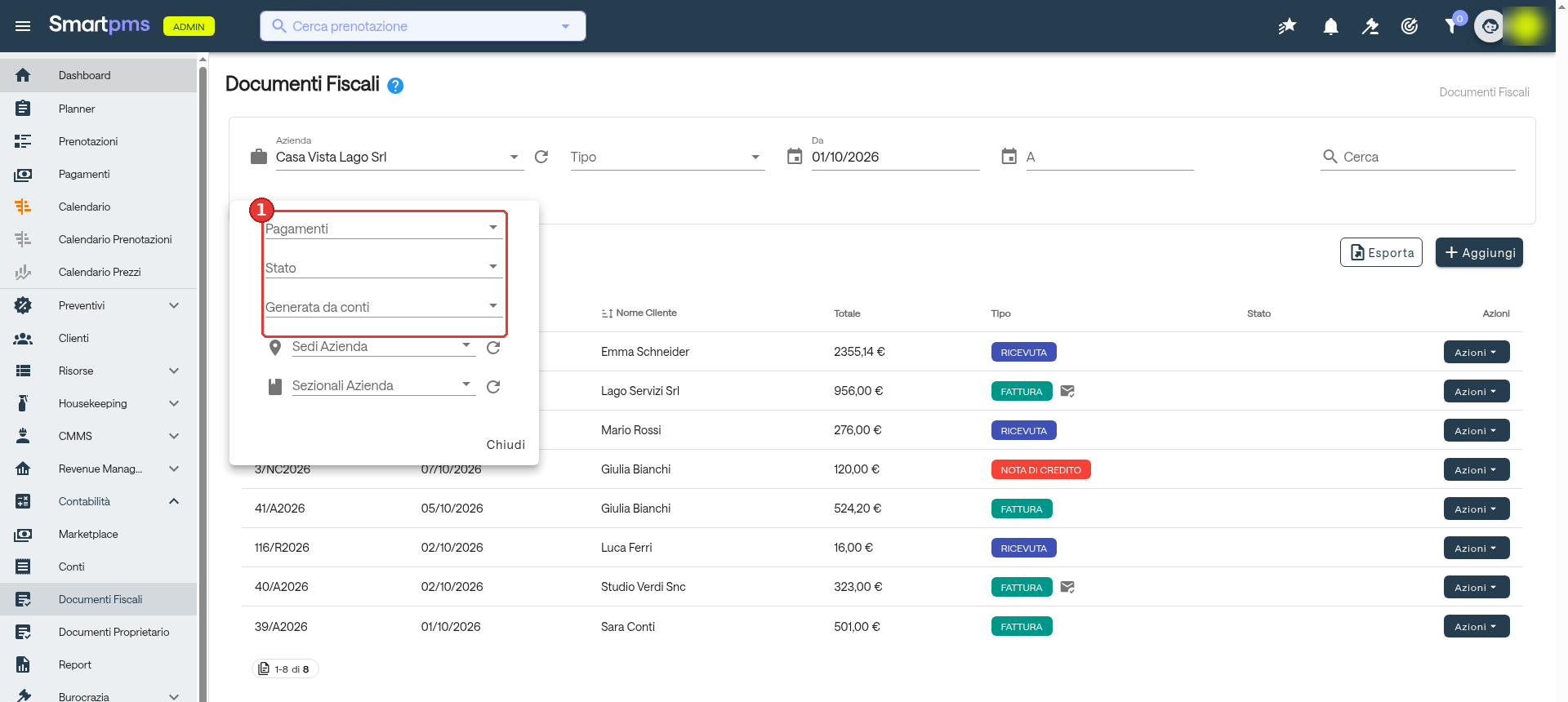
- Click More... for additional filters: Payments (Paid, Unpaid, Partially paid), Status (the status of submission to the SDI or Revenue Agency), Generated from accounts (Yes/No), Company Branches, and Company Sectionals. For sectionals, see the guide "Company Sectionals: splitting accounts and fiscal documents by property or department".
The page remembers the last filters you used: if you reopen Fiscal Documents and the list seems incomplete, first check From, To, Type, and the filters in More....
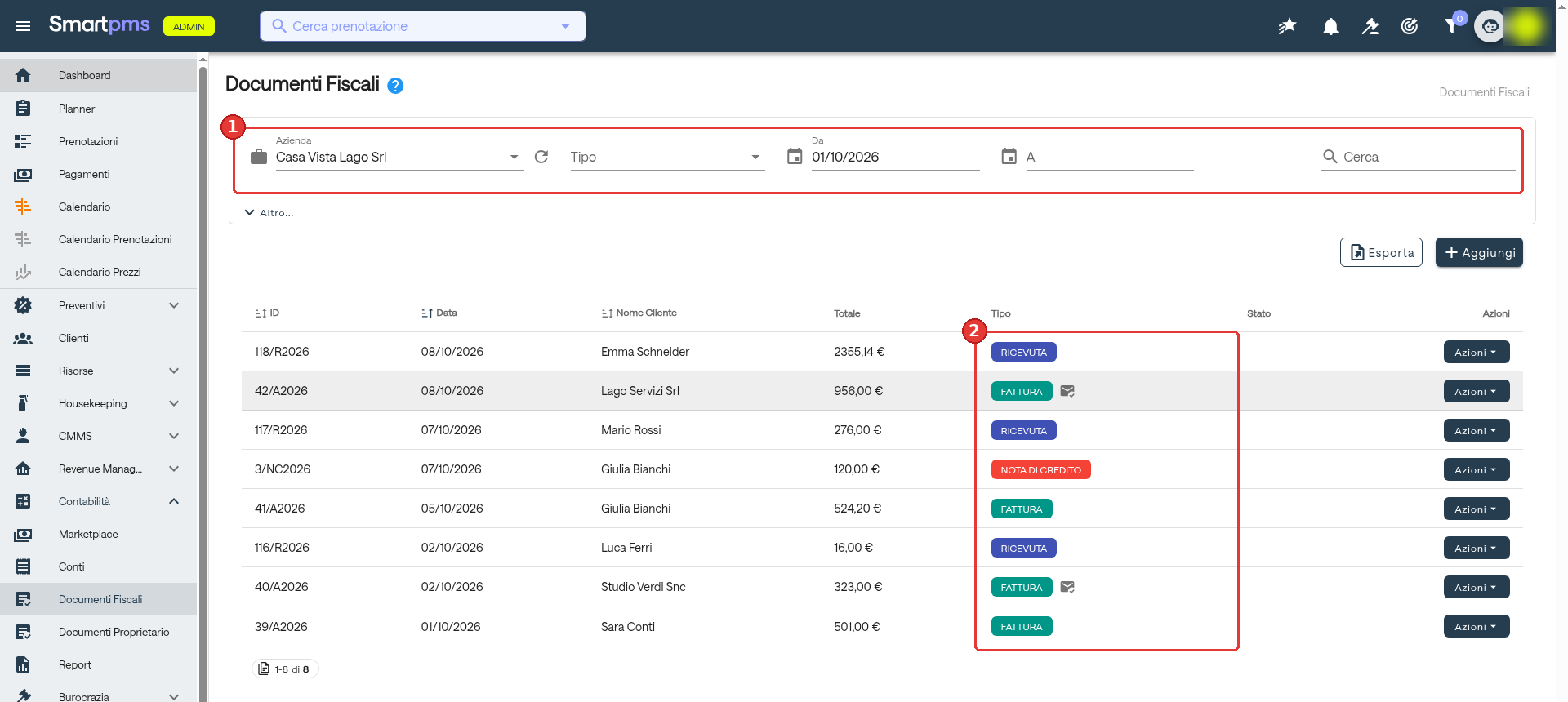
What you see in the list: the ID columns (number and series, e.g., 42/A2026), Date, Customer Name, Total, Type, Status, and Actions. In the Type column, the label indicates the document: INVOICE in teal, RECEIPT in blue, CREDIT NOTE and CANCELLATION in red. Next to the label, the following may appear:
- the envelope with a checkmark: the document was emailed from the management system (see step 5);
- the QuickBooks logo: the document has already been sent to QuickBooks (see the guide "How to connect SmartPMS to QuickBooks and send invoices and receipts (Italy)");
- an orange cloud: the document has not yet been sent to the fiscal signature service; retry from Actions > Send to Marketplace (concerns foreign fiscal integrations like Fiskaly).
The Status column is a colored button: by clicking it, you see the result of the submission. The meaning of invoice statuses (Downloaded, Queued for sending, Document Sent, Delivered, Delivery failed, Error) is explained in the guide on invoices rejected or not sent to the SDI; for receipts (Receipt Sent, Receipt Cancelled, Cancellation Sent) see the guides on receipts and document correction. If the document has not been sent, the cell remains empty.
2. Search for a document, even by number
The Search field finds documents by:
- customer name (even just a part);
- document number (even just a part: "42" also finds 142 and 420);
- VAT number or Tax code of the customer;
- exact number/series, for example 42/A2026.
We recommend using accounting series with the year in the code (e.g., A2026, R2026, NC2026): this way, the number and series identify a single document, and when the numbering restarts, the Revenue Agency does not reject the invoice as a duplicate. For series, see the guide "Accounting series: how to number invoices, receipts, and accounts".
To search for a document from a past month:
- Clear the From and To fields with the X, or widen the period.
- Type the number (or number/series) or the customer's name in the Search field. The list updates automatically after a moment.
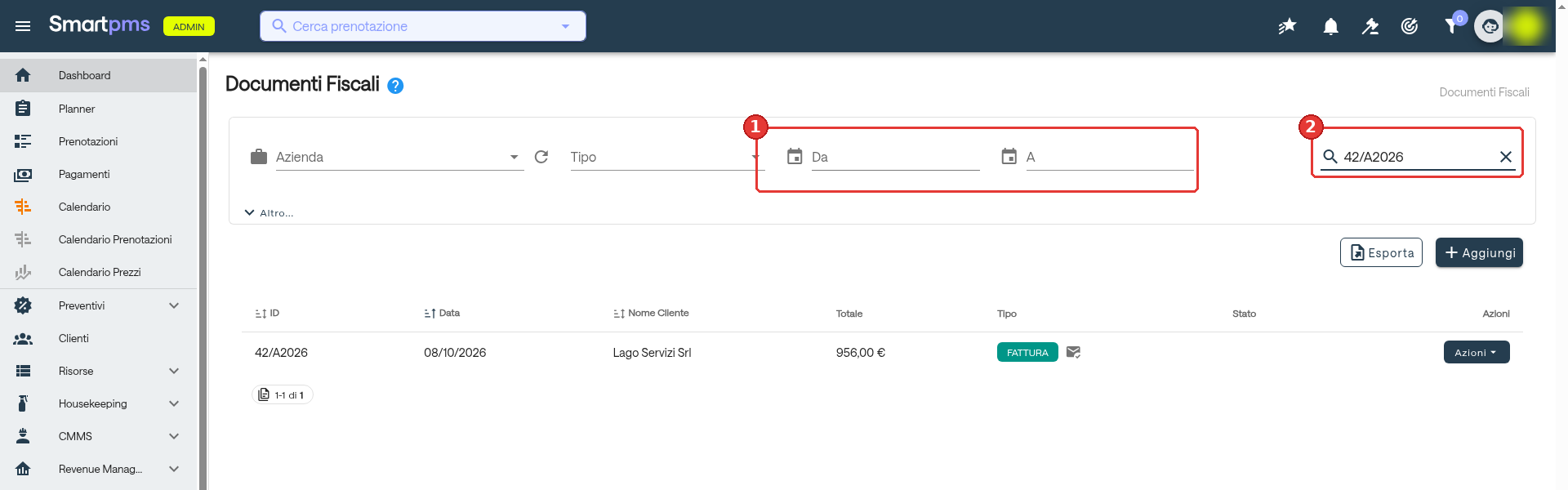
Expected result: the searched document appears. If it does not appear, check Company, Type, and the filters in More....
Booking search does not accept the invoice number. To trace the booking starting from a document, find it here, note the customer's name and stay dates indicated in the document lines, and search for the booking by guest name.
3. Export the list to Excel
- Set the filters for the documents you need (Company, Type, period).
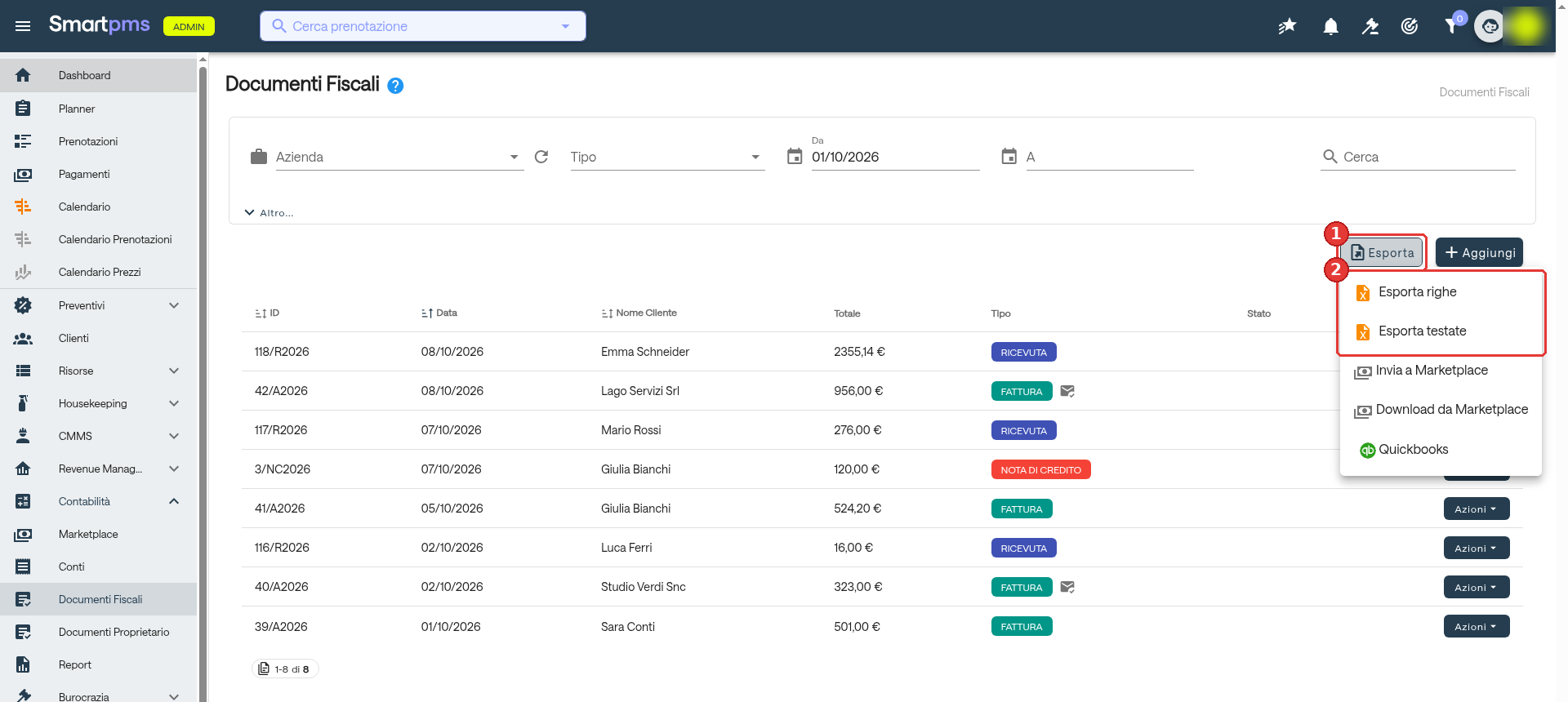
- Click Export at the top right above the list.
- Choose the file type:
- Export headers: a documents.xlsx file with one row per document: number, series, sectional, date, customer, Tax code, VAT number, type, amount, VAT, paid, and unpaid. This is the file to use for a list for the accountant.
- Export rows: a document_details.xlsx file with one row for each detail line of the documents (room, cleaning, extras…): number, series, sectional, date, customer, line type, quantity, unit and total amounts, net, VAT rate, VAT exclusion (N1–N7), description, unit, and status. It does not contain Tax code and VAT number.
Expected result: the Excel file is downloaded and contains only the documents that meet all set filters. Keep in mind that:
- column headers are in technical format (e.g., document_n, tax_code for Tax code, vat_code for VAT number, vat_mount for VAT);
- credit notes and cancellations have negative amounts;
- if no document matches the filters, nothing is downloaded and no message appears: widen the period or check Company and Type.

The other items in the Export menu have a dedicated guide:
- Download from Marketplace: downloads XMLs of multiple invoices and credit notes together (see "Accounting Marketplace: exporting documents to Danea Easyfatt and in electronic invoice XML"). Receipts do not have an XML file;
- Send to Marketplace: for Danea Easyfatt and Electronic Invoicing (IT) it does not transfer anything, files are downloaded (same guide);
- Quickbooks: sends multiple documents to QuickBooks (see the QuickBooks guide).
4. Download or print the PDF
- On the document row, click Actions > Export PDF.
- In the Select language for PDF export window, choose the document language:
- Company language: the language set in the company data, with the flag. If the company does not have a set language, the option is not available;
- Customer language: appears if the customer has a language in their profile. It is the proposed option when present;
- Custom language: you choose the language from the Select language menu (e.g., Italian).
- Click Export PDF.
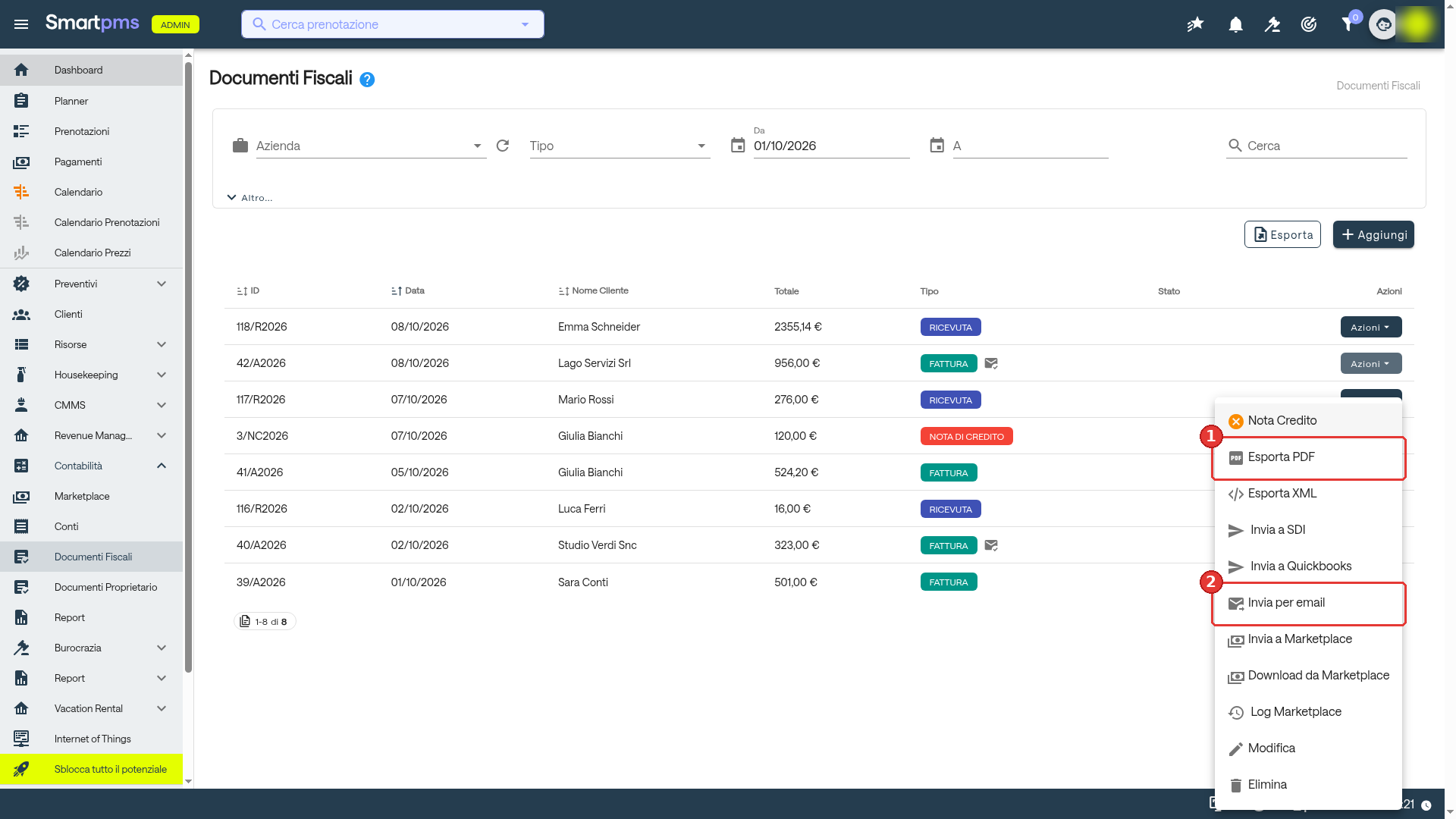
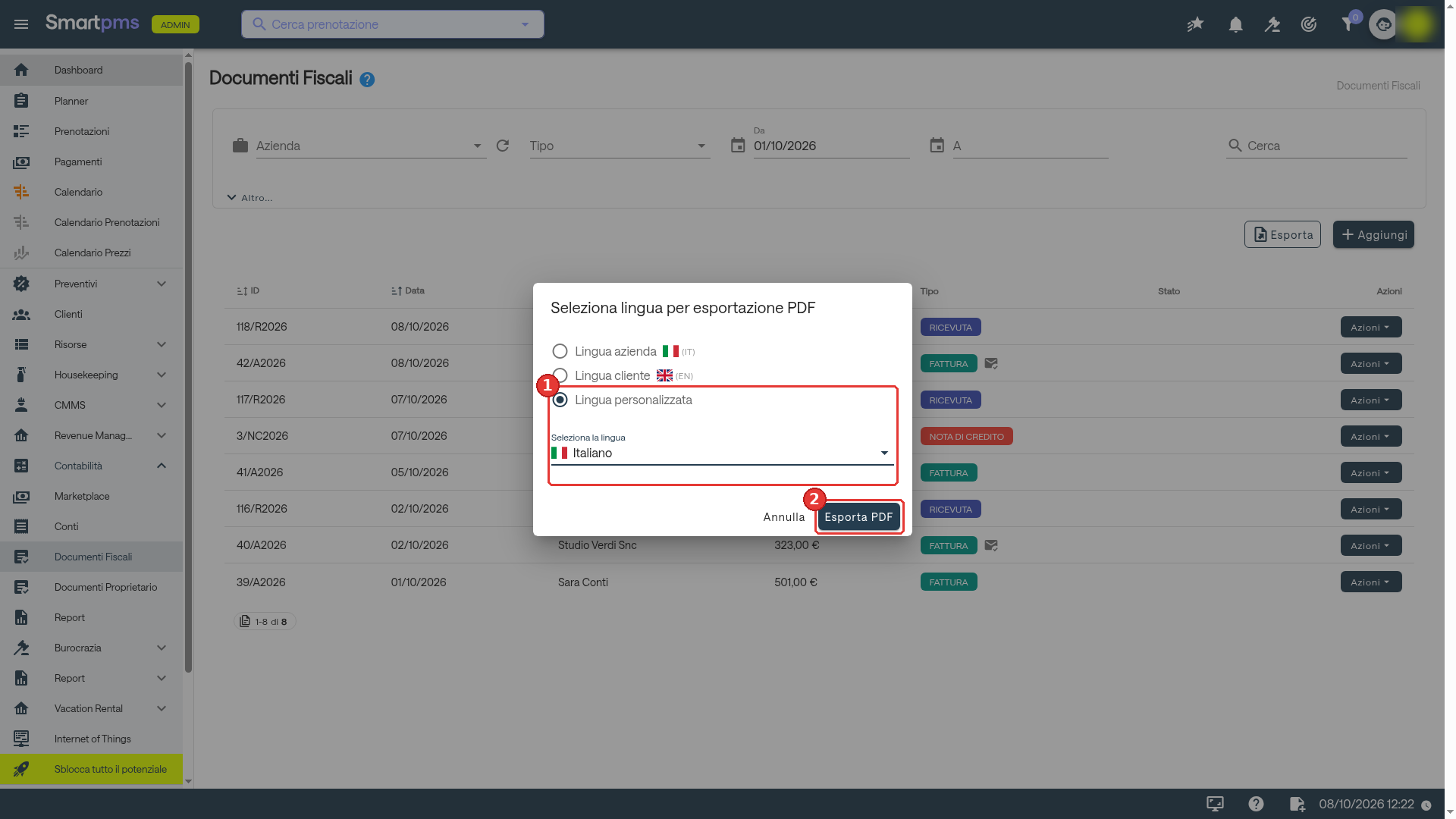
Expected result: the PDF is downloaded or opens in the browser, depending on browser settings; from there, you print or save it. The file name is generated by the system, e.g., invoice-844685.pdf (receipt-… for receipts, credit_note-… for credit notes, cancellation-… for cancellations): the number in the name is a technical identifier, not the fiscal number. If you need a different name, rename the file after downloading it.
If you want an Italian document for a foreign guest, choose Custom language > Italian: otherwise, the PDF comes out in the customer's language.
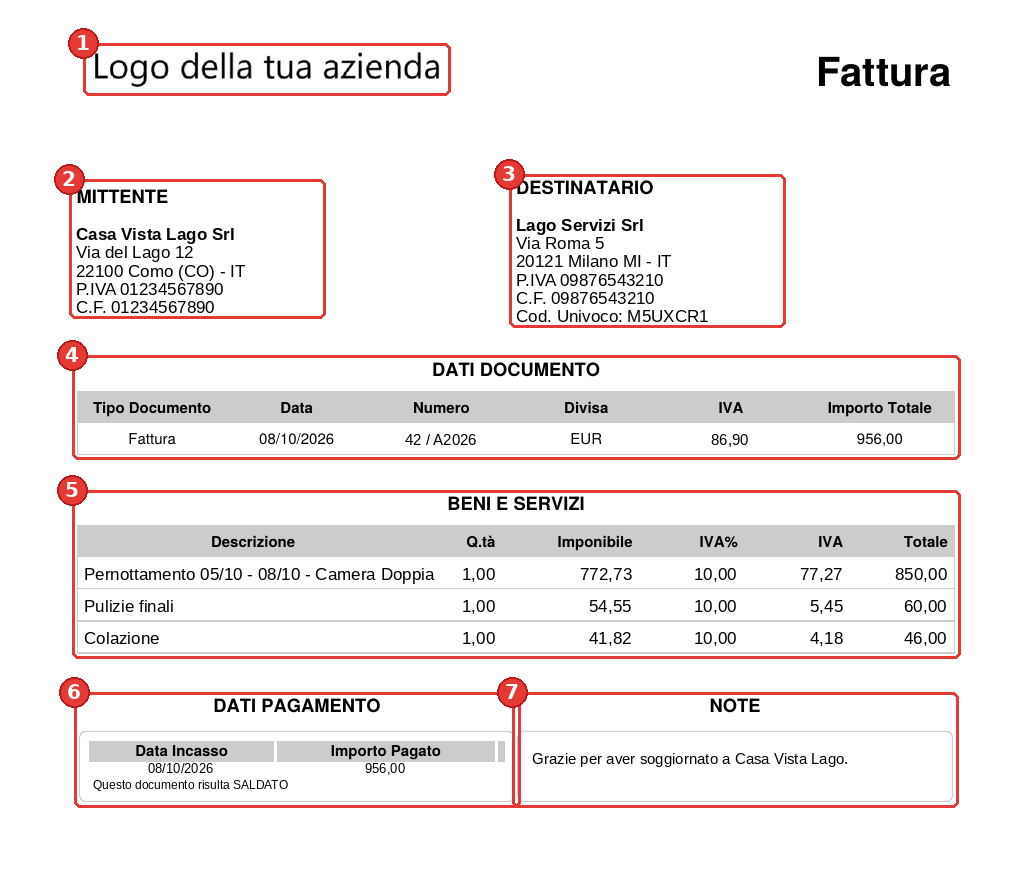
What the PDF contains
- Company logo, if uploaded, and the title (Invoice, Receipt, Credit Note, or Cancellation).
- Sender: company name, address, VAT number, and Tax code of the company (or the branch address, if the document has a branch).
- Recipient: name, address, VAT number, Tax code, and, for invoices, the customer's Unique Code saved on the document.
- Document Data: type, date, number, currency, VAT, and total amount. On receipts transmitted to the Revenue Agency, the number may be the one assigned by the Agency: see the guide on accounting series.
- Goods and Services: description, quantity, taxable amount, VAT rate, VAT, and total for each line.
- Payment Data: date and amount of collections recorded on the document and, at the bottom, the wording "This document is PAID", "PARTIALLY PAID", or "UNPAID". The section appears only if the Include payments in document printing option is active in the company data (see the guide "Configuring the company to issue invoices and receipts in Italy"). The payment method is indicated with the standard name (e.g., Credit card or Bank transfer), not with a custom label.
- Notes: the text of the document's Notes field, which can be pre-filled by the accounting series.
At the bottom, a custom footer may appear: see "How to add a custom footer to invoices and receipts".
For an invoice or credit note, in Actions you will also find Export XML. After downloading the XML, sending that invoice to the SDI from SmartPMS is blocked: see the guide on the Accounting Marketplace.
5. Email the document
- On the document row, click Actions > Send by email.
- In the Send by email window, the Email field is pre-filled with the main email from the customer's profile. Check it and, if necessary, correct it.
- If you want the address you wrote to become the customer's main email, activate Update Customer Email.
- Click Send.
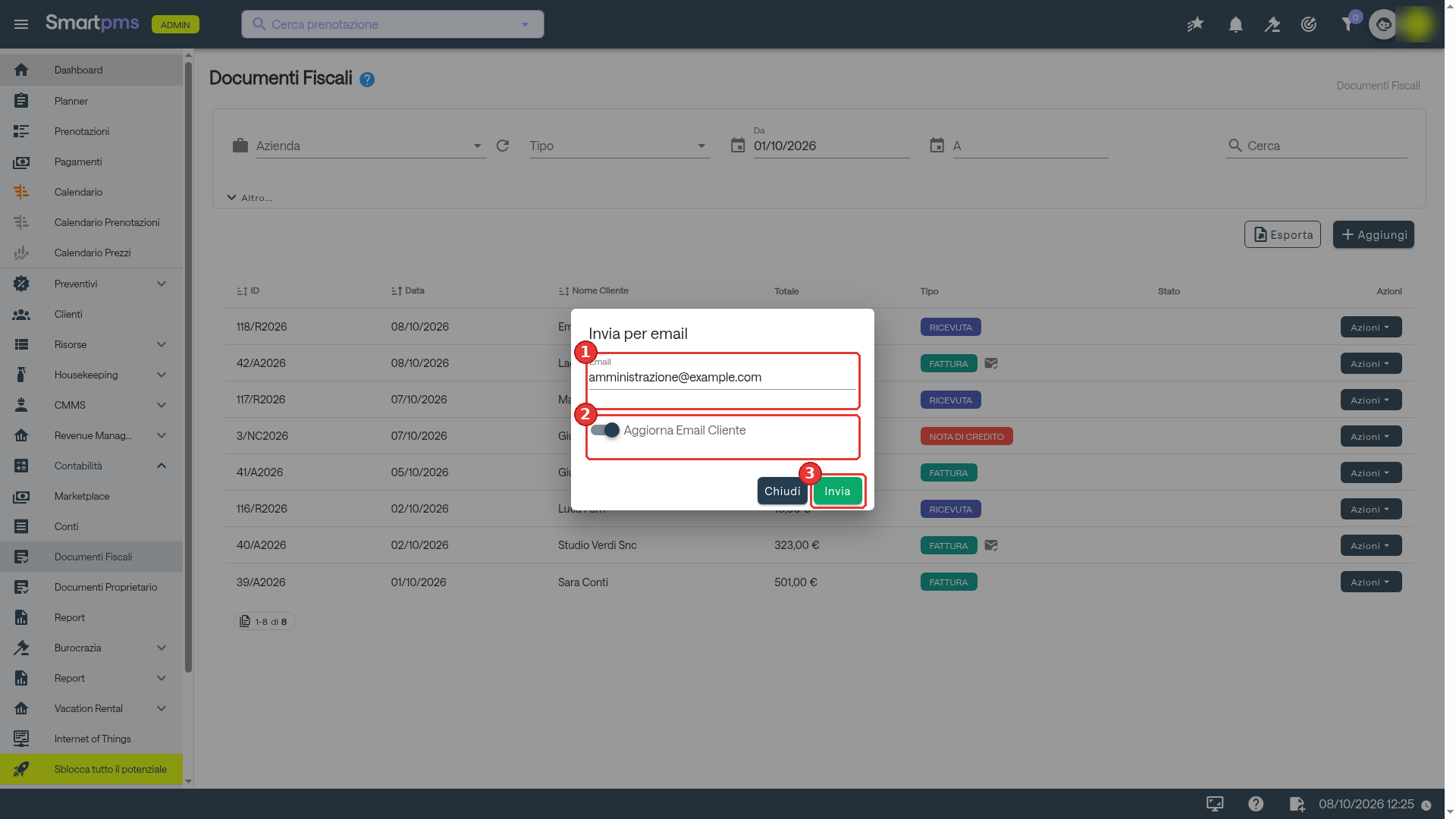
Expected result: confirmation appears, and the envelope with a checkmark appears in the Type column.
What the customer receives
- As the sender, they see your company's registered name; if they reply, the response arrives at the company email.
- The subject is "Fiscal Document", in the customer's language.
- The text is standard: a greeting with the customer's name, an indication that the requested document copy is attached, and an invitation to write to the company email for information.
- Attached is the document PDF, in the customer's language.
Subject, sender, and text are not customizable. If you need a different message, download the PDF (step 4) and send it from your email account. Emailing is always manual, document by document: electronic invoices still reach the customer via the SDI (Unique Code or PEC).
6. Consult the Revenue register
The Revenue register does not need to be activated: it is available to all users with the Accounting functionality.
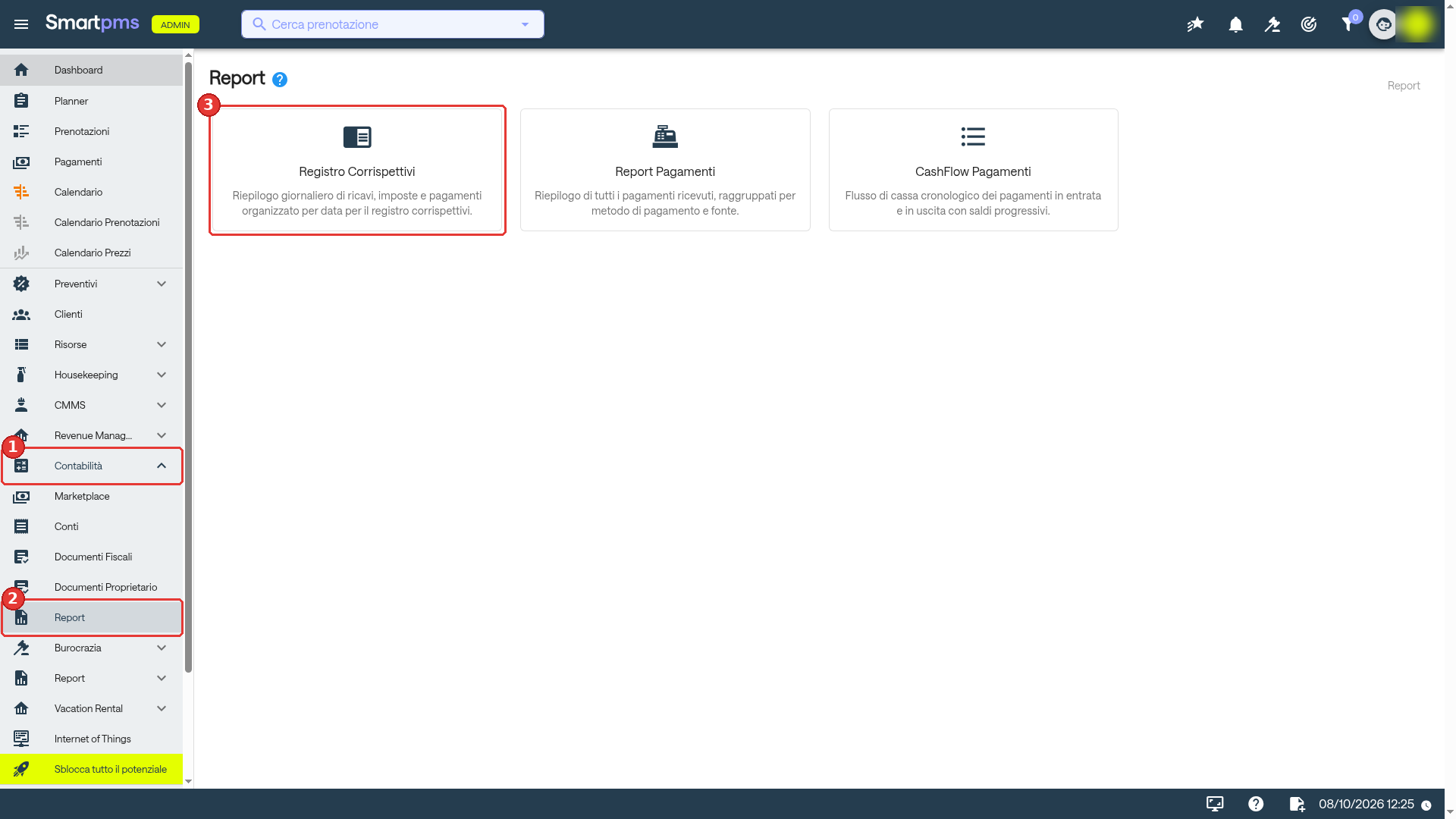
- In the side menu, open Accounting > Report and click the Revenue register tab.
- Choose the company in the Companies field (it is mandatory: without it, "The company field is required" appears).
- Set the period: From is already filled with the first day of the month; when you change it, To is set to the last day of the same month. In More... you can also filter by Company Branches and Company Sectionals.
- Click Apply.
- Use Print to print the register or Export to download it to Excel. The two buttons activate after Apply.
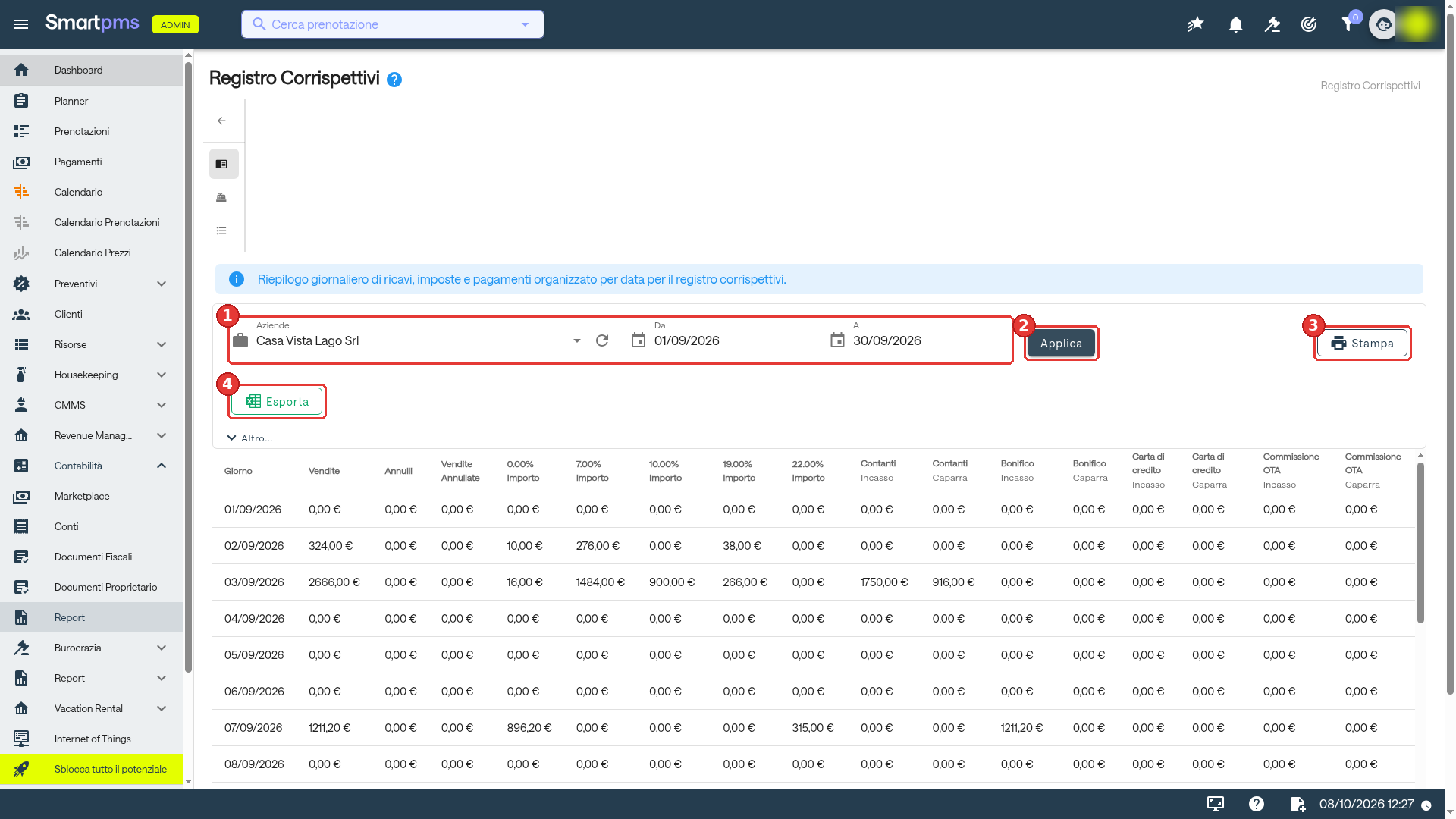
How to read it: one row for each day of the period and at the bottom the Totals row.
- Day.
- Sales: total of valid receipts for the day.
- Cancellations: total of cancellations issued that day.
- Cancelled Sales: total of receipts for the day that were subsequently cancelled.
- xx% Amount: one column for each VAT rate present (e.g., 10.00% Amount, 22.00% Amount).
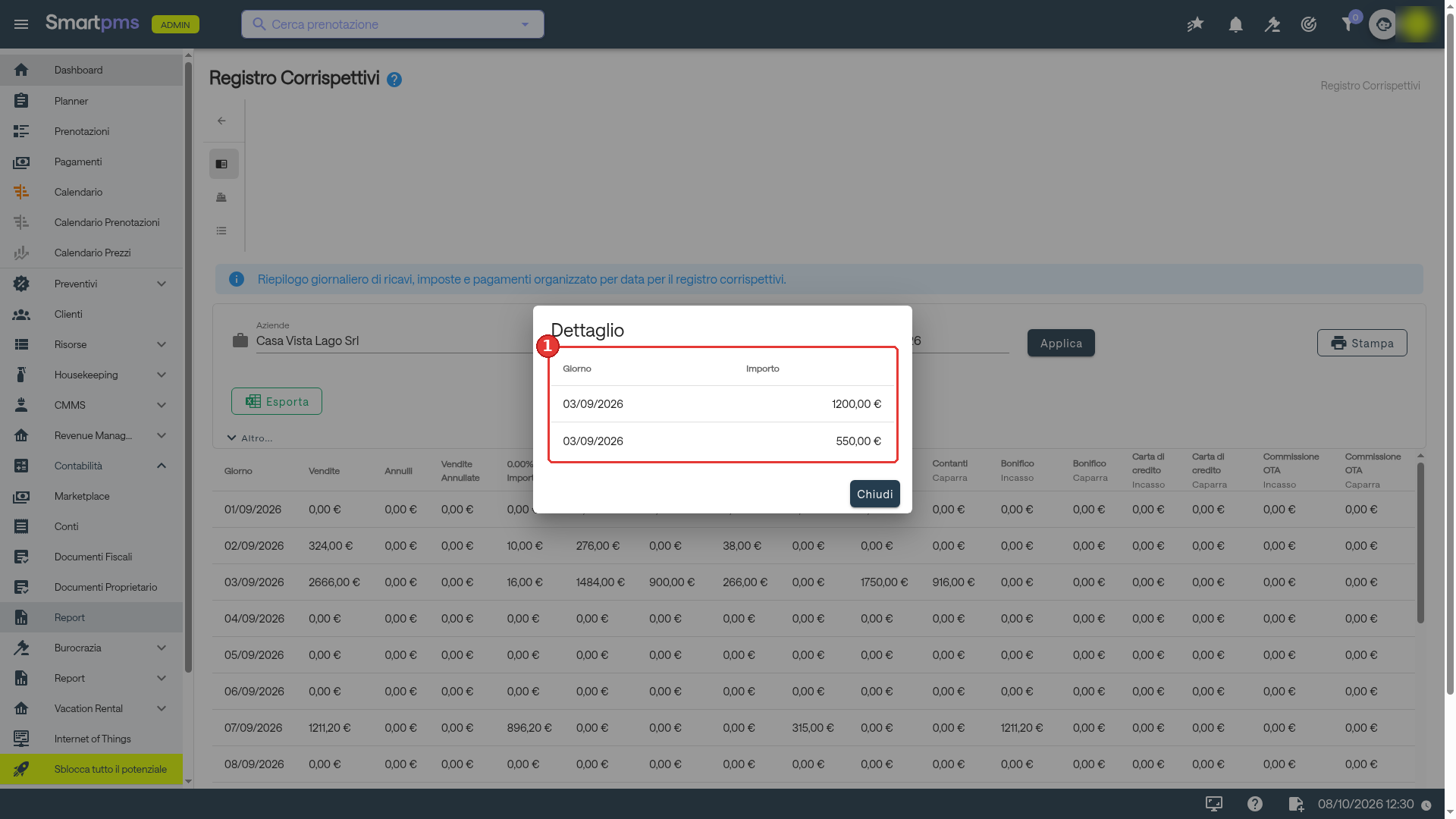
- Collection and Deposit: a pair of columns for each payment method (e.g., Cash Collection and Cash Deposit). Clicking an amount opens the Detail window with the day and amount of individual payments.
What goes into the register
- Only receipts and cancellations of the chosen company, based on the document date. Invoices never appear: for invoices, use Fiscal Documents with Type = Invoice.
- In the Collection and Deposit columns, only payments linked to the receipt enter. If a receipt was issued without a linked payment, its amount appears in Sales but not in collections. To correctly link collections to documents, see the guide "Accounts: how to prepare invoices and receipts".
On the same Report page, you will also find Payment Report and Payment CashFlow.
Frequently asked questions
15I issued and sent the receipt but it does not appear in the Revenue register among the collections: why?
In the Revenue register, the Collection and Deposit columns sum only payments linked to the receipt. If the receipt was issued without a linked payment (e.g., because the collection is recorded only on the booking), its amount appears in the Sales column but not among the collections.
What to do:
- Check that you have chosen the right company and a period that includes the receipt date: the register uses the document date, not the collection date.
- Open the receipt in Fiscal Documents and verify that it shows the payment (in the PDF, Payment Data section).
- For future receipts, record the collection so that it is linked to the document, as explained in the guide "Accounts: how to prepare invoices and receipts".
If the receipt has already been transmitted and you need to correct it, see the guide "Correcting an already issued invoice or receipt".
Exporting rows or headers from Fiscal Documents shows "Error in query parameters": what do I do?
Retry the export by reducing the period (From and To fields) and checking the filters. If the message appears again, contact support indicating the company, the set filters, the period, and which export you were using (Export rows or Export headers).
The accountant asks for the list of invoices with Tax code and VAT number: how do I export it?
Use Export headers:
- In Accounting > Fiscal Documents, set Company, Type (e.g., Invoice and Credit Note), and the period.
- Click Export > Export headers.
You get an Excel file with one row per document and the customer's Tax code (tax_code) and VAT number (vat_code) columns, as well as number, series, date, amount, VAT, paid, and unpaid. Export rows does not contain Tax code and VAT number.
If the accountant wants the XML files of electronic invoices, use Export > Download from Marketplace, as explained in the guide "Accounting Marketplace: exporting documents to Danea Easyfatt and in electronic invoice XML".
I click Export rows (or Export headers) but nothing downloads: why?
When no document matches the set filters, the export does not download any file and does not show any message.
Check the filters: especially From and To (the period must include the documents), Type, and Company. Verify that the list below the filters shows documents before exporting. If the list contains documents and the file still does not arrive, contact support indicating company, filters, and period.
To which address is the invoice email sent? My customer has a different billing email
In the Send by email window, the main email from the customer's profile is proposed. Before clicking Send, check the address and, if necessary, replace it with the correct one.
If you activate Update Customer Email, the address you wrote is saved as the customer's main email and will also be proposed in future sends.
Can I change the subject, sender, or text of the email with which I send the invoice?
No. The email always has the subject "Fiscal Document" (in the customer's language), the sender is your company's registered name, and the text is standard. Customer replies arrive at your company's email.
If you want a personalized message, download the PDF with Actions > Export PDF and send it from your email account.
Exporting the PDF, the Company language is not available or the receipt comes out in English: how do I print it in Italian?
In the Select language for PDF export window, the proposed option is the customer's language: for a foreign guest, the PDF therefore comes out in their language.
- To have the document in Italian, choose Custom language and select Italian in the Select language menu, then click Export PDF.
- If Company language is not available, the company does not have a set language: add it in the company data, as explained in the guide "Configuring the company to issue invoices and receipts in Italy".
The copy sent by email always uses the customer's language.
In today's Revenue register, an amount I collected (e.g., City tax) is missing: why?
Only receipts and cancellations enter the Revenue register, based on the document date. They do not appear:
- amounts invoiced with an invoice (to see them, use Fiscal Documents with Type = Invoice);
- collections not yet certified with a receipt dated on that day.
Therefore, check if a receipt was issued for that amount and with what date.
In the Revenue register, I see a cancellation: how do I trace the booking?
From the register, there is no direct link to the document or booking: clicking an amount in the payment columns opens the Detail, with only the day and amount.
To trace the document, go to Accounting > Fiscal Documents, filter Type = Cancellation, and set From and To to the same day: from the cancellation row, you see the customer and, with Actions > Export PDF, the document lines.
Can I send invoices to customers automatically by email?
No, emailing is manual: for each document, use Actions > Send by email. Electronic invoices still reach the customer via the SDI, at the indicated electronic address (Unique Code or PEC).
In the PDF, the payment method does not show my custom label, or I want to remove payments from the PDF: is it possible?
In the Payment Data section of the PDF, the method is indicated with the standard name (e.g., Credit card or Bank transfer), not with the custom label.
If you prefer that payments do not appear in the PDF, deactivate the Include payments in document printing option in the company data, as explained in the guide "Configuring the company to issue invoices and receipts in Italy". The option applies to all PDFs exported from that moment on.
Can I rename the exported PDF?
From the management system, no: the file name is generated by the system (e.g., invoice-844685.pdf for an invoice, receipt-… for a receipt) and the number is a technical identifier, not the fiscal number. You can rename the file on your computer after downloading it.
Does the management software notify me if I forget to issue a receipt? How can I find payments for which I have not yet issued a receipt?
The management software does not send automatic notifications for unissued receipts. However, you can find payments recorded on bookings that have not yet been added to an account, and therefore do not have a receipt or invoice:
- Go to Accounting > Reports and open the Payment CashFlow tab.
- Choose the company and set From and To to the day or period you want to check.
- Click More... and under Sources select Bookings.
- Click the Fiscalized box until it remains empty, without a checkmark or a dash.
- Click Apply.
The list shows booking payments that have not yet been imported into an account. For each one, open the booking, create the account, and issue the receipt, as explained in the guide "Accounts: how to prepare invoices and receipts".
Only bookings with a recorded payment appear: a payment received but not entered into the management software will not show up in this list. For this reason, it is advisable to perform the check at the end of the day, after having recorded all payments.
To see days without issued documents instead, use Fiscal Documents with From and To set to the same day, or the Daily Sales Register.
Related guides
Configuration
Configuration
Configuration
Configuration
Activation
Configuration