

Smartpay disputes: how to view and respond to guest chargebacks
A guide for the customer on disputes (or chargebacks) opened by guests regarding Smartpay payments: why you must respond, how you are notified in SmartPMS, where to find them in Payments > Smartpay disputes, how to respond by uploading evidence suitable for the reason before the deadline, what happens after submission, withheld amounts, and outcomes. For internal management by support, there is a dedicated playbook.
You are in the right place if…6 cases
- “A guest has disputed a payment collected via Smartpay with their bank: what should I do?”
- “I received a notification in SmartPMS about a new Smartpay dispute with a deadline to respond”
- “Where can I see disputes and chargebacks for Smartpay payments?”
- “What documents should I upload to defend myself against a guest dispute?”
- “Money was deducted from my balance or account for a booking that was already paid”
- “The payment was made with 3D Secure, why was the guest able to dispute it anyway?”
When a guest disputes a payment you collected via Smartpay with their bank, a dispute (also called a chargeback) is opened. The guest's bank freezes the amount and gives you a limited time to prove that the charge was legitimate. In this guide, you will find where to view disputes in SmartPMS, how to respond, and what to expect afterwards.
1. Why you must respond
With Smartpay, payments are collected directly into your payment account: you are the merchant in relation to the guest's bank. For this reason, the response to a dispute must come from you, using documents that only you possess (booking confirmation, communications with the guest, stay details). You can manage everything directly from SmartPMS, without accessing other panels.
Keep in mind that:
- the final decision rests only with the guest's bank: neither Smartness nor Stripe can accept, reject, or block a dispute;
- the guest has the right to dispute a payment with their bank based on European payment services regulations, regardless of how Smartpay is configured;
- if you do not respond by the deadline, the dispute is automatically lost and the amount remains with the guest.
2. How you are notified
When a dispute or an inquiry that requires your response is opened, you receive two alerts.
An email from Smartpay to the email address of your Smartpay account, the one indicated during activation (which might be different from the email you use to log in to SmartPMS). The email is titled "A payment has been disputed" and contains:
- the disputed amount;
- the reason declared by the bank;
- the deadline by which to respond (Respond by), with date and time;
- the dispute identifier;
- the Manage dispute button, which opens the dispute tab in SmartPMS.
A notification in the bell icon of SmartPMS, for all users who can see the Payments section. It shows the amount, the reason, and the deadline, in the language set for each user. The notification remains visible as long as the dispute requires action from you and disappears on its own when you have sent the response or when the dispute closes.
Both the email button and clicking the notification open the Payments > Smartpay disputes tab already set to the correct Smartpay account: from there, click on the dispute in the list to open it.
In addition to actual disputes, alerts may also concern an inquiry from the bank: this is a preliminary phase. Always respond: if you ignore it, the request can turn into a formal dispute that you will no longer be able to win, and requests left unanswered can also lead to the limitation or closure of your Smartpay account, with the blocking of collections.
3. Where to find disputes
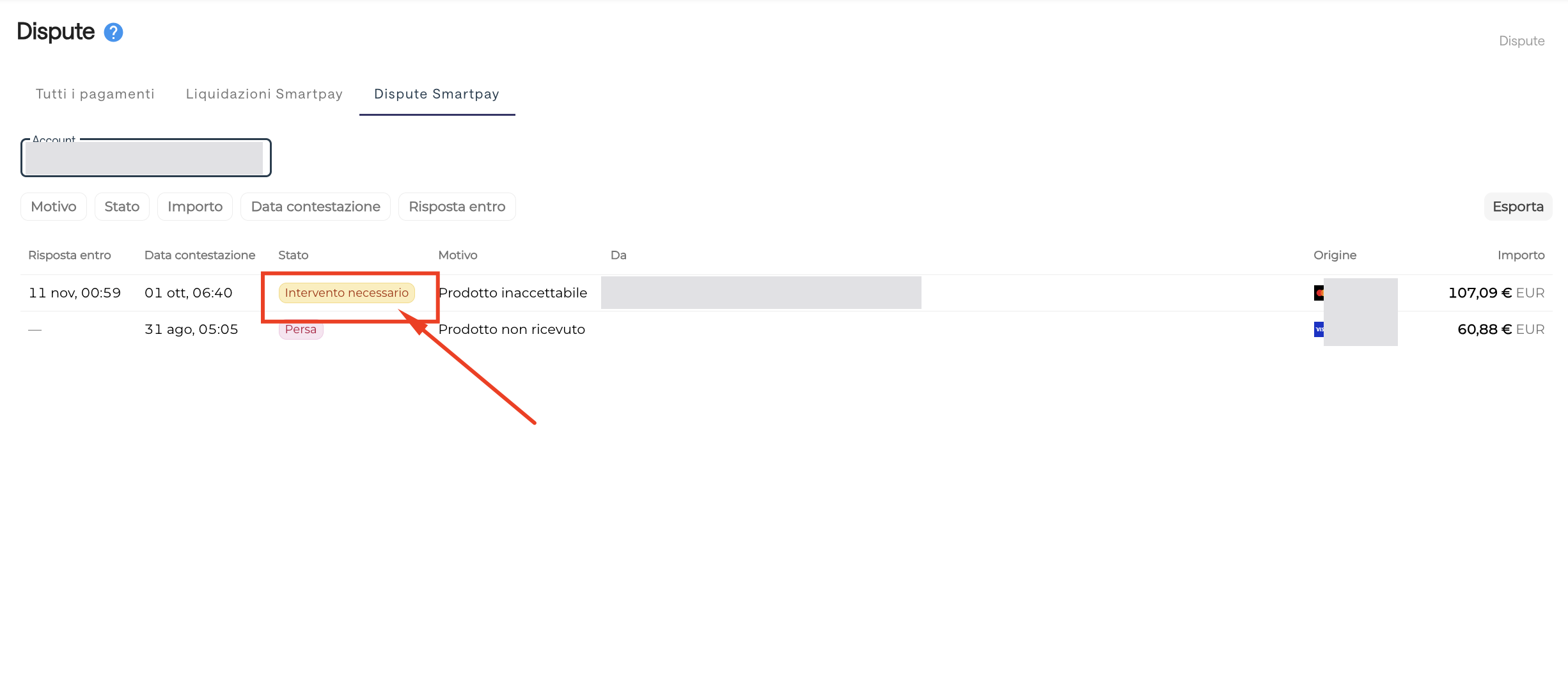
Go to Payments and open the Smartpay disputes tab.
- If you have multiple Smartpay accounts, choose the one you are interested in from the Account menu at the top. If you only have one, it is shown directly.
- The tab only works if at least one active Smartpay account is connected to your properties.
For each dispute, the list shows the deadline to respond (Respond by), the dispute date, status, reason, guest, card network with the last digits of the card, and the amount. You can filter by reason, status, amount, and dates, and export the list.
The status tells you what to do:
- Action required: the dispute is waiting for your response by the indicated deadline;
- Under review: you have already responded and the guest's bank is examining the evidence;
- Lost: the bank has decided in favor of the guest, or the deadline has passed without a response.
4. How to respond to a dispute
- Check the deadline in the Respond by column and start immediately: the time available depends on the card network and the type of dispute, ranging from about a week to over a month, and gathering evidence takes time. Always refer to the indicated date.
- Evaluate whether to dispute. Only oppose if the charge is legitimate and you can document it. If the guest is truly entitled to a refund, or if the payment is actually fraudulent, accepting the dispute is the correct choice. It may be useful to contact the guest: if they withdraw the dispute with their bank, keep the communication as proof.
- Prepare the evidence suitable for the reason for the dispute (see the next paragraph).
- Open the dispute by clicking it in the list. In the details, you will find the days remaining to respond, the Response deadline, the Reason, the bank document with the chargeback request (Review document), the Network reason code, and a Detailed guide with recommended evidence for that reason.
- Choose how to respond in Respond to dispute:
- Oppose the dispute: follow the required steps, upload the documents indicating the type of proof for each, add explanations, and confirm submission;
- Accept dispute: closes the dispute immediately and the amount remains with the guest. Use this when the guest is entitled to a refund.
- After submitting the evidence, the status changes to Under review.
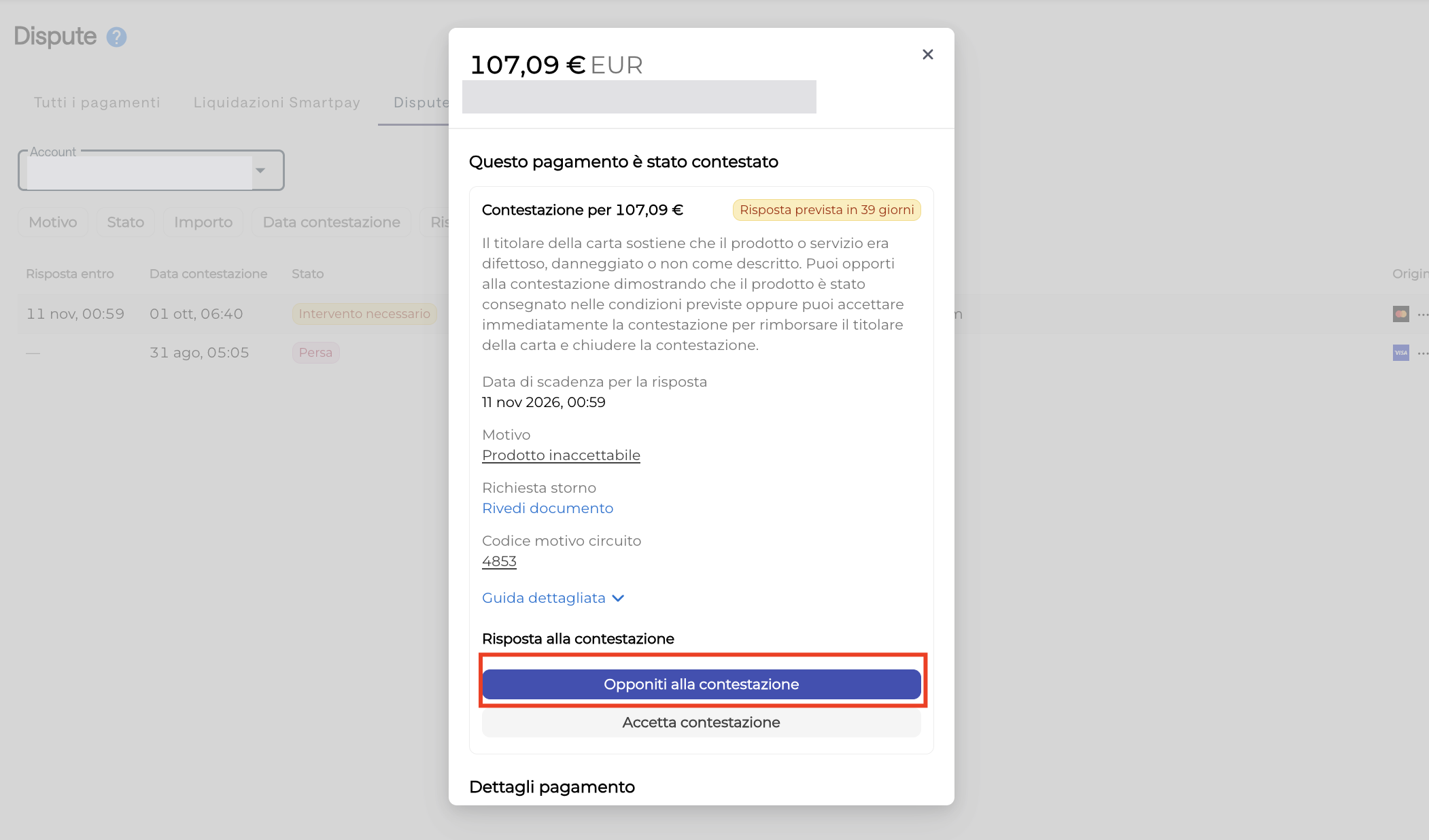
The response can be sent only once: after submission, it is no longer possible to add or replace documents. Check that everything is complete before confirming.
5. Which evidence to prepare based on the reason
The service to indicate is a stay booking (offline service).
- Fraud / Unrecognized charge: identity document and guest details (e.g., from self check-in), proof of actual stay (check-in and check-out, access codes used), booking confirmation, communications with the guest, and any link between the guest and the cardholder.
- Refund not processed (usually after a cancellation): the rate's cancellation policy, where and when they were shown to the guest before payment, the reason why the refund was not due, and any refunds already made.
- Product not received (e.g., a no-show): proof that the accommodation was available on the booked dates, cancellation and no-show policies, communications with the guest.
- Product not as described: the listing as it was published at the time of booking (description and photos, if possible on all channels), the confirmation sent to the guest, communications regarding the reported problem, and any solutions or partial refunds offered.
- Duplicate charge: the reference to the other payment and the explanation that these are distinct items (e.g., balance and city tax), with the relative receipts.
- Generic: contact the guest to understand the real complaint and prepare the evidence accordingly.
6. File requirements
- Upload only one file per type of proof: if you have multiple documents, merge them into a single PDF.
- The total size cannot exceed 4.5 MB; for Mastercard cards, the limit is 19 pages in total.
- Do not include links, audio, or video, and do not ask to be contacted: the bank only evaluates the attached documents.
7. What happens after submission and how much it costs
The guest's bank examines the documentation and decides: it can take up to 3 months, and no one can speed up the review. The outcome appears in the status column of the Smartpay disputes tab:
- if the bank rules in your favor, the disputed amount is returned to you;
- if the bank rules in favor of the guest, the status becomes Lost and the chargeback is final.
The fees, according to the Stripe price list for Italy, are two:
- €20 for each dispute received: they are withheld from your Smartpay balance along with the disputed amount when the dispute opens, and are never returned, even if you win;
- €20 if you respond to the dispute by sending evidence: they are returned only if you win.
8. How to reduce the risk of disputes
- Send the guest a clear booking confirmation, with the rate's cancellation policy.
- Keep listings aligned across all channels (room composition, beds, services).
- Keep communications with the guest and check-in data: they are the most useful evidence in case of a dispute. For stay bookings, the guest can dispute even months after payment, because the deadline to open a dispute normally runs from the date of the stay.
- Check that your Smartpay account email address is an inbox you read regularly: that is where dispute alerts arrive.
Frequently asked questions
4Money was deducted from my Smartpay balance for a booking that was already paid: why?
Most likely, the guest has opened a dispute on that payment. When the dispute is opened, the disputed amount and the dispute fee are withheld from your balance, which is why that payment does not appear in the period's bank transfer.
Check in Payments > Smartpay disputes: you will find the dispute with the reason, status, and deadline to respond.
I lost a dispute: can I still send documents?
No. When the status is Lost, or Under review because you have already responded, it is no longer possible to upload evidence. The guest's bank's decision is final.
I did not receive the dispute alert email: where does it arrive?
The alert email arrives at the email address of your Smartpay account, i.e., the one indicated during Smartpay activation, which may be different from the email you use to log in to SmartPMS. Check that inbox, including the spam folder: the email title is "A payment has been disputed".
In any case, you can find all disputes in Payments > Smartpay disputes, and users who can see the Payments section also receive the notification in the SmartPMS bell icon.
Related guides
Activation
Activation
Configuration
Configuration
Configuration
Configuration