

How to issue an electronic invoice and send it to the SDI
How to create an electronic invoice in SmartPMS from the account or from Fiscal Documents, which customer data is required (Italian private individual, Italian company, EU and non-EU foreign customer, Public Administration), where to correct customer profiles and invoice data, invoices to OTAs, data from Self Check-in, and submission to the SDI using Actions > Send to SDI.
You are in the right place if…20 cases
- “How do I create an electronic invoice and send it to the Revenue Agency (Agenzia delle Entrate)?”
- “How do I send the invoice to the SDI?”
- “I created the invoice but it was not sent to the SDI”
- “Foreign customer without a VAT number: what do I enter for VAT number, tax code, and recipient code?”
- “Mandatory for Italian private customer”
- “Invalid ZIP code (5 digits required) for a foreign customer”
- “Fill in at least one of SDI Code or PEC”
- “I enter the recipient code but the system sets it to 0000000 or XXXXXXX”
- “Placeholder not allowed: the customer's real VAT number is required, verifiable on VIES”
- “I corrected the customer's data but the invoice still has the old ones”
- “How do I address the invoice to Expedia or an agency?”
- “Invoice to a Municipality or a public body: where do I put the IPA office code?”
- “Invoice to an Italian private individual with only the tax code”
- “The guest entered billing details in the online check-in: how do I use them in the invoice?”
- “The VAT number and recipient code fields are locked, I cannot edit them”
- “Can I issue invoices and receipts even to customers who are not my guests?”
- “I need to invoice the owner for my management services”
- “How do I create an invoice without a booking?”
- “I want to issue a free (blank) invoice from Fiscal Documents”
- “How do I create a new customer directly from the invoice?”
To issue an electronic invoice in SmartPMS, create a document of the Invoice type, check that the customer's data matches the requirements for their type (private individual, company, foreign customer, or Public Administration), and then transmit it to the Exchange System (SDI) using Actions > Send to SDI. In this guide, you will find all the steps, along with the messages the management system displays when data is missing.
Before you begin
- Company configured for Italy: your company's tax data (including the tax regime) must be complete, and the SDI functionality must be active in your subscription. Usually, the Onboarding Specialist handles this during the initial setup: details are in the guide "Configuring the company to issue invoices and receipts in Italy".
- Invoice Series: every invoice takes its number and series from an accounting series of the Invoice type. Always include the year in the series code (for example
A2026): with a code without a year, when the numbering restarts from 1 in January, the new invoice will have the same number and series as one already transmitted, and the Revenue Agency will reject it as a duplicate. How to create and choose series is explained in the guide Accounting series: how to number invoices, receipts, and accounts. - Your user permissions: to create an invoice, you need the document creation permission; to see Send to SDI, you need the document sending permission. If you cannot find the items described here, ask your account administrator.
- Public Administration: you need the 6-character Unique Office Code (IPA) of the entity.
1. Create the invoice
You can create the invoice in two ways.
From the booking account (the most frequent case): in the account, click Invoice in the Convert column, and the Create Document window will open with the Invoice type and the account customer's data already filled in. How to prepare the account (single, partial, multiple) is explained in the guide "Accounts: how to prepare invoices and receipts".
From Fiscal Documents (free invoice, not linked to a booking):
- Go to Accounting > Fiscal Documents and click Add > Invoice. The Create Document window opens.
- In the Customer field, type the customer's name and select it from the list. If it does not exist yet, click + Create "name" at the top of the list: the Create Customer window opens, where you choose Private or Company and fill in the data (see point 3). After choosing the customer, their tax and address data will appear.
- Check Series and Date: the proposed series depends on your company and property settings, and you can choose another one before saving.
- In the Details tab, add the rows: Description, VAT, Quantity, and Unit Price. The rules on rates and exemptions are in the guide "VAT in fiscal documents".
- You can leave the Payments tab empty if the invoice will be settled later.
- Check the customer's data as explained in point 2 and click Create at the top right.
Expected outcome: the invoice appears in Accounting > Fiscal Documents with an empty Status column. At this point, the invoice is created but has not yet been sent to the SDI: sending is done in point 6.
The Create button remains disabled as long as there are fields highlighted in red in the window: read the message below the field and correct the data.
2. Fill in customer data based on the type
In the Create Document window, below the Customer field, you will find the data that goes into the electronic invoice: Name, VAT ID, Tax Code (CF), Unique Code, PEC, Country, Province, City, Address, and ZIP code.
Two pieces of information determine which data is mandatory:
- the customer type, Private or Company, which comes from the customer's profile (it is not chosen in the invoice);
- the Country of the document. You choose it from the list, where countries are written in English (for example Italy, Germany, United Kingdom).
When you open the Create Document window, when you choose the customer, and every time you change the Country, the management system automatically fills in some fields according to the electronic invoice rules. Here is the summary:
Customer type | Unique Code | VAT ID | Tax Code (CF) | ZIP code |
|---|---|---|---|---|
Italian private | | not needed | mandatory | 5 digits |
Italian company | 7-character recipient code or PEC | mandatory, without "IT" | optional | 5 digits |
Foreign private (EU or non-EU) | | | automatically cleared | the real one for the country; if empty, |
EU foreign company | | real VAT number, without country prefix (no automatic placeholder) | automatically cleared | the real one for the country |
Non-EU foreign company | | real tax identifier | empty | the real one for the country |
Public Administration | 6-character Unique Office Code (IPA) | Entity's VAT ID or Tax Code | – | 5 digits |
For all invoices, Address (at least 5 characters), City, and Country are also required. For the Italy country, the Province (2-letter code, for example VR) and the 5-digit ZIP code are also required.
Italian private
For an Italian private individual, the tax code (CF) is required: the VAT ID is not necessary. The Unique Code is set to 0000000.
- Check that the right person is in the Customer field. The pencil icon next to the field opens the customer profile (see point 3).
- Verify that the Country is Italy.
- Fill in the Tax Code (CF).
- Leave the Unique Code as
0000000. - Fill in Province, City, Address, and ZIP code.
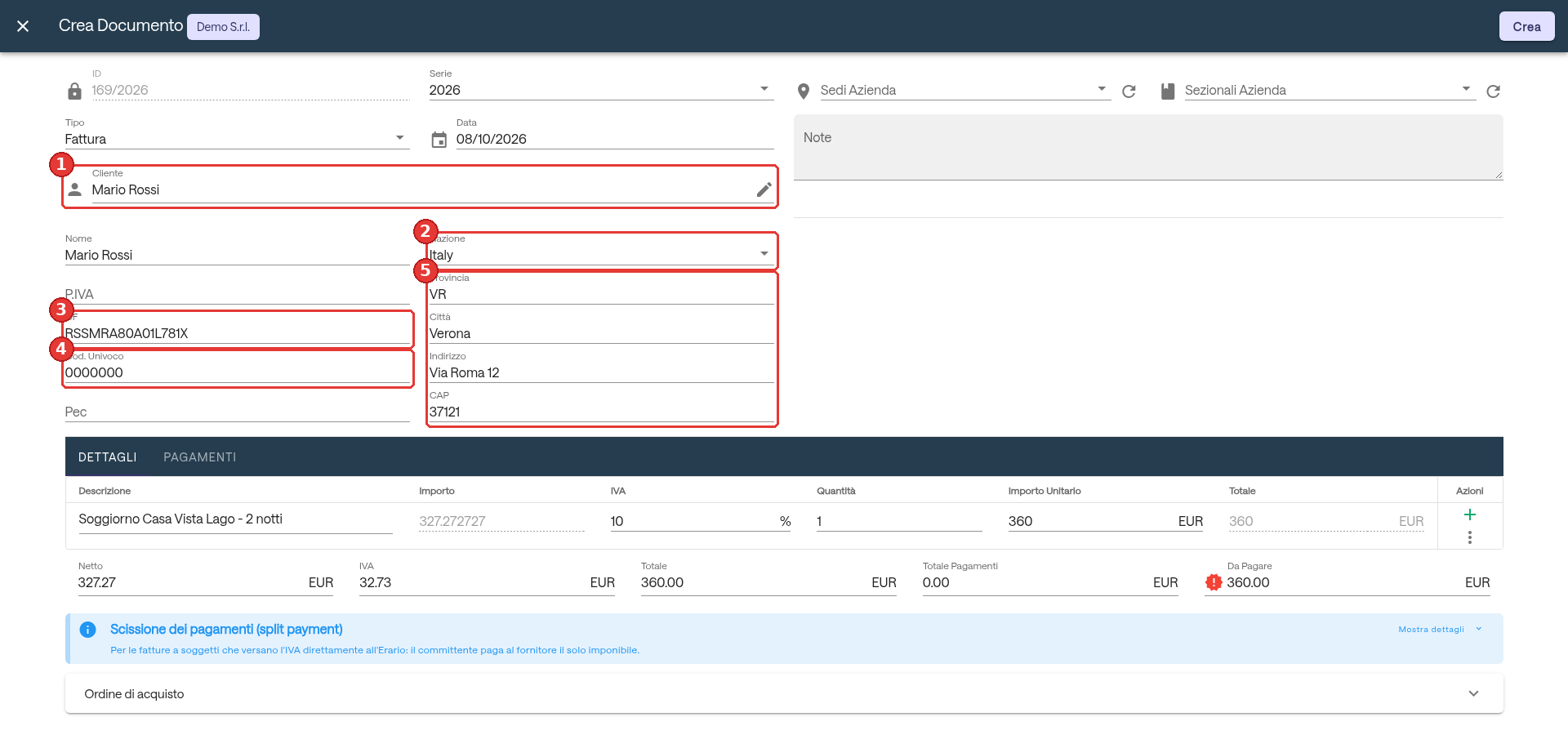
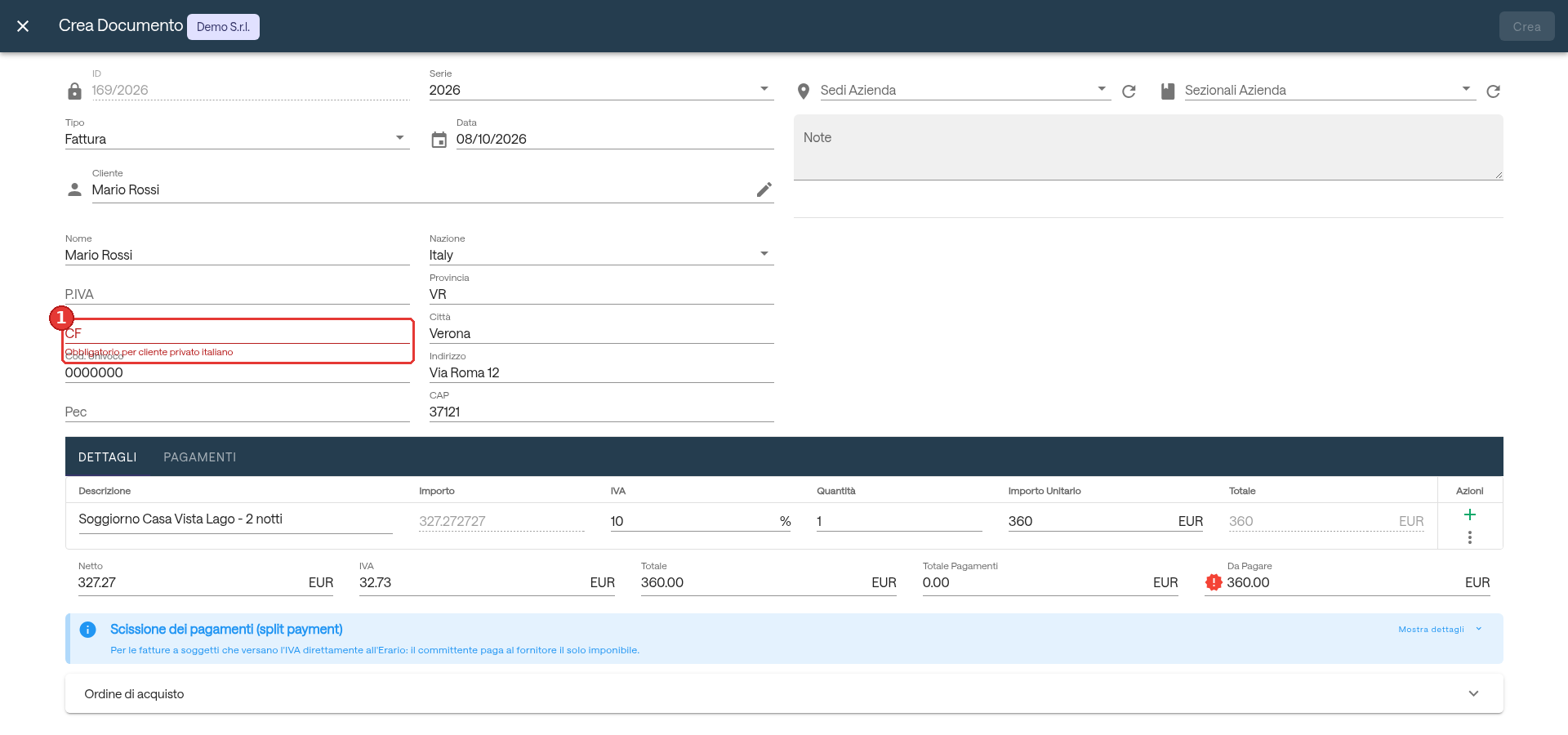
If the tax code is missing, the message "Mandatory for Italian private customer" appears below the Tax Code field, and the invoice cannot be created.
Italian company
For an Italian company, the VAT ID and at least one of the recipient code (Unique Code, 7 characters) and PEC are required: these are the data the customer company provides you to receive invoices.
- Verify that the Country is Italy.
- Write the VAT ID without the
ITprefix: if you write it, the management system removes it automatically. - Write the 7-character Unique Code, or, if the company does not have one, its PEC.
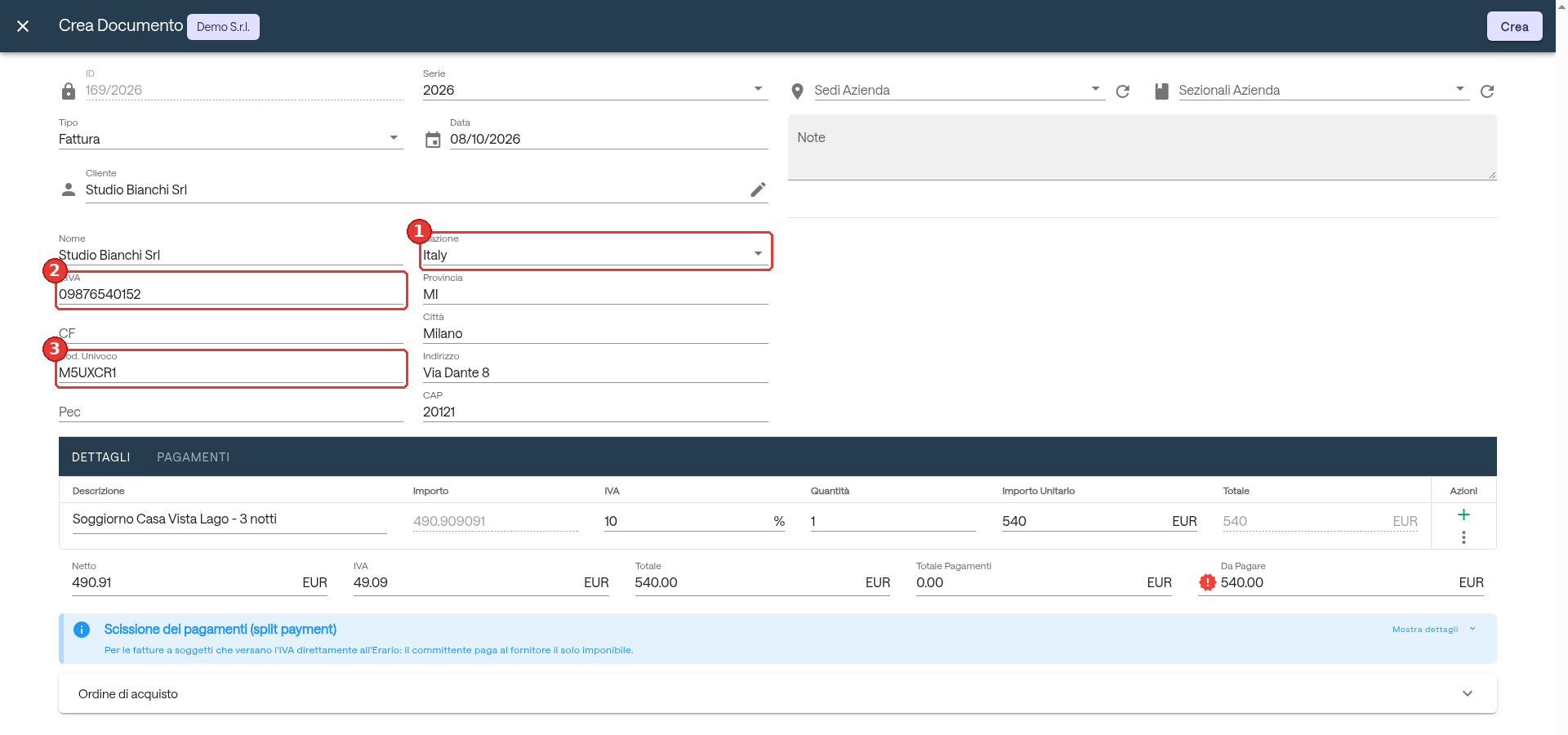
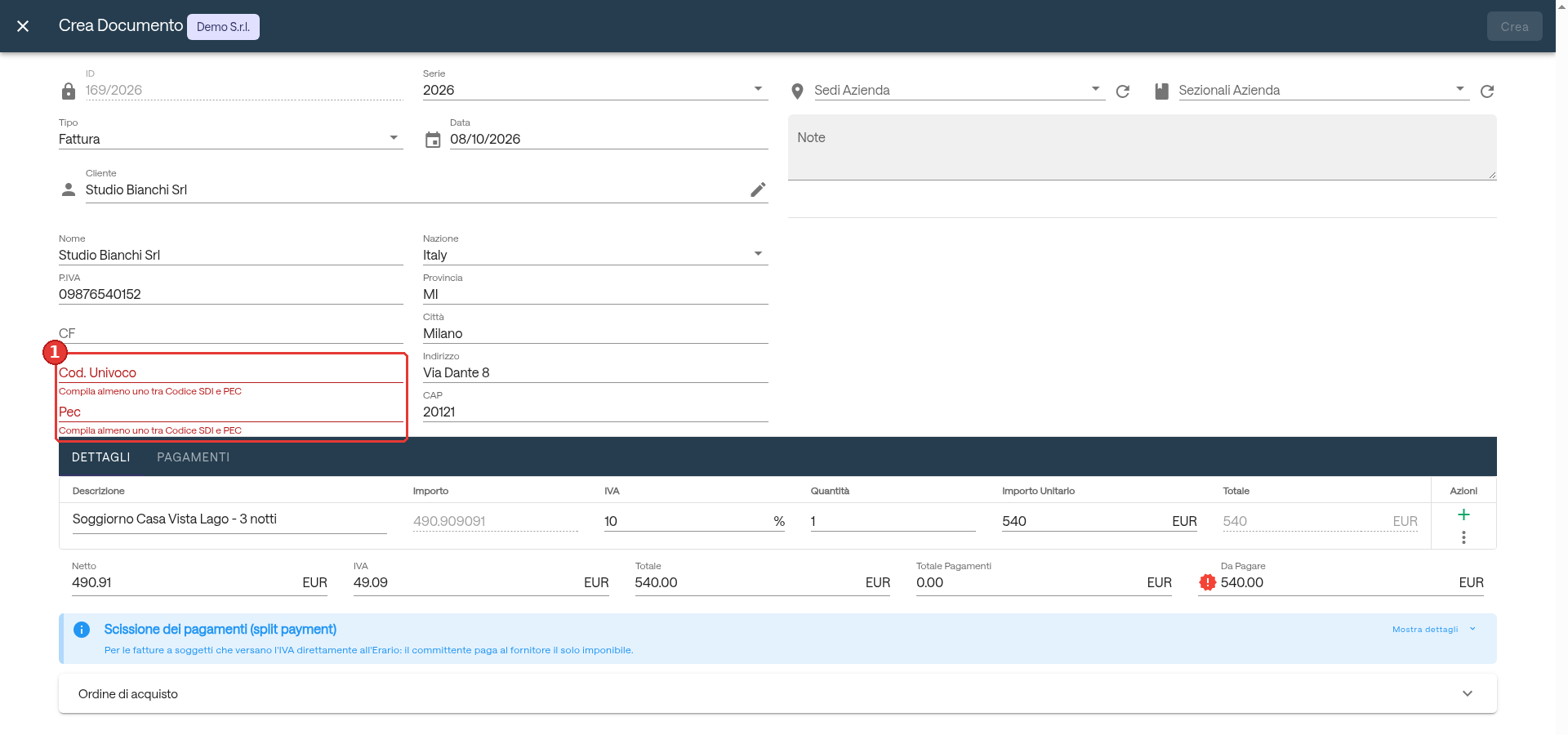
If both the recipient code and the PEC are missing, "Fill in at least one between SDI Code and PEC" appears below the two fields. If the VAT ID is missing, "Mandatory for Italian company" appears.
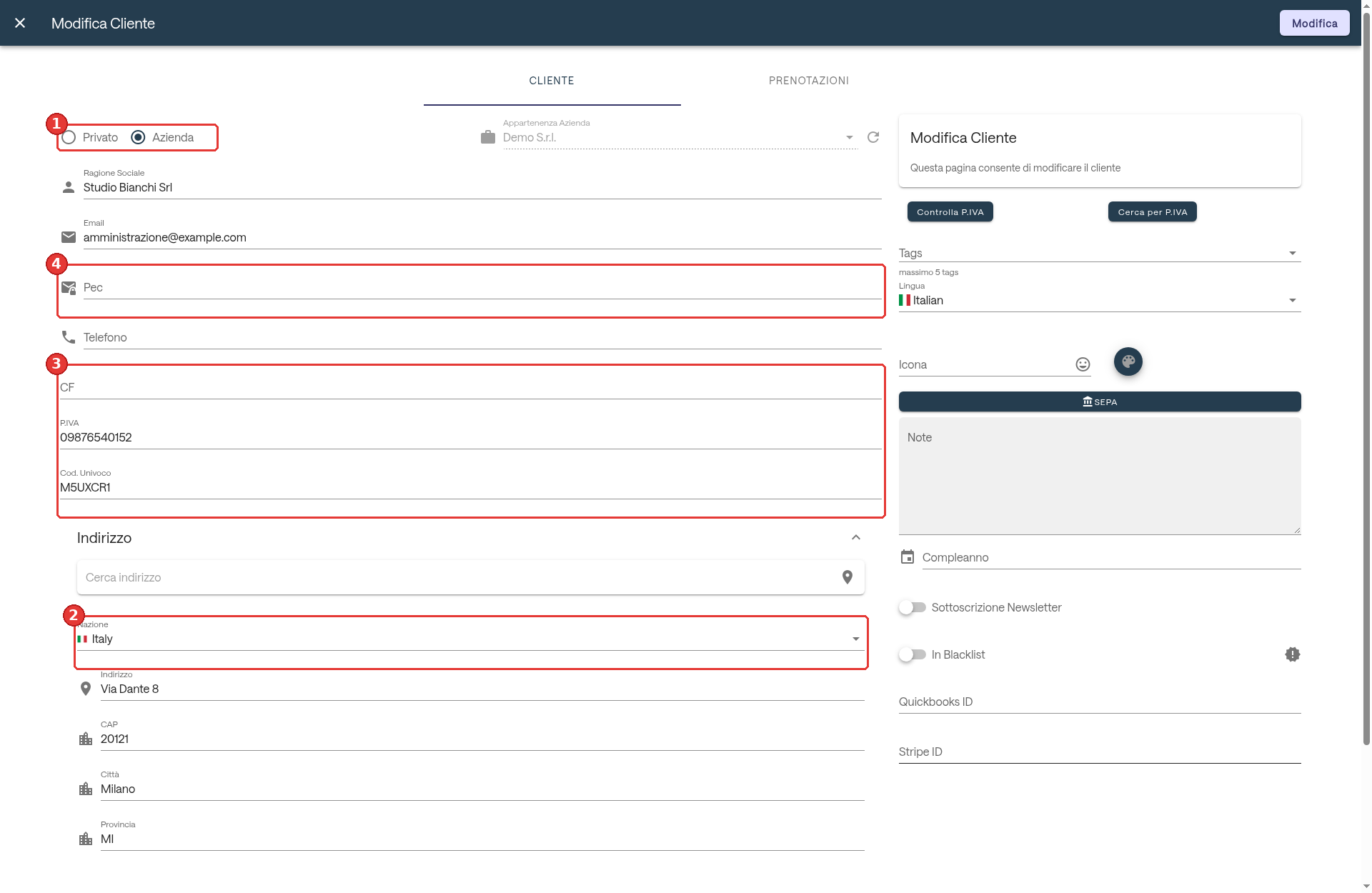
If the customer is a company but the fields behave as they would for a private individual (for example, the Unique Code returns to 0000000), it is registered as Private in the profile: correct it using the pencil icon as explained in point 3.
Foreign private
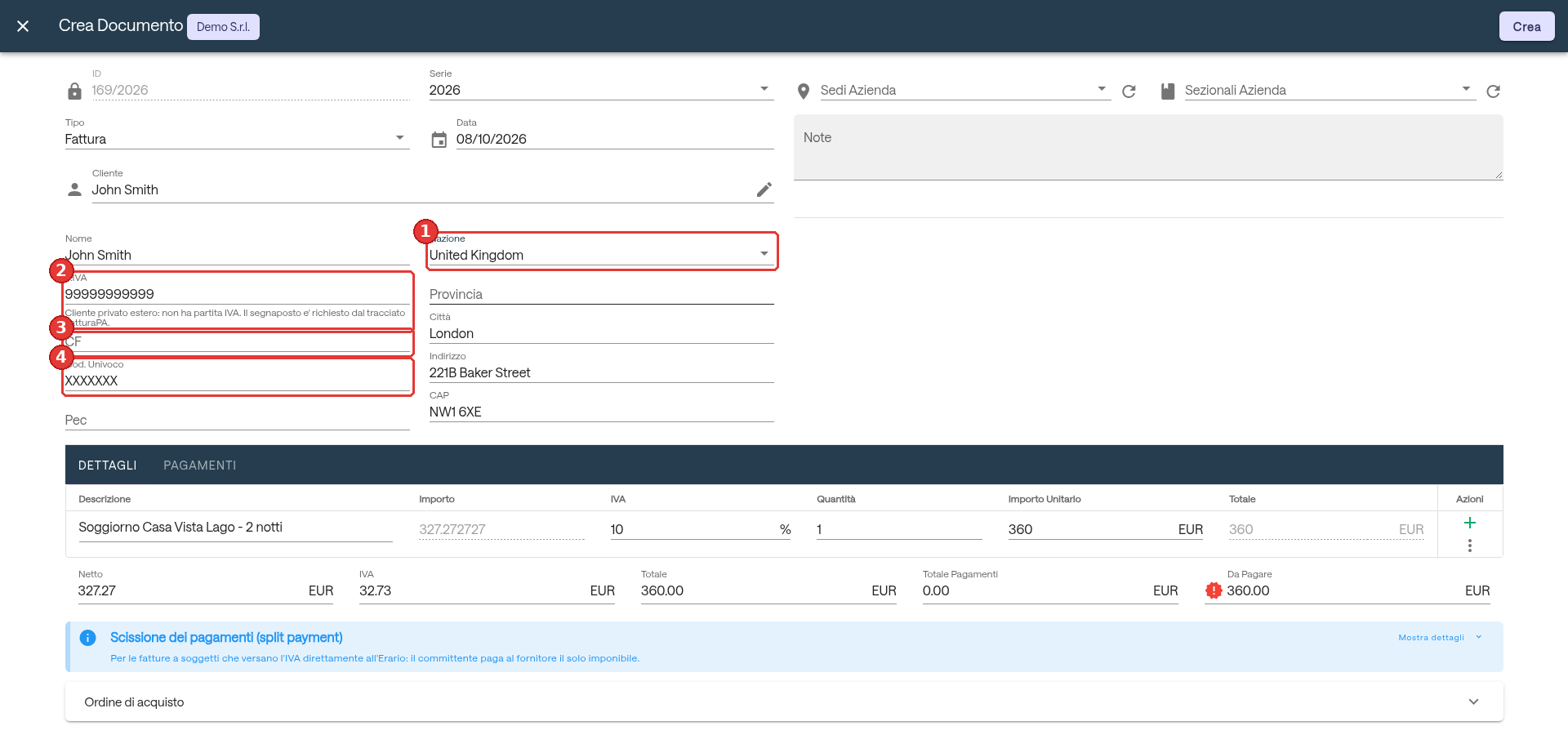
A private individual who does not reside in Italy does not have a VAT ID or an Italian tax code. For this reason, when the customer is registered as Private and the document Country is different from Italy, the management system automatically fills in the fields required by the electronic invoice as soon as the Create Document window opens (or when you choose the customer or change the Country):
- VAT ID: the placeholder
99999999999(eleven 9s) is inserted, with the message "Foreign private customer: does not have a VAT ID. The placeholder is required by the FatturaPA format."; - Unique Code: is set to
XXXXXXX; - Tax Code (CF) and PEC: are cleared;
- ZIP code: if empty, it is set to
00000, otherwise it remains what you entered.
You do not need to write anything by hand: just check that the Country is the customer's (for example United Kingdom) and that the customer is registered as Private. If the placeholder does not appear, the customer is almost always registered as Company or the Country remained Italy: correct the profile using the pencil icon as explained in point 3.
The real ZIP code of the country (for example NW1 6XE or 1689 PB) can remain in the document and in the PDF: for foreign customers, the ZIP code is not checked, and in the file sent to the SDI, ZIP code 00000 and province EE are automatically written, as required by the electronic invoice rules.
Foreign company in the European Union
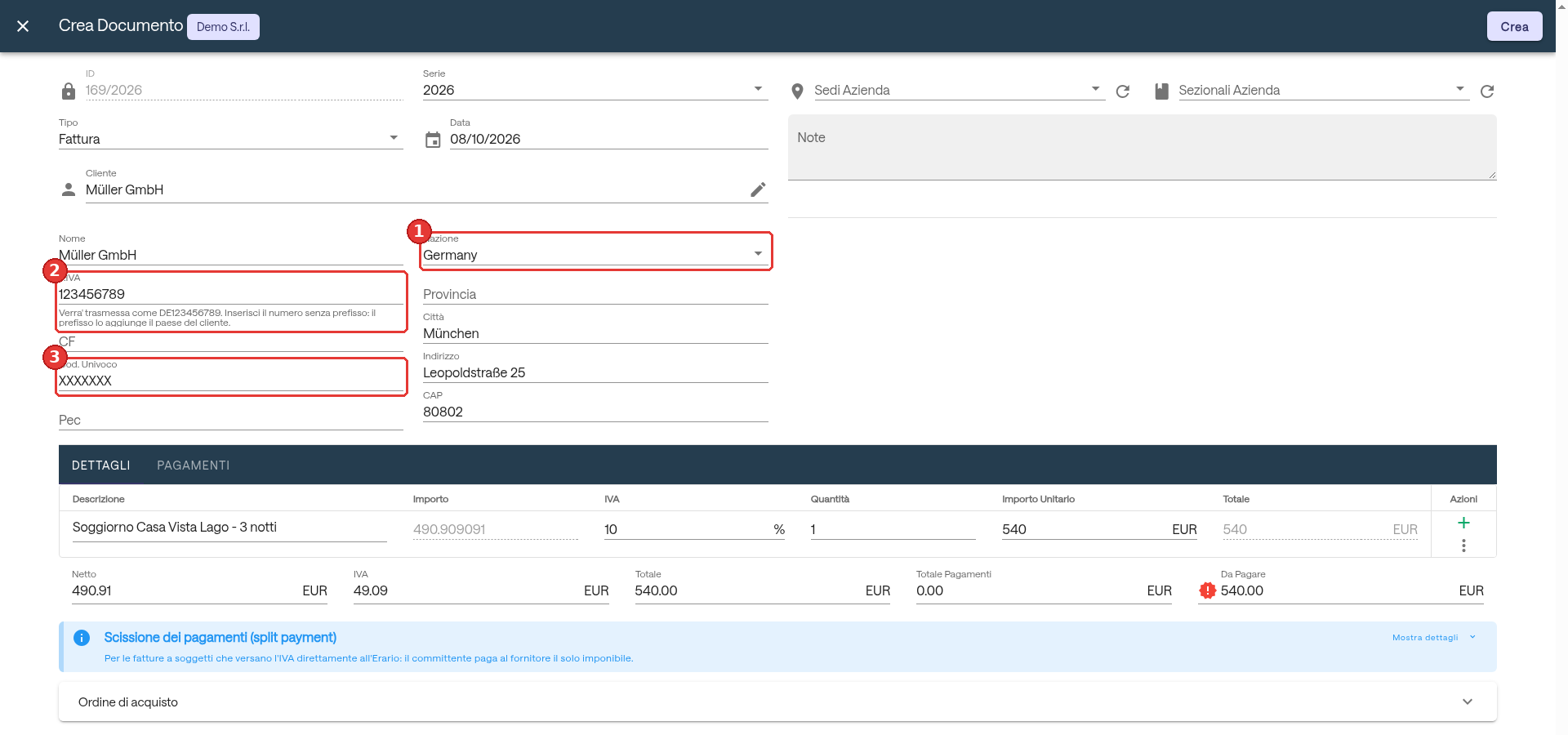
For a company based in another EU country, the real VAT number is required, which must be verifiable on the European VIES system.
- Country: choose the company's country (for example Germany). For companies, the management system does not insert any placeholder: when you change the Country, the VAT ID field is cleared and "Mandatory: enter the real VAT number of the foreign customer" appears. If the foreign country is already coming from the profile, the VAT number saved in the profile is proposed, without the country prefix.
- VAT ID: write the number without the country prefix. Below the field, for example, "It will be transmitted as DE123456789. Enter the number without the prefix: the prefix is added by the customer's country." appears.
- Unique Code: is set to
XXXXXXX.
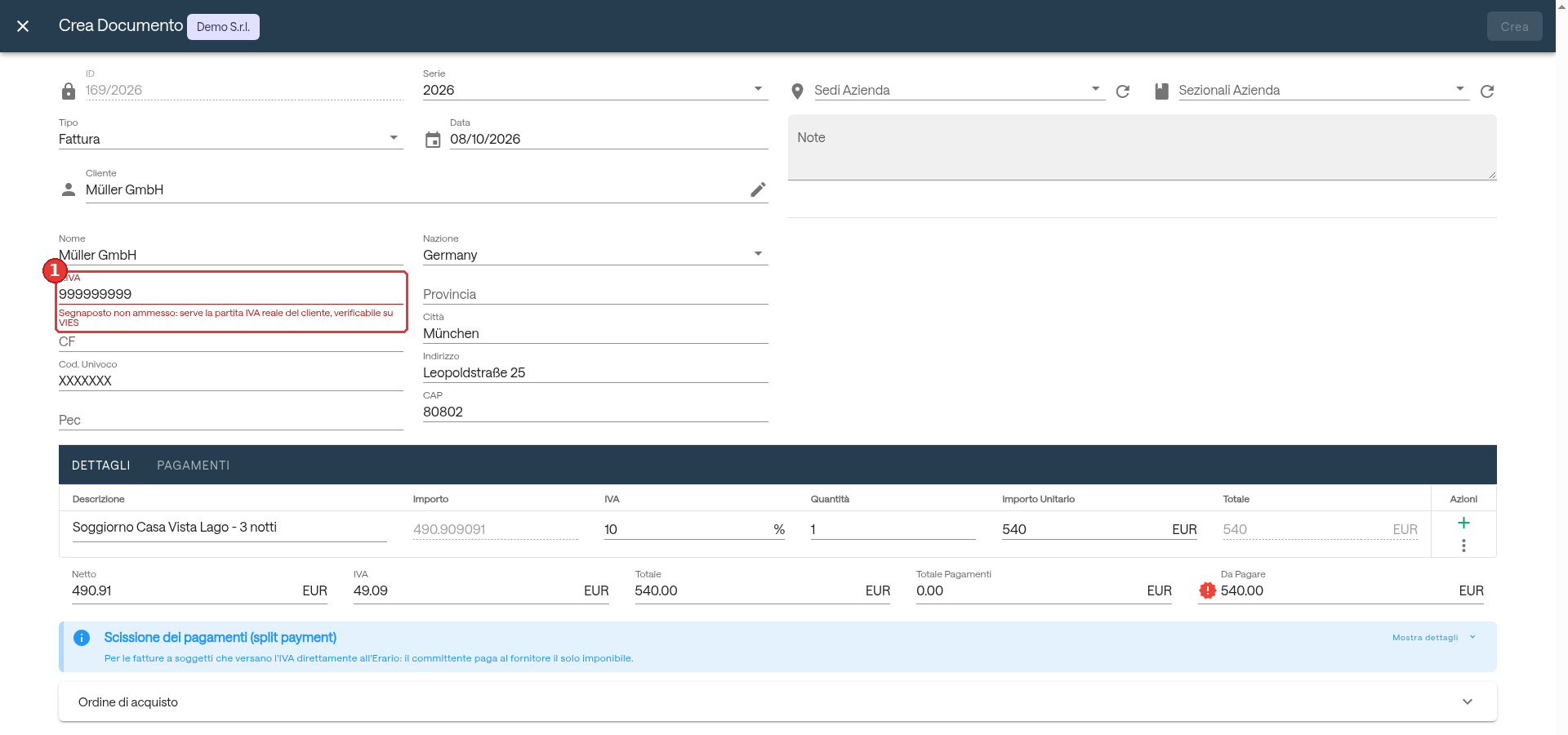
For an EU company, placeholders (like 999999999 or 99999999999) are not allowed: "Placeholder not allowed: the real VAT number of the customer, verifiable on VIES, is required" appears, and the invoice cannot be created until you enter the real VAT number. If the format does not match that of the country, a warning appears inviting you to verify the number on VIES: check it before creating the invoice.
Foreign company outside the European Union
For a company based outside the EU (for example United States or Switzerland), enter its real tax identifier in the VAT ID field, without the country prefix; the Unique Code is XXXXXXX. If the field is empty, "Mandatory: enter the real VAT number of the foreign customer" appears. Since there is no register like VIES for these countries, the placeholder 99999999999 is accepted if the company does not have a tax identifier.
Public Administration
To invoice a public entity (Municipality, school, ASL...), set the entity in the customer profile as Public Administration:
- Open the customer profile (from the pencil icon next to the Customer field, or from + Create "name" for a new customer) and choose Company.
- Open the Electronic Invoicing (SdI) panel and in Public Administration Recipient choose Yes, Public Administration. The management system will use the electronic invoice format for the PA.
- In the Unique Office Code (IPA) field, write the entity's office code: exactly 6 characters (the counter must indicate 6 / 6). A 7-character code is an ordinary recipient code, and the invoice would be rejected by the SDI.
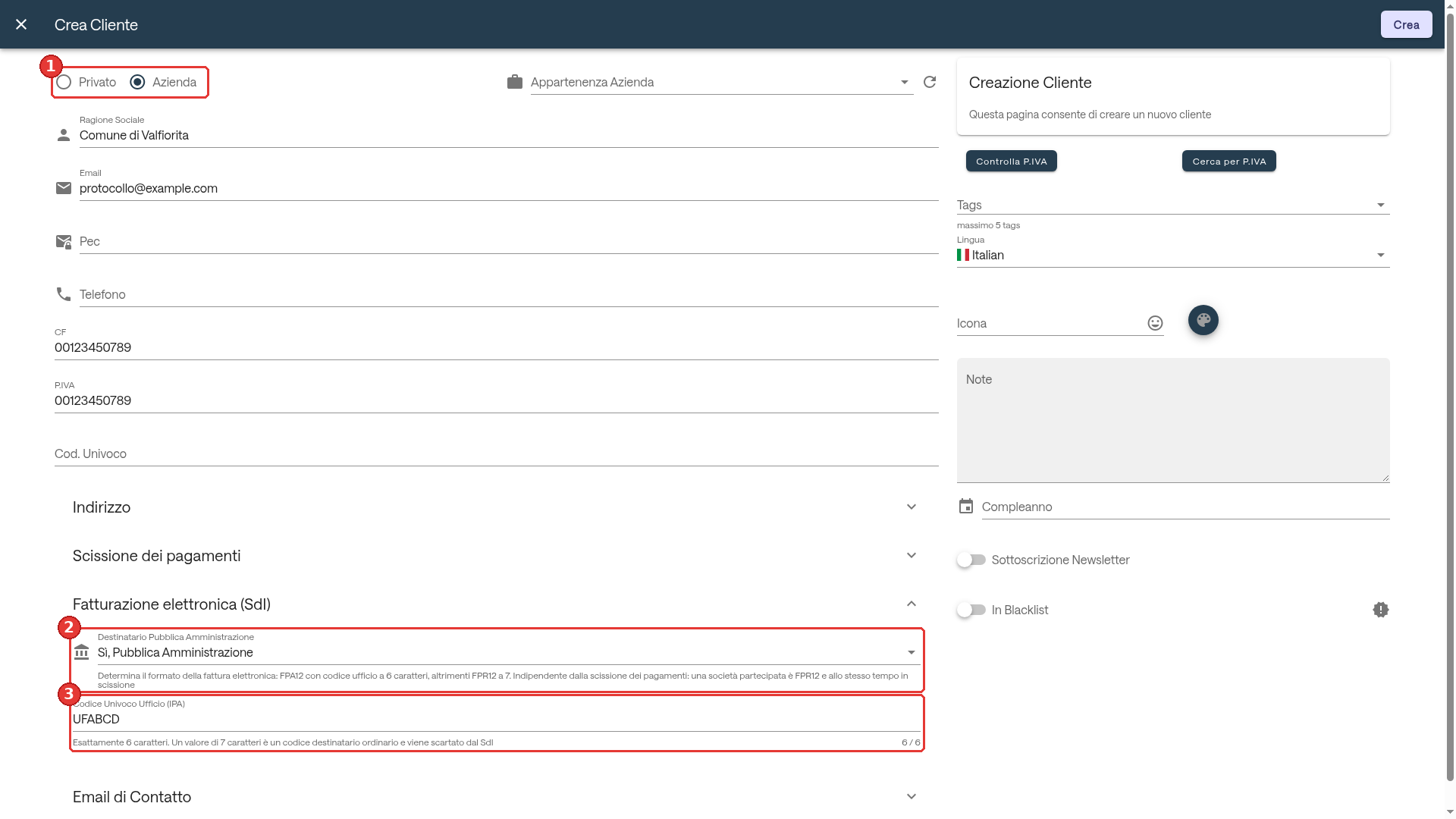
When you create the invoice, check that the 6-character office code is in the Unique Code field of the document: this is the recipient code transmitted to the SDI.
If the entity applies split payment, set it in the Split payment panel of the same profile: see the guide "VAT in fiscal documents". For the digital signature of invoices to the Public Administration and for rejection due to an invalid signature, see the guide "Electronic invoice rejected or not sent to the SDI: statuses, most common errors, and how to resend it".
3. Where to correct data: customer profile or invoice
Customer data exists in two places, and the management system treats them differently:
- Customer profile: you open it with the pencil icon next to the Customer field, in the account or in the Create Document window. The Edit Customer window opens, where you change the type (Private or Company), the Country (in the Address panel), Tax Code (CF), VAT ID, Unique Code, PEC, and the Electronic Invoicing (SdI) panel. Save with Edit at the top right. This data becomes the data proposed for subsequent invoices.
- Invoice fields: these are the ones that end up in the PDF and in the file sent to the SDI. The invoice takes a copy of the customer's data at the moment you create it.
For this reason:
- correct the profile first using the pencil (correct customer type and country) and then create the invoice;
- modifying the profile does not update an already created invoice;
- data corrected by hand inside the account or in the single invoice does not return to the profile: for the next invoice, the old data will be proposed again. If the data was wrong in the profile, correct it there as well.
If the customer type is wrong (for example, a company registered as Private), the VAT ID is not requested and the form applies the private individual rules: it can only be corrected from the profile.
The automatic values described in point 2 (VAT ID placeholder, XXXXXXX, 0000000) are applied only while you create the document: an already created invoice retains the data with which it was issued, even when you reopen it for editing.
If the invoice has already been created but not yet sent to the SDI, you can correct its data with Actions > Edit: the procedure is in the guide "Correcting an already issued invoice or receipt". If the invoice has already been sent, follow the same guide (credit note).
4. Invoices to an OTA or an agency (Expedia and similar)
When you need to invoice a company (for example, a booking portal or an agency), the invoice must be addressed to the company, not to the guest with the company name written by hand.
- Create the company as a Company customer (from the Customer field with + Create "name", or from Customers). Ask the company for its tax data.
- If the company has an Italian VAT ID: Country Italy, VAT ID without
IT, Unique Code or PEC provided by the company, Italian address with ZIP code and province. If you leave the foreign country of the headquarters, the management system applies foreign rules and writesXXXXXXXinstead of the recipient code. - If the company is foreign: Country of the company's country, real tax identifier, Unique Code
XXXXXXX. - In the invoice, select the company in the Customer field instead of the guest.
The Search by VAT ID button in the profile may not find the company: in that case, fill in the data by hand. Invoices to OTAs are created one by one: automatic creation for all bookings is not available.
5. Billing data collected with Self Check-in
If you also ask the guest for billing data during Self Check-in, this is saved in the customer profile linked to the booking. It does not create the account or the invoice by itself: when you create the account and then the invoice, the data is already filled in.
Before creating the invoice, always check Country and customer type using the pencil: an Italian guest with a foreign country, for example, would be invoiced with the foreign customer rules (XXXXXXX, ZIP code 00000).
How to activate the request for billing data in Self Check-in (option Mandatory billing data) is explained in the guide Configuring the Self Check-in process: documents, selfies, contract, and OTP.
6. Send the invoice to the SDI
The invoice is not sent automatically when you create it: it must be sent one by one.
- Go to Accounting > Fiscal Documents and find the invoice (the Status column is empty).
- On the invoice row, click Actions > Send to SDI.
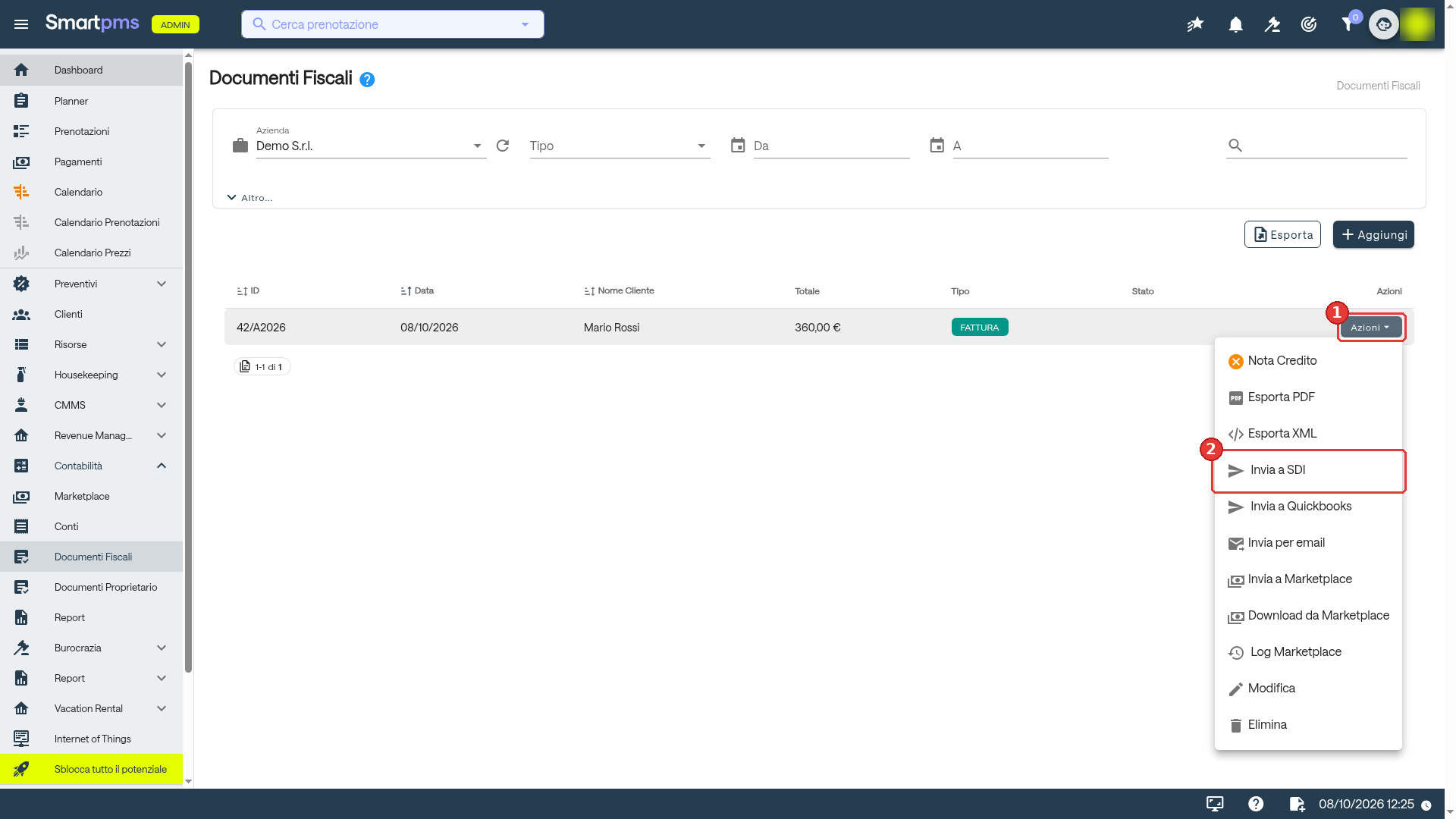
- In the Are you sure? window, click Yes to confirm (with No you cancel).
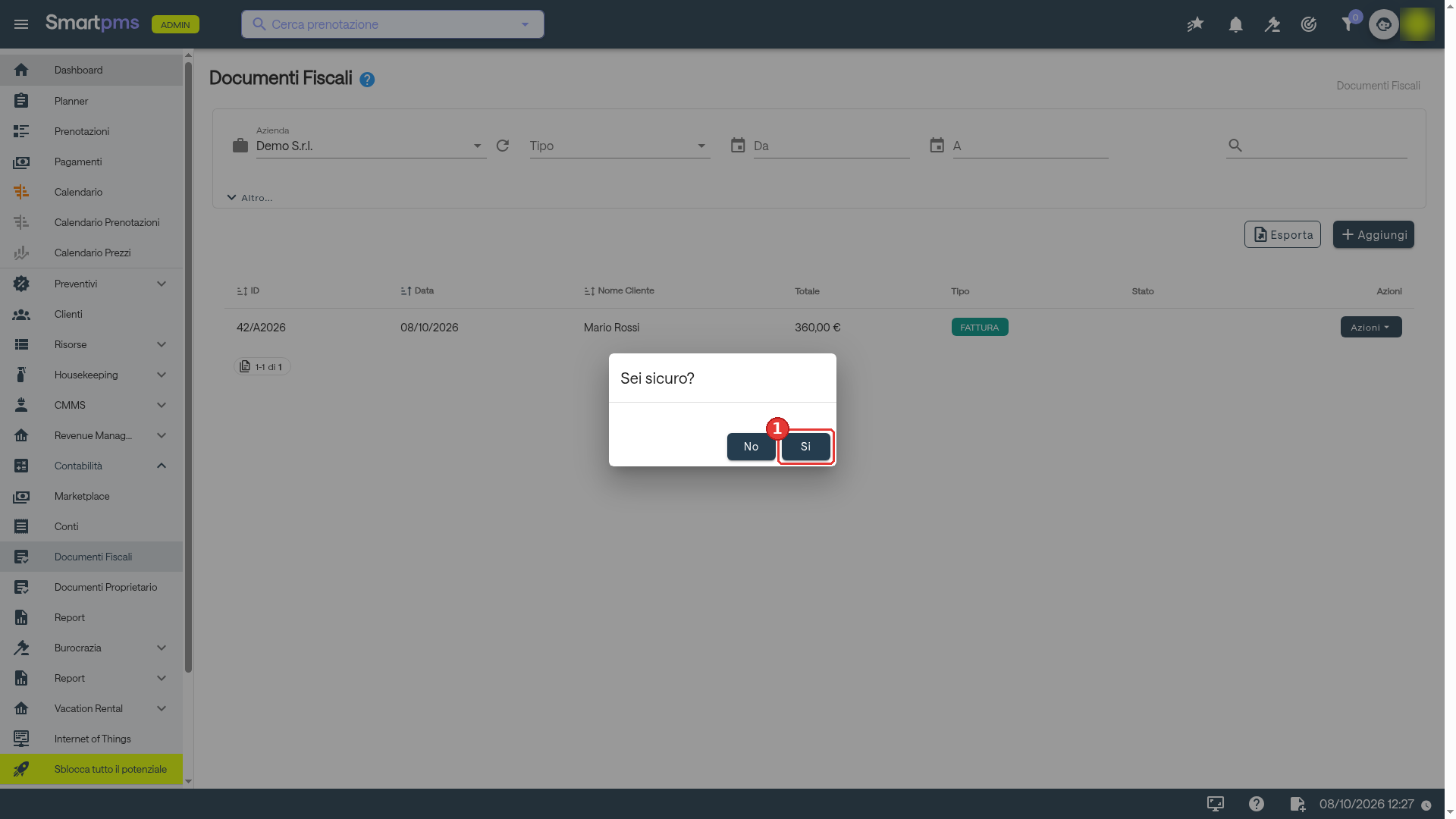
Expected outcome: the invoice status changes to Queued for sending and then, when the SDI has received the file, it updates by itself. The electronic invoice file is generated at the time of sending with the current document data.
What the statuses mean (Document Sent, Delivered, Delivery Failed, Error...), when sending is not allowed (for example, if the invoice date is older than 12 days, with the message "You cannot send this document to the SDI"), and how to correct and resend a rejected invoice is explained in the guide "Electronic invoice rejected or not sent to the SDI: statuses, most common errors, and how to resend it".
If you transmit invoices to the SDI via QuickBooks, do not also use Send to SDI: choose only one system, as explained in the guide How to connect SmartPMS to QuickBooks and send invoices and receipts (Italy).
Export XML: download it after sending
If you want SmartPMS to transmit the invoice, use Send to SDI and download the XML (Actions > Export XML) only afterwards: if you download the XML of an invoice that has never been sent, sending from SmartPMS is blocked to avoid double sending. For exporting files for the accountant, see the guide Accounting Marketplace: exporting documents to Danea Easyfatt and in electronic invoice XML format.
Frequently asked questions
11Foreign customer without a VAT number: what do I enter for VAT number, tax code, and recipient code?
For a foreign customer, the electronic invoice rules for non-resident recipients apply, and the management software applies them automatically while you create the invoice: just ensure the customer type and Country (the list is in English, for example United Kingdom) are correct.
- Foreign private individual: you do not need to enter anything. When opening the Create Document window (or when choosing the customer or changing the Country), the VAT number is filled with the placeholder
99999999999(eleven 9s), the Recipient Code withXXXXXXX, Tax Code and PEC are cleared, and if the ZIP code is empty, it is set to00000. - EU foreign company: no placeholder is inserted. Write the real VAT number without the country prefix; the software shows how it will be transmitted (for example DE123456789). Placeholders are not allowed.
- Non-EU foreign company: write the company's real tax identifier.
If the customer is a company but the software suggests the private individual rules, it is registered as a Private individual in the customer profile: correct it using the pencil icon next to the Customer field by choosing Company.
I enter the customer's recipient code but the system sets it to 0000000 or XXXXXXX
The recipient code is set based on the customer type and country:
- with Country Italy and Private individual customer, the Recipient Code is always
0000000(the private individual receives the invoice in their reserved area of the Revenue Agency website); - with a foreign Country, the Recipient Code is always
XXXXXXX.
If the customer is an Italian company, open the pencil icon next to the Customer field, choose Company, set the Country to Italy in the Address panel, and save with Edit. Then create the invoice and enter the 7-character recipient code or the PEC. This also applies to foreign companies with an Italian VAT number (for example some OTAs): set the Country to Italy, not that of the main headquarters.
The VAT number and recipient code fields are locked or greyed out: I cannot edit them
While creating the invoice, the VAT number, Tax Code, and Recipient Code fields are always editable for any type of customer. If the value changes automatically when you choose the country, the software is applying the electronic invoice rules: correct the customer type and Country in the customer profile (pencil icon next to the Customer field) and then fill in the data.
If, on the other hand, you are looking at an already created invoice and the fields or rows are locked (padlock, Unlock button), follow the guide "Correcting an already issued invoice or receipt". If the invoice status is Downloaded, see the guide "Electronic invoice rejected or not sent to the SDI: statuses, most common errors, and how to resend it".
I corrected the customer profile (or the account) but the invoice still has the old data
The invoice takes a copy of the customer's data at the moment you create it: modifying the profile afterwards does not change an already created invoice. Similarly, data corrected manually inside the account does not return to the profile and is not proposed in the next invoice.
- For future invoices: correct the data in the profile using the pencil icon next to the Customer field (in the account or invoice) and save with Edit, before creating the invoice.
- For an invoice already created and not yet sent to the SDI: correct the document fields with Actions > Edit, as explained in the guide "Correcting an already issued invoice or receipt".
The foreign ZIP code is not accepted: «Invalid ZIP code (5 digits required)» appears
The 5-digit ZIP code check only applies when the document Country is Italy (or is not yet set). If it appears for a foreign customer, the Country remained Italy or is empty.
Set the correct customer Country (the list is in English, for example Netherlands or United Kingdom): the message disappears and you can leave the country's real ZIP code, even with letters or 4 digits (for example 1689 PB). In the file sent to the SDI for foreign customers, ZIP code 00000 and province EE are automatically written, as required by the electronic invoice rules.
Italian private individual: can I issue the invoice with only the tax code?
Yes. For an Italian private customer, the Tax Code (mandatory) and the full address with Province, City, Address, and 5-digit ZIP code are required. The VAT number is not needed and the Recipient Code remains 0000000: the customer finds the invoice in their reserved area of the Revenue Agency website.
If the tax code is missing, "Mandatory for Italian private customer" appears under the field and the invoice cannot be created.
The customer's tax code gives an error or blocks the submission
The tax code must have 11 to 16 characters, only letters and numbers, without spaces or symbols. The most frequent errors are typos, for example an S instead of a 5 or an O instead of a 0.
Correct the Tax Code both in the invoice (if it has not been sent yet, with Actions > Edit) and in the customer profile using the pencil icon next to the Customer field, so that subsequent invoices start with the correct data. If the invoice was rejected by the SDI due to the tax code, see the guide "Electronic invoice rejected or not sent to the SDI: statuses, most common errors, and how to resend it".
Italian company: the invoice is not created, «Fill in at least one of SDI Code or PEC» or «Mandatory for Italian company» appears
For an Italian company, the invoice requires:
- the VAT number, without the
ITprefix (if missing, "Mandatory for Italian company" appears); - the 7-character Recipient Code or the PEC (if both are missing, "Fill in at least one of SDI Code or PEC" appears).
Ask the client company for their recipient code or PEC and enter them in the invoice and in the customer profile (pencil icon next to the Customer field). As long as one of the fields is highlighted in red, the Create button remains disabled.
How do I address the invoice to Expedia or another OTA?
Create the company as a Company customer and select it in the Customer field of the invoice instead of the guest: do not manually type the company name in the invoice addressed to the guest.
- If the company has an Italian VAT number: Country Italy, VAT number without
IT, Unique Code or PEC and Italian address, as indicated by the company. - If the company is foreign: Country of the company's location, actual tax ID, Unique Code
XXXXXXX.
The tax details must be requested from the company. Before issuing the invoice, consult your accountant to understand if it is correct to address it to the OTA (for Expedia, the company indicated by the portal) or directly to the guest. If Search by VAT number does not find the company, fill in the master data manually. Invoices to OTAs are created one by one: automatic creation for all bookings is not available.
I created the invoice: is it sent automatically to the SDI?
No. Creating the invoice does not transmit it: the Status column in Accounting > Fiscal Documents remains empty until you send it. To transmit it, click Actions > Send to SDI on the invoice row and confirm with Yes: the status changes to Queued for sending.
If you transmit invoices via QuickBooks, do not also use Send to SDI: see the guide How to connect SmartPMS to QuickBooks and send invoices and receipts (Italy).
Can I issue a TD17 self-invoice from SmartPMS for Booking.com or Airbnb commissions?
No. The electronic invoices that SmartPMS sends to the SDI are of two types: invoice (TD01) and credit note (TD04). It is not possible to issue self-invoices or integrations for services purchased from abroad (such as document type TD17, reverse charge), like those for booking portal commissions.
Self-invoices for OTA commissions must be issued with your accountant or their management software.
Related guides
Configuration
FAQ
Configuration
Configuration
Configuration
Configuration