

Booking Extras Report: list of sold extras
How to extract and read the Booking Extras report: the list of extra rows for confirmed bookings, filterable by property, extra, and check-in date, with Excel export of quantity, unit price, total, and VAT rate.
You are in the right place if…5 cases
- “An extra does not appear in the booking extras report”
- “How do I export the extras sold during the month”
- “Does the extra report filter by service date or arrival date?”
- “I don't see the extras for cancelled bookings”
- “Is the extra amount VAT included?”
Where to find it
The report can be opened from the Report > Booking Extras menu. It is visible to users with permissions dedicated to booking extras, assigned by default to Manager, Advanced User, and Staff roles.
What it is for
The report lists the extras added to bookings (e.g., breakfasts, parking, transfers) for one or more properties. It is useful for monthly service counts and for reporting to suppliers or owners.
The report reads the extras entered in the Details > Booking Extras section of each booking.
How it works
Filters
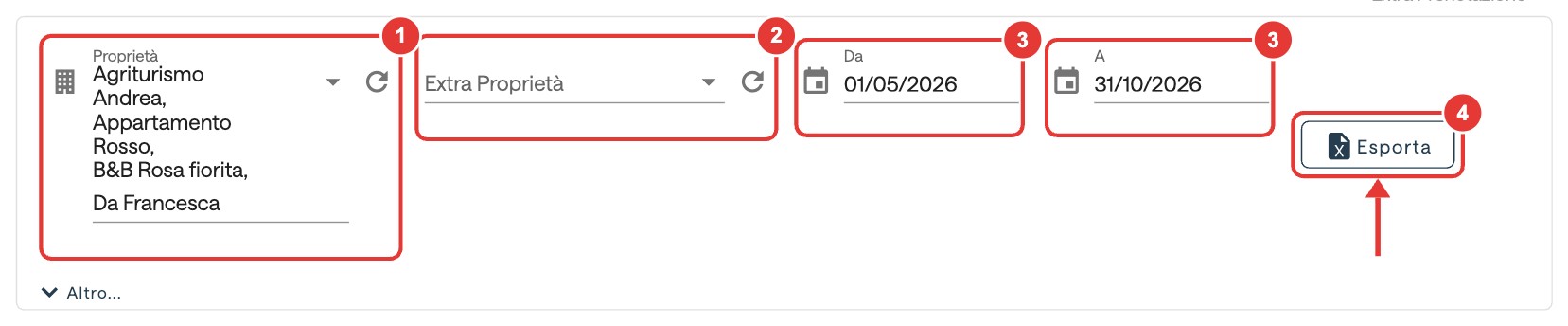
- Property: one or more properties (also by groups).
- Property Extra: a single extra from the property catalog.
- From / To: these refer to the check-in date of the booking, not the service date or the date the extra was added.
Which bookings it counts
The report only shows extras for Confirmed bookings. Extras for cancelled, pending, or optional bookings do not appear.
Columns
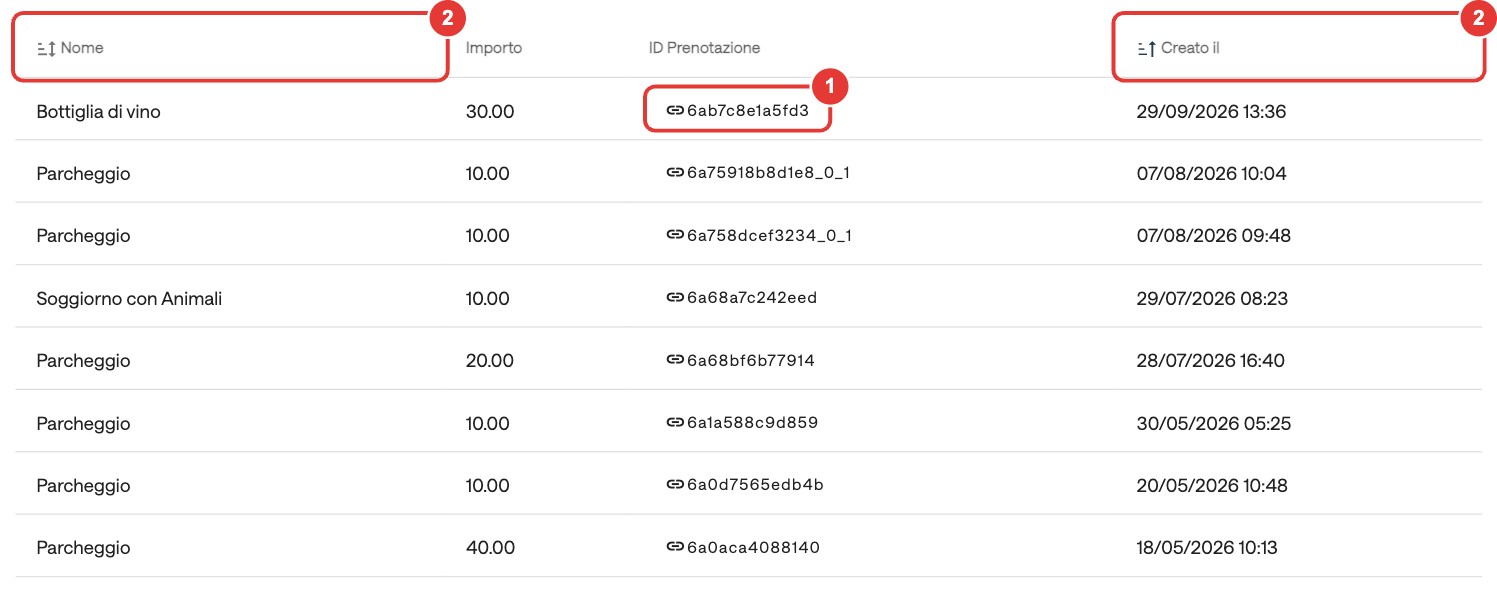
- Name: the name of the extra as saved in the booking. If the extra is linked to a bookable resource, it appears as "Resource / Name".
- Amount: unit price × quantity, VAT included.
- Booking ID: link that opens the booking.
- Creation date: when the extra was added to the booking.
You can sort by Name or Creation date. The table has no totals or print function.
Export
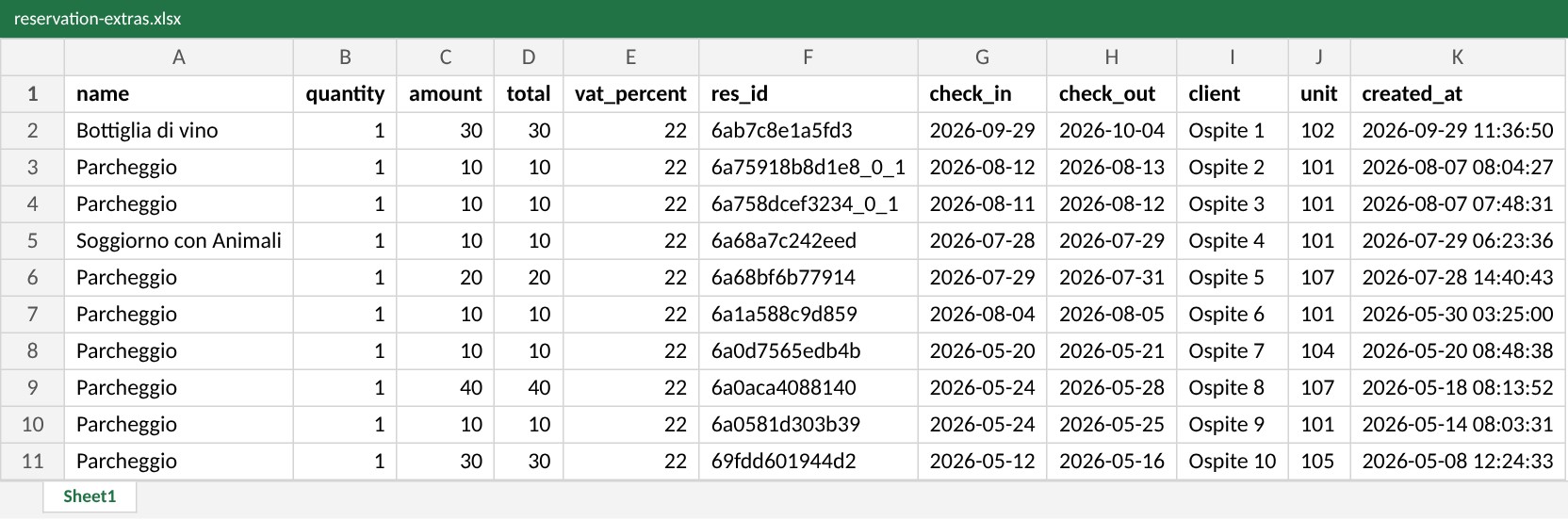
- The Export button downloads to Excel all rows that match the filters, with: name, quantity, unit price, total, VAT rate, booking ID, check-in, check-out, guest, unit, and creation date.
How to use it
- Open Report > Booking Extras.
- Select one or more properties.
- If you need a single service, choose the extra in Property Extra.
- Set From and To considering the check-in date of the bookings.
- Click Export to get the Excel file and calculate totals.
Things to know
- Reference date: a booking spanning two months is counted entirely in the month of check-in, even if the extra is used in the following month.
- Frozen amounts: each row maintains the price, VAT, and quantity it had when the extra was added to the booking. If you change the price of the extra in the settings, the existing rows do not change.
- Filter by extra: rows added manually without choosing an extra from the catalog do not appear when you filter by a specific extra.
- What is not included: extras added only in the Invoice or fiscal documents, City tax, and cleaning fees are not extra rows and do not appear.
- Data by VAT rate or by day: for an analysis by VAT rate, use the row export from fiscal documents.
Frequently asked questions
1Does the period refer to the service date?
No, From and To refer to the check-in date of the booking.
Related guides
Configuration
Configuration
Configuration
How it works
How it works
How it works