

Meals Report: expected breakfasts, lunches and dinners per day
How the Meals Report works: how many breakfasts, lunches and dinners to prepare each day, room by room, based on the Board and the Daily Detail of confirmed reservations. Explains the rules for arrival and departure days, manual modifications, and printing the signature sheet.
You are in the right place if…6 cases
- “Some breakfasts are missing from the meals report”
- “Breakfast is not shown on the arrival day in the meals report”
- “A guest with breakfast included does not appear in the meals report”
- “Breakfast purchased as an extra on Booking is not counted”
- “I cannot see guests on room-only basis”
- “After a date change, the meals are not updated”
Where to find it
Open the report from the menu Reports > Meals Report. It is visible to users with the permission dedicated to the meals report, assigned by default to the Manager, Advanced User, and Staff roles.
What it is used for
The Meals Report tells the kitchen and breakfast room how many meals to prepare each day, room by room, with the number of guests and kitchen notes. It can also be printed as a signature sheet.
Where the data comes from
The report reads the Daily Detail of each reservation, which SmartPMS generates from the reservation's Board and the number of guests:
- Room only: no meals.
- Bed and breakfast: breakfast.
- Half board: breakfast and dinner.
- Full board and All inclusive: breakfast, lunch, and dinner.
Rules by day:
- Arrival day: no breakfast; lunch and dinner if included in the board.
- Intermediate days: all meals included in the board.
- Departure day: breakfast only.
Meals are counted for adults and children; infants are not counted.
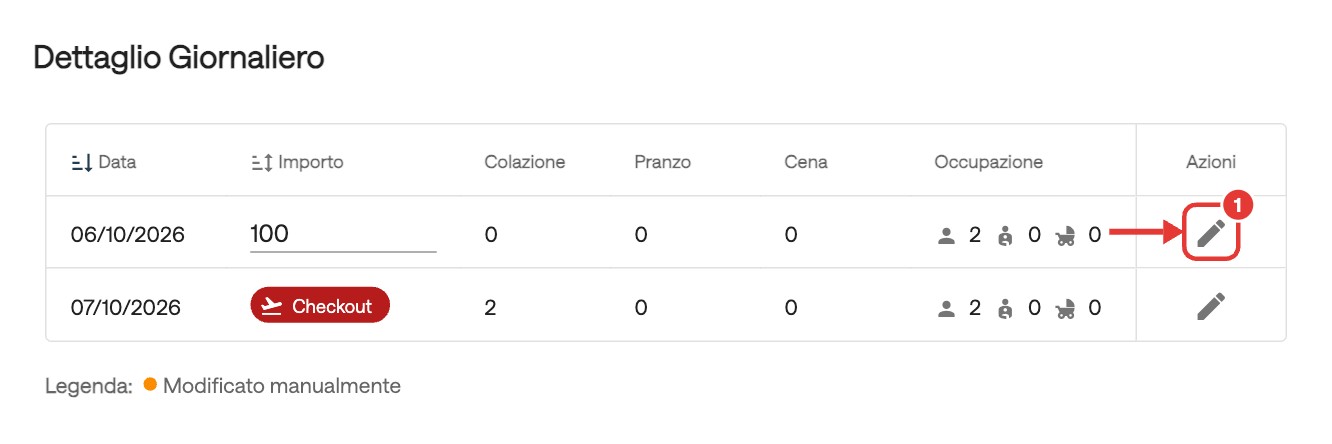
From the reservation's Daily Detail, you can use the pencil icon to correct the meals or occupancy for a single day. The modification is marked as "Manually modified" and is retained even if the reservation is recalculated.
How it works
Filters and options

- Property: mandatory, multiple properties can be selected.
- From / To: defaults to tomorrow for both.
- Detailed view (active by default): one row per room.
- With names: adds guest name, nationality, dates, and nights.
- Room only: also shows rooms without meals.
Which reservations are counted
Only Confirmed reservations. Options, blocks, pending, and cancelled reservations (including no-shows) do not appear. If a guest changes rooms, the row is unique and shows the correct room for each day; on the day of the change, "old room → new room" appears.
Columns and summary
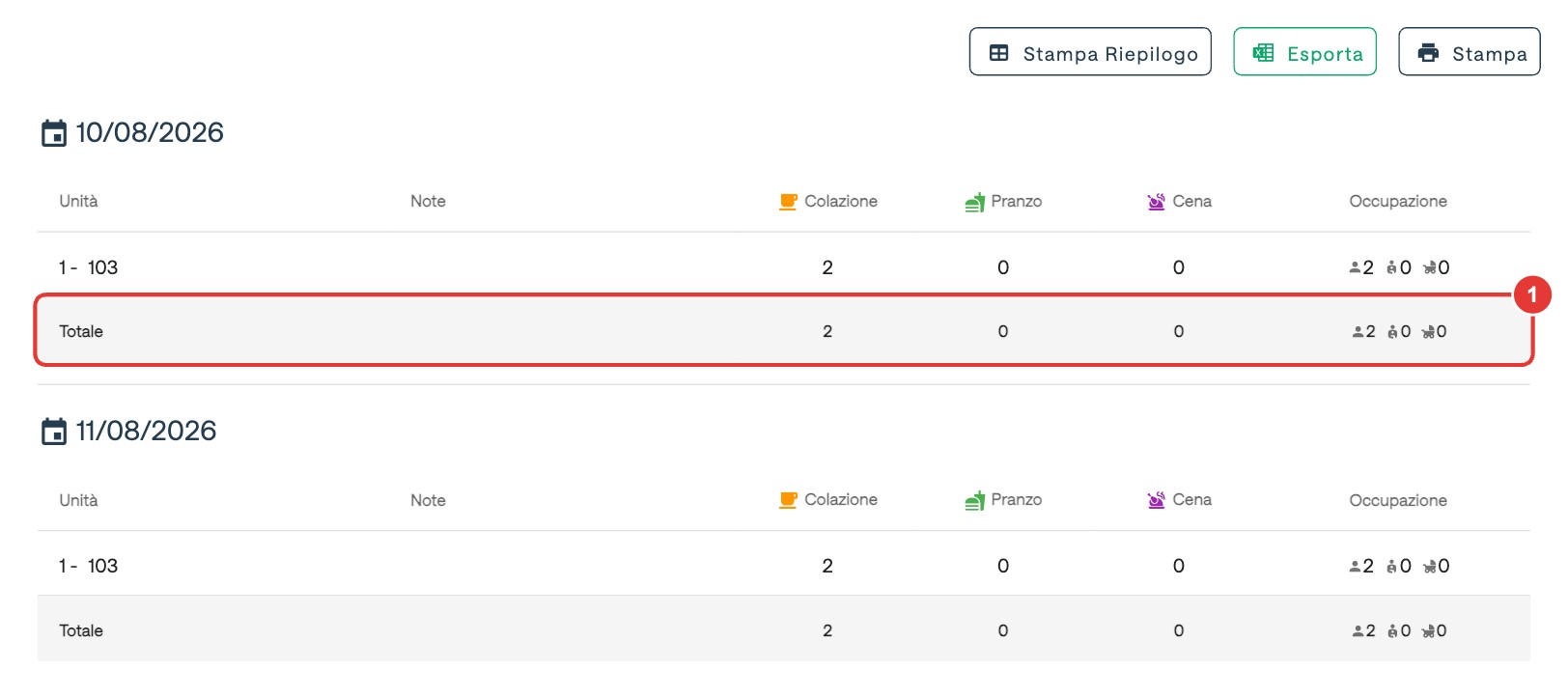
- Units: with arrival and departure icons.
- Guest Name: visible with the "With names" option.
- Notes: internal Meal Plan notes from the reservation.
- Breakfast, Lunch, Dinner: daily quantities.
- Room only: visible with the homonymous option.
- Occupancy: adults, children, and infants.
Each day has a Total row. At the top, the summary shows the totals for breakfasts, lunches, dinners, room-only guests, and reservations (counted day by day: a 3-day stay counts 3 times).
Printing and exporting

- Print Summary: a table with dates on the rows and meals on the columns.
- Print: the current view with the Guest Signature column.
- Export: Excel file with client name and signature column.
How to use it
- Open Reports > Meals Report.
- Choose one or more properties and the date range.
- Click Apply.
- Enable With names or Room only if needed.
- Print the sheet for the dining room or export it.
Things to know
- Missing guest: with Room only turned off, rooms without meals do not appear. Enable it to check if a room has no meals assigned.
- Meals sold as extras: breakfast or dinner extras (e.g., purchased on Booking.com) are not counted. Set the correct Board on the reservation or correct the Daily Detail.
- OTA rates: if the portal rate is mapped as room-only, the reservation arrives without meals. Check the mapping of rates with boards.
- Manual modifications: a value corrected manually in the Daily Detail remains even after a change of dates or board. Check it again if you modify the reservation.
- Room change between two properties: select both properties.
- Kitchen requests (allergies, times): write them in an internal Meal Plan note, which appears in the Notes column.
Frequently asked questions
4A guest with breakfast included does not appear: what should I check?
Verify that the reservation is Confirmed (not an option or pending), that the Board is correct, and that the Daily Detail for that day includes breakfast. Then enable Room only to see if the room is listed without meals.
Is breakfast purchased as an extra on Booking.com counted?
No, the report does not count extras. Set the Board type to breakfast on the reservation or edit the Daily Detail using the pencil icon.
After an early check-in or a modification from the portal, meals are not updated: what should I do?
Open the reservation's Daily Detail and check the relevant days. If a day was manually corrected, it remains as it was: correct it using the pencil icon.
Does a guest who changed rooms appear twice or in the wrong room?
The row is unique and shows the correct room for each day; on the day of the change, the transition from the old room to the new one appears. If the change is between two properties, select both.
Related guides
How it works
How it works
How it works
How it works
How it works