

Nationality Report: guest origin, nights, and revenue
How the Nationality Report works: it counts guests registered in the booking Check-in tab and groups them by nationality, including nights, revenue, ADR, and averages. It explains the Stay/Arrival filters, Aggregate and Compare options, and why the report might appear empty.
You are in the right place if…6 cases
- “The nationality report is empty”
- “Some guests are missing from the nationality report”
- “I set the status to Verified but the guest does not appear in the nationality report”
- “Can I use the nationality report for ISTAT?”
- “What is the Aggregate option for in the nationality report”
- “I would like to export nationalities by unit or type”
Where to find it
The report can be opened from the menu Report > Nationality Report. It is visible to users with the view statistics permission.
What it is for
The Nationality Report shows which countries your guests are coming from during a period, including the number of guests, nights, revenue, ADR, and averages by nationality. It is useful for marketing analysis and internal tourism statistics.
It does not replace ISTAT submissions: official statistics require the guest's residence, while this report uses the nationality.
Where the data comes from
The report counts only guests registered in the Check-in tab of the booking (filled out by you or by the guest via Self Check-in). All registered guests are counted, not just the primary guest, each with their own nationality.
A booking without guests registered in the Check-in does not appear in the report, even if it is confirmed. A registered guest without a nationality appears as "Unknown".
How it works
Filters
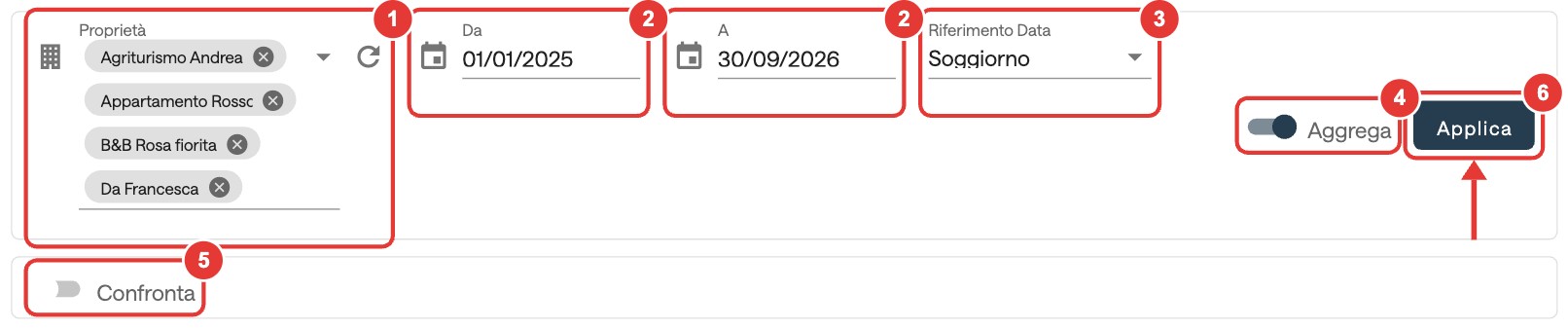
- Property: mandatory, even more than one.
- From / To: defaults to the previous month. When you change From, To is set to the end of the month.
- Date Reference:
- Stay (default): includes every guest who has at least one night in the period.
- Arrival: includes only bookings with an arrival in the period.
In both cases, the nights counted are only those that fall within the period.
- Aggregate: merges properties into a single table; if you deactivate it, you will see a section per property.
- Compare and Comparison start: add a comparison period of the same duration.
Boxes, charts, and table
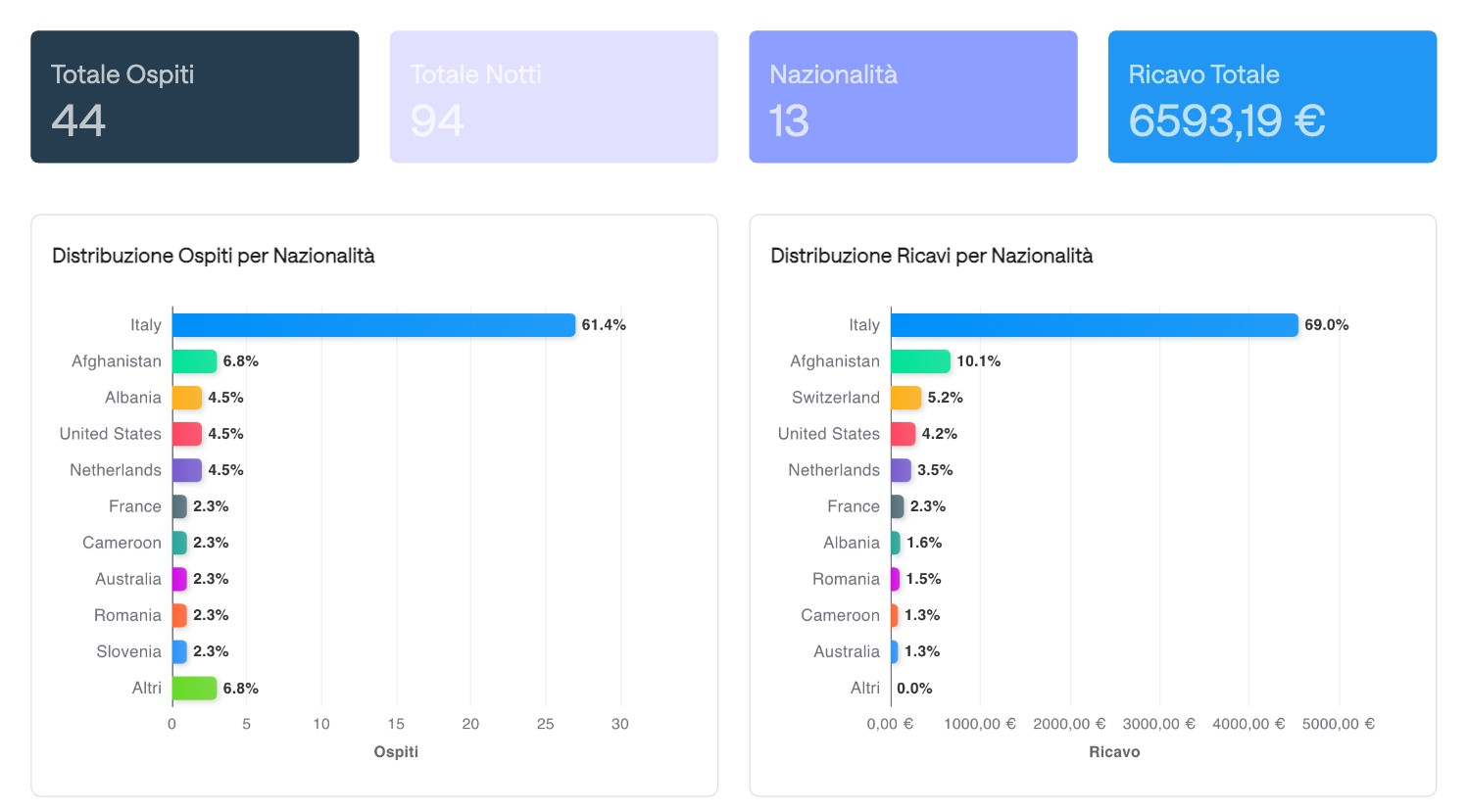
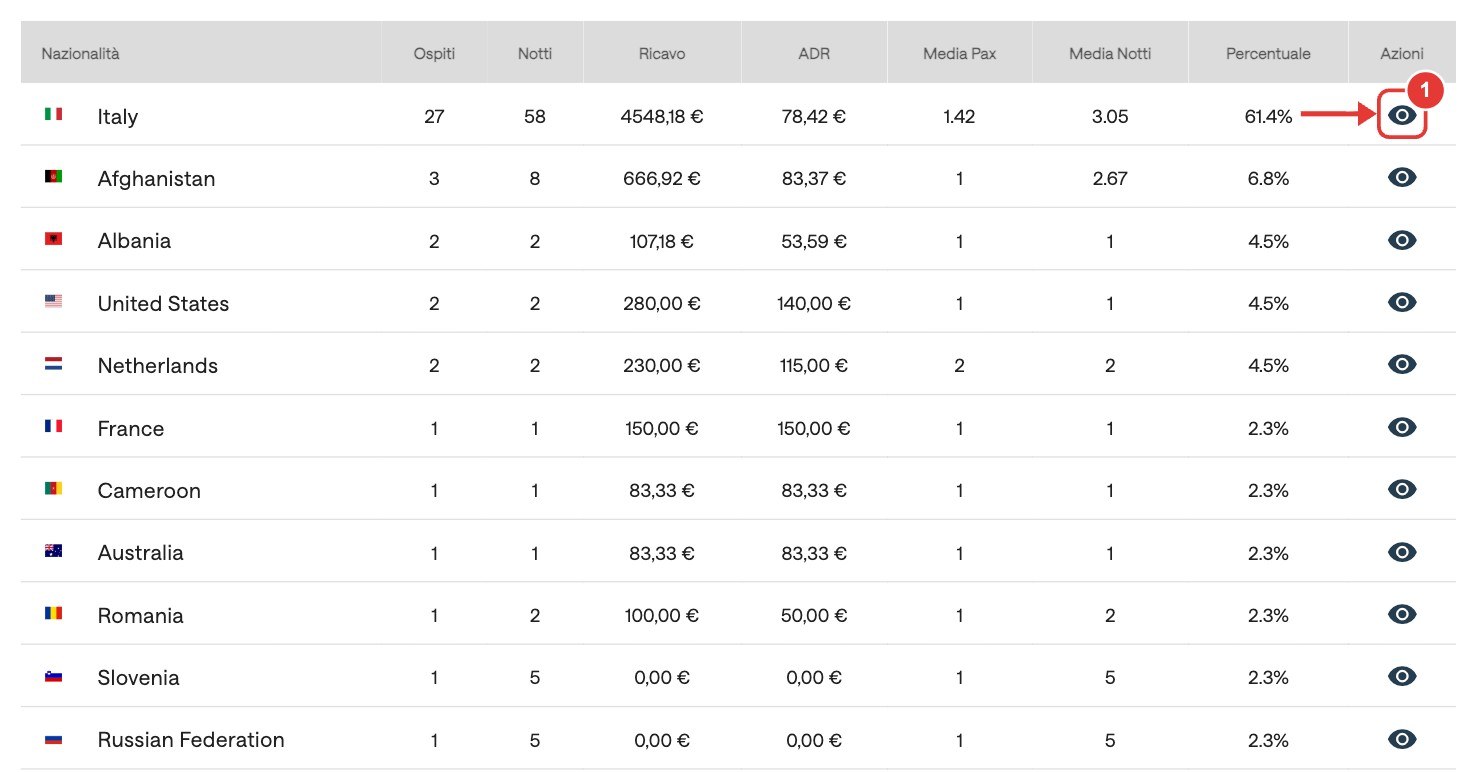
- Guests: guests with at least one night in the period.
- Nights: nights spent in the period by each guest (presences).
- Revenue: the booking amount divided by the number of registered guests.
- ADR: Revenue ÷ Nights.
- Avg Pax: guests per booking.
- Avg Nights: nights per booking.
- Percentage: share of guests out of the total.
The charts show the top 10 countries plus an "Others" category. The eye icon opens the list of guests of that nationality with name, nights, and dates.
Export and print

You can export to Excel or print. Export and print are always aggregated, even if you have deactivated Aggregate.
How to use it
- Open Report > Nationality Report.
- Choose the properties and the period.
- Choose the Date Reference: Arrival to count arrivals, Stay for presences.
- Click Apply.
- If needed, activate Compare, set the start of the comparison period, and click Apply again.
- Export or print.
Things to know
- Empty report or few guests: verify that the bookings have guests registered in the Check-in tab, with the nationality filled in. The booking status alone is not enough.
- Revenue per guest: it is the booking amount divided by the registered guests. It is not distributed over the nights, so for stays spanning two periods, the ADR will appear higher.
- Multiple properties: the report uses the currency of the first selected property.
- Data for individual guest, unit, or type: the report export is aggregated by nationality. To get the detailed list of guests, use Bureaucracy > Check-in List and export from there.
Frequently asked questions
3Why is the Nationality Report empty or showing few guests?
The report only reads guests registered in the booking Check-in tab. If the check-in has not been filled out (neither by you nor by the guest via Self Check-in), the booking does not appear. Fill out the Check-in with each guest's nationality and regenerate the report.
I set the booking to Verified status, why doesn't the guest appear?
The booking status is not enough: you need guests registered in the Check-in tab, each with their own nationality.
How do I get data for individual guests, units, or types?
The Nationality Report export is aggregated by nationality. For the list of guests with units and dates, use Bureaucracy > Check-in List and export from there.
Related guides
How it works
Configuration
Activation
How it works
How it works
How it works