

Ross1000 / Turismo5
How to connect SmartPMS to the regional Ross1000/Turismo5 portal for ISTAT data submission: retrieving direct credentials (not SPID), configuring the ISTAT account, entering the property code, rooms and beds, associating units, and validation. It also covers exceptions for Liguria and Sardinia and initial checks after activation.
You are in the right place if…16 cases
- “I need to send ISTAT data but I don't know which credentials to use, the SPID ones don't work”
- “Where do I find the property code to enter in the ISTAT configuration?”
- “ISTAT account validation fails and I cannot create the configuration”
- “I activated automatic submission but guests who arrived before a certain date are not sent to Ross1000”
- “I am in Liguria and the Ross1000 password recovery does not reach me”
- “Do I have to continue entering occupancies manually on the regional portal now that I use the management software?”
- “In the Ross1000 calendar, I see dates colored in orange”
- “In the ISTAT logs, the error "no active property found for the received code" appears”
- “I entered the portal ID in the ISTAT configuration but it is not saved”
- “How do I perform ISTAT submission on Radar Lazio?”
- “The Lazio RADAR portal no longer works”
- “I have the same apartment in two companies, how do I connect it to ISTAT?”
- “Can I use the same property code on two ISTAT accounts?”
- “Duplicate units in another company are not sent to ISTAT”
- “Resolution of the most common ROSS1000 errors”
- “Why, even after forcing a manual data submission to ROSS1000, are guests who arrived before a certain date not being synchronized?”
Before you proceed
This guide applies to regions and provinces that use Ross1000 / Turismo5. Some regions adopt different portals (WebTur, SPOT Puglia, Ricestat, Osservatorio Turistico) and others are not yet integrated: if you are unsure which case applies to you, first verify the coverage for your region.
Before activating the integration, manually complete the ISTAT declarations up to the day of SmartPMS activation. The platform cannot send declarations related to periods when guest data was not yet present in SmartPMS.
⚠️ Two regional exceptions. In Liguria and Sardegna, the credentials for the management software are not self-generatable: they must be requested from regional support. If you are in one of these two regions, start from the dedicated box in Step 1.
ℹ️ Liguria: applies only to non-classified properties. Non-classified tourist rentals report on Ross1000 (type "Liguria: strutture non classificate"). Classified accommodation facilities (hotels, residences, B&Bs, guest houses) use the C59 model on the RIMOVCLI portal instead: follow the guide "ISTAT Liguria (RIMOVCLI - C59)".
Step 1: Reset or generate the Ross1000 password
⚠️ FOR ROSS1000 LIGURIA AND SARDEGNA USERS
The reset procedure described below is not applicable: credentials must be requested directly from regional support.
In Liguria, send an email to one of the territorial offices of the Liguria Region, specifying that the credentials are required for data management via software:
- Genova: aautstatistica.ge@regione.liguria.it
- Imperia: aautstatistica.im@regione.liguria.it
- Savona: aautstatistica.sv@regione.liguria.it
- La Spezia: aautstatistica.sp@regione.liguria.it
In Sardegna, forward the same request to the portal's regional support.
In the request, remember to indicate that the credentials are necessary for the software compatible with the Ross1000 system.
☑️ FOR ALL OTHER REGIONS AND PROVINCES, YOU CAN PROCEED INDEPENDENTLY:
- Access Ross1000: navigate to your region or province portal and log in via SPID, CIE, CNS, or regional credentials.
- Click on "Benvenuto" (or your name) in the top right, then select "Modifica profilo".
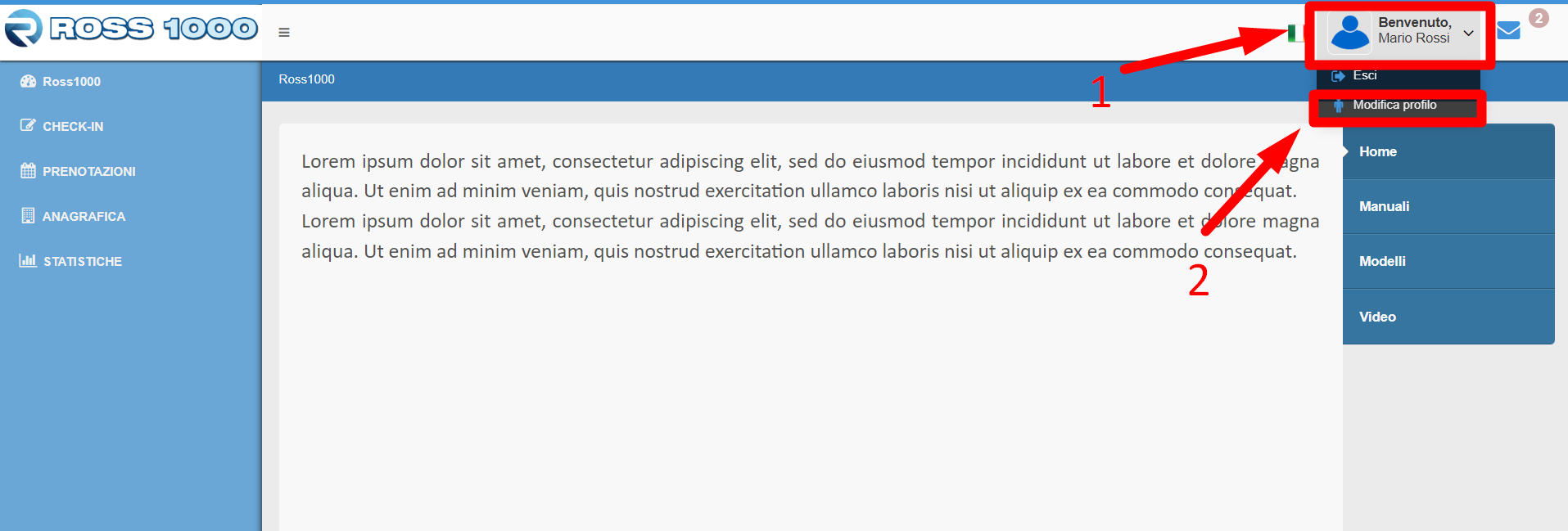
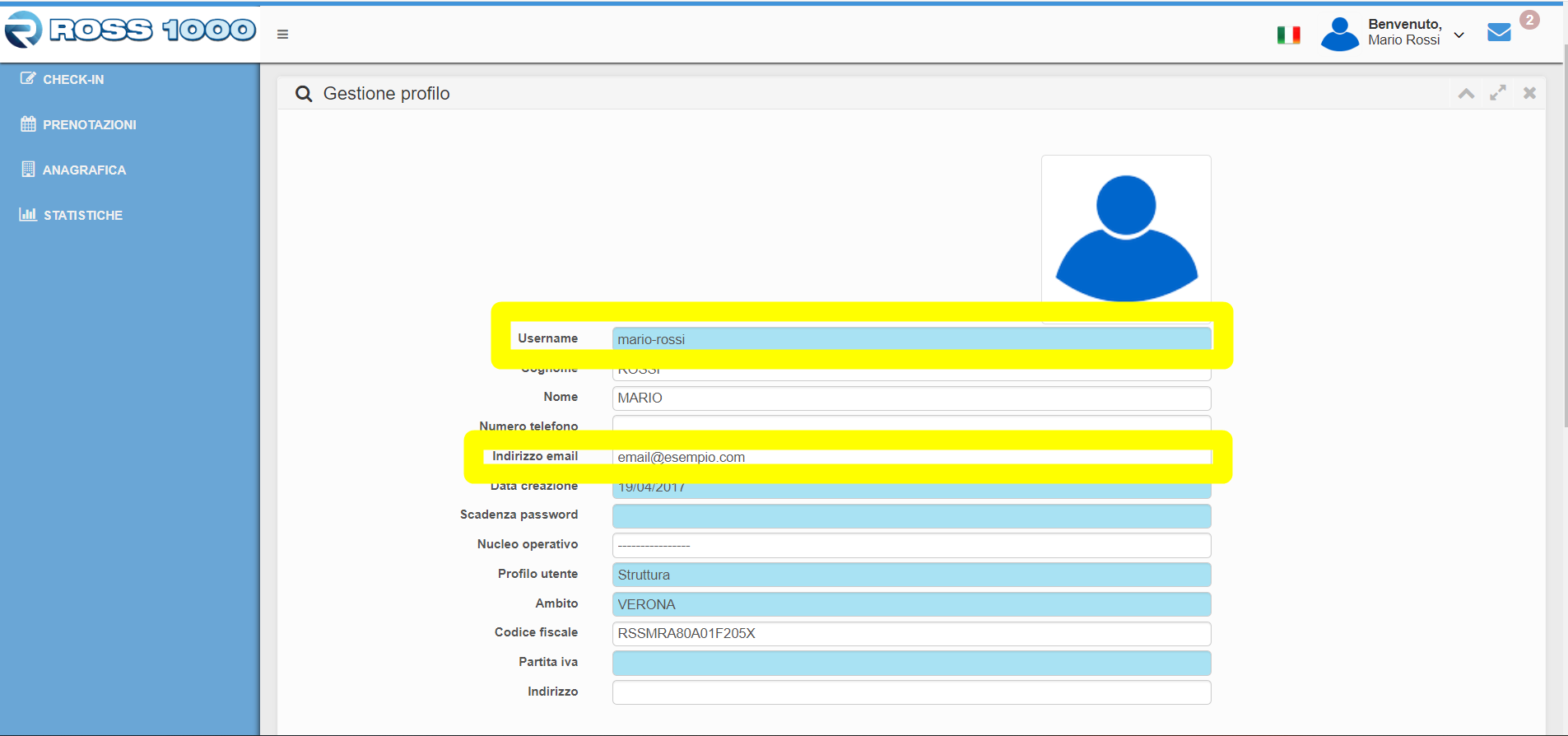
- In the profile tab, you will find your username and your email address.
- ⚠️ Take note of the USERNAME and EMAIL, paying attention to uppercase and lowercase letters.
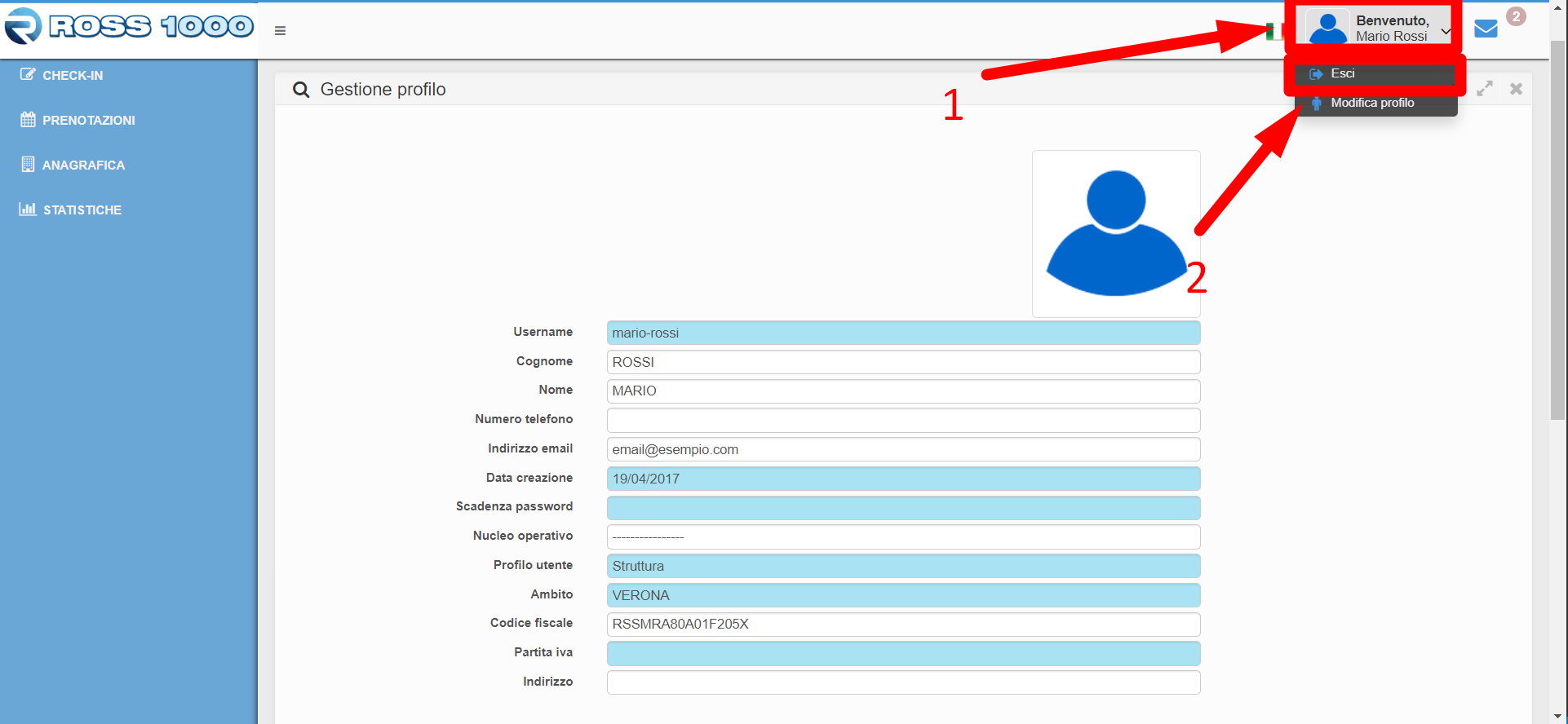
- Log out of Ross1000: click on your name again in the top right, then on ESCI.
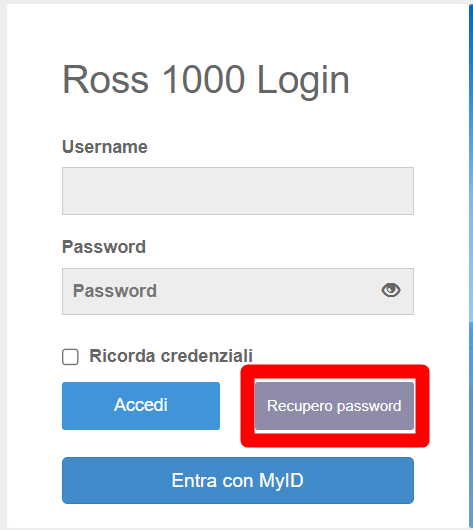
- From the login screen, click on "RECUPERO PASSWORD".
- Enter your email address and username, then click on "Invia".
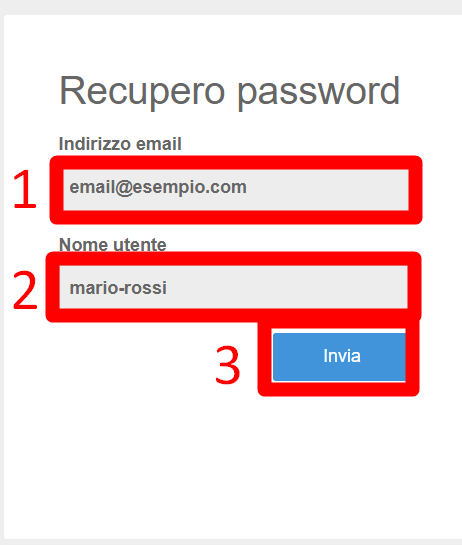
- You will receive an email with a link to reset your password. Follow the instructions to create a new secure password.
Important note on SPID: initial access to Ross1000 can be done via SPID, CIE, CNS, or regional credentials. However, for the connection with SmartPMS, you must use the direct Ross1000 credentials: the username you read on your profile and the password you just generated. SPID credentials are only used to enter the portal, not to configure the integration.
Step 2: Configure the ISTAT account in SmartPMS
Once you have obtained the direct Ross1000 credentials, you can configure SmartPMS:
- Log in to SmartPMS.
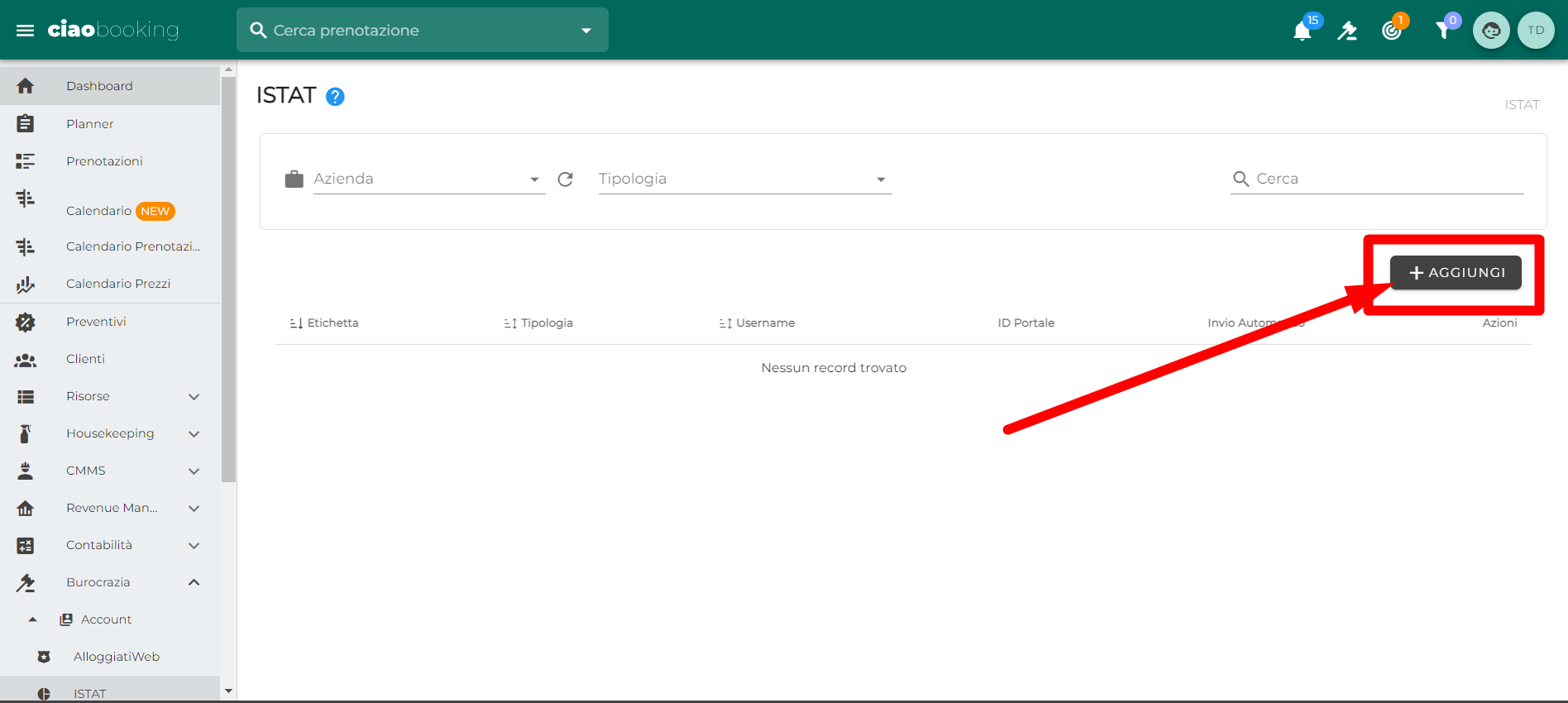
- Navigate to the ISTAT section: from the main menu, go to Burocrazia > Account > ISTAT.
- Add a new account: click the + Aggiungi button.
- Fill in the fields:
- Company Assignment: select the company associated with the property from the dropdown menu.
- Label: a descriptive name for this configuration, useful for recognizing it in the list of ISTAT accounts.
- Type: the region or province where the property is located.
- Username: the Ross1000 username noted previously. Pay attention to uppercase and lowercase letters.
- Password: the Ross1000 password generated in Step 1.
- Automatic Submission: enable this option if you want SmartPMS to send data to Ross1000 without manual intervention.
- ⚠️ Leave this page open and return to Ross1000 to proceed to Step 3.
Step 3: Retrieve property data from Ross1000
Do not close the page where you just entered the credentials. Open Ross1000 in a new tab:
- Log in to Ross1000 again via SPID.
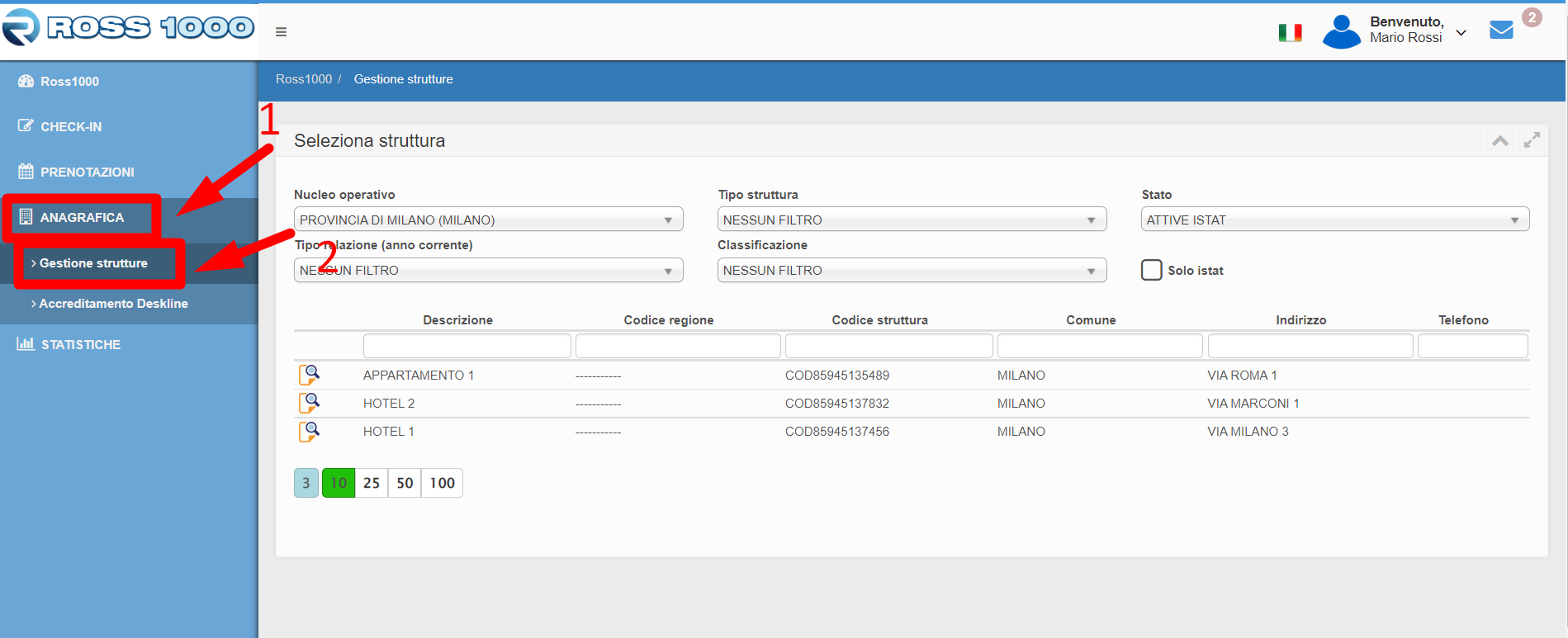
- Go to "Anagrafica" → "Gestione strutture".
- For each property you want to connect to SmartPMS, note the Property Code, Total Rooms, and Total Beds:
- Click on the magnifying glass icon. (⚠️ If you do not see a list of properties but directly your property's registry, it means that in this Ross1000 account you manage only one property: proceed to note the following fields.)
- Note the Property Code field: usually found in "Section I" or the "General" section.
- Note the Total Rooms field: usually found in "Overall consistency" or "Section II". 📒 PLEASE NOTE: if Total Rooms is 0, note the "N. unità ricettive" field instead.
- Note the Total Beds field: usually found in "Overall consistency" or "Section II".
☑️ You can now close the Ross1000 session. If you have noted everything, you will not need to access it again.
Step 4: Associate SmartPMS units with Ross1000 properties
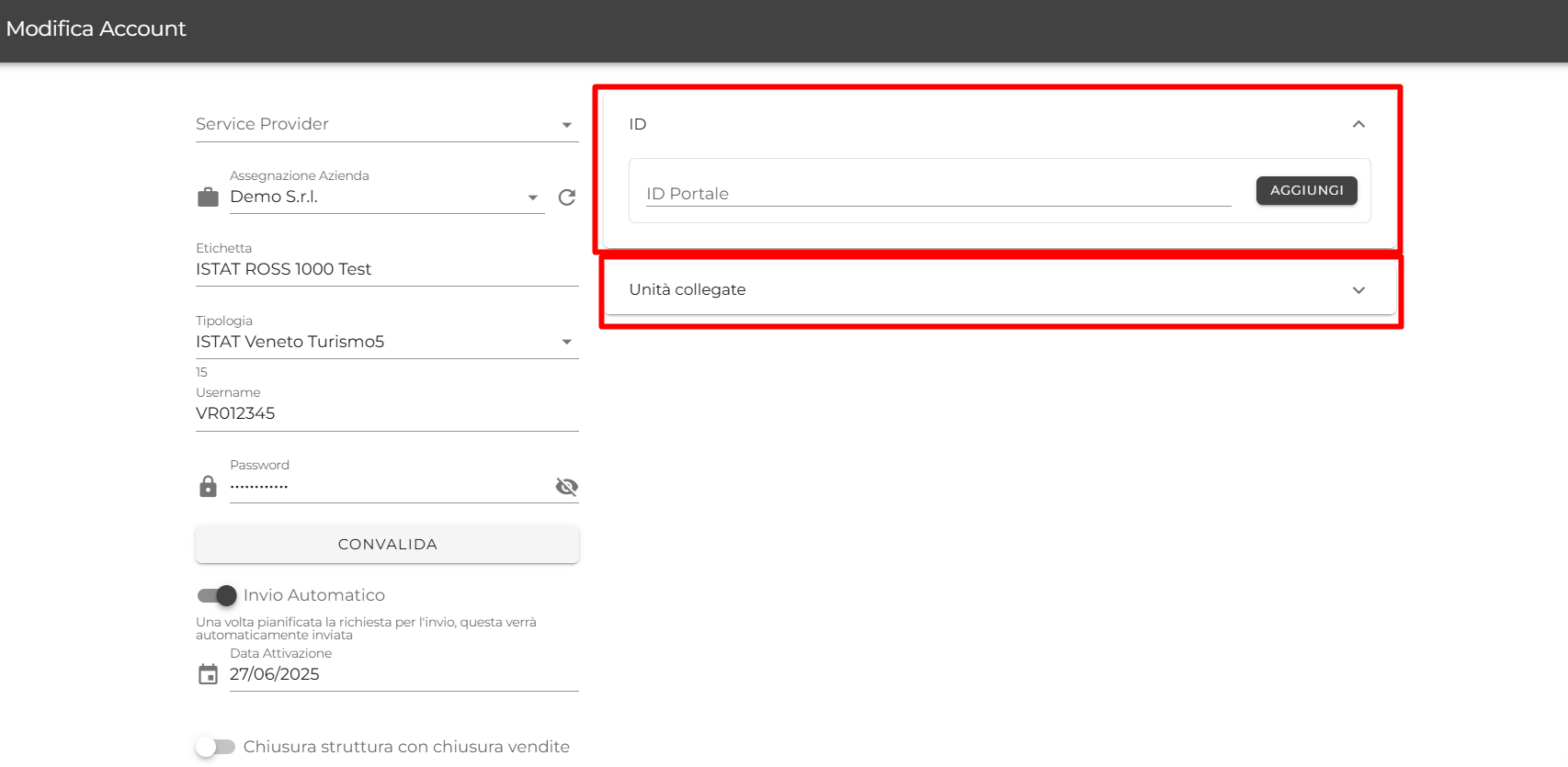
Return to the tab left open at the end of Step 2 and focus on the two sections on the right, "ID" and "Linked units".
1. Configuring the "ID" section
In this section, you enter the details of the Ross1000 properties:
- Fill in the "ID" field by entering the Property Code noted previously.
⚠️ Attention, this is the most frequent error of all. Here you must enter the Ross1000 Property Code, not the property ID on SmartPMS: they are two different numbers and never coincide. If you enter the wrong one, submissions will fail and the logs will show "Non è presente alcuna struttura attiva per il codice ricevuto", followed by the incorrect number.
- Click on Add.
- Once added, the property ID is displayed just below.
- Fill in the "Available Rooms" field with the Total Rooms value noted previously.
- Fill in the "Available Beds" field with the Total Beds value noted previously.
📽️ Watch the animated demo: filling out the ID section

2. Configuring "Linked units"
Once all property IDs are added and the room and bed fields are filled, you need to link the SmartPMS units (accommodations) to the Ross1000 property IDs just entered.
Click the "+ Link" button, then select the SmartPMS unit (accommodation or room) in the left dropdown menu and the correct Ross1000 property ID in the right one.
📽️ Watch the animated demo: linking a unit to a property ID

💡 If you prefer, use the "BULK ADD" button: if all units of a property correspond to the same Ross1000 property ID, click on "+ Bulk Add", then select the entire SmartPMS property and the corresponding Ross1000 ID.
This function is particularly useful for hotels, which have a single Property Code but many units to link.
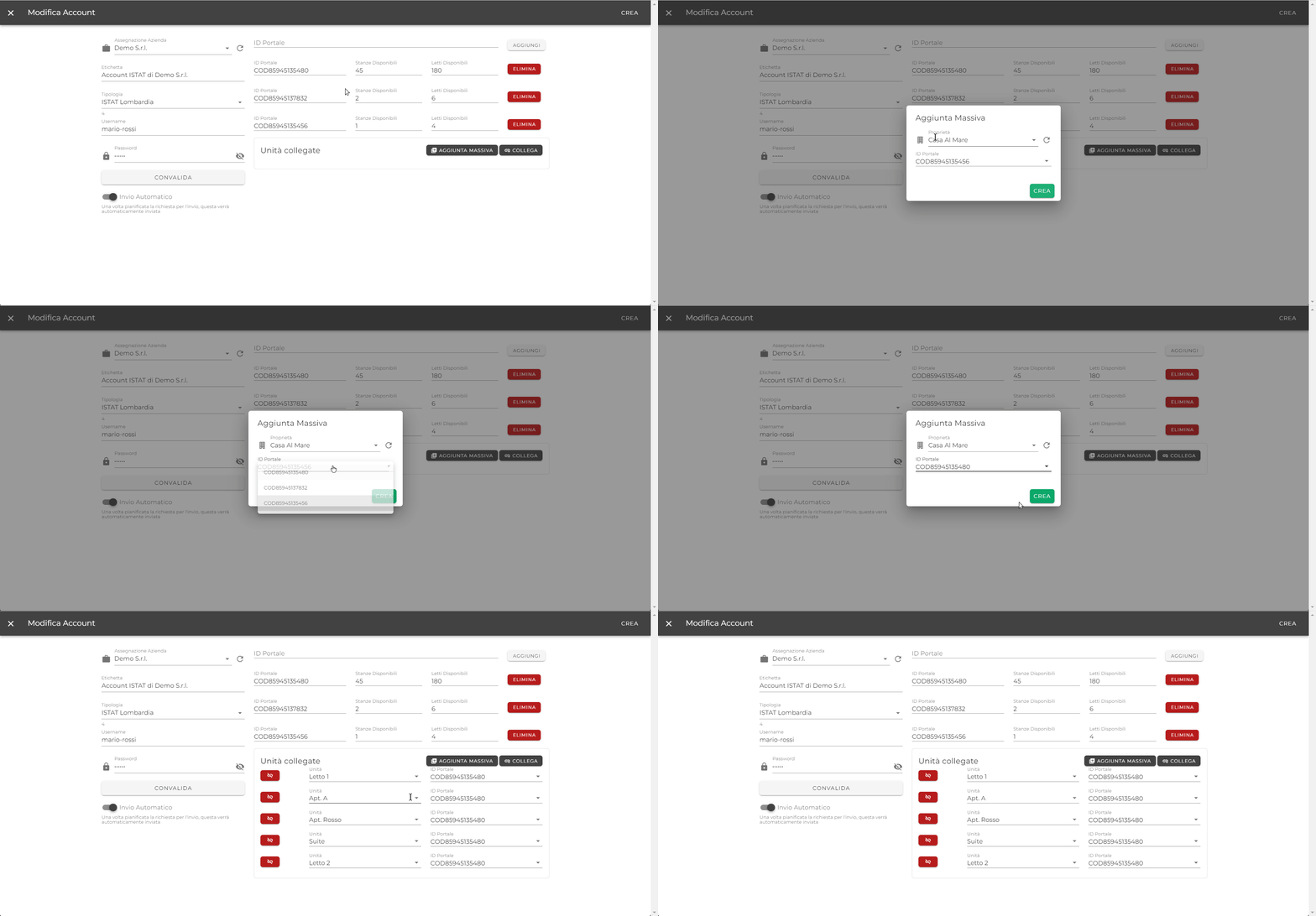
Step 5: Validate and create the configuration
- Click on "Validate" on the right. If the configuration is correct, the green message "SUCCESS" will appear at the bottom.
- Click on "CREATE" in the top right.
🎉 From this moment on, synchronization with Ross1000 is active.
If validation fails, do not force the creation: re-read the "Important notes" section below, which collects the most frequent causes.
After activation: what to check
Activation is not the end of the work. It is worth keeping an eye on the first submissions.
- Check the logs. Go to Burocrazia > Account > ISTAT, then Actions > Logs. A green checkmark ✅ indicates a submission received correctly by Ross1000; a red icon ❗ indicates an error, with the message returned by the portal in the "Errors" column.
- Recover missing dates with manual submission. From Actions > Manual Submission, set the interval to retransmit and send. Set the end date to at most two days ago.
- Do not re-enter movements manually on Ross1000. From activation onwards, SmartPMS communicates them: manual entries in parallel generate double occupancies.
- Orange dates in the Ross1000 calendar (Check-in > Availability management) signal that occupied rooms or beds exceed those declared. The two typical causes are guests who have left the property without a registered departure date, and Total Rooms / Total Beds not aligned between Ross1000 and SmartPMS.
📒 Important notes
For a smooth configuration, keep these aspects in mind.
- SPID versus Ross1000 credentials: for the integration, always use the direct Ross1000 credentials (username and password), never SPID. SPID is only used for portal access.
- Case sensitivity: username and email entered in SmartPMS must match exactly those of Ross1000.
- Data accuracy: Property Code, Total Rooms, and Total Beds retrieved from Ross1000 must be entered into SmartPMS without errors. Ross1000 rejects the submission even for a single wrong detail.
- ISTAT activation date: the submission, even the manual one, transmits only registrations with an arrival date equal to or later than the activation date set in the configuration (Actions > Edit). This is why guests who arrived "before" are not synchronized.
- Company selection in SmartPMS: if you manage multiple properties or are part of a group, choose the company that represents the property you are configuring: correct data categorization depends on this.
- Unit and portal ID association: every unit linked in SmartPMS must correspond to a valid and still active property and Portal ID on Ross1000. A decommissioned property will cause the submission to fail.
- Delegation to operate: if the delegation for managing the property on Ross1000 expires, submissions will start to fail even if the credentials are correct.
- One property code, one account: do not configure the same property code on multiple ISTAT accounts. Each account communicates only the units linked to it, and two accounts on the same code send partial data for the same day.
Frequently asked questions
12Can I use SPID credentials to connect Ross1000 to SmartPMS?
No. SPID, CIE, and CNS are only used to access the Ross1000 portal via a browser.
For integration with SmartPMS, you need the direct Ross1000 credentials:
- you can read the username in the portal under your name at the top right, in "Edit profile";
- you generate the password yourself using "PASSWORD RECOVERY" from the login screen.
If you enter SPID credentials in the ISTAT configuration, the validation will fail.
In the "ID" field, should I enter the property ID I see on SmartPMS?
No. The ID field must contain the Ross1000 Property Code, which you can read on the portal under Registry > Property Management.
the property ID on SmartPMS is a different number and never coincides with the property code. This is the most frequent mix-up during initial configuration: when it happens, submissions fail and the logs show "No active property found for the received code" followed by the wrong number.
To correct: Bureaucracy > Account > ISTAT > Actions > Edit, replace the ID with the correct property code, verify rooms and beds, then Validate and repeat the submission for the dates in error.
I am in Liguria or Sardinia: why does password recovery not work?
In these two regions, credentials for the management software are not self-generatable: they must be requested from regional support.
In Liguria, this applies to unclassified tourist rentals: classified accommodation facilities use the C59 model on RIMOVCLI, with a different procedure (guide "ISTAT Liguria (RIMOVCLI - C59)").
In Liguria, write to the territorial office of your province (the addresses are in Step 1), specifying that you need them for a management software compatible with the Ross1000 system. In Sardinia, forward the same request to the regional portal support.
Until you receive those credentials, it is not possible to complete the configuration: the self-recovery procedure does not apply to your case.
I have activated the integration but guests who arrived before a certain date are not synchronized. Why?
The submission, including the manual one, transmits only registrations with an arrival date equal to or later than the ISTAT activation date set in the configuration. If that date is after the arrivals you want to report, those data will not be sent even by forcing the submission.
To intervene:
- Open Bureaucracy > Account > ISTAT, then Actions > Edit.
- Check the activation date: it must be earlier than all the arrival dates you want to synchronize.
- If necessary, move it before the first arrival concerned.
- Repeat the manual submission for that interval.
⚠️ That date exists so as not to overwrite or duplicate what you had already entered manually on Ross1000 before using SmartPMS. Moving it too far back can generate double occupancies: before changing it, verify that you have aligned the manual data of those guests.
The Total Rooms field on Ross1000 is 0: what do I enter in "Available Rooms"?
Use the value of the "No. of accommodation units" field, which you can find in the same section of the property registry.
This is the typical case for holiday homes and apartments, where Ross1000 does not think in terms of rooms but in terms of units. The "Available Beds" field remains that of the Total Beds.
Configuration validation fails: what should I check?
Check in this order:
- Username: identical to the one on Ross1000, including uppercase and lowercase letters.
- Password: the one generated in Step 1, not the SPID one.
- Property Code: correct and referring to a property still active on Ross1000. If the property has been decommissioned, or is still in "draft / pending validation" status by the Municipality, the portal rejects the submission.
- Delegation to operate: if you manage the property on behalf of an owner and the delegation has expired or been revoked, the portal responds "Forbidden" even with correct credentials.
A check that immediately clarifies where the problem lies: try to access Ross1000 from the browser with those same direct credentials. If it doesn't work there either, the problem is on the regional portal and not on SmartPMS.
I entered the portal ID but it is not saved and submissions continue to fail.
Reopen the configuration from Bureaucracy > Account > ISTAT > Actions > Edit and check the ID field. If it is empty, submissions do not start and no error appears in the logs: in this case, the configuration must be recreated.
- First, note down all the data of the current configuration: username, portal ID, available rooms and beds, activation date.
- Keep the Ross1000 password handy: it is not readable from the panel, and without it, you will not be able to recreate the configuration.
- Delete the ISTAT configuration and recreate it by entering the portal ID, rooms, and beds.
- Perform Validate and then a manual submission to recover the dates not transmitted.
After activation, do I have to continue entering movements manually on Ross1000?
No, and you shouldn't.
Since the configuration is active, SmartPMS communicates the movements. Manual entries in parallel generate double occupancies and can cause dates to appear in orange in the Ross1000 calendar (Check-in > Availability management), which signal rooms or beds occupied beyond those declared.
If you need to recover a period, use the SmartPMS manual submission (Actions > Manual Submission) instead of entering data on the portal. When you resubmit an interval that includes days already transmitted, the portal signals a duplicate submission: it is just a notification and does not require any action.
My region does not use Ross1000: does this guide still apply?
No: this procedure only applies to regions and provinces that adopt Ross1000 / Turismo5.
Other territories use different portals, with their own procedures and limitations: WebTur in Friuli Venezia Giulia, SPOT Puglia and Easy SPOT in Puglia, Ricestat in various Tuscan provinces, the Tourist Observatory in Sicily, STU and ISPAT in Trentino. In some cases, only manual submission is provided, and for some regions, integration is not available.
Check the coverage of your region before starting: if your portal is not Ross1000, this configuration does not apply.
ISTAT submission errors: how do I read the logs, check if submissions to Ross1000 were successful, and resubmit data for a period?
How automatic submission works: if automatic submission is active on the ISTAT account, SmartPMS transmits the movements of two days ago to Ross1000 every morning. The delay leaves time to complete and correct guest data.
Checking submissions:
- Go to Bureaucracy → Account → ISTAT.
- On the account concerned, click on Actions → Logs.
- The green checkmark indicates a submission received correctly. The red icon indicates an error: in the Errors column, you will find the message returned by the portal. Copy it exactly and note the dates involved.
Resubmitting a period:
- First, correct the cause of the error (see the FAQ on the most common errors).
- On Bureaucracy → Account → ISTAT, click on Actions → Manual Submission.
- Set Start Date and End Date. As the end date, use at most two days ago, the same horizon as the automatic submission.
- Click on Send and recheck the Logs.
If automatic submission fails but manual submission works, usually the regional portal was temporarily unavailable: recover the missing dates with manual submission. If the error repeats, check in this order:
- Credentials: Actions → Edit → Validate. Validation only checks username and password: if it succeeds but submissions fail, the cause is in the property code, the delegation, or the connected units.
- Access and delegation: try to access Ross1000 with the same direct credentials. If you can't even do that, the problem is on the portal and not on SmartPMS. If the error only concerns some properties and the others work, verify that the delegation to operate on those properties is still active.
- Property code and units: in Actions → Edit, each unit must be connected to a property code present in the ID section, with rooms and beds filled in, and active on Ross1000. If no unit is connected, the submission does not start and no log appears.
If you don't resolve it, contact support indicating: the exact text of the log, the dates involved, the result of the Validation, if you can access Ross1000 directly, and if manual submission fails or works.
What are the most common Ross1000 errors and how do I resolve them?
Orange dates in the Ross1000 calendar (Check-in → Availability management): occupied rooms or beds exceed those available. Typical causes are two:
- Guests without a departure date: on Ross1000 go to Check-in → Guest History, select a wide date range, and sort by the "Dep." column. Delete from Ross1000 guests who have already left with an empty departure: they will be resynchronized with the next manual submission from SmartPMS.
- Rooms or beds not aligned: compare "Total Rooms" and "Total Beds" in Registry → Property Management on Ross1000 with the values configured in the SmartPMS ISTAT account, and correct those in SmartPMS.
Then perform a Manual Submission for the period concerned.
"The departure SWH ID does not correspond to any entered guest": you are reporting the departure of a guest whose arrival was never registered on Ross1000. Perform a Manual Submission with an interval that also includes the guest's arrival date, so that the arrival and then the departure are transmitted.
"Unauthorized", "Forbidden" or "prohibited": the saved credentials are no longer valid (for example, the password has changed) or the delegation to operate on the property has expired. Update the credentials in the ISTAT account and use Validate. If the credentials are correct, verify with the property owner that the delegation on Ross1000 is still active.
Property code not found or not active: the code entered in the ISTAT account does not correspond to an active property on Ross1000. Check the code on the portal and correct it in SmartPMS.
The same apartment is present as a unit in two SmartPMS companies (or two properties): can I connect it to ISTAT from both?
No. Each property code must be reported by only one ISTAT account, connected to all units of the apartment.
For each property code and each day, SmartPMS sends a single summary to Ross1000 (property open or closed, rooms occupied and available, beds, arrivals and departures), calculated only on the units connected to the account that sends. Consequently:
- if the same code is configured on two accounts, the portal receives two partial summaries for the same day, which are not added together: the data appear incomplete or wrong;
- a unit not connected to any ISTAT account is not reported.
The correct configuration is to have each apartment as the only unit in the company that has the Ross1000 credentials of its property code, connected to both the ISTAT account and the Police guest registration (Schedine Alloggiati) account.
Police guest registration (Schedine Alloggiati) works differently: they are sent reservation by reservation, so multiple accounts with the same credentials work, as long as each points to the correct apartment.
Related guides
Activation
Activation
Activation
Activation
Activation