

ISTAT Trento ISPAT: how to connect tourist accommodations (CIPAT) and send movements
How to connect SmartPMS to the Data Entry Turismo portal (ISTAT Alloggi, alloggituristici.provincia.tn.it) of the ISPAT of Trento for tourist accommodations identified by a CIPAT code: enabling CiaoBooking as a software house, ISTAT Trento ISPAT account in Bureaucracy > Account > ISTAT, unit–CIPAT association, automatic submission with a two-day delay, and manual submission. This is distinct from the Trento STU integration (C59 model), used by accommodation facilities.
You are in the right place if…6 cases
- “How do I connect SmartPMS to the ISTAT of the Province of Trento for my apartments”
- “I log in with SPID on alloggituristici.provincia.tn.it, how do I connect it to the PMS?”
- “Where do I enter the CIPAT code in SmartPMS”
- “On the ISPAT portal I cannot select CiaoBooking for an accommodation”
- “Non-existent CIPAT error or CIPAT not active in ISTAT Trento submission”
- “Should I use STU or ISPAT for Trento?”
ISTAT Trento ISPAT: connecting tourist accommodations
In the Province of Trento, tourist accommodations (apartments and houses managed privately or as a business, identified by a CIPAT code) report guest movements to ISPAT via the Data Entry Turismo (ISTAT Alloggi) portal. SmartPMS connects to this portal via web service and automatically sends arrivals, so you no longer have to upload them manually.
ℹ️ ISPAT or STU? It depends on the portal you currently use. If you access alloggituristici.provincia.tn.it with SPID or CPS and your accommodations have a CIPAT code, follow this guide (ISTAT Trento ISPAT). If, instead, you fill out the C59 form on the STU portal with a username and password, follow the ISTAT Trento STU guide in the linked guides.
⚠️ Step 1 is essential. Without enabling CiaoBooking on the provincial portal, SmartPMS cannot send anything, even if the configuration in SmartPMS appears correct.
📌 Before you begin
- Access to the Data Entry Turismo portal with SPID or CPS (the owner of the accommodations).
- CIPAT codes for all accommodations to be managed, copied exactly as they appear on the portal: three blocks separated by hyphens, in the format
022xxx-AT-xxxxxx. - Units already created in SmartPMS, one for each accommodation.
- Complete guest residence in the Check-in tab: Country of residence and, for residents in Italy, the municipality of residence selected from the list (from which SmartPMS derives the province: the province alone is not enough). This is the data used by ISPAT to classify the origin.
1. Enable CiaoBooking on the Data Entry Turismo portal
SmartPMS sends data as the CiaoBooking software: this is the name under which it is registered on the provincial portal.
- Access Data Entry Turismo (ISTAT Alloggi) at https://www.alloggituristici.provincia.tn.it/ with SPID or CPS.
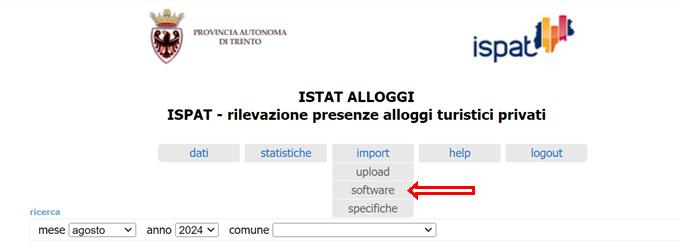
- From the main menu, select Import → Software.
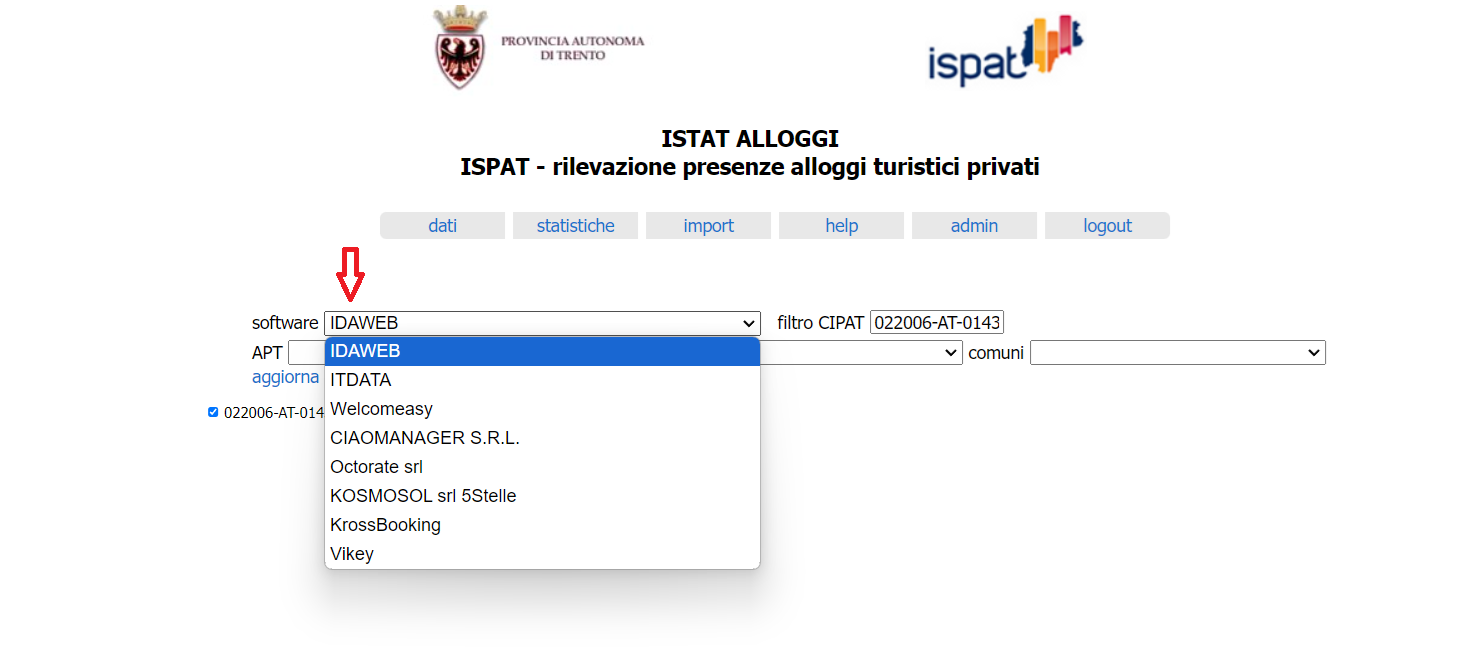
- In the Software house dropdown, choose CiaoBooking (not ciaomanager or other software).
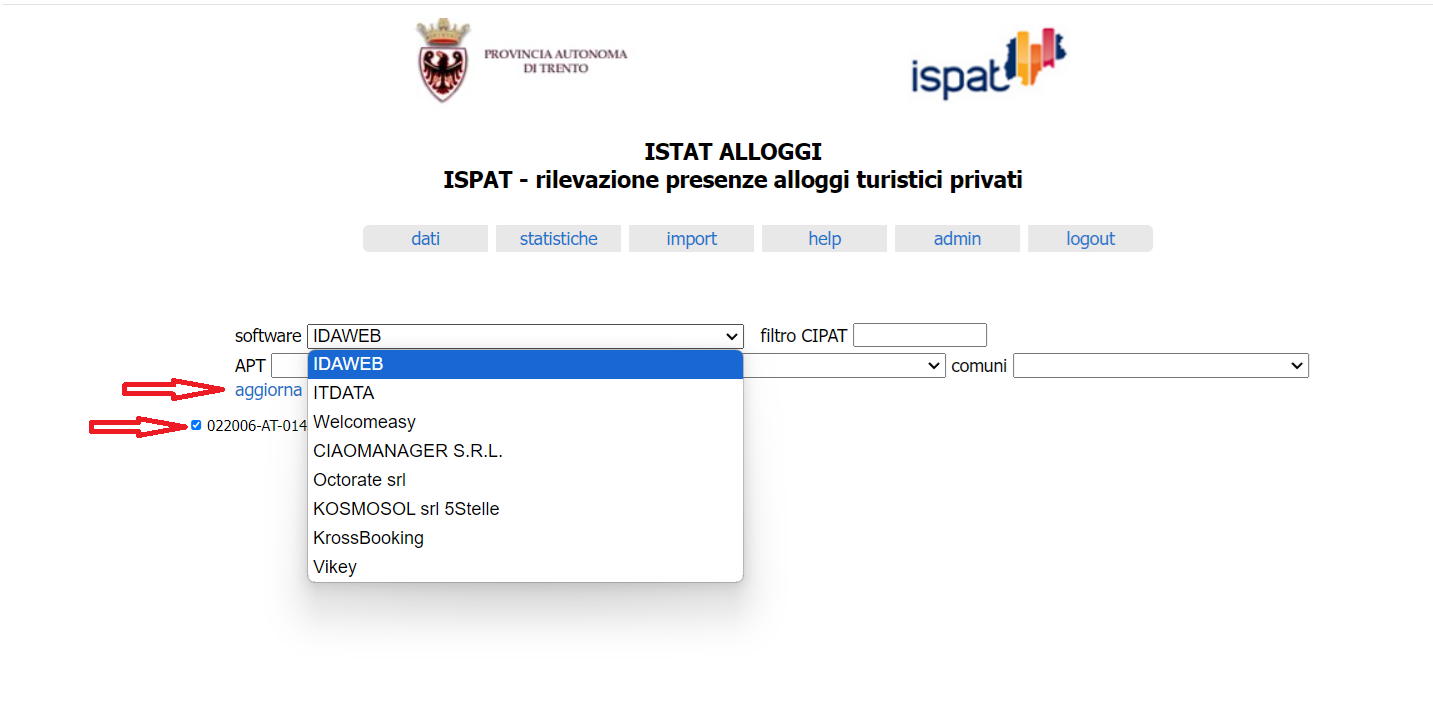
- Check the box next to each CIPAT code you want to manage with SmartPMS.
- Click Update: the label CiaoBooking must appear to the right of each enabled CIPAT.
If the box for a CIPAT cannot be selected, that CIPAT is still associated with another software: see the FAQs.
2. Create the ISTAT Trento ISPAT account in SmartPMS
- In the menu, go to Bureaucracy → Account → ISTAT and click + Add.
- Fill in the fields:
- Company Assignment: the company to which the accommodations belong.
- Label: a name to identify the account, for example Trento ISPAT.
- Type: ISTAT Trento ISPAT. With this type, the Username and Password fields do not appear: for ISPAT, no credentials are required because authorization is granted by the enablement in step 1.
- Activation Date (optional): if you fill this in, arrivals prior to this date will never be sent. Use this if you have already uploaded previous days to the portal.
- Automatic Sending: activate this to start the daily transmission.
- Click Validate and stay on the page for the next step.
ℹ️ For ISPAT, Validate only checks that the form is complete: it does not verify enablement on the portal. A successful validation does not guarantee that the CIPATs are already enabled for CiaoBooking (step 1).
3. Enter CIPATs and link units
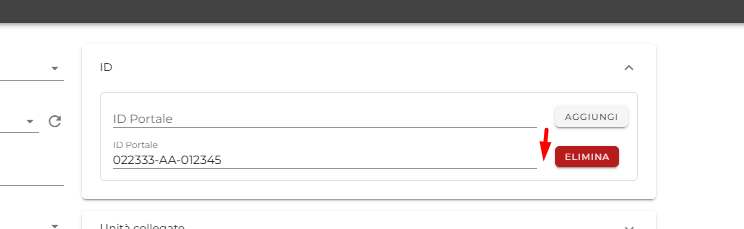
Add CIPAT IDs
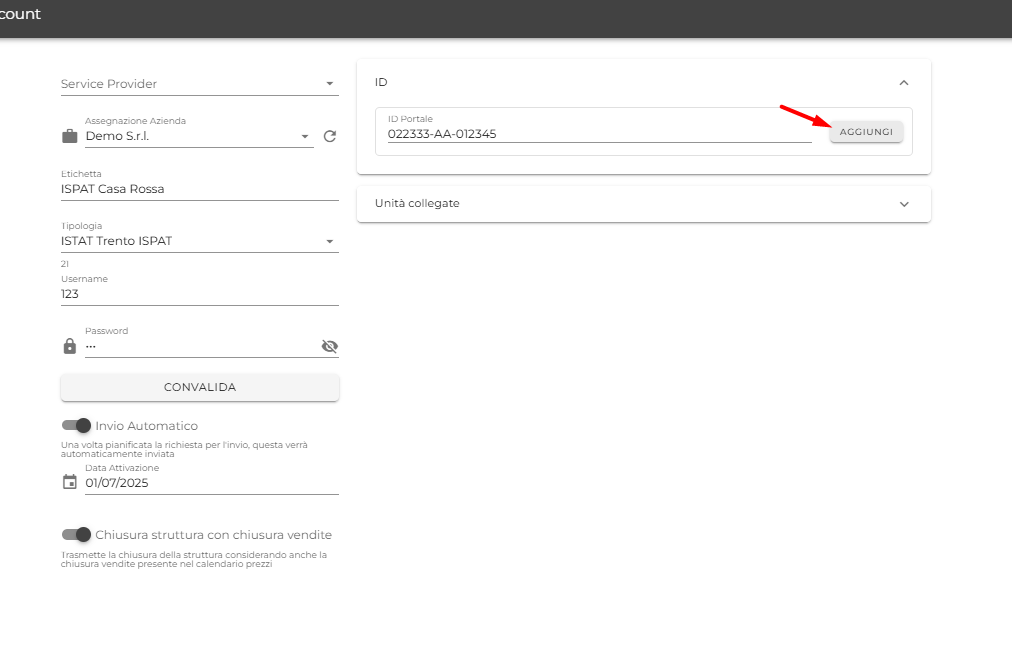
- On the right, in the Portal ID section, enter a CIPAT code exactly as it appears on the portal: without spaces and with a normal hyphen (
-). - Click Add.
- Repeat for each CIPAT. IDs must be entered manually: they are not downloaded from the portal.
Link units
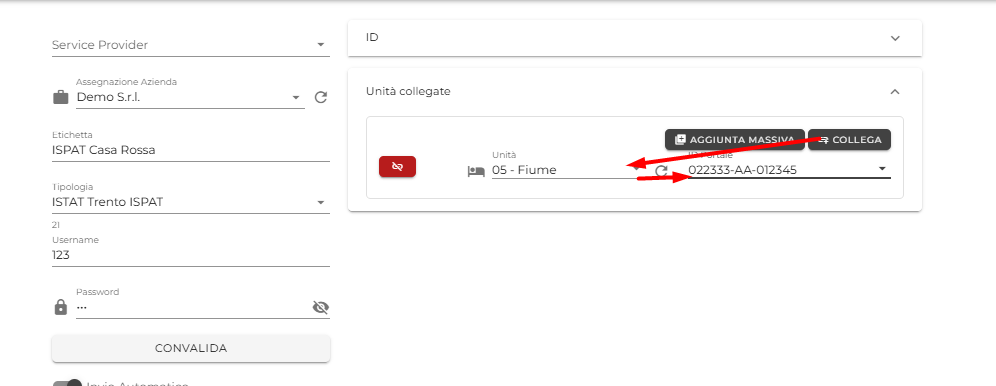
Immediately below, in the Linked Units section:
- + Link: choose the SmartPMS unit and, in the menu on the right, the corresponding CIPAT. This is the correct method when each unit has its own CIPAT (the most common case for apartments).
- + Bulk Add: choose the property and a CIPAT ID; all units of the property are linked to that CIPAT. Use this only if all units of the property truly belong to the same CIPAT.
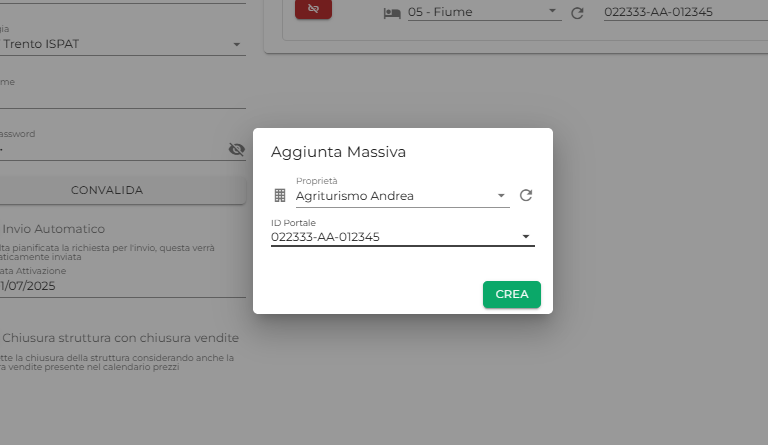
Each unit must be linked to its own CIPAT: a wrong association attributes movements to the wrong accommodation.
4. Save
Click CREATE in the top right. From this moment on, automatic sending is active.
🔄 How sending works
- Every day, with a two-day delay. Automatic sending starts every morning and transmits data from two days prior: on the 3rd of the month, movements from the 1st are sent, on the 4th those from the 2nd, and so on. The delay leaves time to complete guest data.
- What is sent. For each day, SmartPMS communicates arrivals, grouped by CIPAT: arrival date, departure date, origin (province code for residents in Italy, Country for residents abroad), and number of people. Personal guest data is not sent.
- Days without arrivals. If there are no arrivals on a given day, nothing is sent, and this is not an error: in the Logs, the day will still appear as successful, even if nothing was transmitted.
- Outcome of the entire day. If the portal accepts only a portion of a day's movements (e.g., 4/5 movements loaded), SmartPMS marks the entire day as failed and reports the portal's message in the log, with the reason and the involved CIPAT.
- Only one channel. Once the software is connected, enter movements only from SmartPMS: uploading the same days manually to the portal can generate rejections or duplicates.
📤 Logs and manual sending
From the account tab, Actions menu:
- Logs: the outcome of each submission, with any message returned by the portal (e.g., CIPAT not active, incorrect origin, dates out of period).
- Manual sending: for ISPAT, there is only the Start Date field, and each submission transmits only one day, i.e., the arrivals of that date. You can choose any day up to and including today. The Portal ID field is optional: if you specify a CIPAT, the submission concerns only that accommodation; otherwise, all CIPATs of the account. Use this to recover unsent days or after correcting a booking or guest data; for multiple days, repeat the submission for each date.
- Edit: to change CIPATs, linked units, or Automatic Sending.
Frequently asked questions
7Error "Non-existent CIPAT" or "CIPAT not active" even if the CIPATs are enabled for CiaoBooking: what should I check?
The portal does not recognize the code that SmartPMS sends it. There are two most frequent causes.
- The CIPAT is written differently than how the portal knows it. In Bureaucracy → Account → ISTAT → Edit, check in the Portal ID section that each code is identical to the one shown on Data Entry Turismo: no spaces (not even at the beginning or end) and normal hyphen (
-), not typographic dashes copied from a document or email. If a code is wrong, add the correct one, re-link the units to the new ID, and save. - The CIPAT is not enabled for CiaoBooking. On Data Entry Turismo, under Import → Software, CiaoBooking must appear next to the CIPAT.
After correction, recover the days in error with Actions → Manual sending: each submission transmits only the day indicated in Start Date, so repeat it for every day in error.
The validation is successful but clicking CREATE results in a validation error: what is missing?
Usually, one of the two necessary connections is missing:
- Enable on the portal: on Data Entry Turismo, under Import → Software, choose CiaoBooking as the Software house, check the CIPAT of the accommodations, and click Update.
- Linked units: in SmartPMS, each unit must be associated with its CIPAT in the Linked Units section (using + Link or + Bulk Add) before clicking CREATE.
Once both are completed, click Validate again and then CREATE. Remember that for ISPAT, the validation does not verify the enablement on the portal: a successful validation alone is not enough.
For ISPAT I don't have a username and password, but only SPID: what do I enter in SmartPMS?
Nothing: for ISPAT, credentials are not needed. Authorization for sending is the enablement of CiaoBooking as a Software house on your CIPATs, which you do once by logging in with SPID or CPS on Data Entry Turismo (Import → Software).
In SmartPMS, by choosing the ISTAT Trento ISPAT type, the Username and Password fields do not appear. Just enter the CIPAT codes in Portal ID and link the units. If an old account still has values in those fields, they are not used.
I have accommodations in Trentino: should I use ISTAT Trento ISPAT or Trento STU?
It depends on the portal through which the Province asks you to report movements:
- ISTAT Trento ISPAT (this guide): log in with SPID or CPS to Data Entry Turismo at alloggituristici.provincia.tn.it and your accommodations are identified by a CIPAT code. This is the typical case for tourist accommodations, managed privately or as a business.
- Trento STU: you fill out the C59 form every day on the STU portal with a username and password. This is the typical case for accommodation facilities. Follow the ISTAT Trento STU guide.
If you do not know which portal to use, ask the Statistics Office of the Province of Trento.
Can I continue to enter movements manually on the ISPAT portal after connecting?
Better not to. Once CiaoBooking is enabled, movements should be sent only from SmartPMS: SmartPMS does not know what has been uploaded manually, and sending the same days from two channels can lead to rejections, partial submissions, or duplicates.
If you have uploaded days manually in the past, set the Activation Date of the account to the first day not yet present on the portal: previous arrivals will not be sent. For any missing days, use Manual sending, one day at a time.
ISTAT submission errors: how to read logs and what to check before contacting support?
Where to read logs
- Go to Bureaucracy → Account → ISTAT.
- On the ISPAT account row, click on Actions → Logs.
- For each day, you will find Date, Property ID (the CIPAT), Outcome (green checkmark if the portal accepted the data, red icon if there was an error), Message and Errors returned by the portal, and Submission Date. If a day was submitted multiple times, the most recent row counts.
- Identify the last successful submission and the days in error, copy the exact message, and note the dates.
The automatic submission transmits the arrivals of two days prior every morning: yesterday and today without logs are not an error. Also, remember that a day without arrivals is considered successful, even if nothing was transmitted.
Then check, in this order
- Retry the submission: Actions → Manual submission, indicating the day in error in Start Date (one submission for each day). If the message indicates that the portal was unreachable, the error is temporary: just resend later.
- Portal authorization: for ISPAT there are no credentials and the Validation only checks that the form is complete. The authorization is the enabling of CiaoBooking on the CIPATs in Data Entry Turismo (Import → Software): verify that CiaoBooking still appears next to each CIPAT. If the error concerns only some CIPATs and the others work, check the authorization and status of those CIPATs.
- CIPAT and units: in Actions → Edit, each unit must be linked to its CIPAT, and each CIPAT must be written exactly as it is on the portal. If no unit is linked, the submission does not start and no log appears.
What to send to support if the problem persists
- the error message copied exactly from the logs;
- the dates and CIPATs involved;
- whether the CIPATs are enabled for CiaoBooking on the portal;
- whether or not you can access Data Entry Turismo;
- whether the manual submission fails or works.
Is a reservation without guests registered in the Check-in tab sent to ISPAT? And what if the guest did not show up?
No. SmartPMS only sends guests registered in the Check-in tab of the reservation to ISPAT: a confirmed reservation without guests in the Check-in tab is not transmitted and does not appear on the portal.
- If the guests have arrived: register them in the Check-in tab, including their country of residence and, for residents in Italy, their municipality of residence. Then perform the Manual submission again, indicating the arrival date of the reservation in the Start Date field.
- If the guests did not show up: you do not need to do anything on the ISTAT side. To keep your data organized, open the reservation, click the list icon in the box on the left, and select Mark as No-show. For reservations received from a portal (e.g., Booking.com), the no-show and any penalty must be managed on the portal's extranet: marking it in SmartPMS is not communicated to the portal.
If fewer guests are registered than those booked, only the registered ones will be sent.
Related guides
Activation
Configuration
Activation
Activation
Activation
Activation