

Paytourist configuration and adding new properties
How to connect SmartPMS to Paytourist for sending City tax data: creating the "Booking Struttura" user on the Municipality portal, generating the API access token, adding the account via Bureaucracy → Municipal portals → Paytourist, validation and linking of units (also with Bulk Addition). It also explains how to add new properties to an already configured account and how to manage multiple Paytourist accounts.
You are in the right place if…8 cases
- “How do I connect Paytourist to SmartPMS?”
- “Where can I find the Paytourist API access token?”
- “The Property ID dropdown shows No data available”
- “I opened a new property and need to add it to Paytourist”
- “Do I need to create another Paytourist account for the new property?”
- “The Paytourist account validation fails”
- “City tax data is not arriving on Paytourist”
- “Adding new properties on Paytourist”
By connecting SmartPMS to Paytourist, stay data is communicated to your Municipality's City tax portal without having to re-enter it manually. The configuration is done only once and requires three steps: create a user dedicated to the integration on Paytourist, generate its API access token, and enter these details into SmartPMS.
1. Create a "Booking Struttura" user type on Paytourist
The integration uses a dedicated sub-user, so your main user credentials remain confidential.
- Log in with your primary user to your Municipality's Paytourist portal.
- From the left menu, click on Utenti (Users).
- Click on + Nuovo Utente (+ New User) at the top right to open the sub-user creation form.
- As the user type, select "Booking Struttura".
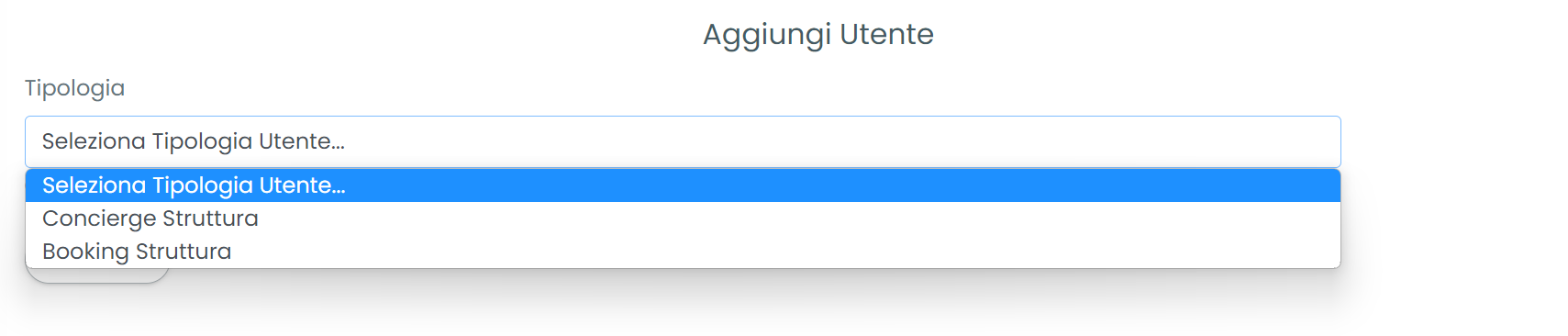
- Fill in the mandatory fields, such as email and password.
- In the "Associa struttura ad utente" (Associate property to user) field, select all the properties for which you want to communicate data via SmartPMS.
2. Generate the API access token
The token allows SmartPMS to authenticate on Paytourist on behalf of the "Booking Struttura" user.
- From the left menu of Paytourist, click on Utenti (Users).
- Find the "Booking Struttura" user type created previously and click the yellow Modifica (Edit) button.
- In the rightmost column, click the yellow Token di accesso API (API access token) button.
- On the screen with the list of tokens, click on + Crea nuovo Token (+ Create new Token).
- Enter a name for the token and confirm the creation.
Important:
- The token is shown only once: copy it immediately and save it temporarily in a document.
- Remove the word "Bearer" from the copied text: you must obtain a long string without spaces.
- The token has a validity of 36 months, after which a new token must be generated.
- If you lose the token, you can generate a new one. We recommend deleting old or unused ones using the Elimina (Delete) button.
3. Add the Paytourist account in SmartPMS
Before starting, keep the following at hand:
- the email of the "Booking Struttura" user;
- the password of that user;
- the access token (without "Bearer").
- From the main menu of SmartPMS, go to Burocrazia → Portali municipali → Paytourist (Bureaucracy → Municipal portals → Paytourist).
- Click on + AGGIUNGI (+ ADD) at the top right.
- Fill in the fields:
- Azienda (Company): the company responsible for sending the data.
- Etichetta (Label): optional, useful for recognizing the account if you manage more than one.
- Username: the email of the Paytourist "Booking Struttura" user.
- Password: the password of the same user.
- Token: the token generated earlier, without "Bearer".
- URL: the address of your Municipality's Paytourist portal, in the format
https://NOMECOMUNE.paytourist.com.
- Click on Convalida (Validate). If an error appears, double-check the entered data; if the validation is successful, you can proceed to link the units.
4. Link the units
SmartPMS must know which Paytourist property corresponds to each unit.
- Click on Collega (Link).
- Select a unit and associate it with the configured account, choosing the Paytourist property from the ID Struttura (Property ID) menu.
- Repeat the operation for all units to be linked.
Bulk Addition
If all units of a property belong to the same Paytourist account:
- Click on Aggiunta Massiva (Bulk Addition).
- Select the entire property and link it to the Paytourist account.
- Click on Crea (Create).
5. Save the configuration
To complete, click on CREA (CREATE) in the top right bar. Without this step, the configuration is not saved.
Adding new properties to an already configured account
If you open a new property in the same Municipality, you do not need to create a new account: just extend the existing one.
On Paytourist:
- Click on Utenti (Users) in the left menu.
- Click the yellow Modifica (Edit) button for the "Booking Struttura" user type.
- In the Info Profilo (Profile Info) section, associate the new properties under management.
- Click on Salva (Save).
On SmartPMS:
- Go to Burocrazia → Portali municipali → Paytourist (Bureaucracy → Municipal portals → Paytourist).
- On the account to which you want to add the new properties, click on Azioni → Modifica (Actions → Edit).
- Click on Convalida (Validate), so SmartPMS reads the newly associated properties.
- Link the new units as described in step 4.
- Click on Modifica (Edit) at the top right to save.
Multiple Paytourist accounts
You can configure multiple Paytourist accounts (for example, for properties in different Municipalities), associating each with its own units. At the time of submission, SmartPMS automatically uses the account linked to the booking's unit.
Frequently asked questions
3The "Property ID" dropdown shows "No data available": what should I do?
If the validation is successful but the Property ID list remains empty, it means Paytourist is not returning the "Booking Property" user's properties to SmartPMS. This is usually due to one of the following reasons:
- the Username entered in SmartPMS does not exactly match the email of the "Booking Property" user for whom the token was generated;
- the token was created for a different user or was pasted with the word "Bearer";
- the properties are not associated with the user in Associate property to user;
- the software connection is not active for the "Booking Property" user (Software connection section on Paytourist);
- the portal URL is incorrect.
To resolve:
- On Paytourist, using the main user account, open Users → Edit for the "Booking Property" user and verify the associated properties and the software connection.
- Generate a new API Access Token for that same user and copy it without "Bearer".
- In SmartPMS, under Bureaucracy → Municipal portals → Paytourist, update the Username, password, and token, check the URL, and click Validate.
- Retry the unit connection or the Bulk Addition.
If the list remains empty even after these checks, write to us indicating the portal URL and a screenshot of the "Booking Property" user edit page.
Do I have to manually enter the Paytourist property ID code?
No. The Property ID code should not be typed: SmartPMS reads it directly from Paytourist after validation and displays it in the dropdown menu when you connect units or use the Bulk Addition. If the menu is empty, follow the checks in the previous question.
I associated a new property on Paytourist but I don't see it in the "Property ID" menu: why?
Check that you have associated the new property with the "Booking Property" user in Profile Info on Paytourist and that you have saved. Then, in SmartPMS, open the account from Actions → Edit and click Validate again: only after validation does SmartPMS read the updated list of properties. If the menu remains empty, follow the checks in the FAQ about the empty "Property ID" dropdown.
Related guides
Activation
Activation
Activation
Activation
Configuration