

ISTAT Liguria (RIMOVCLI - C59)
How to configure the "ISTAT Liguria - C59" account in SmartPMS for classified accommodation facilities in Liguria: retrieving the facility ID assigned by the Region, filling in rooms and beds, linking units, and downloading the daily C59 XML file to be manually uploaded to the RIMOVCLI portal. This does not cover non-classified tourist rentals, which use Ross1000.
You are in the right place if…6 cases
- “How do I connect SmartPMS to the Liguria Region's ISTAT RIMOVCLI portal?”
- “Where can I find the facility ID to enter as the Portal ID for the C59 model?”
- “RIMOVCLI rejects the file: it says it does not contain the correct facility code”
- “I have configured ISTAT Liguria but the manual submission does nothing and I don't see any logs”
- “What username and password should I enter for ISTAT Liguria C59? The portal only works with SPID”
- “I downloaded the ISTAT file for a month and received a ZIP with many XML files”
Before you proceed
This guide applies to classified accommodation facilities in Liguria (hotels, residences, B&Bs, guest houses, and similar) that report ISTAT movements using the C59 model on the regional RIMOVCLI portal. Non-classified tourist rentals use Ross1000 instead: for them, follow the dedicated guide for Ross1000 / Turismo5, selecting the "Liguria: non-classified facilities" type.
How the integration works. SmartPMS prepares the C59 XML file with the facility's daily movements; you perform the upload to the RIMOVCLI portal manually. For this type, there is no automatic submission: the regional portal does not provide for direct transmission from management software.
Align data on RIMOVCLI first. Complete and consolidate ISTAT declarations on the regional portal up to the day of SmartPMS activation: SmartPMS can only generate the file for periods where guest data is present in SmartPMS.
Step 1: Retrieve the idstruttura (Portal ID)
To generate a file that RIMOVCLI accepts, you need the idstruttura, the numeric identifier that the Liguria Region assigns to your facility for file uploading (e.g., 202133164).
⚠️ The idstruttura is not the CITR code. The CITR is the regional identification code composed of digits, letters, and hyphens (indicating the municipality, type, and number of the facility) and is a different code: if you enter it as the Portal ID, RIMOVCLI will reject the file with the message "file does not contain the correct facility code".
You can retrieve the idstruttura in three ways:
- From an old XML file exported from the software you used previously: open it and look for the value of the
idstrutturafield. - From the RIMOVCLI portal, in the details of your facility.
- From the Liguria Region territorial assistance, if you cannot find it in either of the two previous points.
If you manage multiple facilities, you might have multiple idstruttura: collect them all. For each one, also note the number of rooms and beds declared to the Region.
Step 2: Create the ISTAT account in SmartPMS
- Log in to SmartPMS.
- From the main menu, go to Bureaucracy > Account > ISTAT.
- Click on + Add in the top right.
- Fill in the fields in the left column:
- Company Assignment: the company associated with the property.
- Label: a name that helps you recognize the configuration (e.g., "ISTAT Liguria - Facility Name").
- Type: "ISTAT Liguria - C59".
- Username and Password: enter 123 in both fields.
💡 Why 123/123? The Username and Password fields are mandatory to save the account, but they are not used for the C59 model: the file is downloaded from SmartPMS and you upload it to RIMOVCLI. You do not need the SPID or CIE credentials used to access the regional portal.
Leave the page open and proceed with Step 3.
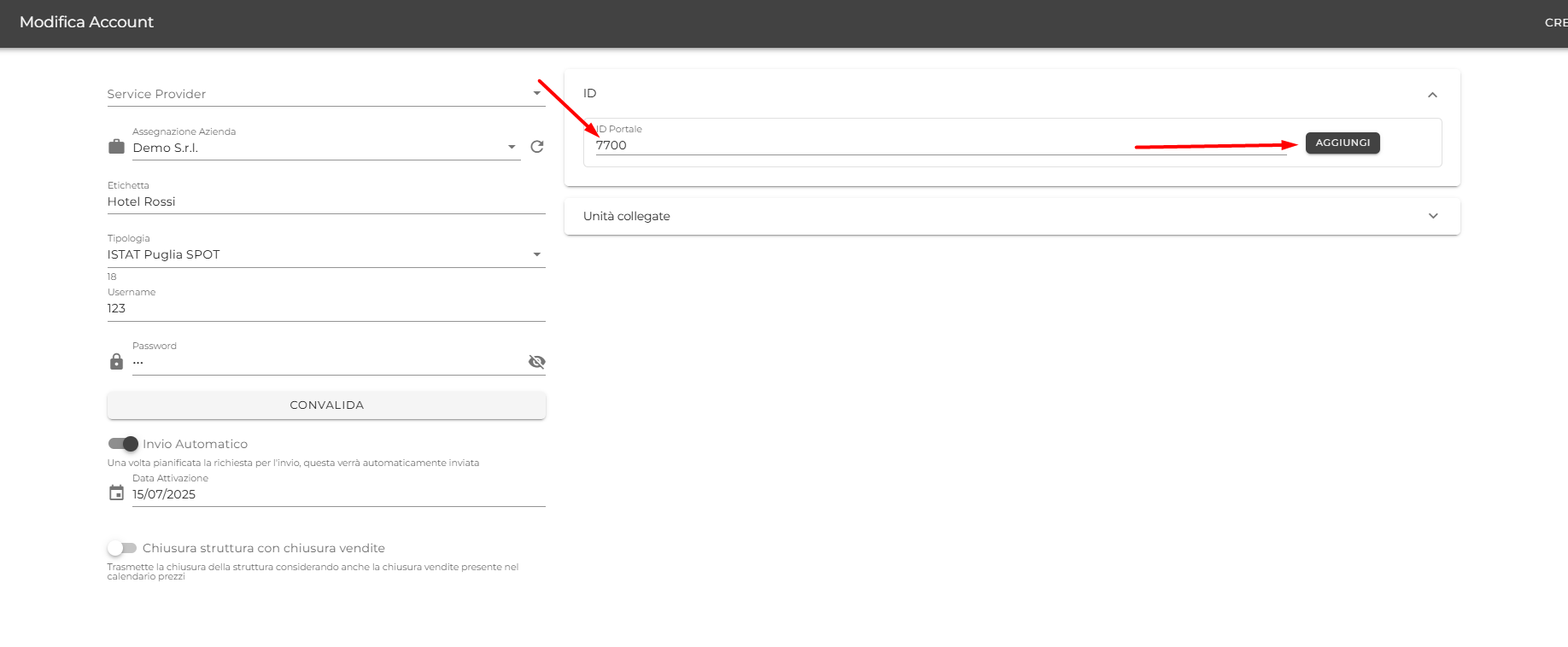
Step 3: Fill in the "ID" section
In the right column, enter the data for each facility as registered with the Region:
- Expand the "ID" section and in the Portal ID field, enter the idstruttura retrieved in Step 1.
- Click on Add.
- Fill in the fields that appear under the ID:
- Available Rooms: the total number of rooms or units in the facility.
- Available Beds: the total number of authorized beds.
- If you have multiple idstruttura, repeat the previous points for each one: you can manage them all in the same account.
Rooms and beds are reported in the XML file as the declared capacity of the facility: they must correspond to what is registered with the Region.
Step 4: Link units to the Portal ID
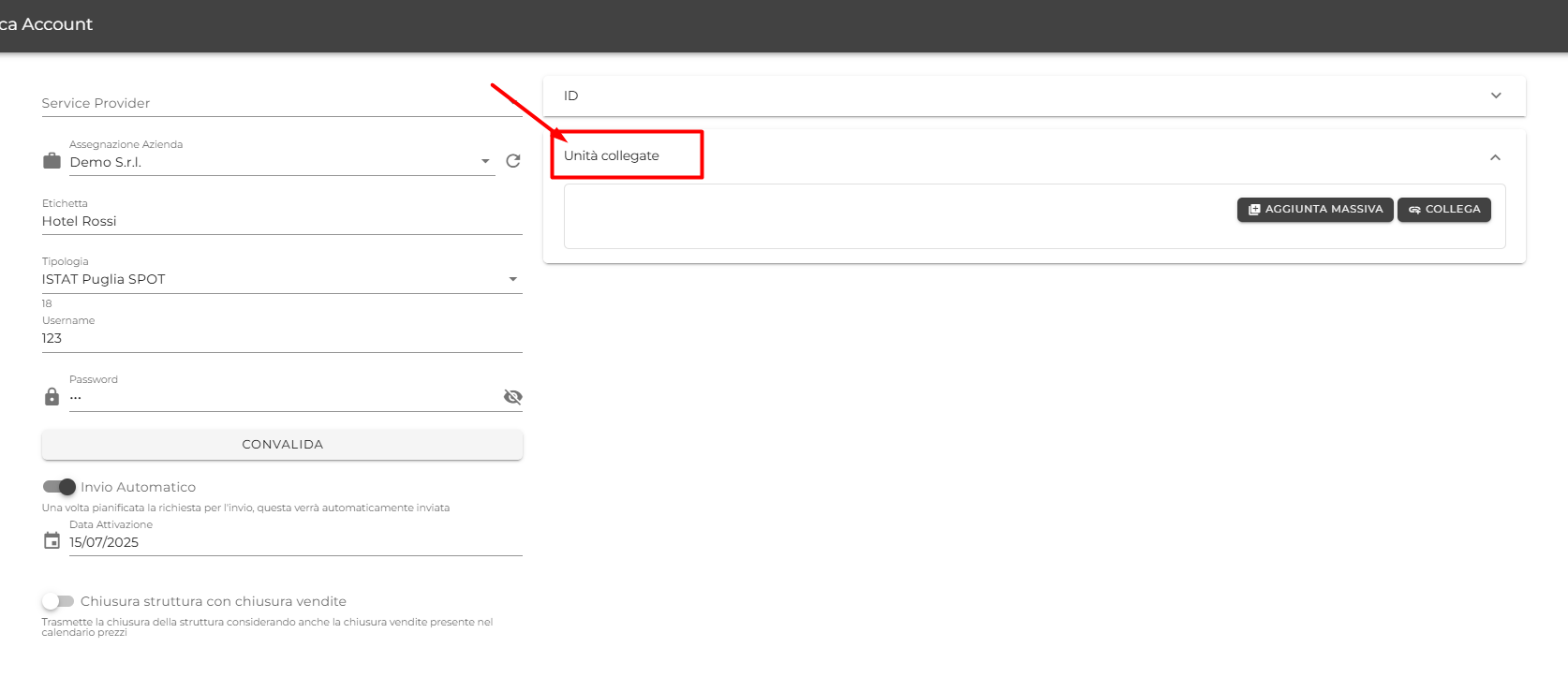
Each SmartPMS unit (room or apartment) must be associated with the idstruttura it belongs to: this is how SmartPMS knows which movements to include in each file.
- Expand the "Linked units" section.
- Click on + Link.
- In the left menu, select the SmartPMS unit; in the right one, select the corresponding Portal ID.
Bulk Addition (optional): if all units of a property belong to the same idstruttura, click on + Bulk Addition, select the entire property and the correct ID: the units will be linked in a single step.
Step 5: Validate and create the configuration
- In the left column, click on Validate. If the data is complete, the green "SUCCESS" message will appear at the bottom.
- Click on CREATE in the top right.
If validation fails, check that the type, username, and password are filled in, and that each Portal ID has rooms and beds valued.
Step 6: Download the XML file and upload it to RIMOVCLI
From here on, the operation is periodic: you repeat it for every day to be reported to the Region.
- Go to Bureaucracy > Account > ISTAT, locate the created configuration, and click on Actions > Download file.
- Set the date range and download:
- for a single day and a single Portal ID, you receive one XML file directly;
- for multiple days or multiple Portal IDs, you receive a ZIP archive with one XML file for each day and each Portal ID.
- Access the RIMOVCLI portal and upload the XML files, one for each day, following the procedures provided by the portal.
The C59 model is daily: each file corresponds to a single date. The end date of the range cannot be in the future.
📒 Important notes
- Manual upload only. SmartPMS generates the file; no submissions appear in the ISTAT logs for this type, because you perform the transmission to the portal by uploading the file to RIMOVCLI.
- Guest residence data. The C59 file does not contain guest personal details but the daily totals of arrivals, departures, and stays broken down by origin, calculated based on residence: province for residents in Italy, Country for residents abroad. Guests without a Country or province of residence will produce an incomplete file.
- Cancelled bookings and No-show. These are not included in the file: arrivals, departures, and stays only take into account actual stays.
- Periods prior to SmartPMS. The file can only contain stays recorded in SmartPMS: periods prior to activation must be completed directly on RIMOVCLI.
- Days without movements. Even for a day without arrivals, departures, or stays, SmartPMS generates the file: it will result in no detail rows.
Frequently asked questions
6Does SmartPMS send ISTAT data to RIMOVCLI automatically?
No. For the ISTAT Liguria - C59 type, SmartPMS prepares the XML file with the facility's movements, but the upload to the RIMOVCLI portal is manual: the regional portal does not provide for direct transmission from management software.
For this reason, Azioni > Manual Submission and the account logs do not show submissions: use Azioni > Download file and upload the file to RIMOVCLI yourself.
If your facility is a non-classified tourist rental, however, you report via Ross1000, where automatic submission is available: see the Ross1000 / Turismo5 guide.
Should I enter the CITR code in the Portal ID field?
No. The Portal ID field must contain the facility ID that the Liguria Region assigns for uploading C59 files: it is a numeric-only code (e.g., 202133164), different from the CITR, which also contains letters and hyphens.
If you enter the CITR, RIMOVCLI will reject the file with the message "file non contiene il codice struttura corretto".
To correct this:
- Retrieve the facility ID from an old XML file, from the facility details on RIMOVCLI, or from the Region's territorial assistance.
- Open Burocrazia > Account > ISTAT > Azioni > Edit.
- In the ID section, add the correct facility ID, fill in rooms and beds, and delete the old ID.
- Re-link the units to the new ID in Linked units, save, and download the files again.
What username and password should I enter? The RIMOVCLI portal only works with SPID or CIE.
For the ISTAT Liguria - C59 type, username and password are mandatory fields to save the account, but they are not used to generate the file: enter 123 in both.
You do not need the SPID or CIE credentials with which you access RIMOVCLI, and you do not need to request credentials from the Region: you download the file from SmartPMS and upload it to the portal yourself using your usual access.
I downloaded multiple days and received a ZIP: how do I upload it to RIMOVCLI?
This is the expected behavior. The C59 model is daily: each XML file corresponds to a single date and a single Portal ID.
- By downloading one day for one Portal ID, you receive a single XML file.
- By downloading multiple days or with multiple Portal IDs, you receive a ZIP archive with one file for each day and each ID.
Extract the ZIP and upload to RIMOVCLI one file at a time, day by day. If the portal rejects an upload, download only the specific day from SmartPMS again and try again.
My facility is a tourist rental: should I use ISTAT Liguria - C59?
No. In Liguria, the channel depends on the type of facility:
- Classified accommodation facilities (hotels, residences, B&Bs, guest houses, and similar): C59 model on RIMOVCLI, with the "ISTAT Liguria - C59" type described in this guide.
- Non-classified tourist rentals: Ross1000 portal, with the "Liguria: strutture non classificate" type. Credentials for the management software must be requested from the Region's territorial office: follow the Ross1000 / Turismo5 guide.
If you manage both types of facilities, create two separate ISTAT accounts, each with its own units.
Account validation fails: what should I check?
Check that all required data is filled in:
- Type: "ISTAT Liguria - C59".
- Username and Password: cannot be empty (for C59, 123 in both is sufficient).
- ID Section: at least one facility ID added with the Add button, with Available Rooms and Available Beds valued.
- Linked units: each unit to be reported associated with its Portal ID.
If validation still fails after these checks, contact support, indicating the message that appears on the screen.
Related guides
Activation
Activation
Activation
Activation
Activation
Activation