

How to connect ISTAT Ricestat / MoTouristOffice for sending guest statistics and City tax
How to connect SmartPMS to Ricestat / MoTouristOffice (MoTourist, Unicom portals used by various Tuscan municipalities) for the automatic submission of ISTAT data: generating PMS credentials on the portal, creating the ISTAT Ricestat account, linking units to the property code, and saving. It explains when submissions are triggered, how to perform a manual submission, how the City tax is transmitted, and why, once the connection is active, guest counts can no longer be modified from the portal.
You are in the right place if…16 cases
- “How do I connect Ricestat to SmartPMS”
- “I cannot find ISTAT Pisa or Siena RICESTAT in the Type menu”
- “Error validating Ricestat credentials”
- “Guests do not appear immediately on Ricestat or MoTouristOffice”
- “My municipality uses MoTouristOffice, how do I send ISTAT data”
- “Does the City tax reach Ricestat from the PMS?”
- “Ricestat is no longer working: the submission of guest arrivals/departures does not start”
- “A reservation is missing on Ricestat: some guests do not appear to have been sent”
- “ISTAT connection error: I only have access to MoTourist and the credentials do not connect”
- “I changed my Ricestat account and the submissions remain pending, they are no longer scheduled”
- “The municipality is disputing the City tax: the amount on Ricestat differs from the one in SmartPMS”
- “I forgot to confirm the check-in of a booking: will the data still reach Ricestat?”
- “I manually sent the guests but no submission appears on the MoTourist portal”
- “I received a notification from MoTouristOffice Toscana: the guest communication did not take place”
- “On the portal it appears connected to CiaoBooking but the guest data is not arriving”
- “In the ISTAT account Action Logs, no row appears after the manual submission”
How to connect ISTAT Ricestat / MoTouristOffice
Ricestat and MoTouristOffice are the portals, managed by Unicom, through which various municipalities (particularly in Tuscany) collect ISTAT statistical data on tourist movement and, where applicable, data for the City tax. By connecting them to SmartPMS, arrivals and stays are transmitted automatically every day, without manual entry on the portal.
Ricestat and MoTouristOffice use the same transmission service: in SmartPMS, both are configured with the ISTAT Ricestat type. Only your property's credentials change.
📌 Step 1: Generate the PMS credentials on the portal
To transmit stays, you need a pair of credentials dedicated to the PMS, different from the ones you use to log in to the portal.
- Access the portal and open the Utilities → PMS Conf. section.
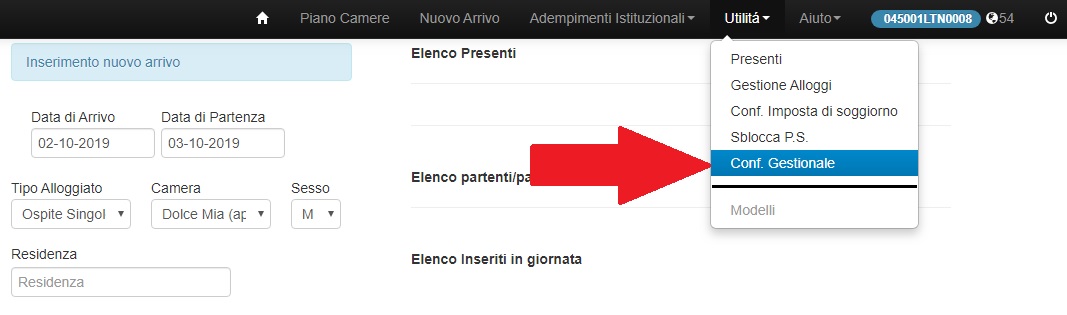
- The list of PMS enabled for synchronization will open.
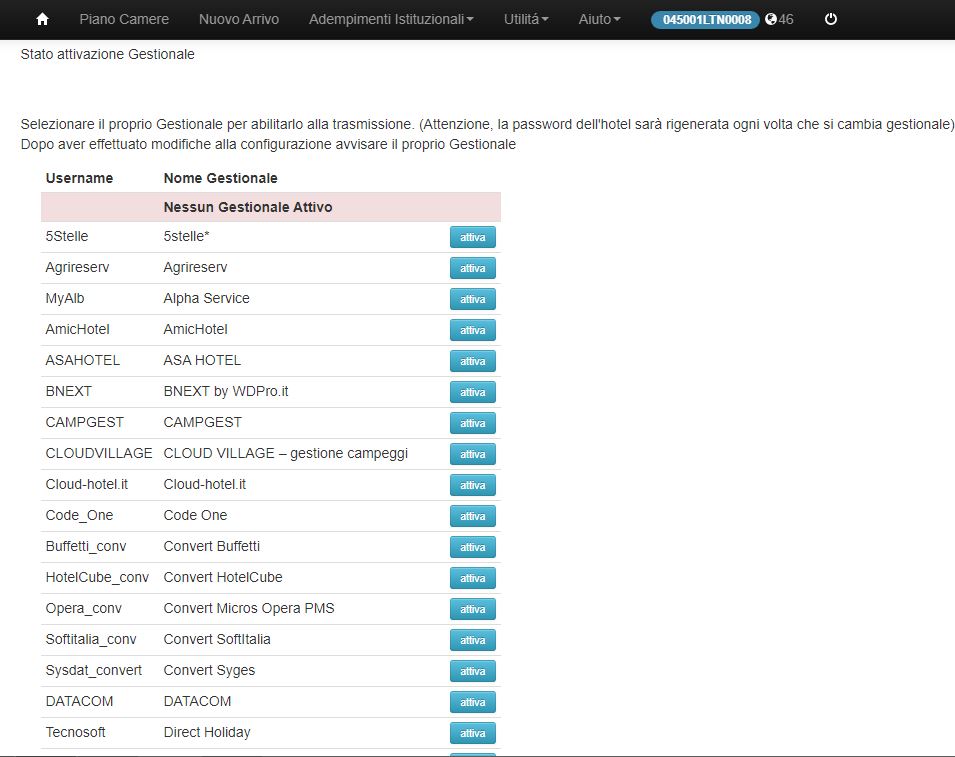
- Locate CiaoBooking (the name under which SmartPMS is registered on the portal) and click Activate.
- The portal will provide you with an ID code, which corresponds to your accommodation's identification code, and a password.
- Save the ID and password: you will need them in the next step.
⚙️ Step 2: Create the ISTAT account in SmartPMS
- In SmartPMS, go to Bureaucracy → Account → ISTAT and click + Add.
- Fill in the fields in the left column:
- Company Assignment: the company responsible for sending the data.
- Label: optional, useful for identifying the account (e.g., Ricestat - Property Name).
- Type: select ISTAT Ricestat. It is a single entry, valid for all municipalities that use Ricestat or MoTouristOffice.
- Username: the ID code received in Step 1.
- Password: the password received in Step 1.
- Automatic sending: enable this if you want SmartPMS to transmit data every day without intervention.
- (Optional) Close property with sales closure: for Ricestat, this option does not affect the transmitted data, so you can leave it disabled.
- Click Validate and wait for the confirmation message.
🔗 Step 3: Link units to the property code
To complete the configuration, you must tell SmartPMS which units belong to this property.
- Click the Link button.
- Select a unit and associate it with the Portal ID / Property Code.
- Repeat the operation for all units of the property.
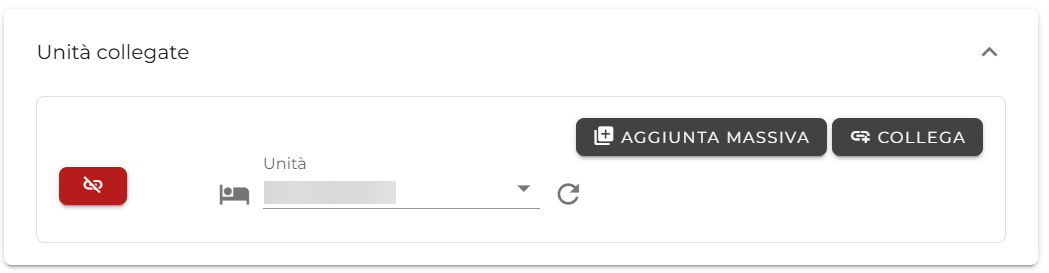
Bulk addition: if all units of a property belong to the same property code, click Bulk Addition, select the property and the Portal ID / Property Code, then click Create. Use this only if the units truly have the same code: if a property includes units registered with different codes, link them one by one.
💾 Step 4: Save the configuration
Click CREATE in the top right bar. 🎉
Remember: once the PMS is enabled, you can no longer enter or correct stays manually on the portal. The portal disables entry from New Arrival and modification/cancellation operations from WebCheck-In: the transmitted data is managed by the PMS.
🕒 How transmissions work
- Automatic sending: every morning, SmartPMS transmits the arrivals of two days prior, with the guest data registered in the check-in. Only the day's arrivals with their guests are transmitted: occupancy, departures, and property closure are not transmitted. A guest who arrived on Monday will therefore appear on the portal on Wednesday morning.
- Manual sending: from Bureaucracy → Account → ISTAT, on the account row click Actions → Manual sending, indicate Start date and End date and confirm. This is used to anticipate a transmission, recover missing days, or retransmit a period.
- Outcome: from Actions → Logs, you can see for each date whether the transmission was successful or the message returned by the portal.
- Only guests from bookings with completed check-in data, in units linked to the account, are transmitted.
💶 City tax
Together with each paying guest's data, SmartPMS transmits the rate per person per night applied in SmartPMS, including tiered rates provided by some municipalities. This way, the portal uses the rate actually applied instead of the maximum rate provided by municipal regulations. For this reason, it is important that the City tax rules and exemptions are configured correctly in Settings → Property → Bureaucracy / Self Check-In, and that guests are registered in the Check-in tab with date of birth and residence: you can find the steps in the frequently asked questions below. The complete guide Configuring the City tax and calculation methods in Self Check-in is linked at the bottom of this page.
Frequently asked questions
12When I click on Validate, an "Error" appears: what should I check?
In most cases, the error depends on the credentials:
- Use the management software credentials, i.e., the ID and password generated by the portal in Utilities → Management Conf. after clicking Activate on CiaoBooking. The credentials you use to log into the portal do not work for transmission.
- Check that you have completed the activation on the portal: if the Activate step was skipped, the credentials are not enabled.
- Verify that there are no spaces before or after the username and password: this often happens when copying them from the portal.
Once the data is corrected, click Validate again and then CREATE to save.
I changed my user or password on the Ricestat portal: what do I need to update in SmartPMS?
The credentials saved in SmartPMS do not update automatically. If you regenerate the management software credentials or change the user on the portal:
- Go to Bureaucracy → Account → ISTAT and open the Ricestat account with Actions → Edit.
- Enter the new Username and the new Password, without spaces, and click Validate.
- Verify that the units are still linked to the property code and save with CREATE.
- If the submissions in the previous days were not successful, recover them with Actions → Manual submission by indicating the relevant period, and check the result in Actions → Logs.
In the ISTAT account list, I see "0" in the Portal ID column of my Ricestat account: is there something to fix?
No, for Ricestat / MoTouristOffice this is normal. With this type, a Portal ID is not used: the property code is the Username entered in the account (the ID code received from the portal) and the units are connected directly to the account. This is why "0" appears in the Portal ID column even when the account is configured correctly and the units are connected.
To verify that the configuration is complete:
- In Bureaucracy → Accounts → ISTAT open the account with Actions → Edit and check that all the property units are connected.
- Check that Automatic submission is active.
- After the first submission, open Actions → Logs and verify that each day has been sent.
If an error appears in the Logs or nothing appears after a submission, contact support indicating the property and the account Username.
Why don't guests appear immediately on Ricestat? I need the guest code (e.g., for ZTL access)
Automatic transmission is not real-time: every morning SmartPMS transmits arrivals from two days prior. A guest who arrived on Monday will therefore appear on the portal on Wednesday morning.
If you need it sooner, you can trigger the transmission manually:
- Verify that the guest check-in data is complete.
- Go to Bureaucracy → Account → ISTAT, on the account row click Actions → Manual transmission.
- Set the Start date and End date to the guest arrival day and confirm.
- After a few minutes, check the result in Actions → Logs and verify on the portal.
When the automatic transmission for the same date runs two days later, the portal may respond that those guests are already in the archive: this is normal, as they have already been transmitted via the manual submission.
Some attendances are missing on the portal or I received a reminder for non-submission: how do I recover the missing days?
- In Bureaucracy → Account → ISTAT open the Ricestat account and verify that Automatic submission is active: if it has been deactivated, SmartPMS has not transmitted anything automatically since that day.
- Check that all units of the property are linked to the correct property code.
- Verify that in the bookings for the period, the guest check-in data is filled in: guests without data are not transmitted.
- Click Actions → Manual submission and indicate the entire period to be recovered as Start date and End date.
- Check the result of each date in Actions → Logs and verify on the portal.
The Logs show "Provided ID already exists in archive, use update procedure": what does it mean?
The portal is telling you that those guests have already been transmitted previously, for example with a manual transmission or a repeated transmission for the same period. The data is already on the portal: you don't need to do anything for those guests, even if the date in the Logs shows an error message.
The same message may appear if the same guest was entered twice in overlapping bookings: check that there are no duplicate guests in the Check-in tab.
Keep in mind that a new transmission does not update data already transmitted: if you modified a guest's data after the first transmission, the correction will not reach the portal with the re-transmission. In this case, contact support indicating the booking and date: with the PMS connected, you cannot correct data directly from the portal.
Does Ricestat receive the City tax amount from the management software?
Yes. For every paying guest, SmartPMS transmits, along with the statistical data, the rate per person per night actually applied, calculated according to the City tax rules configured for the property, including tiered rates and the maximum number of taxable nights.
If a rate does not reach the portal, the portal applies the maximum rate provided by the municipal regulations for that type of property. This is why it is important that the property's City tax rules are configured correctly in SmartPMS: verify them before the periodic declaration and, if you modify them, contact support to realign the periods already transmitted.
My municipality uses MoTouristOffice and not Ricestat: can I connect it to SmartPMS?
Yes. Ricestat and MoTouristOffice are platforms from the same provider and receive data through the same transmission service: in several Tuscan provinces (for example Arezzo, Grosseto, Livorno, Lucca, Massa Carrara, Pisa and Siena) MoTouristOffice has replaced Ricestat.
In SmartPMS, it is configured using the same procedure as in this guide:
- On the MoTouristOffice portal, generate the management system credentials for CiaoBooking.
- In Bureaucracy → Account → ISTAT, create an account with the ISTAT Ricestat type and enter those credentials.
- Link the units to the property code and save.
If the credentials are not accepted during the validation phase, contact support indicating the municipality and the property code.
I performed a manual submission but nothing appears on the portal and nothing shows up in Actions → Logs: what happened?
Every submission to Ricestat / MoTouristOffice, whether successful or not, leaves a row in Actions → Logs for each transmitted day, showing the outcome or the portal's message. If the Logs window is empty after a manual submission, the transmission did not start: therefore, the portal received nothing.
- In Bureaucracy → Account → ISTAT, on the account row, click Actions → Manual submission (not Check Files or Logs).
- Specify the Start date and End date of the period to be transmitted and click Submit, waiting for the loading on the button to finish.
- Reopen Actions → Logs: a row with the outcome must appear for each day of the period.
- Check that Automatic submission is active via Actions → Edit: if it is turned off, SmartPMS does not transmit anything automatically and only manual submissions remain.
If the Logs window remains empty even after these steps, or if an error message appears, contact support by attaching a screenshot of the screen.
ISTAT submission errors: how to read logs and what to check before contacting support?
Where to read logs
- Go to Bureaucracy → Account → ISTAT.
- On the Ricestat account row, click Actions → Logs.
- For each day, you will find Date, Outcome (green checkmark if the portal received the data, red icon if there was an error), Message and Errors returned by the portal, and Submission Date. If a day was submitted multiple times, count the most recent row.
- Identify the last successful submission and the days in error, copy the exact message, and note the dates.
The automatic submission transmits the arrivals of two days prior every morning: yesterday and today without logs are not an error.
Then check, in this order
- Retry submission: Actions → Manual submission, with Start date and End date of the days in error. If the message indicates that the portal was unreachable, the error is temporary: just resend later. The message "ID provided already exists in archive" indicates guests already transmitted (see the dedicated FAQ).
- Credentials: Actions → Edit → Validate. Validation only checks the PMS credentials: if it succeeds but submissions fail, the cause lies in the connected units or guest data.
- Portal access and authorization: log in to the portal and verify in Utilities → PMS Config that CiaoBooking is still active. If you have regenerated the PMS credentials, update them in SmartPMS.
- Connected units: in Actions → Edit, all units of the property must be connected to the account. If no unit is connected, the submission does not start and no log appears.
What to send to support if the problem persists
- the error message copied exactly from the logs;
- the affected dates;
- the outcome of the Validation;
- whether or not you can access the portal directly;
- whether manual submission fails or works.
Related guides
Configuration
Configuration
Activation
Activation
Activation
Activation