

Configuring the City tax and calculation methods in Self Check-in
Complete guide to City tax calculation methods (fixed amount, total percentage, percentage per guest, tiers by nights and by average price), VAT/breakfast deduction, age/resident exemptions, and online collection via Smartpay in Self Check-in.
You are in the right place if…16 cases
- “Why does the client complete self check-in without paying the city tax?”
- “How to configure city tax in online check-in?”
- “How to exclude Airbnb from city tax in the PMS?”
- “The guest encounters an error paying the tax by card”
- “How to set reductions for children or residents in city tax?”
- “How do night-based or price-based tier calculations work for city tax?”
- “How to recalculate city tax on already inserted bookings?”
- “How to deduct VAT or breakfast from city tax calculations?”
- “In self check-in, the guest sees "Could not initialize payment"”
- “The city tax Pay button remains disabled”
- “The booking's city tax also counts children who should be exempt”
- “The booking total includes full tax for all guests before online check-in”
- “Why are my age-based exemption/reduction rules not working as expected?”
- “Why are my City tax calculations not adding up?”
- “Managing City tax exemptions from OTA portals (Booking.com, Airbnb, etc.)”
- “City tax amount "locked"”
Collecting the city tax via Self Check-in allows you to automate payment before guests arrive, eliminating front desk queues, manual counts, and cash handling.
In SmartPMS, digital payments for the city tax during online check-in are processed via the Smartpay module, the integrated secure credit card payment platform (powered by Stripe Connect). In addition, the SmartPMS tax engine supports both standard configuration and the New Advanced Experience with tiered calculations, VAT/breakfast deductions, and dynamic exemption rules.
1. Prerequisite: Connecting Smartpay
Before you can collect the city tax online:
- Go to Settings → Companies → Smartpay Configuration and verify that your account is Active and linked to the property.
- Check that the bank details and payment provider onboarding have been completed. If the Smartpay account has pending verifications, guest card payments will fail.
[!NOTE]If the property does not have Smartpay or Stripe active, the option to collect the city tax in self check-in will not be selectable.
2. The 3 Tax Payment Modes in Self Check-in
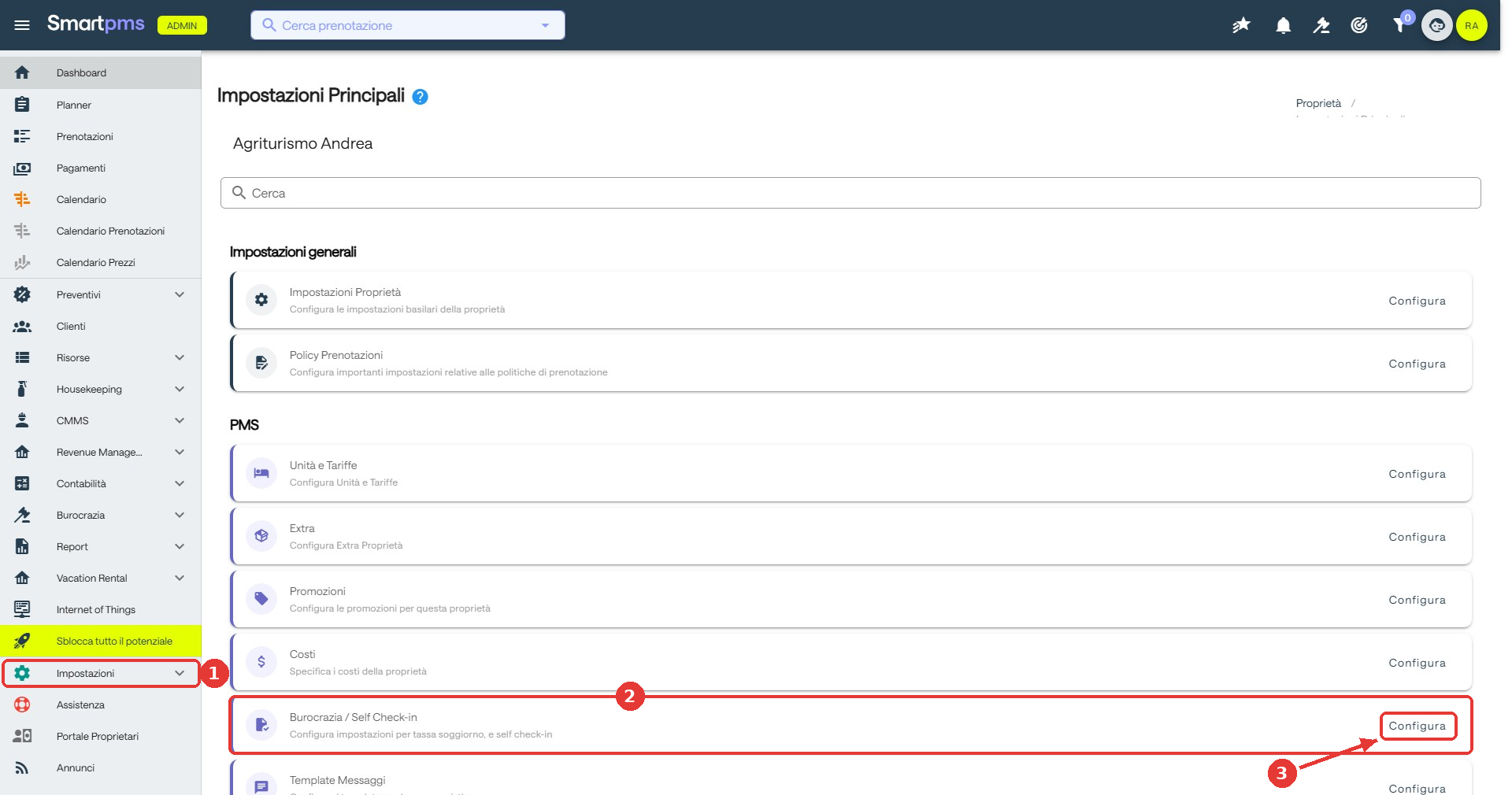
To open the settings, go to Settings → Properties, click Settings on the property row, and in the Main Settings page, PMS section, click Configure on the Bureaucracy / Self Check-in card.
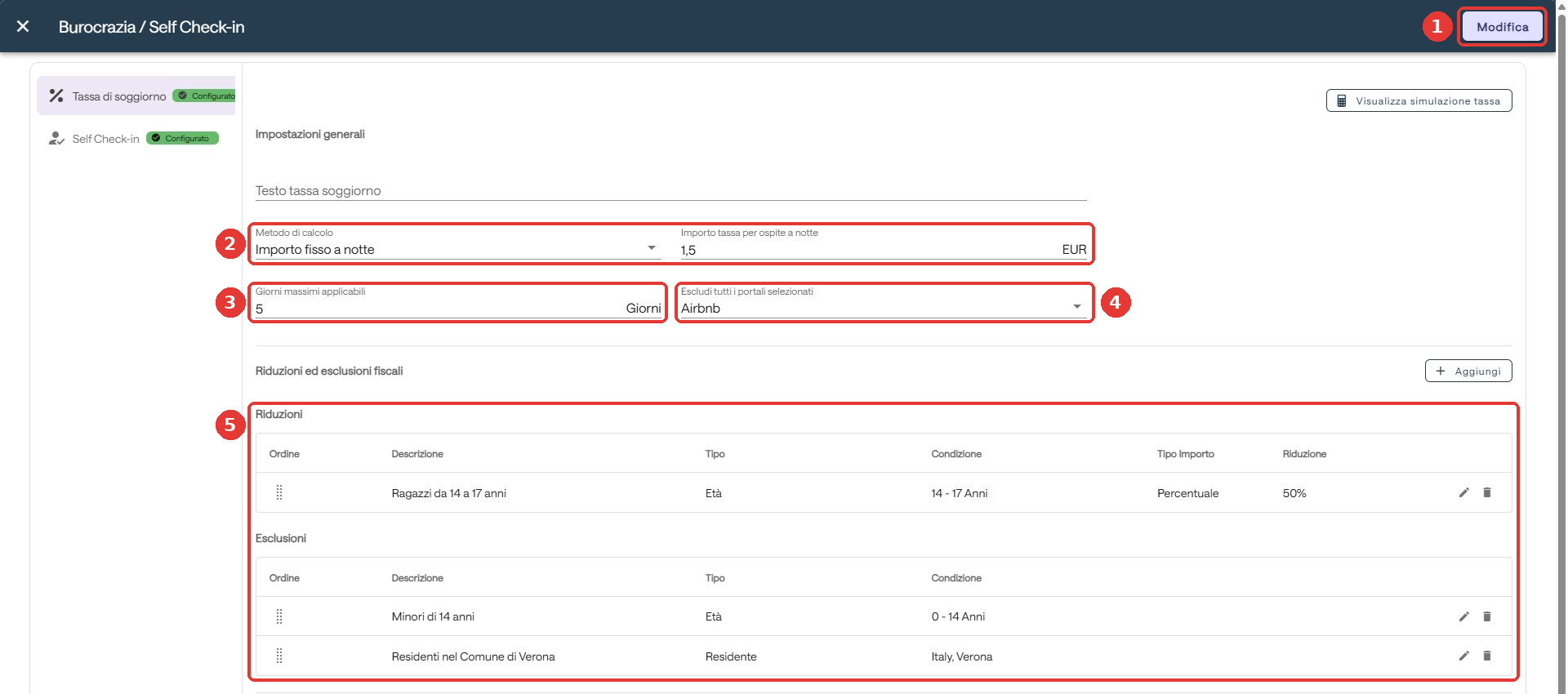
The Bureaucracy / Self Check-in window opens. In the City tax tab, click Edit (1) to make the following fields editable: Calculation method and Tax amount per guest per night (2), Maximum applicable days (3), Exclude all selected portals (4), and the Reductions and Exclusions tables (5). In the previous configuration, the same fields are named Tax Amount, Maximum applicability (days) and Exclusion by portal.
In the Self Check-in tab of the same window, you can choose between three tax management modes:
Mode 1: Payment upon arrival (Do not require online)
- No payment is shown or requested from the guest during online self check-in.
- The guest fills in their personal details, uploads documents, and signs the contract. Tax collection must be carried out manually by the staff at the property (in cash or via POS).
Mode 2: Allow paying during self check-in (Optional / Non-blocking)
- The interface shows the guest the calculated tax amount and offers a button to pay by card.
- Warning: with this option, payment is optional. If the guest decides to skip this step, the self check-in is still considered 100% completed, and the guest will regularly receive access codes or the lock PIN.
Mode 3: Require payment upon completion of self check-in (Mandatory / Blocking)
- Recommended mode for automated properties and accommodations without a physical reception.
- The guest must pay the city tax by card to finalize registration.
- Until the payment on Smartpay is successful, the self check-in remains partial: automatic reminders continue to be sent, and access instructions (digital keys or keypad codes) are not issued.
3. All City Tax Calculation Methods
SmartPMS manages the regulations of any Italian and European municipality with 5 calculation methods, which you choose in the Calculation method field. The headings below show the option name as it appears in the menu.
1. Fixed amount per night
This is the most common model in Italian municipalities. The tax provides a fixed daily rate for each paying guest, with a maximum limit of consecutive nights.
Tax=taxable guests×taxable nights×rate per night
Example: 7 nights, 2 adults and 2 exempt children, €2.50 per night, maximum 5 nights
2 adults×5 nights×€2.50=€25.00
Taxable nights are the nights of the stay up to the maximum applicable days: in the example, the last 2 nights are exempt, as are the two children under 14 years of age.
Configurable parameters:
- Tax Amount: the rate per person per night (e.g., €2.00 or €3.50).
- Maximum applicability (days): maximum number of taxable nights per continuous stay (e.g., 5 days). Beyond this limit, subsequent nights are exempt.
- Age exclusions: minimum age (e.g., minors under 14 exempt) and maximum age (e.g., seniors over 70 exempt).
2. Percentage of total cost
- The tax is calculated by applying a percentage rate to the total accommodation amount, and the burden is distributed equally among guests for the issuance of individual receipts.
| Total tax | accommodation taxable amount × percentage |
Quota per guest=total tax÷number of guests
Example: accommodation €600.00, 3 people, 4% rate
€600.00×4%=€24.00
€24.00÷3 people=€8.00
Configurable parameters:
- Tax percentage: rate established by the municipality (e.g., 4% or 5%).
- Maximum amount per person or stay: ceiling above which the calculated amount is capped.
3. Percentage of cost per guest
Calculates the percentage of the room amount attributable to the individual guest, verifying that the daily quota does not exceed the municipal maximum per person per night.
The system divides the taxable amount by guests and nights, applies the rate, and if the rate per night exceeds the maximum, reduces it to the maximum. The rate per night thus obtained is multiplied by the taxable nights (up to the maximum applicable days).
| 1 | Quota per guest per night: €800 ÷ 2 guests ÷ 4 nights | €100.00 |
| 2 | Apply rate: €100.00 × 5% | €5.00 |
| 3 | Exceeds the maximum, so it stops at | €4.00 |
| 4 | Per guest: €4.00 × 4 nights | €16.00 |
| Total booking (2 guests) | €32.00 |
4. Tiers by nights
Available in the new advanced configuration, it allows applying decreasing or differentiated rates as the stay lengthens.
Define progressive night brackets, for example:
- from night 1 to night 3: €3.00 per night;
- from night 4 to night 7: €1.50 per night;
- from night 8 onwards: €0.00 per night.
| 1 | First 3 nights: 3 × €3.00 | €9.00 |
| 2 | Subsequent 3 nights: 3 × €1.50 | €4.50 |
| Total tax | €13.50 |
5. Tiers by price
Adopted in art cities and municipalities with progressive rates (e.g., Bergamo, Florence): the tax amount per night varies based on the average price bracket of the accommodation per person per night.
The system calculates the average price per person per night and automatically identifies the bracket, for example:
- Bracket 1: from €0.00 to €50.00 per person per night → €2.00 per night;
- Bracket 2: from €50.01 to €100.00 per person per night → €3.00 per night;
- Bracket 3: over €100.00 per person per night → €4.00 per night.
Average price=room cost÷(nights×guests)
Tax=bracket rate×taxable nights×taxable guests
Example: room €600, 3 nights, 2 guests, with the brackets above
| 1 | Average price: €600 ÷ (3 nights × 2 guests) | €100.00 |
| 2 | Falls into bracket 2, rate per night | €3.00 |
| 3 | Tax: €3.00 × 3 nights × 2 guests | €18.00 |
| Total booking | €18.00 |
4. Advanced Taxable Bases, VAT Deduction, and Breakfast
In the New City Tax Experience, you can precisely adjust what contributes to the taxable base. Each item below lists the option name as it appears in the configuration:
- Calculation net of VAT:
- If enabled, the percentage rate of the tax is not applied to the gross price, but to the accommodation price net of VAT (e.g., by deducting 10% VAT: base = gross price ÷ 1.10).
- Deduct breakfast from the base:
- If the room rate includes breakfast, you can specify the conventional breakfast amount per person per night (e.g., €10.00). The breakfast value is subtracted from the total before calculating the tax percentage.
- Add cleaning to the base:
- If municipal regulations include final cleaning in the tax calculation base, enabling this checkbox includes the cleaning cost in the taxable amount.
- Catalog extras contributing to the base:
- In Settings → Extras, each individual extra can be tagged with the option "Contributes to the city tax base".
- Portals with tax included in the rate:
- For portals where the contractual rate legally already contains the city tax, the system deducts the tax from the total (without adding it as an extra charge to the guest in self check-in), keeping it correctly reported for the municipal declaration.
- The rate changes over time:
- Allows setting different rates for date ranges (e.g., high and low season). For stays spanning across rate changes, SmartPMS splits the nights and applies the rate of the actual overnight stay day to each night.
- Apply additional tax for pets:
- Allows applying a separate ancillary fee for each pet per night (e.g., €1.00/pet/night).
5. Exemptions and Reductions: Age, Residents, and Excluded Portals
Automatic exemption for residents
If the city of residence entered by the guest in self check-in matches the municipality where the property is located, SmartPMS automatically applies the exemption with the reason Resident.
Age exemptions
Minors below the minimum age or seniors above the maximum age are excluded from the tax count as soon as they enter their date of birth in the online form.
Reductions and exclusions: order and cascading application
In the Tax reductions and exclusions section, click Add and choose under Rule whether to create a Tax reduction or a Tax exclusion:
- Type (the condition that triggers the rule): Age, Seasonal, Resident, Extended stay, Group size.
- Amount Type, for reductions only: Value (e.g., -€1.00) or Percentage (e.g., -50%).
- Description: this is the name with which the rule appears in the Exclusions/Reductions table of the City Tax Report.
Order of application. Exclusions are checked first: if a guest falls under an exclusion, they are exempt and reductions do not apply. Reductions are applied one after another, from top to bottom of the Reductions table, each on the amount already reduced by the previous one. If a guest is entitled to multiple reductions (for example, by age and seasonal), the order changes the final amount: check what your Municipality requires and reorder the rows by dragging them from the icon in the Order column. In the previous configuration, the order is changed using the arrows in the Priority column.
With percentage methods (Percentage of total cost and Percentage of cost per guest) only exclusions apply: reductions are not applied. In the previous configuration, with the percentage of total method, neither exclusions nor reductions apply.
Seasonal exclusions and reductions
If your Municipality provides periods without tax (e.g., the entire month of January) or with a reduced tax, create a Seasonal type exclusion or reduction and indicate the From and To dates, both inclusive.
Dates also include the year, so the rule is only valid for that specific period and does not repeat itself automatically the following year. Create rules in advance for subsequent years as well (e.g., January 2027 and January 2028): this way the exemption or reduction is correctly applied even to bookings received well in advance.
Portal Exclusions (e.g., Airbnb)
Many municipalities have agreements with Airbnb for centralized tax collection:
- In the Exclusion by portal field, select portals (like Airbnb) that collect directly.
- For bookings originating from these channels, self check-in automatically zeroes out the tax by marking it as paid by the portal, preventing the guest from paying twice.
6. Rate Changes and Regeneration ("Regenerate from")
Each guest's tax amount is calculated when the guest is registered in check-in. If you subsequently change the configuration, or change the dates of an already registered booking, the saved amounts do not update automatically: regeneration is used to recalculate them, located in the box at the bottom of the City tax tab.

When the municipality passes a rate change or you modify property parameters:
- Save the new city tax configuration.
- Existing calendar bookings keep the previous snapshot to preserve accounting consistency.
- To apply the new rules, fill in the regeneration box and click Regenerate:
- In Regenerate from (1), choose the effective date (e.g., from January 1st): all bookings arriving from that date onwards are recalculated, including future ones.
- Include already registered guests (2) unchecked: only bookings without guests registered in check-in are recalculated.
- Include already registered guests checked: the amount of each guest already registered in check-ins starting from the indicated date is also recalculated, using the current configuration and check-in dates. Manually entered amounts and exclusions are replaced.
- After recalculation, the booking tax total and payment summary are updated: an amount still to be collected or an overpaid amount may appear on an already paid booking.
For how these amounts end up in the City Tax Report, and to realign the report when a booking changes after check-in, see the dedicated City Tax Report guide.
7. What the Guest Sees During Self Check-in
When mandatory payment mode is active:
- Guest Details Step: the guest enters dates of birth and residence for all participants. The system instantly recalculates the taxable amount by applying any statutory exemptions.
- Tax Payment Step: a transparent summary is displayed with the number of taxable nights, the number of paying and exempt guests, and the total to be paid.
- Smartpay Secure Transaction: the guest enters credit card details (with 3D Secure authentication).
- Instant Unlock: once payment is confirmed, check-in concludes 100% and access credentials are sent.
Frequently asked questions
15Why did a guest complete self check-in but the city tax appears unpaid?
The cause is almost always setting the "Allow paying during self check-in" mode instead of "Require payment upon completion". With the "Allow" option, the procedure offers the possibility to pay but does not make it mandatory: the guest can ignore the step and check-in is still considered 100% completed. To make payment binding and prevent check-in from closing without a balance, select "Require payment upon completion of self check-in".
What does the guest see if the property's municipality does not have a city tax?
If the municipality does not apply the city tax, set the Bureaucracy section to "Payment upon arrival" and leave the amount fields at zero or empty. This way, the online guest check-in interface will completely skip the payment screen, taking the guest directly from contract signing to final confirmation.
What happens if Airbnb already collects the city tax for my municipality?
If your municipality has an agreement with Airbnb or other OTAs for tax collection at the time of booking, enter the channel in the "Exclusion by portal" field within the city tax settings. This way, when an Airbnb booking comes in, the system zeroes out the tax request in the self check-in link with a portal-paid reason, preventing the guest from paying twice.
The guest receives an error message during card payment: what should I check?
If the guest receives an error while attempting to pay by card, check in Settings > Companies > Smartpay Configuration that your Smartpay account is in an "Active" state and has no pending verifications: until account verification is complete, it cannot collect payments from guests. If the error is "Could not initialize payment", see the dedicated FAQ. Also, check that the guest's card supports 3D Secure banking authentication (Strong Customer Authentication).
How do I update city taxes on already acquired bookings after a change in municipal rates?
If the municipality updates city tax rates or introduces new exemptions, bookings already saved in the calendar keep the amount calculated at the time of booking. To update all future bookings with the new rates, enter the property settings, save the configuration, and use the Regenerate from box at the bottom of the City tax tab: indicate the date from which to apply the recalculation, choose whether to enable Include already registered guests, and click Regenerate.
How does the deduction of included breakfast from the tax taxable base work?
In the New City Tax Experience, you can enable "Deduct breakfast from the base" and indicate the gross breakfast amount per person per night (e.g., €10.00). If the booking includes breakfast, SmartPMS automatically subtracts this amount from the room cost before applying the city tax percentage.
I set age exemptions and reductions, but a guest is charged the full tax. Why?
Almost always the reason is a "gap" or an overlap between age brackets. SmartPMS considers age in completed years, but the upper limit of a "From X to Y" bracket works differently depending on the tax configuration you use.
New configuration (the one with the Calculation method field and the Tax reductions and exclusions section). Below the Age from and Age to fields you will find the indication "Value included": both limits are included, both in exclusions and reductions.
- Exclusion "From 0 to 14": guests who have already turned 14 are also exempt, up to the day before their 15th birthday.
- To exempt only those who have not yet turned 14, set the exclusion "From 0 to 13" and start the reduction from 14: for example, "From 14 to 25" (also valid for those who are 25 and stop upon turning 26).
- Beware of overlaps: with exclusion "From 0 to 14" and reduction "From 14 to 25", a 14-year-old guest falls into both. Exclusions are checked first, so they are exempt and not reduced.
- Example of a "gap": exclusion "From 0 to 13" and reduction "From 15 to 25". A 14-year-old guest falls into neither and pays full tax.
Previous configuration (the one with the Enable new experience toggle disabled). Age is calculated at check-in date and limits work like this:
- Exclusion "From X to Y": valid for those who are at least X years old and have not yet turned Y years old. "From 0 to 14" exempts up to 13 completed years.
- Reduction "From X to Y": valid for those who are at least X years old and up to Y completed years inclusive. "From 14 to 25" is also valid for those who are 25.
- Correct configuration: exclusion "From 0 to 14" and reduction "From 14 to 25". With reduction "From 15 to 25", a 14-year-old guest would pay full tax.
If you switch from the previous configuration to the new one, brackets are carried over with the same numbers: check age exclusions, because the upper limit becomes inclusive (for example, "From 0 to 14" must be changed to "From 0 to 13" to maintain the same behavior).
In general, start the next rule immediately after the last age covered by the previous one. After correcting rules, use Regenerate from with Include already registered guests active to recalculate existing bookings.
The City Tax Report total does not match what I collected or billed. Why?
The City Tax Report is based only on guests registered in the Check-in tab of each booking and on the tax amount calculated for each of them (with relative exemptions and reductions). The report does not consider:
- collections recorded in payments, in cash, or via external POS;
- amounts reported on invoices or receipts, even if issued by SmartPMS;
- the theoretical "city tax" amount of the booking if guests have not been registered.
Most frequent causes of discrepancy:
- Missing guests in the Check-in tab: no tax is counted for that booking in the report.
- Amount at 0 on guests: happens, for example, if you configured the tax after registering guests. Use Regenerate from with Include already registered guests active, or correct the amount from Check-in tab → Actions → Edit.
- Tax documents calculated manually differently from municipal rules, for example without applying an age exemption.
- Improperly used portal exclusion: guests from that portal are listed as exempt "by OTA" and their tax does not enter the total to be remitted.
The report serves to produce the data to be declared to the municipality: tax documents must reflect the per-guest calculation, not the other way around.
Booking.com or Airbnb collect the city tax but then pay it to me, not to the municipality: should I use Portal Exclusion?
No. Portal Exclusion should be used only when the portal pays the tax directly to the municipality. In that case, guests from that portal are registered with 0 tax and an exemption of "paid by portal", and you do not need to declare it.
If instead the portal collects the tax and then passes it on to you, you are the one who must declare and remit it. Using exclusion would zero out the tax for guests in the Check-in tab and therefore also in the City Tax Report.
Recommended solution: disable tax collection on the portal and have the guest pay it during self check-in via Smartpay. This way, SmartPMS also applies exemptions and reductions (age, residence), which portals do not check.
If you prefer to let the portal collect it, you will need to manually correct each booking to align reports, payments, and tax documents after guests have been registered in the Check-in tab:
- Booking.com: usually communicates an amount that includes the tax without separating it. Subtract the tax from the room price and enter the correct amount for each guest from Check-in tab → Actions → Edit.
- Airbnb: adds the tax to the payment without indicating it as a city tax, and the booking may end up with a negative "to pay" balance. Enter the tax amount for each guest from the Check-in tab.
I cannot change the city tax amount in booking totals: why is it locked?
When a booking has guests registered in the Check-in tab, the booking's city tax is the sum of amounts calculated for each guest. This is why the field is not editable from totals.
To change the amount:
- Open the booking and go to the Check-in tab.
- Click on Actions → Edit.
- Correct the tax amount of individual guests and save.
The booking total updates automatically, and the same amount is used in the City Tax Report. If the discrepancy instead depends on poorly configured rules (rates, exemptions, reductions), correct the configuration and use Regenerate from with Include already registered guests active.
Correct the amount before creating the bill: the City Tax line item on the bill takes the booking amount at the time of creation and does not update on already created bills (see guide "Bills: how to prepare invoices and receipts").
Why does the booking show full city tax even for exempt children?
This is normal. Until guests complete self check-in, SmartPMS does not know their age or residence: portals and bookings only indicate how many adults and children there are, not dates of birth.
For this reason, before online check-in, booking tax is calculated on the maximum possible, i.e., as if all guests were paying, regardless of children's ages.
Age and residence exemptions and reductions are applied guest by guest when the guest enters date of birth and municipality of residence in self check-in. At that point, the booking tax updates itself to the sum of amounts calculated for each guest.
Example: 5 guests of which 2 children under 10, exemption for minors under 10, €5 per night for 7 nights. Before check-in the booking shows €175 (5 guests × 7 nights × €5). After online check-in, the two children are exempt and tax drops to €105.
No need to correct the amount manually before check-in. If guests are already registered in the Check-in tab and the exemption is not applied, check the entered date of birth and configured exemption rules, then correct from Check-in tab → Actions → Edit or use Regenerate from with Include already registered guests active.
The City Tax Report counts fewer guests and nights than actual ones, even though all guests have tax in the Check-in tab. Why?
Check the filters with which you generated the report. In addition to property and dates, the report has optional filters for Source (the portal from which the booking arrives), room Types, and units. If any of these has a value, the report only sums guests from bookings matching the filter.
The most frequent case concerns the Source filter. Your Booking Engine or website portal often has the same name as the property (e.g., "Villa Rossi"). Selecting it feels like choosing the property, but in reality the report includes only direct bookings arriving from that portal and excludes those from Booking.com, Airbnb, and other channels.
To obtain the total to declare to the municipality:
- Select the property and period.
- Leave Source, Types, and units filters empty.
- Click Apply.
Use filters only when you truly want partial data, for example the tax for bookings from a single channel or a single apartment.
How are stays spanning across two months counted in the City Tax Report? And what does the "Booking/Period Recalculation" option do?
The report attributes each night to the month in which it is spent. A stay spanning two months is therefore split: only nights of that month enter each month's report.
Example: 2 guests from August 30 to September 3, tax of €2 per person per night. There are 4 nights (August 30 and 31, September 1 and 2) and booking tax is €16. August report shows €8 (2 nights × 2 guests × €2), September report shows the other €8. If in manual calculation you put all €16 in the arrival or departure month, the total will not match the report.
Booking/Period Recalculation concerns only the maximum number of taxable nights (Maximum applicability in days) for stays beginning before the report period:
- Disabled: the count of taxable nights starts from check-in. If the maximum was already reached in the previous month, nights of the analyzed month are exempt.
- Enabled: the count restarts from the beginning of the analyzed period. For example, with a maximum of 10 nights, a booking from January 10 to February 10 counts 10 taxable nights in January and another 10 in February, i.e., 20 instead of 10.
The option does not change the tax amount recorded for each guest in the Check-in tab and has no effect on stays shorter than the maximum number of nights. To correct incorrect guest amounts, use Regenerate from with Include already registered guests active or Check-in tab → Actions → Edit.
If I sum the city tax column of the exported Check-in List, the total does not match the City Tax Report for the same period. Why?
The two tools attribute tax to periods using different criteria:
- Check-in List: selects check-ins based on arrival date and reports the tax for the entire stay for each guest, even for nights falling after the period ends.
- City Tax Report: considers stays having at least one night in the period and counts only nights spent in the chosen period. A stay spanning two periods is split between them.
Totals match when no stay crosses the period's start or end. Otherwise, the difference corresponds to nights outside the period:
- a stay that arrives in the period and departs after it ends weighs more in the Check-in List (all nights) than in the Report (only period nights);
- a stay that arrives before the period and departs within the period does not appear in the Check-in List, but its nights in the period enter the Report.
Example: tax of €3.80 per person per night. A guest arrives September 28 and departs October 2 (4 nights, €15.20). September Check-in List shows €15.20, September Report shows €11.40 (3 nights). The night of October 1 enters the October Report: no amount is lost or counted twice.
Choose the criterion required by your municipality (nights spent in the period or arrivals in the period) and always use the same tool. To have totals split by channel, use the Source filter of the City Tax Report, generating it once for each channel.
Related guides
How it works
Configuration
Configuration
Configuration
Configuration
Configuration