

Managing daily cleaning: Planner, Calendar, Timeline, and Housekeeping reports
How to use the Housekeeping menu pages daily: Planner for cleaning staff, Housekeeping Calendar and Timeline for planning, Housekeeping Report for costs and number of cleanings, and Daily Report for unit status on a specific date. It also explains cleaning statuses, how to mark them as completed, manual cleanings, and the summary email that staff receive every morning.
You are in the right place if…8 cases
- “The cleaning staff does not see any cleaning in the Planner”
- “How do I mark a cleaning as completed”
- “How do I export or print the cleaning calendar”
- “How much did I spend on cleaning this month”
- “Why does the cleaning show the number of sets and not the arriving guests”
- “The staff member does not receive the email with the day's cleanings”
- “I want to see cleanings divided by staff member”
- “Housekeeping timeline”
Which page to use
In the Housekeeping menu you will find:
- Planner: daily cleaning tasks in card format. It is designed for staff members, who can mark cleanings as completed from here.
- Housekeeping Calendar: cleaning tasks on a calendar view for a single day, 4 days, a week, or a month, with export and print options.
- Housekeeping Timeline: the week organized by unit or by staff member, to see the workload at a glance.
- Housekeeping Report: cost and number of cleanings day by day over a period.
- Daily Report: for a specific date, the status of each unit (guests, arrivals, departures, cleanings, linen change).
The Housekeeping Planner is different from the Booking Planner, which is found in the first item of the main menu.
Each cleaning task has one of two statuses: To Do or Completed. When a staff member marks a cleaning as completed that was not assigned to anyone, the cleaning is assigned to them.
Planner
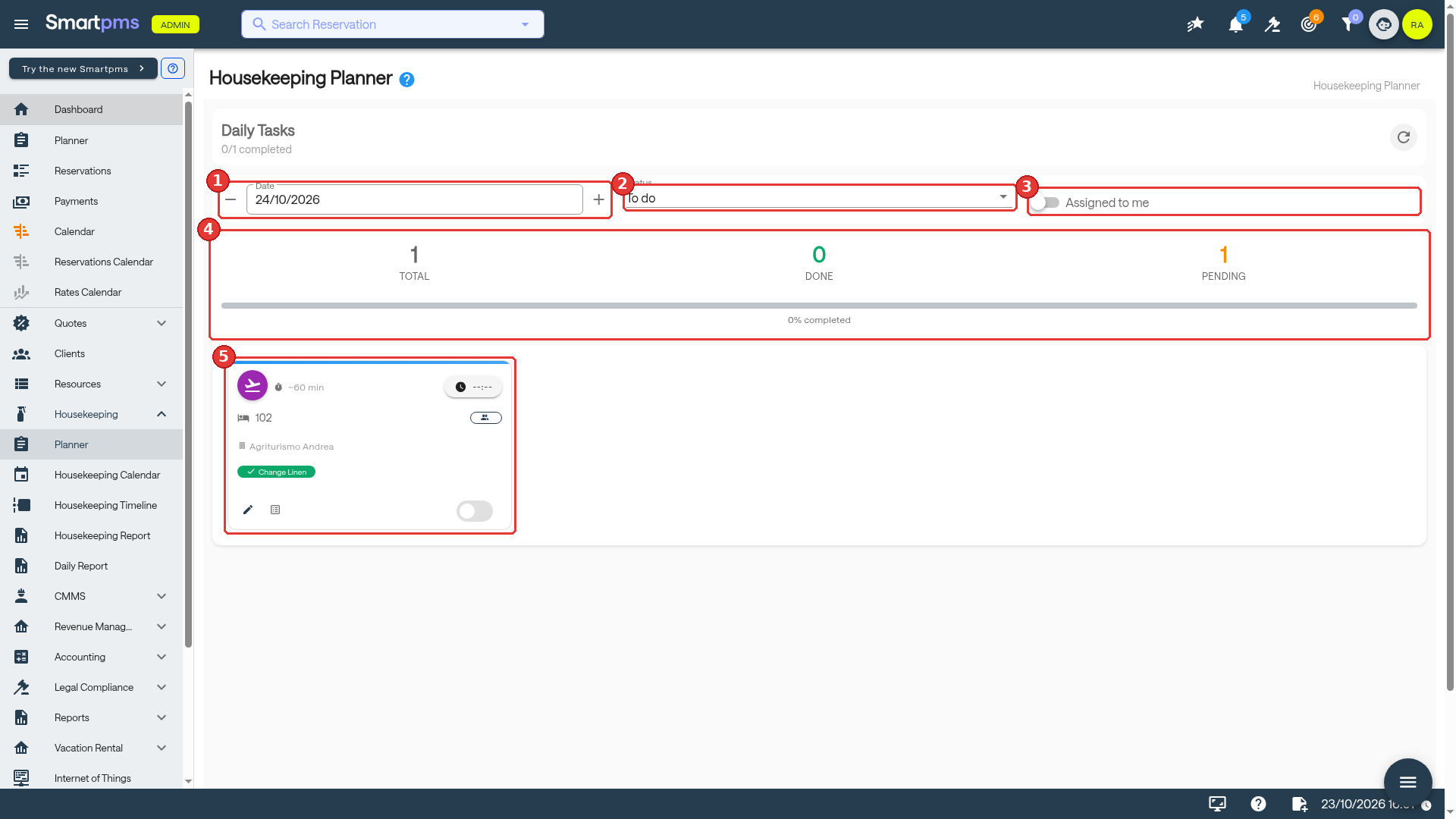
- Date: the day to display. Use − and + to move to the previous or next day.
- Status: shows To Do cleanings, Completed ones, or, by clearing the field, all of them.
- Assigned to me: if active, it shows only the cleanings assigned to you. If the Planner is empty, check this filter first.
- Summary of the day: total cleanings, completed, pending, and completion percentage.
- Cleaning card. Shows:
- the type (check-out with the departing plane icon, refresh with the running person icon) and the estimated duration;
- the time, which you can change by clicking on it;
- the unit and the property;
- the number of guests or sets;
- the Linen Change indication.
At the bottom of the card, you will find the pencil icon to edit, the list of phases (the checklist defined in the settings), and the switch to mark the cleaning as completed.
From the menu button at the bottom right, you can refresh the page, open filters, or use Complete All Tasks to mark all pending cleanings for the day as completed.
Housekeeping Calendar
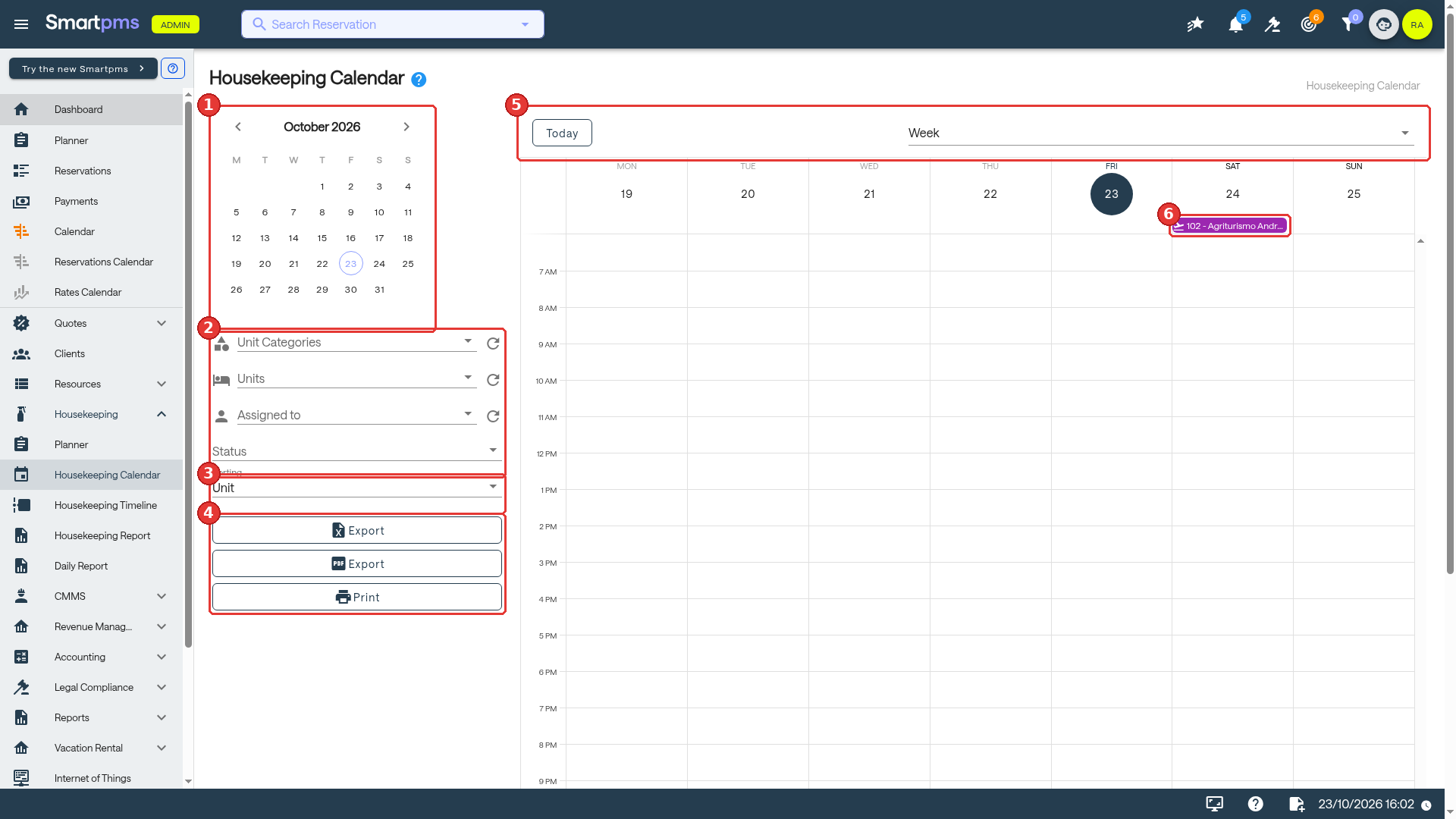
- The mini calendar selects the period to display.
- The Types, Units, Assigned to, and Status filters reduce the cleanings shown.
- Sorting sorts cleanings by unit or by cleaning type.
- You have available:
- Export to Excel;
- Export to PDF, which asks for a single date;
- Print.
The Excel export contains only the cleanings displayed with active filters.
- Today returns to the current date. The selector changes the view: Day, 4 Days, Week, or Month.
- Check-out cleanings are in purple, refreshes in gray-blue, and completed cleanings in a lighter tone.
By clicking on a cleaning, you can change its time, mark it as completed, edit it, or delete it.
Housekeeping Timeline
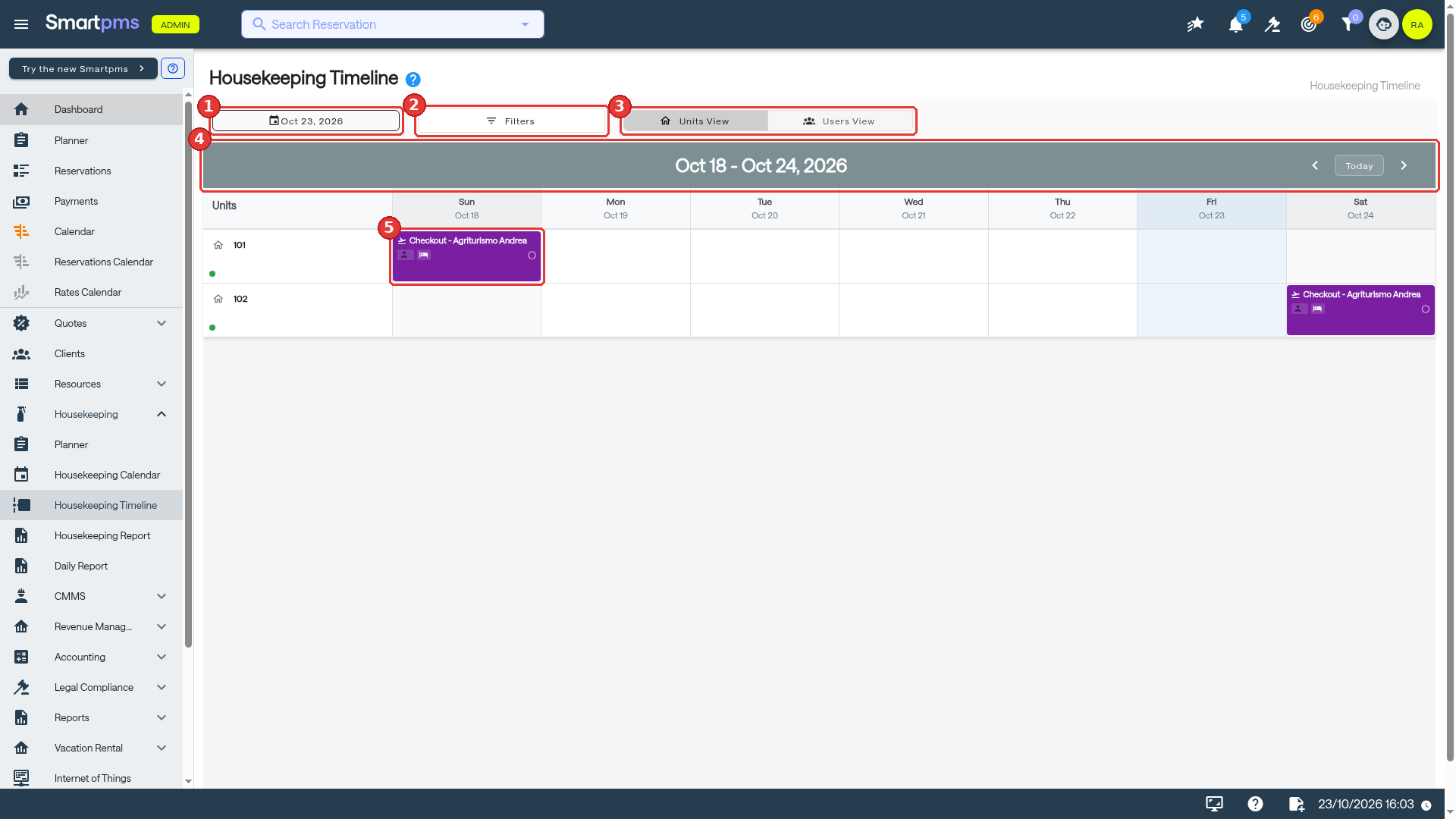
- The date selector chooses the week to display.
- Filters allows you to filter by Types, Units, and Status.
- Unit View shows one row per accommodation. User View shows one row per staff member and is useful for balancing the workload.
- Use the arrows to move to the previous or next week. Today returns to the current week.
- Each cleaning is a colored box. Clicking on it shows its details and allows you to edit it.
The Timeline shows only the units that have cleanings during the week, so there are no empty rows. You can choose how many rows to see (10, 20, 50, 100, or all).
Editing a cleaning and adding manual cleanings
From the cleaning edit screen, you can change:
- date and time;
- unit and cleaning type;
- staff member and status;
- linen change, notes, and phases.
The cost can only be modified by users with housekeeping management permissions.
To add an extra cleaning, for example, an extra refresh requested by the guest, open the booking and add it from the Housekeeping section of the booking. Manually added cleanings are indicated by a hand icon. If you use Regenerate in the Housekeeping Settings, incomplete cleanings are recreated and manual changes are lost.
Housekeeping Report
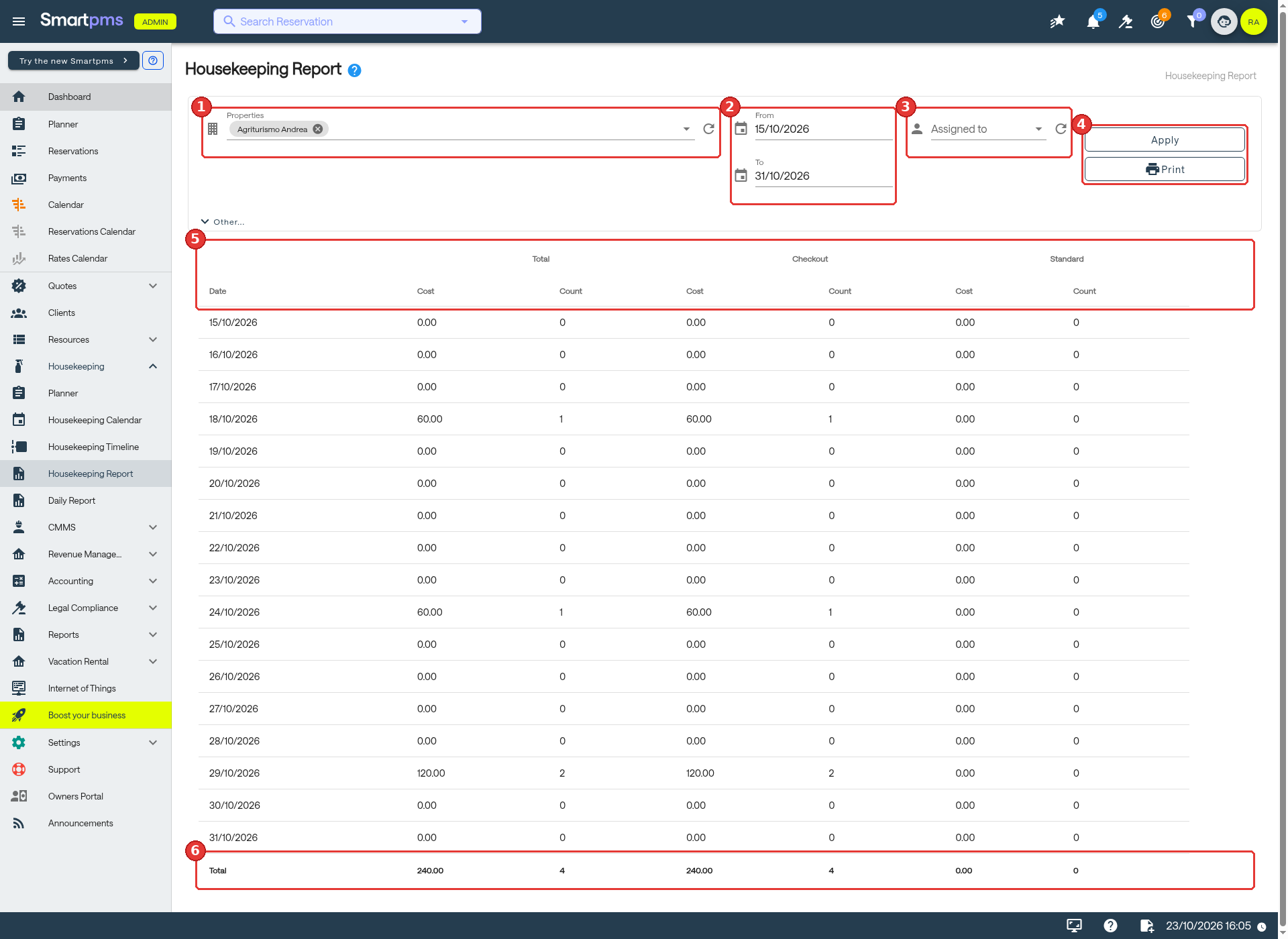
- Property: one or more properties.
- From and To: the period.
- Assigned to: optional, to see the work of a single staff member.
- Apply calculates the report, Print prints it.
- For each day, the table shows the cost and number of cleanings, in total and divided between check-out and refresh.
- The Total row summarizes the period.
The cost of each cleaning is the one indicated in the Housekeeping Settings when the cleaning was created. If you have changed the costs, use Update Costs to apply them to existing cleanings.
Daily Report
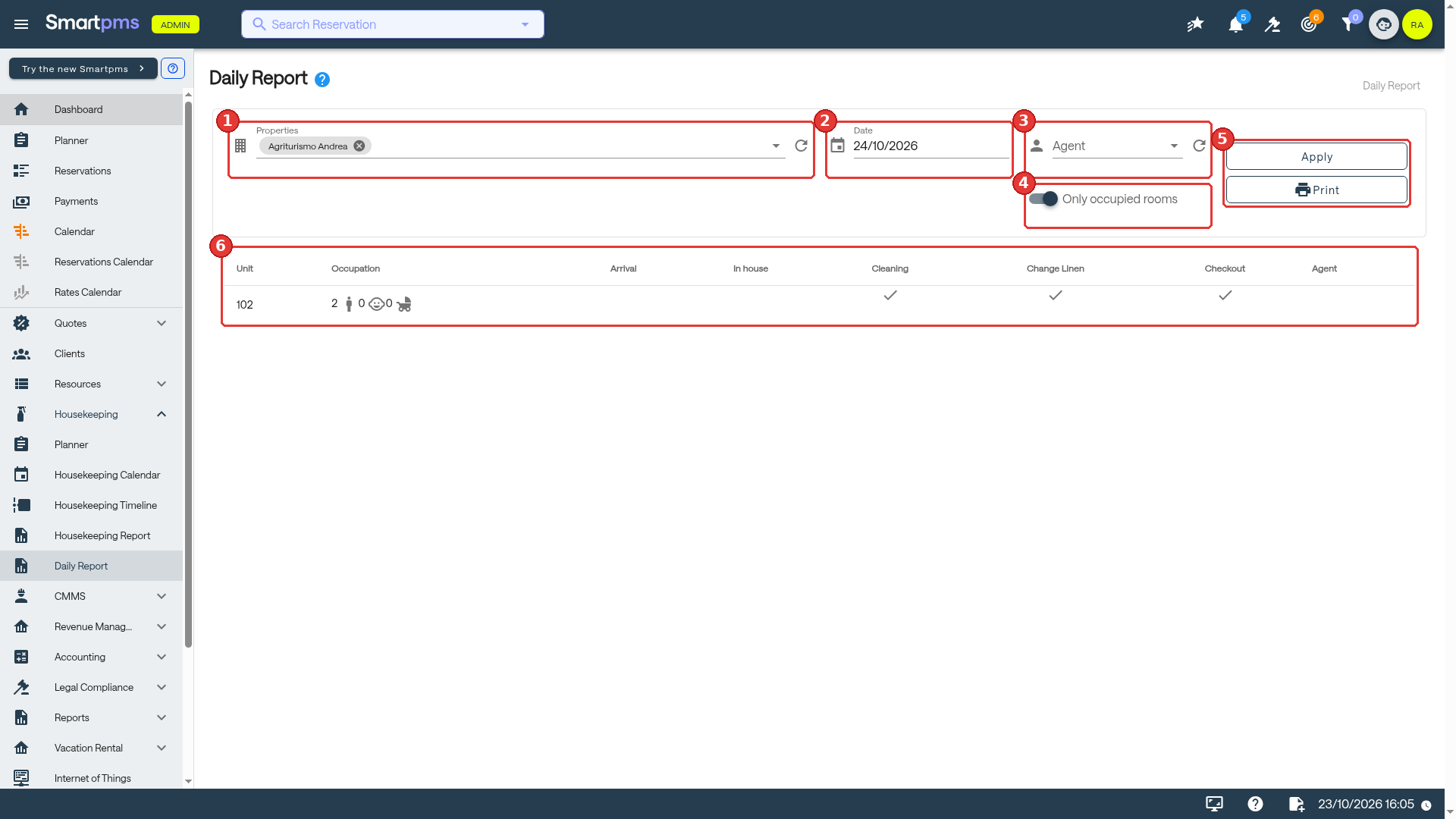
- Property: the properties to include.
- Date: the day to analyze.
- Staff member: optional.
- Only occupied rooms: hides units without guests.
- Apply and Print.
- For each unit, the table shows:
- the occupancy (adults, children, and infants);
- if there are guests arriving or in-house;
- if a cleaning, linen change, or check-out is scheduled;
- the assigned staff member.
It is useful to print at the beginning of the day as a worksheet.
The morning summary email
Every morning early (around 6 AM, in winter around 5 AM), staff members receive an email with the cleanings assigned for the day. For each cleaning, the email shows:
- unit and property;
- cleaning type and status;
- linen change, time, and notes.
The email is sent to active users who have at least one cleaning assigned that day, to the address indicated in their user profile.
Frequently asked questions
2Why does the check-out cleaning not show the arrival on the same day (number of sets instead of arriving guests)?
The number of arriving guests appears only when the check-out cleaning is linked to the arrival on the same unit on the same day. The link is created at two times:
- when the check-out cleaning is created, i.e., when the departing reservation is created or modified;
- with an automatic update, several times a day, which only concerns cleanings for today and the next two days.
If the arriving reservation was entered after the departing one, the Planner shows it only from two days before. Example: departure and new arrival on the 25th, with the arrival booked after the departure: the next guest appears on the card from the 23rd. Until then, the card shows the Default Sets indicated in the Housekeeping Settings.
To plan further in advance, use the Daily Report in the Housekeeping menu: it reads the always-updated reservations and, for any date, shows for each unit if there are guests arriving, in-house, or checking out.
Opening a cleaning to modify it, the Unit and Staff fields are empty: has the cleaning been assigned?
Yes: unit and staff remain saved even if the field appears empty. Upon opening the card, Unit and Staff load the list of units and users, and until the list arrives, the field remains empty.
If the page loses the connection with the server, the list no longer arrives. This happens, for example, when the connection drops for a few seconds or when the management software has been open for many hours. From that moment on, the fields remain empty on all cleanings you open, and the ⟳ icon next to the field cannot reload them.
What to do:
- reload the page with F5 or the browser's refresh button, then reopen the cleaning;
- as long as Unit and Staff are empty, do not save changes from the card;
- to check the assignment without opening the modification, look at the cleaning card in the Planner or in the Housekeeping Calendar, or log in with the staff member's user;
- if you work for many hours in a row, refresh the page every now and then.
Related guides
Configuration
Configuration
How it works
How it works
How it works