

How to create a rental agreement
How to create and edit the rental agreement that guests sign online in SmartPMS Classic: where to find it in the property settings, how to fill in the title and language, how to insert dynamic fields and custom fields, and why a contract is needed for each language.
You are in the right place if…15 cases
- “I cannot find where to create the rental agreement”
- “How do I create a contract for guests to sign?”
- “Where do I upload the property's rental agreement text?”
- “How do I add the contract in English for foreign guests?”
- “How do I insert the guest's name and stay dates into the contract?”
- “The guest sees the contract in the wrong language”
- “Error The contract do not exist or is empty. Please, contact the property”
- “How do I edit the rental agreement I already created?”
- “Clicking Custom Field opens a window asking for the field name”
- “Short-term rental agreement to be signed online”
- “The current subscription does not allow this action. Required feature: Contracts”
- “I want to send the contract to all guests who book and have it signed online”
- “How do I prepare the document for guests to sign during Online Check-in?”
- “In the signed contract, the fields in curly braces are not filled in”
- “Can I have a different contract for each apartment or for each portal?”
The rental agreement is the text that the guest reads and signs online, during the Self Check-in or via a link you send them. You write it once for each property and for each language: SmartPMS automatically inserts the booking data (guest name, dates, amount) in place of the dynamic fields.
1. Open the property contracts
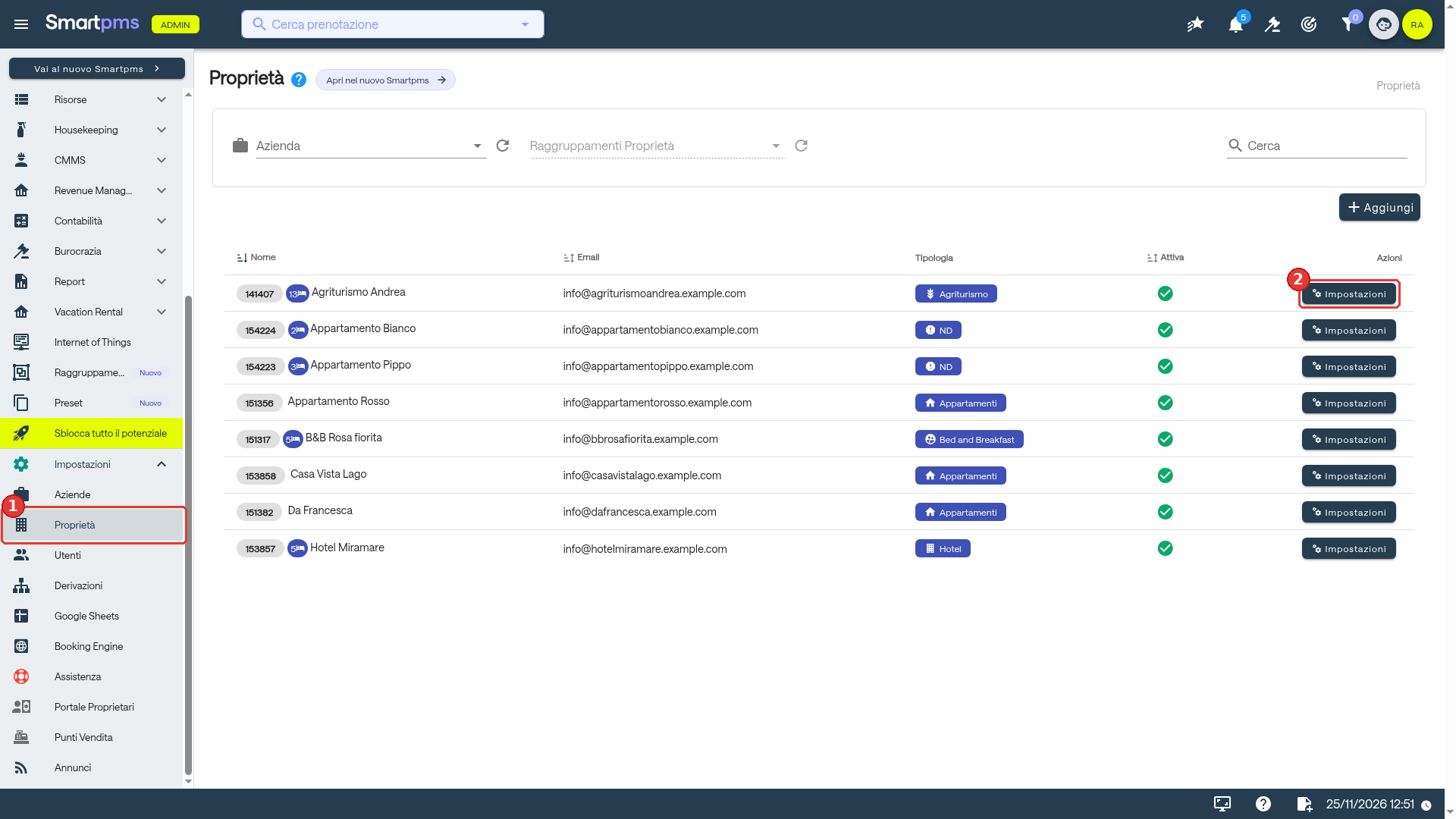
- In the left menu, open Settings and click on Properties (1).
- Next to the property, click on Settings (2).
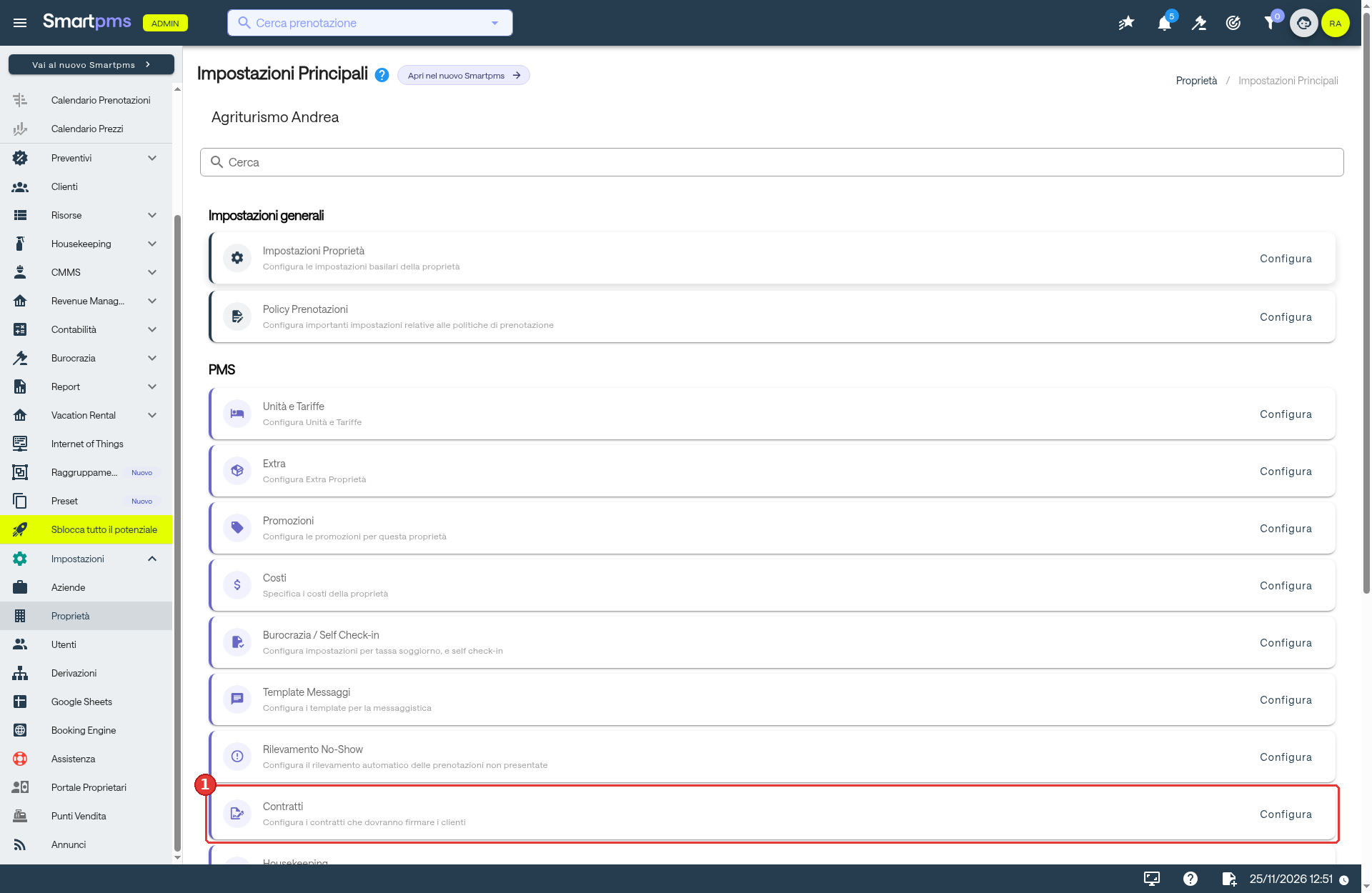
- On the Main Settings page, in the PMS section, click on the Contracts card (1).
The Contracts page opens with the list of the property's contracts and their language.
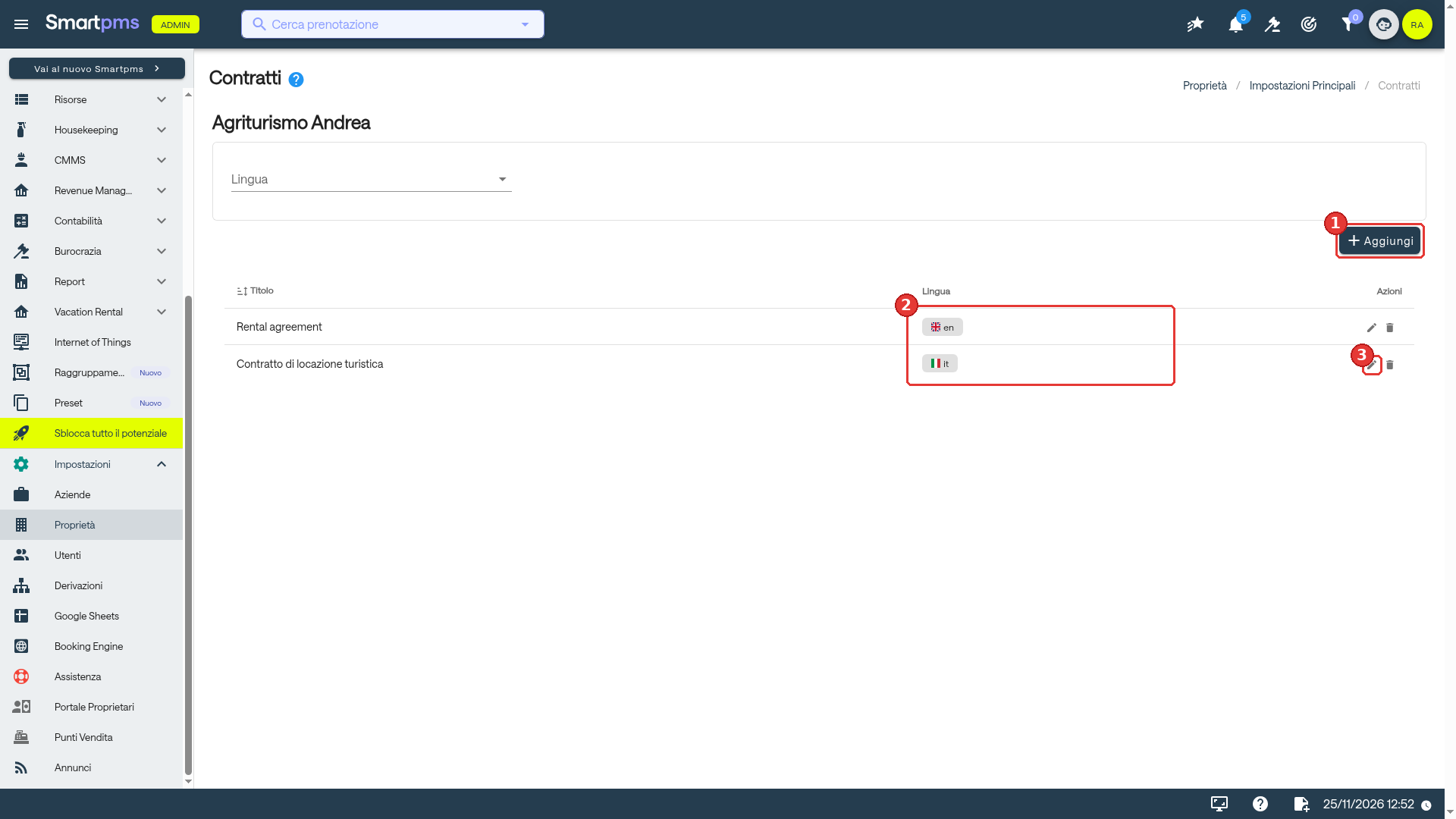
- Add (1) creates a new contract.
- The Language column (2) indicates which guests are offered each contract. With the Language filter at the top, you can see only those of a specific language.
- The pencil (3) opens a contract for editing; the trash can deletes it.
2. Create the contract
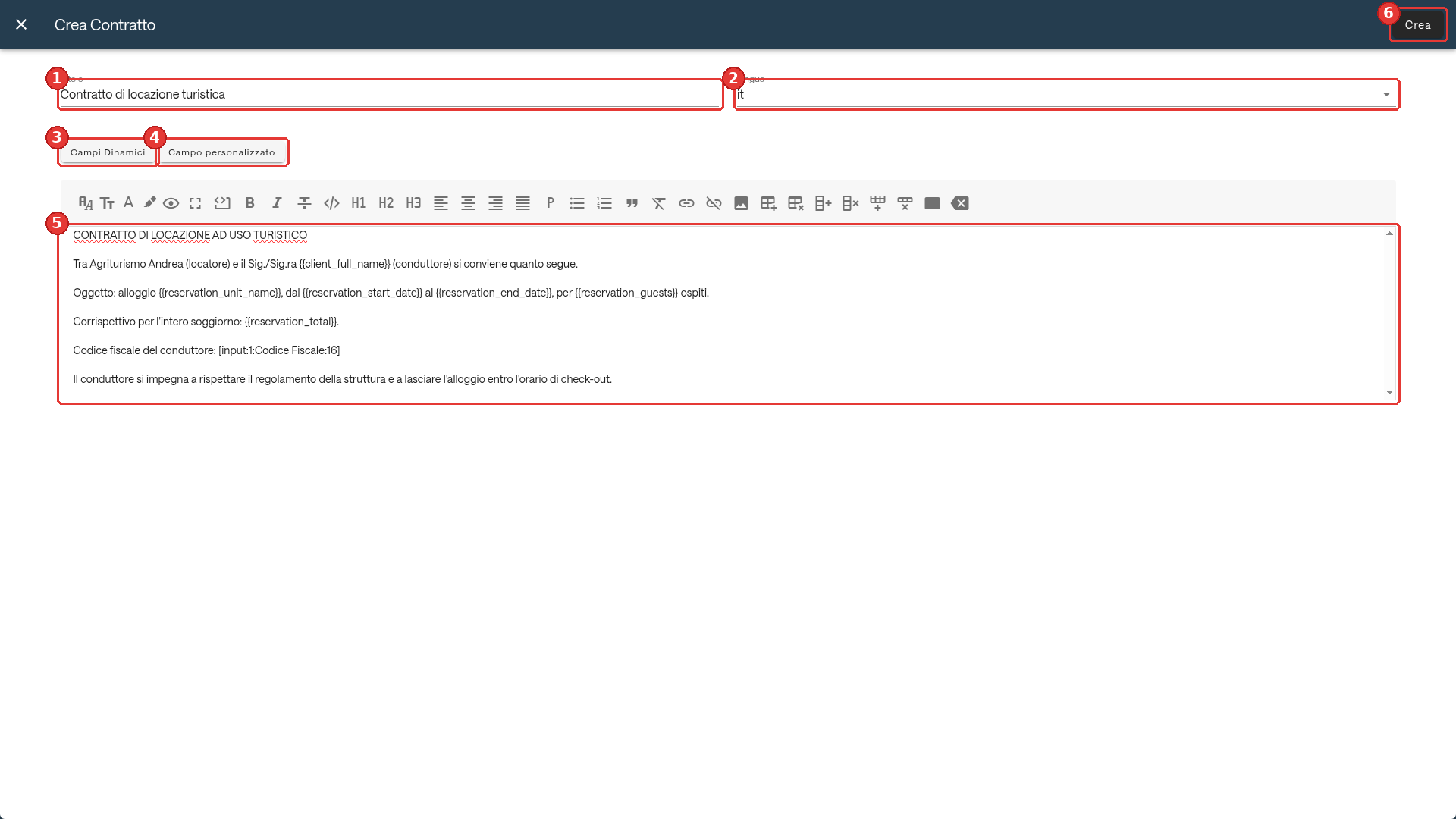
- Click on Add: the Create Contract window opens.
- In Title (1), write a recognizable name, for example Tourist rental agreement.
- In Language (2), choose the language code for the text:
itItalian,enEnglish,deGerman,esSpanish,frFrench, and so on. - In the editor (5), write or paste the contract text. The toolbar allows you to use bold, headings, lists, tables, and images.
- To insert booking data, use Dynamic Fields (3); to have the guest fill in a piece of information, use Custom Field (4) (see paragraphs 3 and 4).
- Click on Create (6) at the top right to save. Use the X at the top left to close without saving.
3. Insert dynamic fields
Dynamic fields are placeholders between double curly braces that SmartPMS replaces with the actual data when the guest opens the contract.
- Place the cursor at the point in the text where the data should appear.
- Click on Dynamic Fields (1) and choose the item from the list (2). The placeholder appears in the text, for example
{{client_full_name}}.
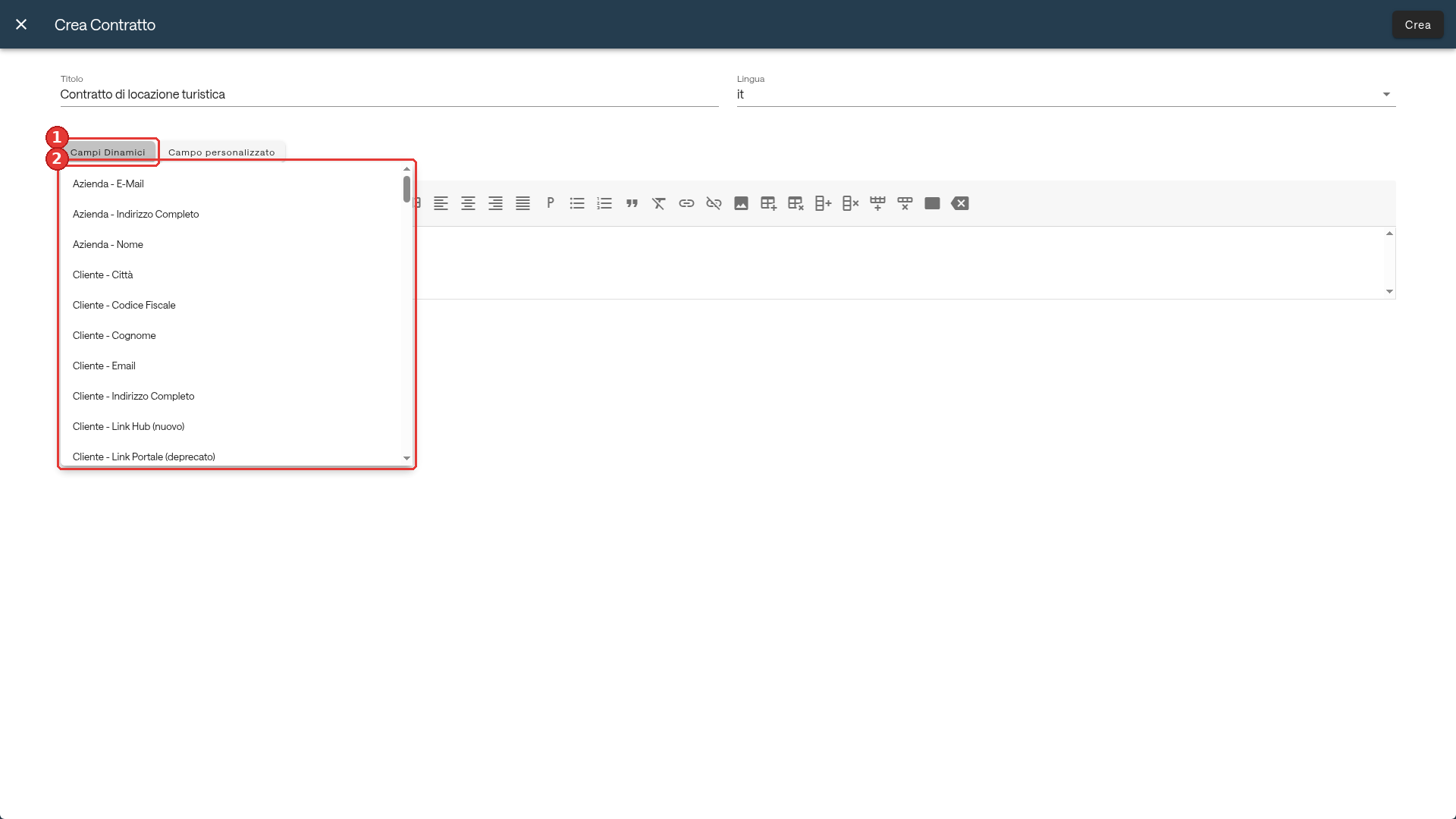
The most used items in contracts are Client - Full Name, Client - Tax Code, Booking - Check-in and Booking - Check-out, Booking - Nights, Booking - Guests, Booking - Unit Name, Booking - Total Amount, Property - Name, and Property - Full Address.
Example: Between Agriturismo Andrea (lessor) and Mr./Ms. {{client_full_name}} (lessee), for the accommodation {{reservation_unit_name}} from {{reservation_start_date}} to {{reservation_end_date}}.
The date and time of the signature are not needed as a field: SmartPMS adds them automatically at the bottom of the signed PDF.
4. Insert a field for the guest to fill in
To ask the guest for information to be written in the contract before signing (tax code, license plate, driver's license number):
- Place the cursor where the box should appear, for example after Lessee's tax code:.
- Click on Custom Field.
- The browser opens a Field Name window: write the label that the guest will see in the box (e.g.,
Tax Code) and confirm. - A second window Specify size (characters) opens: write the maximum length (e.g.,
16) and confirm.
The placeholder [input:1:Tax Code:16] appears in the text. Subsequent fields automatically receive the number 2, 3, and so on. During signing, each field is a mandatory box; what the guest writes remains only in the signed PDF and does not modify the booking profile.
5. One contract for each language
Each contract has only one language. When the guest opens the contract, SmartPMS offers them the one in their language; if it does not exist, it uses the first contract in the list. If the property does not have any contract with text, the guest sees the error The contract do not exist or is empty. Please, contact the property.
Therefore, create a contract for each of your guests' languages, at least Italian and English, by repeating paragraph 2 with another Language and the translated text.
6. Edit or delete a contract
On the Contracts page, click on the pencil next to the contract, edit, and save. The changes apply to subsequent signatures: already signed contracts remain as they were. Use the trash can to delete the contract.
7. Have the contract signed
- During Self Check-in: in the property's Main Settings, open Bureaucracy / Self Check-In > Configure and set Contract Signature to Mandatory.
- With a separate link: in a message template, insert the dynamic field Contract Signature Link and send it to the guest.
Signed contracts can be found in Bureaucracy > Contracts, from where you can download the PDF.
8. How the guest views and signs the contract
In Self Check-in, after the guest data, the guest arrives at the Contract signature step:
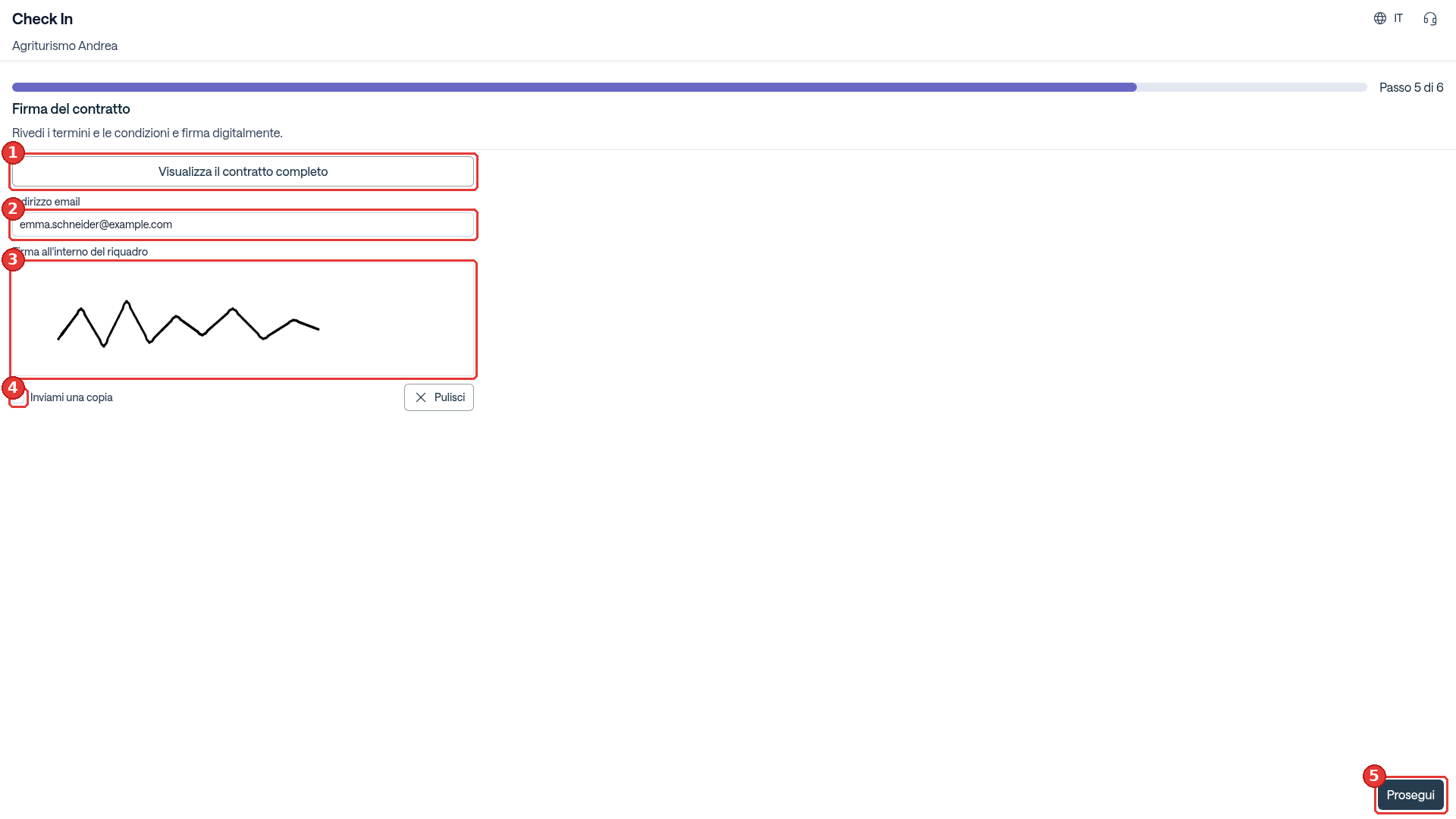
- With View full contract (1), they open the contract text.
- In Email address (2), they indicate where to receive the copy.
- They sign with their finger or mouse in the box (3); with Clear, they erase the signature and redo it.
- If they check Send me a copy (4), they receive the signed PDF via email.
- With Continue (5), they confirm the signature.
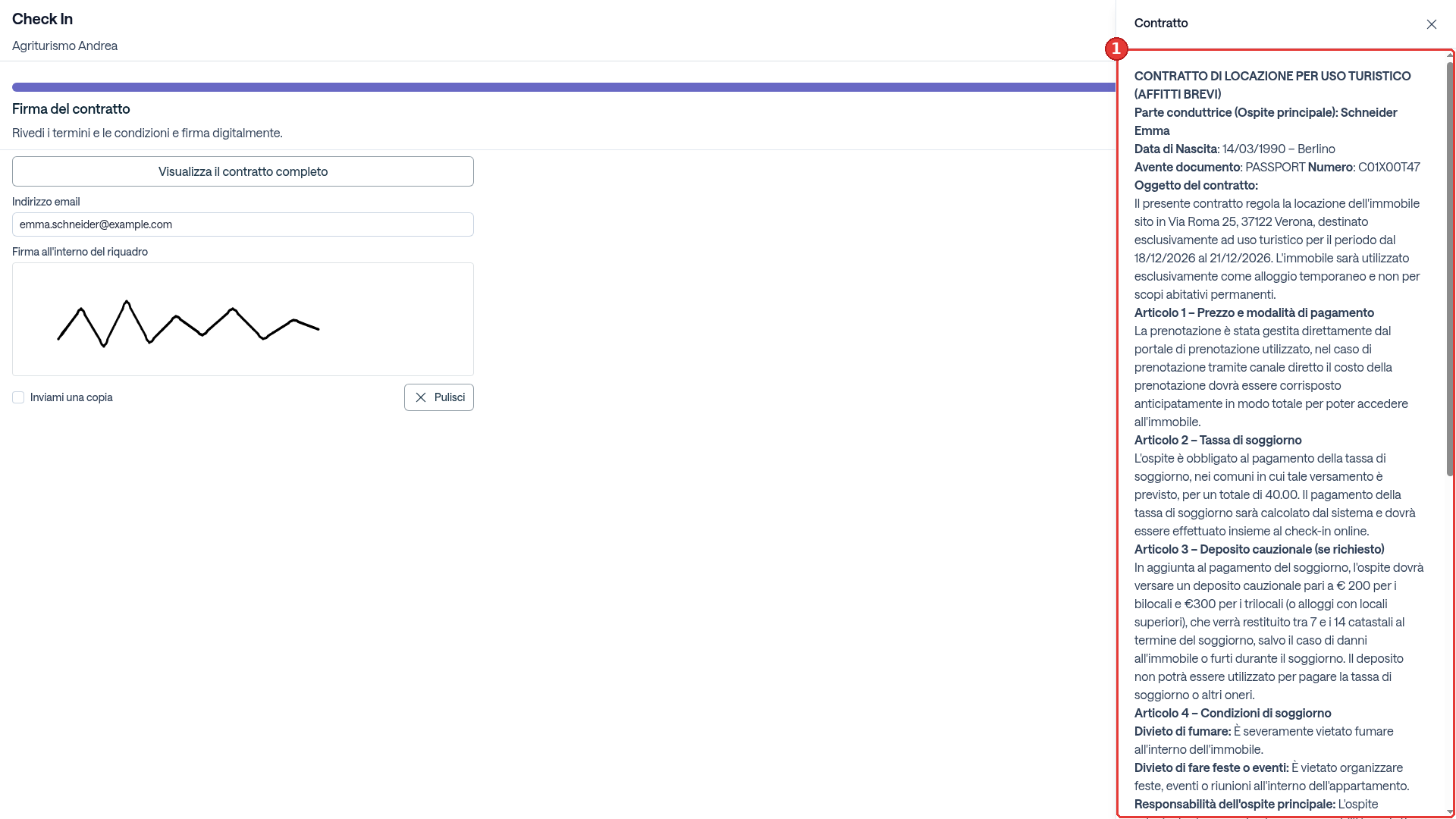
The contract opens in a panel on the right (1), already filled with the booking and guest data in place of the dynamic fields. Custom fields appear as boxes to be filled before being able to sign.
Frequently asked questions
6Can I have different contracts in the same property, for example one per accommodation?
No. Each property has only one contract per language: SmartPMS selects the contract based solely on the guest's language, not on the accommodation. Multiple contracts in the same property are only used to translate the same contract into different languages. For different conditions between accommodations, write them in the same contract (for example with a paragraph for each accommodation) and use the dynamic field Booking - Unit name.
The foreign guest sees the contract in Italian: why?
A contract in their language is missing: in that case, SmartPMS proposes the first contract of the property. In Settings > Properties > Property Settings > Contracts, click on Add and create the contract with Language en (or the one you need) and the translated text.
If I modify the contract, do the already signed ones change?
No. Each signed contract is saved in PDF at the time of signing, with the text of that moment. The modification applies only to subsequent signatures.
In the signed contract I see text in curly brackets instead of the data: why?
That text does not correspond to any dynamic field in SmartPMS, so it remains as it is in the contract and in the signed PDF. This happens when a field is written by hand, copied from another text or another management system, or modified by mistake. Open the contract with the pencil icon, delete the text in curly brackets, and insert the data from the Dynamic Fields menu in the editor. If the data you need is not among the dynamic fields, write it as fixed text or, if the guest needs to indicate it, use Custom field. The changes apply to subsequent signatures.
With mandatory signature, can the guest complete the Online Check-in without signing the contract?
No. If contract signature is mandatory in Bureaucracy / Self Check-In > Configure, the Contract signature step is part of the Online Check-in and cannot be skipped: until the guest signs (and fills in any custom fields), the check-in remains incomplete. You can see this in the Check-in tab of the booking, which will not appear as completed, and messages related to completed check-in will not be sent.
With a large group, can the group leader sign the contract without entering the other guests' data?
In Self Check-in, no: the signature comes after the guest data, and the basic personal details of the other guests are always mandatory. To lighten the procedure, set document photo, selfie, and email of other guests to Not required in Bureaucracy / Self Check-In > Configure. If you want only the group leader to sign, send the contract with a separate link: in a message template, insert the dynamic field Contract Signature Link and send it from the booking (Messages > Compose).
Related guides
Configuration
Configuration
How it works
Configuration
Configuration