

CMMS module: how to manage maintenance staff, assets, and work orders
How to use the SmartPMS CMMS module to manage breakdowns and maintenance in your properties: maintenance staff registry with email notifications, assets (boiler, shower, air conditioner) with In Service, Incident, or Out of Service status, work orders with deadlines, priorities, maintenance staff, and supervisors, and CMMS functions to grant access to cleaning staff and maintenance workers.
You are in the right place if…13 cases
- “How do I register a breakdown in an apartment and assign it to the maintenance worker?”
- “I want to keep track of maintenance and repairs for my properties”
- “How do I create a work order for the plumber or electrician?”
- “Does the maintenance worker receive an email when I assign them a job?”
- “Can the cleaning staff report a breakdown from SmartPMS?”
- “How do I give a maintenance worker access to the CMMS to close jobs?”
- “Why did the asset automatically switch to the Incident status?”
- “I don't see the CMMS, Maintenance workers, or Work Orders menu”
- “Where do I enter the boiler or air conditioner to keep under control?”
- “The work order email arrives half in Italian and half in German”
- “The maintenance worker receives work order emails in the wrong language”
- “How do I change the language of the work order notification emails?”
- “Guide to using the CMMS module (Maintenance and Work Orders)”
What is the CMMS for
The CMMS (Computerized Maintenance Management System) helps you keep track of breakdowns, repairs, and scheduled maintenance in your properties: who needs to intervene, on what, by when, and with what outcome. Instead of notes, chats, and phone calls, every intervention becomes a work order linked to the property and the object to be repaired, with a history that is always available for consultation.
The module is located in the side menu under CMMS and consists of three pages:
- Maintainers: the registry of professionals and companies to whom you entrust the work;
- Assets: the objects, systems, and equipment in your properties that may break down;
- Work Orders: the actual interventions.
We recommend following this order: first the maintainers, then the assets, and finally the work orders, which rely on the first two.
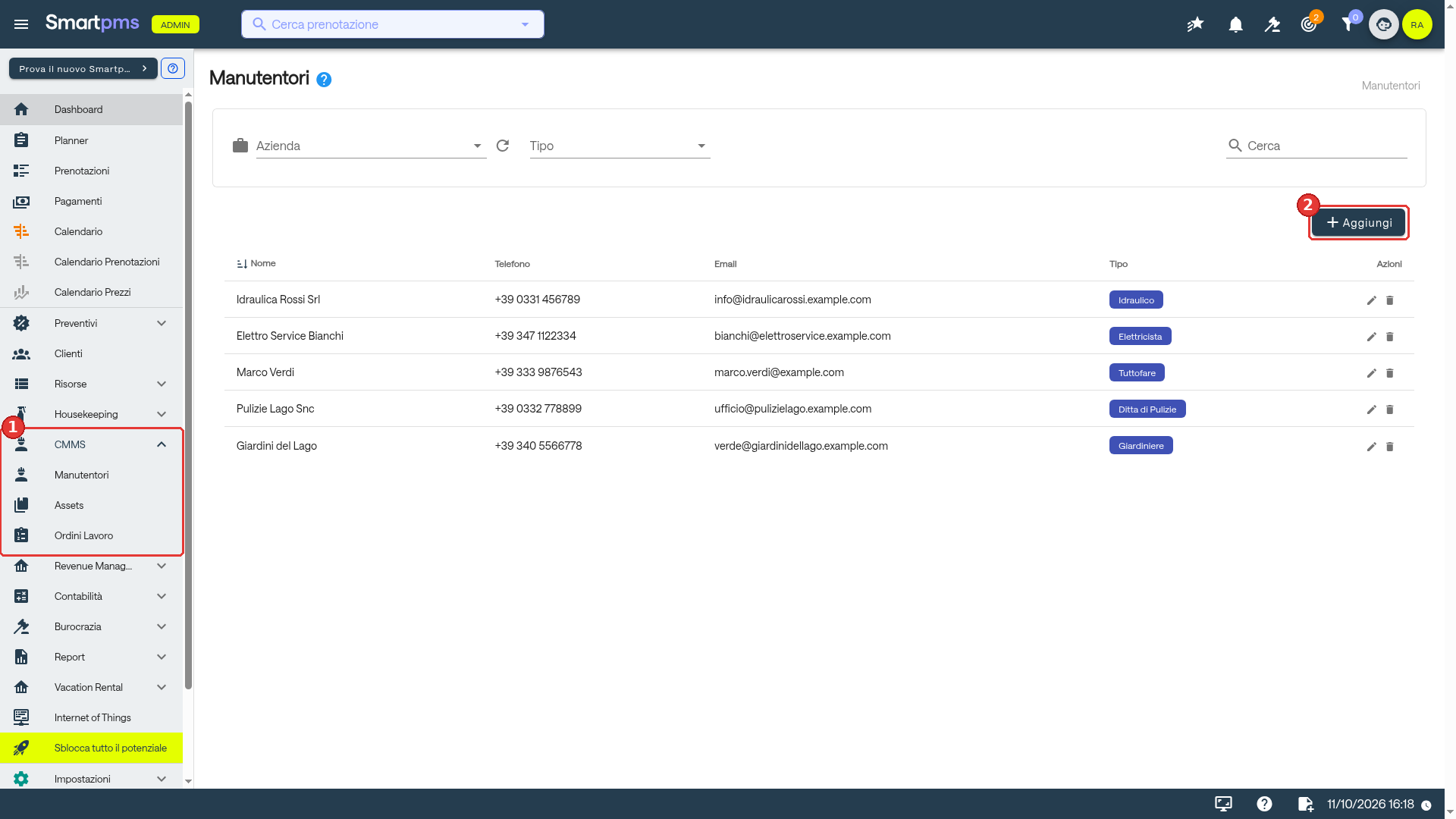
In the image: 1 the CMMS group in the side menu with the Maintainers, Assets, and Work Orders items; 2 the Add button, present on all three pages.
If you do not see the CMMS item in the menu, your user does not yet have CMMS functions: ask your account administrator to enable them (see Giving staff and maintainers access to the CMMS below).
1. Maintainers
Maintainers are the professionals or external companies that perform the interventions: plumber, electrician, locksmith, gardener, cleaning company, and so on. Registering them allows you to assign work orders to them.
Important: a maintainer registered here is not a SmartPMS user and cannot access the management software. They receive an email notification when you assign them a work order, but they cannot update its status. If you want a maintainer to close jobs independently, you must also create a user for them (see Giving staff and maintainers access to the CMMS).
Adding a maintainer
- Go to CMMS → Maintainers and click Add.
- In the Create Maintainer window, fill in Name, Phone, and Email. The email is essential, as it is the address where work order notifications arrive.
- Choose the Type, i.e., the job (for example, Plumber, Electrician, Maintenance Worker, Handyman, Builder, Gardener, Septic Tank Service, Locksmith, Cleaning Company, Condominium Administrator, Architect, Other).
- Choose the Company: it is mandatory, because the maintainer will only be available in work orders for properties belonging to that company.
- Click Create.
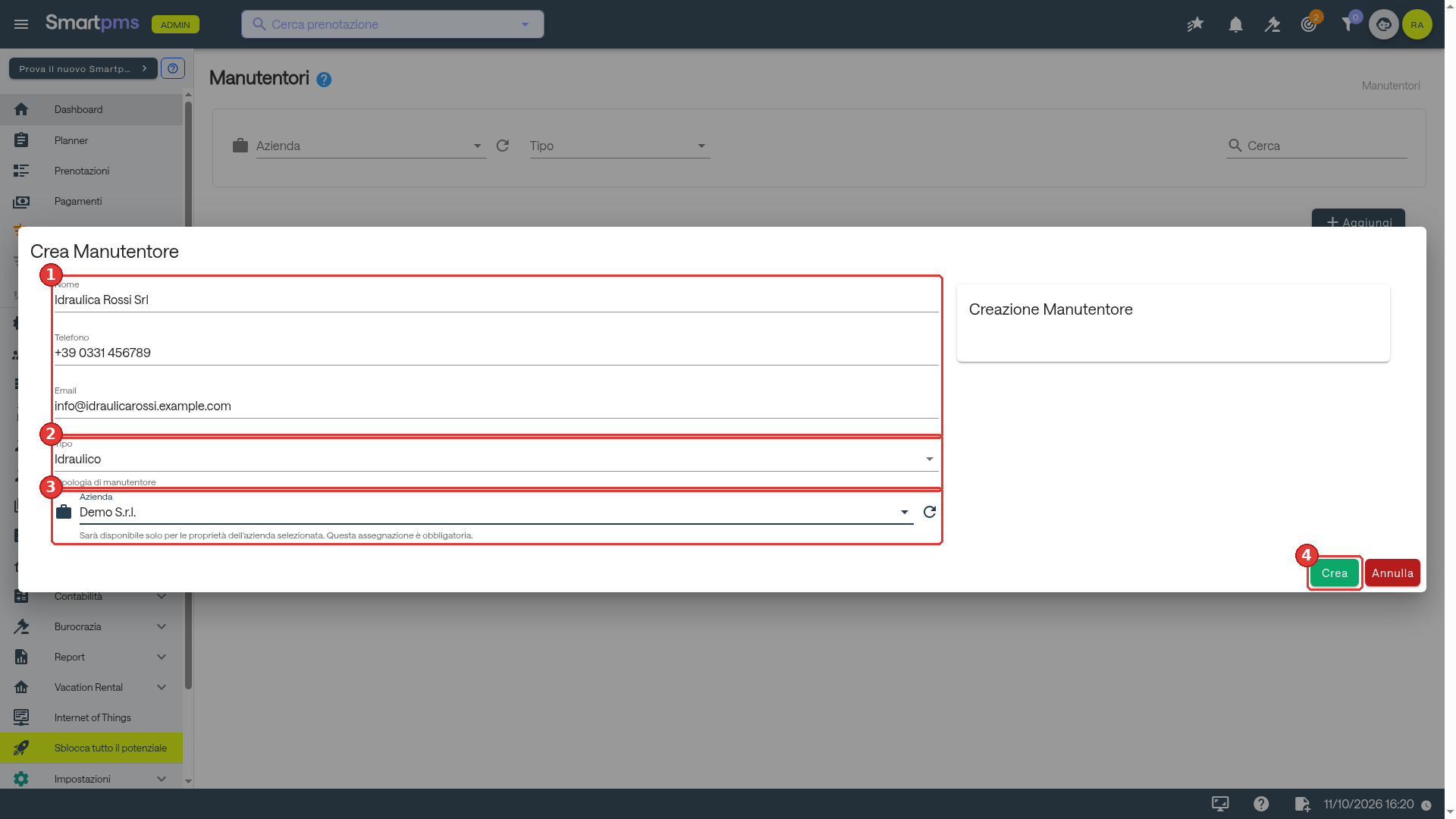
From the list, you can filter maintainers by Company and Type, search for them by name, and edit them using the pencil icon.
2. Assets
Assets are the objects, systems, and equipment in your properties that may break down or require maintenance: the boiler, the shower enclosure, the air conditioner, the washing machine, the bed.
Creating an asset
- Go to CMMS → Assets and click Add.
- In the Create Asset window, write the Name: a recognizable name, for example "Main boiler" or "Ground floor bathroom shower".
- Choose the Status: In Service (working), Incident (breakdown or reported problem), or Out of Service (not usable).
- Indicate the Location, i.e., the property where the asset is located, and then the precise Unit (this activates after choosing the location).
- If you wish, choose the Default Maintainer for that asset and complete the optional details: Description, Model Name, Barcode, Category, Area, Purchase Date, In service since, Warranty Expiry, Additional Information, and an image.
- Click Create.
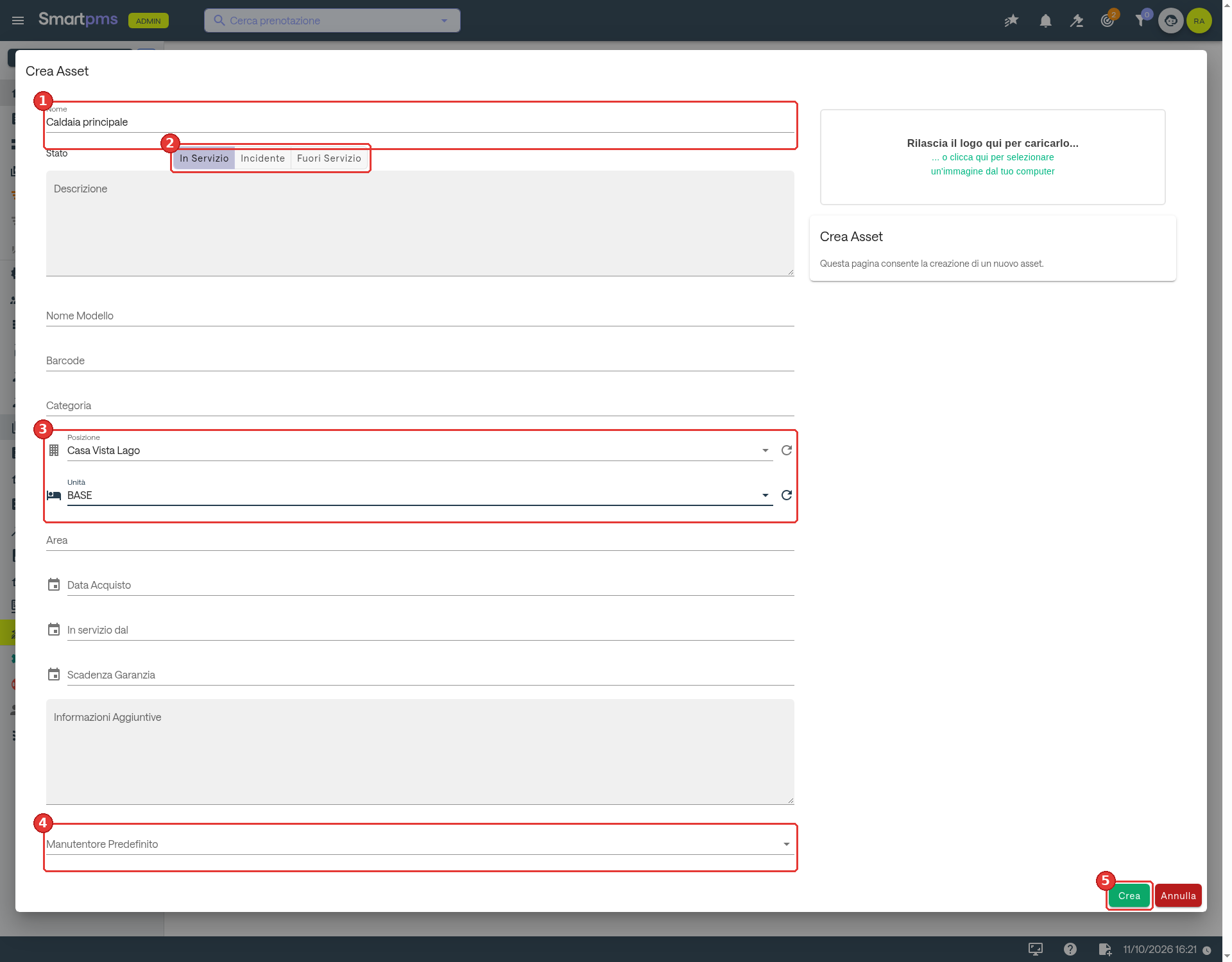
How an asset's status changes
The status of an asset linked to a work order updates automatically:
- when you create or update a work order on that asset with a status other than Completed (To Do, In Progress, On Hold), the asset changes to Incident;
- when the work order changes to Completed, the asset returns to In Service.
The Out of Service status, on the other hand, is never set automatically: you choose it by editing the asset when the object is not usable. Keep in mind that the next update of a work order on that asset will change its status again according to the rules above.
Don't know which assets to create? Use a generic asset
There is no need to inventory every object immediately. You can create a generic asset per unit, for example "Ground floor apartment" or "Room 101", and link more general work orders there. You can create more specific assets (the boiler, the air conditioner) when you need to keep their history separate.
3. Work Orders
A work order is the intervention to be done: it reports a problem, indicates who must resolve it and by when, and tracks its progress until closure.
Creating a work order
- Go to CMMS → Work Orders and click Add.
- In the Create Work Order window, Work Order tab, write the Title (mandatory, for example "Shower hose replacement") and the To be completed by date. Add a Description if you wish with instructions for the person intervening and the Estimated Duration in hours.
- Set the Priority (Low, Medium, High) and the Status (mandatory): usually To Do.
- Choose the Property (mandatory) and the Asset to intervene on.
- Choose the Maintainer who will perform the work and the Supervisor, i.e., the SmartPMS user who follows the progress (you, a manager, the head of housekeeping). The list of supervisors suggests users who have access to the chosen property. If you wish, indicate a Category to classify the work.
- Click Create at the top right.
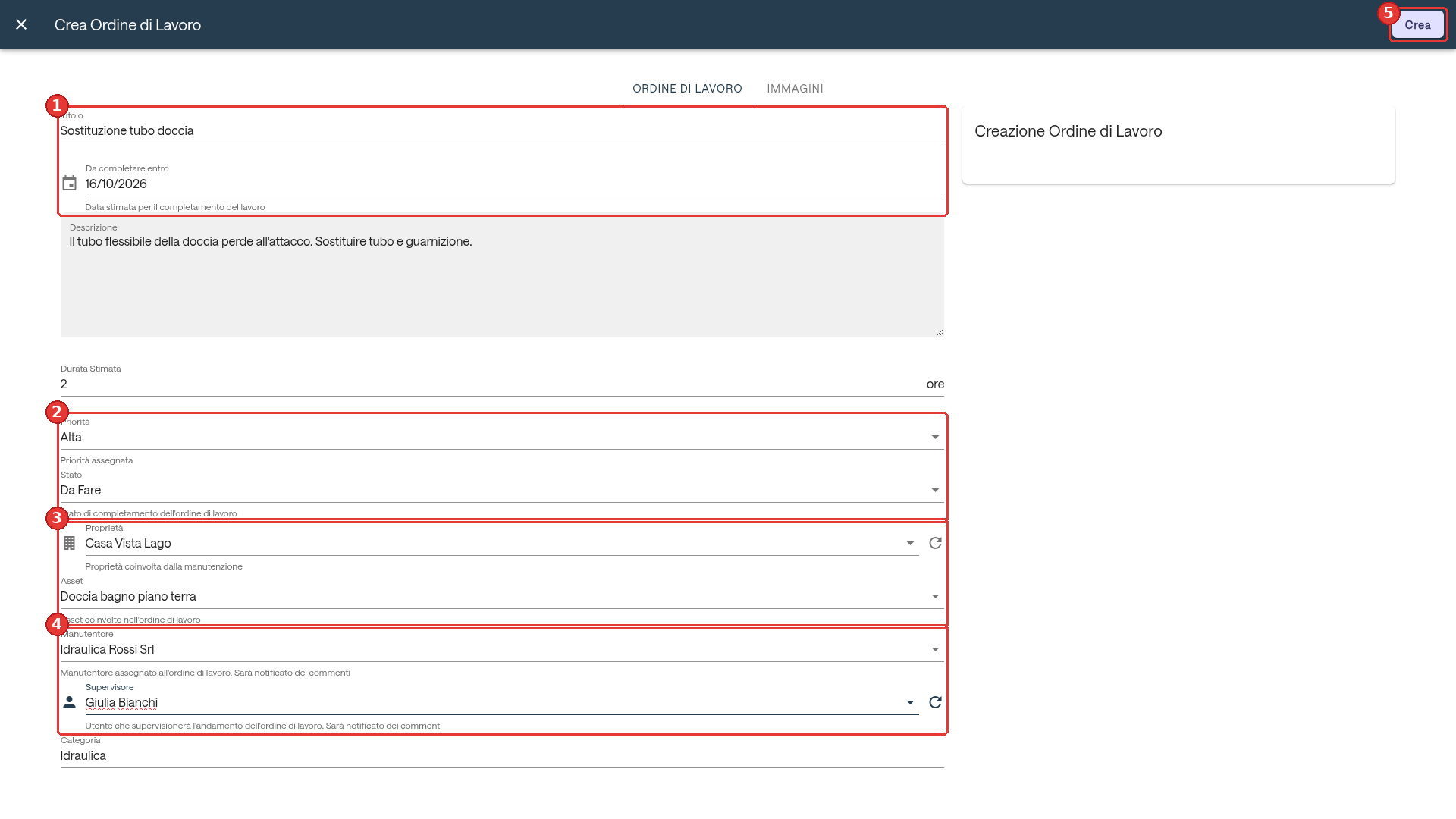
In the Images tab, you can attach, for example, a photo of the breakdown. By reopening the order, you will also find the Costs tab, where you can record the costs of the intervention.
Who receives notifications
When you create a work order, SmartPMS sends an email:
- to the assigned Maintainer, if there is an email address in their profile;
- to the Supervisor, if they are not the one who created the order.
The same happens when you modify the order data (title, description, deadline, maintainer, and so on). The maintainer and supervisor are also notified of comments on the order. A simple change of status (start, pause, completion) does not send an email.
Tracking progress
The statuses of a work order are To Do, In Progress, On Hold, and Completed. In the Work Orders list, those with edit permissions will find quick buttons next to each order:
- Start (play) on a To Do or On Hold order: moves it to In Progress and records the start of the work;
- Pause on an In Progress order: puts it On Hold;
- Stop on an In Progress order: moves it to Completed, records the end of the work, and returns the asset to In Service.
From the start and end times recorded, SmartPMS calculates the actual hours in the Commitment column. An expired deadline is indicated by a red icon next to the date.
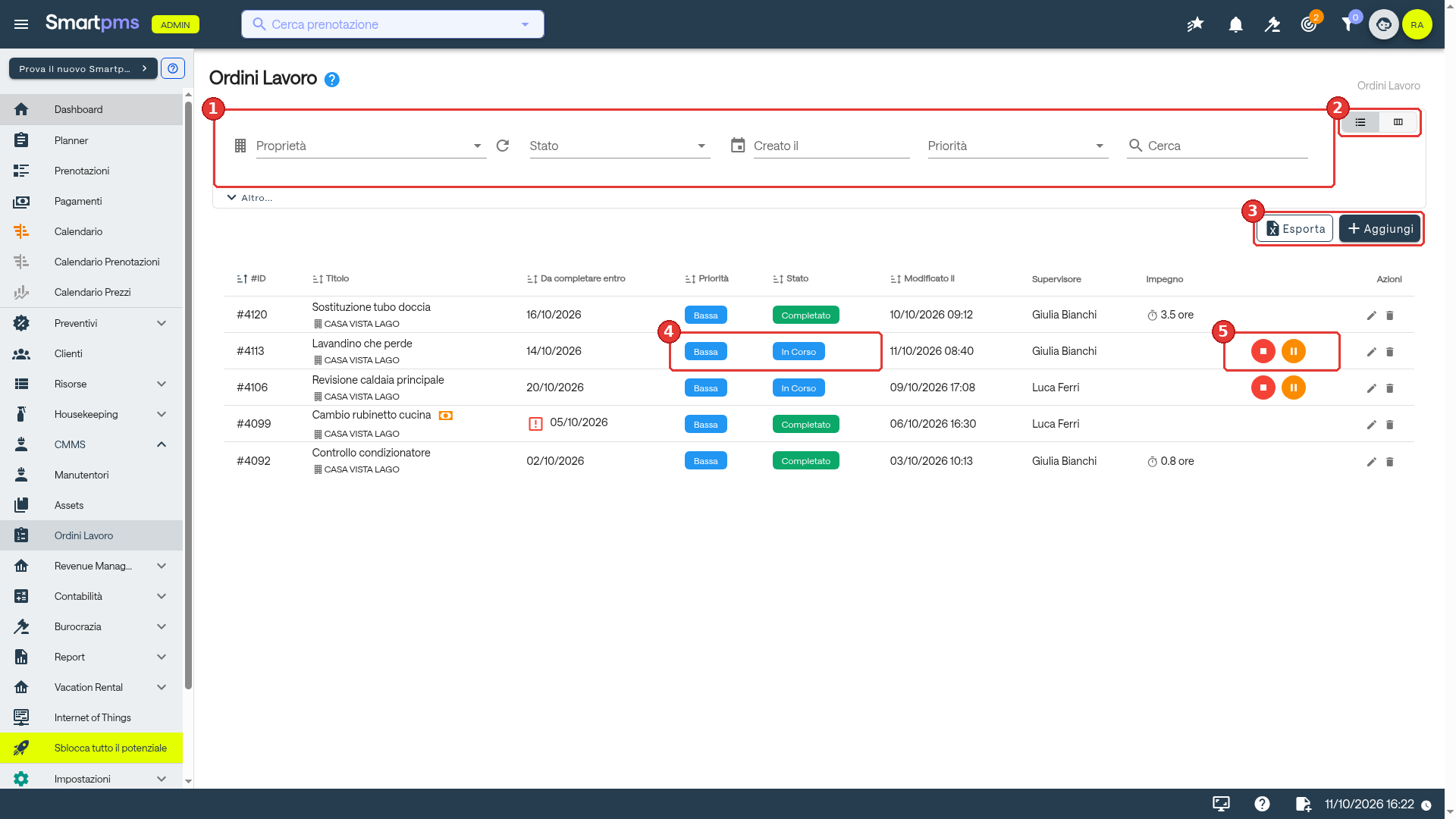
In the image: 1 the filters for Property, Status, creation date, and Priority; 2 the buttons to switch from list view to column view (one column per status); 3 Export to download the list and Add for a new order; 4 priority and status of the order; 5 the Stop and Pause quick buttons for an In Progress order.
4. Giving staff and maintainers access to the CMMS
The CMMS is enabled for each user with CMMS Functions. You can use them, for example, to have cleaning staff report breakdowns or to allow a maintainer to close jobs on their own.
- Go to Settings → Users. Create a new user with Add or open an existing one from Actions → Edit.
- In the Roles section, Key role group, choose a role suitable for the person. For an external maintainer to whom you want to limit data access, choose a role with few permissions, such as Read-only - Basic or Cleaning Service.
- Open the Functions group and choose the CMMS level:
Function | What the user can do |
|---|---|
CMMS View | Only view work orders, without creating, modifying, or deleting them |
CMMS Editor | Create and modify maintainers, assets, and work orders, change their status (including marking them as Completed), and record costs. Cannot delete. This is the recommended choice for staff and maintainers |
CMMS Administrator | Everything the Editor does, plus data deletion |
- In the Assigned Properties panel, select only the properties the person needs to work on.
- Save with Create (new user) or with the save button at the top right (existing user).
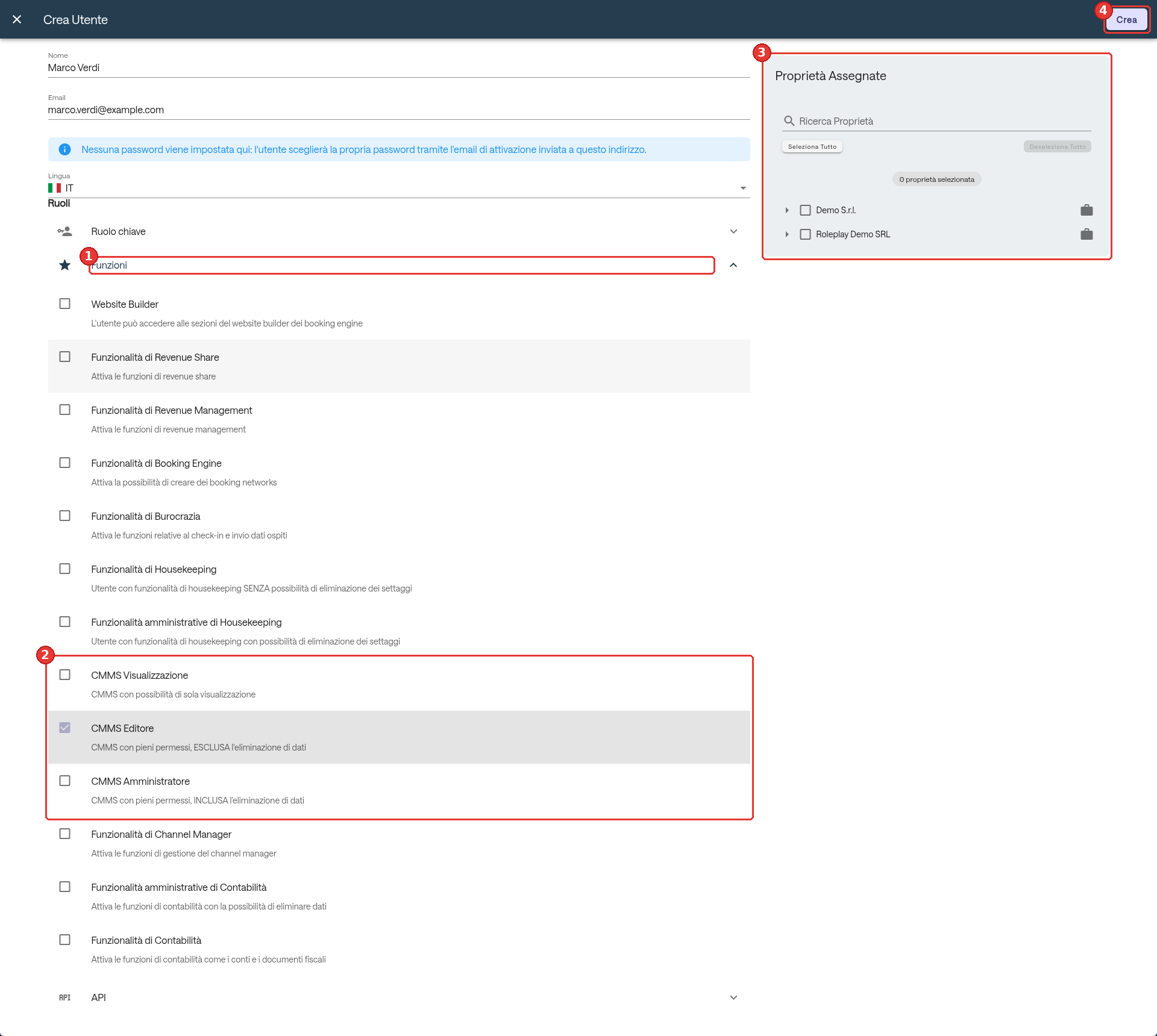
How to create users and choose roles is explained in the guide How to manage property users: adding collaborators, roles, and properties.
Frequently asked questions
1In what language do the work order emails arrive to the maintenance worker and the supervisor?
Each recipient receives the email in only one language, chosen based on who receives it:
- the Maintenance worker receives it in the language set in the property of the work order;
- the Supervisor receives it in the language of their SmartPMS user, which can be changed from their User settings. If the user does not have a language set, the property's language applies.
The available languages are Italian, English, German, and Spanish. If the language is not set or is another one, the email arrives in English.
This applies to all work order emails: creation, modification, and comments. If a maintenance worker receives emails in the wrong language, check the property language; for the supervisor, check their user language.
Related guides
Configuration
Configuration
Configuration
Configuration
Configuration
How it works