

How to create a booking, an option, or a date block from the Calendar
How to manually enter a direct booking (phone, email, walk-in), an option with an expiration date, or a date block for maintenance from the Calendar: selecting nights, Quick Creation panel, advanced mode with all fields, multiple and group bookings, checks on availability, minimum stay, and price.
You are in the right place if…19 cases
- “How do I enter a booking that arrived by phone or email?”
- “I want to create a direct booking from the Calendar”
- “How do I block a room for maintenance or work?”
- “I want to close an apartment for some dates without creating a booking”
- “How do I put a booking as an option with a deadline, waiting for payment?”
- “How do I hold dates for a client while they decide?”
- “How do I enter a booking for multiple rooms for the same client?”
- “I cannot create a one-night booking”
- “"No availability or rate found for this date" appears but the calendar is free”
- “The proposed price is not the calendar price”
- “The price does not change when I modify the number of adults”
- “I do not see the rate plan I need when I create the booking”
- “The booking I created has disappeared / is canceled with the note "Automatic cancellation"”
- “I selected the dates but the booking has one extra night than expected”
- “After creating a booking on a room, a block also appears on the entire apartment”
- “I do not see the unit on which to create the booking in the Calendar”
- “A property is missing in the Calendar and I cannot insert the booking”
- “Booking or block creation via Calendar”
- “Single Rate Modification on Calendar”
Before you start: booking, option, or block?
From the Calendar, you can insert three types of elements. Choosing them correctly avoids confusion within the team and in the statistics.
- Booking: a stay confirmed with a client and a price. It occupies the unit and reduces the availability sent to connected portals.
- Option (tentative booking): a stay not yet confirmed, which holds the dates until a deadline. It is created in Pending status and is marked on the calendar by a yellow hourglass. If you do not confirm it by the deadline, SmartPMS automatically cancels it and the dates become sellable again.
- Date block: makes a unit unavailable without a client and without an amount, for example for maintenance, work, or personal use. The block also reduces availability to the portals.
To propose multiple solutions to a client and have them confirm with a link, use Quotes instead: see the guide Quotes: how to create, send, and have an offer confirmed.
1. Select the nights on the Calendar
Open Calendar from the main menu. Bookings are created from the Unit rows (the row with the name of the room or apartment).
- Locate the row of the unit you want to occupy. If the unit or its property does not appear, check the Property Filter (funnel icon at the top right): the Calendar only shows the properties selected there (see the FAQ).
- Click on the cell of the first night and, while holding down the mouse button, drag to the cell of the last night. Release the mouse.
- The highlighted cells are the nights of the stay. The check-out day is the one following the last selected cell.
For a single night, a single click on a cell is enough, without dragging.
Nights = selected cells; check-out = day after the last cell
Example: you select the cells for Monday 12, Tuesday 13, and Wednesday 14
3 cells=3 nights, check-in Monday 12, check-out Thursday 15
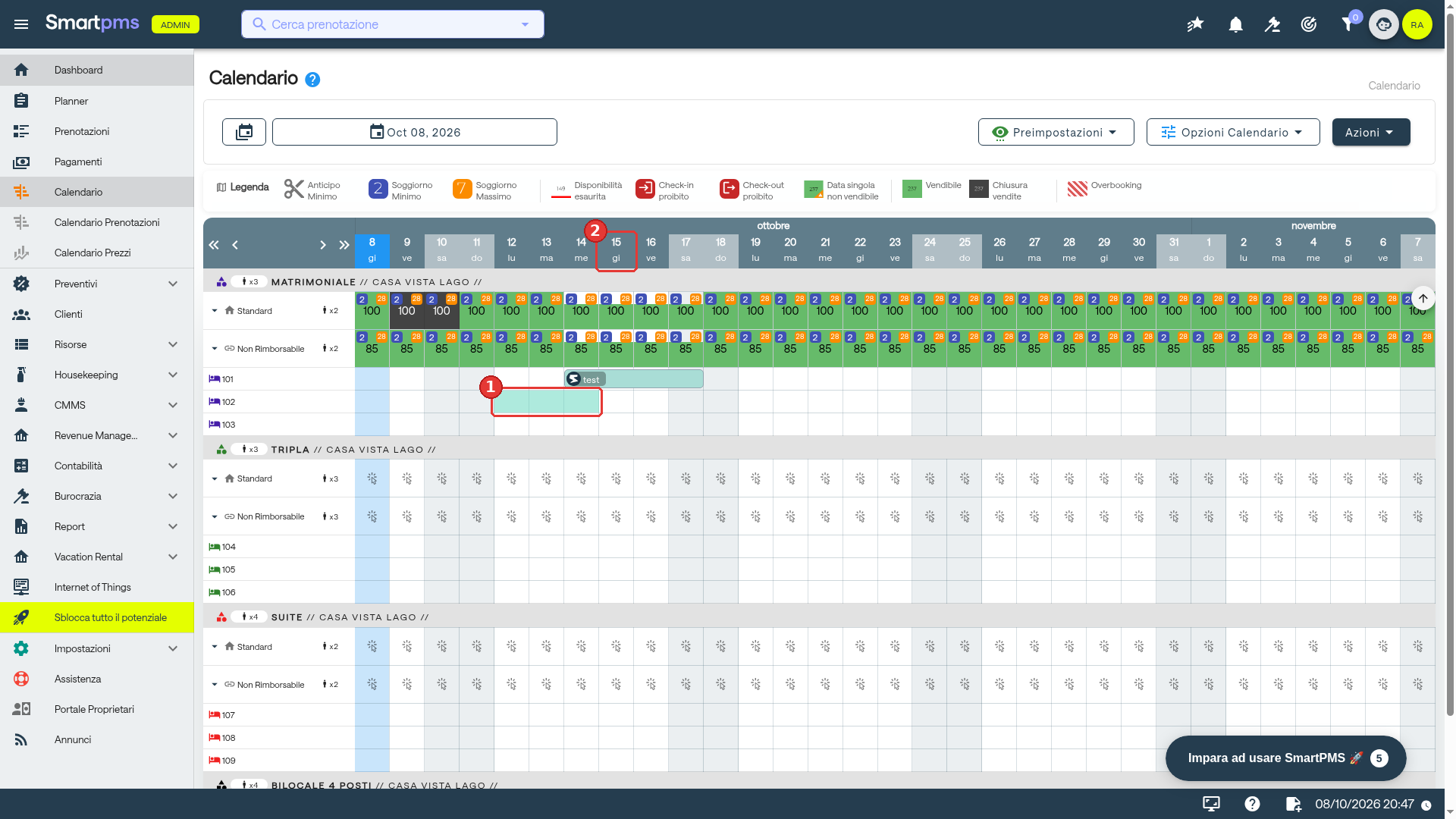
If you select the wrong dates, nothing definitive happens: you can correct the dates in the panel that opens (point 2) or close it with the X.
Starting from a rate row
If the rate plan rows are also visible in your view, clicking or dragging on a rate row opens the Edit Rate window, which is used to change prices and restrictions (see the guide How to modify prices, availability, and restrictions from the Calendar). At the bottom of the window, you will find the Create Booking button: it opens the same creation panel, with the rate plan and the number of adults from the row already set and without a pre-selected unit. In this case, you choose the unit in the Unit field.
Starting from the rate row, Check-in and Check-out in the panel correspond to the From and To dates of the Edit Rate window: the first selected cell is the check-in day and the last is the check-out day. For example, selecting the cells from Monday 12 to Wednesday 14 (From 12, To 14) results in 2 nights, with check-in Monday 12 and check-out Wednesday 14; with a click on a single cell (From and To are the same) you get 1 night. This applies both by clicking and dragging.
On the unit row, however, each selected cell is a night and the check-out is the morning after the last cell. Whichever row you use, before clicking Create, check the number of nights at the top and the Check-out date in the panel and, if necessary, correct it.
What changes in practice:
- from the unit row the unit is already chosen and you can change the rate plan and number of adults;
- from the rate row you start from a specific rate plan and occupancy (the plan remains editable anyway) and you must choose the unit.
2. Fill in the Quick Creation
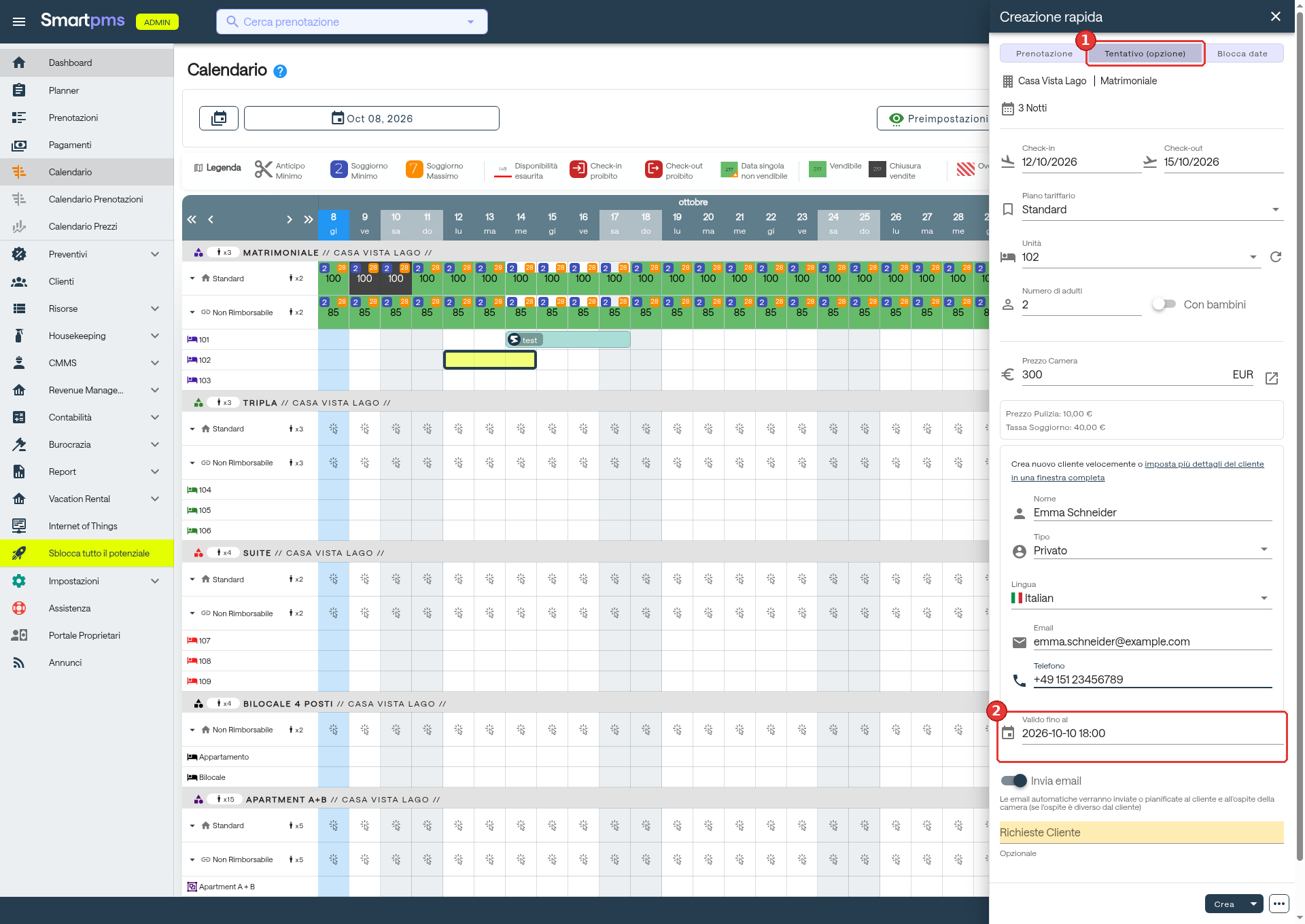
When you release the mouse, the Quick Creation panel opens on the right. At the top, there are three tabs: Booking, Tentative (option), and Block dates. By default, Booking is active.
Below the tabs, you see the structure, the unit type, and the number of nights. Then you find these fields:
- Check-in and Check-out: you can correct the dates; the price is recalculated.
- Rate plan: the list of sellable plans for those dates and that type. By changing it, the price is recalculated.
- Unit: the selected unit; you can choose another one of the same type.
- Number of adults: ranges from a minimum to a maximum that depend on the occupancy set on the type. By changing it, the price is recalculated.
- With children: activate it to indicate the Number of children and the Age of the child for each; these are used to apply child rates.
- Room Price: the total of the stay calculated by the Calendar for the chosen plan and occupancy. You can write a different amount; SmartPMS divides it equally over the nights. Below the price, you see, if present, Cleaning Price, City tax, and mandatory Extras.
- Client: mandatory. Write name, email, or phone to search for an existing client. If it does not exist, click Create "name": the "Create new client quickly" box appears with Name, Type (e.g., Private), Language, Email, and Phone. From the link set more client details in a complete window, you open the full profile (e.g., for billing data).
- Send email: if active, automatic emails are sent or scheduled to the client and guest. Deactivate it if you do not want any message to be sent (e.g., for a booking entered retroactively).
- Client Requests: optional, the guest's requests.
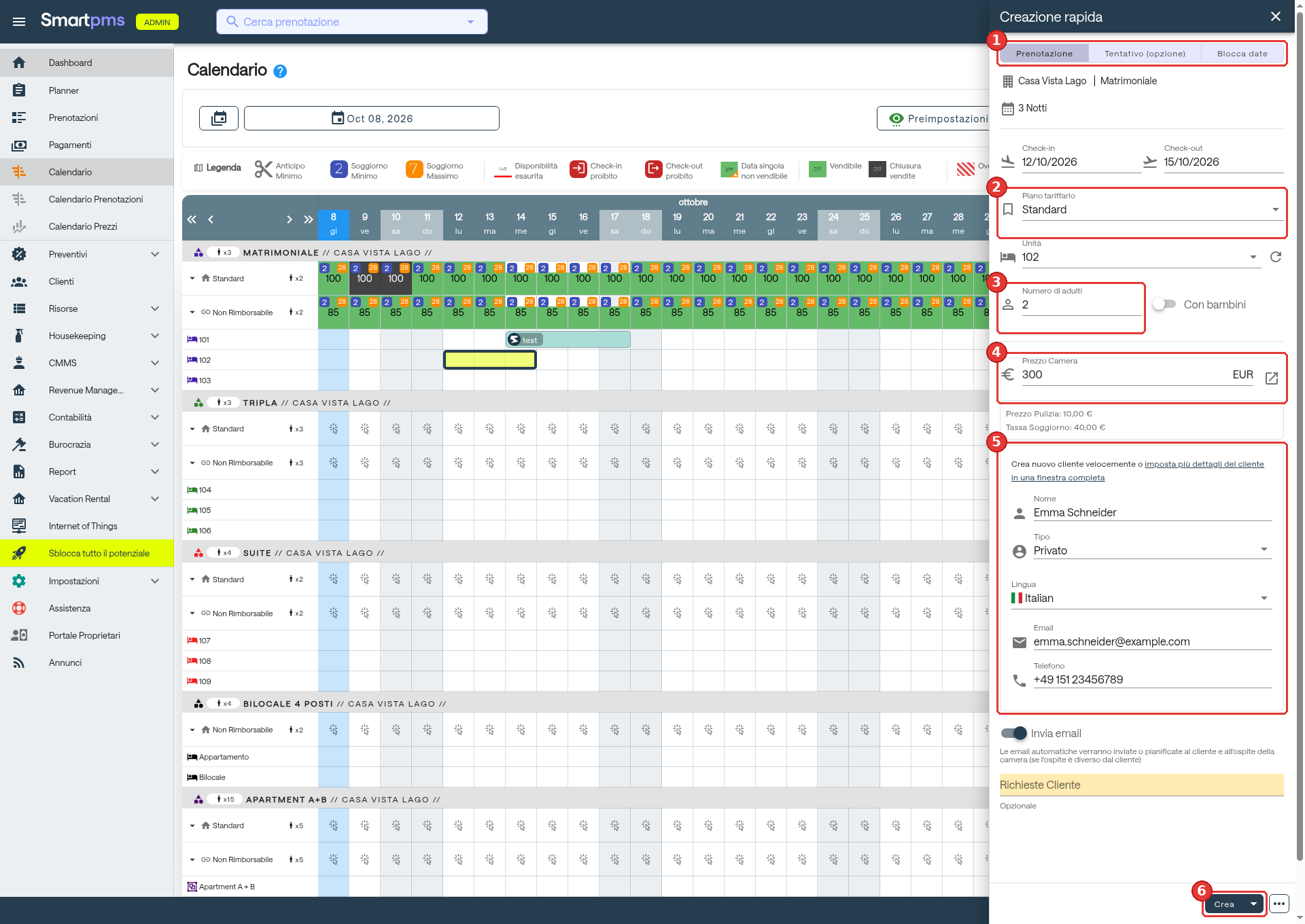
When the data is correct, click Create. The booking appears immediately on the Calendar.
The Create button has an arrow that opens two items:
- Create: saves immediately from Quick Creation;
- Create in advanced mode: opens the full creation screen (point 3), carrying over the dates, unit, rate plan, number of guests, and price you have already set. The client is carried over only if you chose them from the list of already present clients. A new client filled in the "Create new client quickly" box is registered only when you click Create and does not pass to advanced mode: if you already know you will use advanced mode, create the new client directly there, in Guest Details.
Even the icon next to Room Price opens advanced mode, with the Price Details section already expanded.
If "No availability or rate found for this date" appears
The panel shows this warning, with the text "Click the available actions below to proceed anyway with the actions", when it does not find a sellable rate plan for those dates and that type. This is the expected behavior: Quick Creation only proposes combinations that respect the settings and restrictions of the rate plans, so even direct bookings follow the same sales rules. In this case, the Create button is not there and only Create in advanced mode remains, which opens from the first step, Search Parameters.
Before proceeding, check why the rate is not sellable. The most frequent causes are:
- the date is closed to sales (black cell on the Calendar);
- the price is missing for one or more nights;
- the stay does not respect the minimum or maximum stay, Forbidden Check-in, or Forbidden Check-out;
- the rate plan is set as hidden (see the FAQ);
- the number of adults or children is not covered by the plan prices or exceeds the maximum occupancy of the type.
To correct prices, closures, and restrictions, see the guide How to modify prices, availability, and restrictions from the Calendar.
3. The creation screen in advanced mode
Advanced mode is the full-screen Create Booking screen. If you arrive there from Quick Creation with an available rate, it opens directly on the last step, Creation. At the top, you see a non-editable summary: Property, Unit Type, Rate plan, Stay dates, and Number of guests.
To change this data, click Back: you return to Proposals, the list of type and rate plan combinations available for the dates and guests, with the price per number of guests and the Continue button. From there, again with Back, you return to Search Parameters (Property, Number of adults, Check-in, Check-out, Traveling with children). If "There is no availability or prices for the selected dates" appears in Proposals, the Show all rates button also shows combinations normally excluded. If the price is missing for those dates, the combination appears with €0.00: in this case, enter the amount in Price Details (Room Total or Daily Detail) before creating.
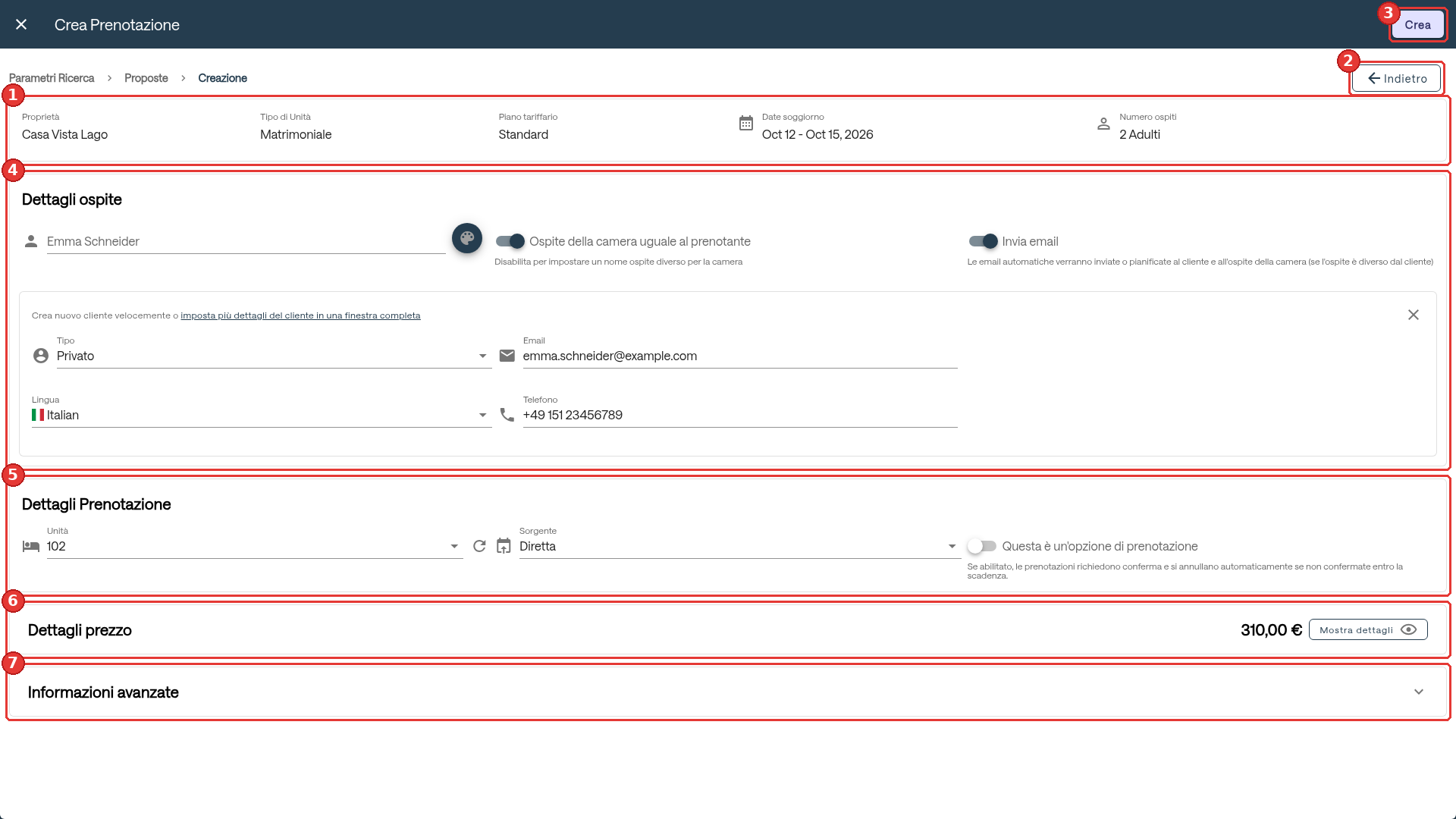
Guest Details
- Client: mandatory. Search by name, email, or phone; if the client does not exist, use Create "name". The "Create new client quickly or set more client details in a complete window" box opens: in the quick form, enter Type, Email, Language, and Phone; from the link, you open the full profile.
- If the client has already stayed with you, Review past stays appears, with the total spent and the number of past bookings.
- Room guest is the same as the booker: active by default. Deactivate it when the person staying is different from the person booking (e.g., an agency or a company booking for an employee): the Name and Surname fields of the guest appear.
- Send email: as in Quick Creation, it decides whether to send or schedule automatic emails to the client and guest.
Booking Details
- Automatically assign unit type: appears when you have not chosen a specific unit (e.g., starting from a rate row). If active, SmartPMS assigns the first free unit of the type; if none is free for the entire stay, the booking remains in the To Be Assigned row. If you deactivate it, you choose the Unit.
- Source: where the booking comes from. The items are Direct (default), Phone, E-Mail, WEB, Agency, ADS, Social, and Not specified. It is used for statistics and filters, and to apply message templates set by source.
- This is a booking option: activate it to create an option instead of a confirmed booking. The Valid until field appears, mandatory, with date and time. As the text below the switch explains, the option requires confirmation and is automatically canceled if not confirmed by the deadline.
Price Details
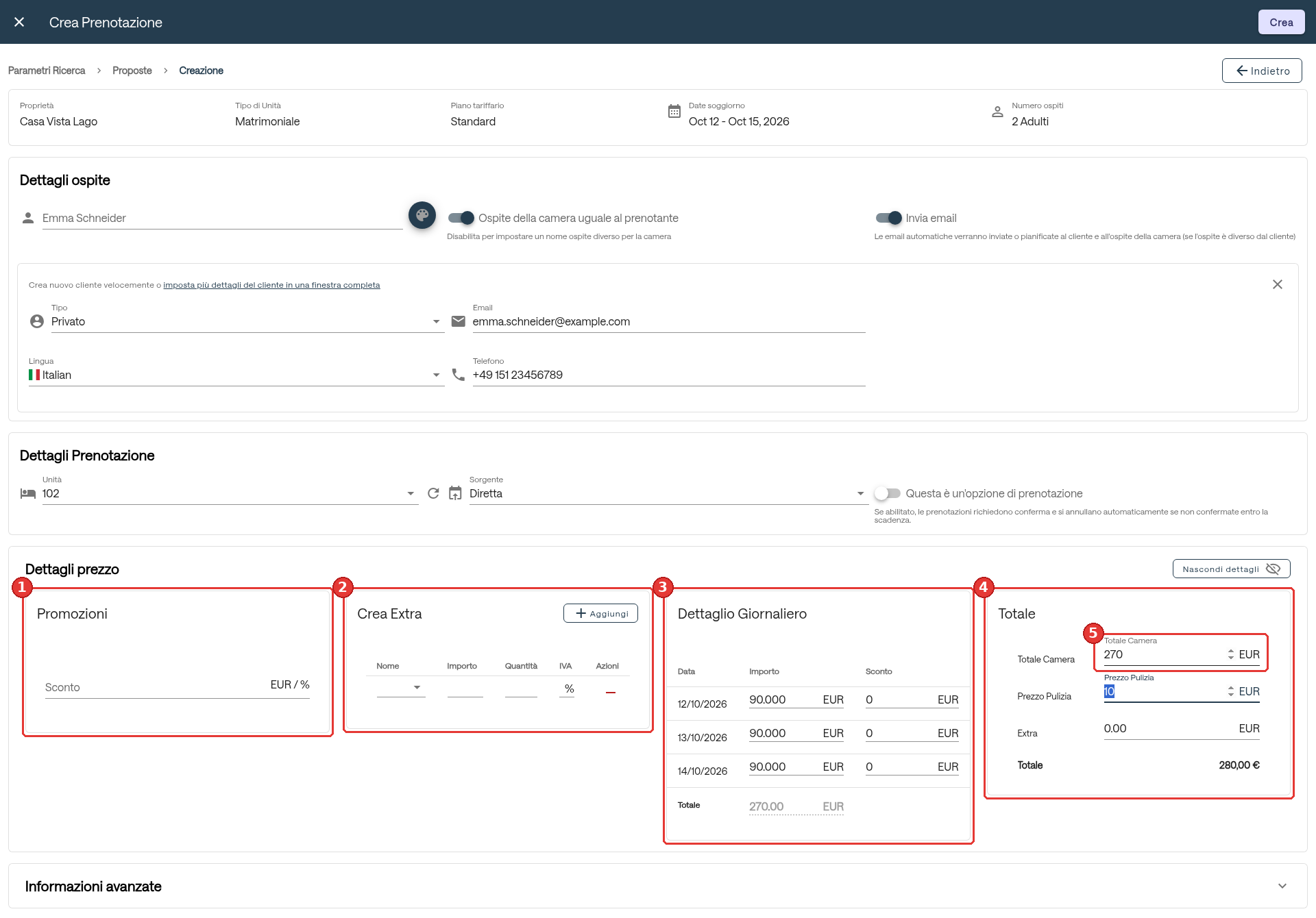
The section is closed and shows only the total; open it with Show details. It contains four boxes:
- Promotions: applies an active promotion of the property or a Discount in euros or percentage; the discount is distributed over the nights.
- Create Extras: with Add, you enter services such as breakfast, crib, or pet, with amount, quantity, and VAT. Extras configured as mandatory are already inserted.
- Daily Detail: the amount and any discount for each night. You can modify individual nights; nights changed manually are marked as Manually modified.
- Total: contains Room Total (editable), Cleaning Price (editable), Extras (read-only, derived from the chosen extras), and the final total.
If you write a new Room Total, SmartPMS recalculates the daily detail by dividing the amount equally over the nights.
Price per night=Room Total÷nights
Example: Room Total brought to €300 for 4 nights
€300÷4 nights=€75 per night, even if the nights had different prices on the calendar
Advanced Information
The section is closed; click on it to open it. It contains:
- Payment Method and, if you use Smartpay, the warning about scheduled payment requests and the Payment on arrival switch (to manage Smartpay see the guide Smartpay: how to configure it and how automatic payments work);
- Client Requests: the guest's requests;
- Service Notes: notes visible to the cleaning staff;
- Internal Notes: notes available to the reception, not visible to the guest;
- Arrival Time: the expected arrival time.
When you are finished, click Create at the top right (from a smartphone, the button at the bottom of the page is called Save).
4. What happens after Create
- The "Successfully created" message appears and the Calendar updates: the booking appears on the unit row, or in the To Be Assigned row if it does not have a unit.
- Availability is updated and, if the property is connected to portals via Channel Manager, the occupied dates are sent to the channels. The same applies to options and blocks. If a channel is connected via iCal, the update follows the reading times of the iCal calendar (see the guide How to connect an external iCal calendar (VRBO and other portals) to a unit).
- If Send email is active and the client has an email address, the automatic messages provided by the active templates for that property and source are sent: for a booking, the Booking Confirmed template, for an option the Booking Option template and, at the deadline, Expired booking option. The message types are explained in the guide Automatic message templates: categories, types, and dynamic fields.
- If the unit is part of an aggregated unit (e.g., a room that is also part of "Entire Apartment"), a Linked booking element appears on the connected units: it is the block that prevents selling the entire apartment while the room is occupied, and vice versa. It is not a double booking.
To open, move, or modify an already created booking, see the guide Calendar: reading, opening, and moving bookings (colors, icons, Do not move, split).
5. Creating an option with a deadline
Use the option when you want to hold dates without confirming them, for example, while waiting for a deposit.
- Select the nights on the unit row (point 1).
- In Quick Creation, open the Tentative (option) tab.
- Fill in the fields as for a booking and set Valid until: it is mandatory and does not have a default value. Clicking it opens a two-step selector: first you choose the day, then the hour and minutes of the deadline, and confirm with Ok.
- Click Create.
Alternatively, in advanced mode, activate This is a booking option in Booking Details and fill in Valid until.
How an option behaves:
- it is created with Pending status and has a yellow hourglass on the calendar;
- it occupies the unit and availability until the deadline, so the dates are not sellable on the portals;
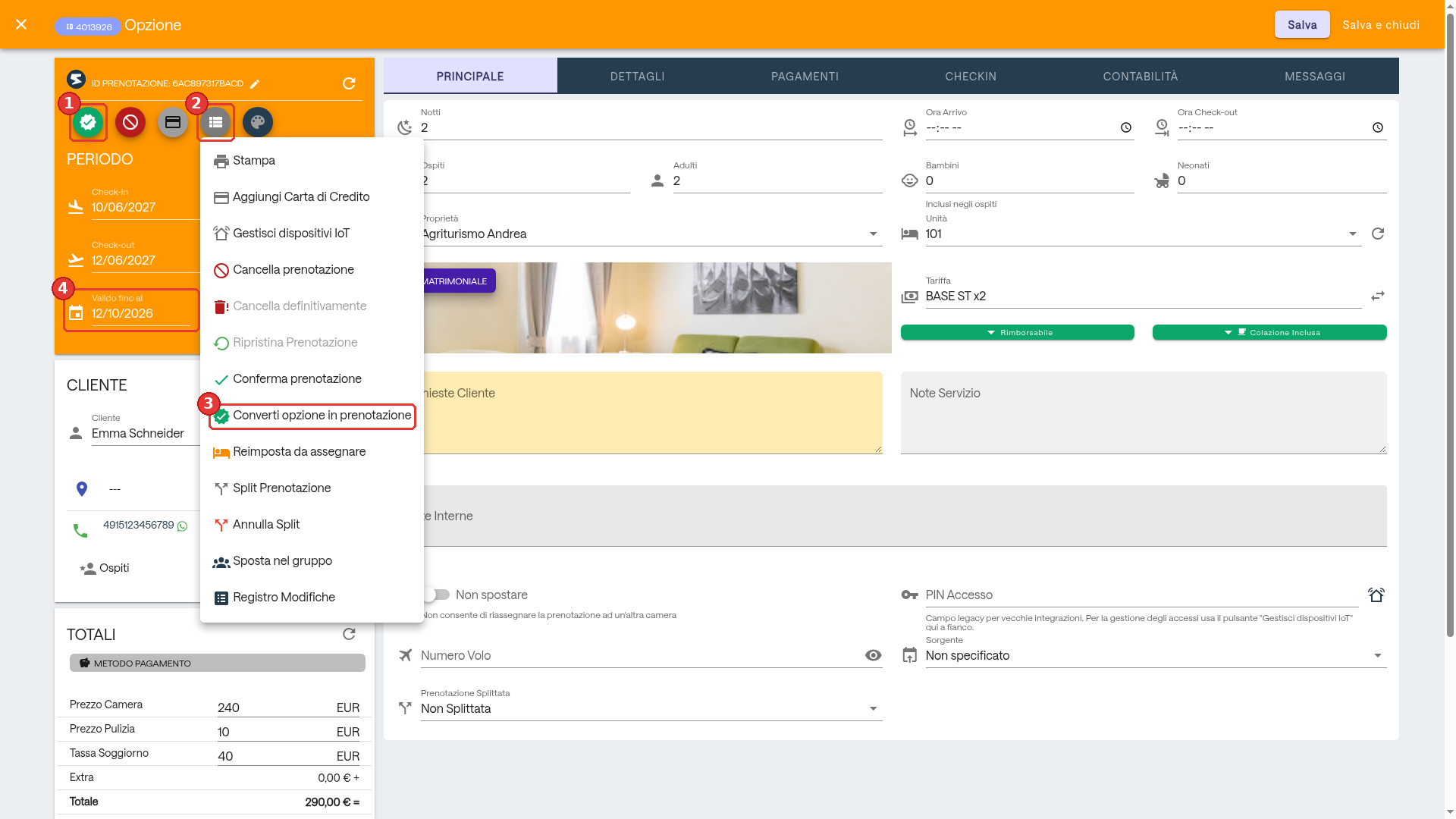
- when the confirmation arrives (e.g., payment), open it from the Calendar and click the green Convert option to booking button (the first of the round buttons under the booking ID), or open the menu with the list icon and choose the same item: the status becomes Confirmed and the availability remains occupied;
- if the deadline arrives without confirmation, SmartPMS automatically cancels it, adds the note "Automatic cancellation" to the Internal Notes, and frees the dates.
If the guest needs more time, move the deadline forward before it arrives: open the option, change Valid until (with the time) in the Period box, and click Save.
6. Blocking a unit (maintenance, work, personal use)
- Select the nights on the unit row.
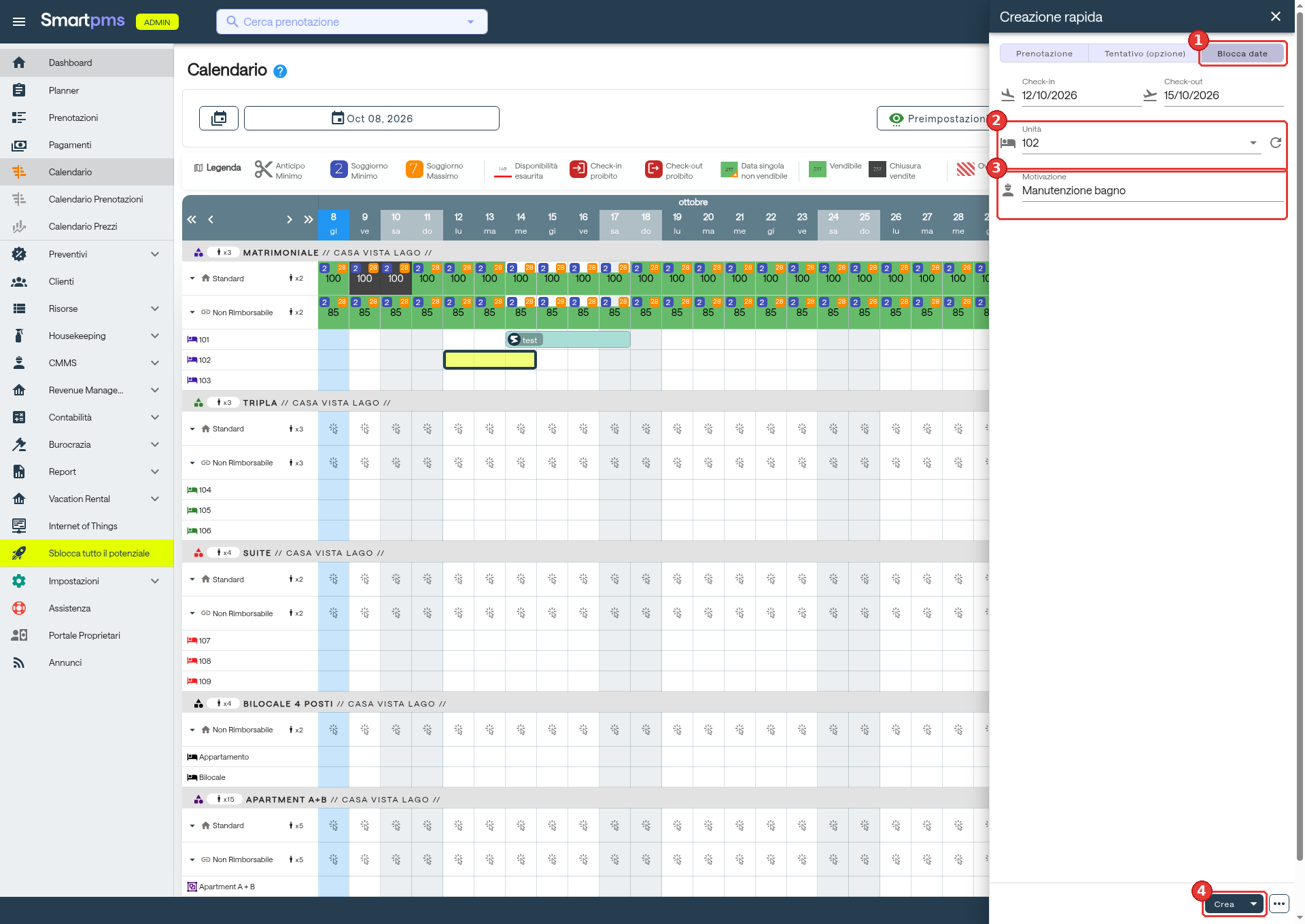
- In Quick Creation, open the Block dates tab: the panel shrinks to Check-in, Check-out, Unit, and Reason.
- Check dates and Unit and write the Reason (e.g., "Boiler maintenance"): you will see it when opening the block.
- Click Create.
The block has no client, price, or messages to the guest. On the Calendar, it occupies the unit row like a bar; clicking on it opens the block detail.
The block acts on the single unit. If, instead, you want to close an entire rate plan or a type to sales, without occupying a specific unit, use the date closure described in the guide How to modify prices, availability, and restrictions from the Calendar.
7. Multiple rooms for the same client
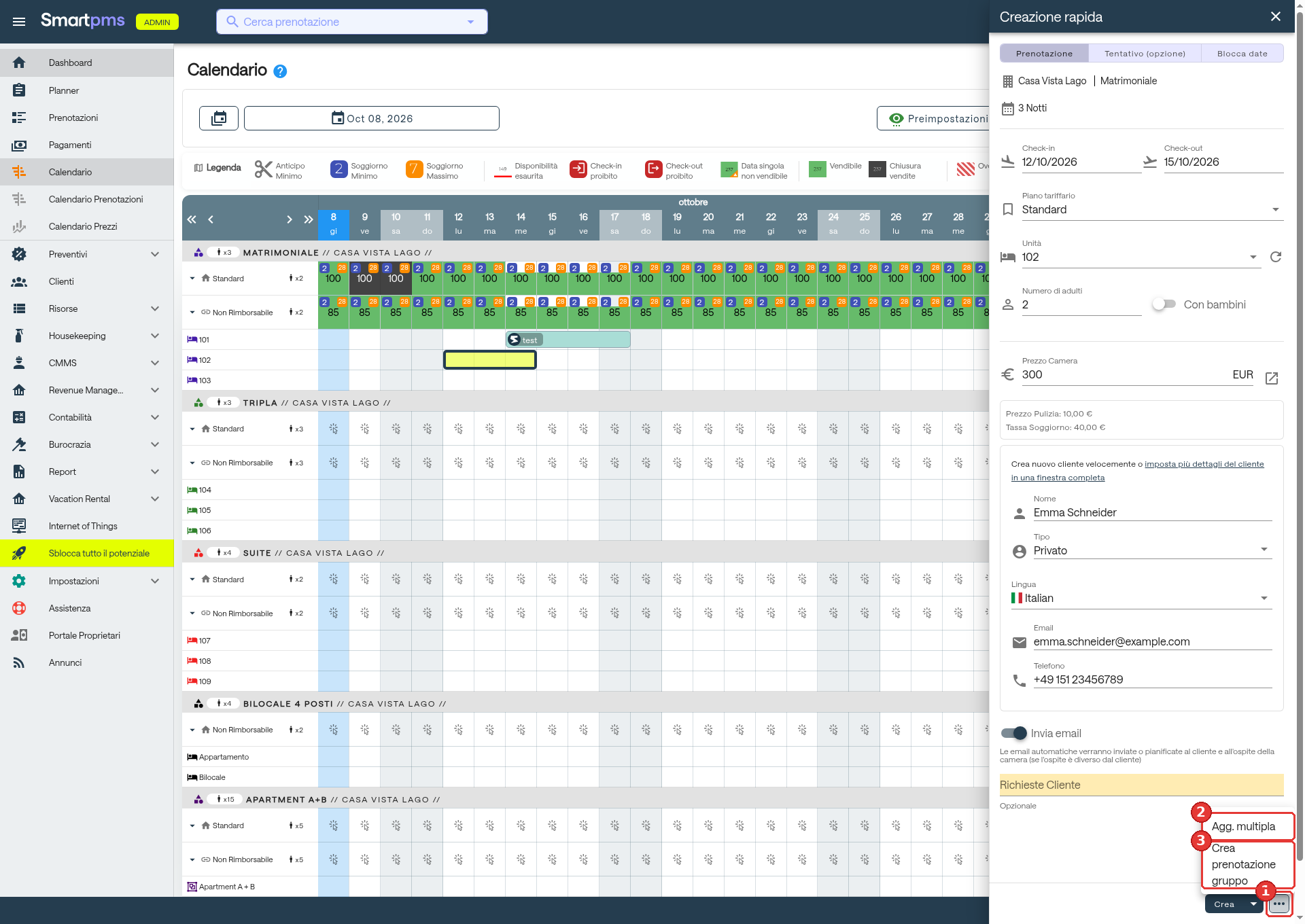
From the button with the three dots, at the bottom of Quick Creation next to Create, you have two paths:
- Multiple add: opens a form to create multiple bookings at once for the same client and the same dates, on different units.
- Create group booking: opens the group booking creation wizard, which keeps the rooms together under a single group with a main contact, notes, and common payments. The steps are: details and contact, number of rooms by type, details of each room, summary, and saving. In group bookings, specific units are not assigned at creation: the unit type is reserved, and the individual units are assigned later.
If you want the client to confirm multiple rooms with a single link, use a Quote: see the guide Quotes: how to create, send, and have an offer confirmed.
8. Controls and limits in manual creation
- Unit already occupied: SmartPMS does not save a booking on a unit occupied even for just one night of the period and shows the message "The selected unit is not available for the chosen period". Choose another unit, change the dates, or create the booking without a unit (it will remain in To Be Assigned until you assign it).
- Rate plan rules: Quick Creation is designed to limit direct bookings to the settings and restrictions of the selected rate plans: prices, closures to sales, minimum and maximum stay, Forbidden Check-in and Forbidden Check-out, occupancy. If a combination of dates, rate plan, and guests is not sellable, Quick Creation does not propose it (see point 2). To proceed, correct the setting that excludes it on the Calendar or choose compatible dates, rate plan, or number of guests.
- Occupancy: the number of adults is limited by the minimum and maximum occupancy of the type; the price changes with guests only if the rate plan has prices for occupancy or child rates configured.
- Price modified by hand: if you change the room price, the amount is divided equally over the nights. If you then change dates, rate plan, or guests in Quick Creation, the price returns to that of the Calendar.
- Permissions: the Booking, Tentative (option), and Block dates tabs appear only if your user has permission to create that type of element. If you do not see a tab or Quick Creation does not open, ask the administrator to check your user role.
Frequently asked questions
12How do I enter a booking that arrived by phone?
Select the nights on the unit row on the Calendar, fill in Quick Creation (rate plan, adults), and click the arrow next to Create and then Create in advanced mode. In Guest Details, choose or create the client, in Booking Details choose Phone as Source, check price and extras in Price Details, and click Create. If the guest still needs to pay the deposit and you want to hold the dates until a deadline, create an option instead of a booking (Tentative (option) tab).
I cannot create a one-night booking: "No availability or rate found for this date" appears
Quick Creation only proposes sellable rate plans for the entire stay, in compliance with the plan's settings and restrictions. A single night is usually not proposed because the plan has a minimum stay greater than 1, because the date has Forbidden Check-in or Forbidden Check-out, or because it is closed to sales or without a price. Check these settings on the Calendar for that date and, if you no longer need the rule, modify it (see the guide How to modify prices, availability, and restrictions from the Calendar). Remember that the minimum stay can also come from a derivation or from Smartpricing.
The calendar is free but the system says there is no rate or availability
In addition to closures and restrictions, check that the rate plan is not set as hidden: a hidden plan is not proposed during creation, even if it has price and availability on the calendar. Open the property's rate plan settings and remove the Hide rate plan option from the plans you want to use in manual bookings. To keep the Calendar cleaner without hiding the plans, you can save a custom view (see the guide How to customize the Calendar and save your views (with ready-made examples)).
The proposed price is not what I see on the calendar
The Quick Creation price depends on the selected rate plan and the number of adults and children. Verify that:
- the selected rate plan is the one you are looking at on the calendar;
- the number of adults corresponds to the occupancy row you are comparing (e.g., x2);
- the type does not have a maximum adult occupancy lower than necessary, otherwise the price remains that for fewer guests;
- for children, the plan has prices configured for the indicated age.
If the price agreed with the client is different, write it in Room Price (or in Room Total in advanced mode): it will be divided over the nights. After creating the booking, always check the amount in the booking tab.
How do I block a room for maintenance?
Select the nights on the unit row, open the Block dates tab of Quick Creation, write the Reason, and click Create. The block makes the unit unavailable even on connected portals and does not send messages to anyone. On the Calendar, it appears as a bar on the unit row, similar to a booking: the Reason helps you recognize it when opening it.
I blocked the dates and now I cannot insert the booking or the option
A block occupies the unit like a booking, so you cannot create another one on the same dates and on the same unit. If the block was intended to hold the dates for a client, delete it and create an option with a deadline. To keep the dates held while you fill in the data, create the option immediately with the bare minimum and complete the details later: the dates close on the portals as soon as you save.
The booking I created has disappeared or is canceled with the note "Automatic cancellation"
It was probably an option (Pending status) and the deadline passed without confirmation: in that case, SmartPMS automatically cancels it, writes "Automatic cancellation" in the Internal Notes, and frees the dates. Moving or modifying it does not change the deadline. To avoid this, convert the option to a booking when the confirmation arrives, or move the deadline forward before it arrives. If there was no deadline in the booking, contact support indicating the booking ID.
I created a booking on a room and a block also appears on the entire apartment
If the room is part of an aggregated unit, SmartPMS automatically creates a Linked booking element on the connected units. It is used not to sell the entire apartment while a room is occupied (and, conversely, to close the rooms when you book the entire apartment). It is not a double booking and should not be deleted: it disappears on its own when you delete the original booking.
What is the difference between an option and a Booking Engine Pending booking?
Both have Pending status, but they are created differently. You create the option manually with a mandatory deadline, it has a yellow hourglass, and it is automatically canceled at the deadline. Booking Engine pending bookings (e.g., with payment via bank transfer) or Airbnb booking requests have a gray hourglass and use the Pending Booking template. The two cases have distinct message templates: see the guide Automatic message templates: categories, types, and dynamic fields.
How do I not send emails to the guest when I enter a past booking?
Before clicking Create, deactivate Send email in Quick Creation or in Guest Details of advanced mode. This way, no automatic message is sent or scheduled for that booking.
Can I put an option on already occupied dates, which triggers if they become free?
No. An option occupies the unit like a booking, so it is only created on free dates. For occupied dates, you can keep track of the request (e.g., with a quote or a note) and insert the option when the unit becomes free.
Why does Quick Creation not let me create a booking that does not respect the rate restrictions?
Quick Creation is designed to limit direct bookings to the settings and restrictions of the selected rate plans, i.e., the same sales rules that apply on the channels:
- prices set for all nights;
- dates open to sales;
- minimum and maximum stay;
- Forbidden Check-in and Forbidden Check-out;
- occupancy (number of adults and children covered by the plan and the type).
If a combination of dates, rate plan, and guests does not respect these rules, Quick Creation does not propose it and shows "No availability or rate found for this date". To proceed, correct the setting that excludes the combination on the Calendar (see the guide How to modify prices, availability, and restrictions from the Calendar) or choose compatible dates, rate plan, or number of guests.
Related guides
How it works
Configuration
Configuration
Configuration
Configuration
Configuration