

Quotes: how to create, send, and have an offer confirmed
Complete guide to SmartPMS Quotes to propose one or more stay solutions to a guest: creation and selection of combinations, deposit, discounts and extras, blocking availability with 'Close Avail.', sending via email or WhatsApp, what the guest sees and pays, statuses and confirmation. The FAQs cover 0 deposit on non-refundable rates, deposit errors, 'Pending' bookings in the calendar, and City tax.
You are in the right place if…22 cases
- “How do I send a personalized offer to a customer who asked for availability?”
- “I want to propose multiple accommodations or multiple rates in the same quote”
- “In the quote with a non-refundable rate, the deposit is zero”
- “I cannot save the quote, it says the deposit cannot exceed the amount”
- “After creating the quote, I see pending bookings in the calendar”
- “Where do I change the text and graphics of the quote email?”
- “When I create a quote, it automatically adds a coupon that I cannot remove”
- “A discount or promotion that I did not choose appears in the quote”
- “Can I send the quote in PDF to the customer?”
- “I cannot create a quote with apartments from two different companies”
- “The same customer does not appear when I create the quote for the other company”
- “At the quote checkout, the payment methods do not appear and the guest cannot pay”
- “In the quote with multiple properties, the terms and conditions do not appear”
- “The quote with accommodations from different companies used to work and now the guest cannot confirm it”
- “The confirmed quote created an overbooking”
- “Overbooking from quote with Close Disp.”
- “The quote booking has no assigned room”
- “The guest cannot confirm the quote, the button does nothing”
- “If the accommodation is sold on Booking, can the guest still confirm the quote?”
- “Reopening a quote, I don't see which rate I had proposed”
- “In the saved quote, the rate plan (e.g., Standard or Non-refundable) does not appear”
- “Guide to using Quotes”
What Quotes are for
From 11/11/2026, new quotes are created from the new SmartPMS. The quotes you have already created in this version remain here and you can continue to edit them.
With Quotes, you can prepare a tailored offer for those who have contacted you via email, phone, or chat. In the same offer, you can propose:
- multiple accommodations;
- multiple Rate plans for the same accommodation (e.g., refundable and non-refundable, or with or without breakfast);
- even different dates.
The guest receives a link to a dedicated page. From there, they choose the option they prefer and confirm by paying with the payment methods active on the property.
Not to be confused with Quote Requests: those are requests that arrive from guests (see at the bottom of the guide), whereas here, you are the one creating the offer.
Where to find them
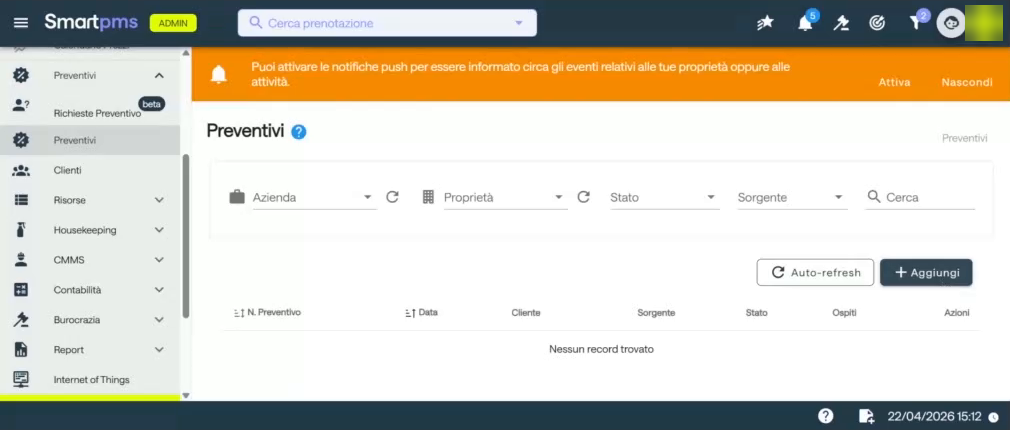
Open Quotes > Quotes from the side menu.
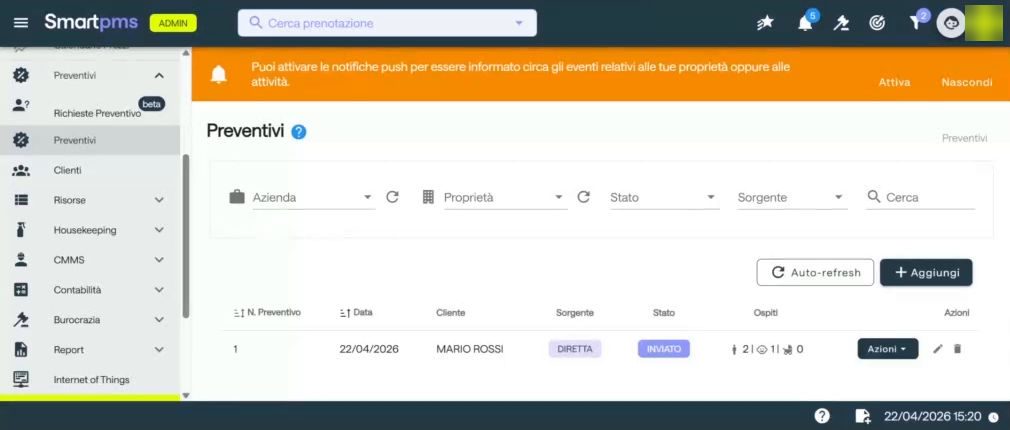
The list shows for each quote:
- Quote No.
- Date
- Customer
- Source
- Status
- Guests (adults, children, and infants indicated in the quote details)
- Actions
The fields at the top (Company, Property, Status, Source, Search) are filters: they are only used to find already created quotes, not to create new ones. With Auto-refresh, the list updates itself at regular intervals.
1. Create the quote and choose the customer
Click + Add. In the Customer field, type the first and last name:
- SmartPMS suggests the profiles already present with that name;
- if the guest is new, click Create "First Name Last Name".
In the new profile, check the Company Membership field. If you manage multiple companies, it determines which company the accommodations you can propose belong to.
The only mandatory data in the profile is the name. We still recommend asking the guest for at least their email or phone number, preferably the email:
- to send the quote via email, the email is required;
- to send it via WhatsApp, the phone number is required.
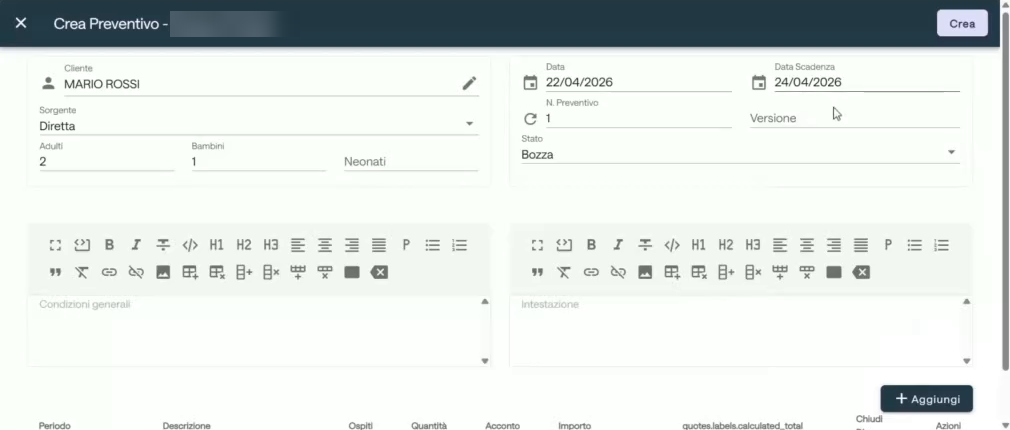
2. Fill in the details
In the quote details, you will find these fields:
- Source: the channel from which the request arrived (Direct, Phone, Email…). It must always be indicated and is used for filters and reports.
- Adults, Children, Infants:
- adults are mandatory;
- these numbers are used for searching combinations and appear in the list and on the page viewed by the guest.
- Date: this is the quote creation date, not the stay date.
- Expiry Date: how long the offer is valid. It is mandatory if you block availability with Close Avail. (see below).
- Quote No.: fills in automatically in sequential order. Use the icon next to it to regenerate it.
- Version: optional. Useful if you send multiple versions of the same offer (A, B, C…).
- Status: starts as Draft.
- General conditions and Header: free-form formatable text. Use them for offer conditions and an opening message to the guest.
3. Add options (combinations)
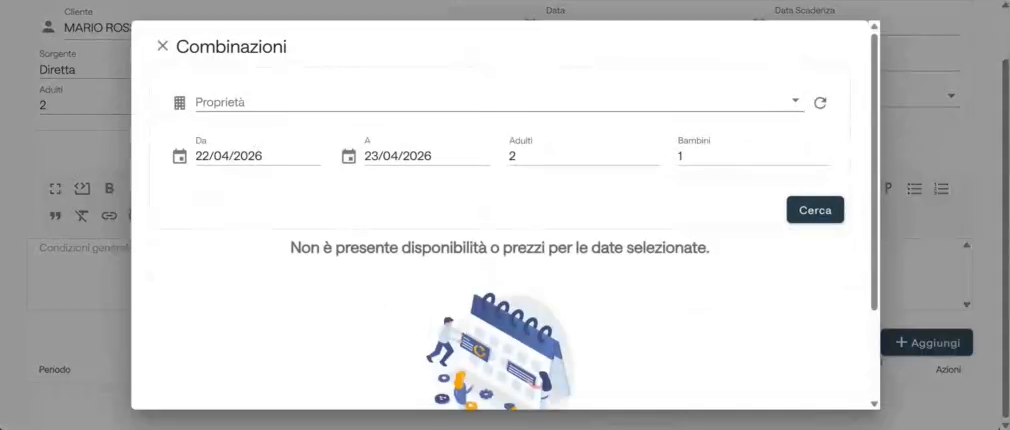
At the bottom of the form, click + Add. The Combinations window opens already filled with today's date and the guests indicated in the details:
- enter the arrival and departure dates of the stay;
- if necessary, correct adults and children (with the age of each child) and choose a property. If you do not choose one, the search includes all available ones;
- click Search.
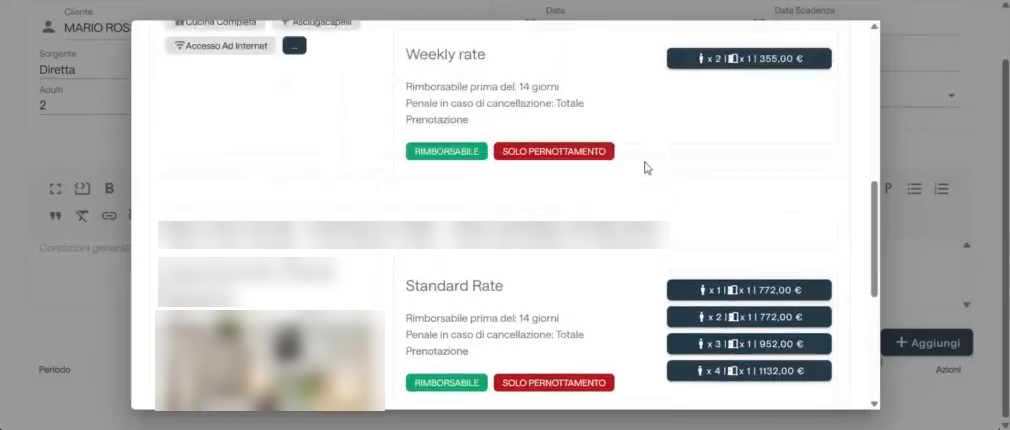
For each available type, you see the Rate plans with:
- the Refundable / Non-refundable badges and the board type (e.g., Room only);
- the cancellation terms;
- a button for each number of guests with the relative price.
If the property does not have child rates, the price depends only on the total number of guests.
Click the price you want to propose: it becomes a row in the quote. You can select more than one, for example, the same accommodation in standard and non-refundable rates: the guest will choose.
When finished, close the window with the X at the top left or by clicking on the gray background. To add other options, even with different dates, click + Add again.
If "No availability or prices for the selected dates" appears, there is no availability or rates loaded for those dates. With Show all rates, you can still add an option, but SmartPMS does not guarantee that the accommodation is free: if that option is confirmed while the accommodation is already occupied, an overbooking is created (see the paragraph on Close Avail.).
4. Check the rows: deposit, amount, and extras
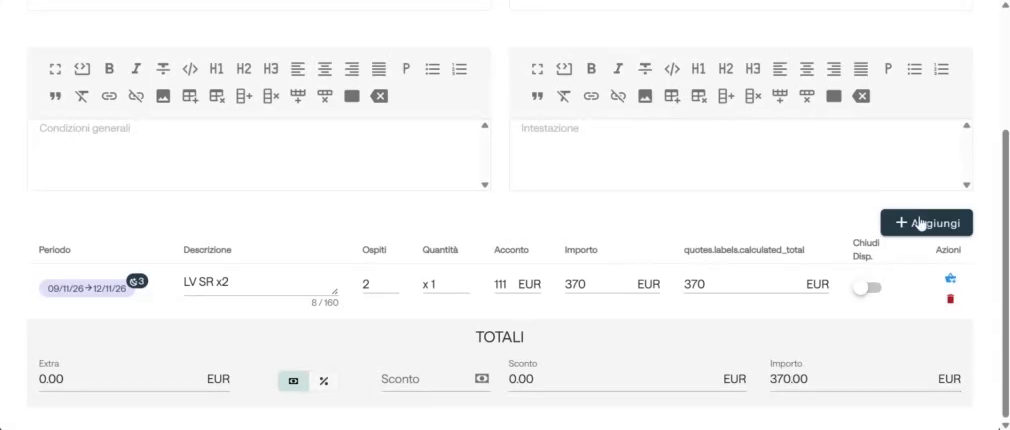
Each row corresponds to an accommodation. For each row, you find:
- Description: up to 160 characters, pre-filled with the type name. On the guest page, the accommodation name and description come from the Type. The text of this row appears only if the type does not have a description.
- Guests.
- Quantity: default is 1. Increase it if you are proposing multiple accommodations of the same type, without exceeding those actually available.
- Deposit:
- is calculated from the deposit percentage of the Rate plan;
- with a non-refundable plan, it is 0, and this is correct: see the FAQ.
- Amount: price of the stay for one accommodation, cleaning included. It must be greater than 0 and you can modify it.
- Calculated total: amount × quantity.
- Close Avail.: blocks availability (see the next paragraph).
- Actions: add an extra to the row or delete it.
Property extras linked to the combination are added automatically as separate items. Below the rows, in Totals, you see the extras and the overall amount, and you can apply a Discount as a value or percentage.
Important: the deposit of a row cannot exceed the discounted amount of that row, and extras are not counted. If you apply a discount after adding the rows, the deposit does not recalculate itself: check it and, if necessary, lower it.
5. Block availability with Close Avail. (optional)
With a quote, you can choose between two approaches.
Without Close Avail. you propose a price without guaranteeing the accommodation:
- availability remains open;
- if in the meantime the accommodation is booked through another channel, the guest will no longer be able to confirm that option: when they try to book, SmartPMS checks availability and blocks the confirmation;
- if you confirm the quote manually, no booking is created for these rows (see Quote confirmation).
With Close Avail. you guarantee the accommodation until the expiry date:
- upon saving, SmartPMS creates a Pending booking for that row, which blocks availability;
- the Expiry Date is mandatory.
Attention: when you save the quote, SmartPMS does not check if the accommodation is still free. If for those dates the accommodation is already occupied, for example, because you added the option with Show all rates, the Pending booking is created anyway, without an assigned unit. Upon confirmation, whether by the guest or you, it becomes a real booking and an overbooking is created. Before activating Close Avail., check in the calendar that the accommodation is free for all nights.
In summary:
Close Avail. | Who confirms | If the accommodation is already occupied |
|---|---|---|
Off | The guest from the link | Confirmation is blocked |
Off | You, manually | No booking is created |
On | The guest from the link | The booking is confirmed: overbooking |
On | You, manually | The booking is confirmed: overbooking |
Pending bookings:
- are confirmed when the guest chooses that option;
- are deleted if the guest chooses another option;
- are automatically canceled upon the quote's expiry;
- are also deleted when you delete the quote or set it as Rejected.
Every time you modify and save the quote, the Pending bookings are recreated. Any manual assignments to a unit are therefore lost.
6. Save
Click Create at the top right. The quote appears in the list in Draft status: it is not sent immediately to the guest, so you can recheck or modify it with the pencil.
7. Send the quote to the guest
From the Actions button of the row in the list:
- Open portal: opens the same page the guest will receive, to check it before sending.
- Send:
- opens the email sending window, with recipient, sender's name and address (guest replies arrive at this address), subject, and preview;
- click Send to dispatch;
- the guest receives the email with the button to open the offer and the quote changes to Sent.
- Send WhatsApp: sends the link to the customer's number. It is deactivated if the customer does not have a phone number in their profile.
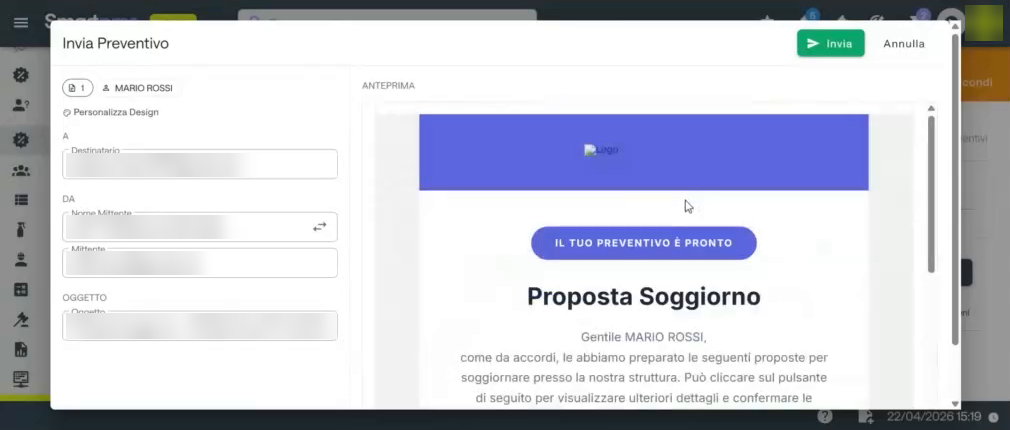
From the Customize Design link in the sending window, you can modify the appearance of the quote page and email. The same editor is found in the Company's advanced settings, under Quote Email Design:
- activate the editor;
- choose the page theme and colors, the email layout, and the texts (title, greeting, button text).
In the email and on the quote page, the property logo appears; only if the property does not have a logo is the company logo used. The property logo is uploaded in Settings > Property > Property settings > Content > Configure, in the logo box at the bottom of the page; the company logo in Settings > Companies > Company settings. The default texts are available in Italian, English, German, and Spanish.
8. What the guest sees
By opening the link, the guest sees:
- Header:
- property name and logo, if all options are from the same property, or the Company's if they are from different properties;
- quote number, version, and expiry.
- The proposed options:
- type name and description in the guest's language (if missing, English is used);
- the Rate plan description;
- the extras and the amount.
- How to book: the guest can book the entire quote or select individual accommodations and proceed.
- The City tax: estimated for each option, but not included in the amount to be paid.
- The terms and conditions: those of the property if all chosen options are from the same property, otherwise those of the customer's company.
- The payment methods active on the property. If the guest chooses options from different properties, they see only the methods available for all (see the FAQ):
- card: with Smartpay, with the configured gateway, or only as a guarantee, without charge, if Quotes is among the excluded channels of Smartpay and the Credit Card - View Only method is active (see the FAQ);
- bank transfer;
- cash, if configured.
What the guest pays at the time of confirmation:
- refundable rate with deposit: pays the deposit;
- non-refundable rate, or refundable without deposit: pays the full amount, extras included and discount deducted;
- Smartpay active and all options refundable: the card is saved and charges follow Smartpay rules.
- Quotes excluded from Smartpay and Credit Card - View Only active: the guest leaves the card as a guarantee and pays nothing upon confirmation, with any rate.
With bank transfer, the guest sees the amount to be transferred and the bank details. You verify the arrival of the transfer.
9. Quote statuses
Status | When |
|---|---|
Draft | The quote has been saved but not sent. |
Sent | It has been sent from the sending window. |
Read | The guest has opened the link received via email. Opening it yourself from "Open portal" does not change the status. |
Confirmed | The guest has confirmed, or you have confirmed it manually. |
Rejected | You have set it as rejected. |
There is no "Expired" status: after the expiry date, it is the guest's page that indicates the offer is no longer valid.
10. Quote confirmation
- By the guest: chooses the option on the quote page and completes the payment. The booking is created in SmartPMS.
- Manually: open the quote with the pencil and set the status to Confirmed. In this case, confirmed bookings are created only for rows with Close Avail. active, without a new availability check. For the other rows, create the booking yourself from the calendar.
In neither case does SmartPMS recheck the availability of rows with Close Avail.: if the accommodation was already occupied when you saved the quote, the confirmation creates an overbooking.
A confirmed quote can no longer be modified or deleted.
Quote Requests (beta)
The Quotes > Quote Requests item collects requests sent by guests.
By default, the Booking Engine allows direct booking. Requests arrive only if you activate the Booking Engine's quote request page, or if you publish the dedicated widget on your site. It is a mode used especially by hotels and properties that often handle tailored offers.
Activating the Quote Request page: go to Settings > Booking Engine, on the Booking Engine row click Actions > Edit and in Dynamic Pages add Quote Request. In the Booking Engine top menu, the item to send the request appears (in English "Quote request").
Generating the widget for your site: in Quotes > Quote Requests click Generate Widget and choose:
- Company (mandatory) and, if you want, the Property;
- Color and Font;
- Referral, to track where requests come from;
- Redirect, the page to which the guest is taken after sending;
- Show Nationality and an optional Alternative send text for the button.
With Preview you check the result, with Copy you get the code to paste into a page of your site.
For every new request, users with the Booking Office role of the property receive an email ("NEW quote request"). The role is assigned in Settings > Users > Actions > Edit.
Quote Requests and Generate Widget are only found in SmartPMS Classic: the new SmartPMS does not have this item for now. You can read the request here and prepare the quote from the new SmartPMS.
Frequently asked questions
19I cannot save the quote: "The deposit cannot exceed the discounted amount of the row"
The deposit for each row is compared with the row amount minus the quote discount. Extras are not counted.
This usually happens in two cases:
- you applied a discount after adding the rows, and the deposit did not recalculate;
- you want to collect extras in advance as well.
To save, lower the row deposit below the discounted amount. If you want to collect extras immediately as well, you have two options:
- use a non-refundable rate, which charges the total;
- record the additional deposit on the booking after confirmation.
Why do "Pending" bookings appear in the calendar after creating a quote?
These are the availability blocks created by Close Disp., one for each row where it is active. They serve to guarantee the accommodation to the guest until the quote expires.
- They are confirmed if the guest chooses that option.
- They are deleted in all other cases: the guest chooses another option, the quote expires, you delete it, or you set it as Rejected.
If you do not want to block availability, deactivate Close Disp. on the rows before saving.
The quote has expired but the availability is still closed
Pending bookings for an expired quote are automatically deleted within about an hour of expiration.
If the Pending booking is still in the calendar after a day:
- open it and cancel it to free up the dates;
- report the quote number to us, so we can verify what prevented the automatic deletion.
I manually confirmed the quote but I don't see any booking
Manual confirmation (Confirmed status set by you) only creates bookings for rows with Close Disp. active.
For other rows, create the booking from the calendar. Alternatively, let the guest confirm from the quote link.
The city tax is not in the quote total
That is correct. The city tax appears on the quote page as an estimated amount, but it is not included in the amount paid online.
The final amount depends on the actual guests and any exemptions.
I don't see cleaning as a separate item in the quote
The cleaning fees for the category are already included in the row amount, so they do not appear as a separate item.
If you want the guest to see them separately, configure them as a mandatory Extra: extras appear as separate items and are included in the total.
On the quote page, the accommodation name or description is different from what I wrote, or it is in English
The accommodation name and description come from the Category, in the guest's language. They are found in Settings > Property > Property Settings > Units and Rates > Categories. If that language is not filled in, English is used.
The text written in the quote row only appears if the category does not have a description.
Fill in the category description in all the languages you use with your guests.
Where do I customize the email and the quote page? Can I use French?
You can customize them from two places:
- in the quote sending window, from the Customize Design link;
- in the Company advanced settings, under Quote Email Design.
From here, you choose colors, layout, and text.
Custom texts are available in Italian, English, German, and Spanish. French is not among the available languages: fill in the texts in one of these four languages.
On the quote page, the bank transfer does not appear, or only the card appears
The quote payment methods are those active on the property.
Bank transfer can be hidden in two cases:
- there are fewer days until arrival than those set as minimum advance notice;
- it is set only for non-refundable rates.
Card payment uses Smartpay, if active, or the configured gateway. If the Quotes source is among the excluded channels of Smartpay and the Credit Card - View Only method is active, the guest enters the card only as a guarantee and nothing is charged.
Check the property's payment method settings.
In the Guests column of the list, I see numbers different from those in the options
The Guests column shows adults, children, and infants indicated in the quote details, not the Guests field of the individual rows.
Always fill in adults and children in the details, and verify that the guests for each row are consistent.
In the quote combinations, a promotion (or what looks like a coupon) appears automatically and I cannot remove it
In the Combinations window, for each property, SmartPMS automatically proposes the best active promotion valid for the searched dates. The promotion name appears in a yellow label next to the property name, with the discount (for example "-10%").
Promotions are considered if they:
- are active and valid for all categories;
- fall within the validity and check-in dates, minimum stay, and advance notice set. If these dates are not filled in, the promotion is always valid.
Coupon type promotions are not applied automatically: they are applied only when their code is used.
The option that hides a promotion from the Booking Engine only concerns the site: the promotion may still appear in quotes.
If a promotion you do not want to apply appears in quotes:
- open Promotions and search for the promotion with the name shown in the label;
- check its type. It happens that a promotion intended as a discount code was created as a normal promotion: in this case, it applies to everyone;
- deactivate it, or limit its validity dates or categories. If you need a discount code to give to guests, use a Coupon type promotion.
If you manage multiple properties, check the promotion on each one: it may have been copied to all the company's properties.
Can I make a quote with accommodations from multiple properties, different companies, or for a customer of another company? Why doesn't the guest see the payment methods or terms and conditions?
You can propose accommodations from multiple properties in the same quote. However, some settings depend on the company the customer belongs to, i.e., the one indicated in the Company Membership field of their profile. A customer always belongs to only one company.
Terms and conditions
- If all options chosen by the guest are from the same property, the guest sees the property's terms and conditions.
- If the options are from different properties, they see those of the customer's company.
- If the customer's company does not have terms and conditions filled in, the acceptance box does not appear.
Payment methods
- For each property, the payment methods active on the property apply.
- For methods that the property has not configured, those of the customer's company are used, not those of the property's company. Smartpay, on the other hand, is not taken from the company settings.
- At the time of payment, the guest only sees the methods available for all the properties they have selected.
This is why the Choose payment method section can remain empty, and the guest cannot confirm the quote, in two cases:
- the properties belong to different companies with different configurations and there is no common payment method;
- even with a single property, when the customer belongs to another company, the property does not have its own payment methods and the customer's company has none active. For example, Credit Card - View Only is active only on the property's company.
How to avoid it
- One quote per company (recommended):
- create a customer profile for each company (same person, different Company Membership);
- split the offer into multiple quotes, one per company, each with that company's profile and only its accommodations.
- If the quote has already been sent: activate the same payment methods, for example, Credit Card - View Only, also on the customer's company. The methods are read when the guest opens the link, so there is no need to send a new quote. The method then also applies to the other properties of that company.
- A single quote with multiple properties:
- verify that all properties have at least one common active payment method;
- verify that the customer's company has terms and conditions filled in.
Before sending the quote, open it with Open portal, select the options, and proceed to payment. This way you check that the payment methods and terms and conditions appear.
Can I download or export the quote to PDF?
No, the quote cannot be exported to PDF: the guest receives it as a link to the quote page. If you still need a document to print or save, you can use this procedure:
- In the quote, activate Close Disp. on the row you want to print and save: SmartPMS creates a Pending booking for that row.
- Open the Pending booking from the Calendar (block with the hourglass) or from the Bookings list.
- Click the button with the list icon in the left panel and choose Print.
- In the browser print window, choose Save as PDF.
Remember that with Close Disp., availability remains blocked until the quote expires, and that the Pending booking is deleted if the guest chooses another option or if the quote expires.
In the booking, the source is "Quotes": where does it come from?
"Quotes" indicates that the booking originated from a Quote created in SmartPMS, not from an external portal or the Booking Engine.
It happens when the guest opens the quote link, chooses an option, and completes the online payment. SmartPMS then automatically creates the booking:
- with source Quotes;
- without a user as the author, because the confirmation is by the guest;
- confirmed after payment, with the paid amount recorded in the booking payments;
- with a booking code different from those of Booking.com or Airbnb, generated for quote bookings.
The city tax is not included in the amount paid online, so it remains to be collected.
To trace the original quote, open Quotes > Quotes and search by customer name: the quote will be in Confirmed status.
I only wanted the card as a guarantee, but the quote collected the entire amount immediately: why?
How much the guest pays upon quote confirmation depends on when they confirm, not just the chosen rate plan.
A refundable plan counts as refundable only as long as free cancellation is still possible. Free cancellation expires the day before the days indicated in Refundable before: with 14 days and arrival on the 23rd of the month, it expires on the 8th.
If the guest confirms after that date and the card passes through Smartpay, the booking is already non-refundable. This is why the quote page:
- only proposes payment of the entire amount, by card or bank transfer;
- does not show payment at the property or the card as a guarantee.
This also applies if in Smartpay the Booking payment request is set to "Automatic sending based on rate plan" and not to "Automatic total sending upon confirmation". With Smartpay, the card as a guarantee only appears if at confirmation the rate is still refundable and without a deposit, and the amount is charged automatically on the day free cancellation ends.
If you only want the card as a guarantee and to collect when you decide:
- in Smartpay Configuration add Quotes to the Excluded channels (on each Smartpay account, if you have more than one);
- in Payment methods keep Credit Card - View Only active.
The guest confirms the quote by entering the card in a secure form, without charges, even with a non-refundable rate. You find the card in the booking with View credit card. In this case, from quotes, the guest can no longer pay online with Smartpay.
If the quote has already been paid and you had made different arrangements with the guest:
- open the booking and, in the Payments section, refund the payment with Refund payment;
- when you want to collect, create a new request with Add payment request.
The city tax is never included in the amount paid by the quote and remains to be collected.
I confirmed a quote and an overbooking was created: why didn't SmartPMS block it?
This happens with rows that have Close Disp. active.
When you save the quote, for each row with Close Disp., SmartPMS creates a Pending booking without checking if the accommodation is still free. If the accommodation is already occupied for those dates, the Pending booking is created anyway, without an assigned unit. Upon confirmation, it becomes a real booking and the overbooking is created, whether the guest confirms from the link or you set the status to Confirmed.
It usually happens in two cases:
- you added the option with Show all rates when the search said "There is no availability or prices for the selected dates";
- the accommodation was booked from another channel between the combination search and saving the quote.
Rows without Close Disp., on the other hand, are protected: if the accommodation is no longer free, the guest cannot confirm, and manual confirmation does not create bookings.
How to avoid it
- Before activating Close Disp., check in the calendar that the accommodation is free for all nights.
- Do not activate Close Disp. on options added with Show all rates.
- After saving, open the Pending booking created by the quote: if it does not have an assigned unit and you cannot assign one, the accommodation is not free.
If the overbooking already exists, move one of the bookings to a free unit from the calendar, or contact the guest to propose an alternative.
Where can I edit the informative message that appears on the accommodation card in the quote?
It is the Description of the rate plan. To edit it:
- go to Settings > Property > Settings, then Units and rates > Rate plans and click on Configure;
- click on the pencil icon of the plan;
- fill in the Description field in every language you use with your guests and save.
The description is separate for each plan: to show the same message on other quotes, repeat the edit on each plan you propose, in each property. There is no single edit for all properties.
The text also appears on the Booking Engine. In the quote, it is blue on refundable rates and red on non-refundable ones. Over 200 characters, it is shortened, with a link to read it all.
Reopening an already saved quote, I don't see the rate I proposed to the guest
The quote records the rate of each row and uses it to create the booking when the guest confirms. However, there is no field in the row that shows it: reopening the quote, you see the period, Description, Guests, Quantity, Deposit, and Amount.
To find the rate again:
- when you add the combination, write the rate name in the Description field of the row (for example "Double Room, Non-refundable"): you will see it again every time you reopen the quote. Remember that the Description text only appears to the guest if the category does not have a description;
- open the quote with Open portal: on the guest page, each option shows the rate plan description, if it is filled in.
I changed the logo but the old one still appears in the quote
In the email and on the quote page, the property logo takes precedence over the company logo: the company logo appears only if the property does not have one.
If you have changed the logo in the company settings and still see the old one:
- go to Settings > Property > Property settings > Content > Configure;
- at the bottom of the page, in the logo box, replace the property logo (or delete it, if you want to use the company one) and save;
- repeat for each property you use in quotes.
Page and email colors are changed instead in the company's advanced settings, under Quote Email Design.
Related guides
Activation
Configuration
Activation
Configuration
Configuration
How it works