

How to modify prices, availability, and restrictions from the Calendar
How to change prices, availability, minimum and maximum stay, denied check-in/check-out, and minimum advance notice from the Calendar, for a specific date, a period, or multiple rate plans at once (Bulk Edit). It explains how to close and reopen dates for sale, what happens to derived rates, and how to read the Rate History.
You are in the right place if…25 cases
- “I want to change the price of a room for some dates from the calendar”
- “How do I lower prices by 30 euros on all rooms for July?”
- “How do I do a mass price modification on multiple properties?”
- “How do I close dates for sale for a period?”
- “The calendar has closed dates and I cannot open them”
- “How do I open dates for next year? Dates after a certain date appear closed”
- “How do I remove the 2-night minimum stay?”
- “How do I set or remove check-in and check-out restrictions (deny arrival, deny departure)?”
- “I want to set a minimum advance booking / cutoff for bookings”
- “I did the mass modification but the sales closure was not applied”
- “I modified the parent rate but the derived rate (non-refundable) does not update”
- “I cannot modify the derived rate fields, they are gray”
- “On the calendar, I see an availability higher than the rooms I have and I receive overbookings”
- “The date is green on the calendar but it is not bookable on the portal”
- “The price is correct in SmartPMS but it is different on Booking.com”
- “Who changed the price? Where do I see the history of rate changes?”
- “Clicking a price cell opens nothing, how do I modify the rate?”
- “I want to do mass modification only on one property, but I see the rates of all properties”
- “How do I limit mass modification to a single property?”
- “I have set different automatic closing/minimum advance rules on CiaoBooking and on Booking.com/Airbnb. Which setting has priority?”
- “What happens if a booking spans a period with a different minimum stay?”
- “I set a minimum stay on Ciaobooking but I still received a 1-night booking via Booking.com”
- “How do I CLOSE my property/rooms to sales?”
- “Mass Rate Update from the Calendar”
- “Editing Derivation rules in the Calendar”
Before you start: what you change when you modify a "rate"
In the Calendar, each price row corresponds to a rate, which is the intersection of a unit type, a Rate plan, and a number of guests (e.g., "Double / Standard / 2 guests"). Each cell in the row represents a date and contains:
- the price for that night;
- the availability, i.e., how many units of that type are still sellable;
- the length of stay (minimum and maximum stay);
- the restrictions: check-in denied, check-out denied, minimum advance booking;
- the sales closure status (stop sell): a black cell indicates a date closed to sales for that rate.
When you save a change, SmartPMS updates the cells, applies any Rate Derivation rules to linked rates, and sends the new values to the connected portals via the Channel Manager. Sending to portals is not instantaneous.
To modify rates, you need the permission to modify the rate calendar on your user account. If clicking a price cell does not open Modify Rate, or if the Actions menu does not show the Rate group items, ask your account administrator to check your permissions (see the guide How the SmartPMS Calendar works).
To create bookings or block a unit (e.g., for maintenance), do not use rates: see the guide How to create a booking, an option, or a date block from the Calendar.
Modifying a date or a period from a cell
Use this method when you need to intervene on a single rate, for a day or for a range of dates.
- Open Calendar.
- On the rate row, click a price cell or click and drag the cursor over the dates you are interested in.
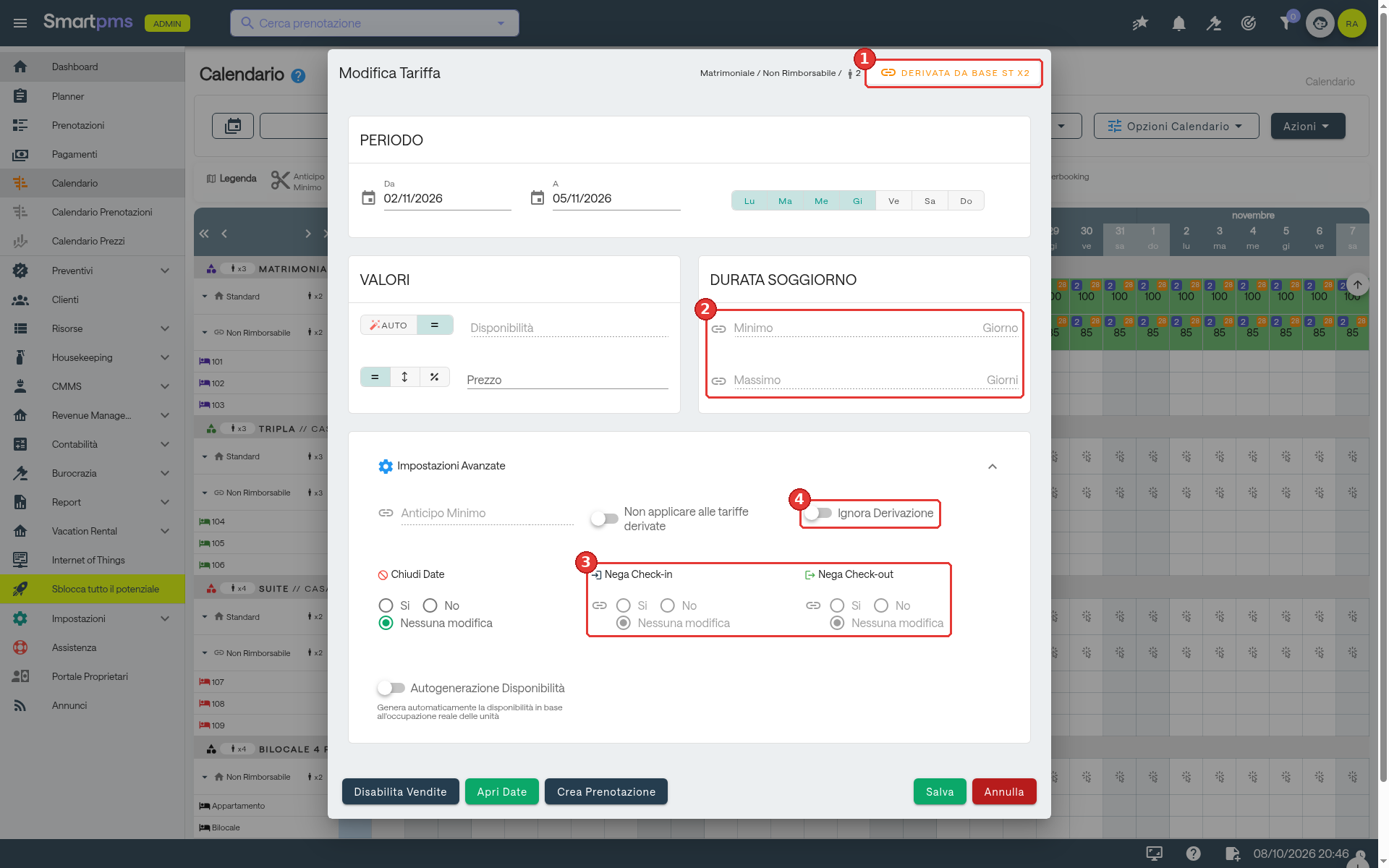
- The Modify Rate window opens directly. At the top right, you see the type, rate plan, and number of guests of the rate you are modifying (e.g., "Double / Standard / 2"); if the rate is derived, the Derived from label also appears with the name of the parent rate and the chain icon.
- Fill in only the fields you want to change (see the following sections) and click Save. With Cancel, you close the window without changing anything.
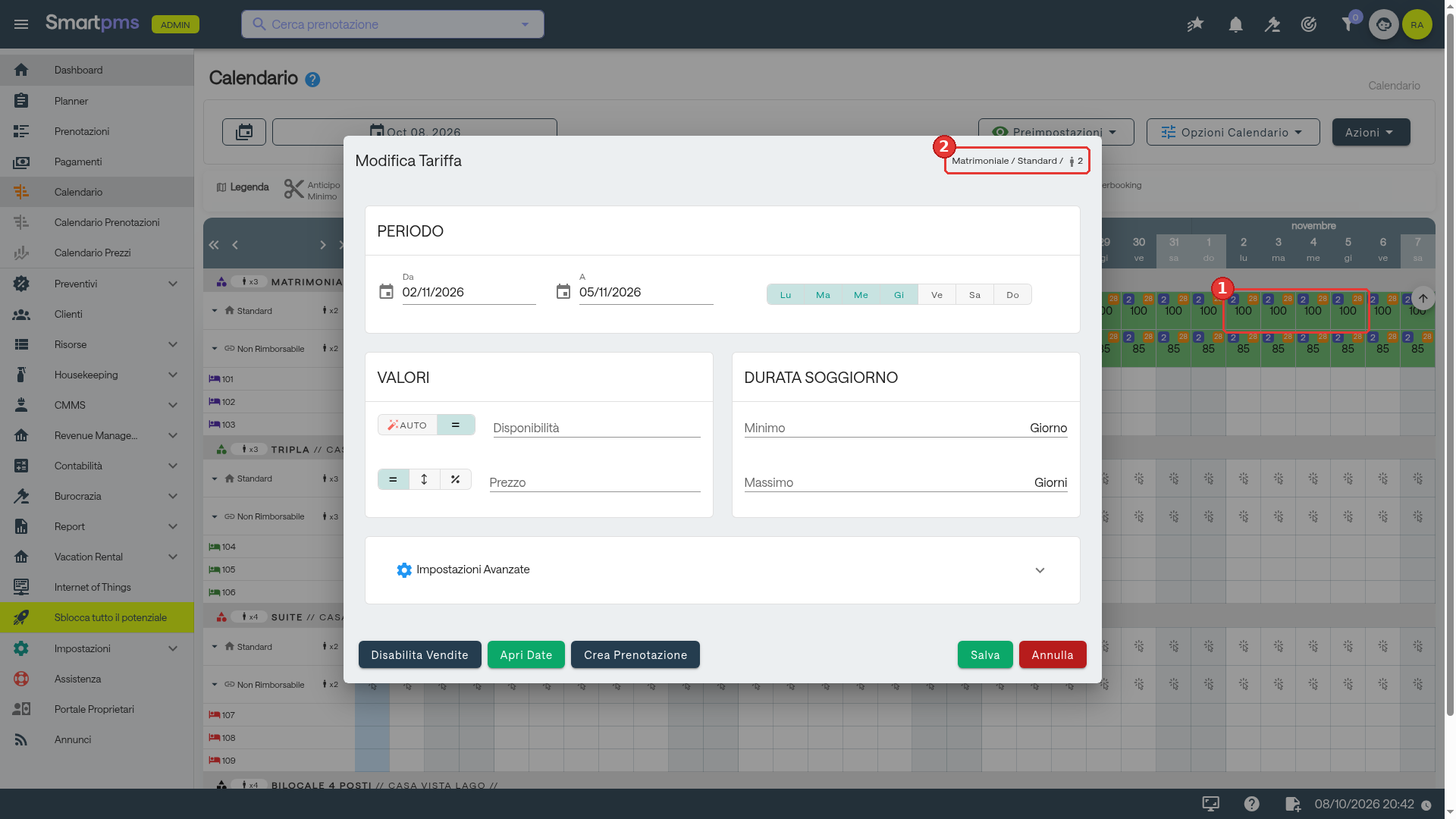
If you have selected a range, the value fields open empty: a field left empty is not modified.
Period and days of the week
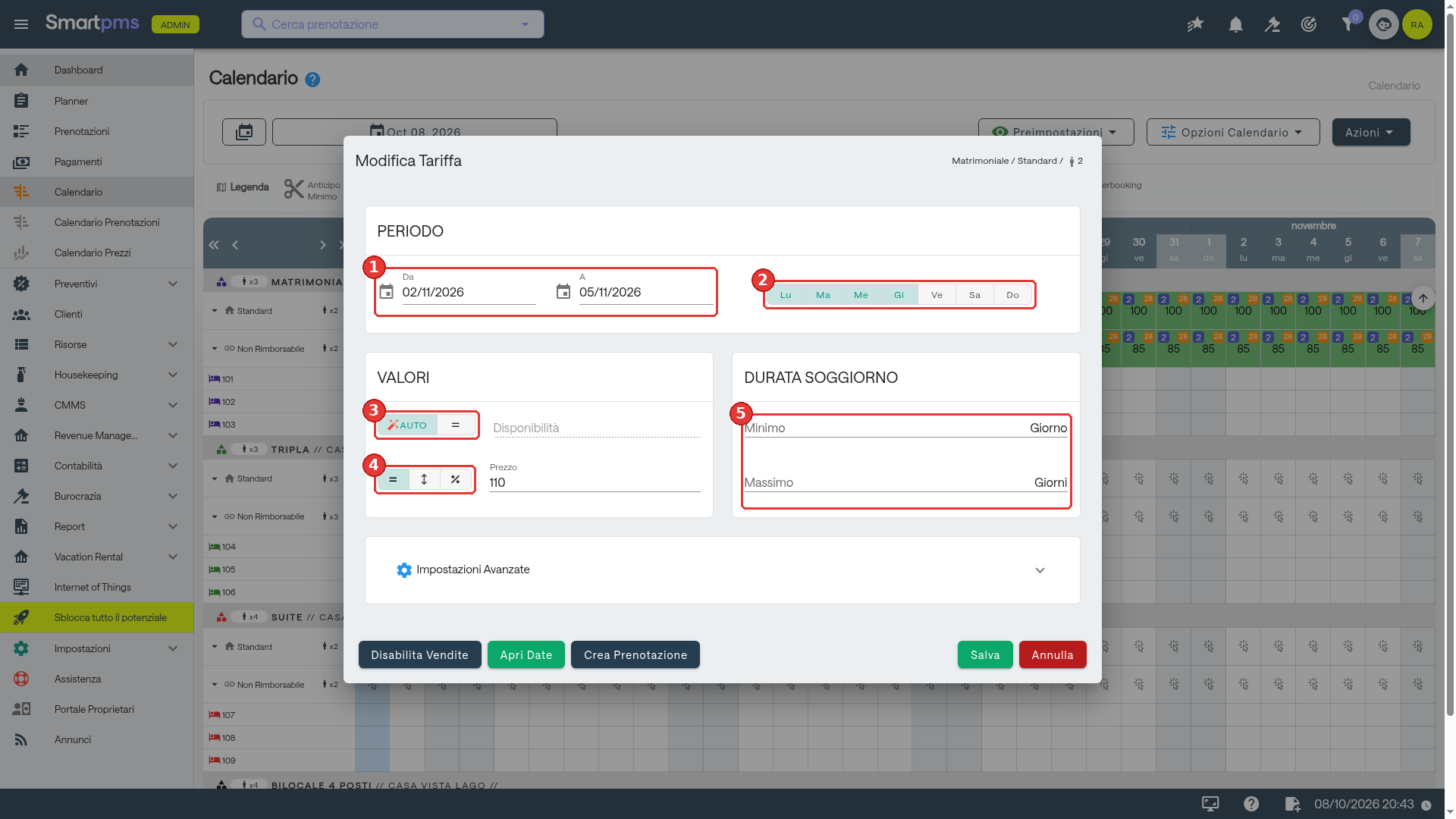
- From and To: the first and last date to which the change applies (both included). They are already filled with the selected dates, and you can correct them even after opening the window. You cannot choose past dates, nor dates beyond two years from today: in that case, upon saving, the message "end date must be a date before…" appears with the maximum allowed date.
- Days of the week (Mon, Tue, Wed, Thu, Fri, Sat, Sun): upon opening, the days included in the selected period are active (e.g., selecting from Monday to Thursday, only Mon, Tue, Wed, Thu are active). Over a longer period, deactivate the days to exclude if, for example, you only want to change the prices for Friday and Saturday of an entire month.
Values: availability and price
Availability has two modes, chosen with the buttons next to the field:
- AUTO (Automatic Availability Generation): SmartPMS calculates availability on its own, based on the units of the type and the bookings already present. This is the recommended choice in almost all cases.
- = (manual value): you write the number of sellable units. The written number replaces the calculated one and is sent to the portals as is.
With = and an empty field, the availability remains the current one.
Be careful with new dates, i.e., those that do not yet have a price: the first time you enter the price, the date is opened for sale, but if you leave the availability on = with an empty field, it remains at 0 and the date is not sellable. When entering the price on new dates, therefore, also set Availability to AUTO (or write a value).
Manual availability should be used with caution: when you click in the field, the warning "Manual availability modification must be done with caution. Consider using the AUTO option" appears; if you write a number higher than the units of the type, "WARNING: the entered availability is greater than the maximum availability of the rate" appears; upon saving, you are asked to confirm ("You have manually changed the availability. Do you confirm you want to proceed?"). The reason is explained later in "Manual or AUTO availability: the risk of overbooking".
Price has three modes, chosen with the three buttons next to the field:
- = (Exact Variation): the price becomes exactly the written value.
- up/down arrow (Value Variation): adds or subtracts an amount to the price already present. Write a negative number to lower the price.
- % (Percentage Variation): increases or decreases the price already present by a percentage. The result is rounded to the nearest whole euro. Write a negative number for a discount.
Value variation: new price=current price+amount
Example: current price 120 euros, amount -30
120−30=90 euros
Percentage variation: new price=current price + (current price × percentage ÷ 100), rounded to the euro
Example: current price 87 euros, percentage 10
87+(87×10÷100)=95.70 euros, rounded to 96 euros
With Exact Variation, if you write a price lower than the Minimum price set on the rate plan, the warning "WARNING: The indicated price is lower than the minimum rate price of …" appears. It is a warning: you can save anyway, and the price is saved as is. However, if you later save the rate plan by activating the Synchronize existing rates option ("Update all existing future dates with the new minimum stay, maximum stay, and minimum price settings"), prices lower than the Minimum price are reset to the Minimum price. The plan's Minimum price is managed in Settings → Property → Units and rates → Rate plans.
Length of Stay
- Minimum: minimum number of nights for a booking arriving on that date (default 1).
- Maximum: maximum number of nights (default 999, i.e., no practical limit).
To remove a minimum stay, set Minimum to 1 and save. To remove a maximum stay limit, set Maximum to 999. On the cells, the minimum stay appears in the blue box and the maximum stay in the orange box: if in doubt, check the Legend at the top of the Calendar.
Advanced Settings
Open the Advanced Settings panel below the values to:
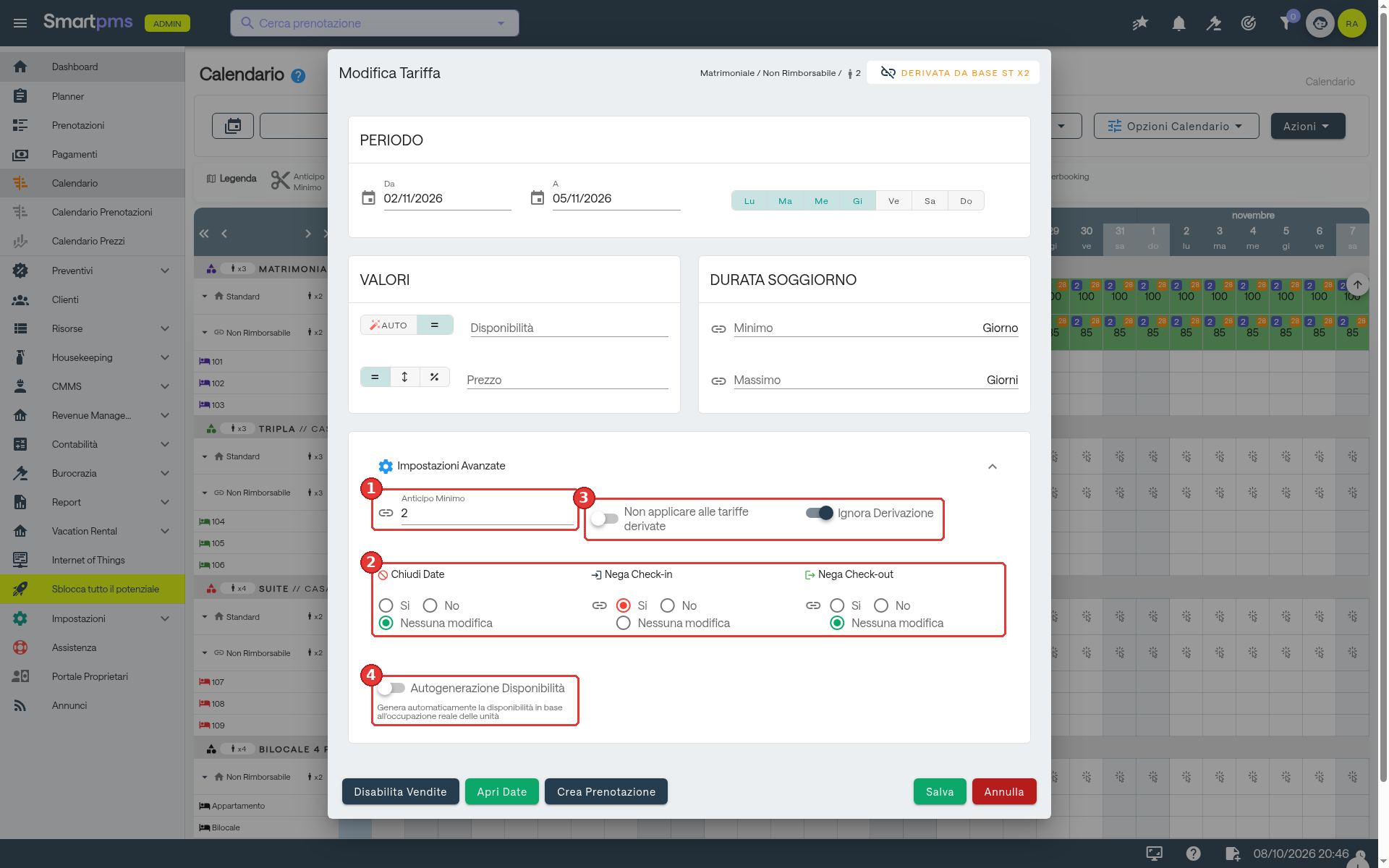
- Minimum Advance Booking: how many days before the check-in date the booking must be made. With 2, for example, a night cannot be booked on the same day or the day before. With 0, there is no minimum advance booking. On the calendar, dates with minimum advance booking show a scissors icon.
- Do not apply to derived rates: saves the change only on the rate you are modifying, without propagating it to the rates derived from it. It applies to that entire save, including price: if you change the price and close the dates together, the derived ones remain at the previous price. The option does not remove the link: upon the next derivation recalculation (e.g., when you save a derivation rule or use Recalculate prices), the derived ones resume from the parent everything the rule inherits, including sales closure.
- Ignore Derivation: used on derived rates; unlocks fields that the derivation makes non-editable. See "Derived rates".
- Close Dates: closes (Yes) or reopens (No) sales on the selected dates together with the other changes you are saving. See the section "Closing and reopening dates".
- Deny Check-in: if set to Yes, no booking can arrive on that date (the night remains sellable within stays started earlier).
- Deny Check-out: if set to Yes, no booking can depart on that date.
- Automatic Availability Generation: this is the same setting as the AUTO button for availability ("Automatically generate availability based on the actual occupancy of the units").
Three-state fields: Yes, No, No change
Close Dates, Deny Check-in, and Deny Check-out have three options:
- Yes: applies the restriction to all selected dates;
- No: removes the restriction from all selected dates;
- No change (default): leaves each date as it is.
This allows you, for example, to change only the price of a month without touching the restrictions already present on some dates. To remove a restriction, you must explicitly choose No: leaving No change does not remove it.
Closing and reopening dates for sale
Closing: Disable Sales and Close Dates
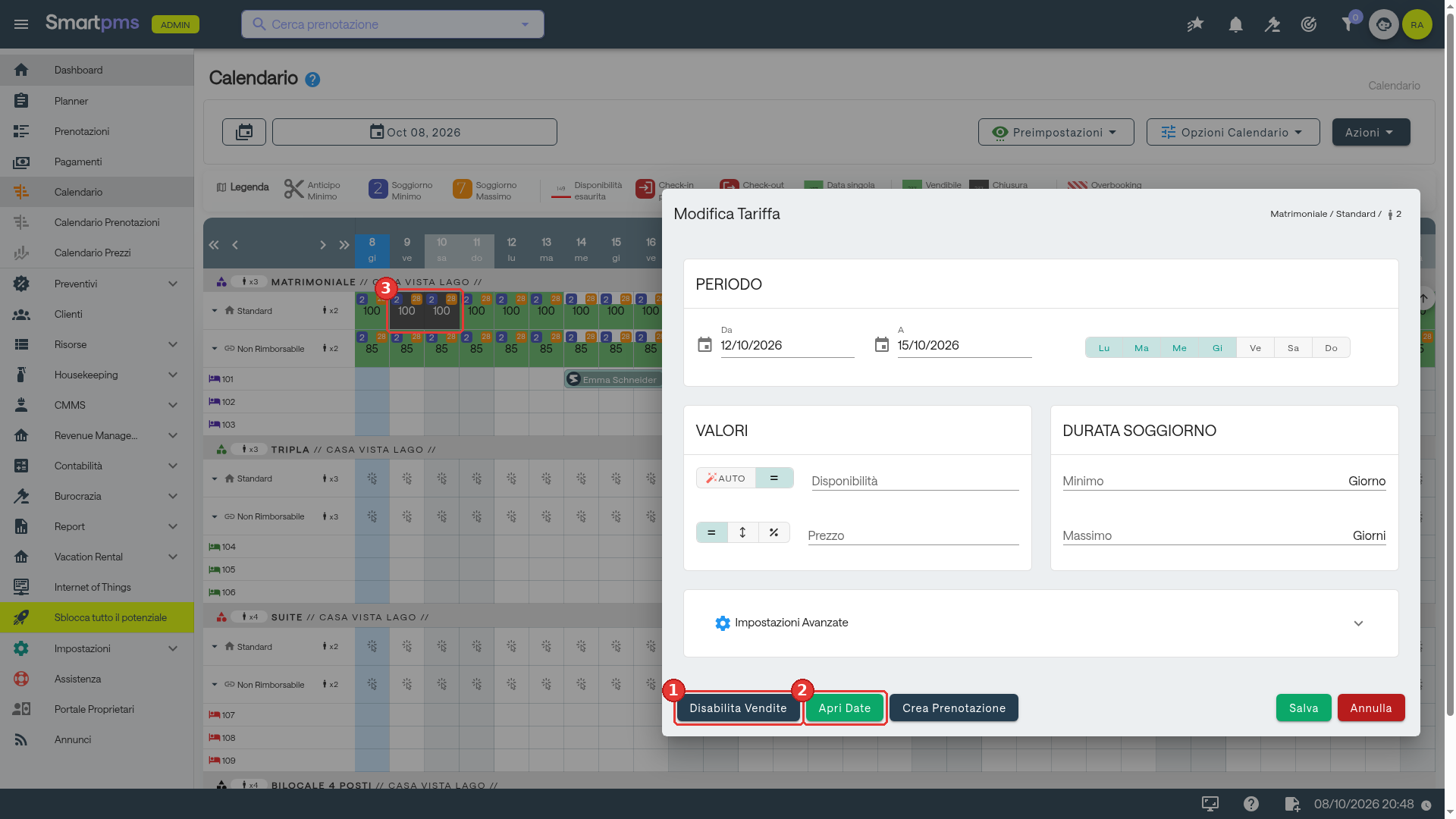
At the bottom left of the Modify Rate window, you find the Disable Sales, Open Dates, and Create Booking buttons (the latter is used to create a booking on the selected dates). There is no separate "Close Dates" button: Close Dates is the three-state option in Advanced Settings.
- Disable Sales immediately closes the selected rate to sales on the dates of the period (stop sell) and saves, without changing price, availability, or restrictions. The button tooltip describes it as: "Makes this rate plan unavailable for booking on the selected dates". The closure is also propagated to derived rates that inherit the sales closure.
- Close Dates (in Advanced Settings, Yes option) produces the same closure, but together with the other changes you are saving with Save (e.g., you change the price and close in a single operation).
In both cases, the closure concerns only that rate (type + rate plan + guests), and the cells become black. The other rates of the same type, if not derived with sales closure, remain on sale.
Sales closure is not a unit block and does not reset availability to zero: the unit remains free on the calendar and can still be sold with another rate plan. If you want to make a unit unbookable on all channels (maintenance, personal use), create a Block: see the guide How to create a booking, an option, or a date block from the Calendar.
If you want to sell one channel and not another, the closure must be done on a rate plan linked only to that channel: the closure travels with the rate plan, not with the portal.
Reopening: Open Dates
Open Dates reopens the rate for sale on the selected dates and, at the same time:
- removes the sales closure (stop sell);
- resets availability to AUTO, recalculating it based on bookings.
The button tooltip warns: "Opens the selected dates provided that a selling price exists". If a date does not have a price, opening it is not enough: see the next section.
If you only want to recalculate availability without removing a desired sales closure, do not use Open Dates: set Availability to AUTO, leave Close Dates on No change, and click Save.
On derived rates that inherit the sales closure from the parent, the Disable Sales and Open Dates buttons are deactivated: close or open the parent rate, or activate Ignore Derivation.
Why a date is not sellable
A night is sellable on a rate only if all these conditions are met. If the customer or the portal does not see the date, check them in this order:
- There is a price. A cell without a price is not sellable. Enter the price with Modify Rate (Exact Variation). If they are new dates, in the same save also set Availability to AUTO (or a value): with only the price, the date appears open, i.e., not closed to sales, but with availability 0, therefore not sellable until the availability is greater than 0 (see point 3). This often happens with distant dates (e.g., beyond 12 months) if the external revenue manager or price copying has not yet covered them: to copy prices from one year to another, see the guide How to copy prices from one year to another with Clone prices.
- The date is not closed to sales. A black cell is closed (stop sell): use Open Dates.
- Availability is greater than 0. With availability 0, the rate does not sell. If the type has free units, set Availability to AUTO and save.
- Restrictions allow the searched stay. A high minimum stay, a denied check-in or check-out, or a minimum advance booking can make the date unbookable for certain combinations of nights, even if the cell is green. Activate Non-sellable dates in Calendar Options: dates unbookable due to restrictions show a warning icon ("Date not sellable due to restrictions").
If you have many dates or many properties to open, use Mass Modification (see below): set sales closure to open and Availability to AUTO.
If SmartPMS automatically closes the nearest dates (automatic closure configured on the rate plan), reopening them manually is valid until the next automatic closure cycle: to change the behavior, modify the rate plan in Settings → Property → Units and rates → Rate plans.
Derived rates: what happens when you modify
A derived rate receives the price (in currency or percentage) from the parent rate and, if provided by the rule, also availability, length of stay, restrictions, and sales closure. What a derivation is and how it is configured is explained in the guide Introduction to derivation rules and in the guide How to create and configure custom derivations; here you only find the effect on changes from the Calendar.
If you modify the parent rate, the change propagates to the derived ones, but only for the elements that the derivation rule inherits. For example, if the rule inherits the price but not the minimum stay, a new minimum stay on the parent does not change the derived one. If you want to change only the parent, activate Do not apply to derived rates before saving. If you change prices and closure, do it in two separate saves: first the prices without the option, so the derived ones update, then the closure. If you often want to close the parent while leaving the derived ones open, remove Sales closure from the derivation rule: this way, neither a rule save nor Recalculate prices will close the derived ones.
If you modify a derived rate, the Derived from label appears at the top of the window followed by the name of the parent rate, and the fields inherited from the parent are gray and non-editable, with the chain icon next to them:
- Availability, if the rule inherits availability;
- Minimum and Maximum, if it inherits the length of stay;
- Minimum Advance Booking, Deny Check-in, and Deny Check-out, if it inherits restrictions;
- Close Dates, Disable Sales, and Open Dates, if it inherits sales closure.
To modify them anyway, activate Ignore Derivation (in Advanced Settings): the fields unlock and the icon next to Derived from becomes a broken chain. The value you save remains on the derived one, but does not make it independent: upon the next modification of the parent applied to the derived ones, or a derivation recalculation with Recalculate prices, the inherited fields are recalculated by the parent. If you want an element to always remain independent, remove that inheritance from the derivation rule (chain icon next to the rate name on the calendar).
The plan's Minimum price takes precedence over the derivation. If the price calculated by the derivation is lower than the Minimum price of the derived rate plan, SmartPMS applies the minimum price. This is why a derived one can remain stuck at the same amount even when the parent goes down.
Derived price=parent price + (parent price × percentage ÷ 100), but never below the plan's Minimum price
Example: parent 60 euros, derivation +20%, derived plan's Minimum price 100 euros
60+(60×20÷100)=72 euros → 72 is below 100 → on the calendar the derived one is worth 100 euros
In this case, changing the percentage or redoing the Mass Modification is useless: lower the Minimum price of the derived plan and then execute Recalculate prices from the chain. The complete procedure is in the guide Introduction to derivation rules.
Manual or AUTO availability: the risk of overbooking
SmartPMS sends the availability of each rate to the portals. With AUTO, availability follows the actually free units: when a booking comes in, it goes down; when it is canceled, it goes up, and the portals stop selling when there are no more units.
With a manual value (=), the written number is sent to the portals as is until something changes on the same dates: with the default availability generation (Regenerate), every booking created, modified, moved, or canceled recalculates the type's availability on its nights and also replaces manually set values, including zero. If it is higher than the actual units, the portal continues to sell even when the type is full and overbookings arrive, usually always on the same type.
The most common error arises during a price change: the price (e.g., 150) is accidentally written in the availability field, or the availability is left on a fixed value. To avoid this:
- when you modify prices, individually or in bulk, set Availability to AUTO: with an empty field, the availability remains the current one, even if it had been set manually;
- before saving, check that every number is in the right field;
- if on the calendar you see an availability higher than the units of that type, select the dates and set Availability to AUTO.
To keep dates closed, do not use zero availability: at the first booking that touches those nights, the dates return to sale. Use sales closure on the parent rate (it also applies to derived ones) or a block on the units: recalculation does not modify them. Use manual availability only for precise and temporary needs (e.g., temporarily selling fewer units than you have), remembering that you will have to bring it back to AUTO.
Modifying many rates together: Mass Modification
Mass Modification is used when you need to apply the same change to many rates or multiple properties in the same period: opening all dates of a year, closing a period on all rooms, lowering prices for July, removing a minimum stay everywhere.
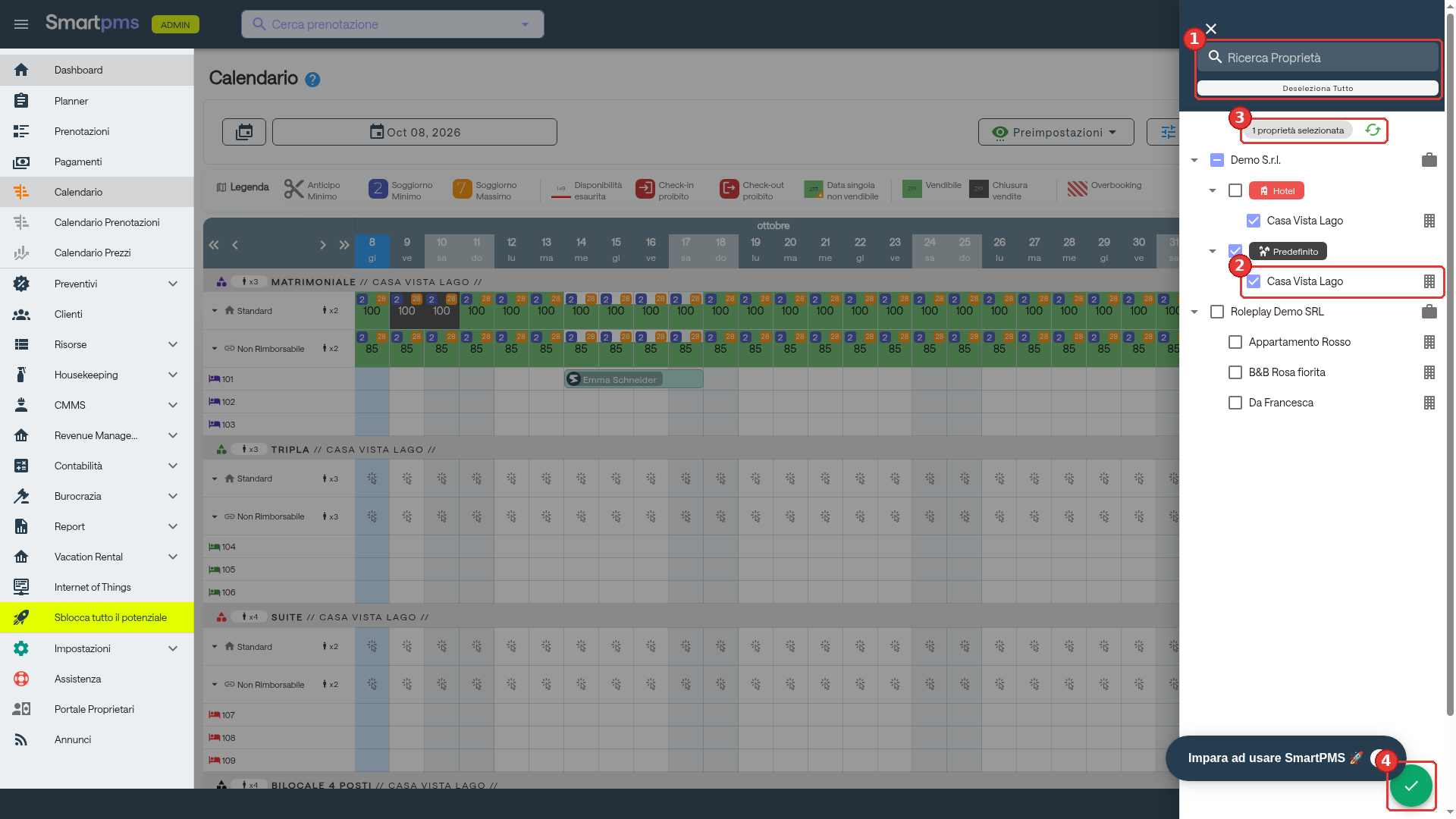
- Choose the properties with the Property Filter (funnel icon at the top right, next to notifications): check one or more properties, check the counter (e.g., "1 property selected"), and confirm with the green check button at the bottom. The number on the funnel indicates how many properties are selected. The Calendar and Mass Modification show only the rates of the selected properties. With no property selected (counter at 0), the rates of all properties appear, and the change can affect them all: if you want to intervene on a single property, always select it first. To return to seeing everything, use Deselect All and confirm. Then open Calendar.
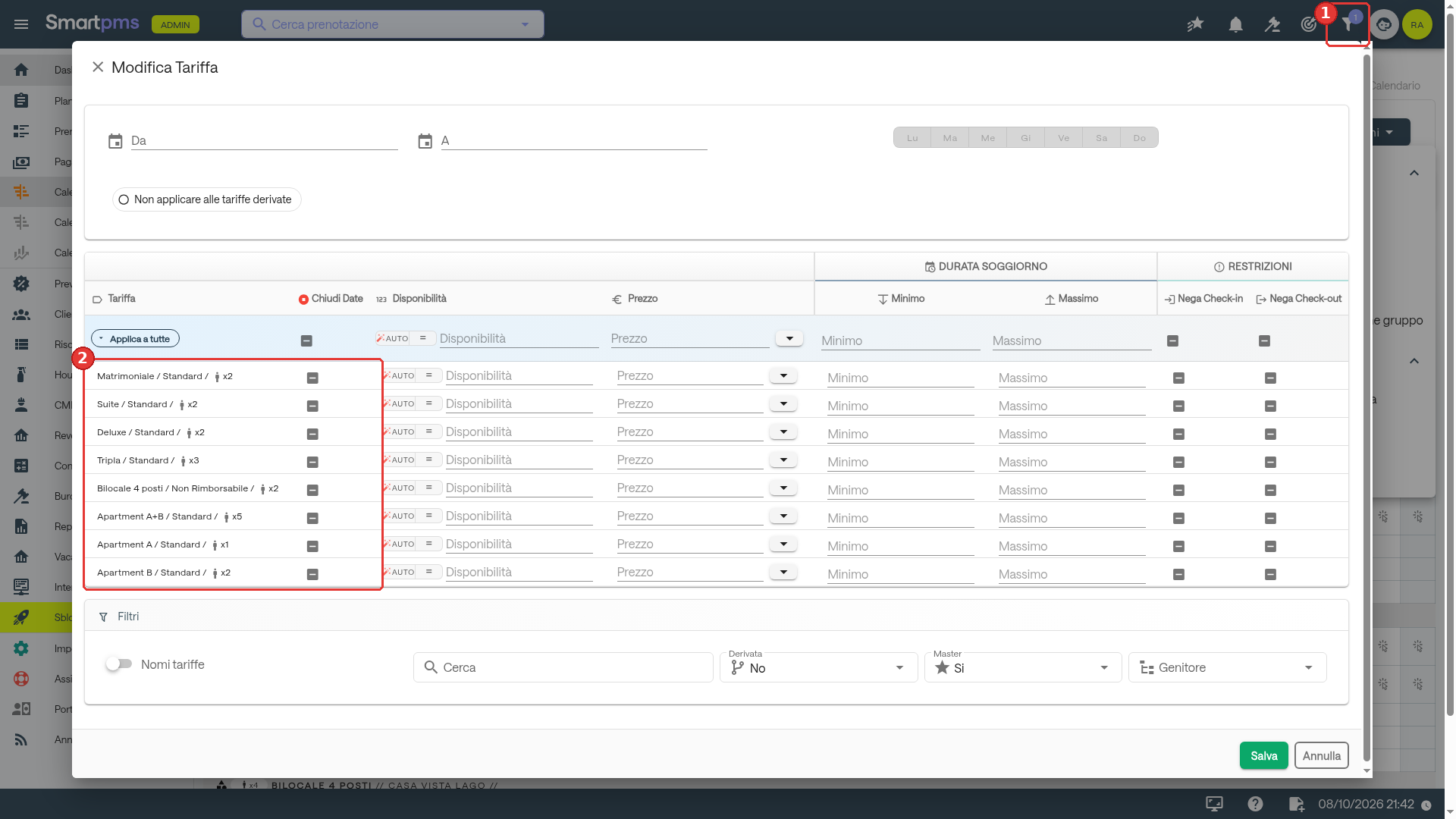
- Click Actions and, in the Rate group, choose Mass Modification. A full-width window also titled Modify Rate opens, with the list of rates of the selected properties.
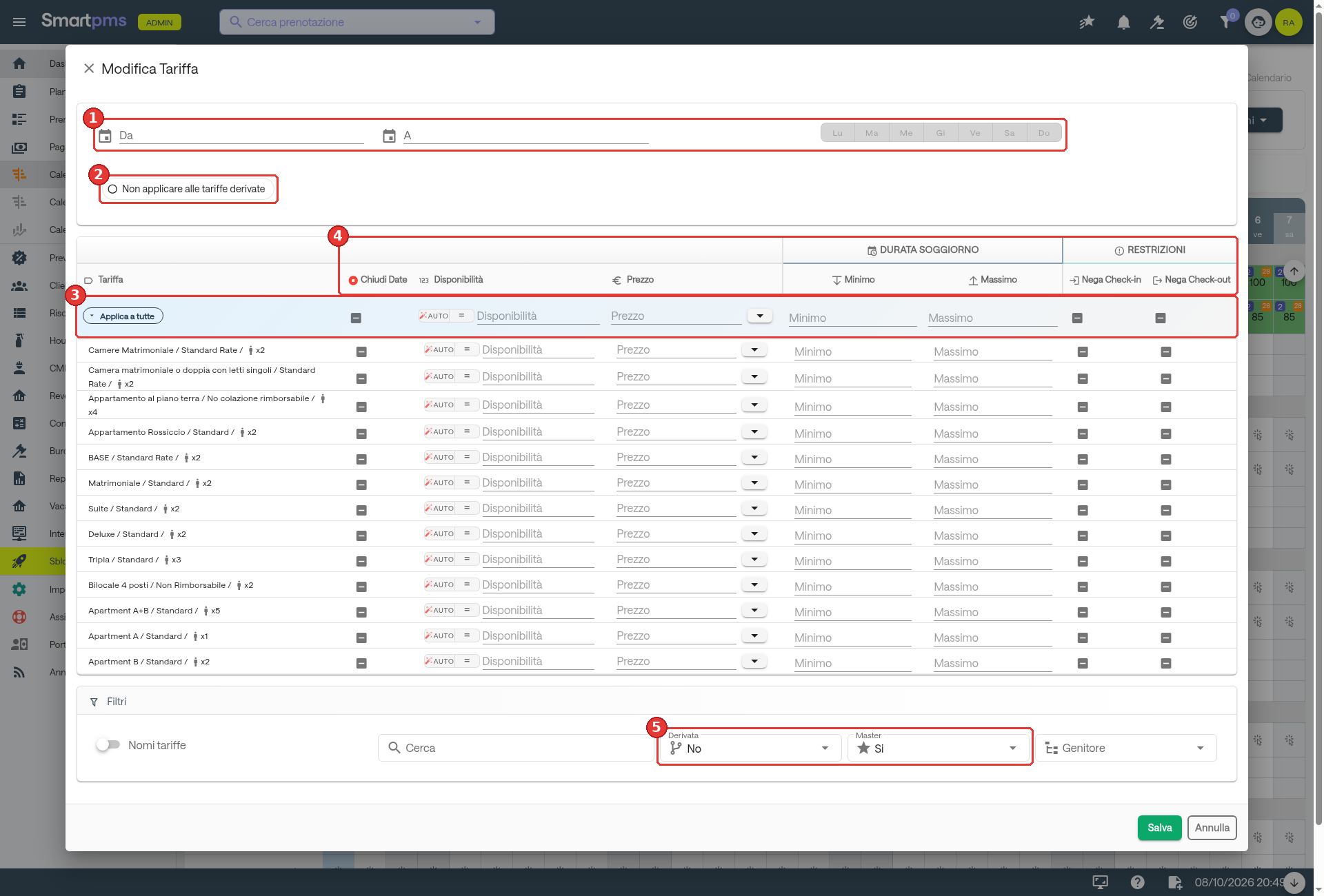
- Set From and To from the calendar that opens by clicking the fields. The Days of the week buttons remain deactivated until you have chosen both dates; then they are all active and you can deactivate those to exclude.
- If you do not want to propagate the change to derived rates, activate Do not apply to derived rates.
- Fill in the values:
- in the Apply to all row, to apply the same value to all rates in the list;
- or row by row, for different values per rate.
- Click Save and confirm in the Confirm mass modification window ("Are you sure you want to modify the data of … elements?").
Below: the Property Filter panel with only one property checked, and the Mass Modification which consequently lists only the rates of that property (the number 1 on the funnel indicates the active selection).
What you find in the window
The available columns are: Rate, Close Dates, Availability (AUTO or =), Price (with the drop-down menu next to it to choose Exact, Value, or Percentage Variation), Length of Stay (Minimum and Maximum), and Restrictions (Deny Check-in and Deny Check-out). Minimum Advance Booking is not modified by Mass Modification: use Modify Rate from the cell.
Close Dates, Deny Check-in, and Deny Check-out are three-state boxes, as in single modification:
- indeterminate box (dash): no change;
- unchecked box: opens the sale or removes the restriction;
- checked box (red): closes the sale or applies the restriction.
Fields left empty are not modified. A rate with all fields empty is skipped.
Which rates are shown
By default, the list shows only the main rates: in the Filters section at the bottom, the Derived filter is set to No and the Master filter to Yes. These are the rates that, when saved, transmit changes to derived rates according to the rules. In the Filters section you can:
- search for a rate by name with Search;
- activate Rate names to see the internal name of the rate instead of "type / rate plan";
- change the Derived and Master filters (Yes / No options) or empty them with the X: without filters, derived rates also appear (e.g., Non-Refundable). With the Parent filter, you see the rates of a parent.
If the properties have many rates, the list loads 100 at a time: use Load more at the bottom.
The change is not instantaneous
After confirmation, the message "Process scheduled" appears: the Mass Modification is queued and processed in the background, together with derivations and sending to portals. It can take from a few seconds to a few minutes, depending on the number of rates and the length of the period; sending to portals is also not instantaneous. The Calendar does not update itself: reload it or move by one day to see the new values. Avoid repeating the same Mass Modification several times in a row while the first one is still being processed.
Rate History: who changed what and when it was sent
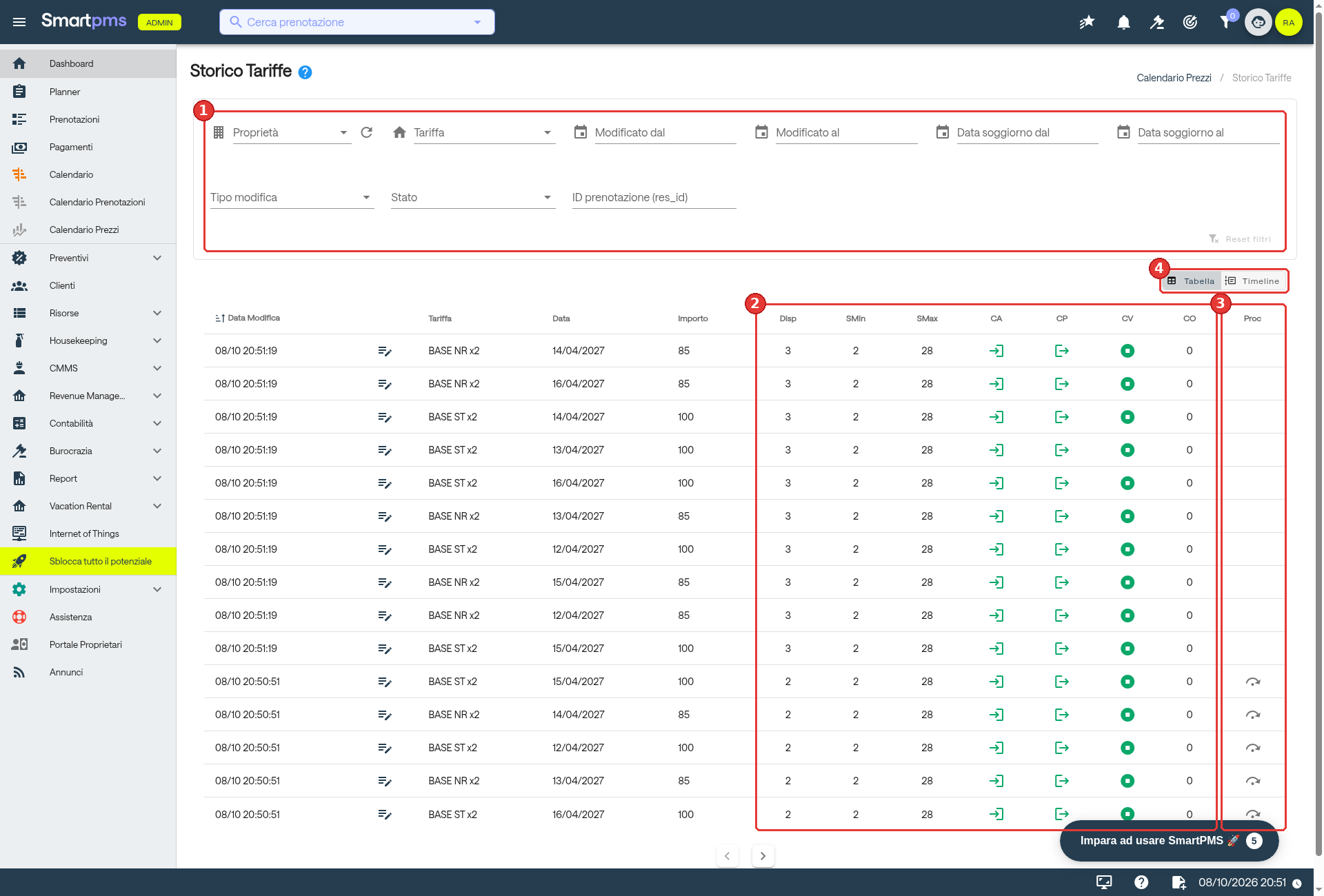
The Rate History records every change in price, availability, and rate restrictions and the status of sending to portals. It is the tool to understand why a price or availability has changed and to verify if a change has departed towards the channels.
To open it: Calendar → Actions → Rate History (in the Rate group). You need the permission to view rate history.
Filters
Property, Rate, Modified by / Modified to (date of the change), Stay date from / Stay date to (calendar dates involved), Change type (even more than one), Status, and Booking ID (res_id). Filters apply as soon as you choose a value: there is no search button. To find the changes of a rate, start from Property and Rate, then narrow the period with Modified by / Modified to or with the stay dates. With Reset filters, you return to the full view. At the top right, above the table, you can switch from Table view to Timeline view.
The type of change can be, for example: Price Change, Derivation, Mass Update, Booking Creation, Booking Modification, Booking Cancellation, Automatic Closure, Price Copy, ICal, RMT (external revenue manager), Initial Synchronization, Autopilot.
A change made by hand from the Calendar without activating Do not apply to derived rates is processed together with derivations: this is why in the History it can appear with the type Derivation, even on the parent rate, instead of Price Change.
Table columns
Column | Meaning |
|---|---|
Modification Date | Date and time the change was recorded |
icon | Type of change; by hovering the mouse you see the type and, for bookings, the booking code that changed the availability |
Rate | Name of the modified rate |
Date | Calendar date to which the value refers |
Amount | Rate price for that date after the change |
Avail | Availability |
MinStay | Minimum stay |
MaxStay | Maximum stay |
CA | Arrival closure (Deny Check-in): green icon if not active, red if active |
CP | Departure closure (Deny Check-out): green icon if not active, red if active |
CV | Sales closure (stop sell): green icon if the date is on sale, red if it is closed |
CO | Minimum advance booking (cut off), in days |
Proc | Status of sending to channels |
In the Proc column:
- Processed (green check): the change has been sent to the Channel Manager. By hovering the mouse, you see the date and time of sending: it is proof that the data has departed towards the portals.
- Ignored (curved arrow icon): by hovering the mouse, you read "Ignored for subsequent modification or unchanged data". The row was not sent because in the meantime a subsequent change arrived on the same date (only the most recent value is sent) or because the data was unchanged.
The Status filter has the values To be Processed (rows not yet sent), Processed, and Ignored.
For bookings, a new arrival normally lowers Avail compared to the previous row and a cancellation makes it go back up.
Who made the change. In the Timeline view, each row indicates the origin: the booking with its code (e.g., "Booking 6ac7…") if the change was caused by a booking, the type of automatic change (e.g., Automatic Closure or RMT), or a change made by a user of the management system. The name of the individual user is not shown: if you need to know which colleague made a change, contact support indicating the rate, date, and time of the row.
The price is correct in SmartPMS but not on the portal
Before contacting support, perform these checks, in order:
- Wait a few minutes and reload. Sending to portals is not instantaneous, especially after a Mass Modification.
- Check the Rate History for that rate and that date: the most recent row must have the expected amount and Proc on Processed. If it is Processed, the data has departed from SmartPMS.
- Verify that you are looking at the right rate. On the portal, check the same rate plan and the same number of guests as the Calendar row. If the rate is derived, remember the plan's Minimum price (see above).
- Check the settings on the portal. Promotions, discounts, prices per occupancy, surcharges, or restrictions set directly in the portal's extranet (e.g., a minimum advance booking or a minimum stay on Booking.com) change what the guest sees, regardless of SmartPMS. Restrictions set both on the portal and in SmartPMS can conflict: it is better to manage them from one side only.
- Markups by channel. If your account applies a markup or discount per channel in the connection with the portal, the price on the portal is different from that of the Calendar by choice.
If after these checks the data in SmartPMS is correct, the row is Processed, and the portal still shows a different value, contact support indicating property, rate, dates, expected price, and price seen on the portal (better with a screenshot of both).
Frequently asked questions
17I did the Mass Modification but the calendar has not changed: did it not work?
Mass Modification is queued ("Process scheduled") and processed in the background: it can take from a few seconds to a few minutes, depending on the number of rates and the length of the period. The Calendar does not update itself: reload it or move by one day. Then check that you have actually filled in the fields: a Close Dates box left on the dash changes nothing, and empty fields are not modified. Also remember that by default only the main rates are listed (filters Derived: No and Master: Yes): derived ones change only if the rule inherits that value. You can verify the outcome in Actions → Rate History: filter Property, Rate, and the date of the change, and hover the mouse over the row icon to read the type (Mass Update).
How do I close a period on all rooms?
From Calendar → Actions → Mass Modification, set From and To, in the Apply to all row select the Close Dates box until it becomes red and click Save, then confirm. For a single rate, you can instead select the dates on the row, open Modify Rate, and click Disable Sales. Sales closure does not block the unit: if you want to make it unavailable on all plans and channels (e.g., seasonal closure or works), create a Block.
I clicked Open Dates but the date is still not selling. Why?
Open Dates removes the sales closure and resets availability to AUTO, but does not create a price. If the cell is empty, enter the price with Modify Rate. Then check that availability is greater than 0 (if all units are occupied, AUTO returns 0) and that minimum stay, denied check-in or check-out, and minimum advance booking allow the requested stay. Finally, verify that there are no restrictions set directly in the extranet on the portal and wait a few minutes for sending.
Why do dates after a certain date (e.g., in a year) appear closed?
Usually, prices are missing beyond that date: for example, the external revenue manager sends prices only up to a certain horizon, or the next year's prices have not yet been entered. Enter the prices for the period with Modify Rate or Mass Modification and, in the same save, set Availability to AUTO (or a value): with only the price, the date appears open but with availability 0, therefore not sellable. Alternatively, copy prices from the previous year with price cloning (the guide How to copy prices from one year to another with Clone prices). If the dates already have a price but are black, open them with Mass Modification: sales closure to open and availability to AUTO.
I modified the parent rate but the derived rate (e.g., non-refundable) does not update
Check, in order: 1) that you have not activated Do not apply to derived rates; 2) that the derivation rule inherits that value (price, availability, length of stay, restrictions, or sales closure) by clicking the chain next to the derived rate; 3) if the derived one is higher than expected and stuck at an amount, the Minimum price of the derived plan: it takes precedence over the derivation, it must be lowered, and then Recalculate prices must be executed from the chain. Propagation can take a few minutes.
I cannot modify the minimum stay (or availability) of a derived rate: the fields are gray
Gray fields with the chain icon are inherited from the parent rate (at the top of the window you see the Derived from label with the parent's name). You can modify the parent (the change propagates), or activate Ignore Derivation in Advanced Settings to write a different value on the derived one. That value will, however, be recalculated upon the next modification of the parent or the next derivation recalculation. If you always want to manage that value independently, remove the inheritance from the derivation rule.
I removed the restriction but it is still there
In three-state fields (Close Dates, Deny Check-in, Deny Check-out), the default option is No change: to remove the restriction you must choose No (in Mass Modification, unchecked box and not the dash). For minimum stay, set Minimum to 1. Also check that you do not confuse minimum and maximum stay: on the cells, the minimum is in the blue box and the maximum in the orange one, and a 28 on the cell can be a maximum stay. If the rate is derived and the restriction is inherited, it must be removed on the parent rate.
On the calendar, I see an availability higher than my rooms and I receive overbookings always on the same room
Probably on those dates, availability was set by hand with a value that is too high (often a price ended up by mistake in the availability field). A manual value is sent to the portals as is and does not go down when bookings come in. Select the dates on the rate (or use Mass Modification), set Availability to AUTO, and save: SmartPMS will recalculate availability based on bookings. In the Rate History, you can see when that value was set.
How do I set a minimum advance booking (cutoff) only for some dates?
Select the dates on the rate row, in the Modify Rate window expand Advanced Settings and set Minimum Advance Booking with the number of days required before check-in; with 0 you remove it. If the rate is derived and the rule inherits restrictions, the field is blocked: modify it on the parent rate or activate Ignore Derivation. Minimum Advance Booking is not present in Mass Modification. If a minimum advance booking is also set on the portal in the extranet, the portal's one continues to apply.
The price is correct on SmartPMS but on Booking.com it is different
First of all, check the price in the Booking.com extranet, not on the page the guest sees: in the guest view, Booking.com can add promotions, cleaning fees, and city tax.
If the difference concerns an already confirmed booking and you use a revenue manager (e.g., Smartpricing or PriceLabs), the price may have changed immediately after the booking: the new booking reduces availability and the revenue manager recalculates the price. In the Calendar, you therefore see the new price, while the guest booked at the previous one. To find it, open Calendar → Actions → Rate History, filter Property, the booked Rate, and, in Stay date from / Stay date to, the arrival date: rows with Modification Date prior to the booking time show the price valid at that moment. In the Timeline view, you also see if the subsequent change arrived from the revenue manager (RMT).
The Rate History amount is that of the SmartPMS Calendar, before any markups or discounts per channel applied in the connection with the portal: if you have a markup for Booking.com, the price on the portal is different by choice.
If the expected price does not seem to have arrived, check that the last row of the Rate History has the correct amount and Proc on Processed: in that case, the price has been sent. Then verify on the portal the rate plan and number of guests, promotions, discounts, and prices per occupancy set in the extranet.
If in the extranet the price is correct but the guest sees a different amount, contact Booking.com support, explaining that you have already verified the synchronization with the Channel Manager. If instead it is the extranet that shows a different price from the one sent, and the difference remains after a few minutes, contact support with property, rate, dates, and the two prices.
Can I close dates on one portal and leave them open on another?
Sales closure travels with the rate plan, not with the portal. To manage channels differently, separate rate plans are needed, each linked only to the portal concerned: by closing or opening the plan of a channel, you change only that channel.
I set the minimum stay but shorter bookings arrive from Booking.com: why?
It almost always happens with derived rate plans created directly on the Booking.com extranet (e.g., a weekly rate or a non-refundable one calculated as a discount on the Standard) and not linked to a SmartPMS rate plan. These plans receive the price of the starting plan from Booking.com, but not the restrictions you send from SmartPMS: minimum stay, denied check-in and check-out, and sales closure. SmartPMS sends restrictions only to plans linked (mapped) with its rate plans: on the derived plan, the guest can therefore also book durations that would not be allowed in SmartPMS.
How to verify it
- Check with which rate plan the booking arrived: if it does not correspond to any plan you manage from the Calendar, it is probably a plan created on Booking.com.
- In the Booking.com extranet, open Rates and availability → Rate plans: in the Price column, derived plans report a wording like "based on" another plan.
How to solve (choose one of these paths)
- Delete the derived plans on Booking.com, so only the plans managed by SmartPMS remain on sale. It is the simplest solution.
- Set restrictions by hand on the extranet for those plans. It works, but you will have to manage them in two places and update them at every change: it is the least recommended solution.
- Create the corresponding plan in SmartPMS (e.g., a plan derived from the Standard) and have it linked to the Booking.com plan: this way, price and restrictions arrive from SmartPMS as for the other plans. For the link (mapping), contact support indicating property and plan name on Booking.com.
I cannot open or close the price per guest row (e.g., 3 guests) on the calendar
The row with the number of guests that appears under a rate plan, with the Prices per guest label and the padlock, is not a rate in itself: it shows the price calculated for that number of guests starting from the base occupancy rate, with the set supplement or discount. You view it from the rate menu with View prices per guest.
That row is read-only. Clicking the dates only opens the menu to create a booking or a quote, not the Modify Rate window, and the row does not appear in Mass Modification.
- To change the price for that number of guests, open the rate menu and choose Manage prices per guest: modify the variation and click Modify. The configuration applies to all dates.
- To close the sale, select the dates on the base occupancy rate row and use Disable Sales: the closure applies to the type with all numbers of guests.
It is not possible to close to sale only one number of guests on specific dates. If a room has a lower capacity than the others of the same type (e.g., 4 rooms for 3 people and 1 for a maximum of 2), create a separate type for that room with the correct maximum occupancy and move the unit there.
To sell it on the portals, a dedicated element is also needed there: on Booking.com a new room type in the same property listing, on Airbnb a new dedicated listing in the same account. Then contact support for the link.
When I open the dates, a rate I want to keep closed also opens (e.g., a 2-day rate), while on another property with the same settings it remains closed: what does it depend on?
It depends on the sales closure saved on the individual dates of the rates, not on the rate plan settings.
A derived rate can receive availability from the parent rate but not sales closure: it depends on the Rate Derivation rule. In this case, when you open the dates on the parent rate, availability also arrives at the derived one. The derived one remains closed only on the dates where it already has its sales closure (black cell); where it does not have it, it opens together with the parent.
This is why two properties with the same rate plan can behave differently: on one, the rate has sales closure on more dates than the other. Also check the parent rate: if it is the parent that has sales closure on those dates, on the calendar all the property's rates appear black; if the parent has only availability 0, the cells are white and the derived one will open together with it.
To keep the rate always closed when you open the dates:
- From the Calendar, select the properties with the Property Filter (funnel icon at the top right).
- Click Actions and choose Mass Modification.
- Set From and To on the period you want to cover. You can go up to a maximum of two years from today.
- In the Filters section, write in Search a part of the rate name (e.g., "2D" if the rate is called "RR 2D x2"), then remove the Derived filter with the X. Search compares the rate name, not the rate plan name shown in the list, and the search is applied when you change a filter: this is why it must be written before removing Derived. If you write the plan name, or write after removing the filter, the list shows all rates.
- Check that only the rows of the rate to be closed remain in the list, select the Close Dates box on each one (it becomes red), and leave the other fields empty.
- Click Save and confirm.
From that moment, by opening the dates on the parent rate, that rate remains closed. To open it on specific dates, use Open Dates directly on its row. If instead you include it in an opening (Open Dates on its row or Mass Modification with Close Dates not selected), the sales closure is removed.
There is no setting that keeps a rate closed on new dates automatically: when the closed period nears its end, repeat the closure on subsequent dates (e.g., once a year, when you open the new season).
Automatic opening of the rate plan has nothing to do with it: if it is empty, the plan does not reopen by itself, but the rate can still open together with the parent as described above.
Closing the parent rate does not keep the derived one closed. When you open the dates with Open Dates on the parent, the parent's sales closure is removed and the derived one opens together with it, if on its row the date is not closed. Furthermore, on the dates when the parent is closed, none of the rates that inherit its closure are on sale (e.g., Non-Refundable and Weekly). New dates are always born without sales closure.
I had closed some dates with availability 0, but after modifying a booking they became sellable again: why?
With default availability generation (Regenerate), every time you create, modify, move, or cancel a booking, SmartPMS recalculates the type's availability on all involved nights: units of the type minus those already booked. The recalculation also replaces the values you had written by hand, including 0, and the new availability is sent to the portals.
It often happens when you extend or move a booking: all nights until the new check-out are recalculated and reopen, even those you had never opened.
To keep dates closed stably:
- use sales closure on the parent rate (it also applies to derived rates);
- or put a block on the units on the calendar;
- or do not enter prices yet on periods you do not want to sell.
Sales closure and blocks are not touched by recalculation. After the modification, check on the portals that the dates appear closed.
I want to close only the Standard rate and leave the derived rates open (Non-refundable, Minimum nights, Weekly): how do I do it?
It depends on how the derivation rules are set.
If the derived ones inherit sales closure (chain with Sales closure active), closing the Standard also closes them. You can close only the Standard with Do not apply to derived rates, but the link remains: upon the next derivation recalculation (e.g., when you save a derivation rule or use Recalculate prices), the derived ones resume the Standard's closure and close. In this case:
- first modify the Standard's prices without the option, so the derived ones update;
- in a second save, close the Standard with the option active;
- if later you find the derived ones closed on the same dates, reopen them from their row on the calendar.
If you often want to close the Standard while leaving the derived ones open, the most stable solution is to remove the closure link: on the calendar, click the chain next to the name of each derived rate, uncheck Sales closure, and save. Price and restrictions continue to follow the Standard; the closure instead remains independent, so you can close the Standard even without the option. If you want to close a derived one too, you do it from its row.
After saving a derivation rule, recalculation takes a few minutes: reload the calendar before checking.
After midnight I can no longer close or change the price of the current night: "start date must be a date after or equal to…" appears
The Calendar does not accept changes on past dates. Shortly after midnight, today's date becomes that of the next day: from that moment, the night just begun can no longer be closed, reopened, or modified, and upon saving, the message "start date must be a date after or equal to…" appears with the new day's date. Some portals, like Booking.com, can however continue to sell the current night until late at night.
To not receive bookings on the current night when you can no longer intervene from the management system:
- From the portal extranet: close the room or change the price of that night directly on the portal, or advance in the portal settings the time until which you accept bookings for the night itself.
- From the management system: activate Automatic closure on the rate plan (Settings → Property → Units and rates → Rate plans) with Days = 0 and a time before midnight (e.g., 23:30). After that time, the current night remains closed on all channels.
Do not set Automatic closure with Days = 0 and a time after midnight (e.g., 00:45 or 01:00): at that time "today" is already the next day, so the following night is closed and not the current one.
Related guides
How it works
Configuration
Configuration
Configuration
How it works
Configuration