

How to copy prices from one year to another with Clone prices
With Calendar → Actions → Clone prices, you can copy the prices of a period (even an entire year) to the following year in one go, for all rates of the selected properties, with an optional percentage increase. Minimum stay and restrictions are also copied, but the copied dates have 0 availability: after copying, you must open them for sale.
You are in the right place if…21 cases
- “How do I copy the 2026 season rates into 2027?”
- “I want to open bookings for 2027 while keeping 2026 prices for now”
- “How do I clone prices?”
- “I need to open the calendar for next year with the same conditions as this year”
- “I want to copy the prices I have now for the whole next year without re-entering them manually”
- “I would like to duplicate last year's price list and increase it by 5%”
- “I cloned the prices but the new year's dates remain closed and not sellable”
- “After copying I see the price but the availability is at zero”
- “What does "Align days of the week" mean?”
- “What does the "Overwrite existing prices" option do?”
- “I copied the prices but some dates of the new year did not take the price”
- “Can I copy prices only for a period, for example only the summer?”
- “Can I copy prices from one property to another?”
- “Are derived rates copied or recalculated?”
- “Where do I see if the copied prices have been sent to the portals?”
- “Price Clone gives an error: price correction must be at least 0”
- “In the To field I cannot choose a date for the following year”
- “I click Save on Price Clone but nothing happens”
- “Price Clone says: The property field is required”
- “I cannot clone prices, the window remains open”
- “Annual Price Cloning (copying prices between one year and another)”
What is Price Clone for
When preparing for a new season, the most convenient starting point is often the current year's price list. Instead of re-entering prices day by day, Price Clone takes the values saved in the Calendar for a starting period and rewrites them onto the same dates of a subsequent year, for all rates of the properties you select. If you wish, you can also apply a percentage increase.
This is the function to use to "open 2027 with 2026 prices" or to "duplicate the price list". After copying, you can tweak individual periods using single or bulk editing (see the guide How to edit prices, availability and restrictions from the Calendar).
Before starting, keep three rules in mind:
- Copying only works towards a subsequent year. The starting period must be within a single calendar year and the destination year must be subsequent (up to three years later). You cannot copy within the same year, nor to a previous year.
- Copying concerns all rates of the selected properties. You cannot choose a single Rate plan or a single Unit.
- Copied dates have 0 availability, unless you choose to copy availability as well (not recommended, see below). Therefore, after copying, you must open the dates for sales.
To use Price Clone, your user must have permission to edit the rate calendar: without this permission, clicking Save will display "Access Denied" and nothing will be copied. In this case, contact support explaining which copy you want to perform (property, starting period, and destination year).
Where to find it
- Open Calendar from the main menu.
- Click Actions in the top right.
- In the Rate group, choose Price Clone.
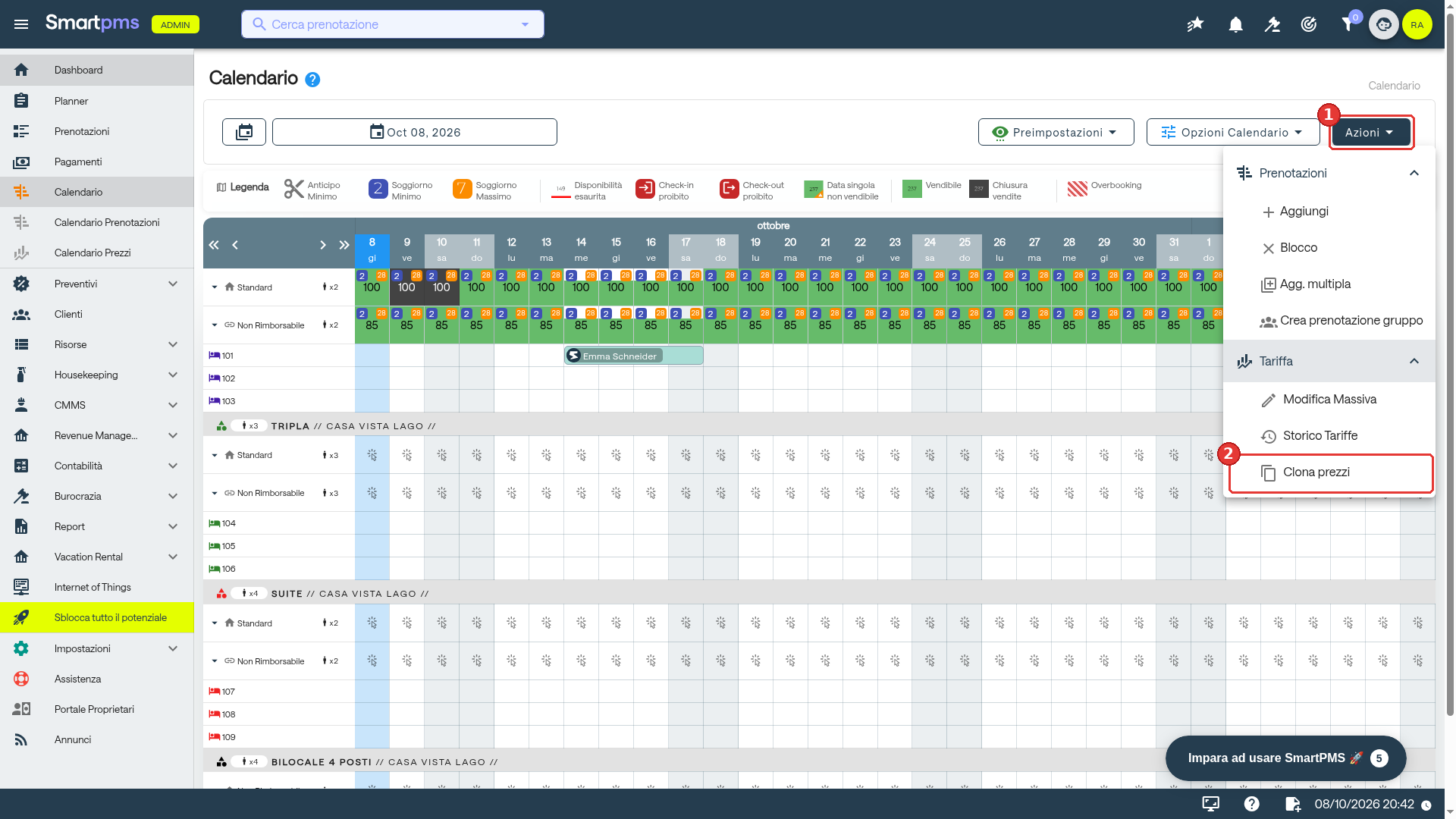
In the same group, you will also find Bulk Edit and Rate History, which you will need after copying.
How to copy prices, step by step
The Price Clone window will open. Fill in the fields in this order:
- Property (mandatory): click on the field and choose one or more properties from the menu that opens; you can also type part of the name to find it faster. At the top of the menu are the Select All and Deselect All buttons. The chosen properties appear in the field, separated by a comma. The field always starts empty and does not take into account the Property Filter (funnel icon in the top right): even if you are looking at only one property in the Calendar, you must choose it again here. All rates for each selected property will be copied. If the field remains empty, clicking Save will not start the copy: the window remains open and "The property field is required." appears below the field.
- Price correction (optional): enter a percentage increase as an integer from 0 to 100 (e.g., 5 for +5%). If you leave it blank, prices remain identical. The field does not accept negative values, decimals, or values greater than 100: to lower prices, copy without correction and then use bulk editing with a percentage change.
- From: the first day of the starting period. As soon as you choose this date, the system automatically fills in To with December 31st of the same year.
- To: the last day of the starting period. You can shorten it (e.g., to copy only the summer), but the field's calendar does not go beyond December 31st of the year chosen in From: the period must remain within the same year.
- Destination year: choose from the three years following the starting year (e.g., starting from 2026 you can choose 2027, 2028, or 2029).
- Evaluate the three options (explained in the next section): Overwrite existing prices, Align days of the week, Copy availability. When the window opens, all three are disabled.
- Click Save. To close without copying anything, click Cancel.
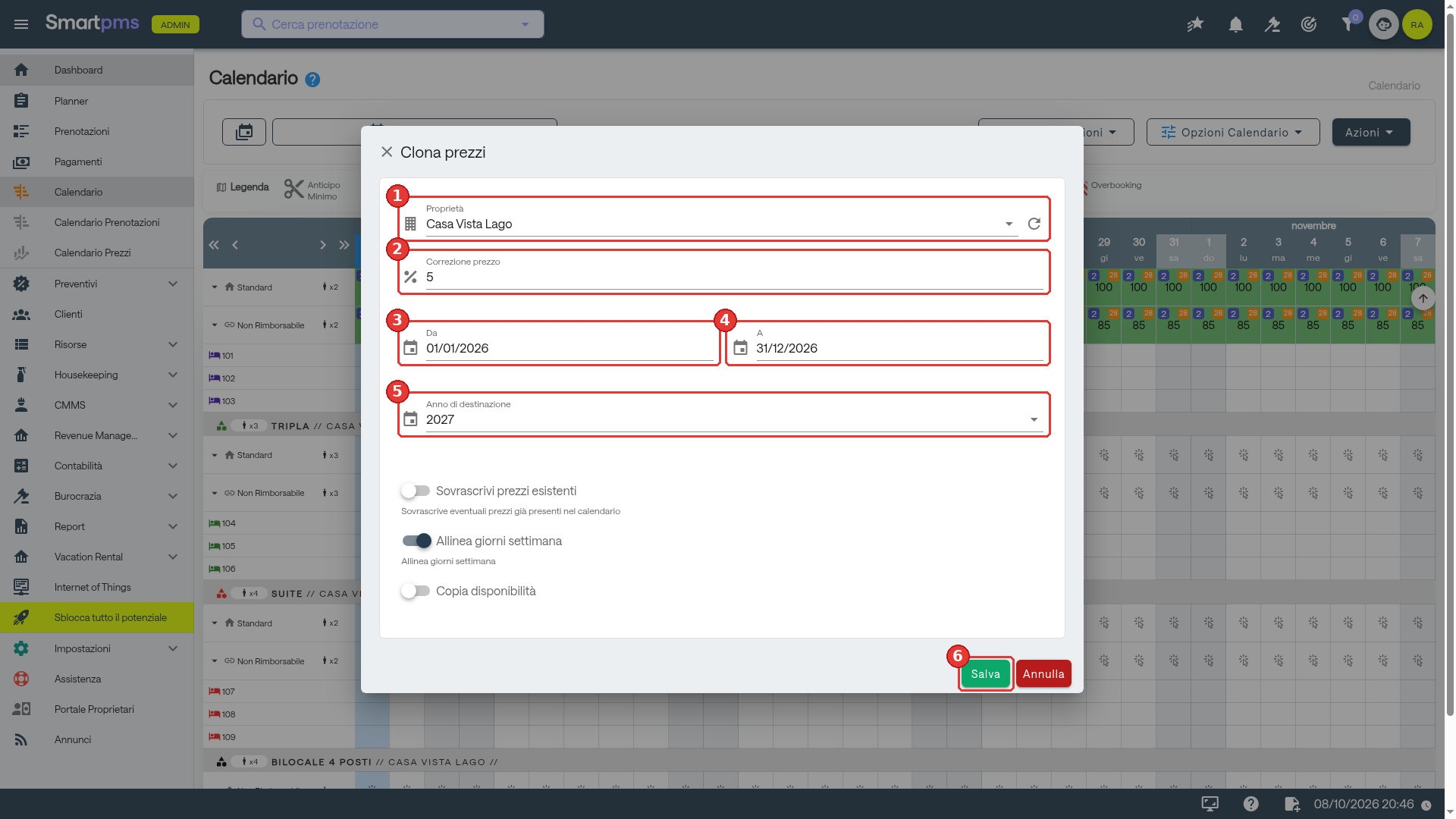
If a property is missing or a value is invalid, nothing is copied upon saving, the window remains open, and the reason appears below the relevant field: "The property field is required." if you have not selected any property, or "price correction must be at least 0.", "price correction cannot be greater than 100." or "price correction must be an integer." for the Price correction. Correct the field and click Save again.
Prices are written to the Calendar immediately after saving. Sending to portals starts automatically right after and proceeds in a queue: for long periods and many rates, it may take a few minutes (see "How to verify the outcome").
If you want to copy only a period
Set From and To to the period you are interested in, for example from 01/06/2026 to 30/09/2026, and choose the destination year. Only the corresponding dates of the destination year (01/06–30/09) will be affected, without modifying the rest of the year.
The three options: what they change
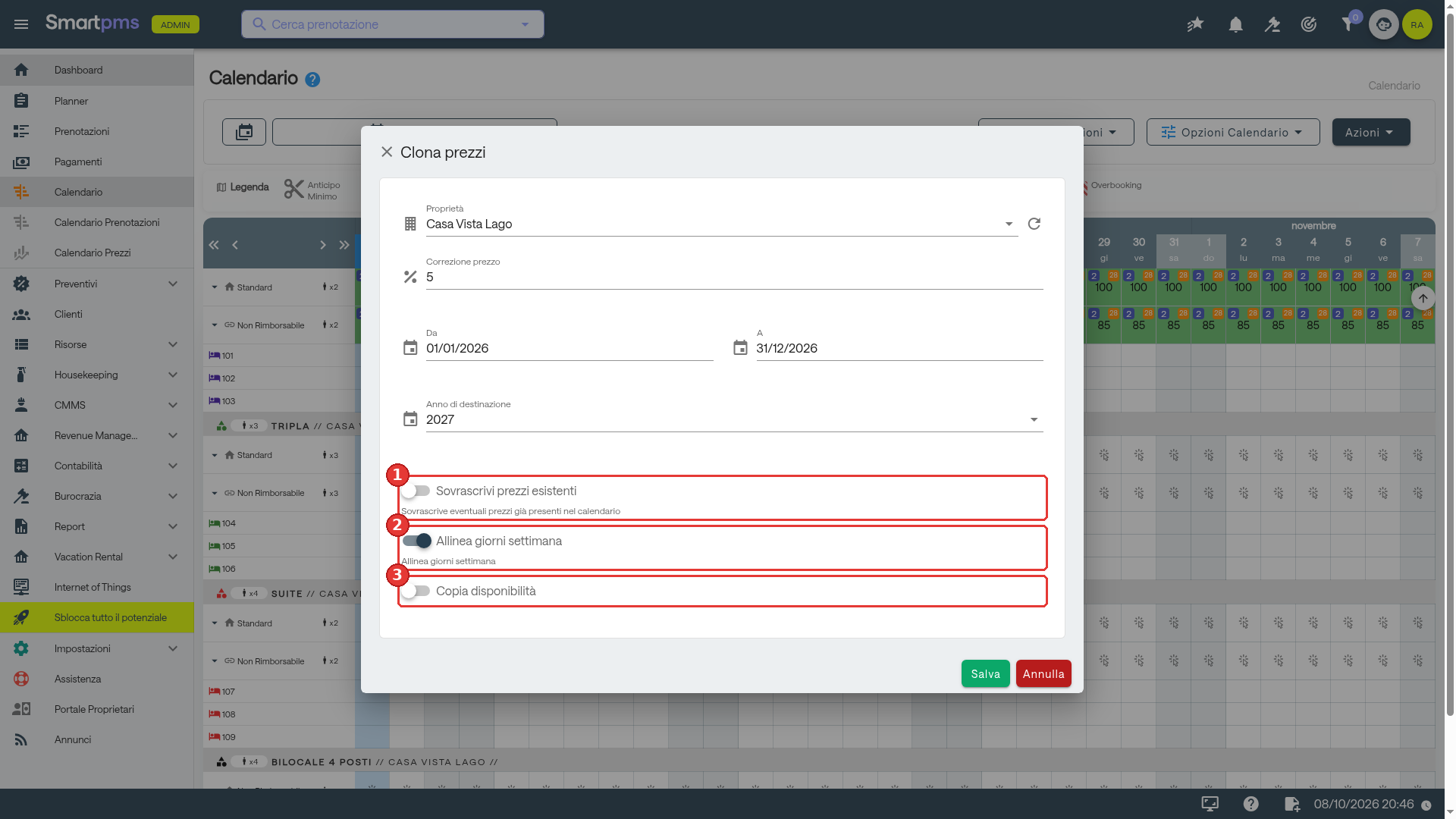
Overwrite existing prices
Below the switch, the window states: "Overwrites any prices already present in the calendar".
- Disabled (default): the copy works rate by rate and date by date. If a rate already has saved data on a date in the destination year, that rate on that date remains as it is in its entirety (price, minimum and maximum stay, restrictions, and availability). The other rates of the same date, if they do not yet have data, are copied normally. For example, if in the new year you have already manually entered €150 with a minimum stay of 5 on the Standard rate on October 3rd, after copying, the Standard rate on October 3rd remains at €150 with a minimum stay of 5, while the Non-refundable rate of the same day receives the copied price.
- Enabled: before copying, the system deletes all rate data for the destination interval for the selected properties (prices, minimum stays, restrictions, closures) and then writes the copied ones.
Use it enabled when you want the new year to be identical to the starting year, for example, if you have already entered some provisional prices that you want to replace. Leave it disabled if you have already manually adjusted periods (events, holidays) in the new year that you do not want to lose.
Align days of the week
The same calendar day falls on a different day of the week from one year to the next: August 1st, 2026 is a Saturday, August 1st, 2027 is a Sunday. If your prices change between weekdays and weekends, a "date by date" copy would move the Saturday price to a Sunday.
- Disabled (default): each price goes to the same date of the destination year (August 1st → August 1st).
- Enabled: all dates are shifted by the same number of days, so that the first day of the starting period falls on the same day of the week in the destination year. From that moment on, the days of the week coincide for the entire period (Saturday → Saturday).
The shift can be a few days forward or backward (up to 6) and has two consequences to check:
- one or more days at the beginning or end of the destination period may remain without a price, or the first copied days may fall outside the destination year;
- fixed-date holidays (Christmas, New Year's, Ferragosto) do not remain on their date: the Ferragosto price shifts by a few days.
Shift=day of the week of the first starting day relative to the same day in the destination year
Example: copy from 01/01/2026 to 31/12/2026 towards 2027, with Align days of the week enabled
01/01/2026 = Thursday; 01/01/2027=Friday → all dates shift back by 1 day
01/01/2026 (Thursday) → 31/12/2026 (Thursday), i.e., the last day of the starting year
01/08/2026 (Saturday) → 31/07/2027 (Saturday)
31/12/2026 (Thursday) → 30/12/2027 (Thursday); 31/12/2027 remains without a copied price
After a copy with this option enabled, check the first and last day of the period and fixed-date holidays, and correct them with single or bulk editing.
Copy availability
- Disabled (default and recommended): copied dates receive 0 availability. The price is there, but the date is not sellable until you open it.
- Enabled: the availability number saved in the starting year is also copied.
We recommend leaving it disabled: the availability of the starting year reflects the bookings and closures of that year, not those of the new one. Copying it risks opening more units than necessary or leaving some free ones closed.
What is copied and what is not
For each rate and each day of the starting period, the following are copied:
Data | Copied? |
|---|---|
Price | Yes, with any Price correction applied |
Minimum and maximum stay | Yes (if absent, default values are used: minimum 1, maximum 999) |
Deny Check-in and Deny Check-out | Yes |
Minimum Advance | Yes |
Date closure (Close Dates) | No: copied dates are always considered not closed |
Availability | Only if you enable Copy availability, otherwise 0 |
Minimum price of the Rate plan, derivation rules, plan settings | No: these are Rate plan settings, not Calendar data, and remain those already active. The Minimum price is not applied to copied prices: a copied price lower than the minimum remains as it is |
All rates of the selected properties are copied, including derived ones (see the next section). Bookings are never copied.
Derived rates: copied, not recalculated
Price Clone copies the value that each rate has on the calendar in the starting period, including derived rates, and applies the Price correction to each independently. It does not reprocess the Rate Derivation from the parent rate.
With percentage derivations, the result remains consistent. With fixed-value derivations (e.g., +€15), the difference between parent and derived "swells" by the same percentage:
Copied price=starting price + starting price × Price correction ÷ 100
Example with Price correction 5, a Saturday:
Standard parent rate: €120+€120×5÷100=€126.00
Derived Non-refundable (−10% from parent), starting value €108: €108+€108×5÷100 = €113.40=€126 × 0.9 → consistent
Derived With breakfast (+€15 from parent), starting value €135: €135+€135×5÷100=€141.75
According to the derivation rule it would be €126+€15=€141.00 → difference of €0.75
After copying, derivations remain active: if you subsequently modify the parent rate on those dates, the derived ones are recalculated as always. If you use fixed-value derivations and apply a correction, after copying, realign the derivations: on the Calendar, click the chain icon next to the derived plan, enable Reprocess prices and confirm. You can find details in the guide Introduction to derivation rules and in the guide How to create and configure custom derivations.
After copying: open dates for sales
With Copy availability disabled, copied dates have the price but 0 availability, so they are not bookable nor are they sold on portals. This is the step most often forgotten.
On the Calendar, you recognize them like this: the rate cell shows the copied price, but it is white instead of green and has a red bar at the bottom, the same as the Availability exhausted item in the legend. Hovering the mouse over the cell reads "Availability: 0".
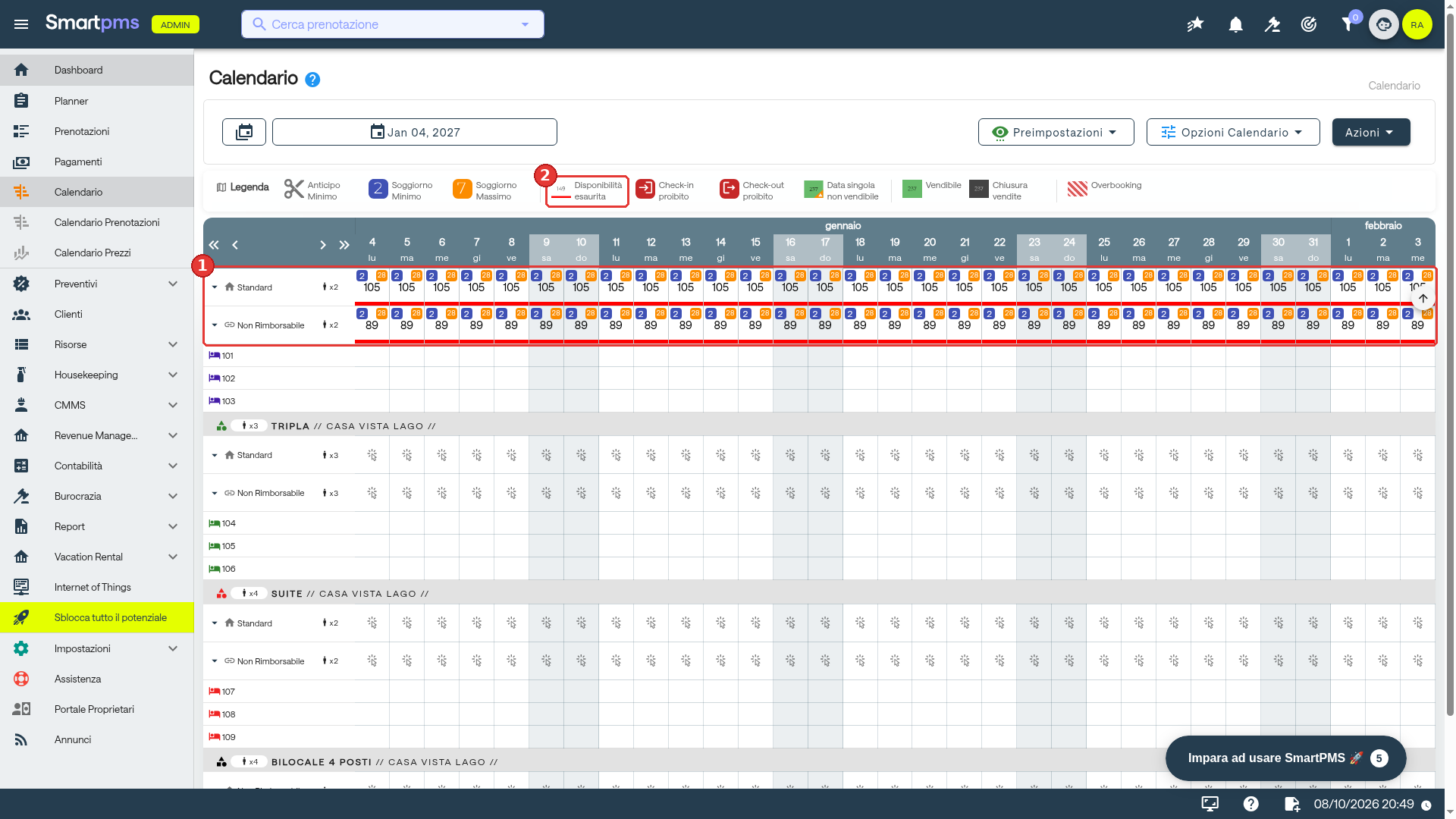
To open them:
- In the Calendar, select the period of the new year, or use Actions → Bulk Edit to do it on multiple rates and properties together.
- Use Open Dates or set Availability to AUTO, which calculates availability based on the actual occupancy of the units.
- Save.
The complete procedure, with the difference between Open Dates and AUTO availability, is in the guide How to edit prices, availability and restrictions from the Calendar.
Keep in mind that from the Calendar you can only edit prices and availability up to two years from today: if you save a change beyond this limit, the message "end date must be a date before…" appears with the maximum date. If you have copied prices to a more distant year, the dates beyond the limit can be opened when they fall within the two-year range.
Opening dates automatically
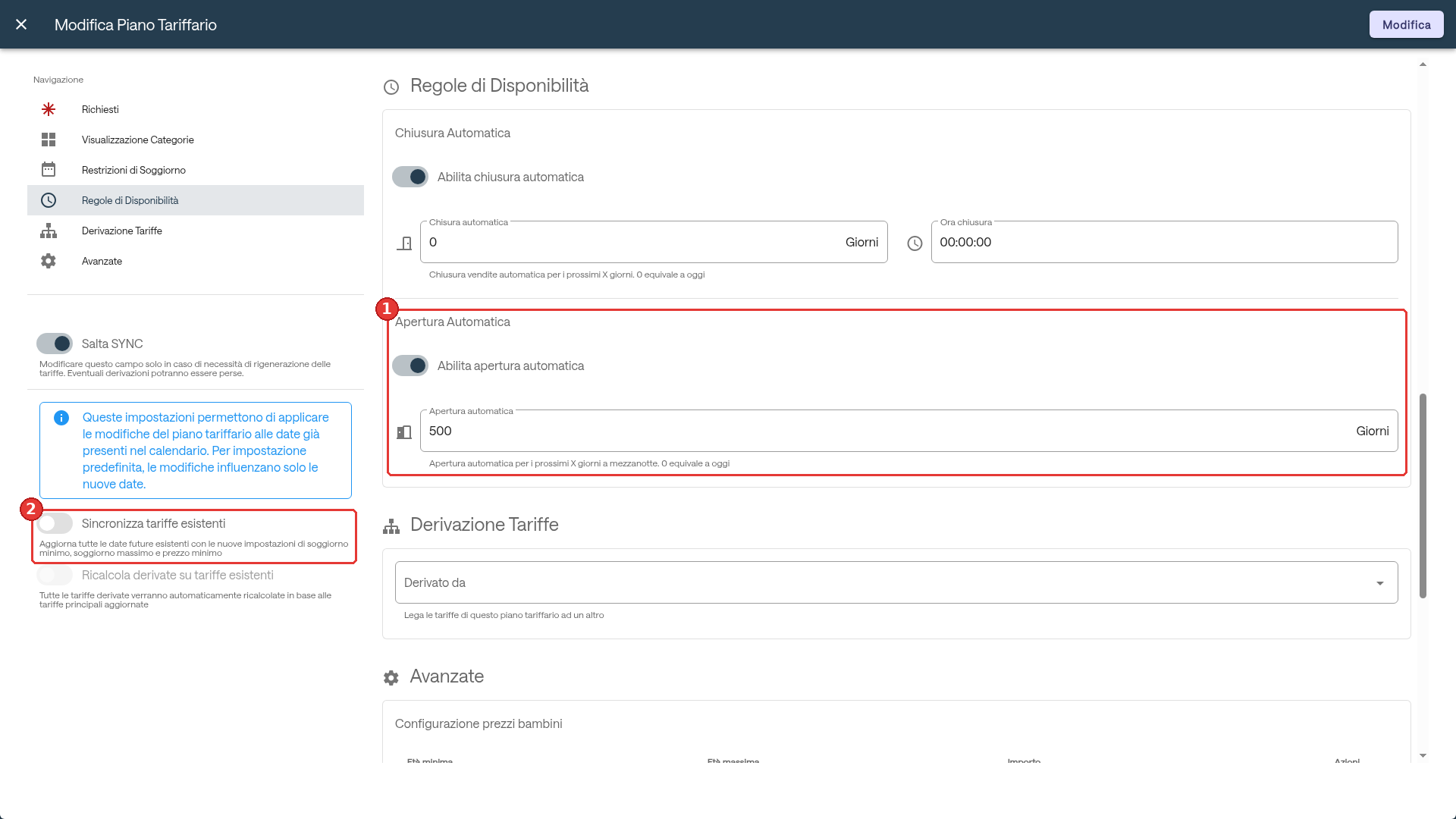
Alternatively, you can have dates opened by SmartPMS with the Automatic Opening of the rate plan: from Settings → Property → Settings (on the property row) → Units and Rates → Rate Plans, open the plan with the pencil and, in the Availability Rules section, enable Enable automatic opening and indicate in Automatic opening how many days ahead to open the dates ("Automatic opening for the next X days at midnight"). Save with Edit. In the same section, you will find Automatic Closure, which closes the nearest days to sales.
How to verify the outcome
Every copy leaves a trace in Rate History (Calendar → Actions → Rate History, permission to view history is required).
- At the top, set the Property, Rate, and Stay date from (and possibly Stay date to) filters to some dates of the new year. With the Modification type filter set to Price Clone, you restrict the list to only the rows created by the copy.
- In the table, the second column (without title) shows an icon for the type of modification: hover the mouse over the icon to read it. Rows created by the copy show Price Clone (gear icon).
- The last column, Proc, tells you if the modification has been sent to the portals: green checkmark = sent (hovering the mouse shows the date and time of sending); gray "skip" icon = ignored, because it was superseded by a subsequent modification or with unchanged data; no icon = still in queue.
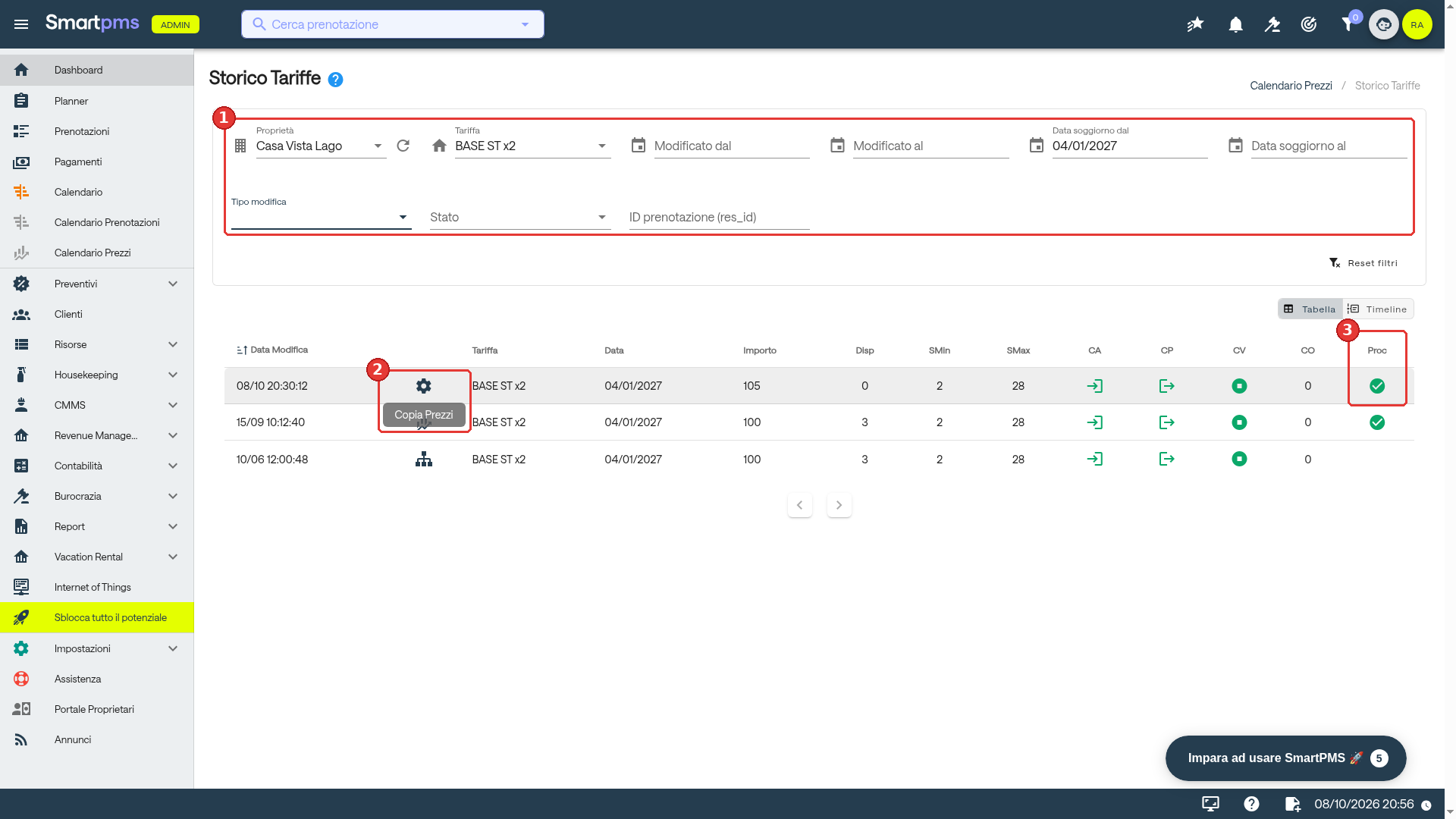
The columns also show what was written: Amount, Avail (availability), MinStay and MaxStay (minimum and maximum stay), CA and CP (arrival and departure closure), CV (sales closure), CO (minimum advance). For CA, CP, and CV, the icon is green if the restriction is not active and red if it is active. With the Timeline button in the top right, you can see the same modifications in chronological list form.
Remember that portals only receive connected (mapped) rates in the Channel Manager and that a date with 0 availability is sent as not sellable until you open it.
What to check after copying
A copied price list is a starting point, not a finished price list. Before opening sales, check:
- Holidays that change dates: Easter, Pentecost, long weekends, and bridges fall on different dates every year. The copied "Easter" price remains on the dates of the starting year: move it manually.
- Events and fairs: local events, concerts, congresses with new dates. Remove surcharges where the event is no longer present and add them to the new dates.
- Minimum stays and restrictions: these are copied as they are. A 3-night minimum stay linked to a bridge from last year might now fall on normal dates.
- Period edges: with Align days of the week enabled, first and last day (and Christmas, New Year's, Ferragosto).
- Leap years: February 29th does not exist in all years. Copying from a normal year to a leap year (e.g., 2027 → 2028) without alignment, February 29th of the new year remains without a price; copying from a leap year to a normal year, the starting February 29th and March 1st both end up on March 1st and only one of the two prices is saved. Check these days.
- Fixed-value derived rates, if you applied a correction (see above).
- Opening of dates for sales.
For all corrections, use single editing or Bulk Edit: the guide How to edit prices, availability and restrictions from the Calendar.
Frequently asked questions
7I cloned the prices but the dates of the new year are closed and not sellable. Why?
This is the expected behavior: if you do not enable Copy availability, Price Clone writes prices and restrictions but sets availability to 0. On the Calendar, these cells show the price but are white with a red bar at the bottom (Availability exhausted). To make the dates sellable, select them in the Calendar (or use Actions → Bulk Edit) and use Open Dates or set Availability to AUTO, then save. Alternatively, you can enable Automatic Opening in the rate plan (Availability Rules section). A date is sellable only if it has both a price and open availability. The complete procedure is in the guide on editing rates and restrictions from the Calendar.
Can I copy only a period and not the whole year?
Yes. In the From and To fields, indicate only the period you are interested in (e.g., 01/06–30/09) and choose the destination year: only the corresponding dates of the new year will be affected. However, the period must be within a single calendar year: the To field does not let you choose dates beyond December 31st of the year indicated in From. To copy a period spanning two years (e.g., December–January), perform two separate copies, one for each year.
Can I copy prices from one property to another?
No. Price Clone copies the prices of each selected property onto the dates of a subsequent year of the same property: it does not transfer prices between properties, nor between different rates or units. To have the same prices on another property, you can enter them with Bulk Edit on the Calendar. If the two rates are of the same property, consider a Rate Derivation, which keeps prices linked over time.
What does "Align days of the week" mean? Should I enable it?
It ensures that the prices of a Saturday end up on a Saturday even in the new year, by shifting all dates by the same number of days. It is useful if your prices change between weekdays and weekends. If prices depend mainly on the date (fixed holidays, seasons with precise dates), you can leave it disabled. In both cases, check holidays, period edges, and weekends after copying.
Does Price Clone also copy the minimum stay and restrictions?
Yes: minimum and maximum stay, Deny Check-in, Deny Check-out, and Minimum Advance are copied with the prices. Date closure is not copied (copied dates are always considered not closed) and, unless you enable Copy availability, availability is set to 0. After copying, review the minimum stays linked to bridges and events that fall on different dates in the new year.
Is the minimum price of the rate plan copied?
The minimum price is not Calendar data but a Rate plan setting: Price Clone does not touch it and it remains what is already set on the plan. It is not even applied to copied prices: if a copied price is lower than the minimum price, it remains as it is. Therefore, check the prices of the new year after copying.
I use a revenue manager that sends prices automatically: do I need to use Price Clone?
If the prices for the new year arrive automatically from a connected revenue manager (e.g., Smartpricing), it is usually not necessary: when the revenue manager sends prices for those dates, they replace those present on the calendar. Price Clone can be useful to have provisional prices on dates that the revenue manager does not yet cover. In any case, you must open the dates for sales.
Related guides
Configuration
How it works
How it works
Configuration
Configuration
How it works