

How to connect an external iCal calendar (VRBO and other portals) to a unit
How to import the iCal link of a portal not connected via XML (e.g., VRBO) into Smartpms to automatically close unit availability, and how to export the Smartpms iCal link to be inserted into the portal. It explains the synchronization frequency, link preview, Active/Disabled status, and iCal limitations: it only updates availability, does not reopen dates, and does not import bookings or prices.
You are in the right place if…7 cases
- “How do I add the VRBO iCal link in Smartpms?”
- “Where do I enter the iCal calendar of a portal that is not connected to the channel manager”
- “After connecting the iCal, dates that were not booked were closed”
- “A booking arrived from VRBO but the dates remained open in Smartpms”
- “A booking was cancelled on the portal but the date is still closed in Smartpms”
- “I received an Unit Ical import failed email”
- “iCal synchronization for OTA portals not supported in XML”
What is iCal for
Some portals, such as VRBO when not connected via XML, do not connect to the Channel Manager but only via iCal: a link to a calendar that lists occupied days. By connecting the portal's iCal to a unit, Smartpms reads that calendar and automatically closes availability on occupied dates, thus reducing the risk of Overbooking.
Before starting, keep in mind what iCal does and does not do:
- it updates only availability: no reservations, guest data, or prices are sent to Smartpms;
- it closes dates, but does not reopen them (see FAQ);
- reading occurs once every hour, and the portal updates its iCal on its own schedule: therefore, some time may pass between a reservation and the closure in Smartpms.
If the portal is available in XML via Channel Manager, that remains the most reliable solution.
Use Smartpms as the sole collection point: connect the iCal of each portal only to Smartpms and do not connect the portals' calendars to each other (for example, VRBO with Airbnb or Booking.com), because closures can bounce from one portal to another and block dates without reservations.
Two-way connection
To keep both calendars aligned, two steps are required:
- From Smartpms to the portal: you copy the Smartpms iCal link and insert it into the portal, so the portal closes the dates booked in Smartpms.
- From the portal to Smartpms: you copy the portal's iCal link and insert it into the unit in Smartpms, so Smartpms closes the dates booked on the portal.
1. Exporting the Smartpms iCal to the portal
- Go to Settings → Property, click Settings on the structure row, and then Units and Rates → Rates → Configure.
- On the rate of the unit to be connected, click the ICAL button and copy the link that opens.
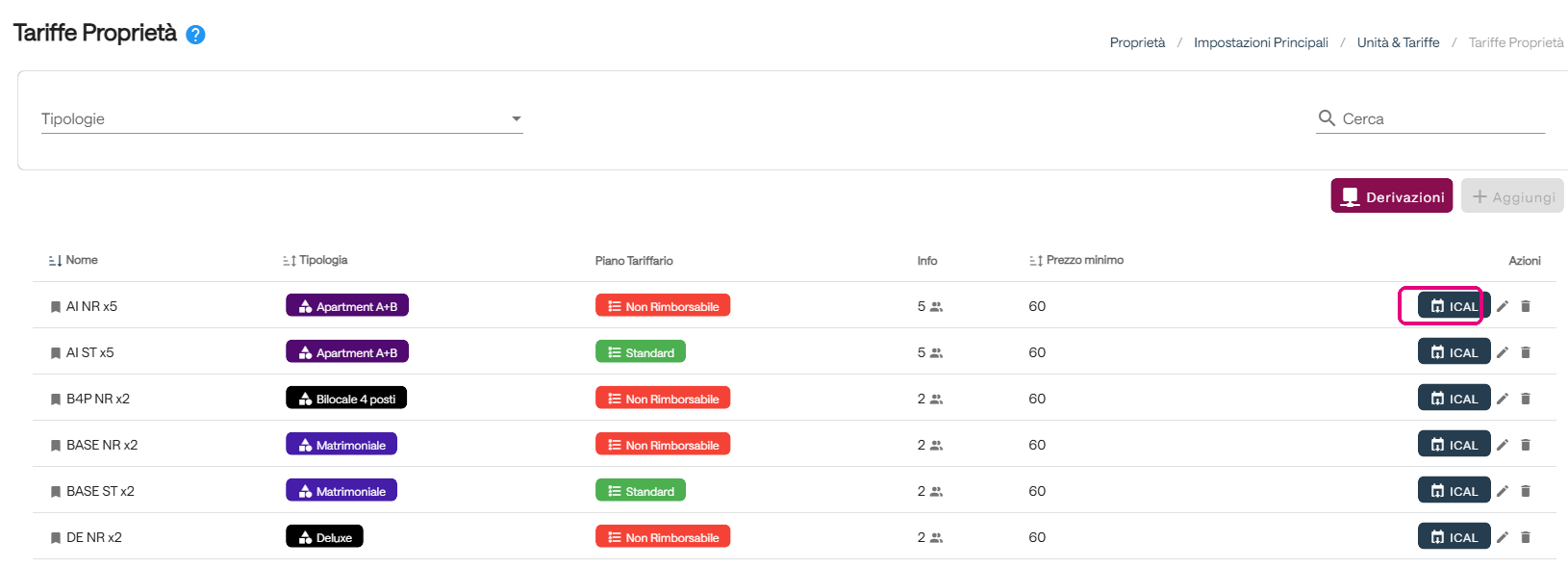
- In the portal (for example, in the VRBO calendar area), paste the link in the external calendar import section and save.
The calendar exported from Smartpms concerns the single rate and contains, from today's date onwards, a "Not available" event for every day in which the rate has 0 availability or an active stop sell. It does not contain names or the number of guests and does not distinguish the channel from which the reservation arrives: it includes all reservations and closures present in Smartpms. Consequently, even a date closed manually with a stop sell appears occupied on the portal.
2. Importing the portal's iCal into Smartpms
- Copy the iCal export link of the listing from the portal. It must be a complete address starting with https:// (not http://).
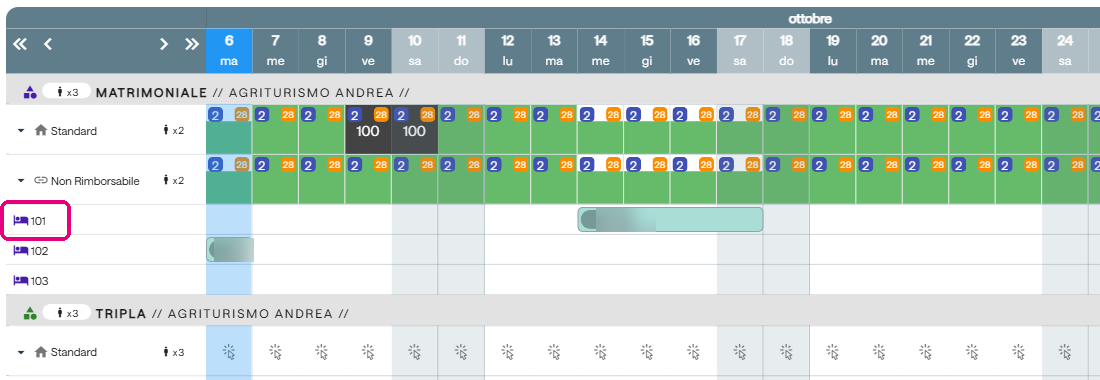
- In Smartpms, open the Calendar and click on the icon next to the unit name: the Edit Unit window opens. Alternatively, go to Settings → Property, click Settings on the structure row, then Units and Rates → Units → Configure and click the pencil icon on the unit.
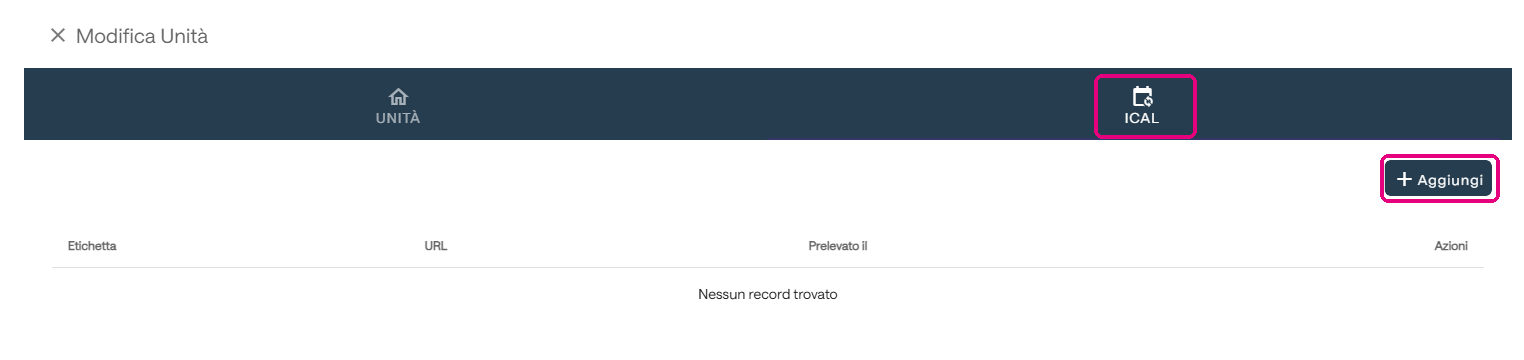
- Go to the ICAL tab and click Add: the Create Unit ICal window opens.
- Fill in the fields:
- Label: a name that helps you recognize the connection, for example "VRBO".
- URL: the iCal link copied from the portal.
- Status: leave as Active.
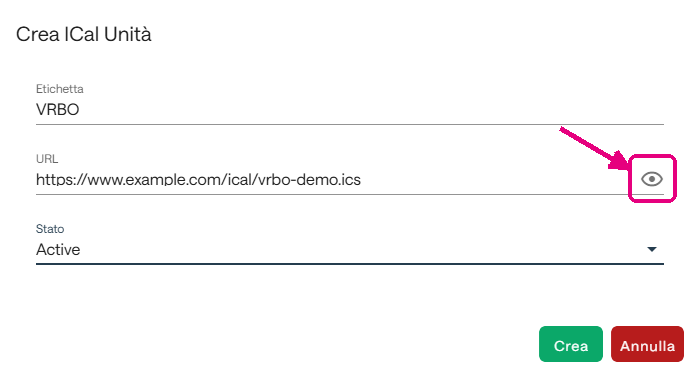
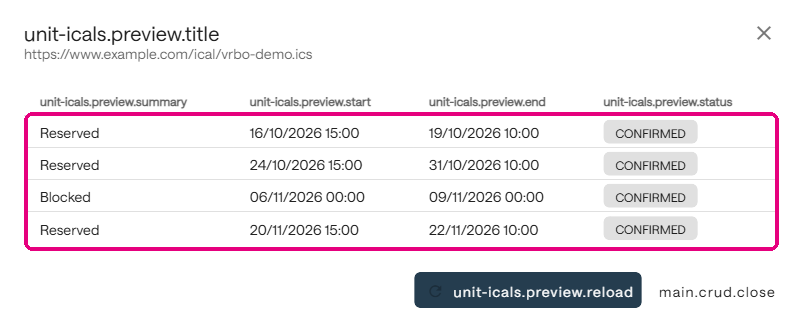
- Before saving, use the eye icon next to the URL field to open the preview: you will see the events the calendar contains (title, start and end date/time, status). If an error appears or the list is not what you expect, check the link before saving.
- Click Create.
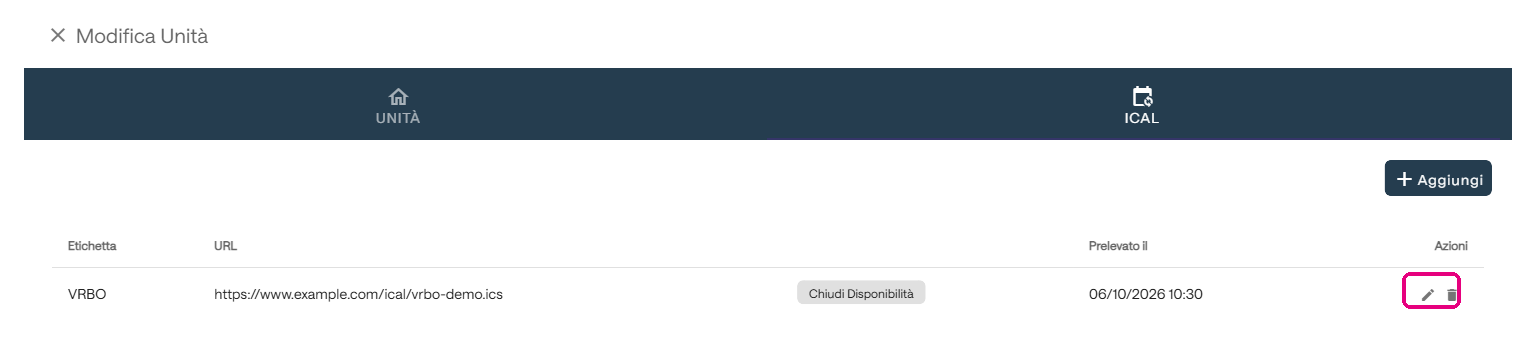
In the ICAL tab, you will find the list of the unit's connections with the label, URL, connection mode (usually Close Availability), and the Fetched on column, which is the last time Smartpms read the calendar. With the pencil and trash can icons in the Actions column, you can edit or delete a connection. In the Units list of the settings, the ICal column indicates how many connections each unit has.
What happens after the connection
Every hour, Smartpms reads the portal's calendar and, for every occupied period, sets the availability to 0 on the main rates of the unit type. Rates connected with Rate Derivation follow accordingly. Past dates are ignored, and the reading covers up to two years into the future.
In the event that support has set the connection to Create Block mode, instead of closing availability, Smartpms creates a block on the unit in the Tape Chart, with the name "Label - event title". In this mode, blocks are updated and removed automatically when the event changes or disappears from the portal's calendar.
Beware of dates closed on the portal
Many portals, including VRBO, mark dates that are only closed or not sellable as occupied in their iCal, for example, because they have no price. Smartpms cannot distinguish them from a real reservation and closes them. If you see dates closing without reservations after the connection, check on the portal that the calendar is open and has prices set for the same period.
Frequently asked questions
4I manually reopened a date but it closed again shortly after: why?
If the date is still marked as occupied in the portal's iCal calendar, Smartpms will close it again upon the next sync (within an hour). Check the portal to see why that date is marked as occupied: a booking, a block, or a closed date without a price. Free it up there and then reopen it in Smartpms.
I received an "Unit Ical import failed" email: what does it mean?
Smartpms was unable to read the portal's calendar. The most common causes are:
- the portal is not responding at that moment (the message contains codes like 502 Bad Gateway or 503 Service Unavailable);
- the link is no longer valid or starts with http:// instead of https://.
In this case, the connection automatically switches to the Disabled status and is no longer read, even when the portal starts working again: until you reactivate it, new portal bookings will not close the dates in Smartpms.
To restore it:
- Open the iCal link in a new browser tab: if it downloads the file, the portal is reachable again.
- In the unit's ICal tab, click the edit icon, check that the URL starts with https://, and verify the preview.
- Set the Status back to Active and save.
- Until the connection is updated again (Last fetched column), manually close the dates of the bookings received from the portal to avoid an Overbooking.
I deleted the iCal connection but the dates remain closed: how do I reopen them?
Deleting the connection stops future closures, but it does not reopen dates that the iCal had already closed. To reopen them:
- In the rate calendar, select the period to reopen.
- In the panel on the right, set Availability to AUTO.
- Click Open dates and then Save.
If you reopen many dates at once, the update to portals connected via XML may take a few extra minutes. If the dates are still closed on the portal after a while, contact support.
Does the iCal exported from Smartpms show the guest name or number? Can I have one just for one channel?
No. The Smartpms iCal is designed to communicate to portals which days are unavailable: every closed day appears as a "Not available" event, without name, number of guests, or booking channel.
The link is one per rate and includes all bookings and closures present in Smartpms, regardless of the channel: it cannot be filtered by portal. Even days closed with a stop sell appear as unavailable.
Related guides
Activation
Activation
Configuration
FAQ
FAQ