

Booking Engine: how to activate payment methods (guarantee card, bank transfer, cash)
How to choose and activate the methods guests use to confirm a booking on the Booking Engine: credit card for guarantee, bank transfer, payment on arrival, Stripe, and Smartpay. It explains the difference between methods set at the company level versus the individual property level, when each method appears to the guest, and how to change their order.
You are in the right place if…14 cases
- “How do I activate the credit card for guarantee on the booking engine?”
- “I want the guest to leave the card for guarantee without charging anything”
- “How do I activate bank transfer payment for direct bookings?”
- “Where do I enter the IBAN for the booking engine bank transfer?”
- “Where are the booking engine payment methods set?”
- “I want to accept cash payment on arrival”
- “The guest does not see the bank transfer among the payment methods”
- “Cash payment does not appear on the booking page”
- “I want different payment methods for a single property”
- “I changed the payment methods in the company but a property is not updating”
- “What does Overwrite settings inherited from the company mean?”
- “How do I change the order of payment methods in the booking engine?”
- “Accepted payment methods for direct bookings”
- “Remove bank transfer from the booking engine”
Payment methods are the way the guest confirms the booking on the Booking Engine booking page: by leaving a credit card as a guarantee, paying online, choosing a bank transfer, or paying upon arrival. Without at least one active method, the guest cannot complete the booking, which is why this is one of the mandatory steps to go online.
Company or property: where to set them
Payment methods are set in two places, with different roles:
- Company (Settings → Companies): this is the main point. The methods you configure here apply to all properties of the company. If all your properties accept the same payments, this is all you need.
- Property (Settings → Properties): by default, each property inherits the company's methods and displays them in gray, in read-only mode. You configure them here only if a property needs to accept different methods than the others (for example, a different IBAN for bank transfers, or no cash). With Overwrite, the property stops following the company and uses its own methods.
Smartpay is an exception: it is not inherited and cannot be overwritten from this window. It is activated and configured from the Smartpay settings, as explained in the guide "Smartpay: how to configure it and how automatic payments work".
1. Open the company payment methods
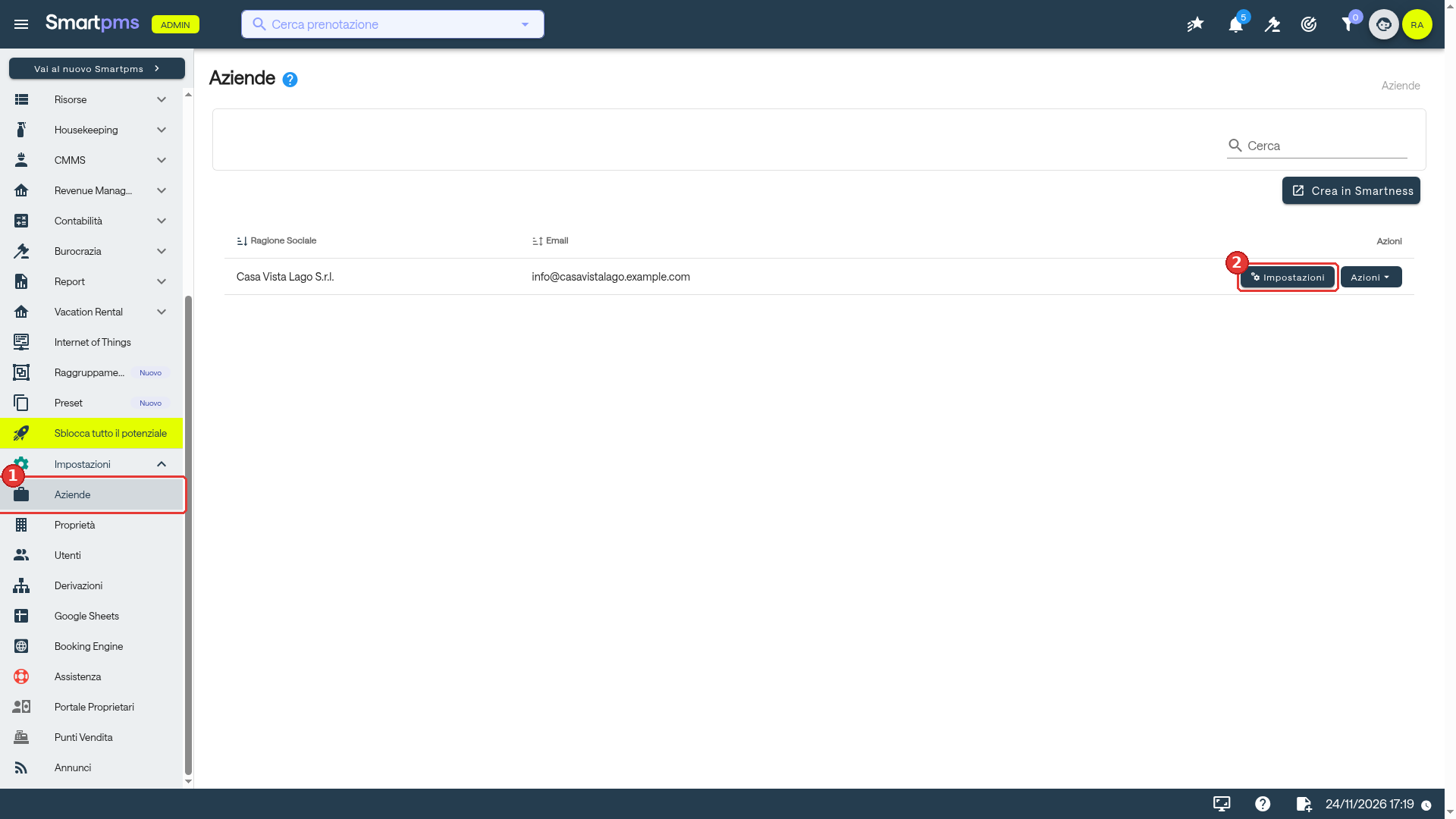
- From the left menu, open Settings and click on Companies (1).
- On your company's row, click on Settings (2).
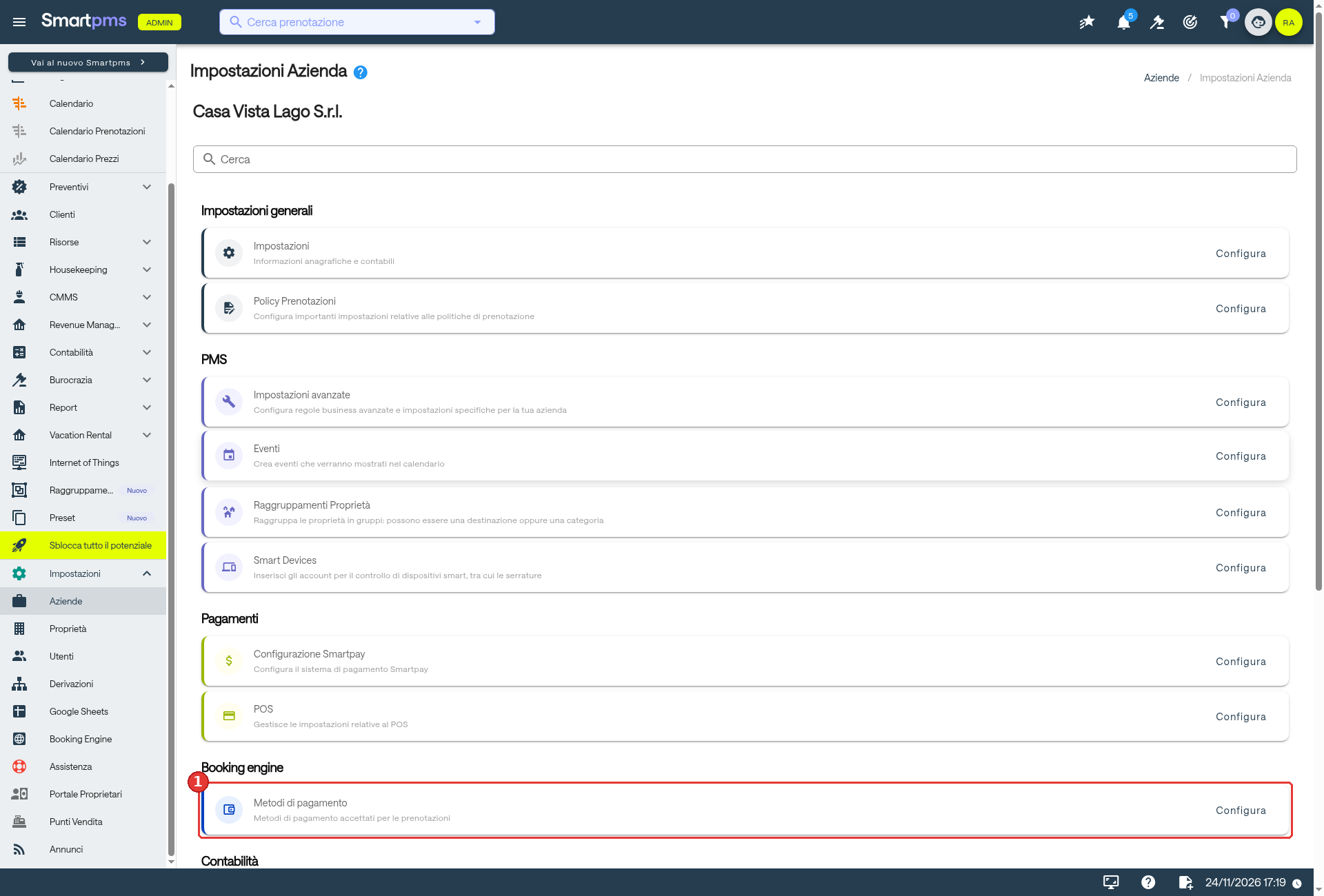
- In the Booking engine section, click on the Payment methods card (1).
The Booking Engine Payment methods window opens with the list of available methods. For each one, you can see the Status (Active or Inactive), the Configure button, and, for active methods, the Position.
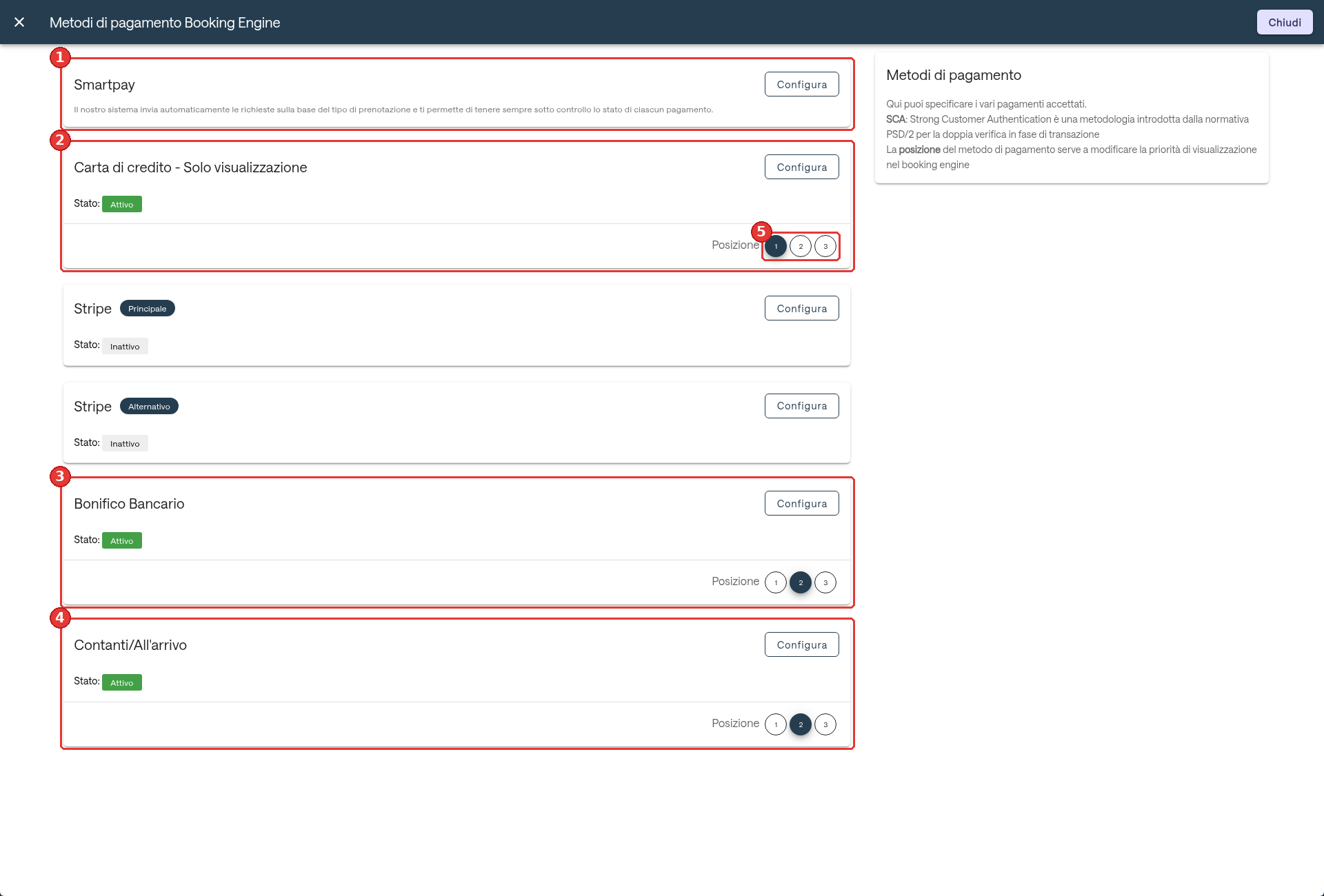
- Smartpay (1): automatically collects and manages online card payments. If active, it always appears first on the booking page and replaces the view-only card.
- Credit card - View only (2): this is the guarantee card. The guest enters the card details, which are saved to the booking, but nothing is charged.
- Main Stripe and Alternative Stripe: used to connect your external Stripe account, different from Smartpay, with Connect Account. The direct connection to Stripe is being phased out: when it is no longer available for your company, it will disappear from the booking page. To collect online card payments, use Smartpay.
- Bank Transfer (3): the guest sees your account details and pays via bank transfer.
- Cash/Upon arrival (4): the guest pays directly at the property.
- Position (5): determines the order in which the methods appear to the guest. Click on 1, 2, or 3 to move the method.
To activate or modify a method, click on Configure, turn on the Active method switch, fill in the fields, and click on Save. To deactivate it, turn off Active method and save.
2. Credit card as a guarantee
Click on Configure in the Credit card - View only card.
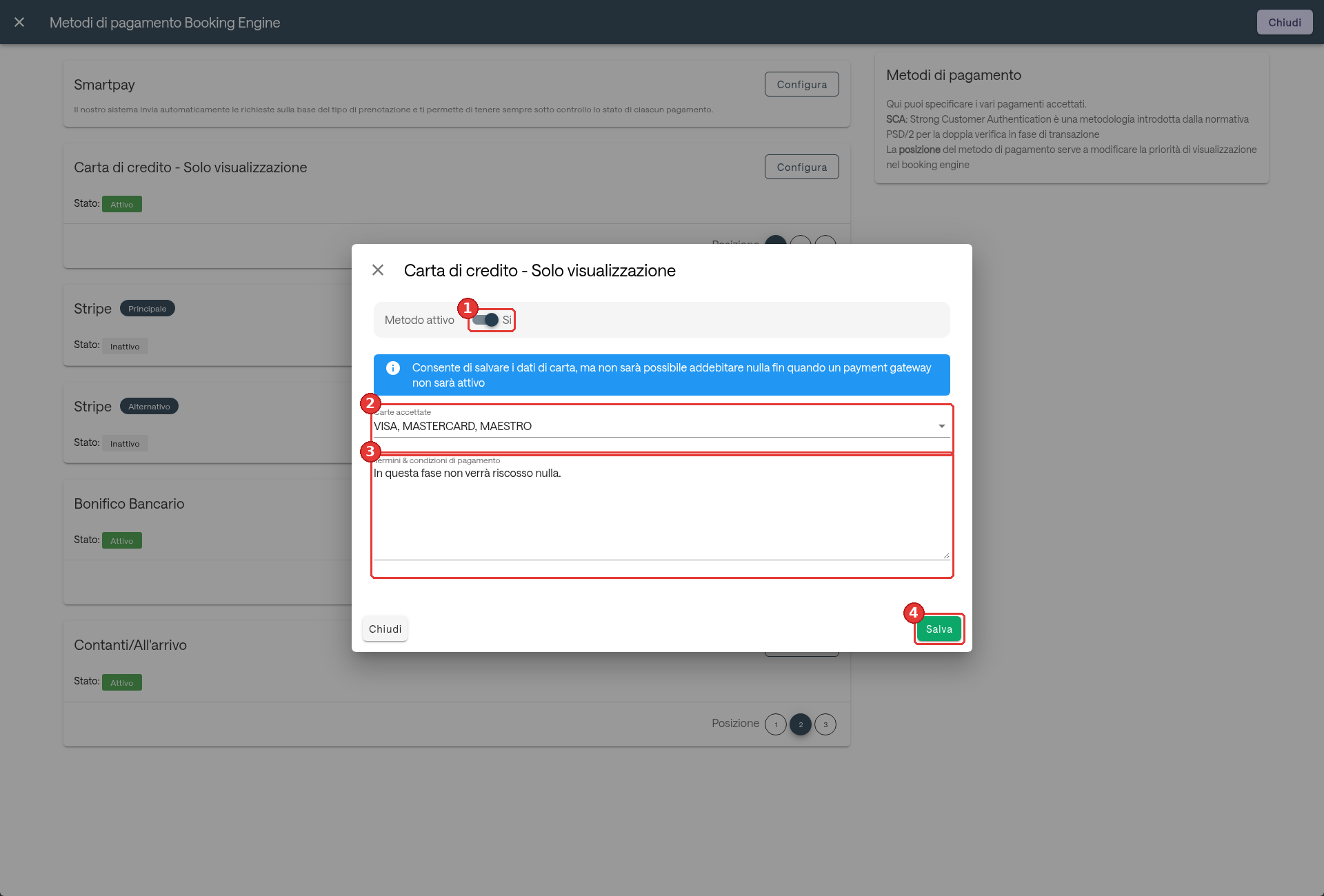
- Active method (1): turn it on.
- Accepted cards (2): choose the circuits you accept (e.g., VISA, MASTERCARD, MAESTRO).
- Payment terms & conditions (3): the text the guest reads when entering the card. Write clearly that the card is only for guarantee purposes, for example, "No charges will be made at this stage".
- Click on Save (4).
With the guarantee card, the booking arrives with the card details, but SmartPMS does not charge anything: the charge remains your choice. If you want to automatically collect deposits and balances online, activate Smartpay: when active, the card on the booking page is managed by Smartpay.
3. Bank transfer
Click on Configure in the Bank Transfer card.
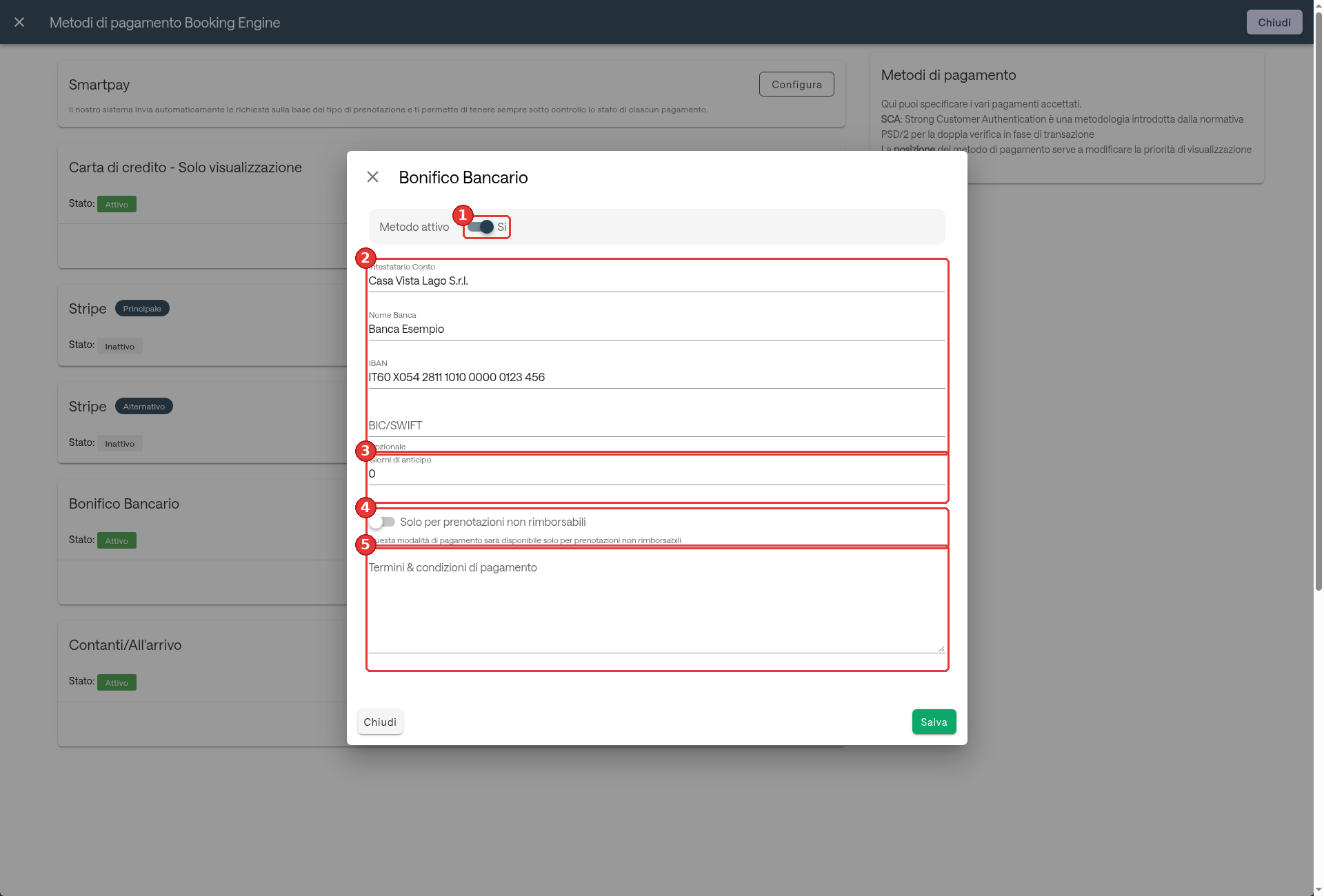
- Active method (1): turn it on.
- Account Holder, Bank Name, IBAN, and BIC/SWIFT (2): the details the guest sees to make the transfer. The BIC/SWIFT is optional but useful for guests paying from abroad.
- Days in advance (3): with 0, the bank transfer is always available. With a number greater than zero, the guest only sees the bank transfer if there are at least that many days until check-in: for example, with 7, someone booking for the day after tomorrow cannot choose a bank transfer. This is to avoid transfers that would arrive after the guest's arrival.
- Only for non-refundable bookings (4): if you activate this, the bank transfer appears only when everything the guest is booking is at a non-refundable rate.
- Payment terms & conditions (5): instructions for the guest, for example, by when to make the transfer and what to write in the payment reference.
- Click on Save.
Bookings with bank transfer enter SmartPMS with the status Pending: the room remains blocked, and you confirm the booking when you see the credit in your account.
4. Cash or payment upon arrival
Click on Configure in the Cash/Upon arrival card.
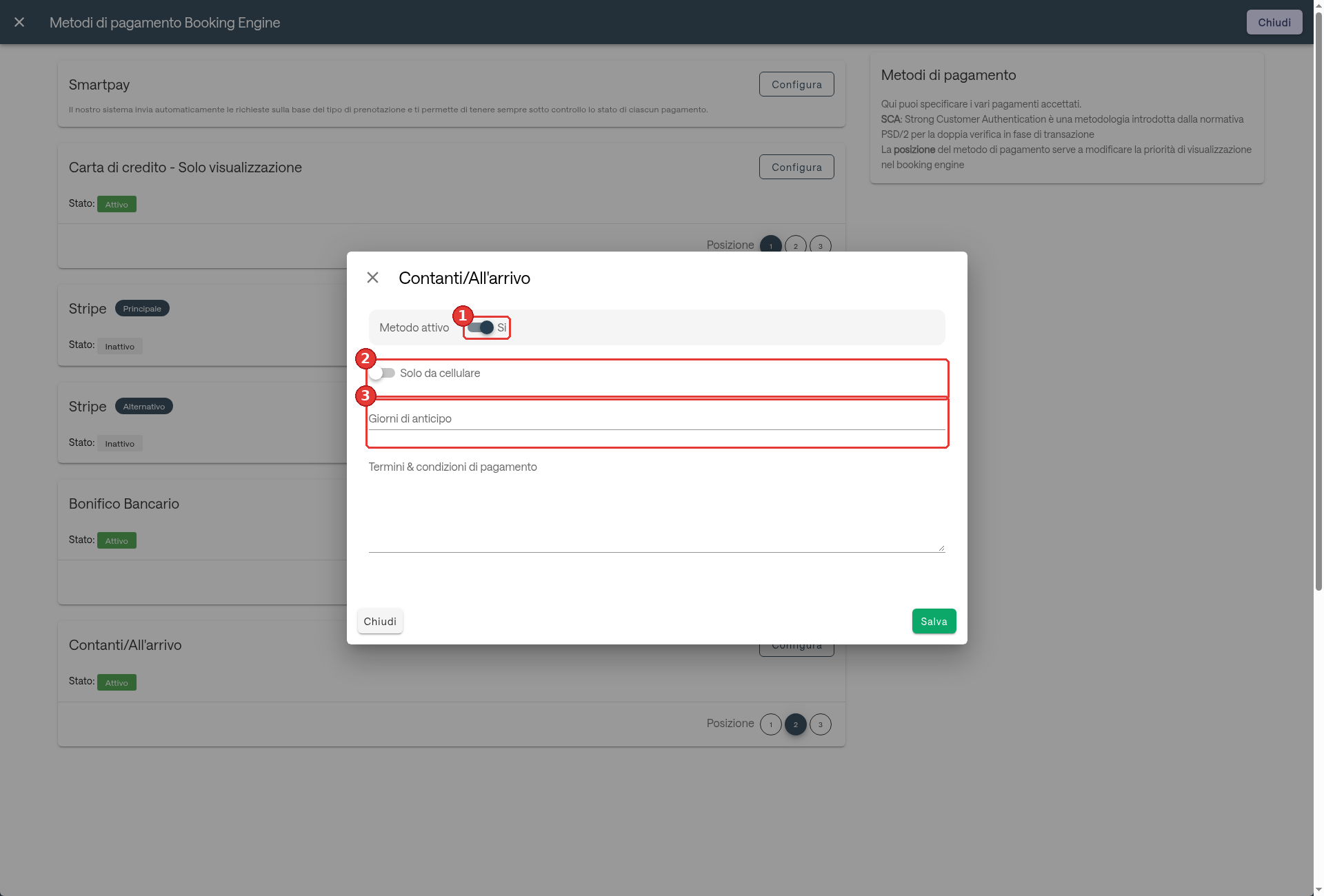
- Active method (1): turn it on.
- Mobile only (2): if you activate this, payment upon arrival appears only to those booking from a smartphone.
- Days in advance (3): if you fill this in, payment upon arrival appears only for bookings with check-in within that number of days. It is useful for last-minute bookings: for example, with 2, only those arriving within two days can pay at the property. If you leave it empty, the method is always available. Note: with 0, payment upon arrival appears only for same-day arrivals.
- Fill in the Payment terms & conditions if you wish and click on Save.
Payment upon arrival never appears for non-refundable rates.
5. Different methods for a single property
Use this step only if a property needs to accept different methods than the company's.
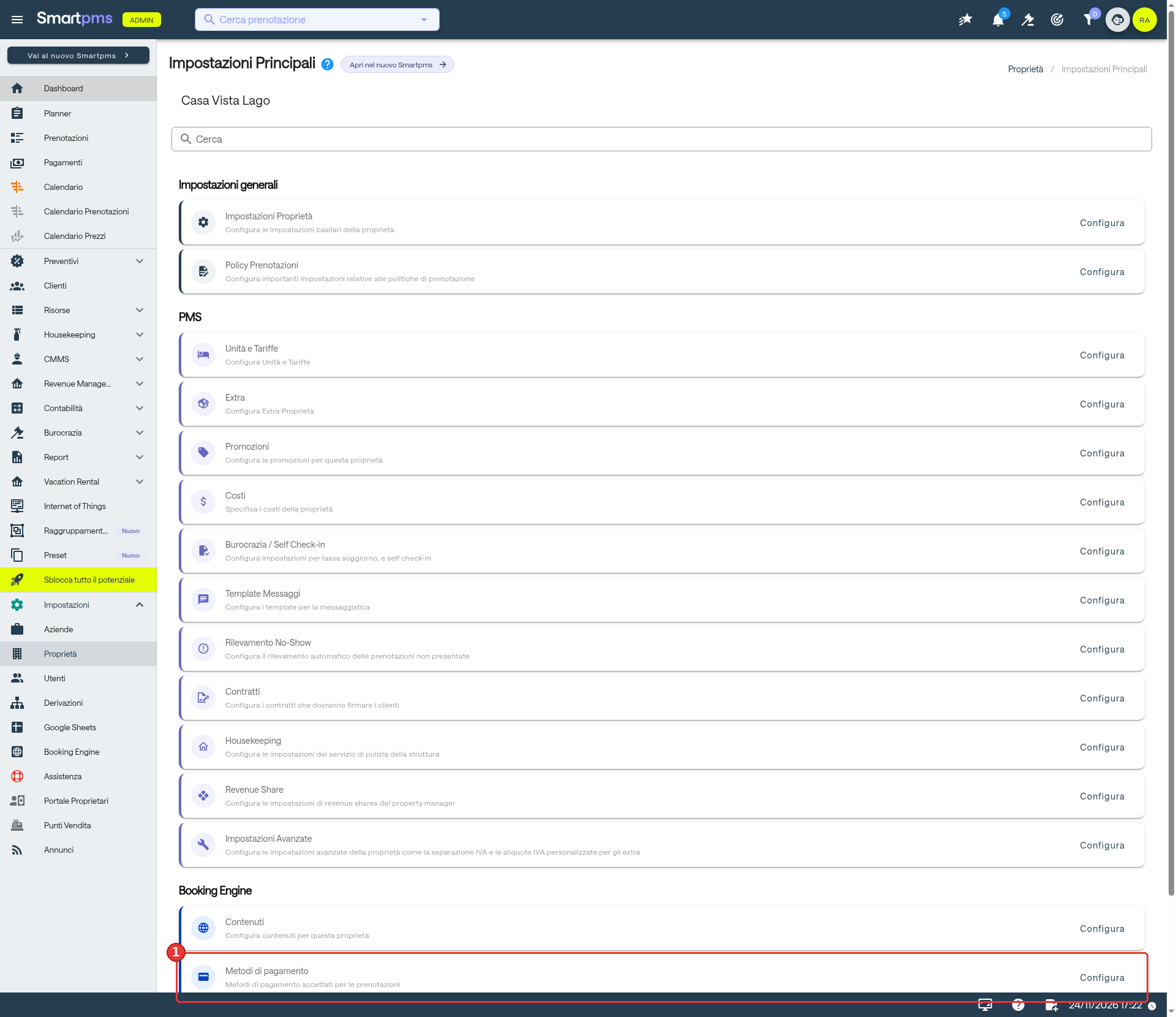
- From the menu, open Settings → Properties and click on Settings on the property's row.
- In the Booking Engine section, click on the Payment methods card (1).
The same window as the company opens, but with the methods in gray: the property is using the company's methods.
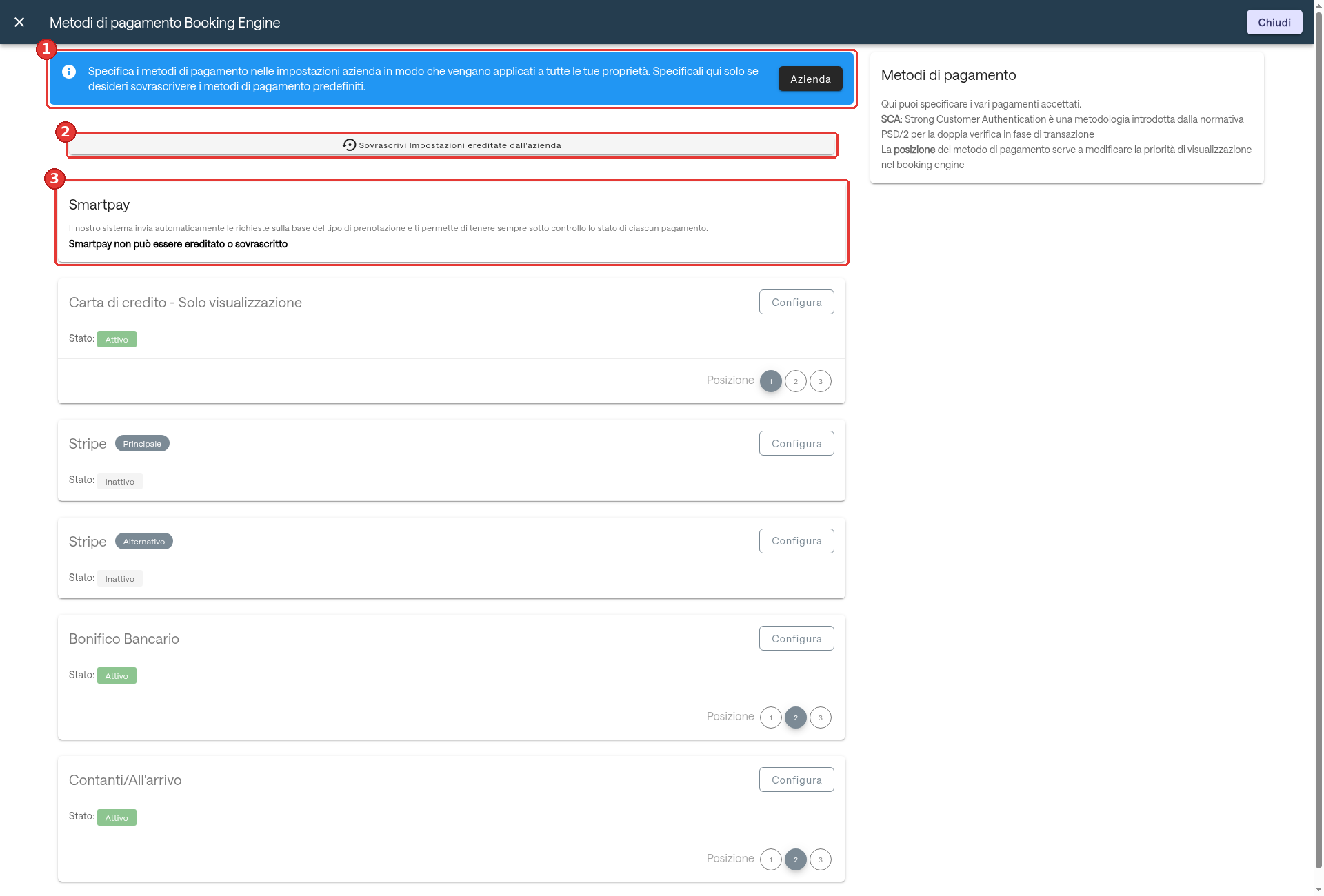
- The warning at the top (1) reminds you that methods are usually set at the company level. The Company button takes you directly to the company settings.
- Overwrite settings inherited from the company (2): click here and confirm with Yes to manage methods only for this property. The property starts with a copy of the company's methods, which you can then change: from that moment on, you configure this property's methods with Configure, as described above, and changes made at the company level no longer apply to it.
- Smartpay (3) remains outside this choice: it is not inherited and cannot be overwritten.
To return to the company's methods, open the property window again and click on Inherit from company.
What the guest sees
On the booking page, the guest sees only the active methods that comply with the rules you have set (days in advance, non-refundable rates, mobile only), in the order of the Position. If Smartpay is active, it always appears first. Only one card payment option appears: if Smartpay is active, it is the Smartpay one.
After saving, perform a test from your booking page with different dates (near and far) and with a refundable and a non-refundable rate, to check which methods appear, without completing the booking.
Frequently asked questions
12I set the payment methods in the company, but a property shows others: why?
That property has its methods overwritten: it uses its own methods and no longer follows the company's. Open Settings → Properties → Settings for the property, Payment methods card: if you see the Inherit from company button at the top, the property has its own methods. You can modify them there with Configure, or click on Inherit from company to return to using the company's.
The guest does not see the bank transfer on the booking page: why?
Check in the Bank Transfer configuration:
- that Method active is turned on;
- Days in advance: if it is greater than zero, the bank transfer appears only when at least that many days remain until check-in;
- Only for non-refundable bookings: if it is turned on, the bank transfer appears only if everything the guest is booking is at a non-refundable rate.
If the property has overwritten methods, check the configuration in the property settings instead of the company settings.
Cash or payment on arrival does not appear to the guest: why?
Payment on arrival appears only if:
- Method active is turned on;
- the guest is not booking a non-refundable rate;
- if you have filled in Days in advance, the check-in is within that number of days;
- if you have turned on Mobile only, the guest is booking from a smartphone.
If you want it to be always available, leave Days in advance empty and turn off Mobile only.
Is anything charged to the guest with the guarantee card?
No. Credit card - View only saves the card details on the booking but does not charge anything. To automatically collect deposits and balances online, you need Smartpay: you can find how to activate it in the guide "Smartpay: how to configure it and how automatic payments work".
Why do bookings paid by bank transfer remain Pending?
This is intentional: with a bank transfer, there is no immediate collection, so the booking enters with the status Pending and the room remains blocked. When you see the credit in your account, confirm the booking. If you want to receive only already confirmed bookings, deactivate the Bank Transfer and leave only card payments active.
How do I change the order in which the guest sees the payment methods?
In the Booking Engine Payment methods window, under each active method, you will find Position with the buttons 1, 2, and 3: click on the number you want to assign to the method. The method with the lowest position appears first. Smartpay, if active, always appears first regardless.
I want bank transfer only for those booking in advance, and only card for last-minute bookings: is it possible?
Yes, without development. Open Configure on Bank Transfer and set Days in advance, for example 14: those booking less than 14 days before arrival will not see the bank transfer and will pay with the other active methods, while those booking earlier can still choose the bank transfer. If you want the bank transfer only for non-refundable rates, also turn on Only for non-refundable bookings.
Remember that bookings with bank transfer enter as Pending and you confirm them when you see the credit.
I activated cash with 0 in Days in advance, but only the bank transfer appears on the booking page: why?
In Cash/Upon arrival, Days in advance indicates within how many days of arrival the method appears. With 0, payment upon arrival appears only to those booking for the same day. For bank transfer, however, 0 means "always": this is why the same settings give different results.
If you want payment upon arrival to be always available, leave Days in advance empty and save. Also remember that cash never appears when the guest books a non-refundable rate.
I have multiple properties with different bank accounts: how do I show the guest the correct IBAN for each property's bank transfer?
Set the bank transfer on the individual property. Open Settings → Properties, click on Settings on the property's row, and then on the Payment methods card in the Booking Engine section. Click on Overwrite settings inherited from the company and confirm. Then open Configure on Bank Transfer and enter the account holder, bank, and IBAN for that property. Repeat for each property that has a different account from the company's.
The bank transfer IBAN is only used to tell the guest where to pay. The account on which you receive Smartpay online payments is set in the Smartpay account (Smartpay Configuration).
Does the guest who chooses bank transfer also receive the bank details by email?
On the booking page, the guest sees the account details you entered in Bank Transfer (account holder, bank, IBAN, BIC/SWIFT) and the Payment terms & conditions.
To send them by email as well, prepare a message template with Sending Type Pending booking, because bookings with bank transfer enter as Pending. Write the account details and payment instructions in the text, choose your Booking Engine as the source (or All sources), and activate the template. You can find the steps in the guide "How to create a message template, with ready-to-copy examples".
Previously guests paid online with Stripe, now they can only leave the card as a guarantee or they cannot book non-refundable rates: why?
The direct connection to Stripe (Main Stripe and Alternative Stripe) is being phased out and, when deactivated for your company, it no longer appears on the booking page. Only the other active methods remain: if there is only Credit card - View only, the guest can leave the card but not pay. For non-refundable rates, where cash is not available, there may be no method left.
To allow online card payments again, activate Smartpay, as explained in the guide "Smartpay: how to configure it and how automatic payments work". Alternatively, activate Bank Transfer or Credit card - View only, so the guest can still complete the booking. After the change, perform a test from your booking page, without completing it.
Does the guarantee card also apply to quotes?
No. Credit card - View only applies to the Booking Engine booking page. In quotes, the guest can leave the card only via Smartpay. If Smartpay is not active for quotes, the guest confirms with a bank transfer, if active, or with payment at the property, without leaving any card.
To still have a guarantee card on a booking originating from a quote:
- in the booking, set the payment method to Credit card;
- send the guest a Manual Sending template with the dynamic field Customer - Hub Link (do not use Customer - Portal Link, which is deprecated);
- in the booking details, the guest clicks on Add credit card and enters the card. The button appears only if the booking's payment method is Credit card.
Related guides
How it works
Activation
Configuration
Configuration
Configuration
Configuration