

How the SmartPMS Calendar works
The SmartPMS Calendar displays room types, rate plans (price, availability, restrictions), and units with bookings on a single grid. This guide explains how to read it: rows and cells, what opens when clicking, view types, date navigation, property filter, Actions menu, user permissions, and cell colors.
You are in the right place if…17 cases
- “How does the SmartPMS calendar work?”
- “What do the calendar rows mean: category, rate plan and unit”
- “I don't see some structures or apartments in the calendar”
- “I don't see the rate plans / prices in the calendar”
- “What does the dark grey cell or the red bar under the price mean?”
- “What is the red and white striped strip on a room?”
- “Why do I see the price but the date is not selling?”
- “The category availability does not match the free rooms”
- “How do I go forward and backward with dates or return to today?”
- “How do I search for a reservation and find it in the calendar?”
- “What is in the calendar Actions menu?”
- “The cleaning staff should not see the prices: what permissions are needed?”
- “A user sees the calendar but cannot modify the rates”
- “Changing the order of rooms or categories in the calendar”
- “Complete, By unit or By property/unit view: what is the difference?”
- “Calendar Guide”
- “Functions related to Clicking on Rate Plans”
What is the Calendar for
The Calendar is the main workspace of SmartPMS: in a single grid, you can see dates in columns and, in rows, your accommodation types, rate plans with prices, availability and restrictions, and units with bookings. It is used both by those who manage sales (prices, openings, and closures) and by those who manage operations (assigning rooms, creating bookings, and blocks).
You can open it from the main menu under Calendar. The structure, types, and units are configured during the first activation by the Onboarding Specialist; from that moment on, you will find them already in the calendar.
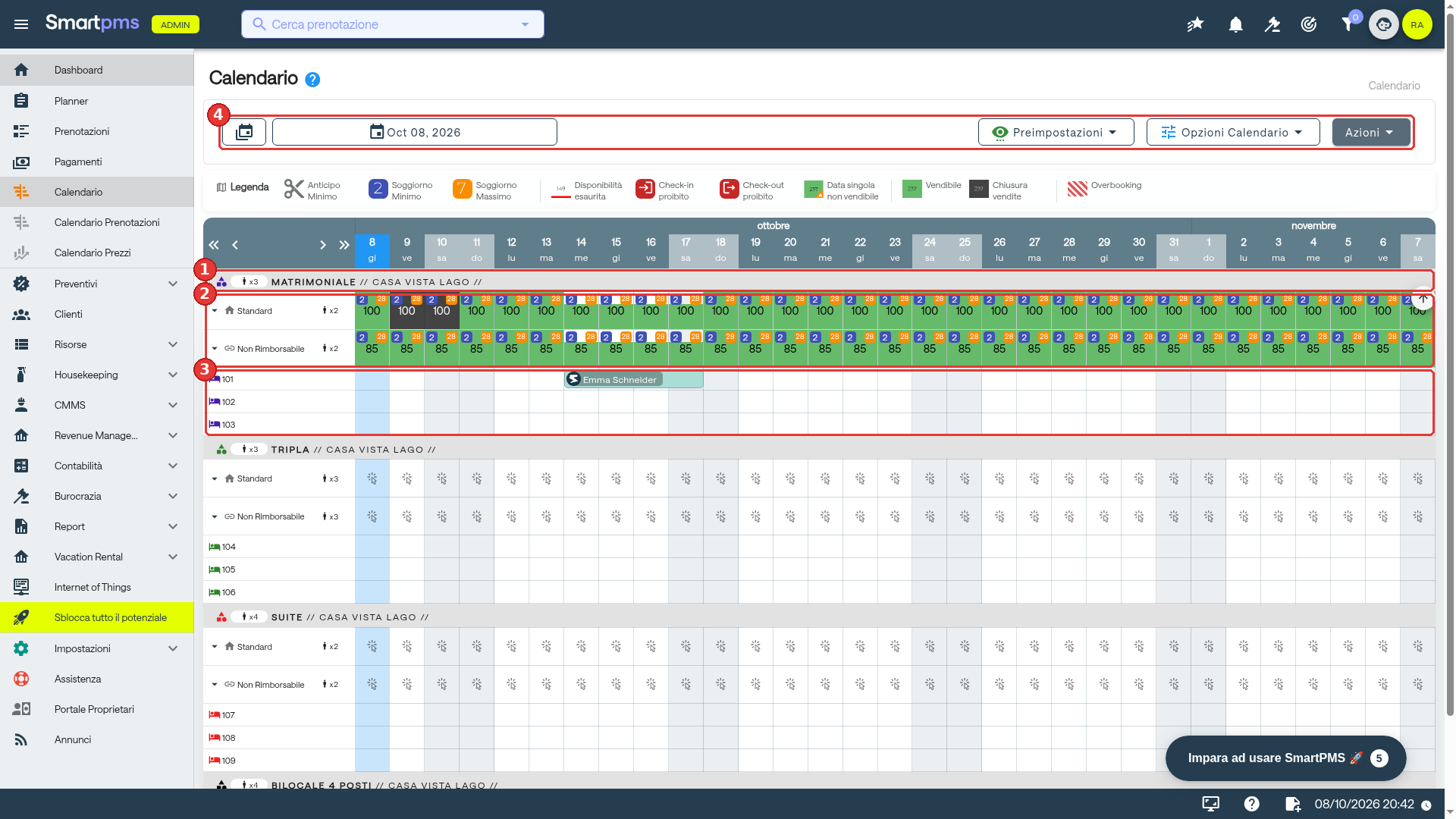
How the grid is organized
Date header
At the top, you will find the month and, below it, the days with the initial of the day of the week. Today's column is highlighted in light blue, and weekends are slightly shaded. A colored dot on the day number indicates an event present on that date (hover your mouse over it to read its name).
Type row
For each property, the rows are grouped by accommodation type. The gray type row shows:
- an icon in the type's color (the same color appears as a vertical border to the left of the entire group);
- the maximum occupancy, for example "x4";
- the name of the type and the name of the property;
- the logos of the portals connected to that type.
By clicking on the type name in the gray row, the Edit Type window opens (name, label, color, position, and other data). Changes are saved with the Edit button at the top right; the X at the top left closes without saving. If you have activated Compact view, this row is not shown.
Rate plan rows
Below the type, you will find a row for each rate plan connected to that type. On the left, you see the plan name, the number of guests the price refers to (for example "x2"), and some icons:
- chain icon: the plan is derived from another plan (Rate derivation). Clicking it opens the derivation rule. The functioning of derivations is explained in the guides Introduction to derivation rules and How to create and configure custom derivations;
- house icon: the plan is the parent plan from which others are derived; this also opens the derivation rule;
- downward arrow: expands the additional rows of the plan (for example, other occupancies);
- clickable "x2": opens the Price per guest configuration window, with the Active, Guests, and Amount columns (the occupancy row on which the price is based is indicated as "Normal price"), when the property does not use rate plans by occupancy.
Each cell in the row is a day and shows:
- the price per night (above 1,000 it is abbreviated, for example 1.2k), or the availability if you have chosen to show it in Calendar Options;
- a green bar that fills in proportion to the units still available compared to the total of the type;
- a red bar at the bottom when availability is 0;
- a dark gray background when the date is closed to sales;
- if you activate the relative options: minimum stay (blue box at the top left), maximum stay (orange box at the top right, when it is 30 nights or less), Deny Check-in and Deny Check-out (red icons at the bottom), Minimum Advance (scissors icon), and an orange triangle with an exclamation mark on dates not sellable due to restrictions.
By hovering your mouse over a cell, you can read the availability and, if present, the minimum advance.
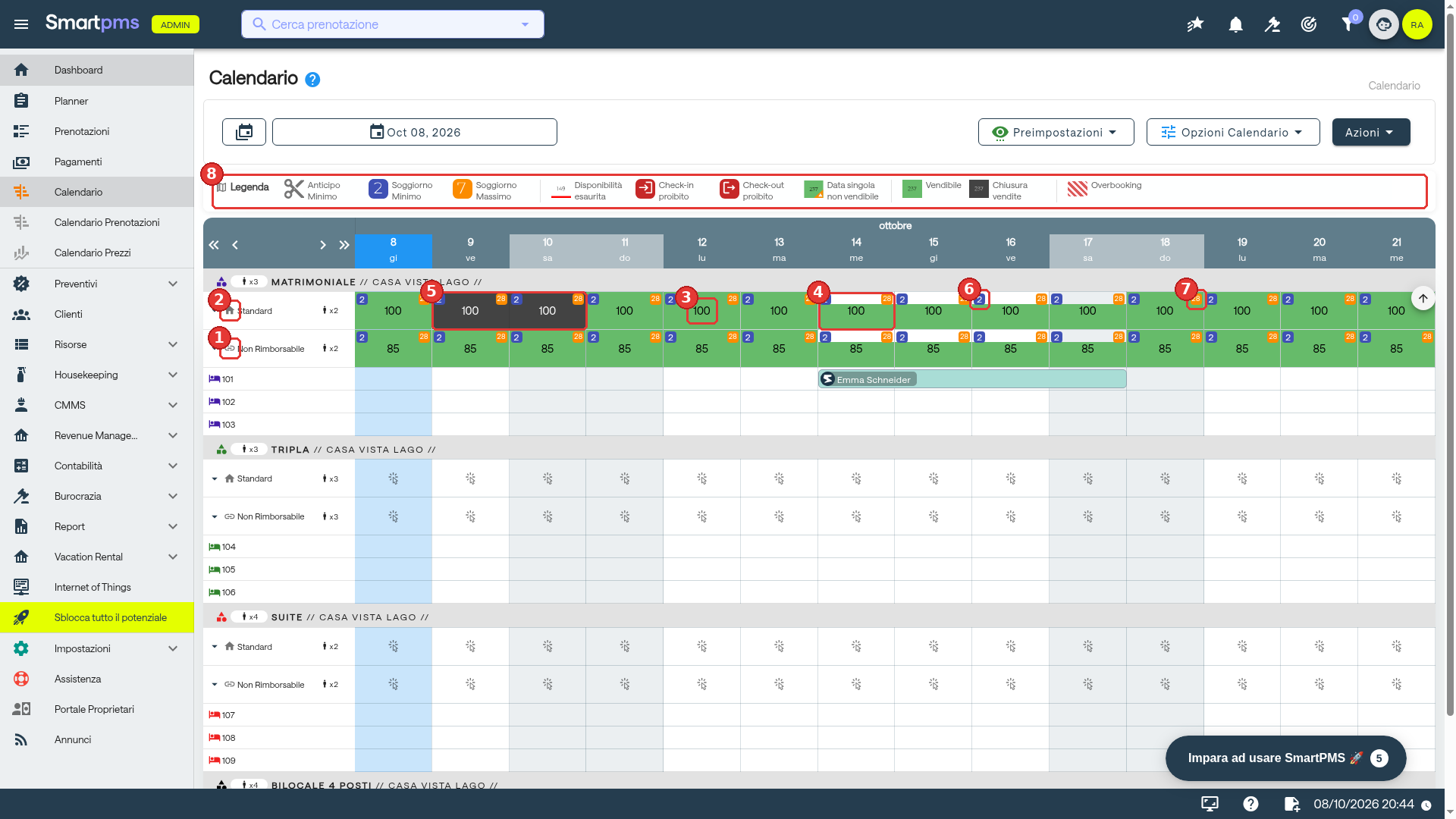
The Legend (activatable in Calendar Options) summarizes the symbols: Minimum Advance, Minimum Stay, Maximum Stay, Availability exhausted, Check-in prohibited, Check-out prohibited, Single date not sellable, Sellable, Sales closure, and Overbooking.
Unit rows
Below the rate plans, you will find a row for each unit of the type, with bookings drawn as bars from the arrival day to the departure day. On the left, the icon indicates the unit type (bed for a normal unit, group icon for an aggregated unit, duck icon for a Jolly unit). By clicking on the unit icon, you open the unit edit card. If you have activated Housekeeping in Calendar Options, a green (clean) or red (to be cleaned) spray bottle appears instead of the icon: by clicking it, you change the cleaning status of the unit.
Other elements you may encounter in the unit rows:
- date blocks: yellow and black striped bar;
- options (tentative bookings): orange bar;
- bookings linked to another unit (for example with aggregated units): gray and white striped bar;
- "To be assigned" row (orange) at the bottom of the type: contains bookings that do not yet have a unit;
- red and white striped background on a unit: signals an Overbooking, i.e., multiple overlapping bookings on the same unit. By hovering your mouse, you read "Overbooking detected. Drag the booking in this row to an available unit".
How to read booking colors and icons, open them, and move them is explained in the guide Calendar: reading, opening, and moving bookings (colors, icons, Do not move, split).
What opens by selecting cells
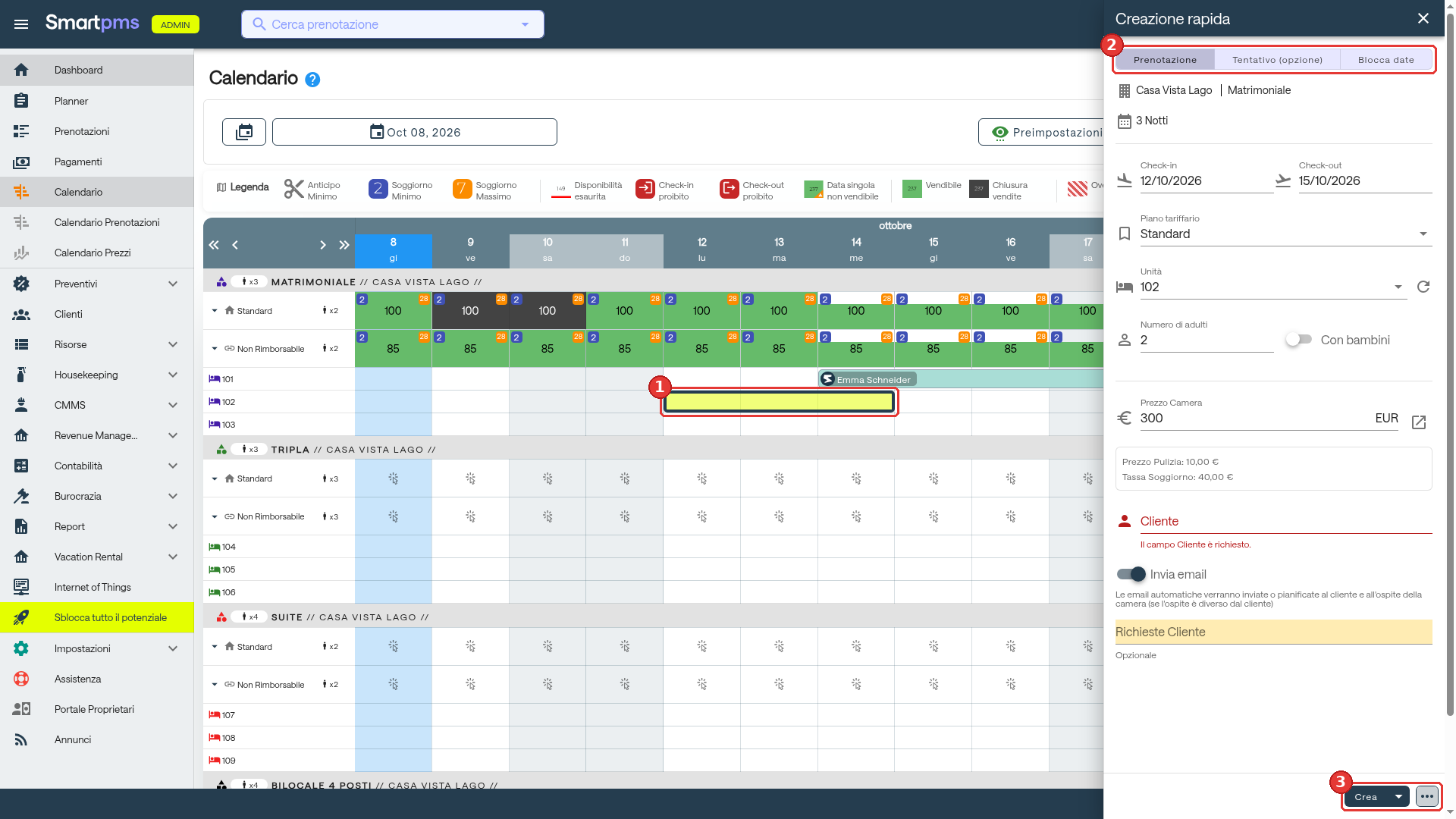
You can click on a single cell or hold and drag over multiple days of the same row. On a unit row, each cell is a night: the last selected day is the last night and the check-out is the following day. For example, by selecting cells from the 12th to the 14th, the panel proposes check-in on the 12th, check-out on the 15th, and 3 nights.
On a unit row: Quick Creation panel
By selecting one or more free cells of a unit, the Quick Creation panel opens on the right, already filled with unit and dates. At the top, you choose what to create:
- Booking;
- Tentative (option), a booking to be confirmed by a deadline;
- Block dates, to make the unit unavailable (maintenance, personal use).
For booking and option, the panel shows property and type, the number of nights, check-in and check-out dates, rate plan, unit, adults and children, and the calculated price (visible only to those who have permission to see amounts), as well as customer data. At the bottom, you find Create, with the arrow to choose Create in advanced mode, and the button with the three dots for Multiple add and Create group booking. If there is no availability or rates for those dates, the panel signals it and proposes to proceed in advanced mode.
The panel opens only for users who can create bookings, options, or blocks. All steps are described in the guide How to create a booking, an option, or a date block from the Calendar.
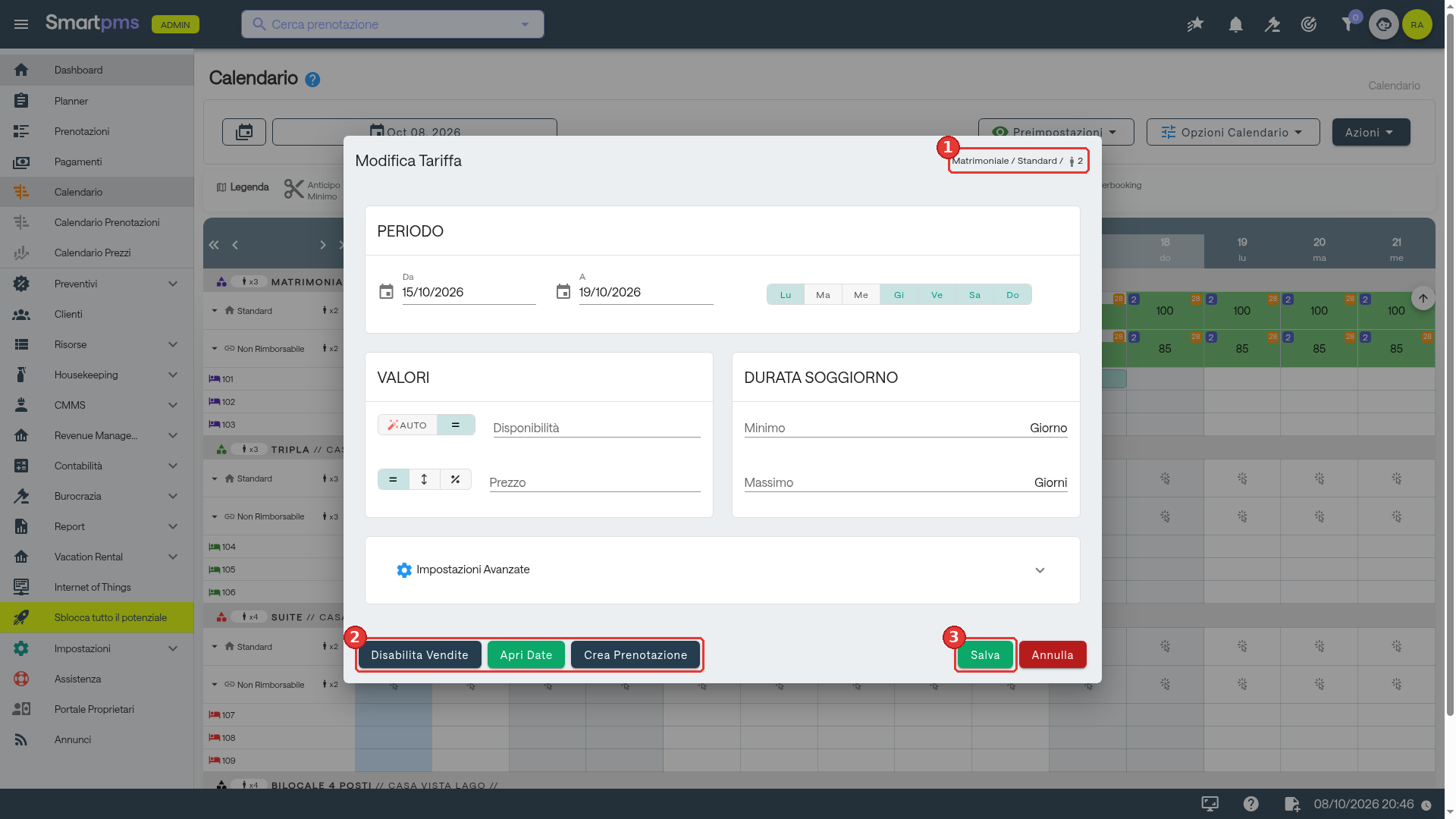
On a rate plan row: Edit Rate
By selecting one or more cells of a rate plan, the Edit Rate window opens directly for that plan and that period (from the first to the last selected day). At the top right, you see type, plan, and number of guests. From here, you can change price, availability, minimum and maximum stay, and advanced settings (Minimum Advance, Ignore Derivation, Close Dates, Deny Check-in, Deny Check-out, Autogenerate Availability), or use the quick buttons Disable Sales and Open Dates. The Create Booking button instead opens the Quick Creation panel for that plan and those dates. Changes are confirmed with Save; Cancel closes without saving.
The window is used with the calendar rate edit permission. Each field is explained in the guide How to change prices, availability, and restrictions from the Calendar.
View types and visible period
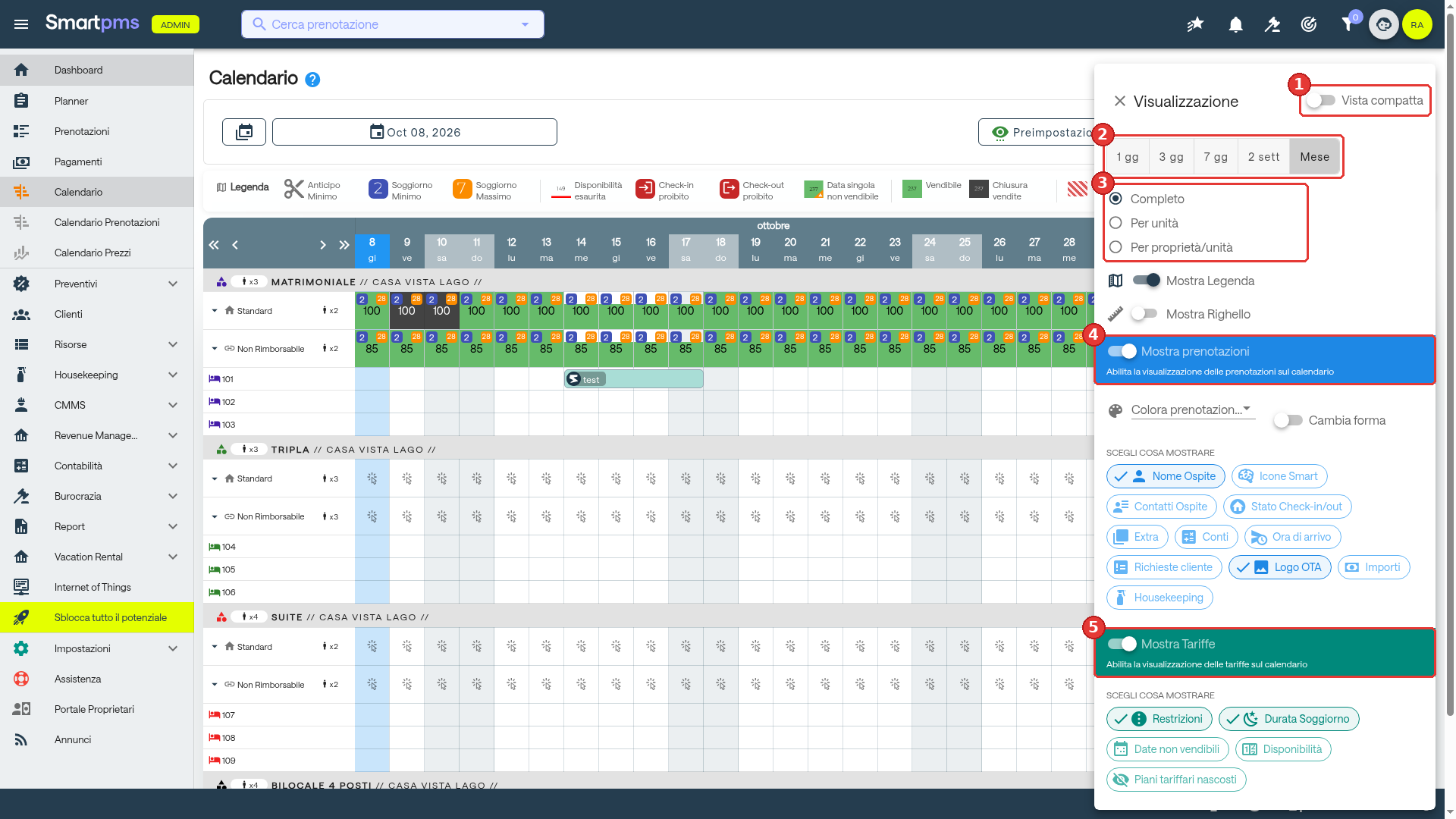
The Calendar Options button opens the View panel on the right, where you choose how to present the grid. The main choices are three types of view:
- Complete: it is the only view that shows type rows, rate plans, and units with bookings together. It is the view suitable for those who manage prices and availability.
- By unit: shows only the list of units with bookings, without rate plan rows and without grouping them by type. It is the most convenient view for assigning rooms. In this view, the Compact view option is not available.
- By property/unit: like By unit, but with units grouped under the name of each property.
Other view settings:
- Compact view: hides the gray type row to save space.
- Visible period: 1 day, 3 days, 7 days, 2 weeks, or Month. The more days you show, the narrower the columns are.
- Show bookings and Show Rates: turn on or off the unit rows and the rate plan rows; for each, under Choose what to show, you can choose which information to show.
- Show Legend and Show Ruler.
You can save the combination you use most often with Presets and recall it in one click. How to configure these options, with ready-made examples, is explained in the guide How to customize the Calendar and save your views (with ready-made examples).
Moving between dates
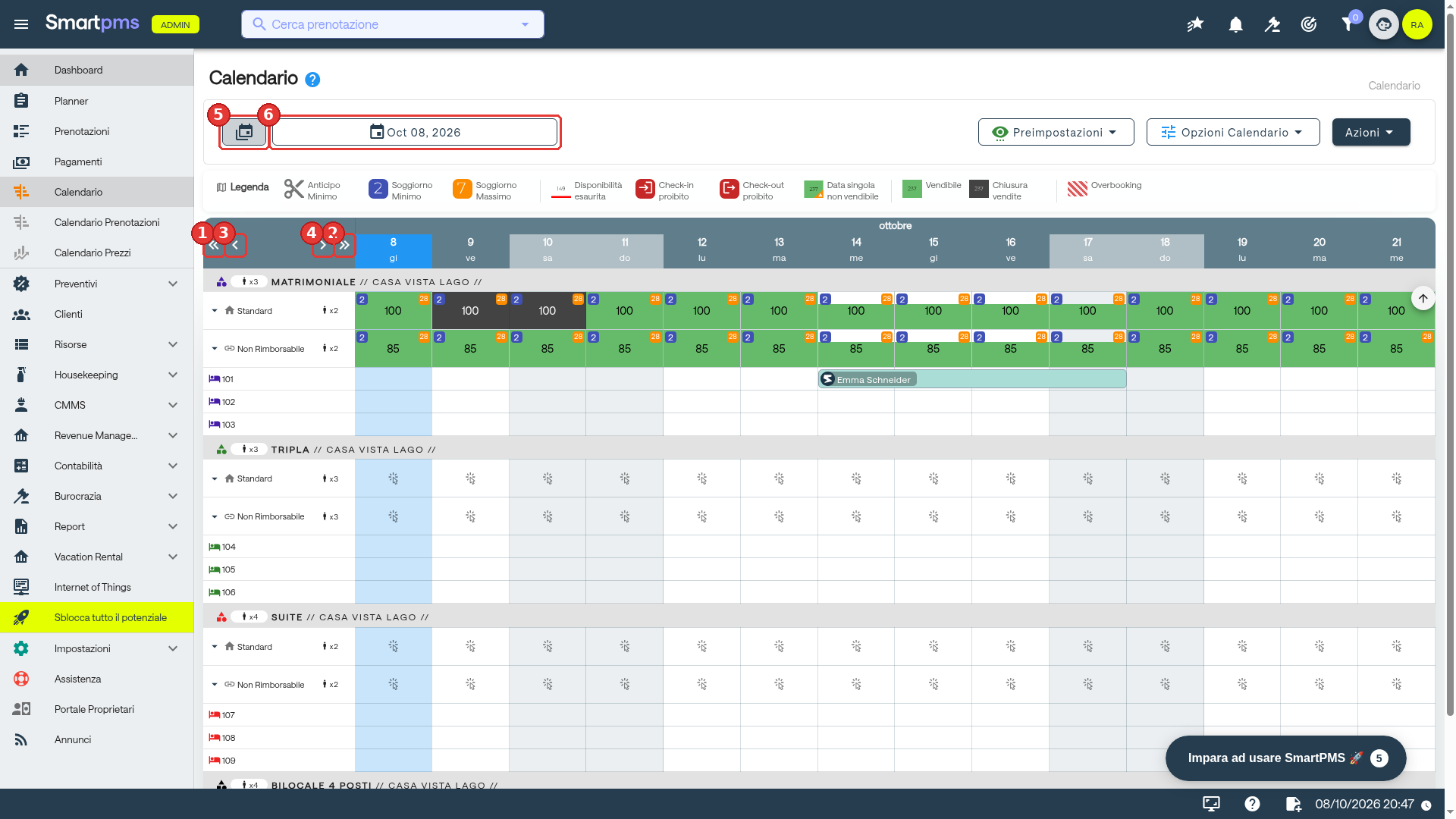
In the top left corner of the grid, on the day row, you find four arrows:
- double arrow left / right: moves the calendar back or forward by an entire visible period (for example, by a month if you are looking at a month);
- single arrow left / right: moves the calendar by just one day.
In the bar above the calendar, you find two buttons to jump to a date:
- the button with the multiple calendar icon opens a quick list with Today and twelve months starting from the current one: by choosing a month, the calendar starts from the first day of that month;
- the button with the date opens the date picker: the chosen day becomes the first column of the calendar.
Rows are scrolled vertically inside the grid; the buttons with up and down arrows on the right help scrolling, even while you are dragging a booking. When there are many units, the Load more button appears at the bottom to show the following rows.
Choosing properties and searching for a booking
The Calendar page does not have its own filters for type or unit: what you see depends on the selected properties and view options.
Property filter
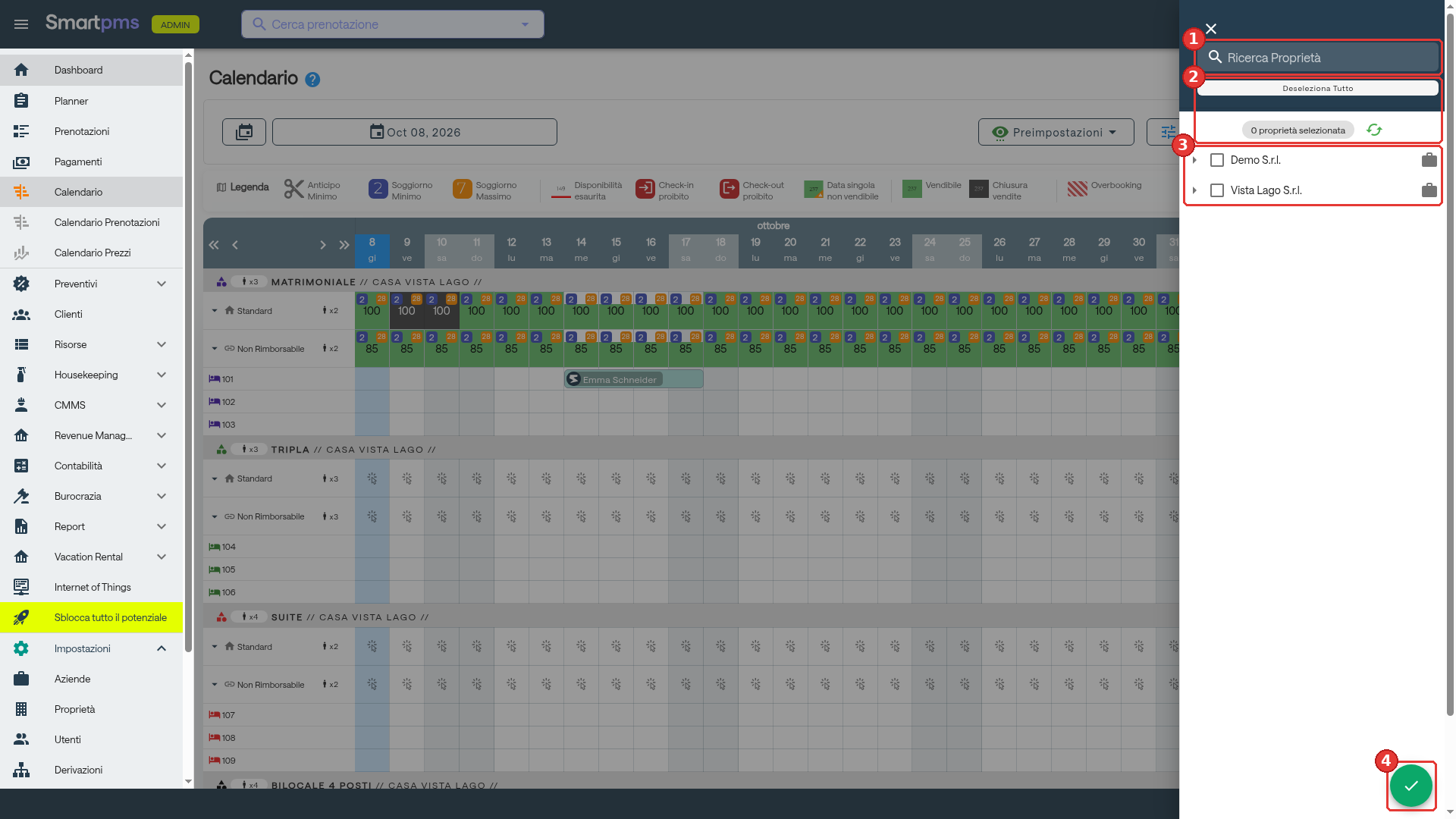
The calendar shows the properties selected in the Property Filter, the funnel-shaped button at the top right in the SmartPMS bar (the same filter applies to other pages). The filter limits both what you see and what you work on: for example, Massive Edit (Actions menu) proposes only the rate plans of the selected properties. If you do not select any property, you see and can edit all those you have access to. Before a change on multiple rates, therefore, check which properties are selected (see the guide How to change prices, availability, and restrictions from the Calendar). In the panel that opens, you can:
- search for a property with Property Search;
- check individual properties in the list, organized by company and grouping;
- select an entire group from Property Groupings, if you have created any;
- remove all checks with Deselect All.
At the top of the panel, you see how many properties are selected (for example "0 property selected" when you have not checked anything). To apply the selection, use the green button with the checkmark at the bottom right of the panel.
Search booking
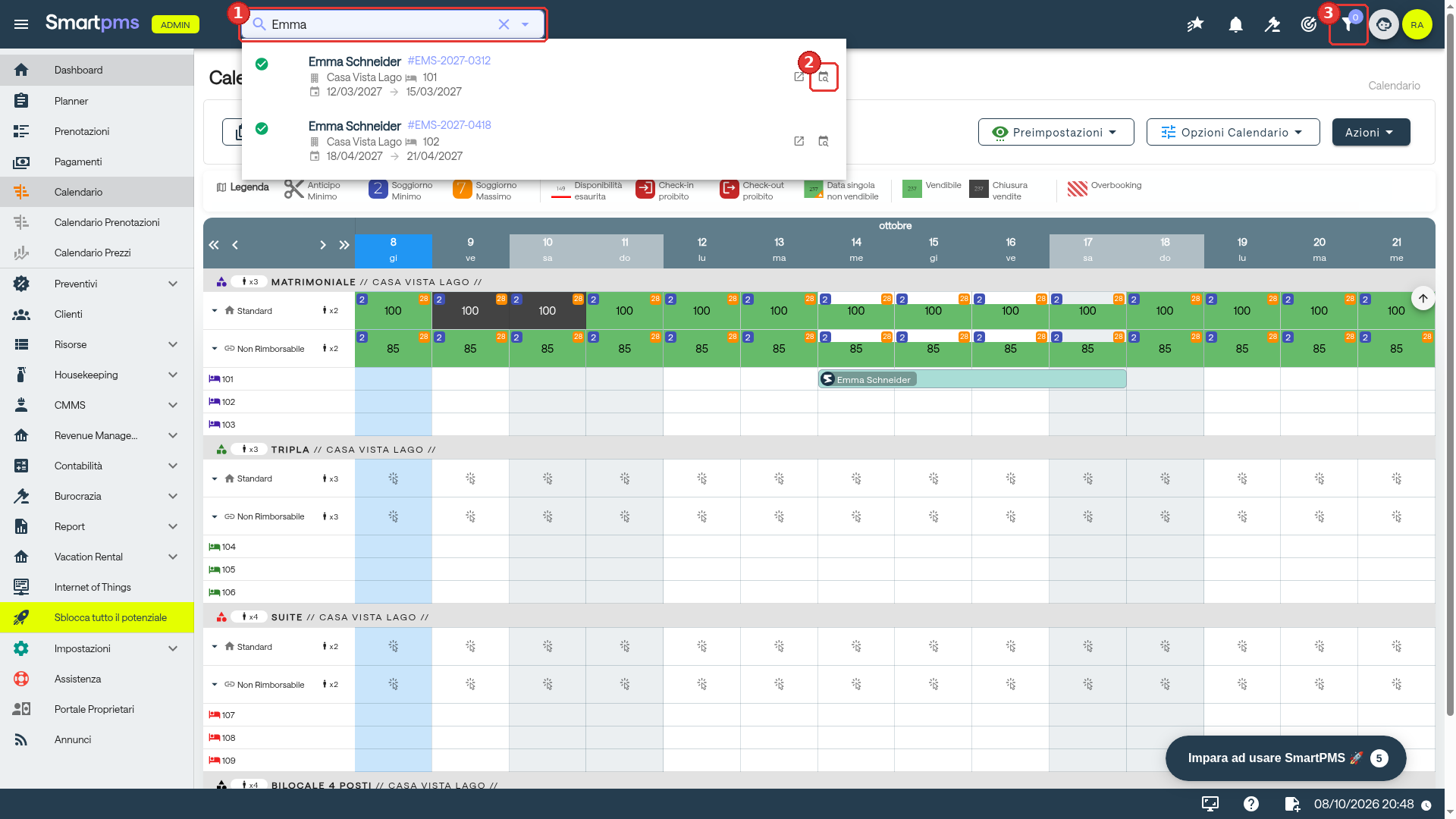
To quickly find a booking, use Search booking in the top bar: write at least 3 characters of the customer name or the booking ID. The search shows bookings starting from a month ago, with property, unit, and dates. On each result, you find two buttons:
- Open booking details, to open the booking;
- Show in calendar: the calendar moves to the arrival date, adds the property to the filter if it was not selected, and highlights the booking with a flashing blue border.
The Actions button at the top right collects operations that do not start from a cell. It is divided into two groups.
Bookings
- Add: creates a new booking choosing property, dates, and room from scratch. See the guide How to create a booking, an option, or a date block from the Calendar.
- Block: creates a date block to make a unit unavailable. See the guide How to create a booking, an option, or a date block from the Calendar.
- Multiple add: creates multiple bookings at once. See the guide How to create a booking, an option, or a date block from the Calendar.
- Create group booking: creates a group booking on multiple units. See the guide How to create a booking, an option, or a date block from the Calendar.
Rate
- Massive Edit: changes prices, availability, and restrictions on multiple rate plans and multiple dates together. It proposes only the rate plans of the properties selected in the Property Filter (the funnel at the top right); if no property is selected in the filter, it proposes all of them. Before opening it, select the properties you want to work on in the filter. See the guide How to change prices, availability, and restrictions from the Calendar.
- Rate History: shows who changed prices, availability, and restrictions and when. See the guide How to change prices, availability, and restrictions from the Calendar.
- Clone prices: copies prices from one year to another. See the guide How to copy prices from one year to another with Clone prices.
From a smartphone, the Actions menu also contains Activate drag and drop / Deactivate drag and drop, to enable moving bookings by dragging them.
The items in the Bookings group are deactivated if your user does not have permissions to create bookings or blocks; Rate History requires the permission to view rate history.
Who sees what: user permissions
What a user sees and can do in the Calendar depends on the role and permissions assigned in Settings → Users (see the guide How to manage the property's users: adding collaborators, roles, and properties). The permissions that count are:
Permission | What it allows in the Calendar |
|---|---|
View Booking Calendar | Open the Calendar page. Without this permission, the item is not accessible. |
Customize Calendar | Use Calendar Options and Presets. |
View Rate Calendar | See rate plan rows with prices and availability and the Show Rates section in Calendar Options. |
Edit Rate Calendar | Save changes to prices, availability, and restrictions, use Massive Edit and Clone prices. |
View Rate History | Open Rate History from the Actions menu. |
Create Bookings along with Create Booking, Create Options or Create Blocks | Open the Quick Creation panel from unit cells and create the allowed element type. |
Edit Bookings | Open a booking for editing. Those who only have View Bookings open it in read-only mode. |
View Booking Amounts | See amounts in bookings and the price in the Quick Creation panel. |
What some predefined roles see:
- Manager User: sees and edits the entire Calendar, including rates and Rate History.
- Staff User: sees rates but cannot edit them; can create and edit bookings, options, and blocks.
- Cleaning Service: sees the Calendar with units and bookings and can customize the view, but does not see rate plan rows or prices, does not see booking amounts, and cannot create bookings from cells.
- Owner: sees the calendar and bookings of assigned properties and can create blocks; does not see rates and cannot customize the view.
A user sees only the properties that have been assigned to them (Settings → Users → user → Assigned properties). After changing assigned properties, the user must log out and log back in to see the change.
Important: choices in Calendar Options, such as turning off Show Rates, only change the view of the person setting them and can be reactivated by the user themselves. To hide prices from a collaborator, it is not enough to turn off rates in their view: assign them a role without the View Rate Calendar permission, for example Cleaning Service. For cleaning operations, the Housekeeping Planner is also available (see the guide Managing daily cleaning: Planner, Calendar, Timeline, and Housekeeping reports).
Order and color of types and units
The order of rows cannot be changed by dragging them in the Calendar: it is set in the property configuration, from Settings → Properties → Settings button of the property → Units and Rates.
- Types: the order follows the Position field of the type (lowest number = highest up), in the Types section. In the Edit Type window, you also set the color used in the calendar: it is the field under Label with the color code (for example #451DA8) and the colored dot. You can also open the window by clicking on the type name in the Calendar.
- Units: inside each property, the order is that of the Position column in the Units section. At the beginning, units are in the order in which they were created; to move them, use the up and down arrows next to the position. The position only orders units of the same property: if each property has only one unit (for example, one apartment per property), changing it does not change the order in the calendar.
- Rate plans: the order of rows follows that of the Rate Plans section. There, you can also hide a plan from the calendar.
- Properties: in the Complete view, they are shown in alphabetical order by name; in the By unit view, units are grouped by property, in the order in which properties were created. The order of properties cannot be customized.
What do you want to do?
Do you want to... | Guide |
|---|---|
Create a booking, an option, a block, or a group booking from the Calendar | How to create a booking, an option, or a date block from the Calendar |
Change prices, availability, and restrictions, close or open dates, disable sales, use Massive Edit, or consult Rate History | How to change prices, availability, and restrictions from the Calendar |
Understand booking colors and icons, open them, move them, split them, or change their duration | Calendar: reading, opening, and moving bookings (colors, icons, Do not move, split) |
Customize the view, save Presets, show hidden rate plans | How to customize the Calendar and save your views (with ready-made examples) |
Copy prices from one year to another | How to copy prices from one year to another with Clone prices |
Understand or change a derivation between rate plans | Introduction to derivation rules |
Connect a unit's calendar to an external calendar via iCal | How to connect an external iCal calendar (VRBO and other portals) to a unit |
Create and send a quote | Quotes: how to create, send, and have an offer confirmed |
Frequently asked questions
8What does the dark grey cell in the rate plan row mean?
The cell with a dark grey background indicates that the date is closed to sales for that rate plan: the plan is not sold on that day even if the price is present. To reopen it, select the dates on the rate plan row and use Open Dates in the Edit Rate window (see the guide How to modify prices, availability and restrictions from the Calendar). If the plan is derived and the closure comes from the parent plan, the change must be made on the parent plan or by ignoring the derivation.
Why does a room have a red and white striped background?
The red and white striped background on a unit row signals an Overbooking: there are overlapping reservations on the same unit for the same dates. Move one of the reservations to a free unit by dragging it (see the guide Calendar: reading, opening and moving reservations (colors, icons, Do not move, split)). The yellow and black striped bars are date blocks, while the grey and white striped ones are reservations linked to another unit.
Why do I see the price but the date is not sellable?
The price is only one of the elements that make a date sellable. A date with a price may not be sellable if:
- it is closed to sales (dark grey cell);
- availability is 0 (red bar);
- it has a restriction: minimum stay longer than the consecutive free nights, Deny Check-in, Deny Check-out or Minimum Advance.
Activate the Restrictions, Length of Stay and Non-sellable dates items in Calendar Options: dates that are not sellable due to restrictions are marked with an orange triangle. For example, with a minimum stay of 3 nights, a single free night between two reservations cannot be sold.
Why don't I see a property or some units in the calendar?
Check, in this order:
- that the property is checked in the Property Filter on the top bar (if you haven't checked any, you will see all those you have access to);
- that the property is assigned to your user in Settings → Users → user → Assigned Properties (after the change, log out and log back in);
- that the units exist in the Units and Rates section of the property settings (Settings → Property → Settings);
- if there are many units, that there is no Load more button at the bottom of the calendar.
If after these checks the property still does not appear, contact support indicating the property name and user.
Why don't I see the rate plans or prices in the calendar?
Rate plan rows only appear:
- in the Complete view (the By unit and By property/unit views only show units);
- with Show Rates active in Calendar Options;
- if your user has the View Rate Calendar permission;
- if the plan is linked to the category and is not hidden from the calendar (to also see hidden plans, activate Hidden rate plans in Calendar Options).
The cleaning staff should not see the prices: is it enough to remove Show Rates?
No. Show Rates is a user view setting and the user can reactivate it themselves. To hide prices, assign the collaborator a role that does not have the View Rate Calendar permission, such as Cleaning Service: they will see units and reservations, but not rate plan rows, prices or amounts, and they will not be able to create reservations from the cells.
How do I change the order of rooms or categories in the calendar?
You cannot drag rows in the Calendar. Go to Settings → Property → Settings button of the property → Units and Rates:
- Categories: the order follows the Position field of the category (lowest number = highest up). The position only sorts categories of the same property: if each property has only one category (for example one apartment per property), changing it does not change the order in the calendar;
- Units: within each property the order is that of the Position column in the Units section, which initially follows the creation order; use the up and down arrows to move a unit. The position only sorts units of the same property: if each property has only one unit, changing it does not change the order;
- Rate plans: they follow the order of the Rate Plans section.
The order of properties cannot be customized: in the Complete view they are in alphabetical order by name, in the By unit view they follow the order in which the properties were created.
From the phone app I cannot see the properties of different companies together: how do I do it?
In the SmartPMS app, the Calendar works on one company at a time. With the selector at the top right, choose the active company; with the funnel (Property Filter) you can then show one, several or all properties of that company. If your structures are registered to different companies, in the app you see them one company at a time, changing the company from the selector.
Since the last app update, the "All companies" choice is no longer available. If a collaborator still sees the properties of all companies together, they have an older version of the app: after the update, they will also see one company at a time.
To have a single view with the properties of all companies, use the management software from a browser, even from your phone:
- Open the management software from a browser and enter Calendar.
- Tap the funnel at the top right (Property Filter): the list shows the properties grouped by company.
- Press Deselect All to see them all, or check only the ones you need.
- Confirm with the green button at the bottom right.
For collaborators, for example those who handle cleaning, it can be convenient to save the Calendar page in the phone's favorites.
Related guides
Configuration
Configuration
Configuration
Configuration
Configuration
How it works