

How reservations work in SmartPMS
Overview of reservations in SmartPMS: reservation, option and date block, statuses and no-show, customer and guests, units and typology (To Be Assigned, automatic assignment, linked reservation), single, group and split reservations (room change), where they come from, the Reservations list with filters, search and Excel export, and the reservation card in brief.
You are in the right place if…15 cases
- “What is the difference between a booking, an option, and a date block?”
- “What does the 'Pending' status mean for a booking?”
- “The guest needs to change rooms mid-stay: how do I do it without creating two bookings?”
- “I modified the client's data and other bookings changed too”
- “In the guest portal, the guest only sees one of the group's bookings”
- “What does the orange 'To be assigned' row mean?”
- “Bookings are not automatically assigned to a room”
- “An empty booking appears on the entire apartment without a client or price: is it a duplicate?”
- “How do I export the bookings list to Excel or CSV?”
- “The cancellation date is missing in the exported Excel file”
- “I cannot find a booking by searching for the surname”
- “How do I filter bookings by creation, check-out, or payment date?”
- “Where do I see split bookings in the list?”
- “The person staying is different from the person who booked: how do I indicate this?”
- “How do I add multiple guests to the same booking?”
What this guide is for
This guide explains the concepts behind SmartPMS bookings: what types of elements exist, what statuses they can have, who is inside a booking, how it links to units, and where it comes from. It does not describe step-by-step procedures: for those, you will find links to dedicated guides.
Booking, option, and date block
In the Calendar and the Bookings list, three types of elements appear (the Type filter in the list distinguishes them):
- Booking: a stay with a guest and a price. It occupies the unit and reduces the availability communicated to portals.
- Option: a stay not yet confirmed that holds the dates until a deadline (Valid until, mandatory). It occupies the unit and availability like a booking. When confirmation arrives, you convert it into a booking; if the deadline passes without confirmation, SmartPMS automatically cancels it, adds the note "Automatic cancellation" in the Internal Notes, and frees up the dates.
- Date Block: makes a unit unavailable without a guest and without an amount (maintenance, work, personal use), with a Reason. The block also reduces availability towards portals.
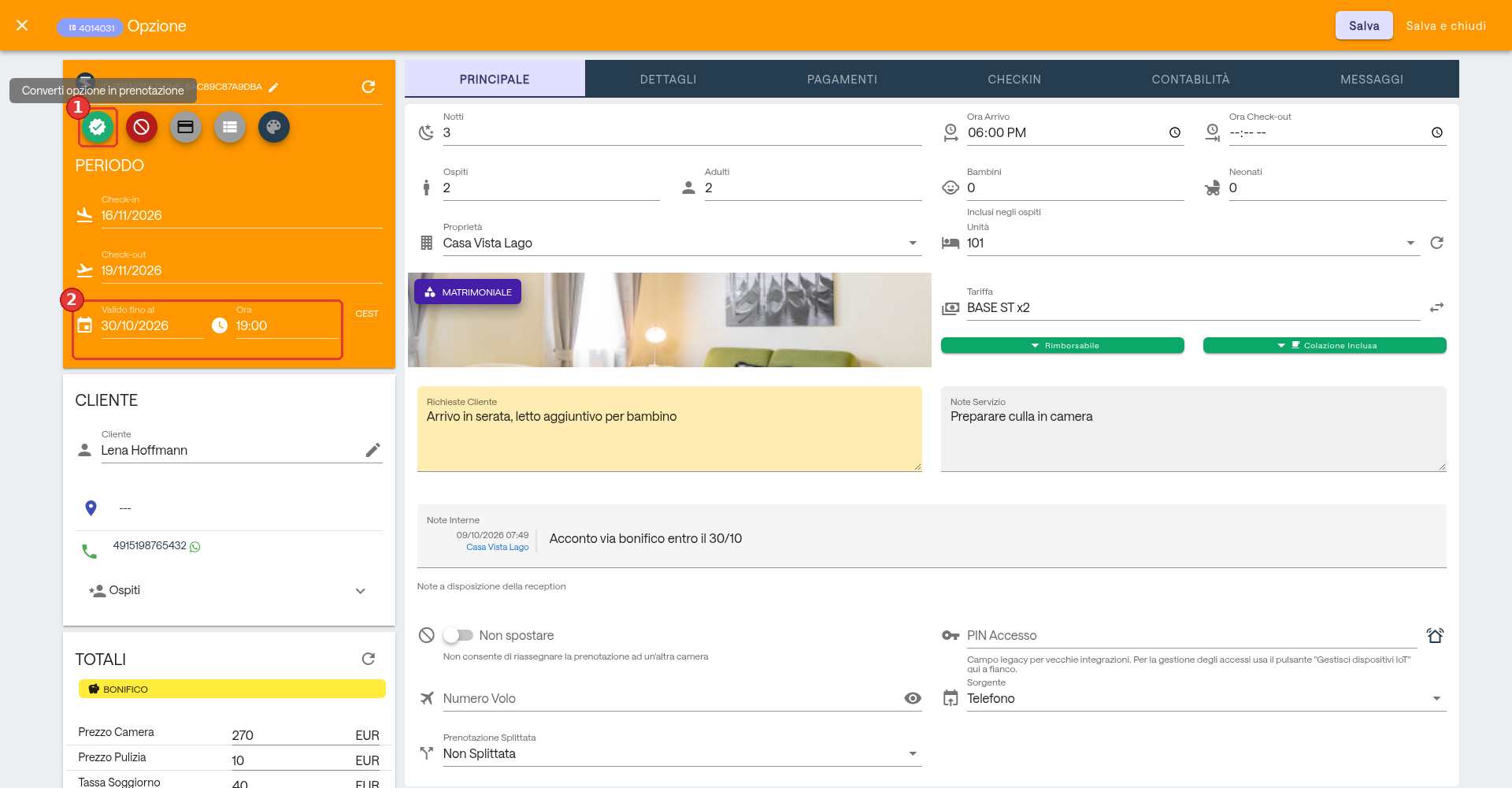
There is also a fourth element, created only by the system: the Linked booking (in the Type filter it appears as Virtual Block). We talk about this in the section on units.
To propose multiple solutions to a guest and have them confirm the one they prefer with a link, use Quotes: see the guide Quotes: how to create, send, and have an offer confirmed.
Statuses: Confirmed, Pending, Cancelled (and no-show)
Each element has a Status:
- Confirmed: the booking is valid.
- Pending: the booking is not yet confirmed. This is the status of options, but also of some bookings that arrive from outside, for example from the Booking Engine with payment via bank transfer or from Airbnb booking requests. In the Calendar and the list, Pending bookings have the hourglass icon: yellow for options, gray for Pending bookings arrived from the Booking Engine or Airbnb. For options, the list also shows the expiration date under the hourglass.
- Cancelled: the booking is annulled and no longer occupies the unit. A cancelled booking can be reactivated with Restore Booking or deleted entirely with Delete permanently, which is only possible after it has been cancelled.
An option and a Pending Booking from the Booking Engine look similar but are not the same thing: you create the option manually, it always has an expiration date and is of type Option; the Pending booking arrived from the Booking Engine or Airbnb is of type Booking. Automatic messages are also different (templates Option Booking and Pending Booking): see the guide Automatic message templates: categories, types, and dynamic fields.
No-show is not a status in itself. With the Mark as No-Show action, the booking changes to Cancelled with the reason No-show and SmartPMS notes it in the internal notes: this way it remains distinguishable from normal cancellations, even in reports.
Who is in the booking: client and guests
The Client
The Client field links the booking to a master data card (name, email, phone, language, billing data). The client card is shared: the same client can have many bookings, past and future. For this reason, if you modify the client data from the Edit Client window, the change applies to all bookings linked to that card.
If a booking has been linked to the wrong client, do not correct the card: in the Client field of the booking, choose or create the correct client and save.
When a booking arrives from a portal, SmartPMS can associate it with an existing client with the same phone number, instead of creating a new one. This is decided by the property option Reassign bookings to existing client: see the guide Why a booking is associated with an existing client: the Reassign bookings to existing client option.
The room guest
Who books is not always who stays: an agency or a company can book for an employee. During creation, the Room guest same as booker switch is active by default; by deactivating it, you indicate the Name and Surname of the guest occupying the room. Automatic emails are sent or scheduled to the client and also to the room guest, if different from the client.
Main guest and additional guests
In the booking, there is always a main guest, who remains the reference for the booking for searches, exports, and documents and cannot be removed. You can add other guests with name, phone, and email, up to the maximum occupancy of the room. Guest data required for mandatory communications (for example, Police guest registration (Schedine Alloggiati)) are filled in the Checkin tab of the booking.
The guest portal
The guest portal is the online page where the guest consults their bookings, pays if required, updates data, and completes the online check-in. The link is tied to the client card, not the individual booking: the guest sees all bookings linked to that card. If two bookings have different client cards (even with the same name), they appear separately in the portal.
Units and category
Physical unit and unit type
A booking is always linked to a unit type (the category sold, through the Rate plan) and, when assigned, to a precise unit (the physical room or apartment). The unit type decides price and availability; the unit decides where the guest sleeps.
If you assign the booking to a unit of a different category than the one sold, the booking is flagged as Room Upgrade (icon with an upward arrow). The category shown in the booking remains the one purchased: to change it, you must also change the Rate plan.
The To Be Assigned row
A booking without a unit ends up in the orange To Be Assigned row at the bottom of the Calendar category and, in the list, has the To Be Assigned label. It still occupies the category's availability, but not a specific room. This happens, for example, when no unit of the category is free for the entire stay or when automatic assignment is turned off. To assign it, drag it onto a free unit in the Calendar or choose the Unit in the card. With Reset to be assigned, you bring an already assigned booking back to the To Be Assigned row.
Automatic assignment
The property option Auto assign bookings, active by default on new properties, makes SmartPMS automatically assign the unit to bookings that arrive without a unit. It applies:
- to bookings arriving from portals via Channel Manager;
- to Booking Engine bookings;
- to bookings created manually without choosing a unit, when you leave Automatically assign unit type active during creation (also applies to group rooms).
The criterion is simple: SmartPMS takes the units of the category in the order of position set in the property configuration and chooses the first one free for the entire stay. If no unit is free for all nights, the booking remains in To Be Assigned: SmartPMS does not split the stay across multiple rooms on its own. With the property option turned off, bookings without a unit always remain in To Be Assigned until you assign them.
Linked booking (aggregated units)
If a room is part of an aggregated unit (for example "Entire Apartment" composed of multiple rooms), when you book the room, SmartPMS automatically creates a Linked booking element on the aggregated unit, and vice versa. It has no client or price: it serves to prevent selling the entire apartment while a room is occupied. By clicking on it, you find View block and Edit original booking. It is not a duplicate, it should not be deleted, and it disappears on its own when you delete the original booking. It does not appear in the list export.
Do not move
The Do not move field prevents reassigning the booking to another room (in the Calendar it is signaled by a red dot). It is useful when the guest has specifically requested that unit: anyone who tries to move it receives a warning that the booking has been labeled as do not move.
Single, group, split, and linked bookings
- Single booking: one room, one stay.
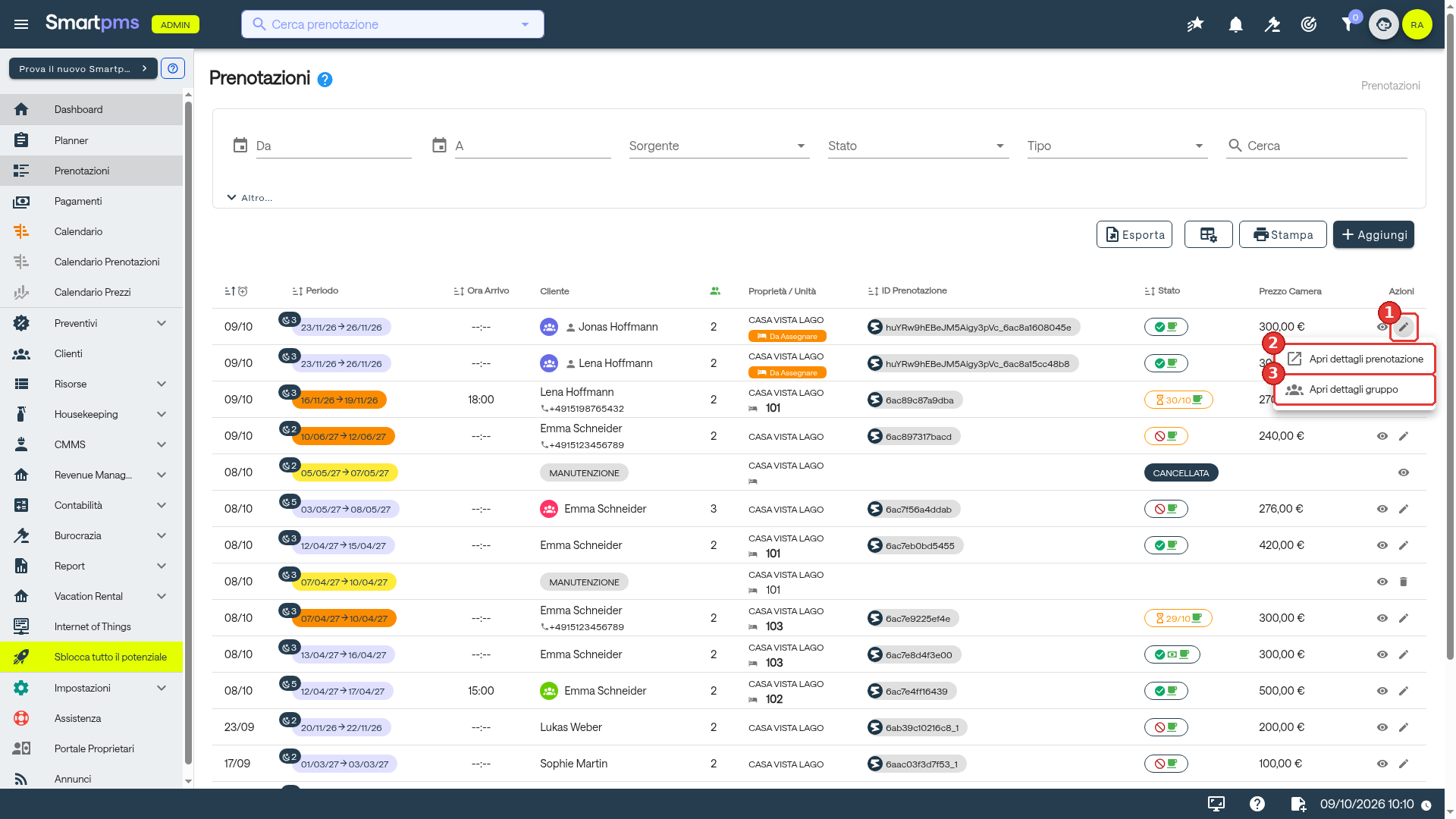
- Group booking: multiple rooms kept together under a single group, with main contact, notes, and common payments. In the Calendar and the list, by opening a room of the group you can choose Open booking details (the single room) or Open group details. How to create and manage them is explained in the guide How to create and manage a group booking.
- Split booking: the same stay divided into two units, for example when the guest changes rooms halfway through the stay. With Split booking, you indicate the Start date of the change, the property, and the destination unit; in the Calendar, the booking appears divided with the split icon, but it remains a single booking with a single client and a single account. The split is removed with Cancel Split.
- Link booking: joins two separate bookings to view them as a group, without merging them; they can be separated again with Unlink booking.
What to know about the split:
- it is an internal organization of SmartPMS: portals do not receive the room change and the guest is not notified automatically. Availability, however, is updated on portals for both units, on their respective dates;
- the destination unit must be different from the starting one;
- you cannot move the entire stay, from the check-in date, to another unit of the same structure with the split: in that case, just change the booking unit;
- to split to another structure, both structures must have the Channel Manager active;
- an already split booking cannot be moved: cancel the split first;
- if the stay dates change later, the split remains.
Where a booking comes from
- Calendar, quick creation: you select the nights on the unit row and fill out the Quick creation panel. See How to create a booking, an option, or a date block from the Calendar.
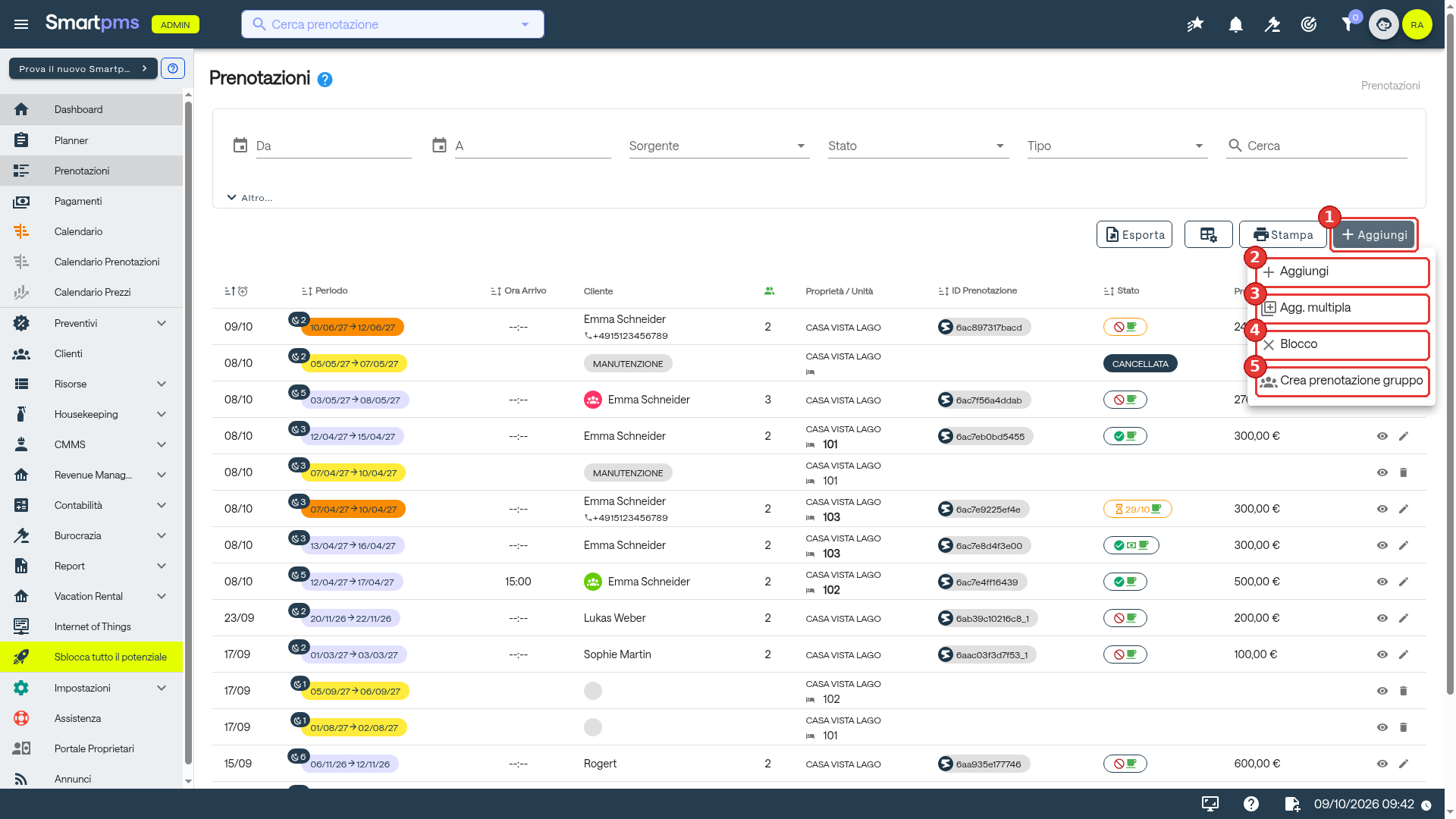
- Bookings list, complete mode: from the Add button in the list, you open the wizard with search, proposals, and all fields. See How to create a booking from the Bookings list (complete mode).
- Group booking: from the Add menu or the Calendar. See How to create and manage a group booking.
- Quotes: the booking is born when the client confirms the offer. See Quotes: how to create, send, and have an offer confirmed.
- Booking Engine: direct bookings made by the guest on the property website.
- Portals (Booking.com, Airbnb, Expedia, and others): they arrive via the Channel Manager; their modifications and cancellations arrive in the same way.
- Import from old management software: upon activation, the Onboarding Specialist can import the booking history from files; this is not an operation available from the menu for property users.
Two fields help remember where a booking comes from:
- Source: the sales channel (for example Booking.com, Airbnb, Booking Engine or, for manual bookings, Direct, Phone, E-Mail, WEB, Agency, ADS, Social, Not specified). It is used for statistics, filters, and message templates set by source.
- Referral: an additional label to attribute the booking to an agency or intermediary; it can be used as a filter and, if it has a color, it colors the booking in the Calendar.
The Bookings list
The Bookings list shows all bookings, options, and blocks of the properties selected in the property filter at the top. The icons in the status column summarize the situation: green check for Confirmed, hourglass for Pending, red prohibition for Cancelled, then icons for group, Room Upgrade, existing accounts, paid, split, board, check-in completed, referral, and client birthday.
Main filters
- From and To: the period. By default, it refers to the check-in date; with the Date Filter you can refer it to another date.
- Source: the channel of origin (visible to users with permission to see sources).
- Status: Confirmed, Pending, Cancelled (even more than one together).
- Type: Booking, Option, Block, Virtual Block.
- Search: search by client name or booking ID.
The search finds bookings when the written text is the beginning of one of these fields: full name, client's first or last name; room guest's first or last name; booking code. For example, "Schn" finds Emma Schneider, while "neider" does not.
Advanced filters
Opening the advanced filters you find:
- Show segments of split bookings: by default, the list shows a single row for each split booking; by activating it, you also see the individual segments;
- Date Filter: Check-in Date, Check-out Date, Creation or Modification, to which From and To apply;
- Board;
- payment status: Paid, Unpaid, Partially Paid;
- With Accounts, With Credit Card, Refundable (Yes / No);
- Referral;
- sorting and order;
- Option expiration (options expiring from that date onwards);
- promotion type and coupon code.
Export and print
- Export: downloads the bookings that match the set filters to Excel or CSV (requires permission to export bookings). The file contains, among other things, code, property, unit, client and contacts, source, stay dates, arrival time, guests, amounts (room, extra, cleaning, City tax, OTA commission, paid and to be paid), status, notes, refundability, board, referral, split indication, and creation date. It does not contain the cancellation date.
- With the column button, you choose which columns to see in the list.
- Print: prints the filtered list.
On smartphones, export and print are not available: use a computer.
The booking card in brief
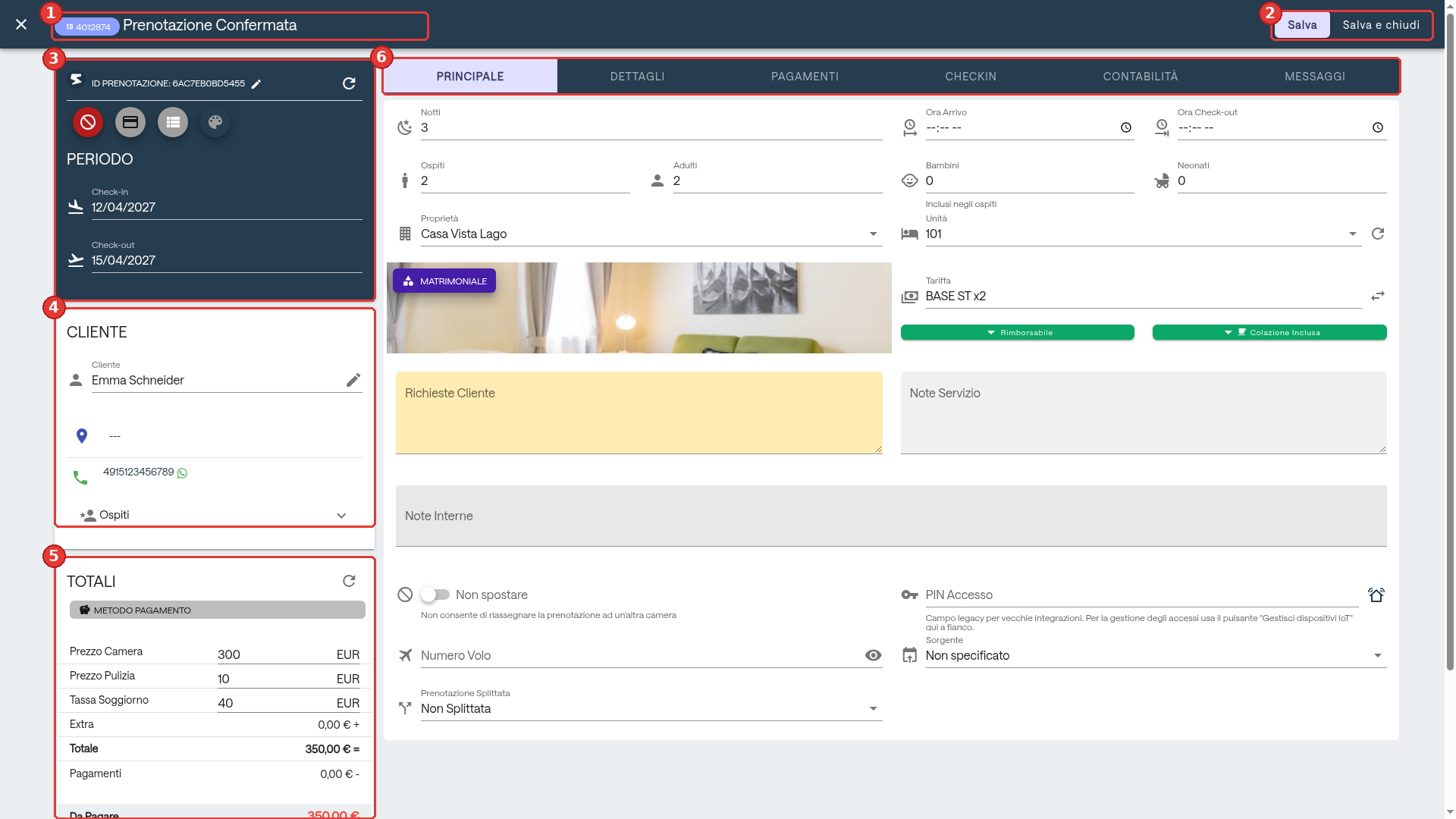
Opening a booking, you find on the left a fixed area with ID, period, client, and the Totals box (Room Price, Cleaning Price, City tax, Extra, Total, Payments, To Pay). From the operations menu of the fixed area, you find actions, including Print, Cancel booking, Restore, Confirm, Convert option, Mark as No-Show, Reset to be assigned, Split, Cancel Split, Move to group, and Change Log. On the right, the tabs:
- Main: arrival and departure times, guests, unit, Rate plan, internal notes, Do not move, and access PIN.
- Details: creation and modification dates, referral, the Booking Extras section with additional services, the daily price detail, Housekeeping, and unit costs.
- Payments: collections, refunds, and payment requests.
- Checkin: guest data for check-in, Police guest registration (Schedine Alloggiati), and guest portal.
- Accounting: accounts and tax documents.
- Messages: sent and scheduled messages and the conversation with the guest.
The detail of each tab and each action is in the guide Managing a booking: the card and what you can do in each tab. Bookings with past dates can only be modified by manager users.
Frequently asked questions
10The guest needs to change rooms mid-stay: do I need to create two bookings?
No. Create (or keep) the booking for the entire stay in the first room, open it, and use Split booking: indicate the Start date, i.e., the first day in the new room, the property, and the new Unit. It remains a single booking, with one client and one account, and availability on the portals is updated for both rooms. The portals do not receive the room change and the guest is not notified automatically: if you want to inform them, write to them from the Messages tab. To split across another property, both properties must have the Channel Manager active.
I modified the client's data and it changed on other bookings too: why?
Because the client profile is shared: all bookings linked to the same client read the same data. If you need a different phone number or name for just one booking, do not modify the profile: in the Client field of the booking, choose or create another client. For guests staying instead of the client, use the guest name field for the room. If bookings from portals often end up on the same profile, check the property option Reassign bookings to existing client.
An empty booking appears on the entire apartment, without a client or price: is it a duplicate?
No. If the booked room is part of an aggregated unit, SmartPMS creates a Linked booking element on the aggregated unit (or, conversely, on the rooms): it serves to prevent selling the entire apartment while a room is occupied. It should not be deleted: it disappears on its own when you delete the original booking. By clicking on it, you can open the original booking with Edit original booking.
The cancellation date is missing in the Excel file exported from the Bookings list
The Bookings list export does not contain the cancellation date: it reports the status, stay dates, amounts, and creation date. To list cancellations for a period, filter Status = Cancelled and, in the advanced filters, use Date Filter = Modification with From and To: you will find bookings whose last modification falls within the period. For the exact date, open the booking and consult the Change Log.
How do I export only confirmed bookings for a month to Excel?
In the Bookings list, set From and To to the month (by default they refer to the check-in date; for check-out or creation, change the Date Filter in the advanced filters), choose Status = Confirmed and Type = Booking, then click Export > Export Excel. The file respects the set filters. Split bookings appear as a single row, unless you activate Show split booking segments. The export is done from the computer and requires the permission to export bookings.
I cannot find a booking by searching for the surname
The search finds a booking when the text is the beginning of the full name, first name, or surname of the client, the first name or surname of the room guest, or the booking code. If you search only by surname and find nothing, usually the client profile has the first and last name written together in the name field (this happens with clients created quickly): search from the beginning of the full name, or open the client profile and fill in First Name and Surname separately. Also check that the date, status, and property filters are not excluding the booking.
What does the orange 'To be assigned' row mean?
It contains bookings that have a unit type but not yet a specific room: they occupy the availability of the category but no unit. This happens when no unit is free for the entire stay or when automatic assignment is not active. To assign them, drag them onto a free unit in the Tape Chart or choose the Unit in the booking card. If a booking remains in To be assigned because no room is free for all nights, you can assign it to a room for the first few nights and use Split booking for the subsequent ones.
In the booking, the source is Direct: did it come from my website?
No. The Direct source indicates a booking entered manually by a property user in the PMS, from the Tape Chart or the Bookings list. Bookings made by guests on your website arrive from the Booking Engine and have the Booking Engine as their source. A manually entered booking does not pass through the portals: before saving it, check on the calendar that the unit is free on those dates.
SmartPMS cancelled a booking as a no-show even though the guest had arrived: why?
The No-Show Detection is active on the property. With this option, SmartPMS checks bookings every hour and automatically cancels those that meet all these conditions with the reason No-show:
- the status is Confirmed;
- the arrival date was yesterday;
- 12:00 (noon) has passed in the property's time zone;
- the check-in has not been registered as completed.
The cancellation frees up the unit and the availability returns to sale on the portals, so the room of a present guest can be resold. In the Internal Notes of the booking, you will find the note "Automatically marked as no-show".
The option is separate for each property: check it on each one. Go to Settings > Properties, open the property, and in the No-Show Detection box, click Configure. If you do not always register the check-in of arrived guests, click Edit, deactivate Automatic no-show detection, and save. If, on the other hand, you want to keep it active, register the check-in as completed for each guest by noon the day after arrival.
To reactivate a booking cancelled by mistake, open it and use Restore Booking, if the unit is still free.
The Excel file exported from the Reservations list does not contain past reservations
If From and To are empty (and you are not using Search), the Reservations list starts from today's date, and the same applies to the export: reservations with previous dates do not appear. To export the history as well, set the entire period you need in From and To, add the other filters (for example Source) and click Export > Export Excel.
The export contains all reservations that match the filters, not just the page you are viewing: there is no need to download each page separately. Linked reservations of aggregated units do not appear in the file, so the number of rows may be slightly lower than the total in the list.
Related guides
Configuration
Configuration
Configuration
Configuration
How it works
Configuration