

Why a booking is associated with an existing customer: the Reassign bookings to existing customer option
Explains the property option Reassign bookings to existing customer: if a guest books with a phone number already present in the database, SmartPMS associates the booking with the existing customer profile instead of creating a new one. It indicates where to enable or disable it and why it may cause a name different from the expected one to appear, even in guest messages.
You are in the right place if…10 cases
- “Another person's name appears on the booking.”
- “The booking was linked to a customer who already existed.”
- “Two different guests end up in the same customer profile.”
- “In the customer profile, the name does not match the person who booked.”
- “Automatic messages call the guest by the wrong name.”
- “Expedia bookings all end up under the same customer”
- “The customer profile is different from the one on the OTA portal (booking/expedia etc.)”
- “Agency bookings all have the same guest name”
- “What is the "Reassign bookings to existing customer" function?”
- “Why is the customer profile misaligned/different from the one reported on the OTA portal (booking/expedia etc.)?”
When a guest books, SmartPMS links the booking to a customer profile (database). With the Reassign bookings to existing customer option enabled, when a new booking arrives, SmartPMS searches among your company's customers for a profile with the same phone number and, when the portal sends it, the same surname. If it finds one, it does not create a new profile but associates the booking with the existing one, keeping the name and surname already saved in the profile.
The option is enabled by default on every new property.
It is useful for recognizing returning guests and finding all their bookings in a single profile. However, it can happen that different people share the same number and surname, typically family members (for example, two brothers who book with the same mobile phone at different times). In this case, the new booking is linked to the profile created by the previous booking, and the other family member's first name appears on the booking.
Where to find the option
- Go to Settings > Property.
- On the structure you want to modify, open Settings.
- In the Property settings card, on the right, you will find the Reassign bookings to existing customer switch.
- Enable or disable it based on how you prefer to manage profiles, then save.
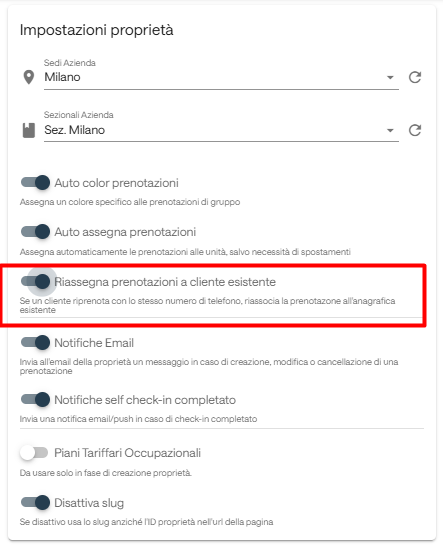
What happens in the two cases
- Option enabled (default): new bookings with the same phone number (and same surname, if available) as an existing customer are associated with their profile. This is the expected behavior, not an error.
- Option disabled: every new booking creates its own customer profile, even if the phone number is already present in another profile.
The option only acts when the booking is created: changing it does not modify bookings already associated with a profile.
Why it is important for guest messages
Automatic messages and connected messaging tools read the name from the customer profile associated with the booking, specifically the Name field. If the booking has been linked to a family member's profile, the messages will also use their first name, even though the surname is correct.
Frequently asked questions
3Why does another person's name appear on the booking?
Most likely, the booking was associated with an existing customer profile with the same phone number (and the same surname), because the Reassign bookings to existing customer option is active in the property, which is active by default. This happens especially among family members who book with the same mobile phone at different times. It is not an error: if you prefer that each booking creates its own profile, deactivate the option from Settings > Property > Settings of the property, in the Property settings card. The change applies to bookings that will arrive from that moment on.
How do I correct the customer's name on an already associated booking?
- Open the booking in SmartPMS.
- In the Customer box, click the pencil icon next to the customer's name: the Edit Customer window will open.
- Correct the Name field (and, if necessary, Surname). This is the field from which messages to guests take the first name.
- Save.
Remember that the customer profile can be shared between multiple bookings: the change applies to all bookings linked to that profile. If, on the other hand, the booking belongs to another person, in the Customer field, clear the selection with the X and search for or create the correct customer, then save the booking.
The guest receives messages with the wrong name: does it depend on this option?
Yes. Automatic messages and messaging tools read the name from the customer profile associated with the booking. If the booking has been linked to a profile with a different name, the guest will be greeted with that name. Correct the customer profile or the booking association as indicated above.
Related guides
Configuration
Configuration
Configuration
How it works
How it works