

How to configure a suite consisting of multiple units
How to create a suite (Suite/Aggregate type) by choosing the individual units that compose it, for example, an entire apartment formed by two rooms. It explains how availability is updated between suites and units, how suites that share a unit work, and why it is advisable to assign the unit to bookings immediately.
You are in the right place if…14 cases
- “How do I create a suite that combines two rooms?”
- “I want to sell the entire apartment and also the individual rooms”
- “How do I choose which units make up the suite?”
- “Where do I set the suite units in the type?”
- “I want to create a family room by joining two connecting rooms”
- “I booked the suite but the rooms are still showing as free”
- “I book a room but the suite remains available”
- “When I book a room, does the suite also close?”
- “I have two suites that share the same room”
- “I added a new unit to the type but it is not part of the suite”
- “Overbooking between the suite and the single rooms”
- “The booking without an assigned unit does not close the suite”
- “Can I create a suite with units from another property?”
- “I can no longer find the Child types field in the suite settings”
A suite (or aggregate type) is a type that you sell as a single accommodation but which occupies multiple units: for example, an entire apartment consisting of two rooms that you also sell separately, or a family room created by joining two connecting rooms. When you configure the suite, you choose the individual units that compose it: SmartPMS keeps the availability of the suite and those units aligned, so you don't sell the same space twice.
Before you begin
- First, create the types and units that make up the suite, for example, rooms 101 and 104.
- The suite is a type in its own right, with its own unit: that is where you place suite bookings. Like any new type, it is created with a unit that has the same name.
Create the suite
- From the property list, click on Settings next to the property, then on Configure in the Units and Rates tab.
- Click on Configure in Types. Click on Add to create a new suite, or on Edit next to an existing type.
- Fill in the name, occupancy, and other fields as you would for any type.
- Open the Suite/Aggregate Settings section and in Type choose Suite/Aggregate if the units that make up the suite are in the same property. If they are in another property, choose Suite/Aggregate in another property, then the property in the Property field.
- In the Suite units field, select the units that make up the suite. Next to each unit, you will see the name of its type: you can combine units of different types. To remove a unit, click on the close icon next to its name.
- Click on Create, or on Edit if you are changing an existing type.
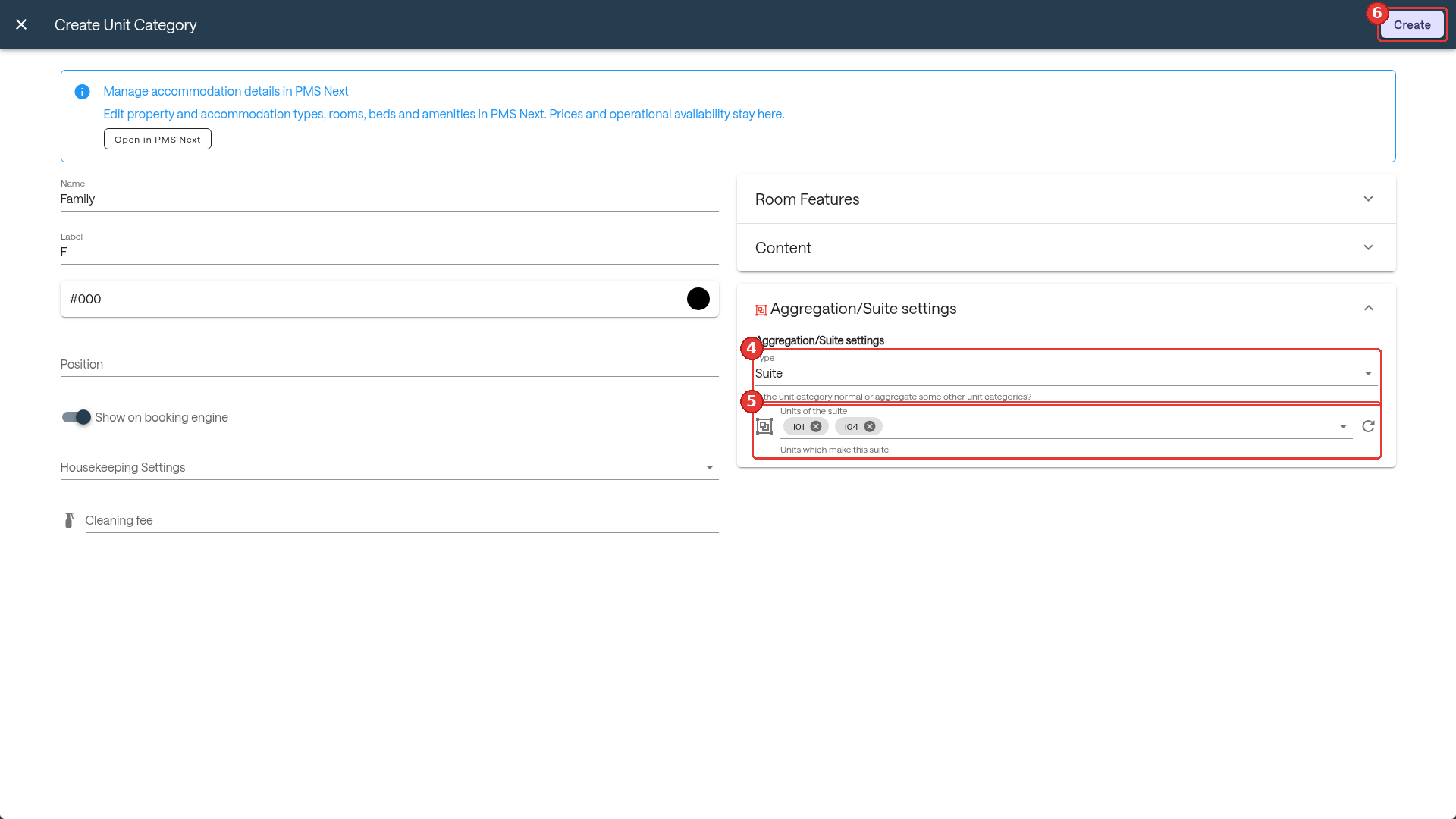
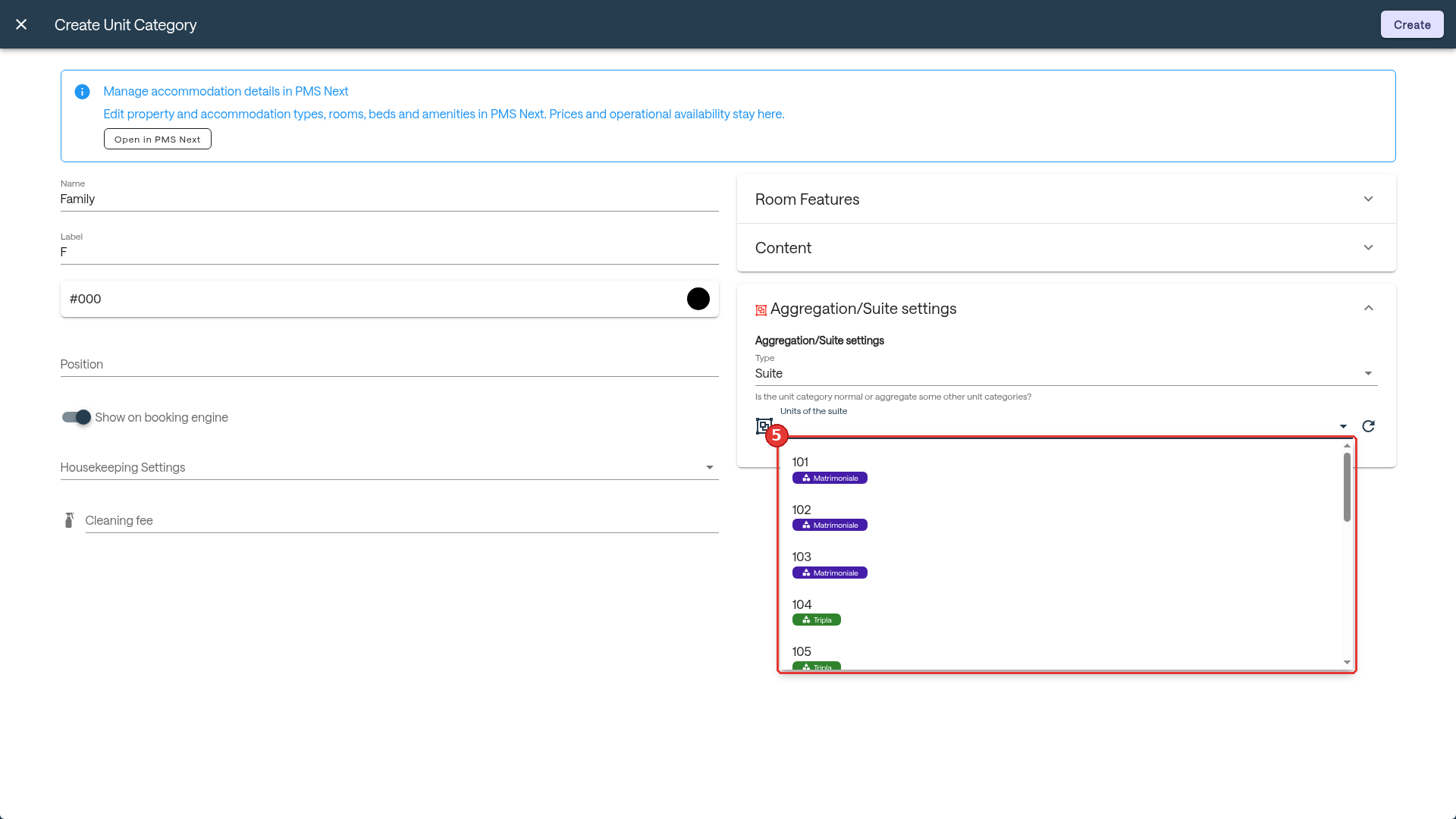
With Suite/Aggregate, you can only choose units from the same property. The units of the suite itself do not appear in the list, because the suite cannot contain itself.
How availability is updated
Take as an example a hotel with:
- the Double Room type, with units 101, 102, and 103;
- the Single Room type, with units 104 and 105;
- the Family suite, composed of units 101 and 104.
With bookings that have an assigned unit:
- you book the Family suite: units 101 and 104 are closed. The Double Room goes from 3 to 2 available units, the Single Room from 2 to 1;
- you book room 101 or 104: the Family suite is closed;
- you book room 102: the Family suite remains bookable, because 102 is not part of it.
A unit can be part of multiple suites. For example: suite A composed of 101 and 102, suite B composed of 102 and 104.
- If you book suite A, units 101 and 102 are closed, and so is suite B, which uses 102. 104 remains bookable.
- If you book room 102, both suites are closed. Units 101 and 104 remain bookable.
Assign the unit to bookings
Suites and units only close each other when the booking has an assigned unit. A booking without a unit reduces the availability of its type, but does not close the suite or the units that compose it:
- a Double Room booking without a unit does not close the Family suite, even if it is later assigned to 101;
- a Family suite booking without a unit only closes the suite: rooms 101 and 104 remain for sale.
When you assign the unit, availability is updated. If other bookings have arrived on the same dates in the meantime, you may find yourself in Overbooking and have to move a booking. To avoid this:
- keep the Auto-assign bookings option active in the property settings, so SmartPMS assigns a free unit as soon as the booking arrives;
- check the Calendar for bookings left without a unit and assign them manually.
Before connecting portals
Some portals, such as Booking.com, do not manage aggregate types: before connecting a suite to a portal, check with support.
Frequently asked questions
1I added a new unit to a type: is it also part of the suite?
No. The suite only contains the units you chose in the Suite units field: a new unit of the same type does not automatically enter the suite. If it needs to be part of it, open the suite with Edit, add the unit in Suite/Aggregate Settings → Suite units and save.
Related guides
How it works
Configuration
Configuration
Configuration
How it works