

Example: how to configure a hotel in SmartPMS
Complete example of a hotel configuration in SmartPMS: creation of the property, two room types with their units (rooms 101-103 and 201-202) and two rate plans, a refundable Standard Rate and a derived Non-Refundable Rate with a 10% discount.
You are in the right place if…7 cases
- “How do I configure my hotel in SmartPMS?”
- “I have a hotel with multiple identical rooms: how do I create them?”
- “How do I create rooms 101, 102, 103?”
- “I want a non-refundable rate 10% lower than the standard one”
- “Example of configuring a hotel with two room types”
- “How do I manage a double room for single use?”
- “Example 1: Hotel configuration”
In this example, we configure Hotel Miramare, a hotel with two room types and two rate plans: a flexible standard rate and a non-refundable rate discounted by 10%. For the meaning of each field, see the guide How to configure a property in SmartPMS.
Type | Base occupancy | Maximum occupancy | Units |
|---|---|---|---|
Standard Double Room | 2 | 2 | 101, 102, 103 |
Lake View Junior Suite | 2 | 3 | 201, 202 |
Before starting, verify that your subscription includes enough units: in this example, 5 are needed.
1. Create the property
- Go to Settings → Property and click Add.
- Fill in:
- Name: Hotel Miramare
- Email: the property's address
- address chosen from Search address, Country and Phone with prefix
- Company: the company managing the hotel
- Click Create.
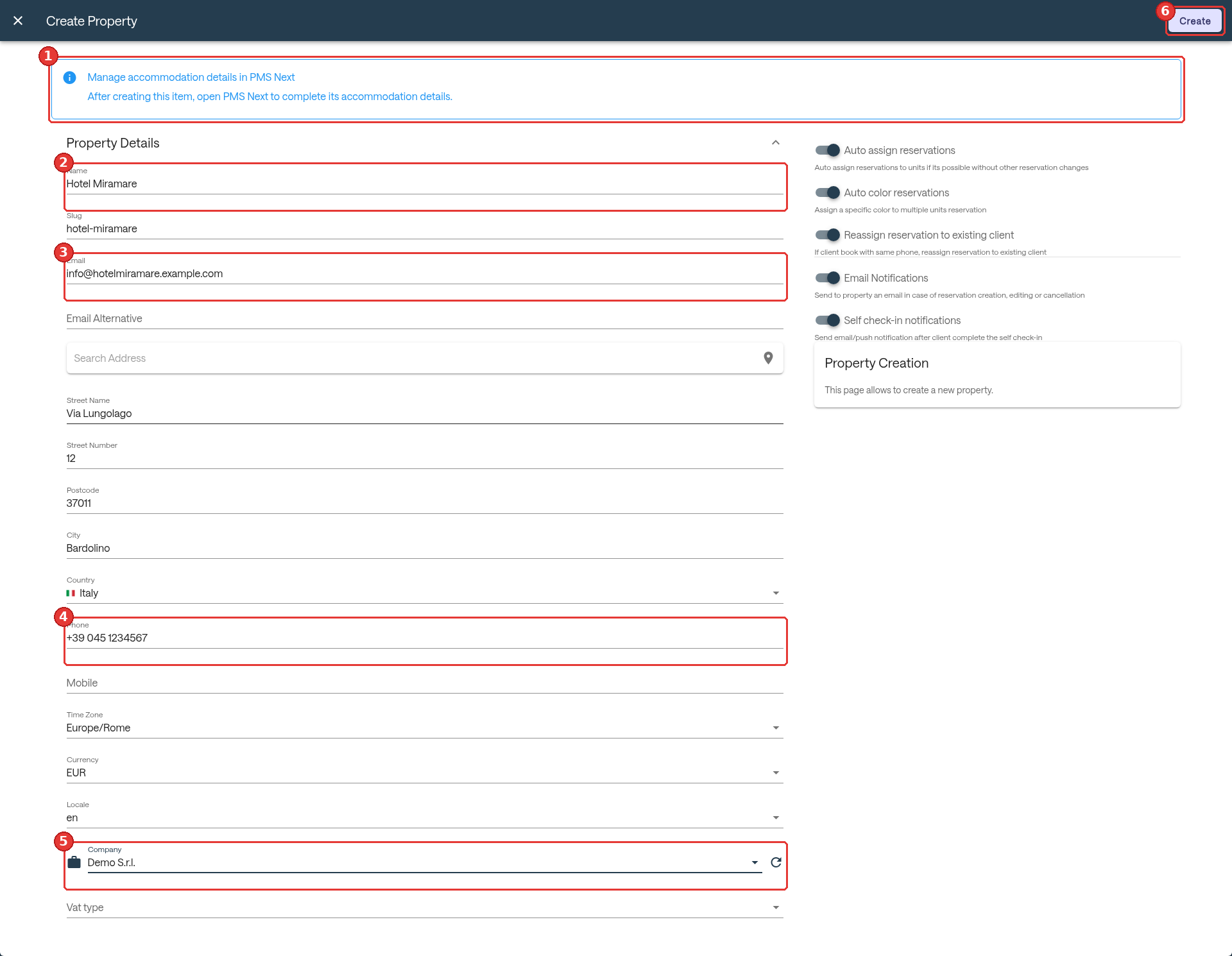
Then set the property type: in the property settings, click Open in PMS Next, open Property type in General Settings, choose Hotel and click Save property type. Once you have created the types, also indicate their accommodation type from Accommodation type of the types. The complete steps are in Set the property type, in the guide How to configure a property in SmartPMS.
2. Configure the types
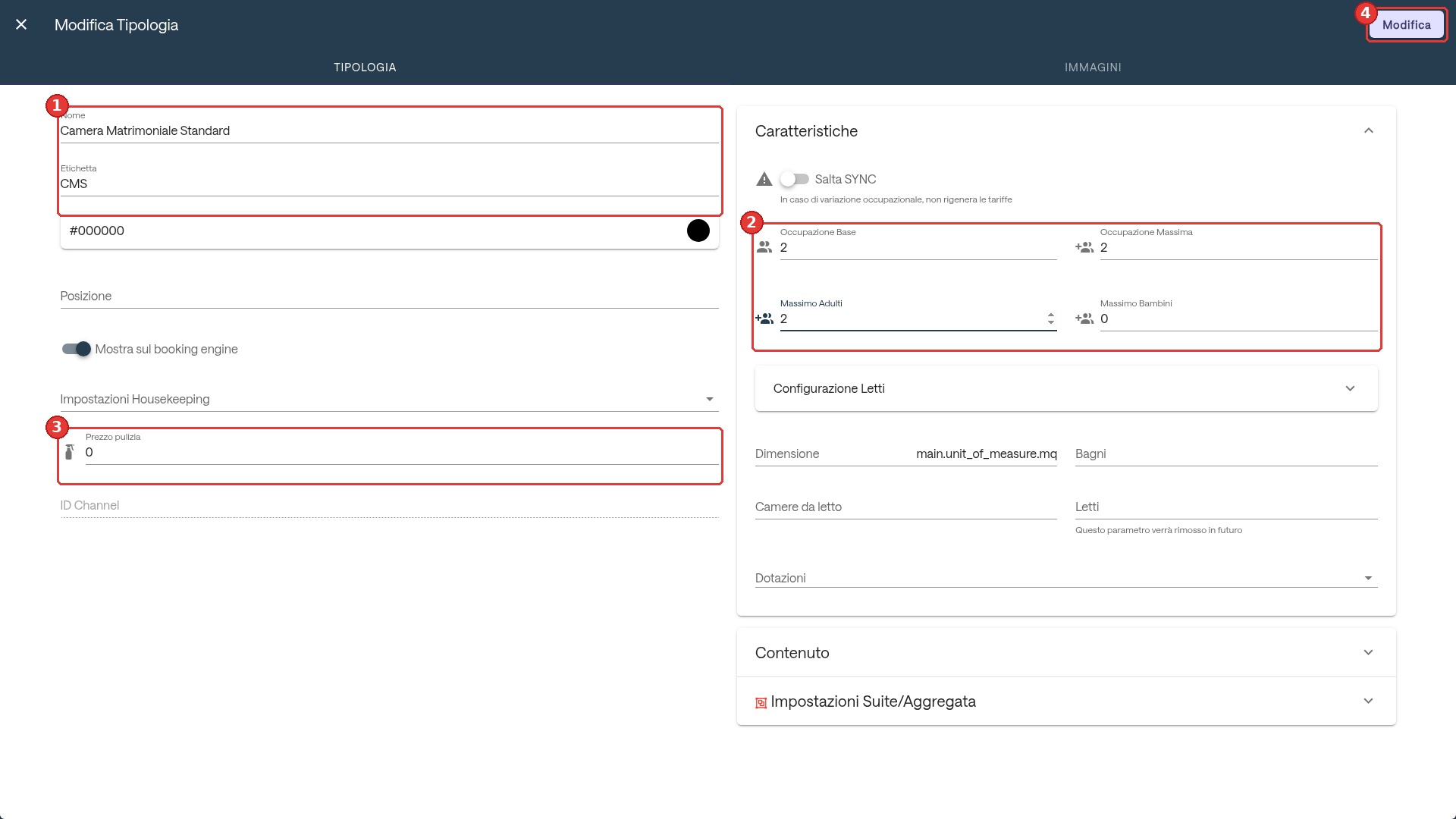
- Next to Hotel Miramare, click Settings, then Configure in Units and Rates and then Configure in Types.
- You will find the BASE type created automatically: click Edit and set
- Name: Standard Double Room
- Label: CMS
- Base Occupancy 2, Maximum Occupancy 2, Maximum Adults 2, Maximum Children 0
- Cleaning price: 0
- Click Edit to save.
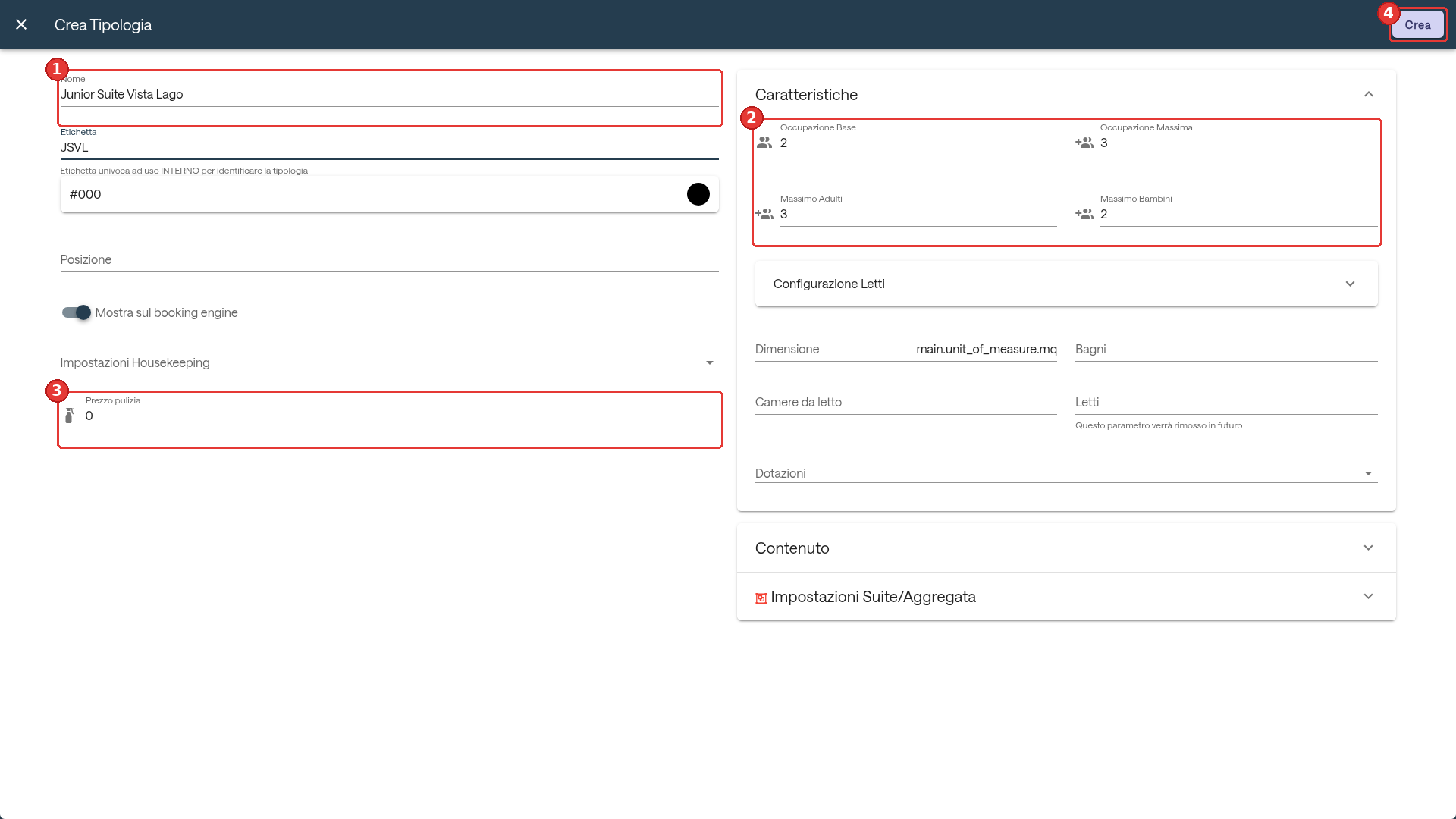
- Click Add and create the second type:
- Name: Lake View Junior Suite (the label JSVL is suggested automatically)
- Base Occupancy 2, Maximum Occupancy 3: Maximum Adults and Maximum Children are filled in automatically
- Cleaning price: 0
- Click Create.
3. Add the rooms
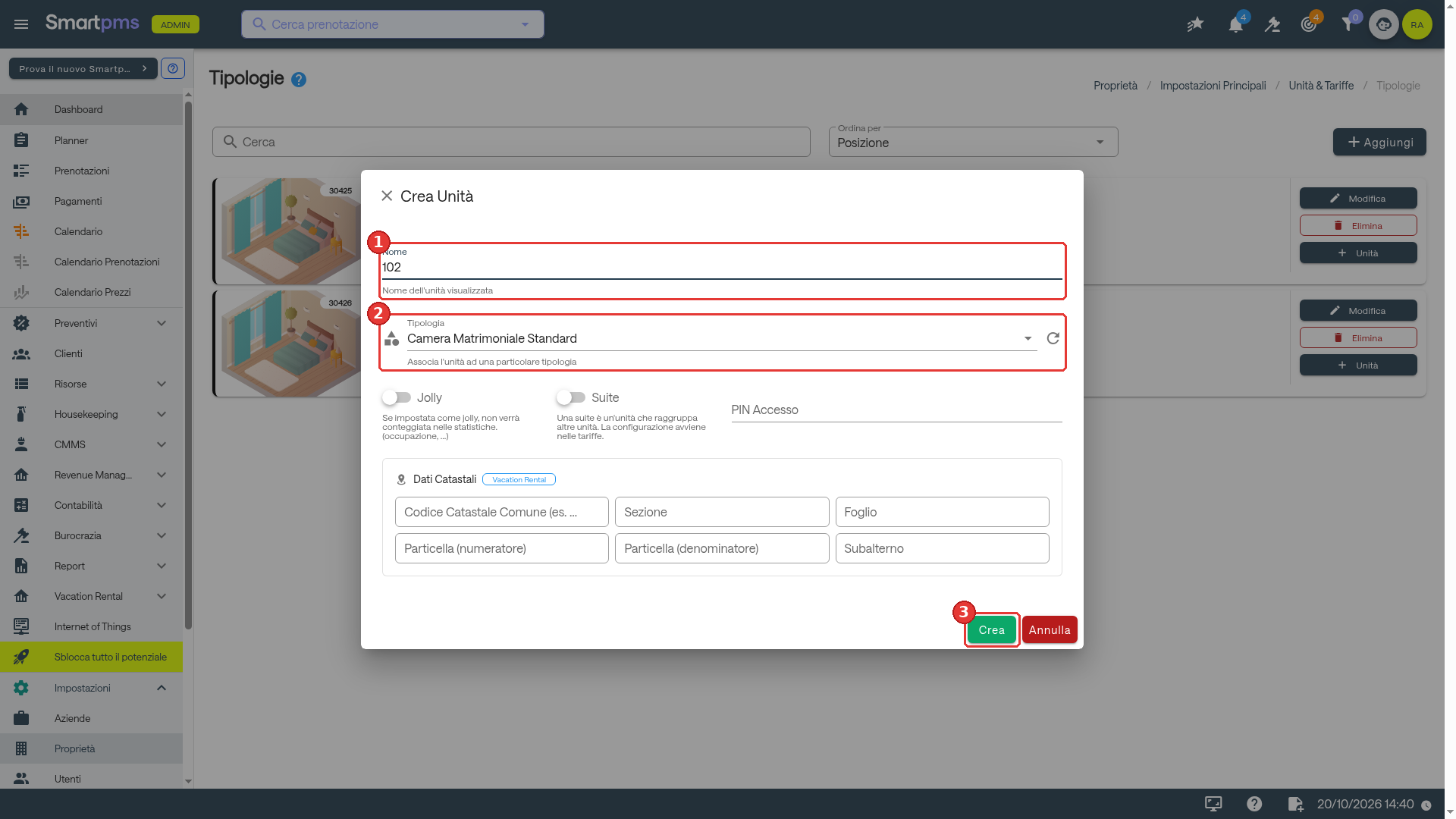
Each type already has one unit created automatically. Add the others:
- Under Standard Double Room click + Unit, write 102 and click Create. Repeat for 103.
- Under Lake View Junior Suite click + Unit and create 202.
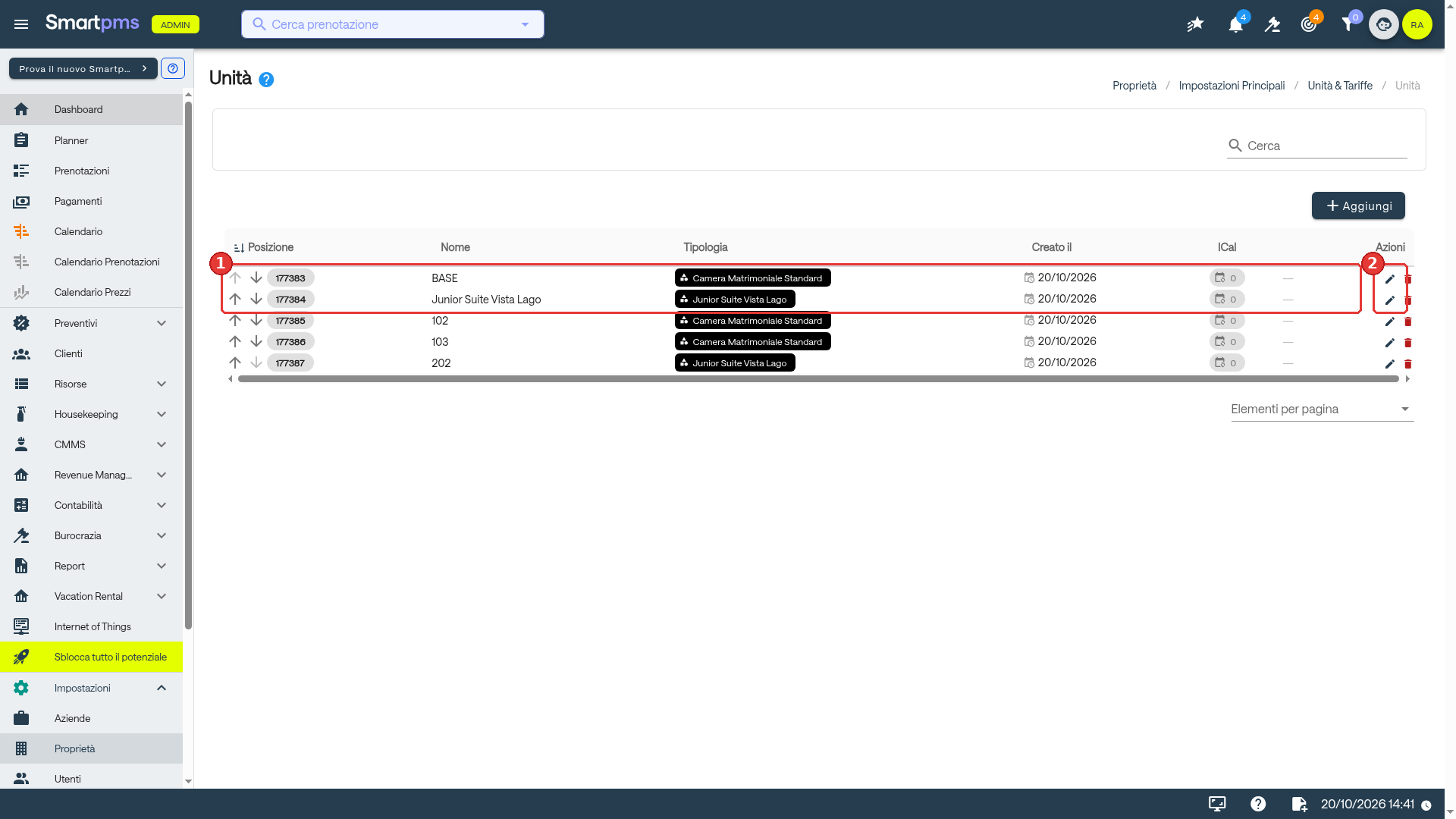
- Go to Units and Rates → Units → Configure: the two units created automatically are named BASE and Lake View Junior Suite. With the pencil icon, rename them 101 and 201.
4. Create the Standard Rate
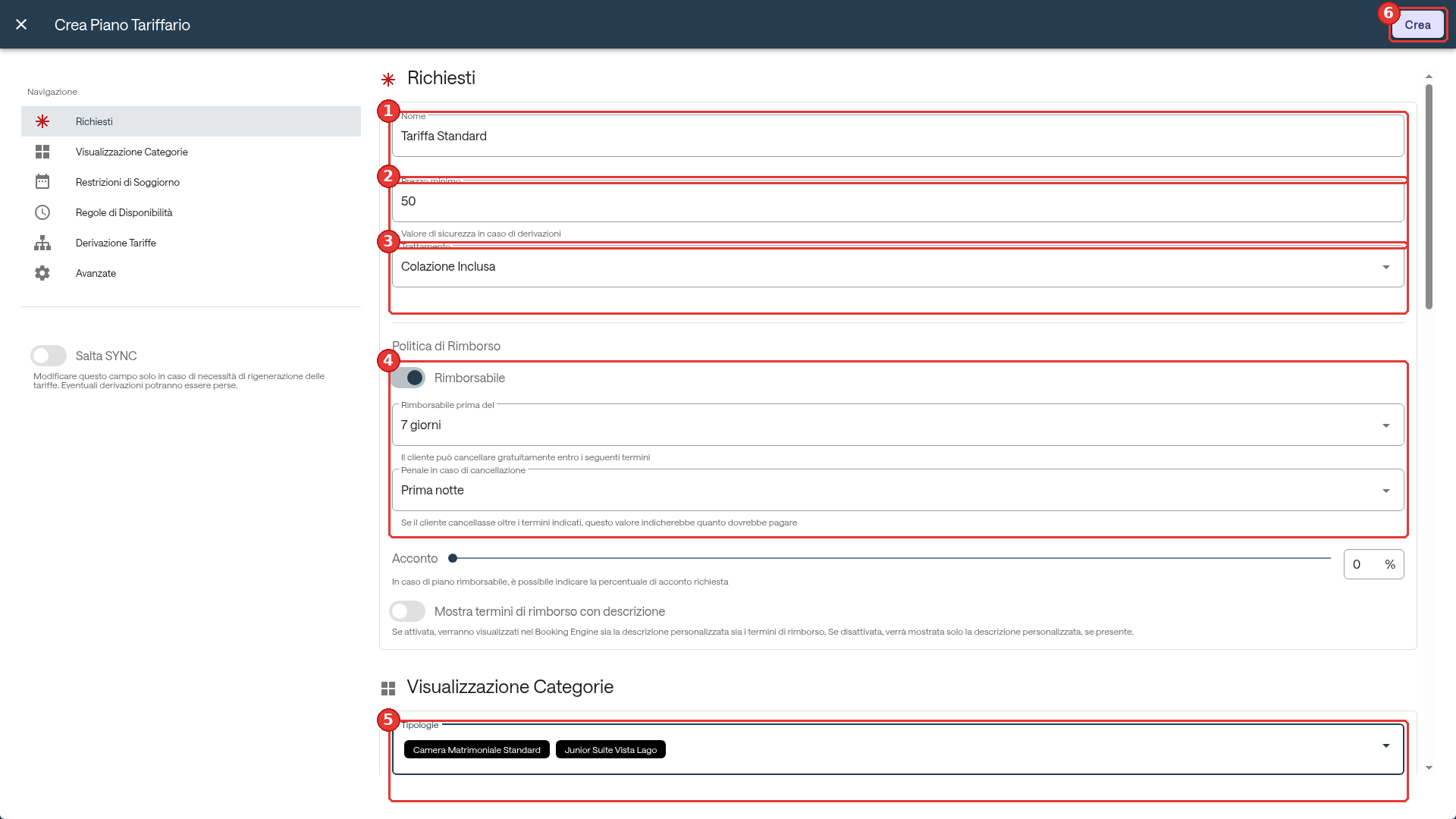
- Go to Units and Rates → Rate plans → Configure and click Add.
- Fill in:
- Name: Standard Rate
- Minimum price: 50
- Board: Breakfast Included
- Refundable active, Refundable before: 7 days, Penalty in case of cancellation: First night
- Types: Standard Double Room and Lake View Junior Suite
- Click Create.
5. Create the derived Non-Refundable Rate
- Click Add again and fill in:
- Name: Non-Refundable Rate
- Minimum price: 45
- Board: Breakfast Included
- Refundable deactivated
- Types: the same two as the Standard Rate
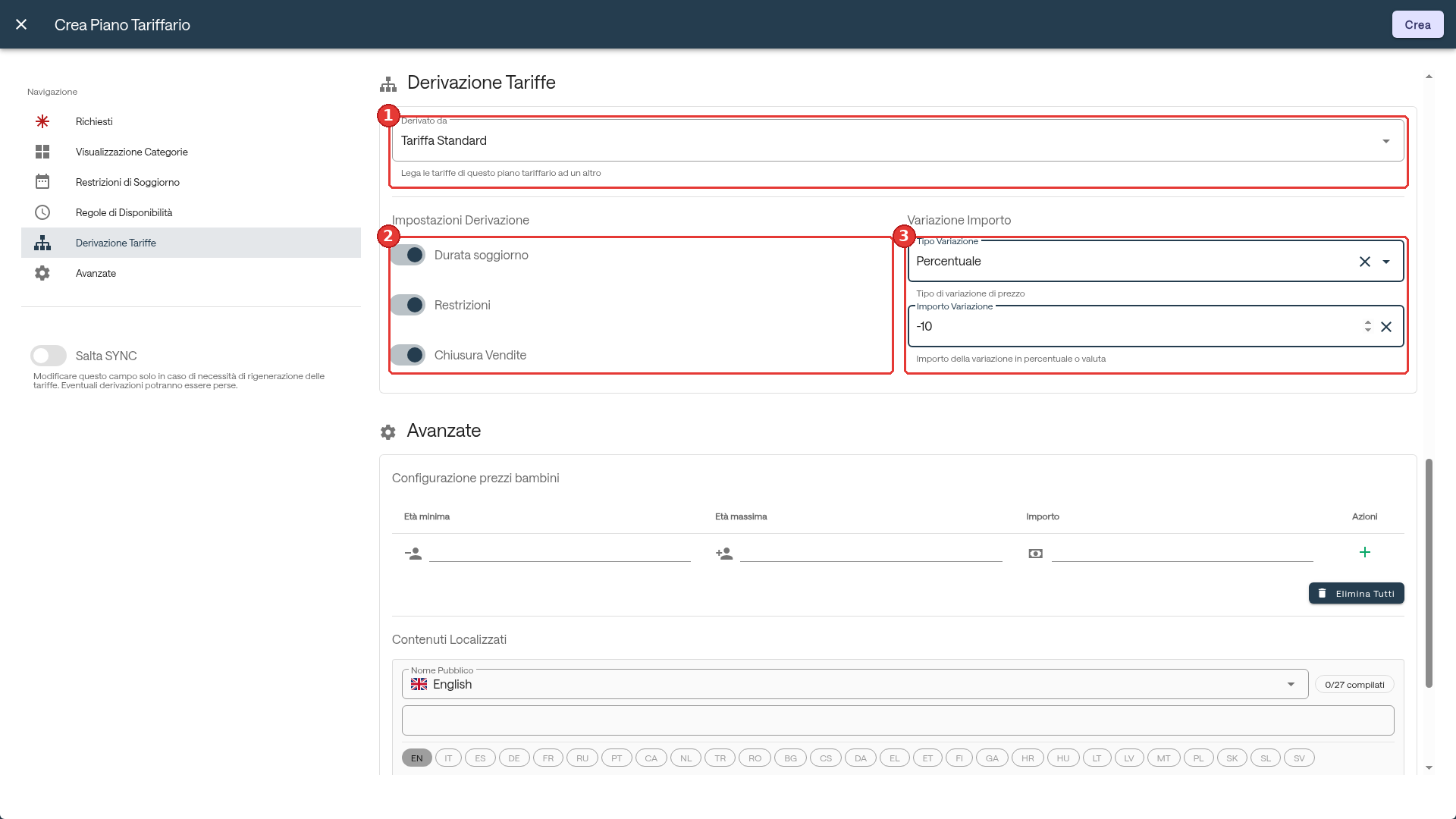
- In Rate Derivation:
- Derived from: Standard Rate
- Length of stay, Restrictions and Close Sales active, so the plan inherits all the rules of the standard one
- Variation Type: Percentage, Variation Amount: -10
- Click Create.
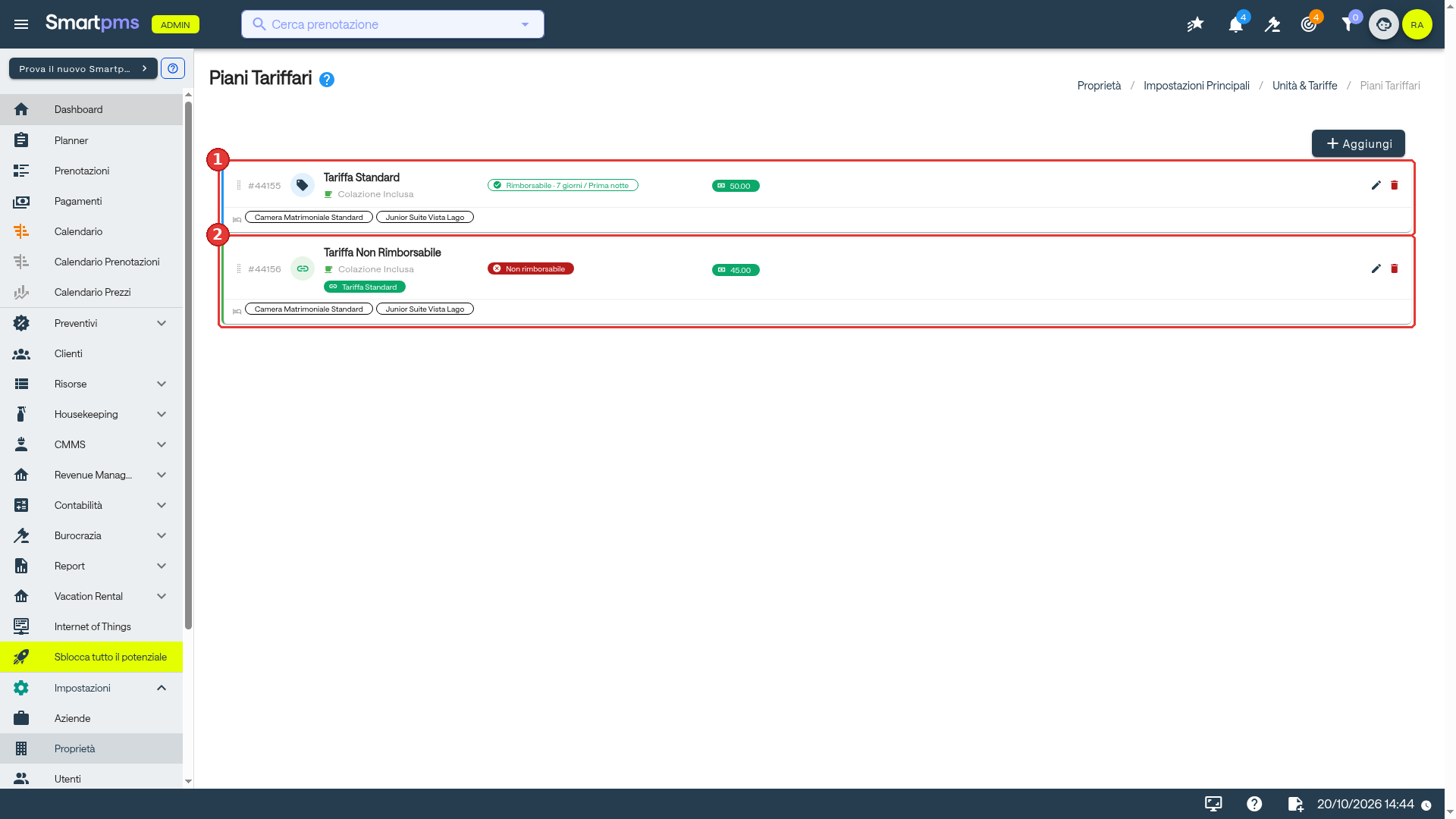
Result
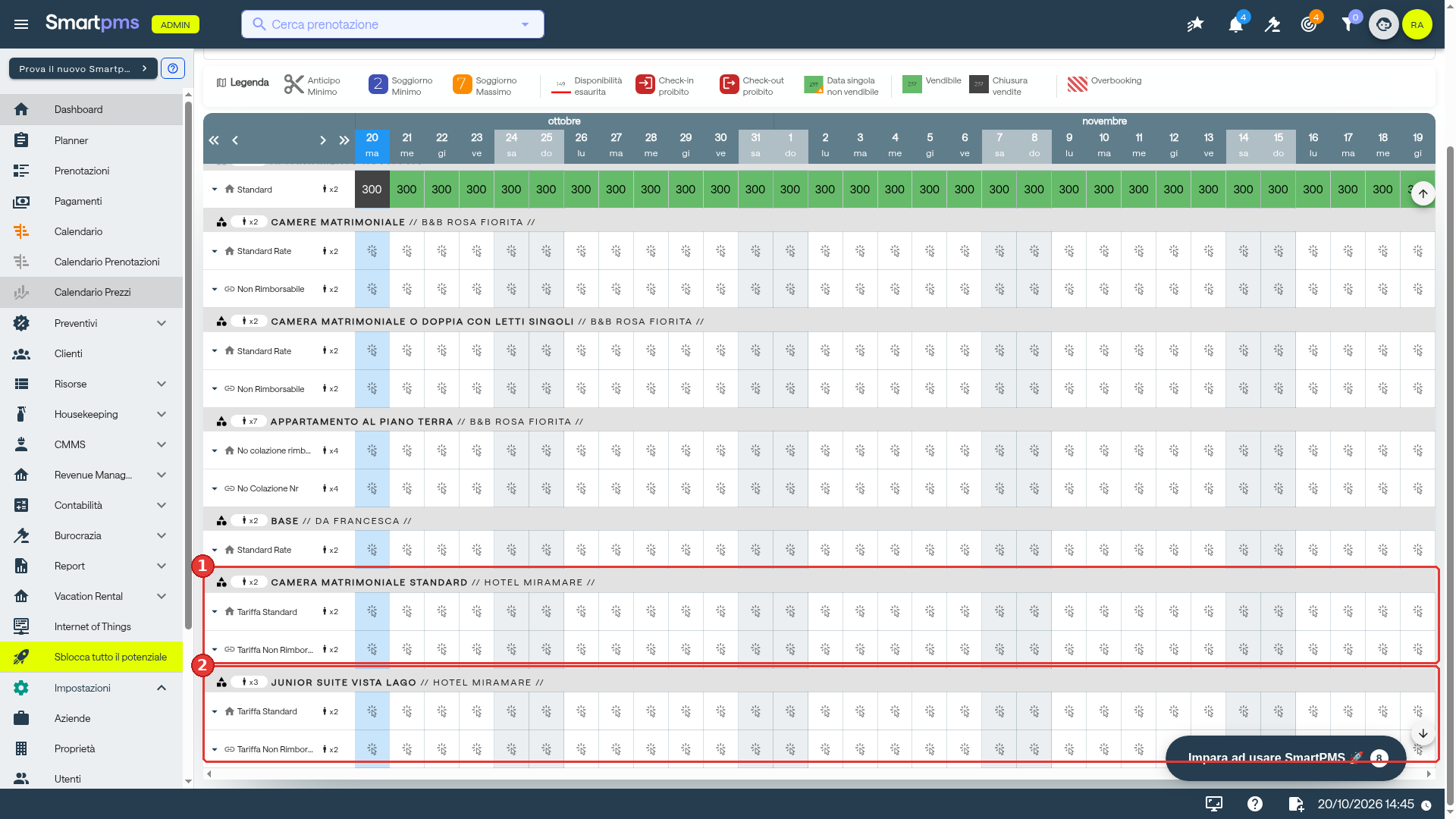
In the Price Calendar, each type of Hotel Miramare has two rows: Standard Rate and Non-Refundable Rate. Enter prices only on the Standard Rate: the Non-Refundable one updates itself to 10% less, without ever falling below its minimum price of 45 €. The discount applies to the base occupancy price (2 guests); the supplement for the 3rd guest of the Junior Suite is set on each plan with the guest icon.
Non-refundable price=standard price × (100% − 10%)
Example: Standard Rate at 120 € per night for 2 guests
120 €×90%=108,00 €
Frequently asked questions
2If I close sales for the Standard Rate, does the Non-Refundable one close too? And if I reopen them?
Yes in both cases, because in this example the derivation has Close Sales active: closures and openings of the Standard rate pass to the Non-Refundable one. If you want to close the Non-Refundable rate independently (for example, close to arrival), deactivate Close Sales in the derivation rule and close the dates on its row, or use the plan's Automatic closure.
How do I manage a double room for single use?
You don't need a separate type: it is the same room sold to 1 guest. Set the discount for 1 guest using the guest icon next to the plan in the Price Calendar.
Related guides
How it works
How it works
Configuration
Configuration
Configuration
Activation