

The emails SmartPMS sends: list of automatic notifications and how to manage them
List of automatic emails that SmartPMS sends to the property, the company, staff users, and guests: new bookings, modifications and cancellations, completed Self Check-in, Police guest registration (Schedine Alloggiati) and ISTAT errors, invoices rejected by the SDI, cleaning summaries, quotes, Smartpay. For each email, you will find when it arrives, the subject, who receives it, and how to deactivate it.
You are in the right place if…13 cases
- “Which automatic emails does SmartPMS send me?”
- “I am no longer receiving new reservation emails”
- “How do I deactivate reservation email notifications?”
- “I want to receive notifications on a second email address as well”
- “I created a reservation manually but I did not receive any email”
- “I received a Police guest registration (Schedine Alloggiati) email - Error: what should I do?”
- “What does the ISTAT - Error email mean?”
- “I received a Rejected Invoice email”
- “At which address do the monthly Police guest registration (Schedine Alloggiati) receipts arrive?”
- “Cleaning staff do not receive the housekeeping summary email”
- “The new collaborator did not receive the activation email”
- “Guests receive emails from donotreply@ciaobooking.com”
- “Email notifications - what to expect?”
How SmartPMS automatic emails work
SmartPMS sends two types of emails:
- system emails, described in this guide: alerts that the management software sends automatically when something happens (a booking arrives from a portal, a submission to the Police headquarters fails, a payment is collected). The text is fixed and cannot be modified;
- messages to guests created by you with Message Templates (confirmation, arrival instructions, Self Check-in reminders…). These are not listed here: you can find them in the guide dedicated to automatic message templates.
System emails arrive at different addresses depending on who needs to take action:
Recipient | Where to set the address |
|---|---|
Property | Settings → Property → Property settings → Property Settings (Configure): Email and Alternative Email fields |
Company | Settings → Companies → Actions → Edit: company Email field |
Staff user | Settings → Users → Actions → Edit: user Email field |
Guest | customer email saved in the booking |
Emails for the property are sent in the language set for the property. Emails for the company related to compliance (Police guest registration (Schedine Alloggiati), ISTAT, SDI) are always in Italian.
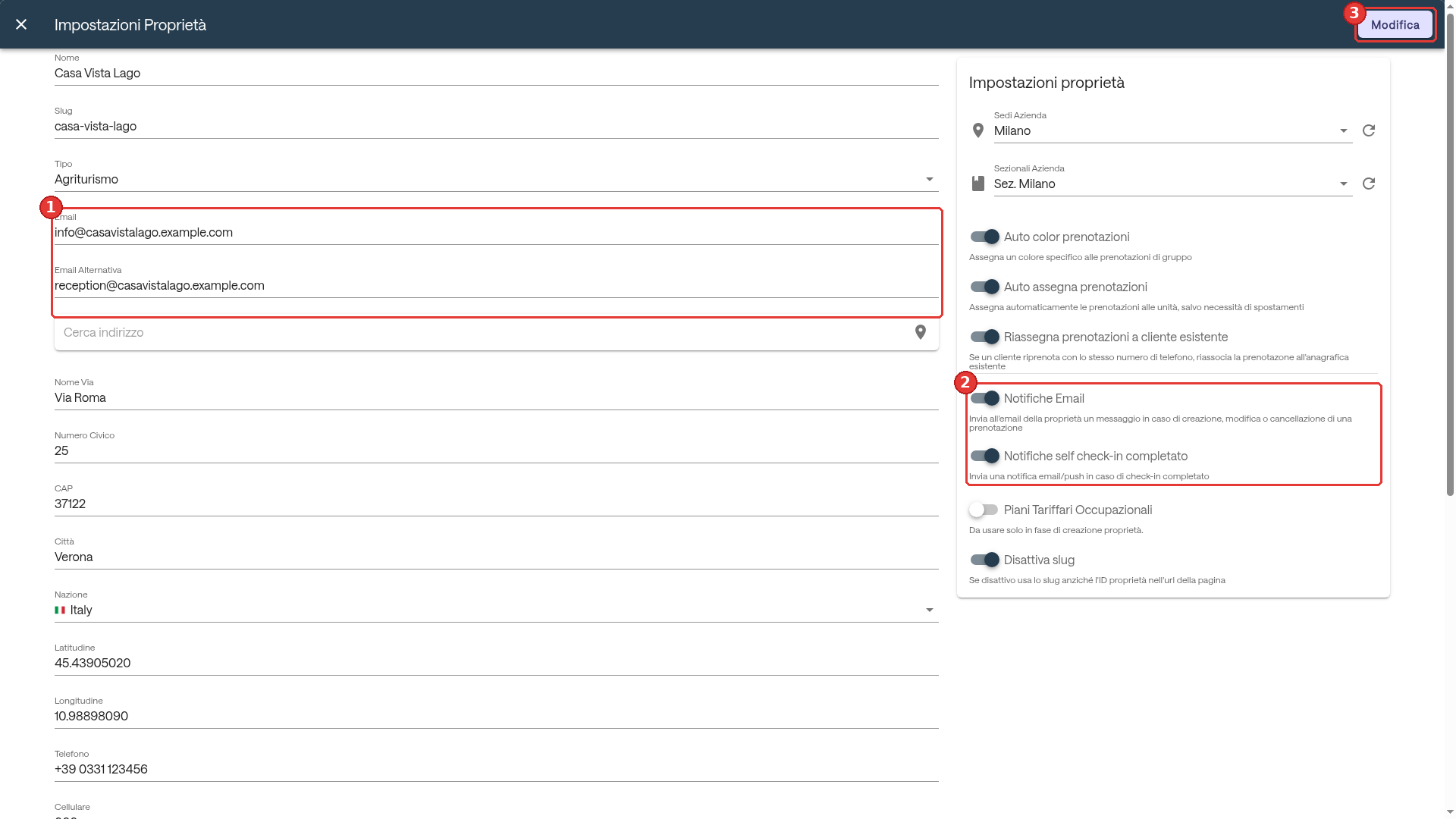
In the image, in the Property Settings window: 1 the property Email and Alternative Email fields; 2 the Email Notifications and Self Check-in completed notifications switches; 3 the Edit button to save.
1. Emails to the property
When it arrives | Subject | How to deactivate it | |
|---|---|---|---|
New booking | A booking arrives from a portal, the Booking Engine, or another connected channel. It is not sent for bookings you enter manually in SmartPMS and for date blocks. | New booking [ID] from [channel] - [arrival] -> [departure] | Email Notifications switch. Arrives at the property's Email and Alternative Email. |
Pending new booking | As above, but the booking arrives in Pending status (e.g., to be confirmed after payment). | Booking pending [ID] from [channel] - [arrival] -> [departure] | As above. |
Last minute booking | A new booking arriving on the same day. | LAST MINUTE [ID] from [channel] - [arrival] -> [departure] | As above. |
Modified booking | The channel modifies dates, amount, number of guests, guest name, or credit card of a booking that has not yet passed. In the email, you will find what has changed. It is not sent for changes made by you or your staff in SmartPMS. | Booking modified [ID] from [channel] | As above. |
Cancelled booking | The channel cancels a booking. It is not sent if you perform the cancellation in SmartPMS. | Booking cancelled [ID] from [channel] - [arrival] -> [departure] | As above. |
Late cancellation | Cancellation of a booking arriving on the same day. | LATE CANCELLATION [ID] from [channel] - [arrival] -> [departure] | As above. |
Cancellation during stay | Cancellation of a booking already in progress. | CANCELLATION ONGOING [ID] from [channel] - [arrival] -> [departure] | As above. |
Self Check-in completed | The guest completes all mandatory steps of the Self Check-in. If even one mandatory step is missing (e.g., contract signature), the email is not sent. | Self Check-in Completed | Self Check-in completed notifications switch: it is separate from Email Notifications and also deactivates the app push notification. |
Signed contract | The guest signs the contract during Self Check-in and requests a copy. | Contract Signed | There is no dedicated switch. |
Booking paid | The guest pays for the booking online from the guest portal. | Booking PAID | There is no dedicated switch. |
Smartpay payment received | Smartpay collects a payment (deposit, balance, extras, security deposit). | Payment Completed Successfully - [booking ID] | Send confirmation email option in the Smartpay account configuration: it only concerns this alert to the property. |
Smartpay refund failed | A refund issued with Smartpay fails. | Refund failed - [booking ID] | Cannot be deactivated. |
iCal calendar not imported | The iCal link of a unit can no longer be read and the connection is deactivated. | Unit Ical import failed | Cannot be deactivated. Check and re-enter the unit's iCal link. |
2. Emails to the company (administration and compliance)
When it arrives | Subject | How to deactivate it | |
|---|---|---|---|
Police guest registration (Schedine Alloggiati) error | A submission of guest registration forms to the Police headquarters fails (e.g., expired credentials or certificate, units not connected). | Police guest registration (Schedine Alloggiati) - Error | Cannot be deactivated. Arrives at the company email. |
Monthly Police guest registration (Schedine Alloggiati) receipts | On the 3rd of each month, with the ZIP of the previous month's receipts attached, one email for each Police guest registration (Schedine Alloggiati) account. | [account name] - Police guest registration (Schedine Alloggiati) receipts, until [last day of the month] | Cannot be deactivated. Receipts remain downloadable from Bureaucracy. |
ISTAT error | The daily submission of regional statistical data fails. In the text, you will find the account and the date to resend. | ISTAT - Error | Cannot be deactivated. |
Invoice rejected by SDI | The SDI rejects an electronic invoice or credit note. It is not sent for non-delivery. | Invoice Rejected | Cannot be deactivated. The detail is in Accounting → Fiscal Documents. |
SEPA payment notification | A scheduled SEPA debit on a booking is collected or fails. | SEPA payment notification: [payment status] | Cannot be deactivated. |
Contested payment (Smartpay) | A guest contests a payment collected with Smartpay with the bank; reminder when there are less than 48 hours left to respond. | Payment contested - [amount] / Reminder: contestation expiring - [amount] | Cannot be deactivated. Arrives at the Smartpay account email address. |
3. Emails to staff users
When it arrives | Subject | How to deactivate it | |
|---|---|---|---|
Account activation | You create a new user in Settings → Users: the person receives an email to choose their password. If the address was already used on another Smartness product, the account is linked and the email is not sent. | Sent from the Smartness access platform | Cannot be deactivated. If it does not arrive, contact support, which can resend it. |
Code to view credit card | A user asks to view the credit card of a booking. The 6-digit code is valid for 5 minutes; you can request a maximum of 3 every 15 minutes. | Code to view the booking credit card [ID] | Cannot be deactivated: it arrives at the email of the user who logged in. |
Daily cleaning summary | Every morning around 6 AM (5 AM with standard time), to every active user who has cleanings assigned for the day. | Housekeeping - [date] ([n] tasks) | Arrives only to those who have cleanings assigned. |
New quote request | A guest sends a quote request from the Booking Engine. | NEW quote request | Arrives to users with the Booking Office role. To stop receiving it, change the role in Settings → Users. |
Quote confirmed | The guest confirms a quote from the link received. | Quote Confirmed | Arrives to the user who created the quote. |
Work orders (CMMS) | Creation or modification of a work order and new comments: the assigned maintenance worker and the supervisor receive it. | New work order: [title] / Work order updated: [title] / [title] - New Comment | Recipients indicated in the work order. |
Access code and password reset | Access with two-factor authentication via email, or "Forgot password?" request. | Sent from the Smartness access platform | The email code does not arrive if you use an authentication app. |
4. Emails to guests (system emails only)
When it arrives | Subject | How to deactivate it | |
|---|---|---|---|
Smartpay payment request (balance, deposit, extras, security deposit) | According to Smartpay and Rate plan rules. | E.g. Payment requested by ciaobooking for the booking at [property]; Deposit payment for [property]; Security deposit authorization for [property] | From the Smartpay account configuration. |
Smartpay payment confirmation | Smartpay collects the payment. | E.g. Payment confirmation for booking [ID] | Always sent when Smartpay manages payment emails. |
Refund issued or failed | A Smartpay refund succeeds or fails. | Refund confirmation for booking [ID] / Problem with refund for booking [ID] | Cannot be deactivated. |
Payment authorization requested | The guest's bank requests strong authentication for a debit or a pre-authorization with a card. | Payment authorization requested / Payment pre-authorization requested | Cannot be deactivated. |
Code to sign the contract | The guest signs the contract in Self Check-in with code verification. | OTP verification for contract signature | Deactivated by removing code verification from the contract configuration. |
Copy of signed contract | The guest requests a copy of the signed contract. | Contract Signed | The guest chooses it. |
Smartpay emails to guests are sent from the address donotreply@ciaobooking.com.
Why an email might not arrive
- The booking was created or modified by you in SmartPMS: booking notifications are only sent for what arrives from channels.
- Email Notifications or Self Check-in completed notifications are deactivated.
- The property, company, or user address is empty or incorrect.
- The mailbox has rejected emails multiple times (full, non-existent, antispam filters): in this case, sending to that address is suspended. Clear the mailbox, add the sender to trusted senders, and contact support to reactivate it.
Frequently asked questions
4I removed the mandatory contract signature and now I receive many Self Check-in Completed emails. Why?
Previously, check-ins without a signature were not considered completed, so the email was not sent. Now they are considered completed and the notice is sent. If you don't need it, deactivate only Self Check-in completed notifications without touching Email Notifications.
The new collaborator did not receive the activation email: what should I do?
Check the spam folder and ensure the user's address in Settings → Users is correct. If the person already uses another Smartness product with the same email, the account is linked and a new activation email is not sent: they can log in with the password they already use. In other cases, contact support, who can resend the email.
Can I change the text of these emails?
No, the text of system emails is fixed. You can instead customize the messages you send to guests with Message Templates and the text of the quote email in the Quotes settings.
I am not receiving the Self Check-in Completed email at my address, but I am receiving the push notification. Where does it go?
The Self Check-in Completed email arrives only at the Email and Alternative Email fields of the property (Settings → Property → Property Settings). It is not sent to the company email or to users who have access to the property, even if they are administrators.
If you manage multiple properties with different addresses, each one sends the notice to its own address: check that inbox, including the spam folder. To receive it at your address as well, enter it in Alternative Email on each property and save with Edit.
Related guides
Configuration
Configuration
Configuration
FAQ
Activation
How it works