

How to request and obtain access to SmartPMS APIs
Operational guide for requesting and activating SmartPMS public APIs: from the initial request to signing the Terms, from the Sandbox environment to moving to production (Live), including call authentication and rate limits.
You are in the right place if…21 cases
- “I want to connect my software to Smartpms via API: how do I get the access keys?”
- “I sent the request for the APIs but I did not receive the email with the Terms and Conditions to sign”
- “I have the API key but the calls return unauthorized: what credentials should I use?”
- “My developer is asking me to authorize API access to the property: what should I do as an administrator?”
- “What is the difference between Intools credentials, API key, and Live API user?”
- “How many calls per minute can I make to the Smartpms APIs?”
- “What are the rate limits on the Pro plan compared to the Standard plan?”
- “How do we appear on the official Smartness technology integrations page?”
- “Should we use combinations or availability to show availability and prices on our site?”
- “How do we temporarily block a room while the customer completes the payment on our site?”
- “Does the API automatically prevent double bookings or handle payment with 3D Secure?”
- “I revoked all my API keys by mistake: how do I generate a new one?”
- “The partner access link gives a Failed to authorize access error after revoking the keys”
- “From my API key I only see Hotel Palace and not my actual property”
- “Who must approve the partner authorization link for the APIs?”
- “If we switch to the Pro API plan, do we have to change the key in the code?”
- “How does an integrator software that has multiple SmartPMS customers manage credentials?”
- “The contact form on my site connected to SmartPMS gives an error: invalid token”
- “The site programmer is asking me for the SmartPMS token”
- “We used the old SmartPMS APIs and now they no longer work”
- “How to request and obtain access to the Smartpms APIs”
This guide explains how to request, activate, and use SmartPMS public APIs: from the initial request to calls in the production (Live) environment.
Phase 1: API access request
- Access the request portal: pms-intool.smartness.com/request-api-key.
- Fill out the "Request API Access" form: Company Information (company name and website), Contact Information (contact person, email, phone), and API Request Details. In the "Request Type" field, select "Customer (Direct Client)"; in the "Use Case" field, describe the intended use with a minimum of 50 characters.
- Submit the request: the "Request Submitted!" confirmation will appear.
- Wait for approval from the SmartPMS team, usually within 1-3 business days.
Phase 2: Signing the Terms and Conditions
After internal approval, you will receive an email regarding the signing of the Terms and Conditions ("Terms & Conditions signature required"). Clicking on "Review & sign the agreement" opens a secure page where you can enter your full name and digital signature for acceptance.
If the signature email does not arrive or is lost, it can be resent by SmartPMS support by indicating the email address associated with the request.
Phase 3: Credentials and Sandbox environment
Immediately after signing, three elements are sent:
- API Key: definitive key, no expiration.
- Intools Dashboard access credentials: used to manage the API key and associated API users, and to access documentation. These are not the credentials to be used in API calls.
- Sandbox Account: a test environment separate from the production environment, designed to verify endpoint functionality without risks to real data.
The Sandbox environment does not contain a copy of the customer's real properties, but a demo property with dummy test data: here you can freely perform read and write tests.
Phase 4: Moving to production (Live environment)
This procedure links the API Key to the property's real account, so that only an authorized administrator can grant access to real data.
Step 1: Accessing the Intools Dashboard
- Retrieve the email "Your API Key Request has been Approved!".
- In the Dashboard Access Credentials section, you will find the Intools dashboard URL, Username, and Password.
- Click on "Access Dashboard" and enter the credentials.
- Complete the two-factor authentication (2FA) with the 6-digit code received via email.
- In the Intools side menu, click on "API Keys".
- In the connected customers section, click the "Request property access" button.
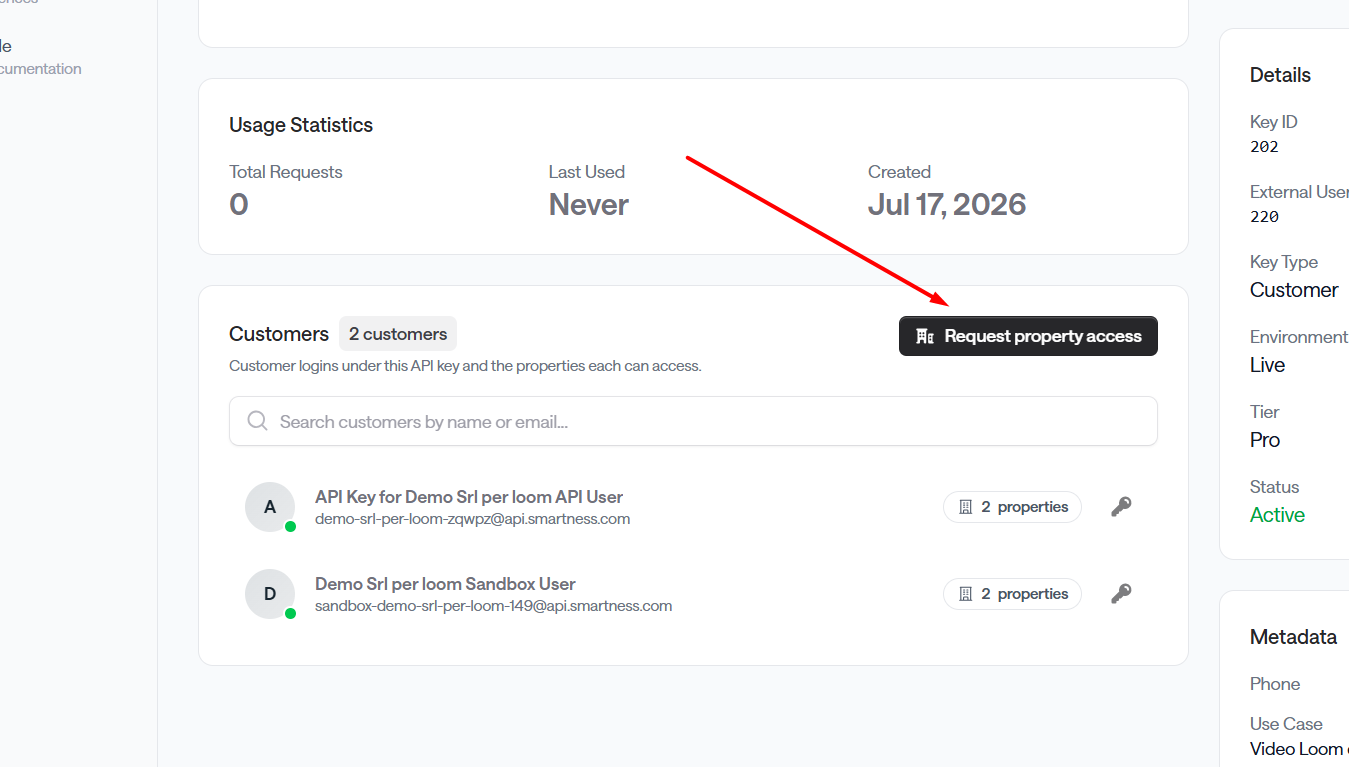
- On the "Give a Customer Access to Your Integration" page, use the "Option A - Share Your Link" (recommended) and click "Copy" to copy the generated link.
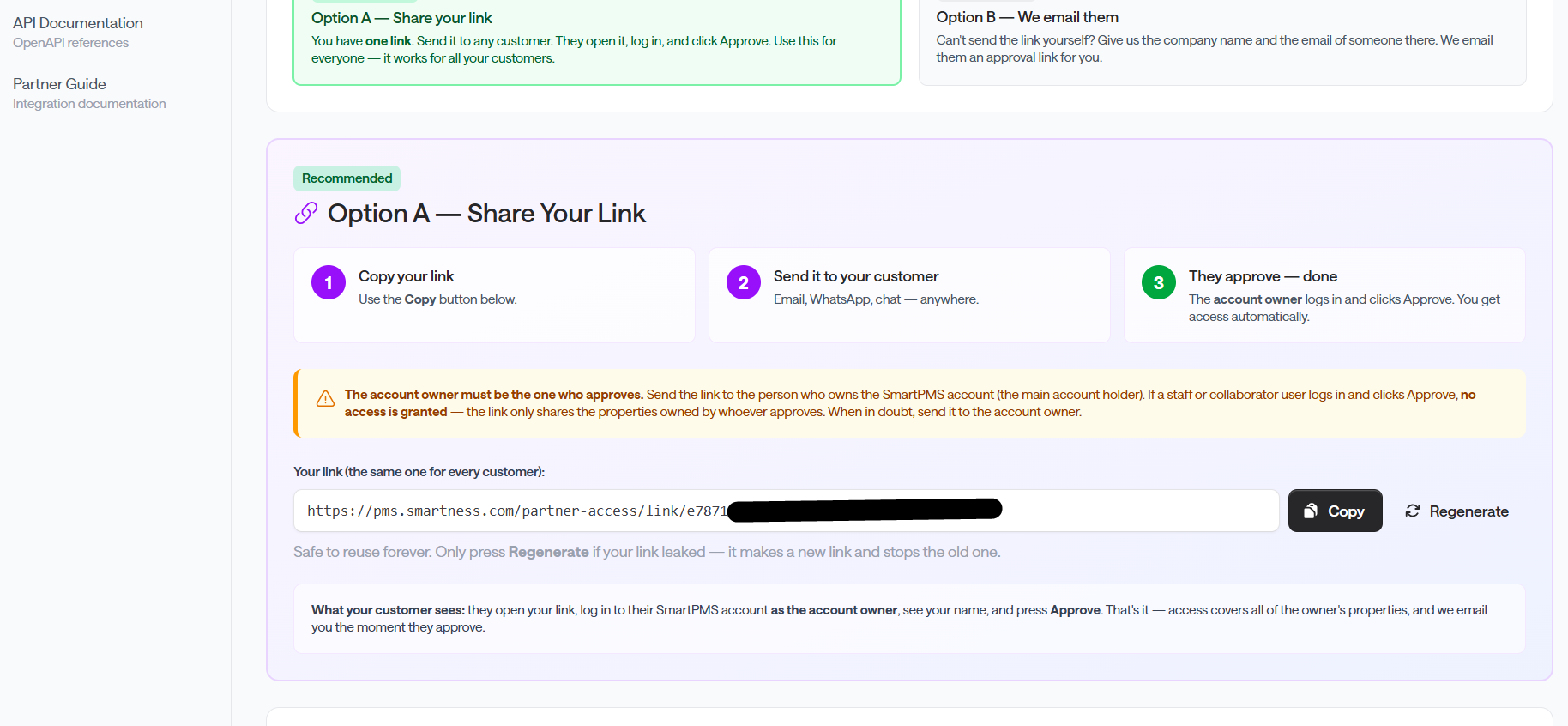
Attention: this step must be performed by the person who holds the Main Administrator credentials for the SmartPMS management software, not the Intools credentials.
- Open the link copied in the previous step in a new tab.
- Log in with the real SmartPMS Administrator email and password (not the Intools credentials).
- On the "Authorize [integration name]" screen, click the green "Approve access" button.
- The "Access granted" confirmation indicates that the operation was successful.
If the person developing the integration is not the property administrator, they can simply send the copied link to the administrator, asking them to open it, log in, and approve access.
As soon as access is approved, the system automatically generates a dedicated API account with a random password and immediately sends the complete credentials for production calls via email to both the customer administrator and the person who requested the integration (the address referenced in Phase 1): Live user email address and generated password. No additional action on Intools is required to receive these credentials.
Step 4: Customizing the Live password (optional)
This step is optional: the credentials (email and password) have already been sent via email to the customer and partner immediately after authorization (end of Step 3). It is only needed if you prefer to replace the automatically generated password with one of your choosing.
- Go to the "API Keys" page in Intools. Under the Sandbox section, you will find the row for the account automatically created with access to all properties managed by the administrator who authorized access.
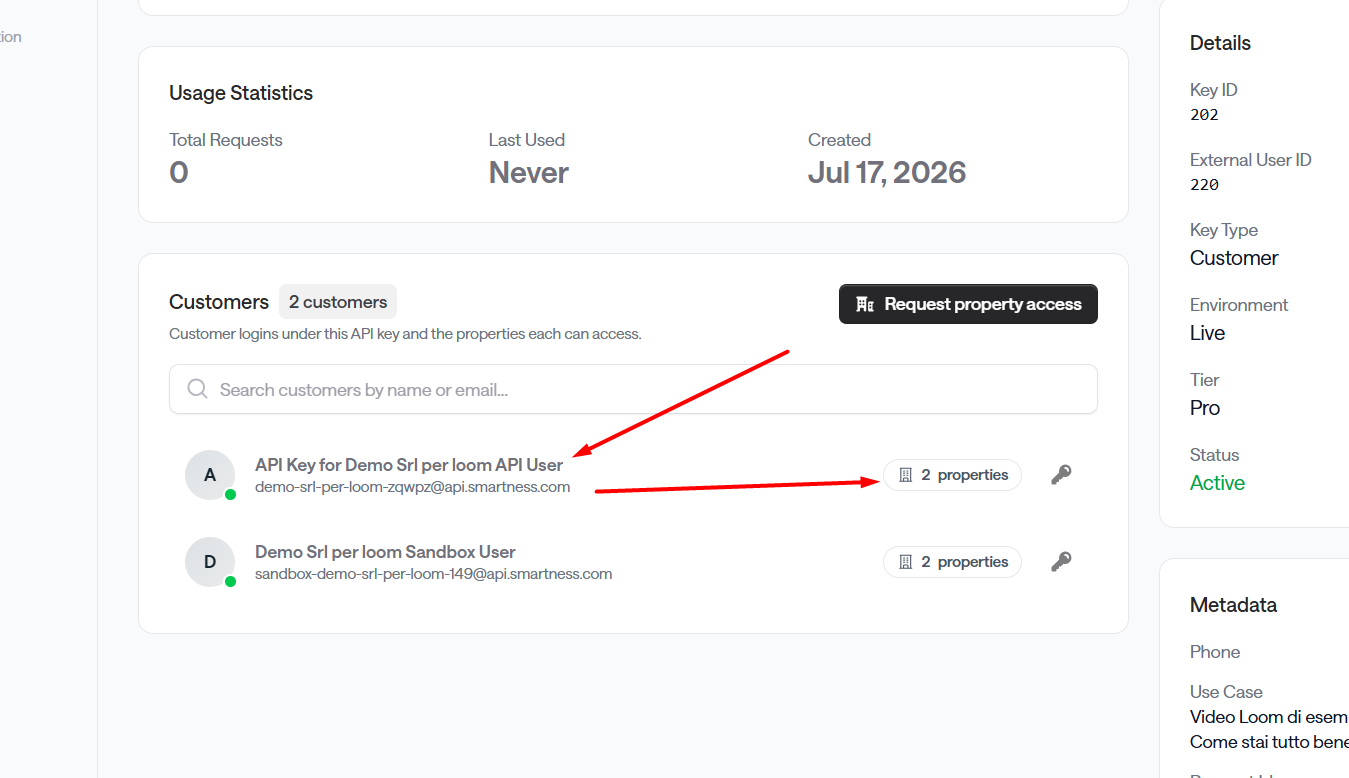
- Click on the key-shaped icon next to this row.
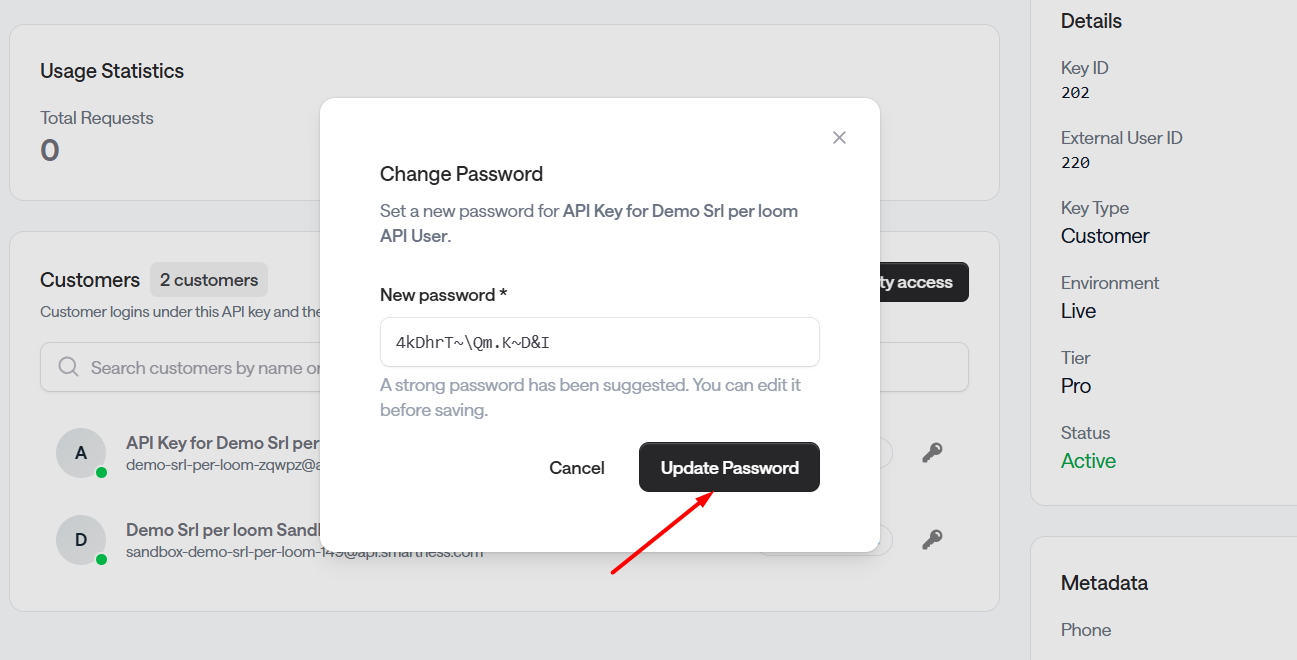
- The system proposes an automatically generated password, which can be customized as desired.
- Click "Update Password".
- Copy and save this new password immediately in a safe place: it will no longer be visible later, and it replaces the one already received via email.
For production calls, you therefore need: API Key, the Live user email address visible in Intools, and the Live Password (the one received via email, or the customized one from Step 4 if you replaced it).
API call authentication
Every request to the public APIs requires two credentials:
- X-API-KEY: header required on all requests, without exceptions. Identifies the integration at the partner level.
- Authorization: Bearer <token>: short-lived user token, obtained with POST /login using the Live API user's email and password. It is required on every endpoint except POST /login itself.
Rate limit
The rate limit depends on the plan associated with your API Key:
- Standard Plan: 50 calls per minute per single API user, up to a maximum of 1,000 calls per minute total on the same API Key if multiple users are used.
- Pro Plan: 150 calls per minute per single customer/API user, up to a maximum of 5,000 calls per minute total on the same API Key.
In both cases, the count is always calculated per minute. If you are not sure which plan is associated with your API Key, ask SmartPMS support by indicating the email address associated with your API access request.
Documentation and development support
Full API documentation, including the downloadable OpenAPI specification, is available in the Intools portal in the documentation section, accessible after logging in with Intools credentials. Those developing with the help of an AI assistant can download the specification file directly from that page.
Dedicated development support from the SmartPMS team is also available for a service fee of €100.
Summary of credentials for production calls
- API Key: the unique key received via email, valid forever.
- Live API Username: the email address of the Live account visible in Intools.
- Live API Password: the one received via email immediately after authorization (Phase 4, Step 3), or the one customized in Step 4 if replaced.
Frequently asked questions
26Does SmartPMS offer webhooks for new bookings, modifications, or cancellations?
No. SmartPMS does not offer outgoing webhooks: no real-time push notifications are sent for the creation, modification, or cancellation of bookings.
To synchronize data, a polling logic with incremental synchronization is recommended: calls at regular intervals with the filter[updated_at] filter (format Y-m-d H:i:s) on endpoints such as GET /reservation-summaries/paginated or GET /reservations/paginated, retrieving only the records modified since the last check. Cancellations are handled as soft-deletes and are recognized by the status = 1 (CANCELED) field.
Are there APIs to read or write booking messages (e.g., Airbnb chat)?
No. To date, there are no APIs to read or write booking messages on channels (for example, the Airbnb chat), for security reasons.
Does the API Sandbox environment contain a copy of my real properties?
No. The Sandbox environment does not contain a copy of the client's real properties, but a demo property with fictitious test data. In Sandbox, you can freely perform read and write tests via API, simulating the integration exactly as you would in production, but without any risk to real data.
I read a booking with a status other than 1, 2, or 3 (e.g., status: 0): what does it mean?
Nothing: 1 (Canceled), 2 (Confirmed), and 3 (Pending) are the only valid values for the status field. Some historical records may report status: 0, which is neither a valid state nor a fourth documented state.
This value is not obtainable via public APIs in any case: POST /reservations and PUT /reservations/{id} explicitly reject status: 0 with a validation error (422). If you encounter a booking with this status while reading, do not treat it as reliable data: avoid importing it, sending communications to the guest based on it, or using it for obligations such as Online Check-in or sending data to authorities. If the case persists or involves an anomalous volume of bookings, report the IDs involved to Smartpms support for verification.
Is the two-factor authentication (2FA) code for the Smartpms panel also used to use the public APIs?
No. The 6-digit 2FA exclusively concerns human access via browser — both to the Intools Dashboard (where you manage API keys, API users, and documentation) and to the Smartpms management panel (pms.smartness.com). It has no role in authenticating API calls: for that, you only need the X-API-KEY header and the token obtained from POST /login with the API user's email and password, as described in the "API call authentication" section of this guide.
Also keep in mind that users dedicated to integrations (including the Sandbox environment user) are API accounts and are not intended for "human" access to the panel via browser. If you need to inspect data that you see via API, you generally do not need to access the interface: you can call the corresponding detail endpoint (for example, GET /reservations/{id} already returns all the information of a booking, including client, unit, and source).
We want to give a supplier (or obtain from one of our clients) API access limited only to some apartments: how is it done?
The procedure is the same in both cases: only who performs each step changes. The starting point is to understand who is the Smartpms account owner (the Main Administrator of the properties) and who is the partner developing or using the integration.
- The partner generates the authorization link from their Intools Dashboard (Phase 4, Step 2: API Keys → Request property access → Option A - Share Your Link → Copy) and sends it to the owner. The partner must never share their API Key: it remains under their exclusive custody.
- The owner opens the link, logs in with the Smartpms Main Administrator credentials, and clicks Approve access (Phase 4, Step 3). By default, access is granted to all properties managed by that administrator.
- The owner limits the properties: in Settings → Users, locate the API user created for that integration, click Actions → Edit, select only the properties of interest, and save.
Therefore:
- if you are the partner and want to access your client's properties, generate the link and ask the client to approve it and, if necessary, limit the properties;
- if you are the owner and want to give a supplier access to only some apartments, ask the supplier for their link, approve it, and then limit the properties yourself from the API user.
The partner does not have access to the Smartpms Users panel: the choice of properties is always up to the owner.
How do we appear on the official technology integrations page (smartness.com/en/integration)?
The public list of technology partners on smartness.com/en/integration does not update automatically when an integration is approved and activated on pms-intool.smartness.com: today, publication on that page requires manual intervention by the team that manages the smartness.com site.
If your integration has already been approved and tested and you want to appear on that page, contact Smartpms support indicating the name of the integration, the geographical area or the functionality it covers, and, if available, a link or a brief description to publish: the request will be forwarded to the site team for evaluation and possible manual publication.
For the booking site, should we use GET /booking-engine/combinations or GET /booking-engine/availability?
Use combinations or offers. The availability endpoint is indicated in the documentation as experimental: the response format may change without notice, so it is not suitable for a production site.
combinations and offers are instead stable and versioned. combinations returns only the total price and works on one property at a time. offers searches across multiple properties in one call, returns the price per night and the total for each occupancy, already applies restrictions, minimum and maximum stay, child supplements and promotions, and indicates whether the Rate plan is refundable. Neither returns City tax, cleaning fees, extras, or cancellation policies: these rules must be reported on your site as you have configured them in SmartPMS, for example by presenting the price as "stay, City tax excluded".
How do we handle children of different age groups across the various booking engine endpoints?
It depends on the endpoint: combinations wants a simple number of children (children), while availability and offers want the age of each child (children_ages, e.g., [3, 15]), because the price can vary based on the child's age group. The two fields are not interchangeable: use the one provided by the endpoint you are calling.
How do we temporarily block a room while the customer completes the payment on our site?
Create the booking as an "option" (type = 2) indicating a short deadline (expired_at, e.g., 10-15 minutes). A booking of this type actually blocks the unit, exactly like a real booking, on all connected channels.
If the payment is successful, update that booking to definitive (type = 1, confirmed status). If the payment fails or the time expires, the option is automatically released and the room becomes available again, without the need for manual intervention.
Does the API automatically prevent double bookings or handle payment with 3D Secure?
No to both. The API does not recognize a repeated creation attempt on its own (for example, due to a double click on your site or a new attempt after a timeout): it is up to your site to verify, before each submission, that the booking has not already been created.
Similarly, SmartPMS does not handle payment or 3D Secure authentication: they remain entirely the responsibility of your external payment provider (e.g., Stripe). Once you obtain the result from the payment provider, you record it in SmartPMS as the payment result linked to the booking.
What to do if all my API Keys are revoked or deleted by mistake?
If all your API Keys are revoked on the Intools Dashboard, it is not possible to generate new ones independently from the client interface.
Furthermore, revoking a key immediately invalidates any partner-access authorization link previously generated by it: attempting to approve it will cause the system to return the "Failed to authorize access" error.
In this situation, it is necessary to contact SmartPMS support providing:
- Your company name.
- The email address you use to access Intools.
Support will verify your request and create a new active API Key. If your initial registration was of the "Customer (Direct Client)" type (you are the property owner and manage your property directly), support can also directly configure the credentials (email and password) of the Live API user linked to your real property, allowing you to make calls immediately without having to go through the authorization link.
In our custom checkout (developed via API), can we retrieve the catalog of sellable Extras before creating the reservation?
Yes. The Public API v2 has the GET /properties/{id}/extras endpoint, which returns the catalog of Extras configured for the property, including those that are not active (marked with is_active: false). For each Extra, you will find id, name, type (how it is charged), amount (configured price), is_required, vat_percent, vat_exclusion, and the validity period (valid_from, valid_to). The property must be among those enabled for your API key.
In the checkout, you can therefore:
- read the catalog with
GET /properties/{id}/extrasand display only the Extras withis_active: truethat are valid for the stay dates; - after creating the reservation, add the purchased items with
POST /reservation-extras, specifying thereservation_idand using theidof the Extra from the catalog as theextra_id.
Alternatively, you can only set the aggregated total in the extras field of POST /reservations, but in this case, the individual items will not appear in the reservation.
How do we record via API a payment made externally (e.g., Stripe) on a proprietary checkout and how do we associate the PaymentIntent ID and the correct payment method?
To record a booking payment handled by an external gateway like Stripe, use the POST /payments endpoint. Here is how to handle the main fields:
- Payment method (
source_id): the field requires the numeric ID of one of the POS/card methods configured for the company in SmartPMS. You can use, for example,source_id: 5(keycredit_card/ POS 1) or one of the other available POS (e.g., 13, 15, 21, 22). - Label customization (e.g., "Stripe - Website"): to ensure that the custom label of the external channel clearly appears in management reports and accounting, the property administrator can customize the label directly from the management panel in: Settings → Companies → Edit (pencil icon) → Accounting section → Payment method labels. Simply associate the desired text (e.g., "Stripe - Website") with the chosen key (e.g., POS 1). All payments recorded via API with that
source_idwill automatically inherit that label. - Transaction identifier (Transaction / PaymentIntent ID): you can save the Stripe transaction ID (e.g.,
pi_...) directly in thedescriptionfield ofPOST /payments(up to 500 characters). Optionally, it can also be stored in thereffield or in the internal notes (internal_note) of the booking (POST /reservationsorPUT /reservations/{id}).
For a custom checkout via API, is it better to block availability first with a temporary OPTION or create the booking only when payment is completed?
In the case of a self-developed checkout, two approaches with different operational impacts are possible:
1. Recommended approach (like the native SmartPMS Booking Engine)
The proprietary SmartPMS Booking Engine creates the booking in the PMS only when the Stripe payment has been completed and confirmed.
- The customer selects dates and accommodation on your site and enters the card;
- Your backend processes the charge with Stripe;
- Only upon a successful transaction, send
POST /reservationsdirectly as confirmed (status: 2,type: 1), followed byPOST /payments. Advantage: Completely avoids managing abandoned carts, timeouts, "ghost" bookings that clutter the calendar, or cancellation calls if the user closes the window during payment data entry.
2. Approach with temporary block (OPTION)
If instead you want to guarantee the customer that the room is reserved during the minutes of filling out the form:
- Create the booking with
POST /reservationssettingtype: 2(OPTION),status: 3(PENDING), and the mandatory parameterexpired_at(e.g., 15 minutes in the future); - Attention: simply recording the payment (
POST /payments) does not automatically switch the option to confirmed. You will need to send aPUT /reservations/{id}call settingtype: 1,status: 2, and the mandatory fieldis_checkin_completed: 0; - In case of failed payment or abandoned checkout, although the option expires on its own, it is strongly recommended to immediately send a
DELETE /reservations/{id}to immediately free up the room on the calendar without waiting for the timeout.
Who must approve the "Request property access" link and why does a collaborator receive an error?
The partner authorization link ('Request property access') can only be approved by the account that holds the Main Administrator role (the SmartPMS subscription owner).
If the link is opened by collaborators, receptionists, or users with limited permissions or staff profiles, the system does not allow the operation and returns an authorization error. In the case of companies or properties with multiple collaborators, ensure that the link is accessed with the credentials of the SmartPMS account's Main Administrator.
If our API Key moves from the Standard/Free plan to the Pro plan, will we have to update the keys in our code?
No. The increase in rate limits from 50 to 150 calls per minute per user and up to 5,000 total calls per minute on the key is applied directly server-side on Intools on the same API Key already issued (smrt_live_...).
The API Key string remains identical: there is no need to modify environment variables, recompile the code, or redistribute credentials to already connected customers.
Does a technology partner that integrates multiple SmartPMS customers need to request an API Key for each of them?
No. A software provider or technology partner integrator requests only one 'Third-Party API Key', private and associated with their company, valid for all their customers.
For each common SmartPMS customer, the partner sends the 'Request property access' link generated from their Intools Dashboard. When the property owner approves access, the system automatically generates a pair of user credentials (Live API Username and Password) dedicated exclusively to that specific customer. The partner will then use their unified API Key together with the individual customer's credentials to query only the relevant properties.
I want to connect software from another company (cleaning, check-in, revenue...) to Smartpms: do I need to request an API key myself?
No. The API key is only needed if you want to develop an app yourself or access your data directly via API.
Third-party software uses its own API key and asks you for access to your properties via an authorization link, which you open by logging in with the SmartPMS Main Administrator credentials (the subscription owner) and confirm with "Approve access". When you approve, the system automatically creates an API user dedicated to that software.
- The software is already our partner: if there is a dedicated guide, you will find the link and steps there; otherwise, ask for the link from Smartpms support or the supplier.
- The software is not yet our partner: contact the supplier's support and ask them to start a partnership with Smartpms. It will be the supplier who requests their own API key via the API request form and then sends you the authorization link.
What the software sees once authorized: public APIs do not provide limitations on individual data. On the properties it has access to, the software sees complete information, including prices and amounts, not just the presence of bookings. However, you can choose which properties it can see: go to Settings → Users, find the API user dedicated to that software, click Actions → Edit, select only the properties you are interested in, and save.
Are there costs, fees, or commissions for using the SmartPMS APIs?
No. Access to SmartPMS public APIs does not involve costs, fees, commissions, or revenue share, neither in Sandbox nor in production (Live).
The only paid service is dedicated development support from the SmartPMS team: it costs €100 for one hour and is optional, only if you request it to get help with the integration.
Can I read the coupon or promotion used in a booking via API?
Via API you read the discount applied, not the coupon code.
When a guest uses a coupon or promotion in the Booking Engine, the discount is calculated on the price at the time of booking. In the booking returned by GET /reservations/{id} or GET /reservations/paginated you find:
- discount: the discount amount in euros;
- amount: the price of the stay already discounted;
- source: the source channel (for example, your Booking Engine).
The coupon code entered by the guest is not available via API. If you need to distinguish campaigns, you can do so from the source channel and the discount amount.
My site or software was already using SmartPMS APIs and now the calls return an error (invalid token): what should I do?
The old SmartPMS APIs have been permanently decommissioned: integrations built on them no longer work and cannot be reactivated.
To continue connecting your site or software to SmartPMS, access to the new public APIs is required:
- Request access from pms-intool.smartness.com/request-api-key (Phase 1 of this guide).
- Complete the signing of the Terms and the transition to production (Phases 2-4).
- Whoever developed the integration updates it by following the documentation of the new APIs, available in Intools.
With the new APIs, the token (Bearer) is not a fixed value to copy from the management panel: it is obtained with POST /login, using the Live API user's email and password together with the API Key, and has a short duration.
Is Smartpms connected to Revyoos (Smartreputation)? I cannot find it in the Revyoos management list
No. Smartreputation by Revyoos is a service from the partner Revyoos that Smartness proposes to its customers, but today there is no technical connection with Smartpms: bookings do not pass automatically from one system to another and Revyoos review requests do not start from the management panel.
If you need the connection, ask Revyoos support by writing to help@revyoos.com. Revyoos should request its own access to the public APIs and then send you an authorization link to approve with the Main Administrator credentials.
In the meantime, you can invite guests to leave a review with an Email template of the "After Check-out" or "Day after departure" type, inserting the link to the Revyoos form in the text. For questions about how Revyoos works (widgets, review import, link format), write directly to their support.
How do I read incoming bookings for a property via API and where can I find the complete list of endpoints and fields?
The complete reference for endpoints and fields is in the Intools portal, in the documentation section, after logging in with your Intools credentials. From there, you can download the OpenAPI specification, which you can also import into Postman.
Authentication. Each call requires the X-API-KEY header with your key. The token is obtained via POST /login using the Live API user's email and password and must be sent as Authorization: Bearer <token>. The token has a short duration: when it expires, request it again with the same call.
Properties included in access. GET /properties/paginated returns the list of properties you have access to, with their respective IDs. Use it to verify that all the ones you expect are present and to distinguish properties of different companies.
Incoming bookings. Use GET /reservations/paginated with:
filter[from]andfilter[to]for the check-in date (Y-m-d format);filter[property_id]for the property;filter[type]=1to get only real bookings, excluding options and date blocks.
The status indicates 1 for cancelled, 2 for confirmed, and 3 for pending. Nights are calculated from the difference between check-out and check-in.
Modifications and cancellations. Each booking has a unique ID. With filter[updated_at] you receive only the bookings modified since the last read, including those cancelled, which remain readable with status 1. There are no automatic notifications (webhooks): for a daily update, schedule a periodic read with this filter.
Related guides
Activation
Activation
Configuration
Configuration
How it works