

Booking.com: authorizing SmartPMS emails and domains in messaging security settings
How to add the email addresses and domains used by SmartPMS to your approved list in the Booking.com extranet. Without this setting, Booking.com may block automated messages or remove links for Self Check-in and payments.
You are in the right place if…11 cases
- “Messages to Booking.com guests appear as sent but do not arrive in the chat”
- “The Self Check-in link arrives cut off or as LINK REMOVED on Booking.com”
- “Which emails and domains do I need to authorize in the Booking.com extranet?”
- “Where can I find the messaging security settings on Booking.com?”
- “How do I add a domain to approved links in Booking.com?”
- “Booking.com whitelist for SmartPMS messages”
- “Booking guests do not receive the link for online check-in”
- “The payment link does not reach Booking.com guests”
- “I have already whitelisted the domains but the messages still do not arrive”
- “Until last week messages on Booking were arriving, now they are not”
- “The link to my website or Google Drive is removed from Booking messages”
To protect guests from phishing, Booking.com checks every message that arrives in the booking chat. If the sender or the links are not among those approved in the extranet, Booking.com may block the message or deliver it while removing the links (in their place, the guest will see, for example, LINK REMOVED).
In SmartPMS, the message will still appear as sent: the block occurs later, on the Booking.com side. This is why automated messages to Booking.com guests only work correctly after you have authorized the SmartPMS emails and links.
Copy the values from here, without retyping them manually: the most frequent error is a domain with the wrong extension (for example, bookpage.com instead of bookpage.io).
Email addresses (section "Your email addresses")
donotreply@ciaobooking.com
contact@ciaobooking.com
Links (section "Your approved links")
s.bookpage.io
customers.bookpage.io
hub.bookpage.io
pay.ciaobooking.com
These links are used for Self Check-in, the page with booking details, and payments. If you also use links to your own website, Google Drive, YouTube, or other services in your templates, add those domains as well.
SmartPMS emails always originate from these addresses, even if you have configured your property's email or mail server: authorizing only the property's email or your domain is not enough.
How to add them in the Booking.com extranet
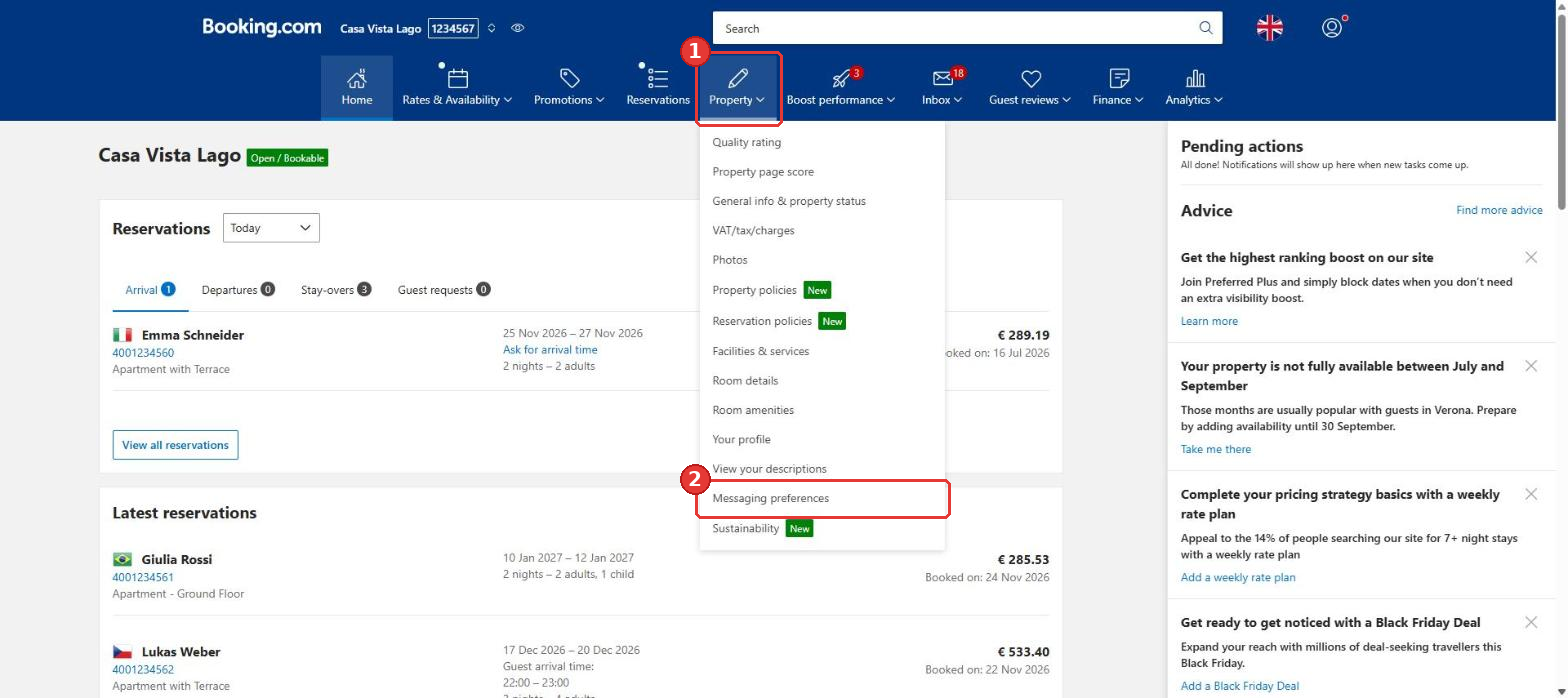
- Log in to the Booking.com extranet and open the Property (1) menu, then click Messaging preferences (2).
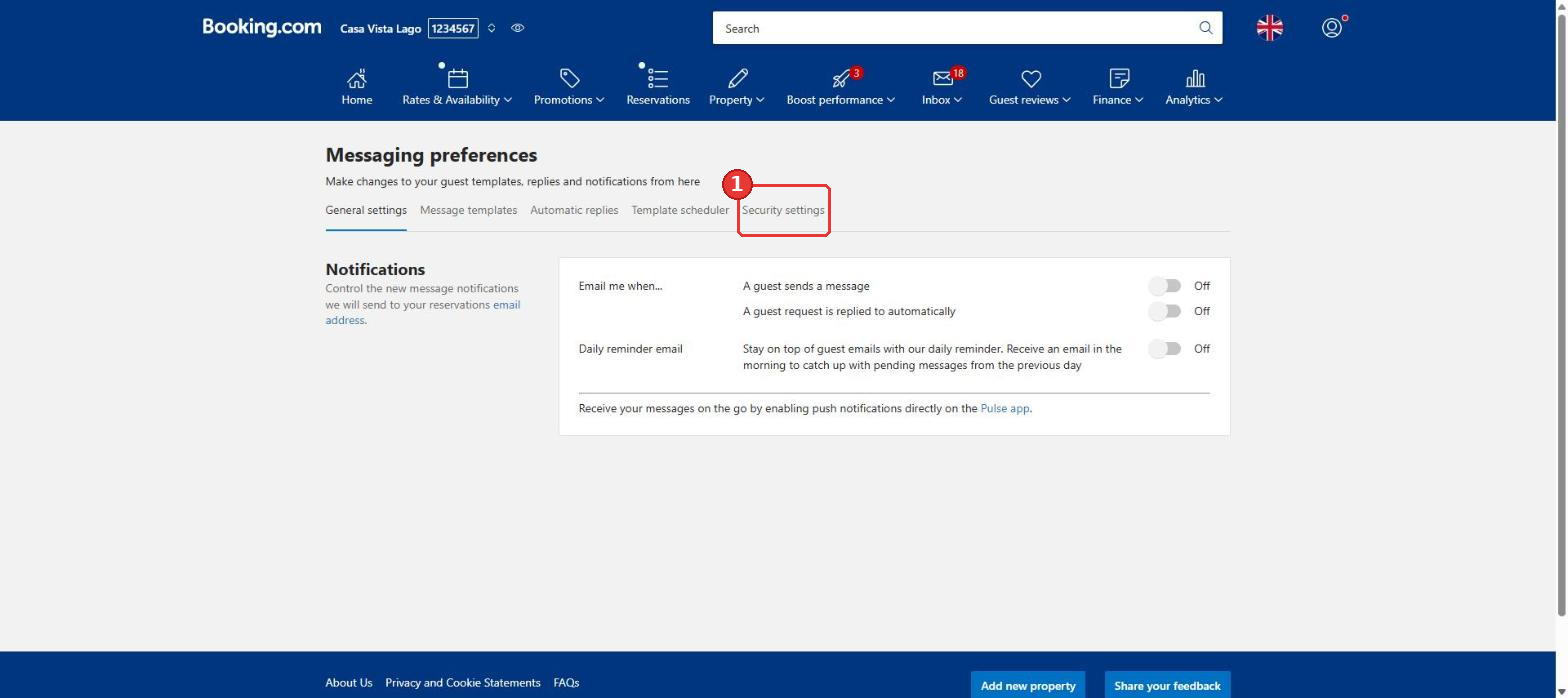
- On the Messaging preferences page, open the Security settings (1) tab.
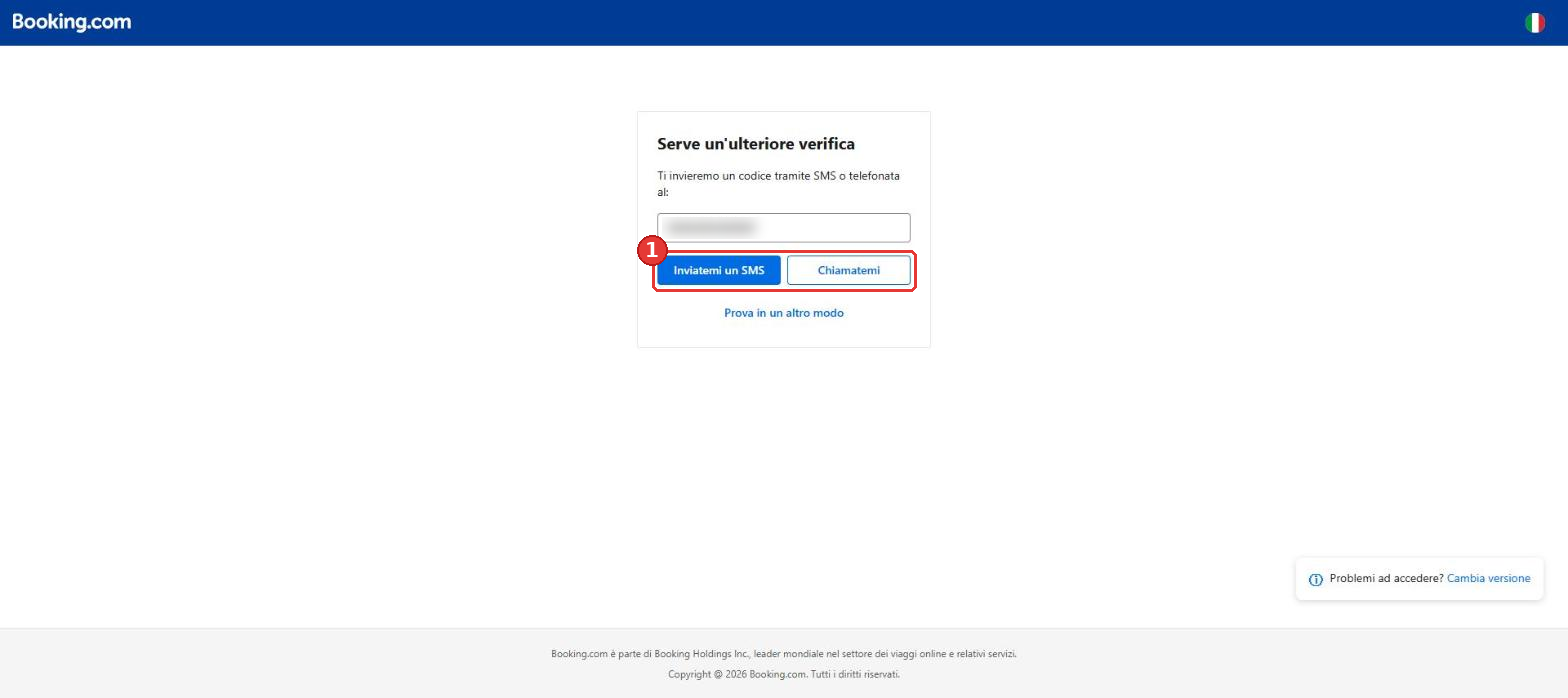
- If Booking.com asks for further verification, choose Send me an SMS or Call me (1) and enter the code you receive: without this step, you cannot change the settings.
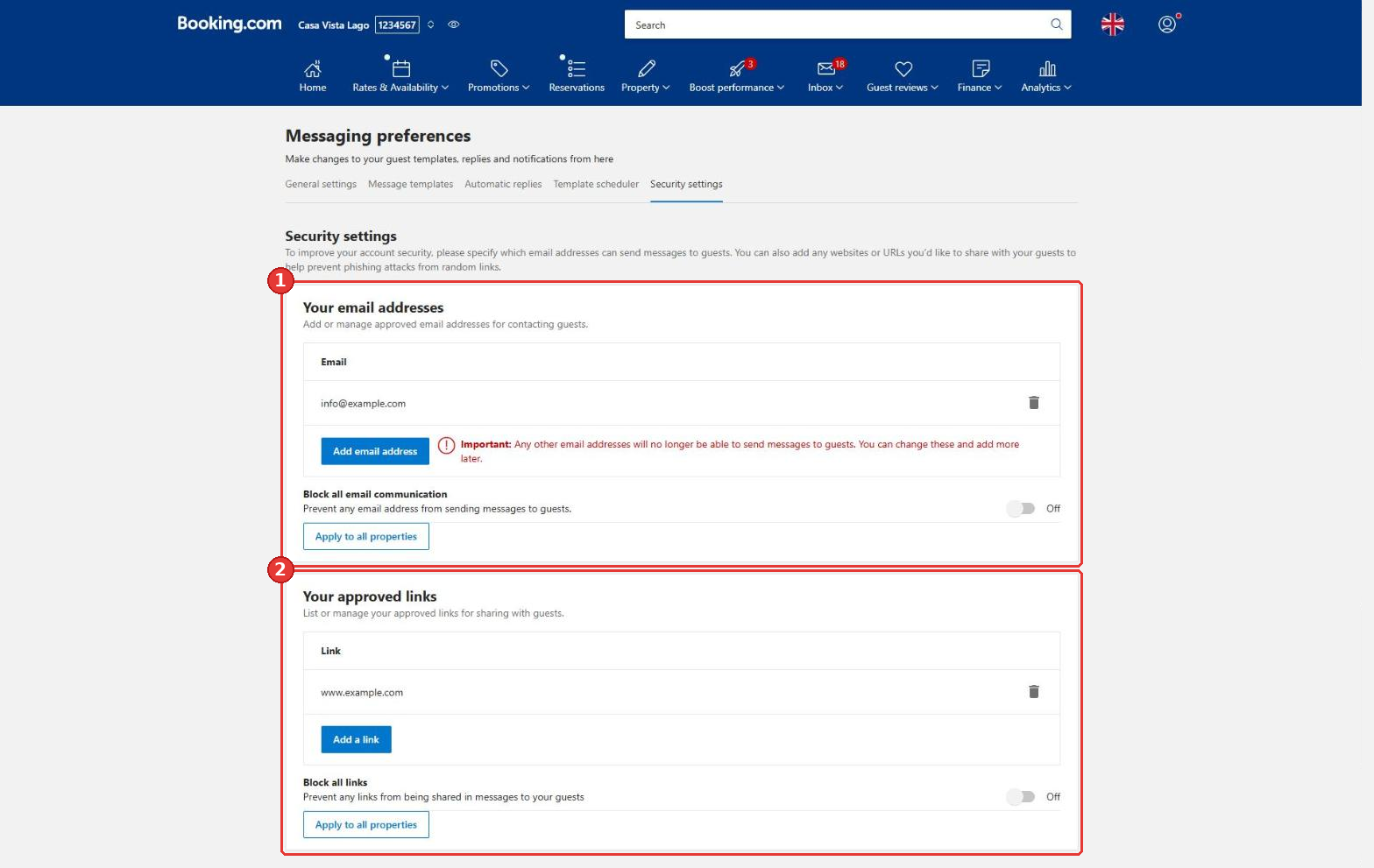
- In the tab, you will find two sections: Your email addresses (1) for senders and Your approved links (2) for links.
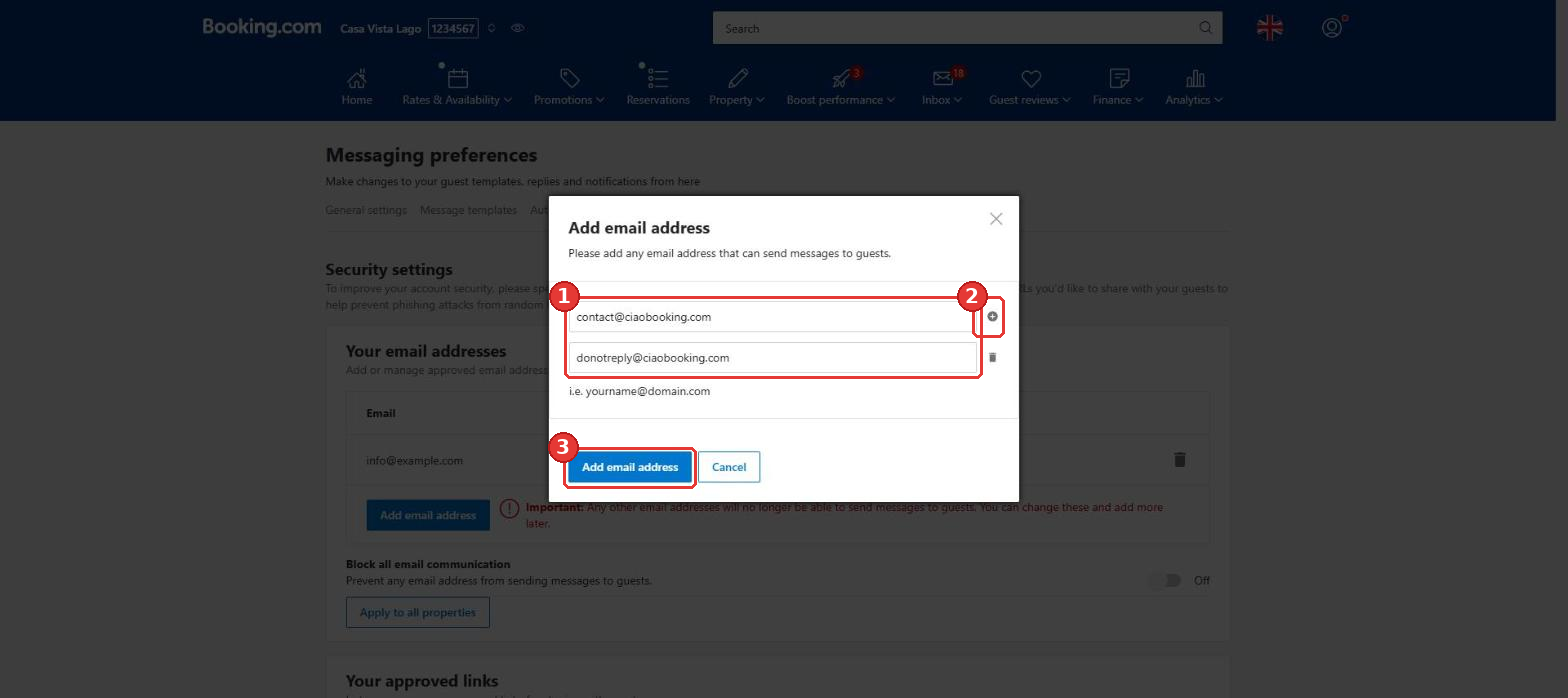
- In the Your email addresses section, click Add email address. In the window, type contact@ciaobooking.com, click + (2) to add a second field, and type donotreply@ciaobooking.com (1). Confirm with Add email address (3).
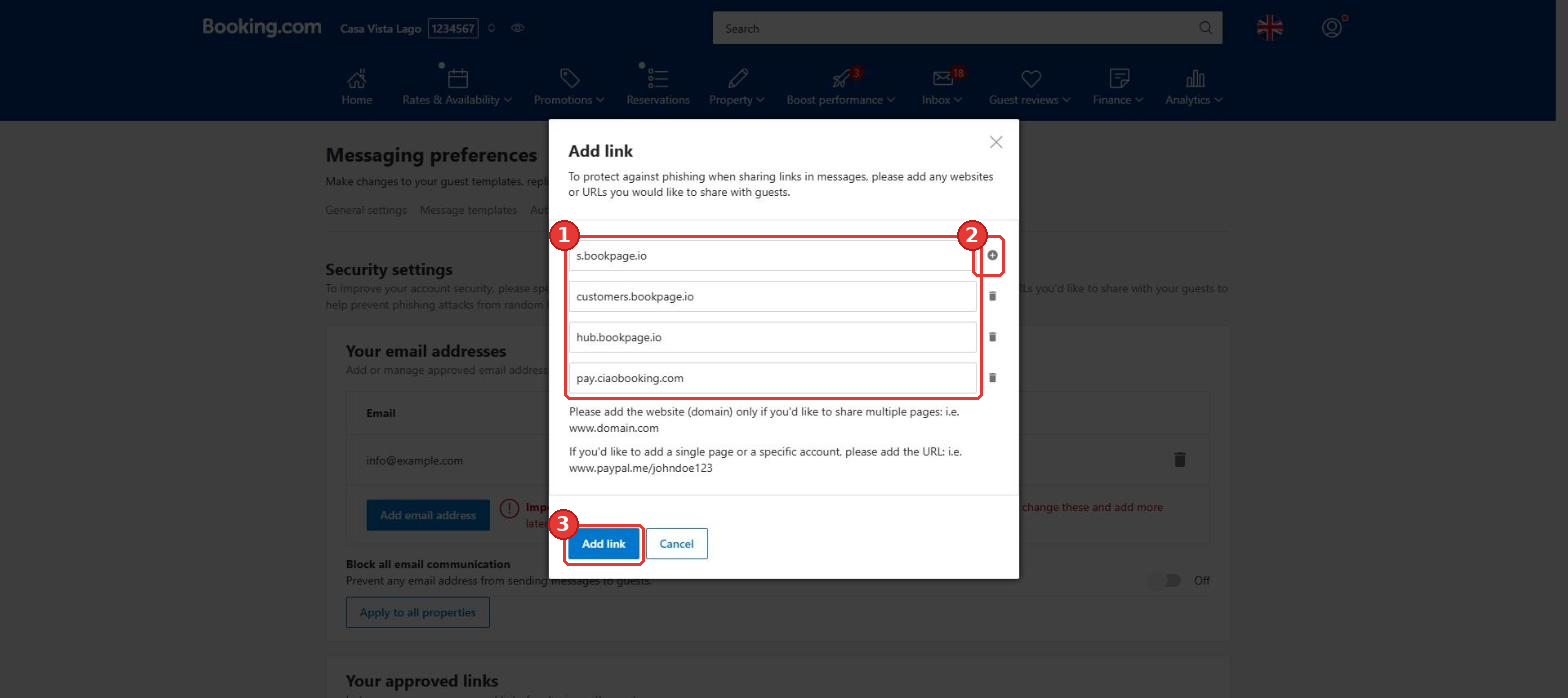
- In the Your approved links section, click Add link. Enter s.bookpage.io, customers.bookpage.io, hub.bookpage.io, and pay.ciaobooking.com (1), one value per field, using + (2) to add fields, plus any domains for your own links. Confirm with Add link (3).
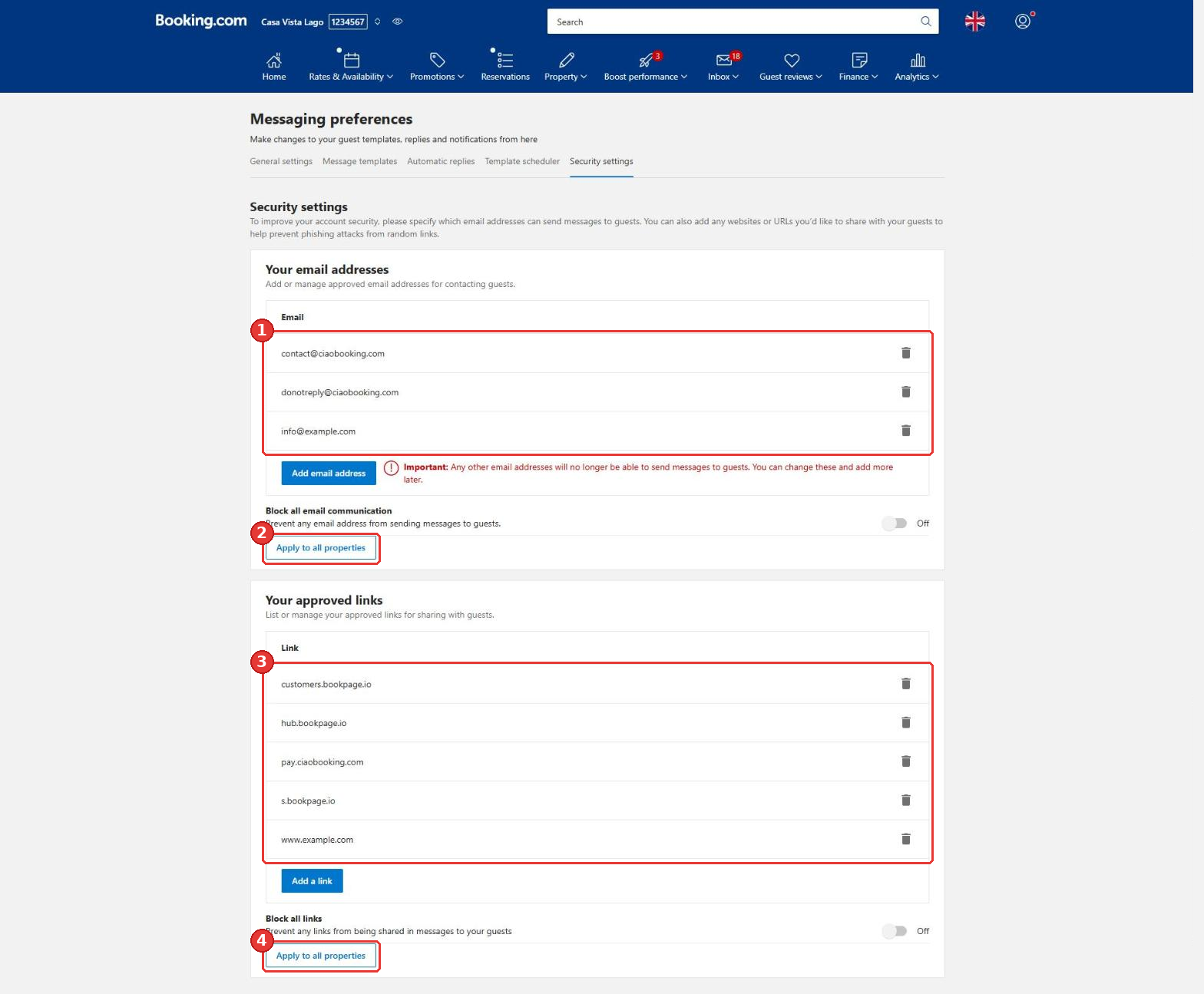
- Check the final lists: the 2 emails must appear among the email addresses (1) and all 4 links among the links (3), written exactly as above. If you manage multiple properties with the same account, click Apply to all properties in both the email section (2) and the link section (4): each section has its own button.
After the change
- The correction applies to messages sent from that moment on. Messages already blocked are not recovered: open the booking in SmartPMS → Messages tab → Compose, choose the template, and send it again.
- To verify, send a test message with a link to a Booking.com reservation and check that it appears in the extranet chat with the full link.
Links that Booking.com may block anyway
Even with the domain approved, Booking.com may remove:
- very long links, such as those for Google Drive files;
- links shortened with bit.ly or similar services.
Furthermore, Booking.com does not display embedded previews (e.g., of videos). Use direct, complete, and not overly long links.
For Booking.com guests, always use Email category templates: the message arrives at the address that Booking.com assigns to the guest (the one ending in @guest.booking.com) and a copy remains in the booking chat.
Frequently asked questions
3The message arrives in the chat but without the link to my website, Google Drive, or a video. What should I do?
Add the domain of that link (e.g., your website domain) to the Your approved links section as well. If the link is very long or shortened with bit.ly, replace it with a direct and complete link: Booking.com may block it even with the domain approved.
I sent the message but I don't see it in the Booking.com chat, even though the guest received it via email. Why?
Only messages sent to the address that Booking.com assigns to the guest, the one ending in @guest.booking.com, appear in the Booking.com chat. If the option Send to an email other than the customer's is active in the template, the message arrives directly in the guest's personal inbox and does not appear in the chat. To have a copy in the chat, leave the sending to the main booking email.
Related guides
Configuration
Configuration
Configuration
Configuration
How it works
How it works