

How to write to guests and where to view the conversation
Daily use of guest communication from the reservation: which channel to use for Airbnb, Booking.com, other portals, and direct bookings, how to write an email or a chat message with Compose, manually send a template, open WhatsApp, read statuses and colors of the Messages tab, and where guest replies arrive.
You are in the right place if…15 cases
- “How do I write a message to a guest from the booking?”
- “How do I contact an Airbnb guest who doesn't have an email?”
- “The guest replied but I don't see the reply”
- “Where do I see the messages sent to the guest?”
- “For Booking.com, is it better to write in chat or by email?”
- “How do I send a WhatsApp message to the guest from the management software?”
- “How do I manually send a template to a booking?”
- “How do I resend a message to the guest?”
- “The message in the Messages tab is red: what does it mean?”
- “How do I know if the guest has read the message?”
- “How do I use the Compose button?”
- “Can I schedule an email to be sent to the guest?”
- “Can I attach a file to the message for the guest?”
- “How does the priority between different communication channels (message templates) work in Ciaobooking?”
- “I cannot find a copy of the message sent in the Pulse/Booking.com chat”
From the MESSAGES tab of each booking, you can write to the guest, send them a template, check all sent or scheduled messages, and read the replies received in the chat. This guide explains which channel to use based on the booking source, how to send a message, and where to find the conversation.
To create the templates to use in messages, consult the guide "How to create a message template, with examples ready to copy", linked to this page.
Which channel to use
SmartPMS can write to the guest on three channels:
- Email: an email sent on behalf of the property to the customer's email address from the booking.
- Chat: a message in the chat of the portal from which the booking originates (in templates, it corresponds to the Portal Extranet category).
- WhatsApp: manual sending only. SmartPMS does not send WhatsApp messages automatically: it opens WhatsApp on your device with the customer's number and, if you choose a template, with the text already filled in. You send the message yourself from WhatsApp.
The recommended channel depends on the booking source:
Booking source | Recommended channel | Why |
|---|---|---|
Airbnb | Chat | Airbnb usually does not provide a guest email address: the portal chat is the secure way to reach them, and the message also remains in the conversation on Airbnb. |
Booking.com | Booking.com provides a guest email address ending in @guest.booking.com: the message reaches the guest and a copy remains in the Booking.com chat as plain text. | |
Other portals | Use the guest's email address present in the booking. | |
Direct bookings | Chat is not available because the booking does not come from a portal. | |
All, if a phone number is present | Useful for quick communications on the day of arrival. |
The indications for Airbnb and Booking.com are recommendations, not limits: chat can also be used with other connected portals (even Booking.com guests receive messages in chat) and email can be used with Airbnb, if the booking contains a valid address.
The same applies to automatic messages: use Portal Extranet (chat) category templates preferably only for Airbnb, selecting only Airbnb in the Sources, and for Booking.com use the Email template. There is no fixed priority: email and chat can both be sent for the same booking, based on the data and active templates.
Open the MESSAGES tab
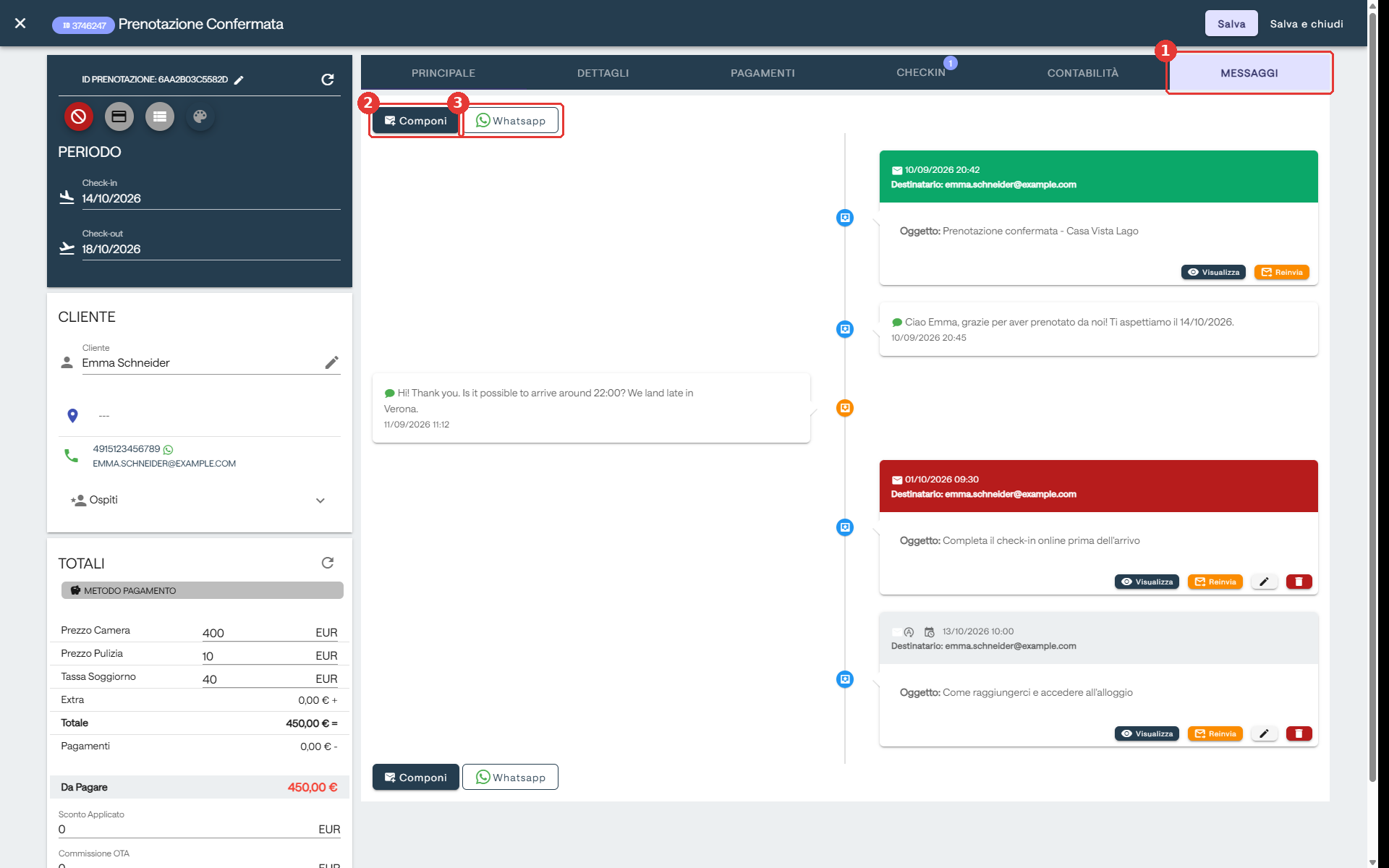
Open the booking and click on the MESSAGES tab. At the top and bottom of the history, you will find the Compose and WhatsApp buttons.
Writing an email with Compose
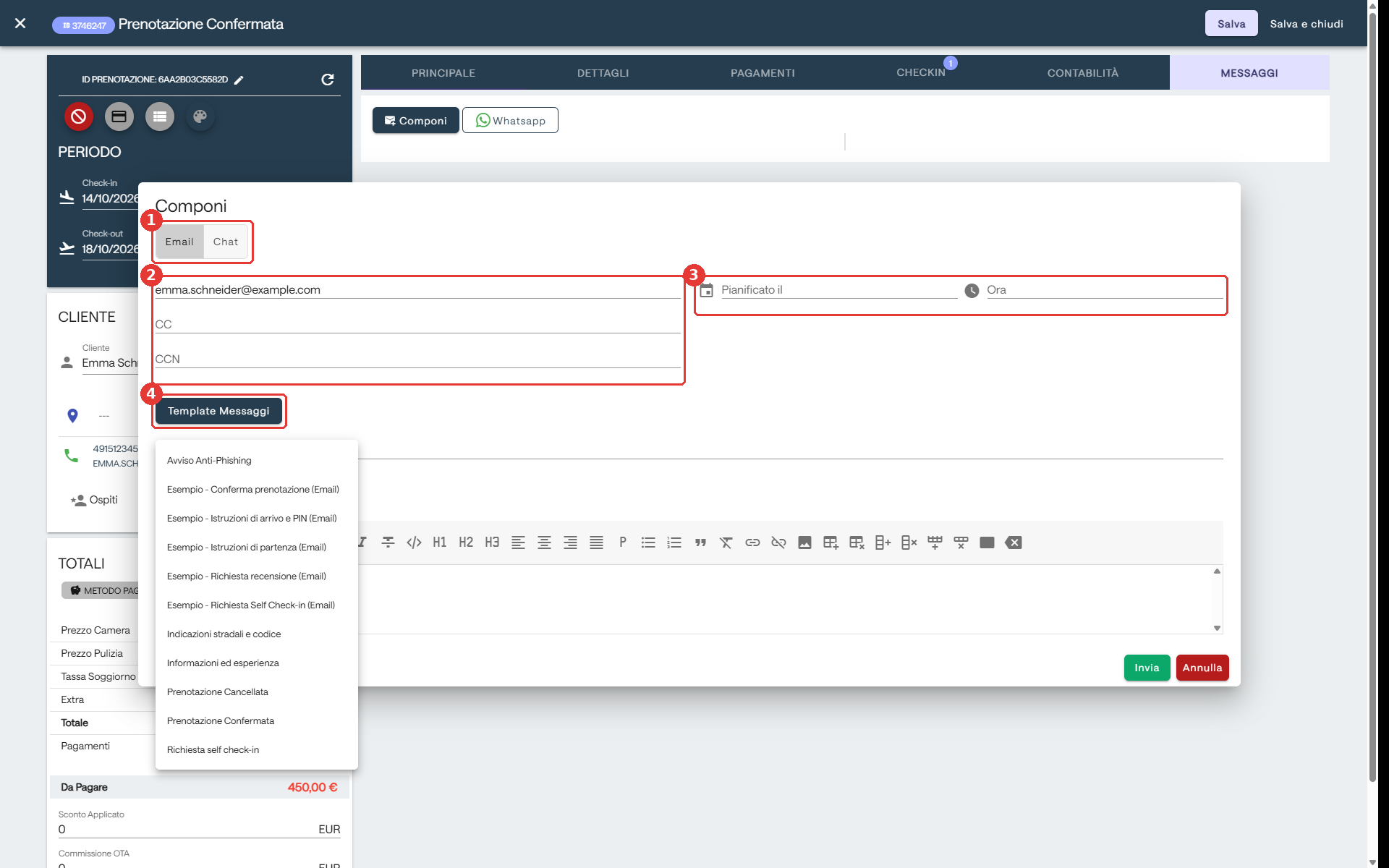
- In the MESSAGES tab, click on Compose and leave Email selected.
- The To field is already filled with the customer's email from the booking. If needed, add other recipients in CC or BCC.
- To use a template, choose one of the Email category templates in Message Templates: the subject and text are filled in with the booking data, in the customer's language. To edit them before sending, click on the pencil icon.
- If you do not use a template, write the Subject and the text of the message.
- To send immediately, click on Send. To schedule the sending, first set Scheduled on and Time.
What the guest sees:
- The sender shows the name of your property. When the guest clicks Reply, the response arrives at the property's email address.
- With Compose, you cannot attach files. If you need to share a document, insert a link in the text from which it can be downloaded.
Writing in the portal chat with Compose
- In the MESSAGES tab, click on Compose and select Chat.
- To use a template, choose one of the Portal Extranet category templates in Message Templates: the text is filled in with the booking data.
- If you do not use a template, write the message in the text field.
- Click on Send, or set Scheduled on and Time to schedule the sending.
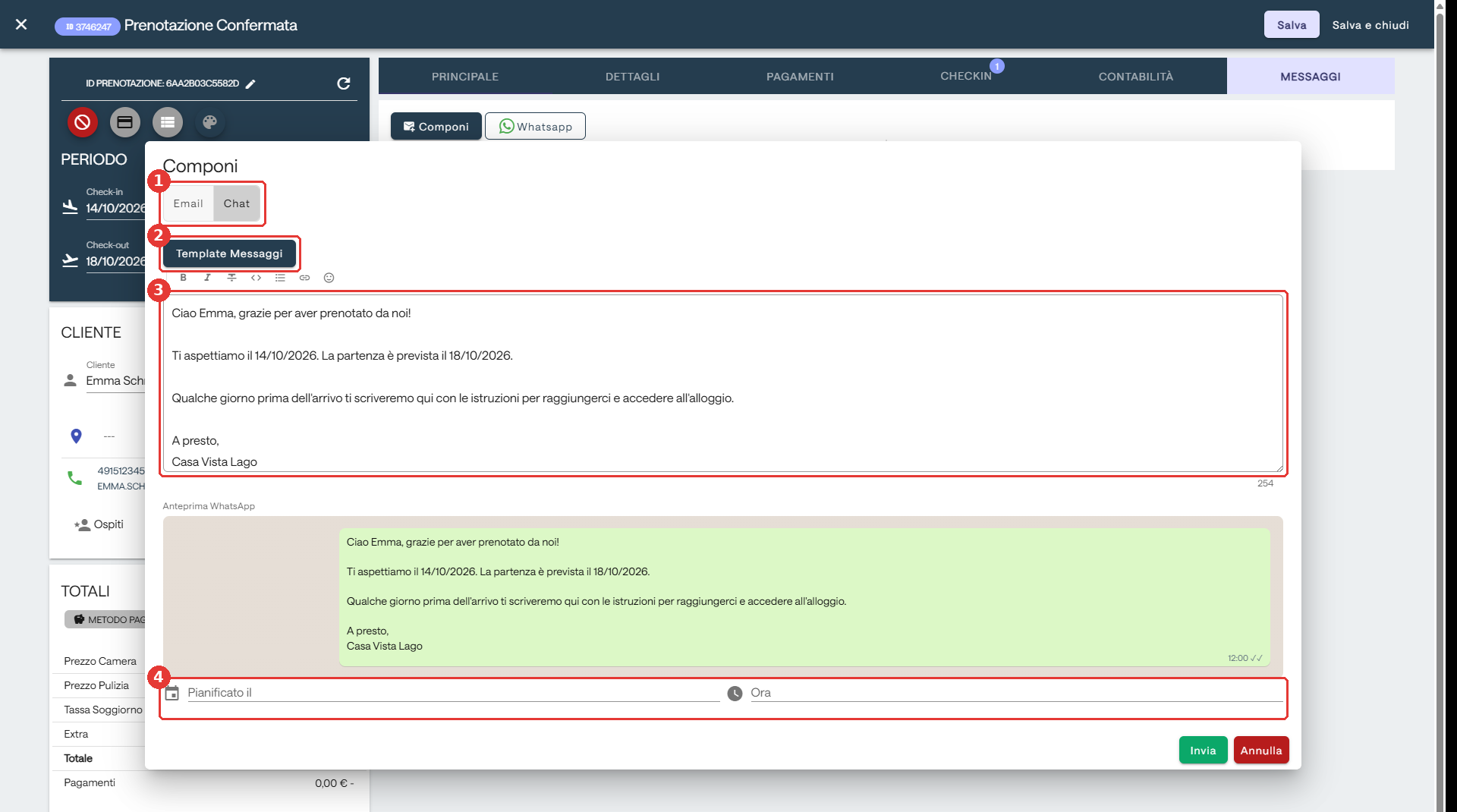
Chat messages are plain text: portal chats do not show bold, tables, or images. The same applies to emails sent to a guest's @guest.booking.com address: Booking.com converts them into plain text.
Manually sending a template
Use Compose also to send a template to a booking that did not receive it automatically: for example, a booking that arrived before you activated the template, or one that was missing an email at the time of sending.
- Open the booking → MESSAGES tab → Compose.
- Choose Email or Chat, based on the template category.
- Select the template in Message Templates, check the preview, and click on Send.
Writing on WhatsApp
For ready-made text:
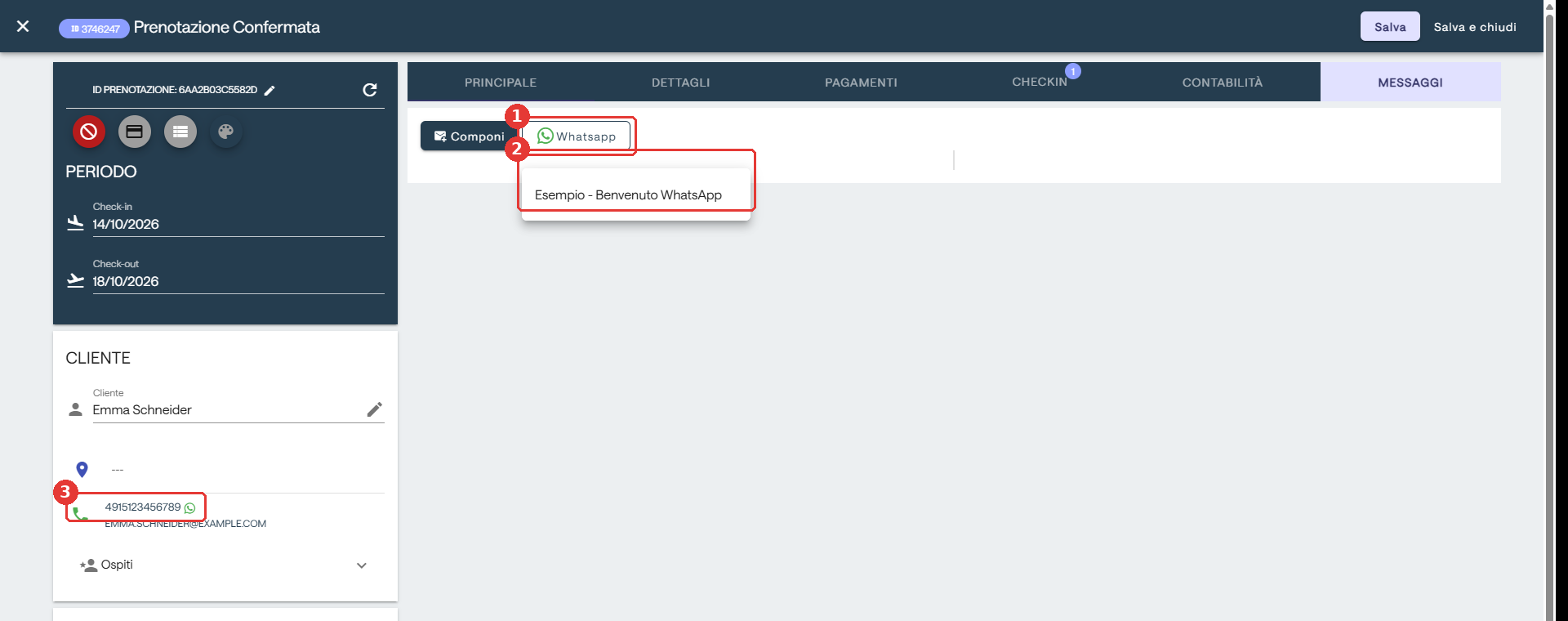
- In the MESSAGES tab, click on WhatsApp.
- Choose one of the Instant Messaging category templates.
- WhatsApp opens (on the web or in the app) with the customer's number and the text already filled in with the booking data. Check it and send it from WhatsApp.
For a free message, click on the customer's phone number in the CUSTOMER card of the booking (next to it is the WhatsApp icon): the WhatsApp chat with that number opens.
Things to know:
- You need the customer's phone number, i.e., the person who booked, with the international prefix. The numbers of other guests in the booking do not open WhatsApp.
- The template uses the customer's language. If the template does not have text in that language, WhatsApp opens with empty text: add the language to the template.
- The message starts from your WhatsApp account, so the conversation remains on WhatsApp and does not appear in the MESSAGES tab.
Reading the MESSAGES tab
The tab collects the booking messages in chronological order: emails and chat messages sent, scheduled, or in error, and the replies received from the guest in the chat.
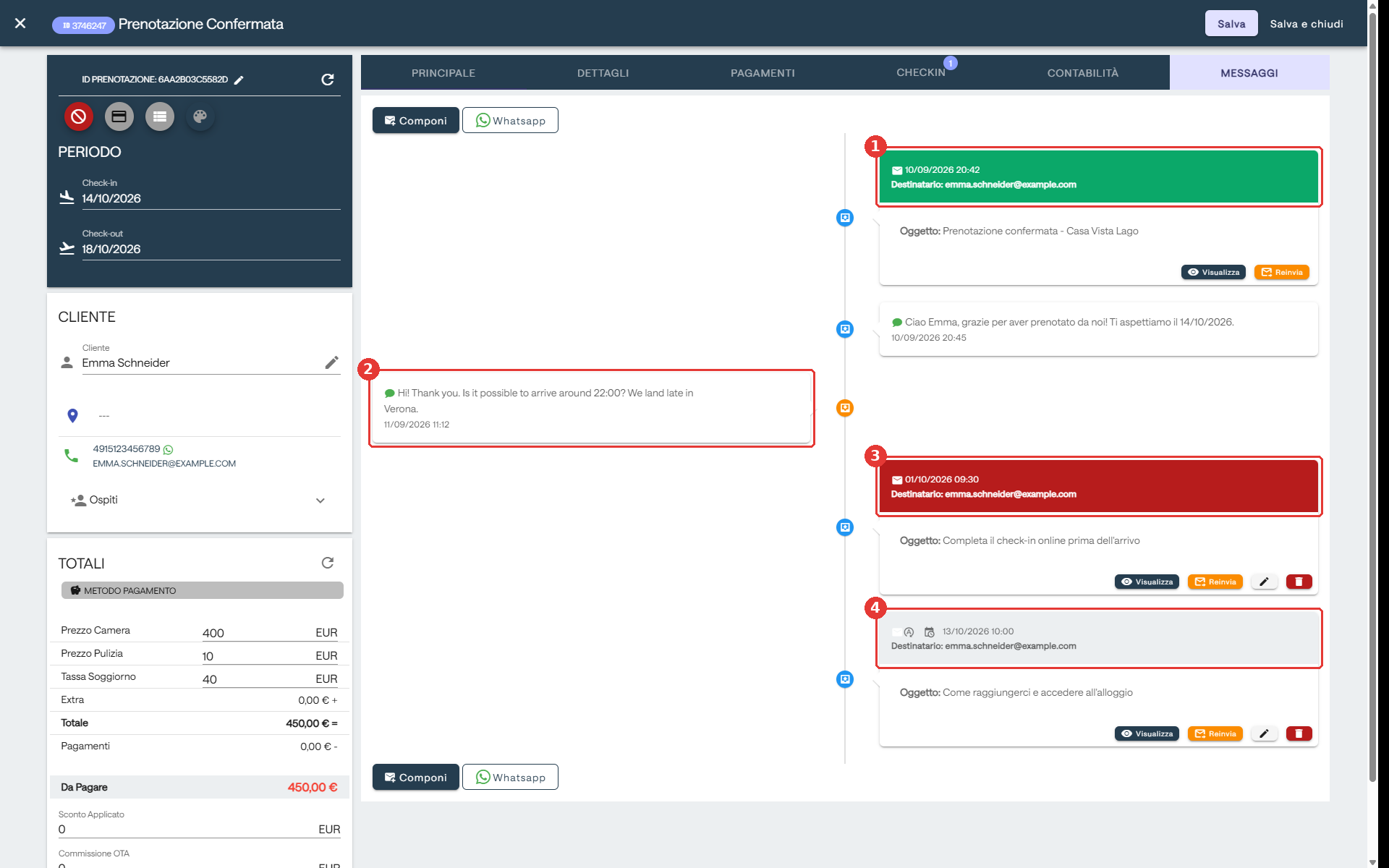
- Green header: email sent. Shows the date and time of sending and the Recipient.
- Red header: sending failed. Check the recipient's address: if it is correct, use Resend; if it was wrong, correct it in the booking and send the message with Compose. If all emails to the same guest appear red, even after Resend, the address has been rejected by the guest's mail provider: read the FAQ at the bottom of the guide.
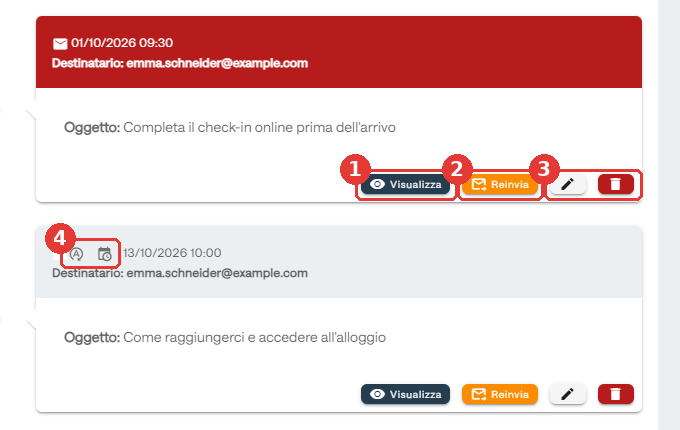
- Gray header: email scheduled. Shows the calendar icon with the date and time it will be sent and, if Regenerate before sending is active on the template, the corresponding icon.
Below the header, you will find the Subject and the buttons:
- View: opens the full message.
- Resend: appears on every message and sends it again immediately to the same recipient.
- Pencil and Trash can: appear only on messages not yet sent and allow you to edit or delete them before sending.
Chat
- The messages you send appear on the right. The icon color indicates the status: green if sent, red if the portal did not accept it, blue if waiting to be sent.
- Guest replies appear on the left, with an orange dot on the timeline.
To send a message that is already in the tab again, use Resend. To send a new message, or a template that the booking has never received, use Compose, choose the template, and click on Send.
Where guest replies arrive
- Portal chat replies (e.g., Airbnb): appear in the MESSAGES tab of the booking, on the left. SmartPMS does not send a notification when a reply arrives: check the current bookings tab or the portal chat.
- Email replies: arrive in the property's email inbox, because that is the address the guest replies to. They do not appear in the MESSAGES tab.
- Booking.com: if the guest replies from the Booking.com chat, you will find the reply in the Booking.com extranet messaging.
- WhatsApp: the conversation remains in your WhatsApp.
Special cases
Booking.com and the message copy in chat
An email appears in the Booking.com chat only if it is sent to the guest's address provided by Booking.com (the one ending in @guest.booking.com) and if Booking.com accepts the sender. In the Booking.com extranet, go to Property → Messaging preferences → Security settings and add donotreply@ciaobooking.com and contact@ciaobooking.com to the approved addresses. Booking.com may also block messages with links to unauthorized domains. If you send the email to the guest's personal address, the message arrives in their inbox but does not appear in the Booking.com chat.
Messages rejected by Airbnb
If a chat message to Airbnb has a red icon, Airbnb did not accept it. When this happens to a single message, it usually depends on the content (e.g., links or contact details that Airbnb does not allow): edit the text and send it again. If from a certain day it happens to all Airbnb messages for the property, contact support indicating a booking with the message in error.
No read receipt
The MESSAGES tab indicates if a message has been sent, not if the guest has read it: neither emails nor portals provide a read receipt.
Frequently asked questions
4For Booking.com guests, is it better to write via chat or email?
Use Email. Booking.com provides a guest address ending in @guest.booking.com: the email reaches the guest and a copy remains in the Booking.com chat. Booking.com displays it as plain text, without bold, tables, or images. For the copy to appear in the chat, add donotreply@ciaobooking.com and contact@ciaobooking.com to the approved addresses in the Booking.com extranet.
Can I write on WhatsApp to a guest other than the one who booked?
The WhatsApp button and the number in the GUEST card use the customer's number, i.e., the person who booked. The numbers of other guests do not open WhatsApp from the booking: if you need to write to another guest, add their number to WhatsApp and write to them from there.
I don't see the guest's phone number in the Booking.com booking: can I use WhatsApp?
Without the customer's phone number, WhatsApp cannot be opened from the booking. Booking.com no longer transmits the guest's phone number along with the booking: SmartPMS retrieves it later from the Booking.com reservation and adds it to the customer card. If the number does not appear, copy it from the Booking.com extranet into the customer card. In the meantime, write to the guest via Email, which is the recommended channel for Booking.com.
From which address are emails to guests sent and where do the replies arrive?
Emails you send to guests from the MESSAGES tab and those from templates are always sent from the platform address contact@ciaobooking.com, with your property name displayed as the sender. The property's email (or the sender you choose in Compose) is set as the reply-to address: when the guest clicks Reply, the response arrives in your inbox. For this reason, in portals that only deliver emails to the guest from approved senders, such as Booking.com with @guest.booking.com addresses, you must approve contact@ciaobooking.com and donotreply@ciaobooking.com, not the property's email.
Related guides
Configuration
Configuration
Configuration
Activation
Configuration
How it works