

How to create a reservation from the Reservations list (full mode)
How to manually enter a reservation or an option from the Reservations list using the full wizard: search by dates and guests (including children), selection of room type and rate plan, customer, unit and automatic assignment, source, price and extras, payment method, and notes. Explains what happens after saving and the main limitations.
You are in the right place if…12 cases
- “How do I enter a reservation from the Reservations list?”
- “I want to create a reservation received by phone with all the details”
- “Where do I choose the room type and rate plan when creating a reservation manually?”
- “How do I create an option pending a deposit?”
- “I have already confirmed the reservation, can I set it back to an option?”
- “Children are not calculated in the reservation price”
- “I cannot find the customer when creating the reservation, even though they have booked before”
- “The price I entered manually is not kept and reverts to the rate”
- “The created reservation has no unit and ended up in To be assigned”
- “The check-in and check-out time of the manual reservation goes to 12:00”
- “The message 'No availability or prices for the selected dates' appears”
- “I do not want any email to be sent to the customer when I enter the reservation”
This guide explains how to manually enter a single booking starting from the Bookings list, using the complete wizard. This is the right path when you want to start from dates and guests and let SmartPMS suggest the available unit types and rate plans, or when you want to fill in all the details immediately (customer, source, price, extras, payment, notes).
If you prefer to start from a specific unit on the Calendar, using the quick creation panel, see the guide How to create a booking, an option or a date block from the Calendar: its "advanced mode" opens the same screen described here, already positioned on the last step.
- For multiple rooms for the same customer or a group, see the guide How to create and manage a group booking.
- To propose multiple solutions to the customer and have them confirmed via a link, use Quotes: see the guide Quotes: how to create, send and have an offer confirmed.
- To understand booking statuses and types (booking, option, block), see the guide How bookings work in SmartPMS.
1. Open creation from the Bookings list
- Open Bookings from the main menu.
- In the top right, click the + Add button: a menu will open.
- Choose the first item, Add: this is for a single booking.
The menu also contains Add multiple (multiple bookings together for the same customer), Block (to make a unit unavailable), and Create group booking. This guide covers only the single booking, which you can transform into an option in the last step.
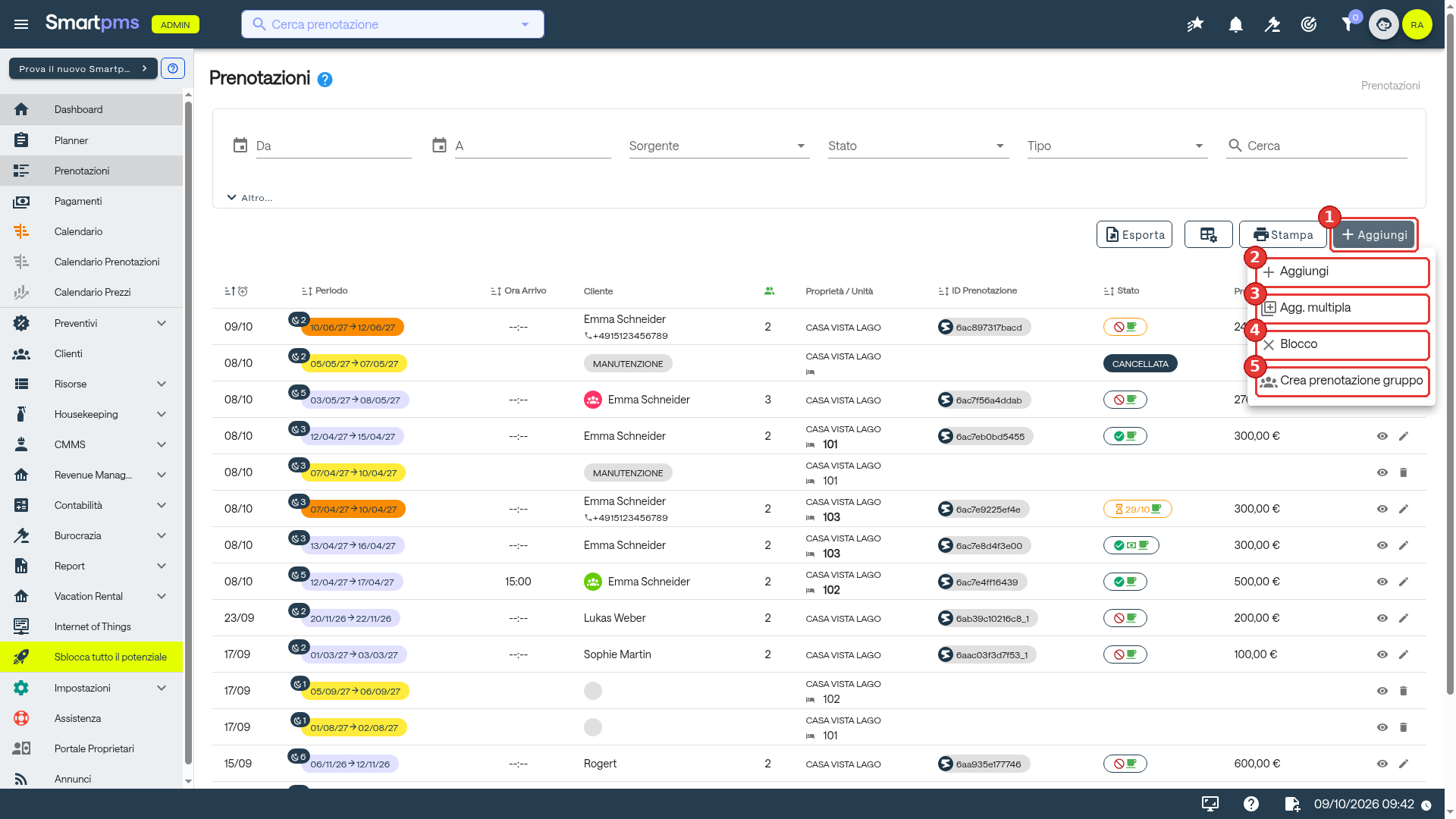
If the + Add button or any of the items is disabled, your user does not have permission to create that type of element: ask the administrator to check your user role.
The Create Booking screen opens, divided into three steps that you see at the top: Search Parameters, Proposals, and Creation. With Continue you move forward, with Back you return to the previous step. From a smartphone, the same buttons are at the bottom of the page.
2. Search Parameters: dates and guests
In the Date and guest information box, fill in:
- Property: the property where you want to enter the booking.
- Number of adults: mandatory.
- Check-in and Check-out: mandatory. The check-out must be after the check-in; if you move the check-in beyond the check-out, the check-out is moved to the next day.
- Traveling with children: activate this if there are children. Number of children (up to 9) and a Child's age field for each will appear. Always indicate the age: it is necessary to apply the child rates provided by the rate plan.
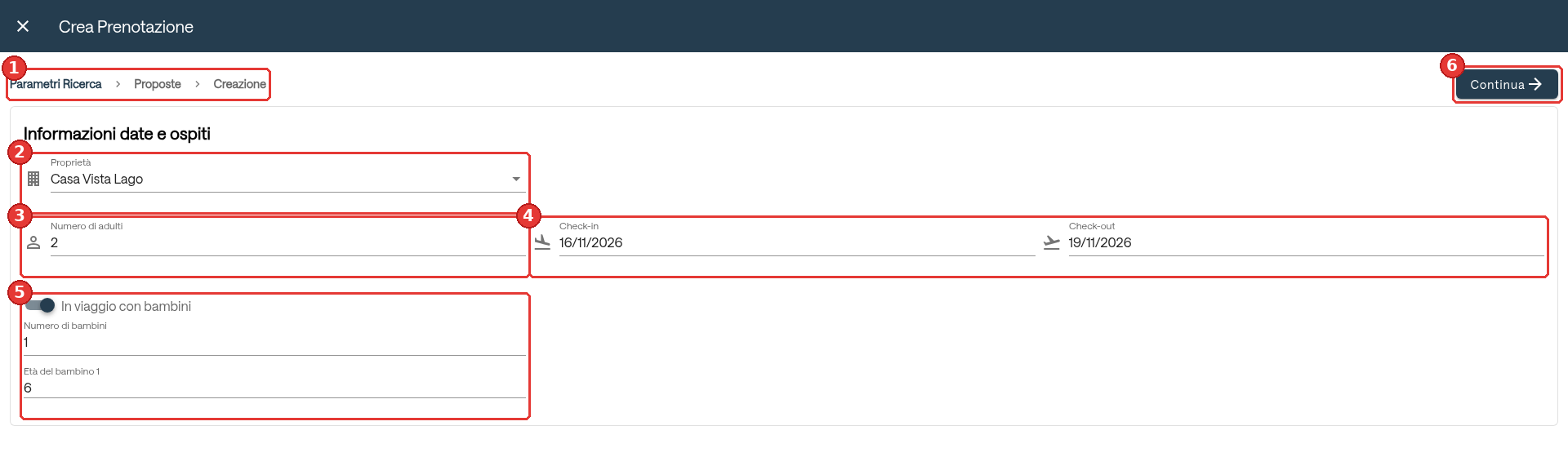
Click Continue.
Nights=Check-out−Check-in
Example: Check-in Monday 12th, Check-out Thursday 15th
15−12=3 nights
3. Proposals: choose unit type and rate plan
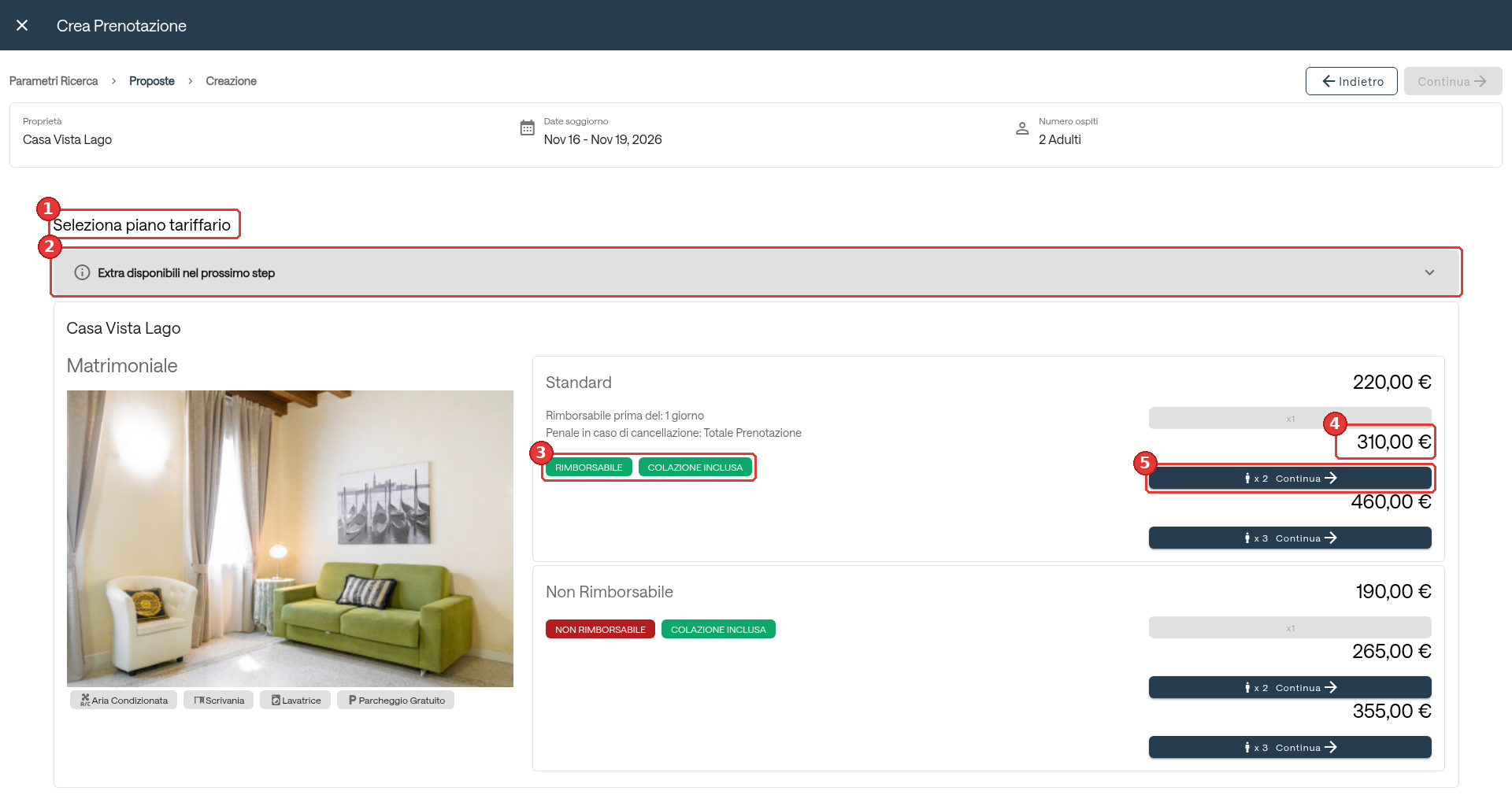
SmartPMS searches for sellable combinations for those dates and guests and shows them under Select rate plan, grouped by property and unit type (with photos and main services). For each rate plan you see:
- the name of the plan and the cancellation conditions, with the label REFUNDABLE or NON-REFUNDABLE;
- the board type (e.g., room only or breakfast included);
- the total price of the stay for that occupancy;
- the button with the number of guests for the rate and Continue.
Click Continue on the combination you need. The button is disabled when the rate is designed for fewer guests than you indicated.
The Extras available in the next step box reminds you that optional extras are added in the next step: the total updates automatically.
If no proposal appears
the message "There is no availability or prices for the selected dates." indicates that no combination is sellable, for example because the dates are closed, the price is missing, the stay does not respect the minimum or maximum stay, Check-in prohibited or Check-out prohibited, the plan is hidden, or the guests exceed the unit type occupancy (or the plan has no prices for the indicated children).
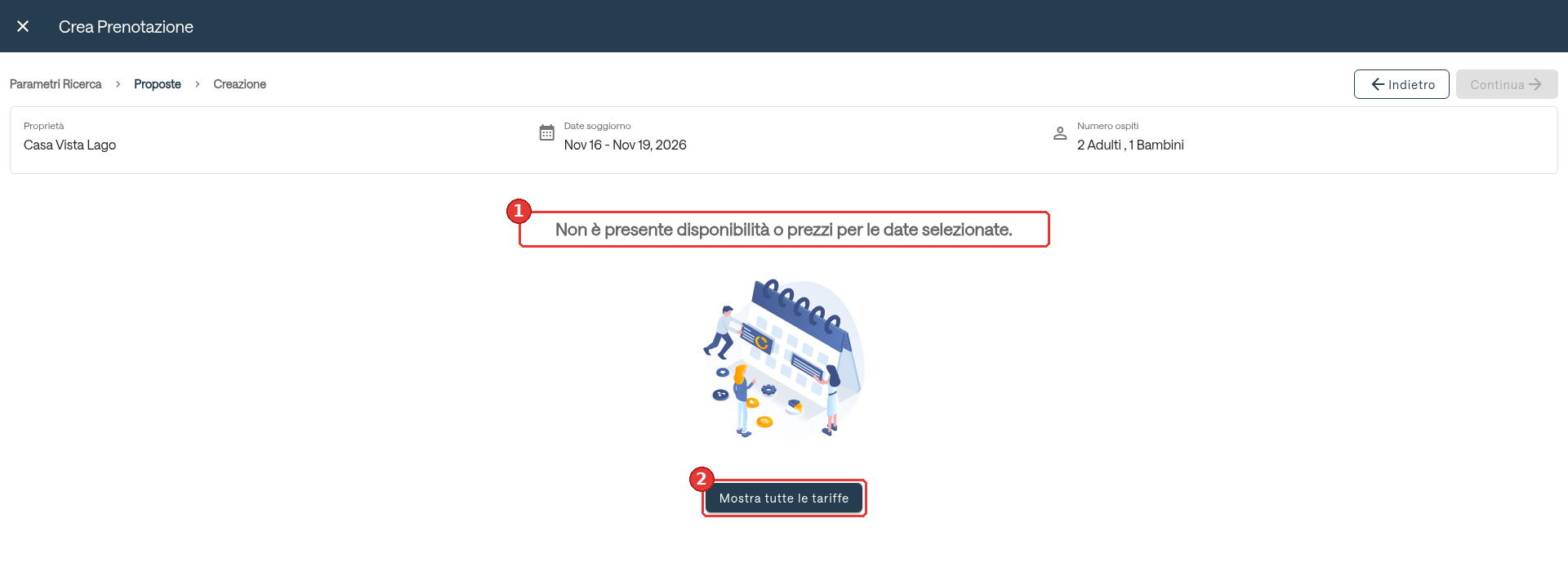
The Show all rates button also shows combinations that are normally excluded. Use it only after checking the reason on the Calendar: a booking entered outside the sales rules can lead to overbooking. If the price is missing for those dates, the combination appears with 0.00 €: in this case, enter the amount in Price details before creating.
To correct prices, closures, and restrictions, see the guide How to modify prices, availability and restrictions from the Calendar.
4. Creation: complete the details
At the top, you will find a non-editable summary: Property, Unit Type, Rate plan, Stay dates, and Number of guests. To change them, click Back. Attention: by going back and choosing a proposal again, the price is recalculated from scratch and the changes made in Price details are lost.
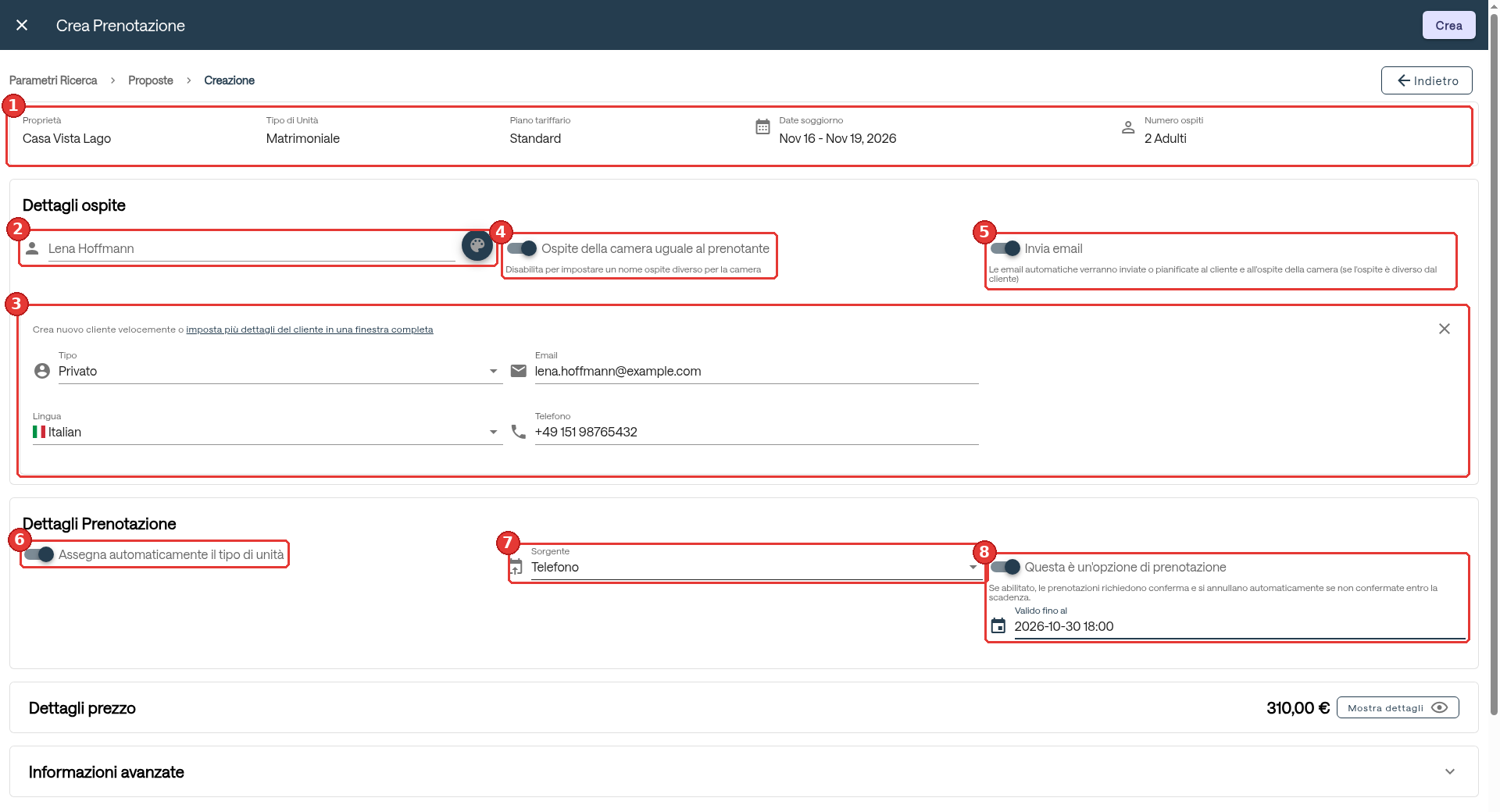
Guest details
- Customer: mandatory. Write the name, email, or phone number to search for a customer already present in the database and choose them from the list.
- If the customer does not exist, click Create "name": the "Create new customer quickly or set more customer details in a full window" box appears. In the quick form, Type (default Private) and Language are mandatory; also enter Email and Phone, because the email is needed for automatic messages. The new customer is registered when you click Create, along with the booking. From the set more customer details in a full window link, you open the complete customer profile (e.g., for billing data).
- Review past stays: appears if the customer already has past bookings at the same property and shows Total spent and Total past bookings.
- Room guest same as booker: active by default. Deactivate it when the person staying is different from the person booking (e.g., a company booking for an employee): the Name and Surname fields of the guest appear.
- Send email: active by default. Automatic emails will be sent or scheduled to the customer and the room guest. Deactivate it if you do not want any messages to be sent, for example for a booking entered retroactively.
Booking details
- Automatically assign unit type: starting from the list, you do not choose a unit first, so the switch appears and is active. If you leave it active, SmartPMS tries to assign the first free unit of the type for the entire stay, in the order in which the units are listed, but only if the Auto-assign bookings option is active on the property (active by default on new properties). If the property option is off, or no unit is free for all nights, the booking remains in the To be assigned row of the Calendar until you assign it.
- Unit: appears when you deactivate the switch. The list proposes the units of the chosen type that are free for those dates. If there is only one, it is selected automatically.
- Source: where the booking comes from. The items are Direct (default), Phone, E-Mail, WEB, Agency, ADS, Social, and Not specified. It is used for statistics and filters and for message templates set by source.
- This is a booking option: activate it to create an option instead of a confirmed booking. Valid until appears, mandatory: choose the day, then hour and minutes (24-hour format) and confirm with Ok. As the text below the switch says, the option requires confirmation and is automatically canceled if not confirmed by the deadline.
Price details
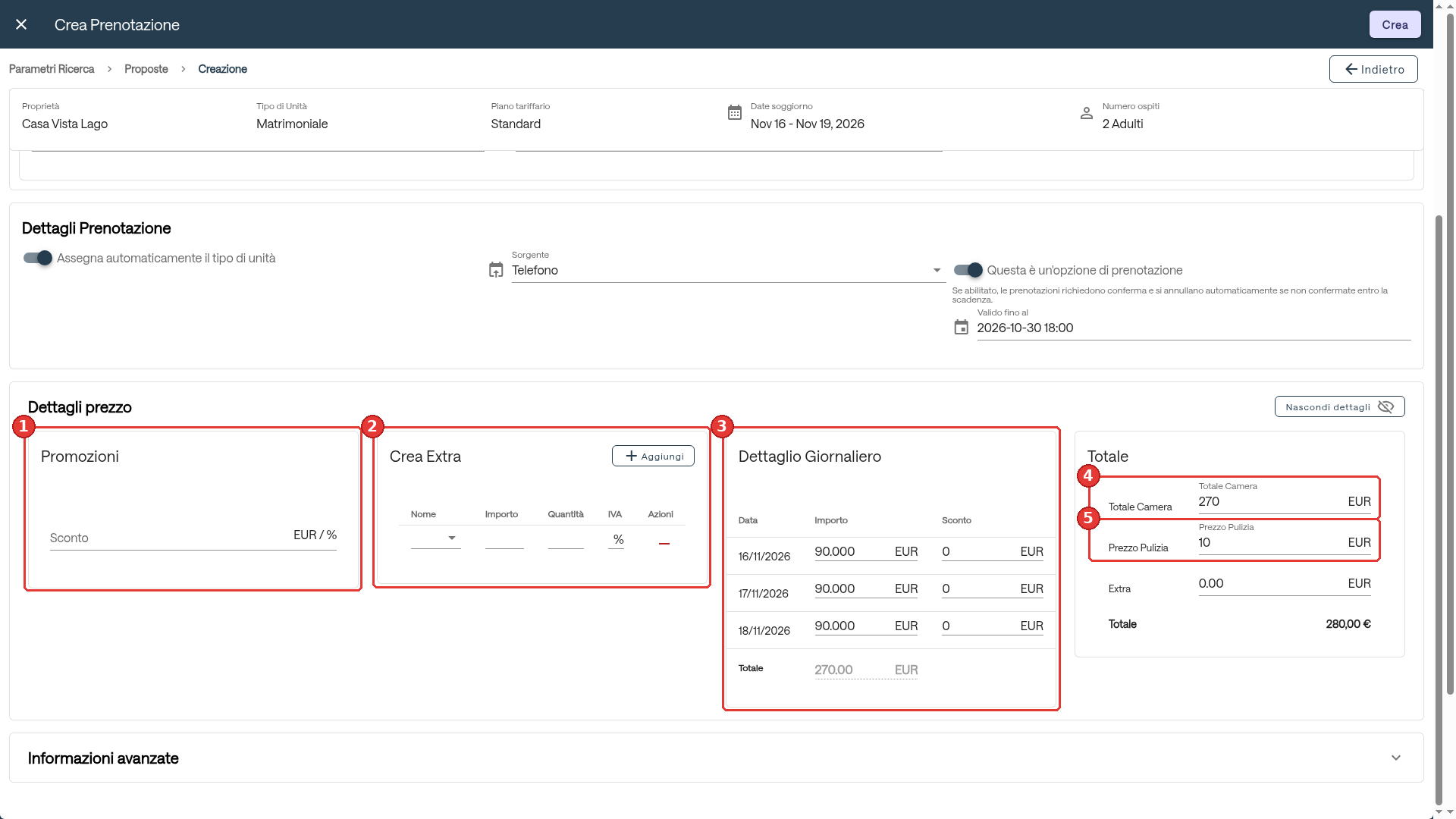
The section is closed and shows only the total: open it with Show details. It contains four boxes:
- Promotions: applies an active promotion of the property or a Discount in euros or percentage; the discount is distributed over the nights.
- Create Extras: add services such as breakfast, crib, or pet, with amount, quantity, and VAT. Extras configured as mandatory are already inserted. To configure extras, see the guide Extra services: how to create and add them to bookings.
- Daily Detail: the amount for each night. You can modify individual nights; those changed are marked as Manually modified.
- Total: Room Total (editable), Cleaning Price (editable), Extras (derived from the chosen extras), and the final total.
If you write a new Room Total, SmartPMS divides it equally over the nights and replaces the daily detail.
Price per night=Room Total÷nights
Example: Room Total brought to 300 € for 4 nights
300 €÷4 nights=75 € per night
Advanced information
The section is closed: click on it to open it. It contains:
- Payment Method: Unknown, Credit Card, Bank Transfer, Prepaid, or Cash.
- If the property uses Smartpay: a notice indicating whether scheduled payment request emails will be sent to the guest, and the Payment on arrival switch. With Smartpay, the proposed method is Credit Card and payment requests are sent according to Smartpay rules; to not send them, choose Payment on arrival or a method like Bank Transfer, Prepaid, or Cash. For details, see the guide Smartpay: how to configure it and how automatic payments work.
- Customer Requests: the guest's requests.
- Service Notes: notes visible to the cleaning staff.
- Internal Notes: notes available to the reception, not visible to the guest.
- Arrival Time: the expected arrival time.
Other data, such as Check-out Time, Flight Number, Referral, Do not move, or the invoice request, are not entered in this screen: you will find them in the booking tab after creating it (see the guide Managing a booking: the tab and what you can do in each tab).
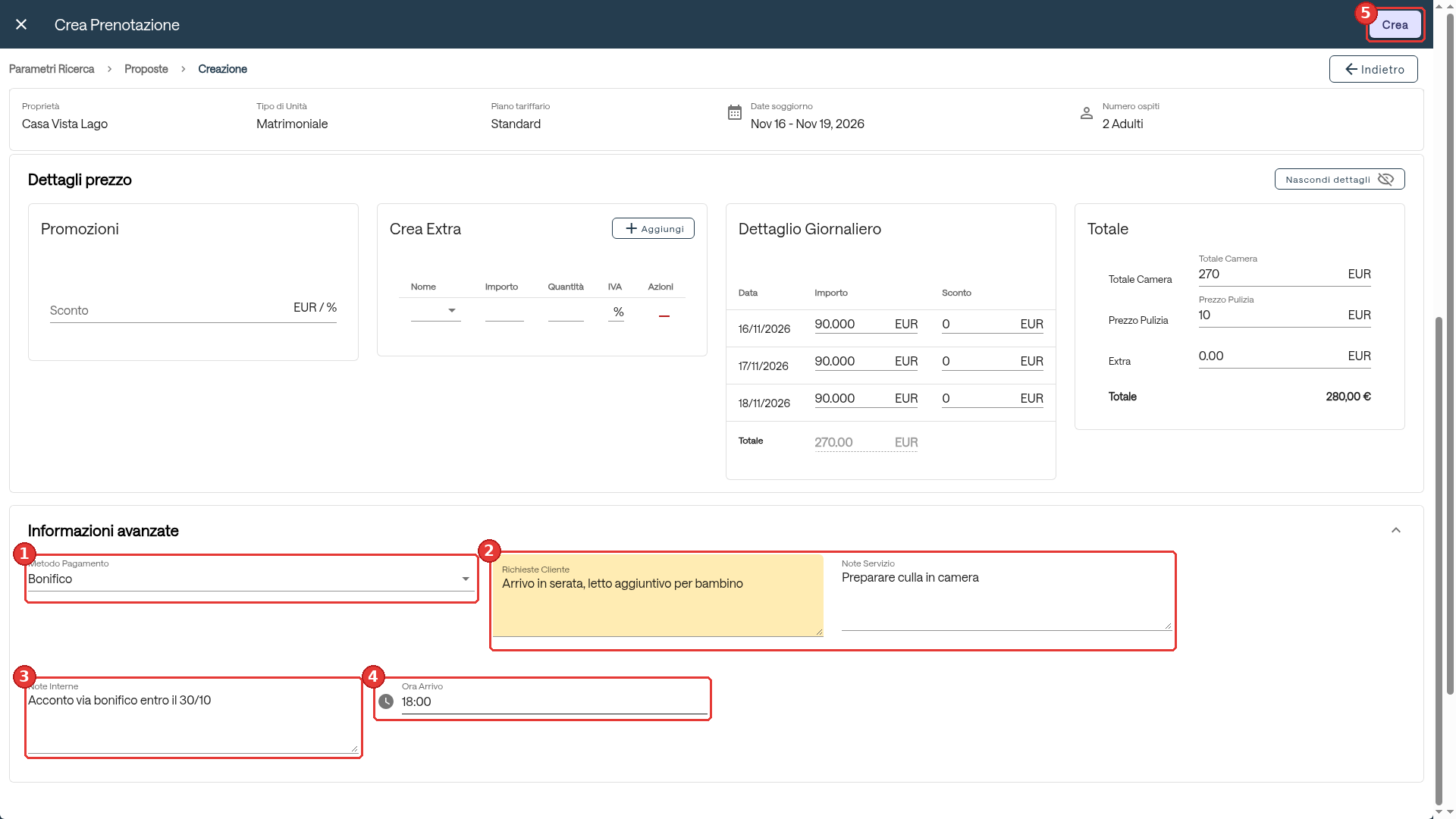
When you are finished, click Create in the top right (from smartphone Save, at the bottom of the page).
5. What happens after Create
- The message "Created successfully" appears and the booking is visible in the list and on the Calendar, on the unit row or in the To be assigned row if it does not have a unit yet.
- An option is born in Pending status; a booking in confirmed status.
- Availability is updated and, if the property is connected to portals via Channel Manager, the occupied dates are sent to the channels. The same applies to options.
- If Send email is active and the customer has an email address, the automatic messages provided by the templates active for that property and source are sent (e.g., Booking Confirmed for a booking and Booking Option for an option). See the guide Automatic message templates: categories, types and dynamic fields.
- If the property uses Smartpay and the payment method provides for it, payment requests to the guest are scheduled.
6. Controls and limits
- Occupied unit: you cannot save a booking on a unit occupied even for just one night of the period. Choose another unit, change the dates, or leave the automatic assignment: if there is no free unit, the booking remains in To be assigned.
- Capacity: proposals take into account the number of guests; the price changes with guests only if the rate plan has prices per occupancy or rules for children.
- Options: an option occupies the dates like a booking, so it is created only on free dates. If you do not confirm it by Valid until, it is automatically canceled and the dates become sellable again.
- Permissions: creating bookings, groups, and blocks requires the corresponding permissions on your user.
- Past bookings: after creation, only manager users can modify past bookings; for others, the message "Only manager users can modify past bookings" appears.
Frequently asked questions
8A reservation received by phone must wait for the deposit: how do I hold it?
Create it as an option: in the last step, in Reservation Details, activate This is a reservation option and set Valid until with the date and time of the deadline. As Source, choose Phone. The option occupies the dates even on connected portals until the deadline. When the payment arrives, open the option and convert it into a reservation; if it does not arrive, it is automatically canceled at the deadline.
A reservation already confirmed cannot be turned back into an option. You can leave it confirmed and ask the guest for payment (e.g., with Smartpay), or cancel it and create it again as an option.
I entered a child but the price does not change
The price for children is applied only if the rate plan has a rule for their age group. Without a rule for that age, the child does not change the price. The ranges are set for each rate plan (Standard, Non-refundable, etc.) in the property settings, among the rate plans: add the age ranges you need with the relative price, for example 0-1 free and 2-17 paid. From 18 years old, the guest must be indicated as an adult.
When you create the reservation, activate Traveling with children and indicate the Age of the child for each: without the age, the rule cannot be applied.
I wrote the price by hand but then it reverted to the rate price
During creation, the price written by hand in Room Total or in the Daily Detail is lost if you click Back and choose a proposal again: the price is recalculated from the rate plan. Therefore, set the agreed price as the last thing, just before Create.
After creation, if you change the dates from the reservation card, SmartPMS asks "Date modified. Do you want to update the reservation amount?": if you confirm, the amount is recalculated from the rate; if you do not want to lose the agreed price, do not confirm. After every change, always check the amount in the card.
I don't see the rate plan I need among the proposals
Check that the plan is not set as hidden: a hidden plan is not proposed during creation, even if it has price and availability on the calendar. Open the property's rate plan settings and remove the Hide rate plan option from the plans you want to use in manual reservations. Also verify that the plan has a price for all nights and that the stay respects its restrictions.
I cannot create a one-night reservation
Proposals include only rate plans sellable for the entire stay. A single night is usually not proposed because the plan has a minimum stay greater than 1, because the date has Check-in prohibited or Check-out prohibited, or because it is closed to sales or has no price. Check these settings on the Tape Chart and, if the rule is no longer needed, modify it (see the guide How to modify prices, availability, and restrictions from the Tape Chart). The minimum stay can also come from a derivation or from Smartpricing. Show all rates also shows excluded combinations: use it only if the entry outside of sales rules is intentional.
The proposed price is not what I see on the calendar
The proposal price depends on the rate plan and the number of adults and children. Verify that:
- the chosen plan is the one you are looking at on the calendar;
- the number of adults corresponds to the occupancy row you are comparing (e.g., x2);
- the room type does not have a maximum occupancy lower than necessary;
- for children, the plan has a rule for the indicated age.
If the agreed price is different, write it in Room Total: it will be divided over the nights. After creation, check the amount in the reservation card.
How do I avoid emails being sent to the guest when I enter a past reservation?
Before clicking Create, deactivate Send email in Guest details. This way, no automatic message is sent or scheduled for that reservation. If the property uses Smartpay, in Advanced information also activate Payment on arrival or choose a method like Bank Transfer or Cash, so as not to schedule payment requests.
Why did the reservation end up in To be assigned?
With Automatically assign unit type active, SmartPMS assigns a unit only if the Auto-assign reservations option is active in the property and if at least one unit of the type is free for all nights. Otherwise, the reservation remains in To be assigned: open it from the Tape Chart and assign it a unit. If you want to choose the unit yourself during creation, deactivate the switch and select the Unit.
Related guides
How it works
Configuration
Configuration
Configuration
Configuration
Configuration