

Calendar: reading, opening, and moving reservations (colors, icons, Do not move, split)
How to read reservations on the SmartPMS Calendar: colors (Paid, With Invoices, Check-in Completed), Smart icons, check-in/check-out status, extras, notes, amounts, Housekeeping, options, blocks, groups, and overbooking. Explains how to open a reservation, move it to another unit by dragging, change dates, use "Do not move", and Reservation Split for room changes.
You are in the right place if…20 cases
- “What do the booking colors on the calendar mean?”
- “Why is the booking red (or yellow) in the calendar?”
- “How do I see from the calendar who still needs to pay?”
- “What does the gavel or currency icon on the booking mean?”
- “The check-in icon does not become green even if the guest has done the online check-in”
- “I did the check-in but the booking color does not change”
- “How do I move a booking to another room by dragging it?”
- “I cannot move the booking in the calendar”
- “I cannot drag the booking from my phone”
- “What does the red dot on the booking mean?”
- “How do I extend or shorten a booking stay?”
- “The guest changes room mid-stay: how do I split the booking?”
- “I don't see a booking in the calendar”
- “The booking arrived in the wrong unit”
- “What does the red striped row / overbooking in the calendar mean?”
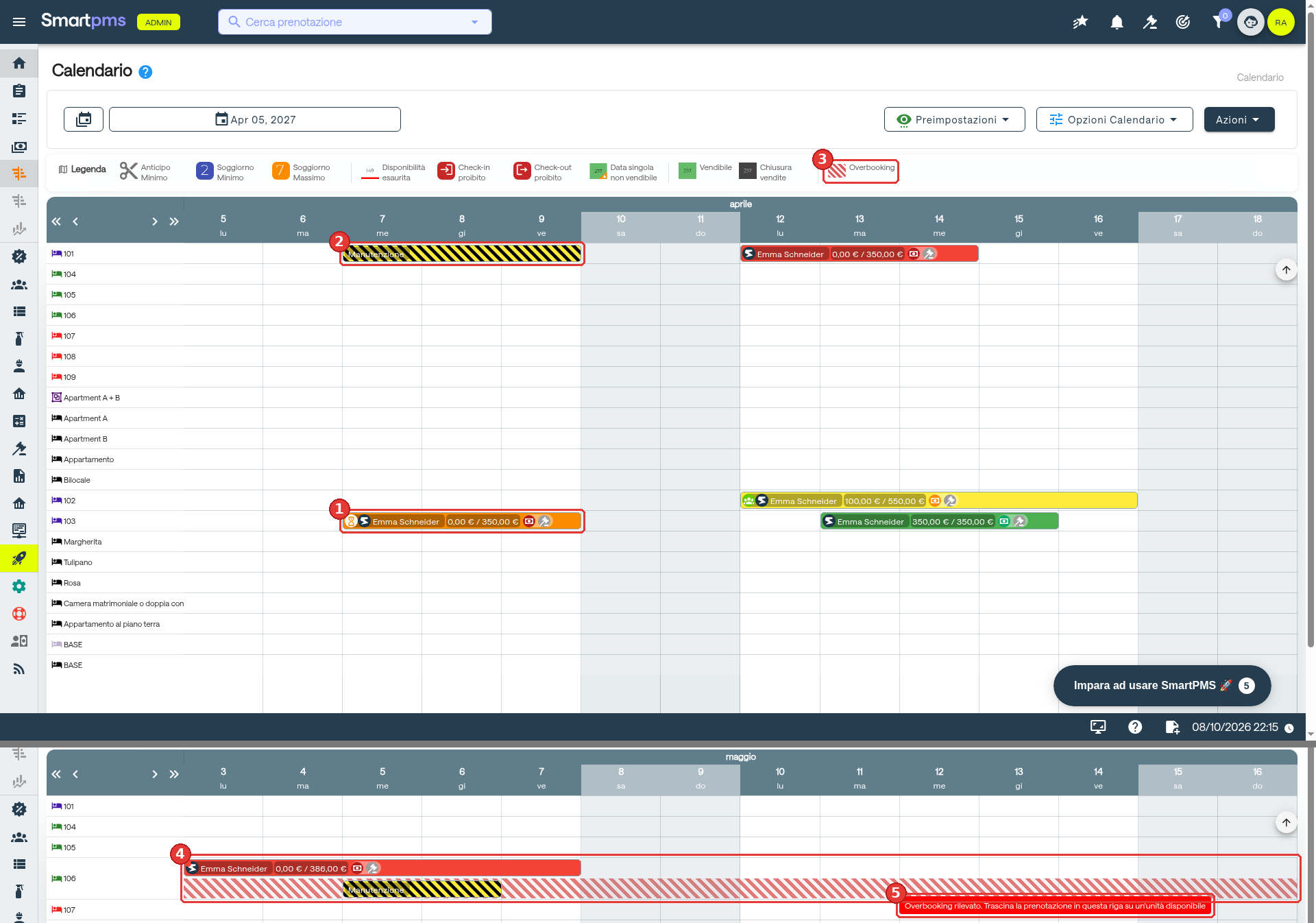
- “What are the orange bookings and the yellow and black striped ones?”
- “I extended an Airbnb booking stay but the change disappeared”
- “I manually modified the amount of a Booking.com booking”
- “The Booking guest wants to stay one more night: how do I do it?”
- “What happens if I manually modify an amount in a Booking.com booking?”
What this guide is for
The Calendar shows every booking as a colored block on the row of the assigned unit, from the check-in day to the check-out day. Reading the block carefully allows you to understand at a glance who still needs to pay, who has completed the check-in, who has already arrived, and which units need to be cleaned, without opening every single booking.
From here, you can also open the booking, move it to another unit by dragging it, and, from within the booking, change the dates or split the stay across two units.
For the general page structure (views, navigation, filters, Actions menu), see the guide How the SmartPMS Calendar works. To create bookings, options, and blocks, see the guide How to create a booking, an option, or a date block from the Calendar.
Which elements you see depends on the Calendar Options. Colors, icons, contacts, amounts, notes, and Housekeeping are activated or deactivated from the Calendar Options button, in the Show bookings section (Color bookings by entry and Choose what to show chips). If an element described here does not appear, it is likely deactivated in the view you are using. The configuration of options and saving views in Presets are explained in the guide How to customize the Calendar and save your views (with ready-made examples).
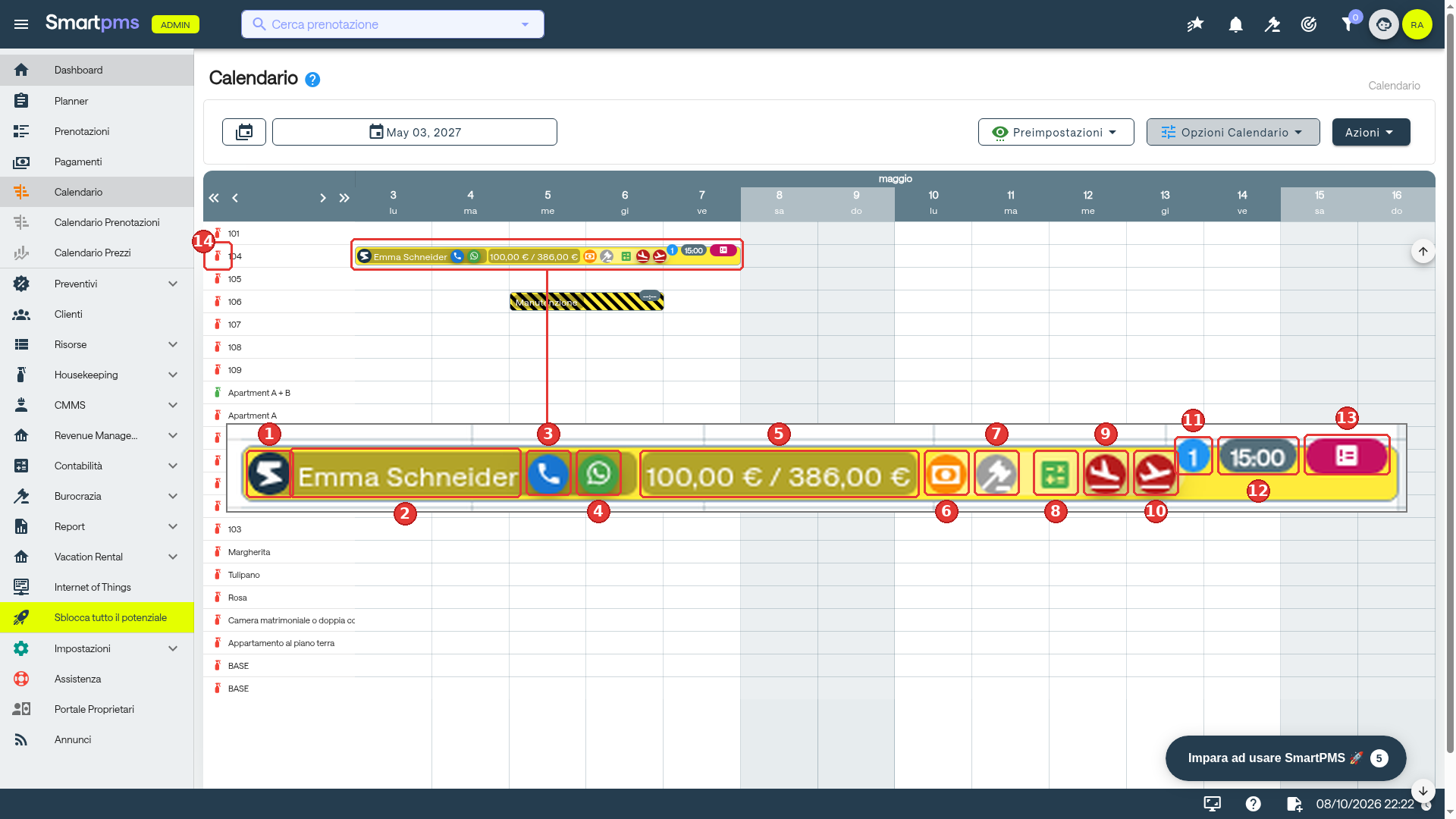
In the image, the enlarged block shows: 1 channel logo, 2 guest name, 3 phone, 4 WhatsApp, 5 paid / total amounts, 6 currency (payments), 7 gavel (guest data), 8 calculator (accounts), 9 arrival plane, 10 departure plane, 11 extras, 12 arrival time, 13 customer requests and notes; number 14 is the Housekeeping spray icon next to the unit name.
How to read a booking
The block
- Position: the block occupies the cells from the check-in date to the check-out day. If the stay starts before or ends after the displayed period, the block border appears dashed on that side.
- Guest Name: the name of the guest in the room, or the customer who booked if the guest name is not indicated.
- OTA Logo: the logo of the source channel (Booking.com, Airbnb, website, etc.). If the booking has a Referral with an icon, the referral icon appears instead of the logo. The logo is visible only to users who have permission to see booking sources.
- Change shape (option): graphically moves the block to make the check-out day more evident.
Other symbols may appear next to the name:
Symbol | Meaning |
|---|---|
Red dot on the logo | The booking has the Do not move option active (see below) |
Orange hourglass | Booking pending confirmation (also appears on options not yet confirmed) |
Group icon (people) | The booking is part of a group booking |
Split icon | Split booking (stay divided across multiple units) |
Up arrow | Room Upgrade: the assigned unit is of a different type than the one booked |
Black warning icon | The customer is marked in the blacklist |
Cake | The guest's birthday falls during the stay |
The block color
The base color is that of the booking (you can change it from the booking with the color picker). If in Calendar Options you choose a criterion in Color bookings by, the color follows that criterion:
Criterion | Green | Yellow | Red |
|---|---|---|---|
Paid | Nothing to pay (amount To Pay at zero) | At least one payment has been recorded, but something remains to be paid | No payment recorded |
Check-in Completed | The Check-in Status is no longer To do (e.g., Completed or Verified), even if guest data is not yet ready for sending Police guest registration (Schedine Alloggiati) | – | The Check-in Status is To do |
With Accounts | The booking has at least one account, even in draft and not yet converted into a receipt or invoice | – | The booking has no accounts |
Good to know:
- The With Accounts criterion only works if the Accounts chip is also active in Choose what to show.
- If the booking has a Referral with a color, the referral color always takes precedence over any criterion.
- Options (bookings to be confirmed) remain orange regardless of the chosen criterion.
- The Check-in Completed criterion looks at the Check-in Status, not the physical arrival marked with the plane icon: these are two different pieces of information (see below).
- The green of Check-in Completed does not mean that guest data is ready for sending Police guest registration (Schedine Alloggiati): to know that, look at the gavel of the Smart Icons.
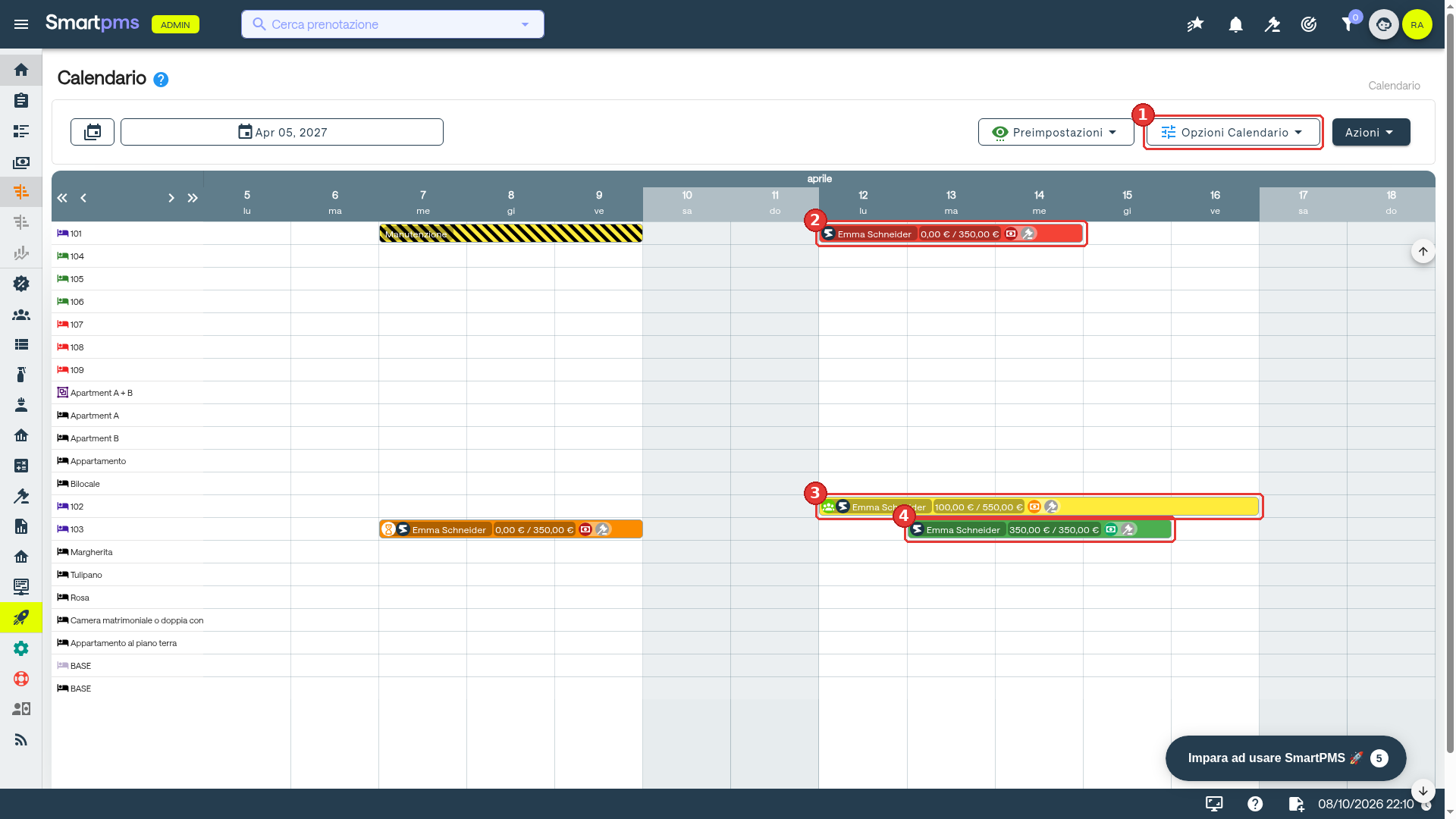
Smart Icons
With the Smart Icons chip active, two round icons appear to the right of the name:
- Currency (payments): green if nothing remains to be paid, yellow if there is at least one payment but a balance remains, red if no payment has been recorded.
- Gavel (guest data): green when guest data is ready for sending Police guest registration (Schedine Alloggiati); gray until it is. This is the icon to look at to know if you can send the registrations: the Check-in Completed color, instead, becomes green as soon as the Check-in Status is no longer To do, even if the data has not yet been confirmed. To complete the data, see the guide Alloggiati Web: connection, sending registrations and receipts.
Guest Contacts
With the Guest Contacts chip active, if the customer has a phone number, two buttons appear: phone (starts the call from the device) and WhatsApp (opens a chat with that number). They do not send anything automatically.
Check-in/out status (arrival and departure)
With the Check-in/out status chip active, two clickable buttons appear:
- Landing plane (arrival): red if the guest has not arrived, green if they have arrived (or already departed). By clicking it, you mark the guest as Arrived; by clicking it again, it returns to Not arrived. The change is immediate, without a confirmation request.
- Taking-off plane (departure): red until the guest has departed, green when they have Departed. By clicking it, you mark the departure; by clicking it again, it returns to Arrived.
These buttons only record the physical presence of the guest in the property (the guest status of the booking: Not arrived, Arrived, Departed) and update only manually: the arrival plane becomes green when you click it on the booking or when you mark the check-in task as done in the Planner; the departure plane when you click it or when you mark the check-out task as done. The online check-in completed by the guest does not change the planes.
Likewise, the planes do not complete the online check-in, do not confirm guest data, and do not send Police guest registration (Schedine Alloggiati): for that, the Check-in Status (Check-in Completed color) and the gavel count.
Extras, accounts, arrival time and notes
- Extras: a blue circle for each extra with the quantity; by hovering the mouse, you see the name. Beyond three extras, a +N label appears. In short stays (up to 2 nights) with multiple extras, only one circle appears with the number of different extras and the list on mouse hover.
- Accounts: green calculator icon if the booking has at least one account (even in draft), red if it does not.
- Arrival time: the expected time; if not indicated, you see --:--.
- Customer requests: a pink label that appears only if the booking has Customer Requests or Internal Notes; by hovering the mouse, you read both.
Amounts
With the Amounts chip active, you see paid / total. The total includes room price, extras, cleaning, and City tax. The amounts are visible only to users with permission to see booking amounts.
| Total shown | booking total (room + extras + cleaning) + City tax |
Example: room €300.00, extras €20.00, cleaning €40.00, City tax €12.00, deposit received €100.00
300.00+20.00+40.00+12.00=€372.00 → on the block: €100.00 / €372.00
Summary on mouse hover
By hovering the mouse over a booking, a summary opens with dates and nights, guest name, number of adults, children and infants, Total and To Pay (if you have permission on amounts), arrival time, board type, any referral, the Do not move, birthday, blacklist and Room Upgrade labels, and the text of Customer Requests and Internal Notes.
Housekeeping
With the Housekeeping chip active, next to the name of each unit, a spray icon appears: green if the unit is clean, red if it needs to be cleaned. By clicking it, you change the cleaning status of the unit. For complete cleaning management, see the guide Managing daily cleaning: Planner, Calendar, Timeline and Housekeeping reports.
Bookings in different statuses
What you see | What it is |
|---|---|
Orange block with hourglass | Option (attempt): booking to be confirmed by a deadline. It is confirmed from the booking with Convert option to booking |
Hourglass on the block | Booking pending confirmation (e.g., from a quote or from a payment not yet completed). It is confirmed from the booking with Confirm booking |
Yellow and black striped block with text | Date Block: the unit is not sellable on those dates. The text is the reason for the block |
Gray and white striped block with a link icon | Linked booking: the unit is occupied by a booking assigned to another linked unit (e.g., a suite or an apartment composed of multiple units). It cannot be dragged: by clicking it, you see the block and can open the original booking |
Group icon | Group booking: by clicking the block, you choose between Open booking details and Open group details |
To be assigned row | Bookings not yet linked to a physical unit (see FAQ) |
Cancelled bookings do not appear on the Calendar: to find them, use the Bookings list filtering by status. From there, you can also restore them with Restore Booking.
How an overbooking appears
When two bookings (or a booking and a date block) occupy the same unit on the same nights, the unit row widens to show them one above the other and is highlighted with red diagonal stripes. By hovering the mouse over the row, the message "Overbooking detected. Drag the booking in this row to an available unit" appears. If the Legend is active, the Overbooking entry reminds you of this graphic reason (the Legend appears when both Show Legend and Show Rates are active).
Opening a booking
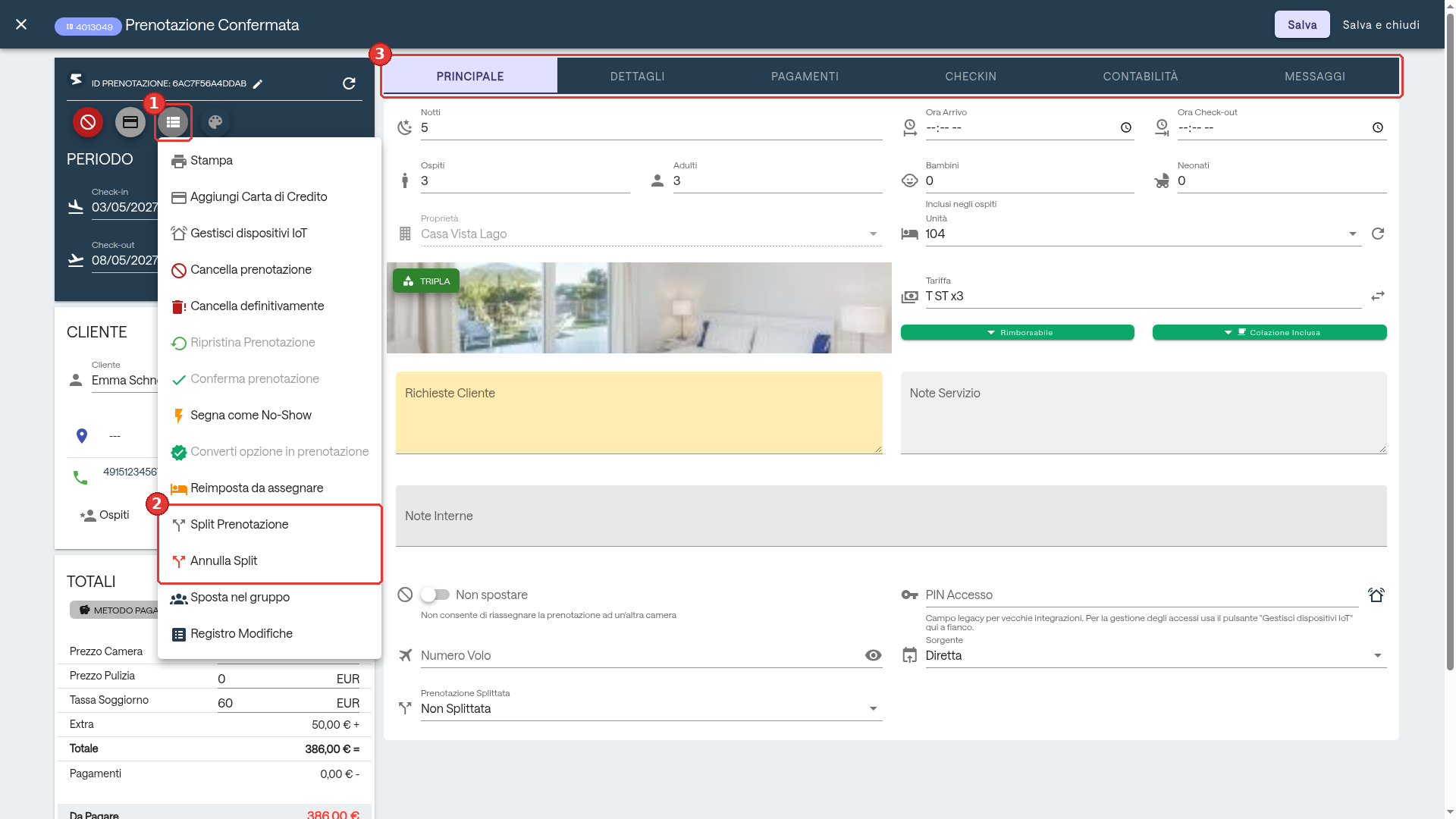
Click on the block. The booking card opens in full screen with:
- at the top left, the Booking ID and, below, four round buttons: Cancel booking (red), Add Credit Card, the button with the list icon, and the color picker. Followed by Period (Check-in and Check-out), Customer, and Totals;
- the button with the list icon opens the menu of actions on the booking, which does not have a title: Print, Add Credit Card, Manage IoT devices, Cancel booking, Cancel permanently, Restore Booking, Confirm booking, Mark as No-show, Convert option to booking, Reset to be assigned, Split Booking, Cancel Split, Move to group, and Change Log. Entries that do not apply to that booking are grayed out;
- on the right, the Main, Details (where you also find extras), Payments, Check-in, Accounting, and Messages tabs.
Special cases:
- If your user can see but not modify bookings, a read-only card opens.
- Clicking a Date Block opens the block panel, with the Actions button.
- Clicking a segment of a split booking opens the original booking.
Moving a booking to another unit (drag and drop)
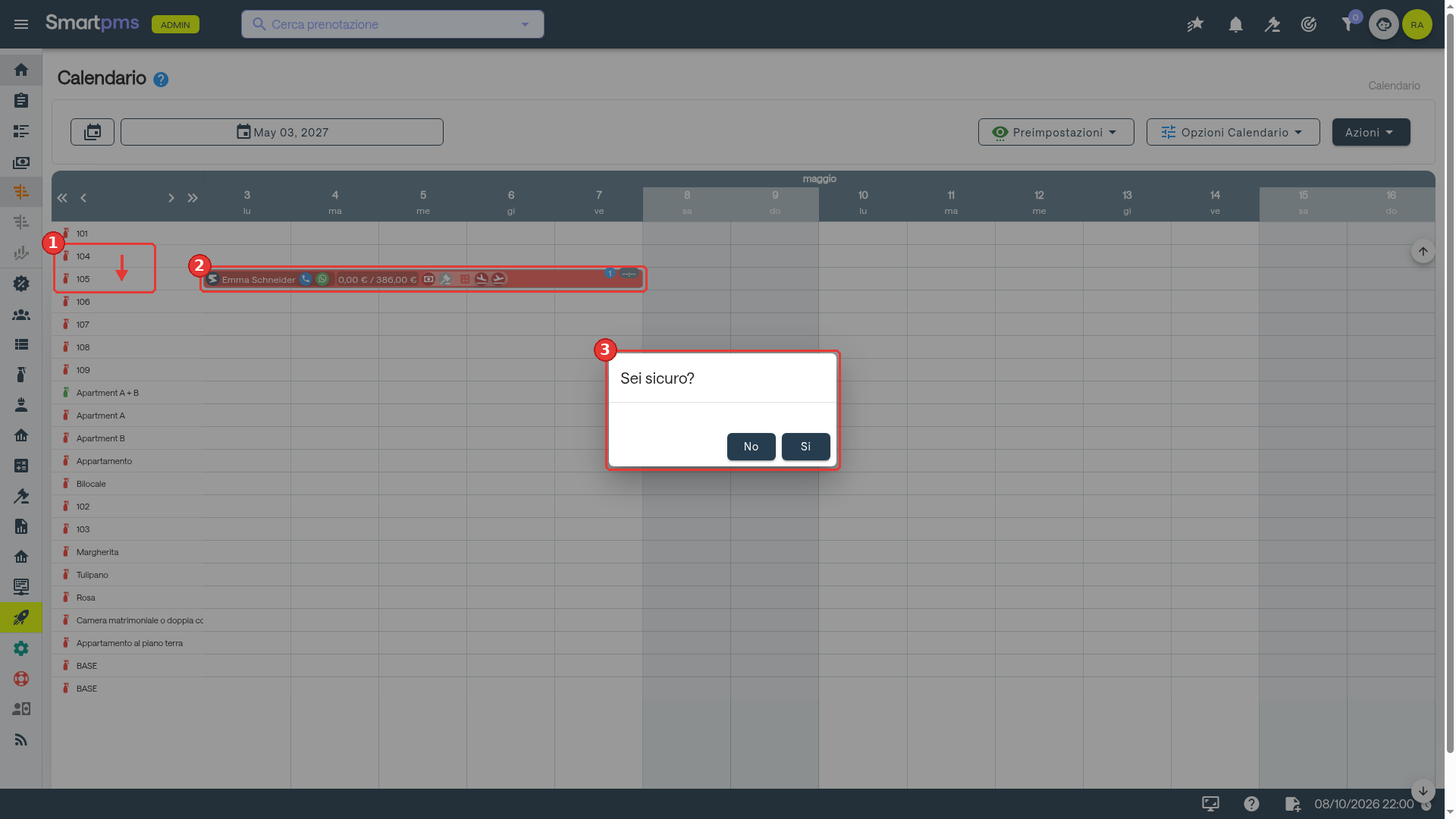
Dragging is used to change unit while keeping the same dates: for example, to free up a room, resolve an overbooking, or assign a booking from the To be assigned row.
- In the Calendar, locate the booking.
- Press and hold it and drag it vertically to the new unit's row.
- Release: SmartPMS asks for confirmation with the "Are you sure?" window and the No and Yes buttons. If the guest has already arrived, the window also warns "The guest of this booking has already arrived. Are you sure you want to move it?".
- Choose Yes. "Modified successfully" appears, the booking is assigned to the new unit, and the Calendar updates. With No, the block returns to where it was.
Good to know:
- Dragging only changes the unit, not the dates. Even if you release the block on another day, the dates remain those of the booking. To change the dates, see the next section.
- Permission to modify bookings is required.
- SmartPMS does not block moving to an already occupied unit (by another booking or a date block): the confirmation window is the same, the two occupations overlap, and the row is flagged as an overbooking. Before releasing, check that the destination unit is free for all nights.
- You can also move the booking to a unit of another property: the move happens anyway, without additional messages. If the two properties are connected to different Channel Manager accounts, SmartPMS automatically performs a split from the check-in day, so the booking remains aligned with the portals.
- Linked bookings (gray and white stripes) cannot be dragged: move the original booking.
- From smartphone or tablet, dragging is deactivated to avoid accidental moves while scrolling the calendar. To activate it, open Actions and choose Activate drag and drop; with Deactivate drag and drop, you turn it off again. The setting remains saved on that device. From a computer, dragging is always active, and these entries do not appear.
Bookings arriving from portals (OTA)
Moving a Booking.com, Airbnb, or Expedia booking to another unit of the same property only changes the internal assignment in SmartPMS: it does not modify the booking accepted on the portal (dates, price, type sold). The same applies if you change dates or amounts from the booking: the change remains in SmartPMS, and a subsequent update sent by the portal may restore the original data. If the guest needs to change dates or type, the change must be made on the portal (or requested by the guest) and will arrive in SmartPMS with synchronization. To extend the stay, the cleanest option is to sell the extra night as a new direct booking from the Calendar; you can always add extra services to the booking in SmartPMS.
The Do not move option
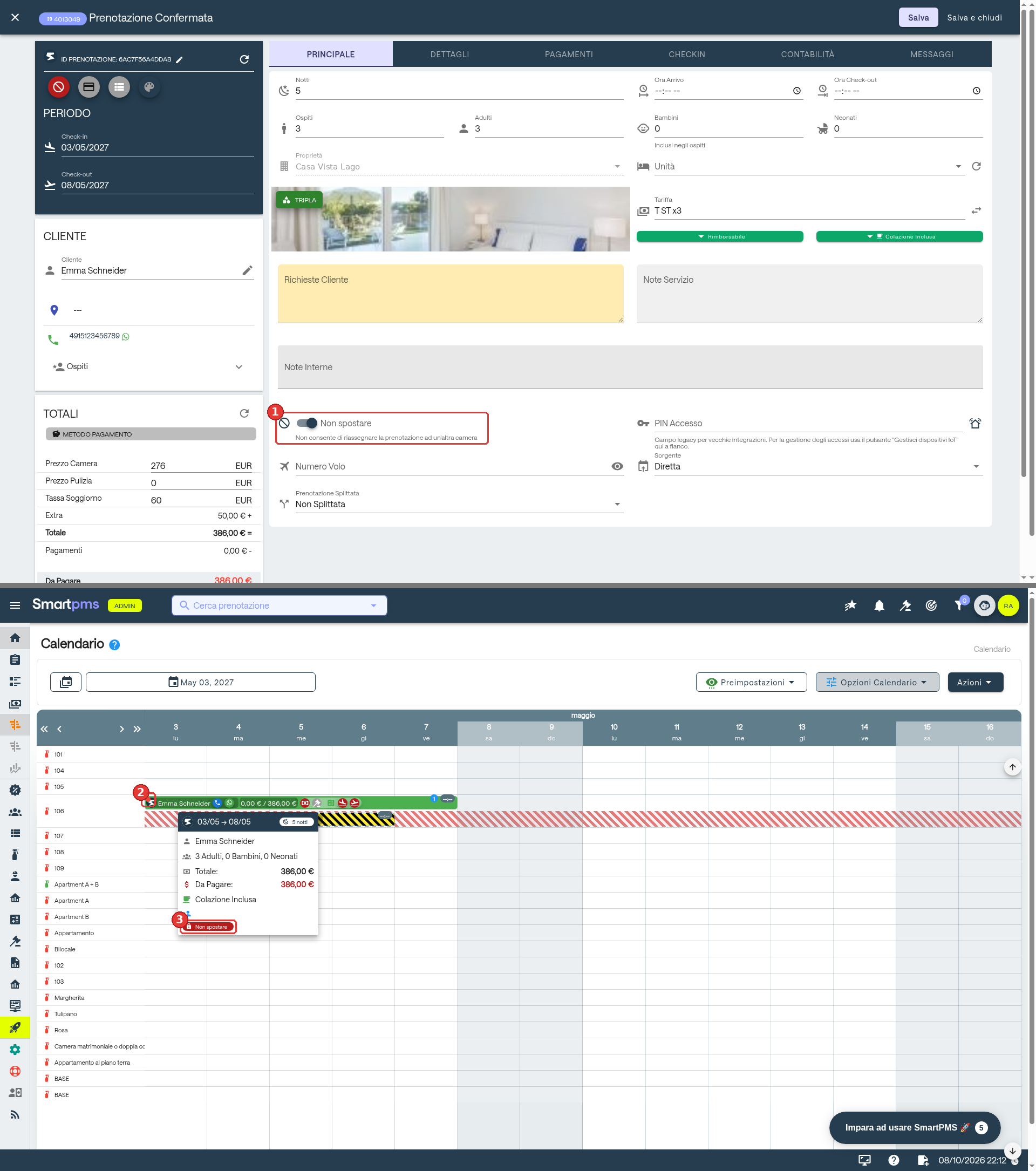
Do not move is used to "lock" a booking to the assigned unit: useful, for example, when the guest has specifically requested that room or when you have already communicated the apartment number.
- Open the booking from the Calendar.
- In the Main tab, activate Do not move ("Does not allow reassigning the booking to another room").
- Save.
On the Calendar, the booking shows a red dot on the logo and, by hovering the mouse, the Do not move label. As long as the option is active, if you try to drag it to another unit (after "Are you sure?"), the error "The booking has been labeled as 'do not move'" appears, and the booking remains where it is. The same applies to individual segments of a split booking. To move it by dragging, first deactivate the option and save.
This is expected behavior: Do not move prevents moving the booking by dragging it on the Calendar, while changing the Unit from the Main tab and the Split Booking remain possible, because they are a conscious choice of the person opening and modifying the booking. Before using them, however, check the Do not move label.
Changing the dates or duration of the stay
On the Calendar, you cannot extend or shorten a booking by dragging its edge: dates are changed from the booking.
- Click the booking to open it.
- In Period, modify Check-in and/or Check-out.
- To the question "Date modified. Do you want to update the booking amount?":
- answer yes to recalculate the price based on the rates of the new dates;
- answer no to keep the current amount (you can correct it manually in Totals).
- If needed, in the Main tab, also change Unit.
- Save.
Good to know:
- Check on the Calendar that the unit is free on the new nights as well: if it is not, the bookings overlap and an overbooking appears.
- Bookings with check-out more than a week ago can only be modified by users with permission to modify past bookings (unless the guest is already marked as Departed). Otherwise, "Only manager users can modify past bookings" appears.
- For portal bookings, the above applies: the change is not sent to the portal.
Changing unit during the stay: Split Booking
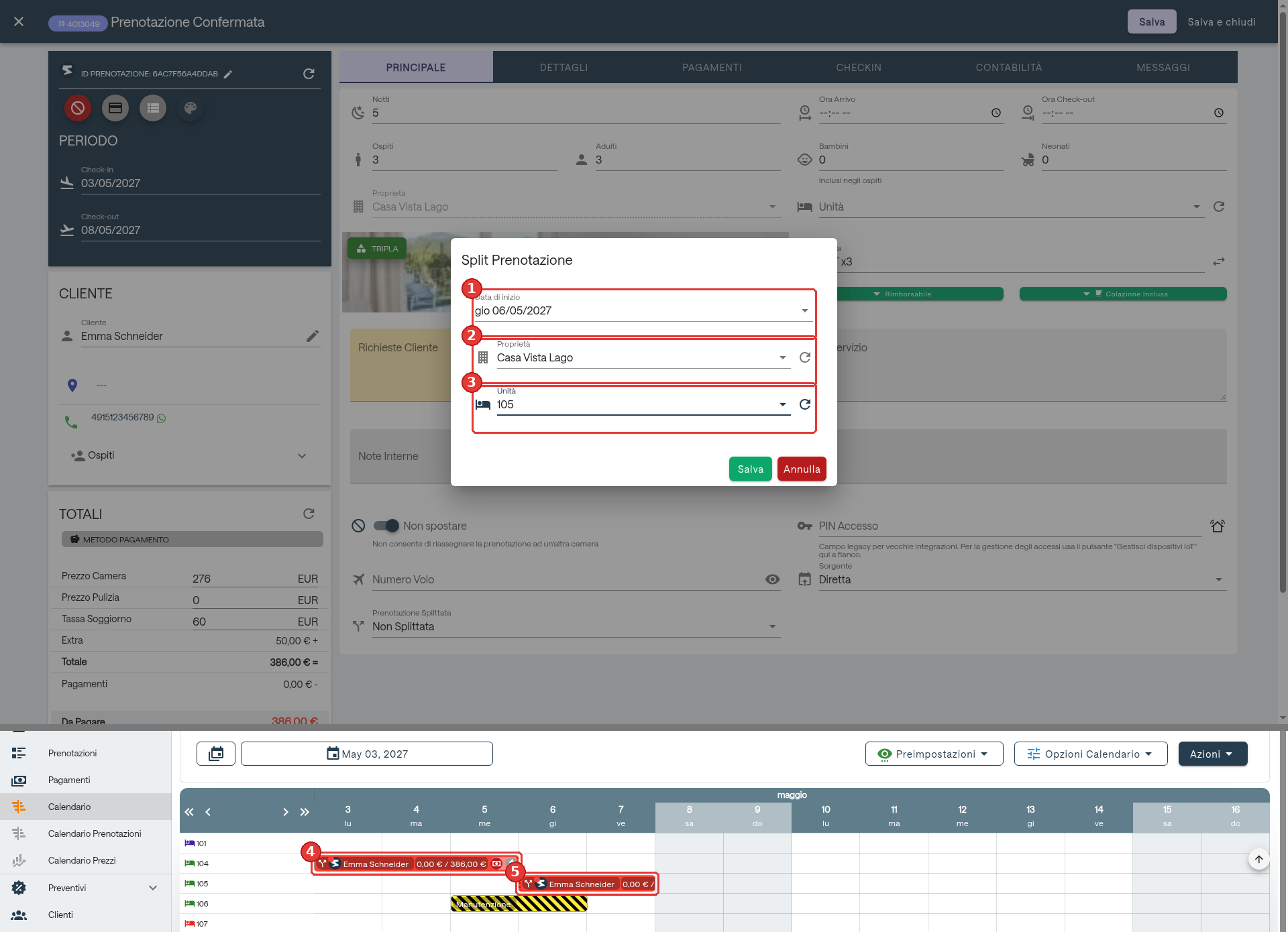
If the guest changes room mid-stay (e.g., 3 nights in room 104 and 2 in 105), the booking must be split, not moved: with the split, the first part remains on the current unit and the second passes to the new unit, and the booking remains a single one for the guest and the portal.
- Open the booking from the Calendar.
- Click the button with the list icon (under the booking ID) and choose Split Booking.
- In the Split Booking window, choose the Start date from the list of nights of the stay: it is the first night in the new unit. Only after that do Property and Unit activate: choose the destination property and unit (the list proposes units free on those nights).
- Click Save.
On the Calendar, you will see two segments with the split icon; clicking one opens the original booking. After the split, the booking also appears linked to a group (group icon on the block and Open group details button in the tab). To go back, use Cancel Split from the same menu and confirm with Yes: the booking returns to a single block on the starting unit.
Main rules:
- The destination unit must be free for all transferred nights and different from the starting one.
- For a split to a unit of another property, SmartPMS may require that both properties have the Channel Manager active: if a message to this effect appears, choose a unit of the same property or contact support.
- Each segment of a split booking can be dragged to another unit, like a normal booking. If Do not move is active, dragging is refused for the segments as well.
Frequently asked questions
15Why is the booking red (or yellow) in the calendar?
It depends on the criterion chosen in Calendar Options > Color bookings by. With Paid: red means no payment has been recorded, yellow means there is at least one payment but a balance remains, green means nothing remains to be paid. With Check-in Completed: red means the Check-in Status is still To do; in all other cases (Completed, Verified) it is green, even if guest data is not yet ready for sending Police guest registration (Schedine Alloggiati) (for this, look at the gavel of the Smart Icons). With With Accounts: red means the booking has no accounts. If the booking has a referral with a color, the referral color always wins; options to be confirmed remain orange. To see which criterion is active, open Calendar Options.
How do I see from the calendar who still needs to pay?
In Calendar Options, set Color bookings by to Paid: red bookings have no payments, yellow ones have a balance to collect, green ones are paid. Alternatively, activate Smart Icons (the currency has the same three colors) or Amounts to read "paid / total" directly. By hovering the mouse over the block, you also see the To Pay amount. Remember that the total also includes the City tax: a booking with the room paid but the tax still to be collected appears yellow.
The guest has done the online check-in but the icon does not become green. Why?
There are three different pieces of information on the block. The Check-in Completed color is red only when the Check-in Status is To do and is green in all other cases (Completed, Verified), even if guest data has not yet been confirmed. The gavel of the Smart Icons becomes green only when guest data is ready for sending Police guest registration (Schedine Alloggiati): it is the icon to look at before sending the registrations. Finally, the arrival and departure planes update only manually: they become green when you click them on the booking or when you mark the check-in (or check-out for departure) task as done in the Planner. Online check-in does not change them. If the gavel remains gray, open the booking and verify in the Check-in tab that guest data is confirmed.
I changed the check-in status but the booking color did not change
Check in Calendar Options that Color bookings by is set to Check-in Completed: with other criteria, the color depends on payments or accounts. With this criterion, the booking is red only when the check-in status is To do: by switching to Completed or Verified, it becomes green, even if guest data is not yet ready for sending Police guest registration (Schedine Alloggiati) (to know that, look at the gavel). Clicking the arrival plane does not change this color, because it only records the guest's presence. Also verify that the booking does not have a referral with its own color, which takes precedence. If everything is correct, reload the Calendar.
I cannot move the booking. What should I check?
Check in order: 1) if the booking has a red dot, the Do not move option is active and dragging is refused with "The booking has been labeled as 'do not move'": deactivate it from the Main tab and save, or change Unit directly from the Main tab, which remains possible even with Do not move active; 2) if it is a linked booking (gray and white stripes), move the original booking; 3) if it is split, drag the single segment you want to move; 4) from a smartphone, activate dragging from Actions > Activate drag and drop; 5) your user must have permission to modify bookings. Moving to a unit of another property is allowed: if the two properties are connected to different Channel Manager accounts, SmartPMS automatically splits the booking to remain aligned with the portals. After releasing, confirm with Yes in the "Are you sure?" window. Remember that dragging only changes the unit: to change dates, open the booking.
Can I lock a single booking so that no one moves it?
Yes: open the booking and in the Main tab activate Do not move, then save. A red dot appears on the Calendar, and dragging to another unit is refused with the message "The booking has been labeled as 'do not move'". This is expected behavior: the option only blocks dragging on the Calendar. Changing the Unit from the Main tab and the Split Booking remain possible, because they are a conscious choice of the person opening the booking: before using them, check the Do not move label.
I don't see a booking in the calendar. Where did it go?
The most common causes: 1) it is cancelled: cancelled bookings do not appear on the Calendar, search for it in Bookings filtering by status; 2) it is to be assigned: look at the orange To be assigned row at the bottom of the type, below its units; 3) it is outside the displayed period; 4) its property is excluded from the property filter: click the funnel icon at the top right and check that the property is selected, because the Calendar shows only the properties chosen there; 5) the property or type is excluded from the Calendar view or filters; 6) in Calendar Options, Show bookings is deactivated. If a portal booking never arrived in SmartPMS, the problem concerns the connection with the portal: contact support indicating the booking number.
What does "To be assigned" mean? Is it an overbooking?
"To be assigned" means that the booking is not yet linked to a physical unit: this happens, for example, when there is not a single unit free for the entire stay or after changing dates or type. It is not necessarily an overbooking: it is only if there is no unit available for the requested nights. To assign it, drag it from the To be assigned row to a free unit, or open it and choose the unit in the Main tab.
The booking arrived in the wrong unit. How do I correct it?
Drag it on the Calendar to the correct unit's row and confirm with Yes, or open it and change Unit in the Main tab. If the guest occupies the wrong unit only for part of the stay, use Split Booking. If the problem always repeats with bookings from the same portal, the association between the portal rooms and the SmartPMS units likely needs to be corrected: contact support.
What are the red striped rows in the calendar?
They indicate an overbooking: on the same unit, there are two bookings (or a booking and a date block) on the same nights. By hovering the mouse, you see "Overbooking detected. Drag the booking in this row to an available unit". SmartPMS does not prevent dragging a booking to an occupied unit, so always check the destination before confirming. Drag one of the two bookings to a free unit; if there are none, contact the guest or the portal to relocate them.
I move a Booking.com or Airbnb booking to another room: does it change on the portal too?
No. Moving to another unit of the same property only changes the internal assignment of SmartPMS; the booking accepted on the portal does not change. You can also move it to a unit of another property: the move happens anyway. If the destination property is connected to a different Channel Manager account, SmartPMS performs an automatic split to maintain alignment with the portal.
I cannot drag bookings from my smartphone
From smartphones and tablets, in the Calendar opened from the browser, dragging is deactivated to avoid accidental moves while scrolling. Open Actions in the Calendar and choose Activate drag and drop; when you are finished, you can turn it off with Deactivate drag and drop. The setting remains saved on that device.
In the SmartPMS app for smartphones, you cannot move bookings between units: do it from the Calendar opened in the browser, from your phone or computer.
Can I manually change dates, amounts, or guests of an Airbnb or Booking.com booking? How do I extend the stay of a guest who arrived from a portal?
Bookings that arrived from portals (Booking.com, Airbnb, Expedia, and generally all) must be modified on the portal, not in SmartPMS. Changes made manually in SmartPMS are not sent to the portal and can be undone: Airbnb, for example, periodically checks bookings and restores original data without warning, so a stay extension entered only in SmartPMS can disappear.
How to handle the most common cases:
- Extend the stay: the cleanest option is to sell the extra night as a new direct booking from the Calendar, on the same unit. The portal does not touch it and does not apply commissions on that night. Alternatively, you can propose the change to the guest from the portal (for Airbnb with the change request): if the guest accepts, the new data arrives in SmartPMS on its own, but the portal collects the extra night and applies its commission.
- Shorten the stay or reduce the amount: make the change on the portal's extranet, so the due commission also reduces. The update then arrives in SmartPMS.
- Stay already started: even with the stay in progress, the change starts from the portal. On Booking.com, if you cannot do it from the extranet, ask Booking.com support.
- Extra services (breakfast, late check-out, transfer...): you can always sell them and add them to the booking in SmartPMS, in the Details > Booking Extras tab, even if the booking arrives from a portal.
I moved a booking to a room of another type: which availability changes?
The management software calculates availability based on the unit to which the booking is assigned, not the rate type with which it was sold. When you move a booking to a unit of another type:
- the type of the starting unit recovers availability for those nights;
- the type of the arrival unit loses availability for those nights;
- the booking rate remains the original one (the Room Upgrade arrow appears on the block), but it no longer counts towards its type.
Example: a booking sold as a Double is moved from room 105 to room 201, which is a Quadruple. The type to which 105 belongs is freed, and the Quadruple is closed. If 105 belongs to a type different from the rate's Double (e.g., a second type of double rooms), the rate's Double does not change.
Also Availability = Auto, from the rate modification or from Actions > Bulk Edit, recalculates in the same way: repeating it does not move availability to the rate's type.
If a type seems available despite having all units occupied, check which unit each booking occupies and to which type that unit belongs, especially when you have two types with similar names. Remember that on the check-out day, the unit becomes available again for that night.
I moved a booking to another property: why is it split and still shows the rate of the starting property?
When you move a booking to a unit of another property, the management software always records the move as a split. If the move starts from the check-in day, the entire stay passes to the new unit and the booking remains a single one: the split only indicates that it comes from another property. You see two separate parts only when you move the guest mid-stay with Split Booking.
In the card, the rate of the booked property and type remains: the management software keeps it on purpose, so the price remains the original one. You don't need to change it, because availability follows the unit to which the booking is assigned: the new unit's type appears occupied and the starting one becomes free again.
If you then bring the booking back to the starting property, immediately close those nights on the calendar in the starting room, on all rates, so they don't remain on sale on the portals.
Related guides
How it works
Configuration
Configuration
Configuration
Configuration
Configuration