

Extra services: how to create and add them to bookings
How to create and configure property extra services (breakfast, crib, pets, parking, final cleaning): calculation types with examples, VAT, mandatory status, seasonal validity, use across multiple properties; how to add, modify, and remove them in bookings, effect on total and Amount Due, extras in invoices and group bookings.
You are in the right place if…17 cases
- “How do I create an extra service (breakfast, cot, parking)?”
- “How do I add an extra to an already made booking?”
- “Where are property extras configured?”
- “How do I add a cot or pet to the booking?”
- “The mandatory extra is not added to the booking”
- “Final cleaning appears twice in the total”
- “How do I remove an extra from a booking?”
- “I changed the extra price but the booking still has the old amount”
- “Extra per person per day: how is it calculated?”
- “The half-board supplement must have a different price for adults and children”
- “I added an extra in the invoice but it doesn't appear in the booking”
- “How do I use the same extra in multiple properties?”
- “Extra only in summer or with different price per season”
- “Where do I insert extras in group bookings?”
- “I added an extra after payment: how do I get it paid?”
- “Smartpay did not collect the mandatory booking engine extra”
- “The card charge does not include extras”
Extras are services added to the stay and the room price: breakfast, cot, pet, parking, final cleaning, transfer, late check-out. In SmartPMS, you configure them once in the property settings and then use them in bookings, on the Booking Engine, and in invoices.
This guide explains how to create and configure extras, how to add them to bookings (during creation and afterwards), what happens to the totals when you modify or remove them, and how they appear in invoices and fiscal documents. To display and sell them online (photos, multilingual texts, website visibility), see the guide Extra services and promotions in the Booking Engine.
1. Where do booking extras come from
A booking can contain extras that arrived in four ways:
- Added by you: by choosing an extra already configured in the property or by writing a manual entry (name, amount, VAT).
- Mandatory: extras set as Mandatory and Active are automatically inserted when you create a booking from the Calendar or the Bookings list.
- Sold by the Booking Engine: those that the guest chooses on your site during booking, plus the mandatory ones.
- Communicated by portals: some portals connected to the Channel Manager (e.g., Booking.com) send extra items along with the booking.
In all cases, you can find them in the Booking Extras section of the booking card, and their total appears in the Extras row of the financial summary.
2. Creating an extra in the settings
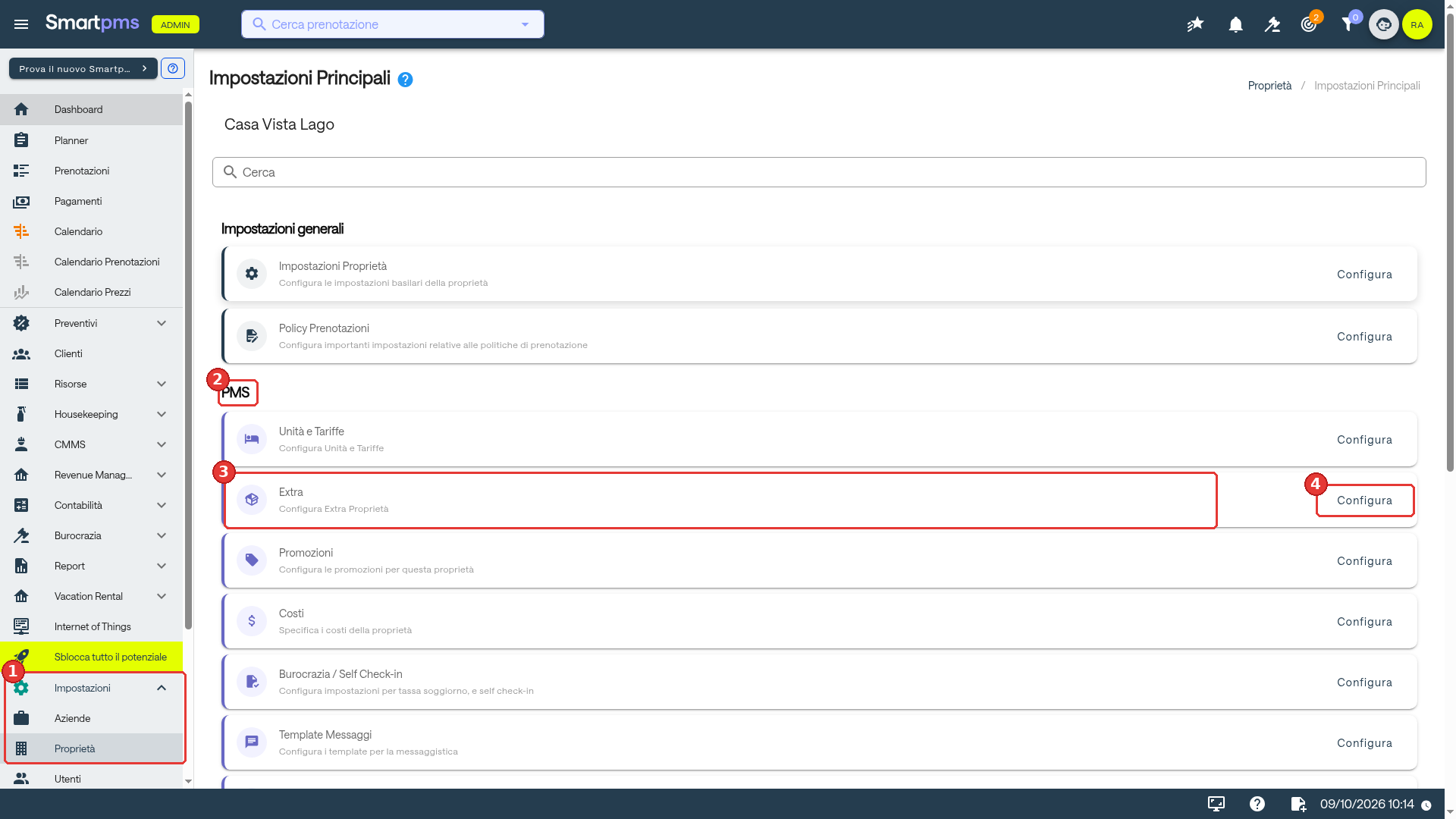
- Go to Settings > Property and, on the property row, open the Settings: the Main Settings page opens.
- In the PMS section, under the Extras item ("Configure Property Extras"), click Configure: the Property Extras page opens.
- Click + Add: the Create Property Extra page opens.
- Fill in the fields (described below) and click Create at the top right.
The list of extras, in alphabetical order, shows Name, Amount, VAT Percentage, Active, and Mandatory for each; an icon next to the name indicates extras visible on the Booking Engine, and a chain icon indicates those linked to an extra from another property. In the Actions column, use the pencil to edit and the trash can to delete. Use Search to find an extra by name.
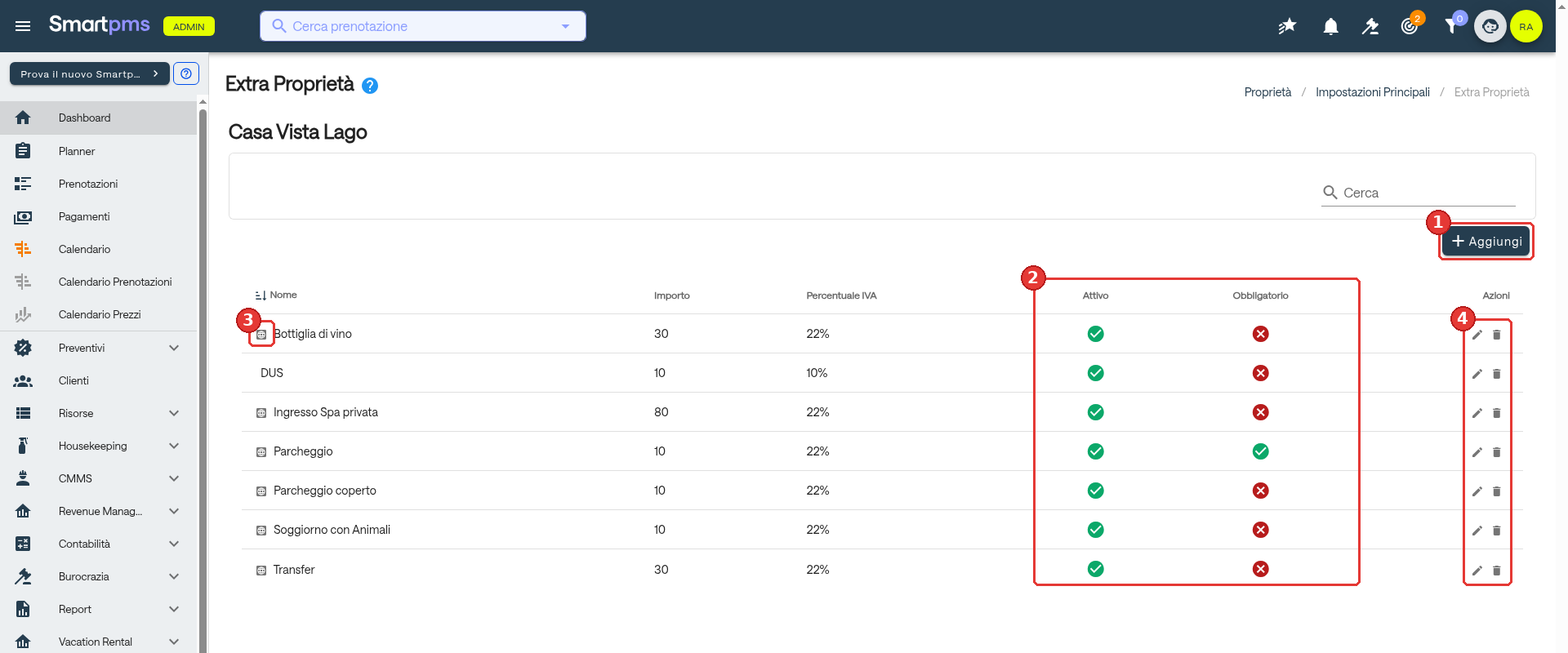
To see the Extras tab, you need the permission to view property extras: if you don't see it, ask the account administrator to check your user role.
Extra fields
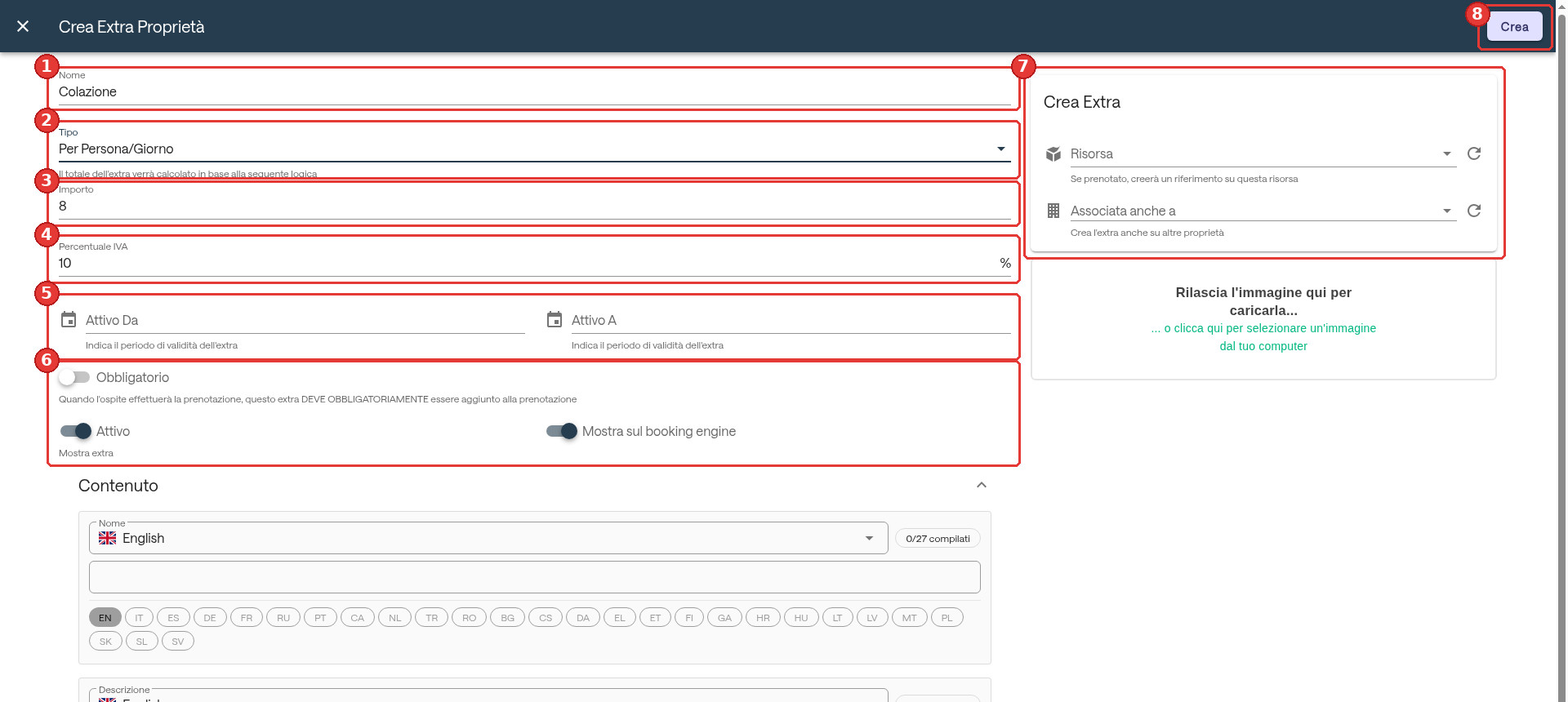
- Name: internal name of the extra. It is also the name that appears in the booking, in the invoice, and in the Booking Extras Report.
- Type: the logic used to calculate the total (see the next paragraph).
- Amount: the base price, VAT included. Negative amounts are not allowed: for a discount, use the Applied Discount field of the booking.
- VAT Percentage: the tax rate of the extra; accepts decimals (e.g., 8.1). The amount is always VAT included: the VAT is extracted, not added. If there is no VAT, write 0: the VAT Exemption field appears, where you can indicate the text for the reason of exemption.
- Active From and Active To: the validity period, chosen as day and month (see "Seasonal extras"). If you fill in Active From, you must also fill in Active To with a later date.
- Mandatory: the extra is automatically added to new bookings and the guest cannot remove it on the Booking Engine.
- Active: if inactive, the extra is not proposed when adding extras to bookings nor on the Booking Engine, and it is not added even if it is mandatory. Bookings that already contain it do not change.
- Show on booking engine: makes the extra purchasable online. If you deactivate it, it remains usable for manual entry.
- Contributes to the city tax base: appears only if the property's city tax is calculated as a percentage. Activate it for supplements related to the accommodation (extra bed, late check-out, cleaning); leave it off for separate services (parking, bar, breakfast).
- Content: translated name and description in various languages, used on the Booking Engine.
- Image: the photo of the extra, in the right column.
- In the Create Extra box on the right: the resource linked (if you use the Resource Calendar, the booked extra occupies that resource on the stay dates) and Also associated with (see the paragraph "Using the same extra in multiple properties").
Both the Active and Show on booking engine switches are on by default for a new extra.
Calculation logic (Type field)
When you choose a configured extra, SmartPMS calculates the amount based on the Type, the nights, and the number of guests in the booking. Weeks are counted by excess: 1 to 7 nights is 1 week, 8 to 14 nights is 2 weeks.
- Per Booking: the amount once.
- Per Day: amount × nights.
- Per Week: amount × weeks.
- Per Person/Booking: amount × guests, once.
- Per Person/Day: amount × guests × nights.
- Per Person/Week: amount × guests × weeks.
- Percentage of room amount: the amount is a percentage of the room price.
- Per Unit: the amount for a single piece; you decide the quantity (or the guest on the Booking Engine).
| 1 | Final cleaning Per Booking, 50 €: 50 € | 50.00 € |
| 2 | Parking Per Day, 10 €: 10 € × 10 nights | 100.00 € |
| 3 | Linen kit Per Week, 15 €: 15 € × 2 weeks | 30.00 € |
| 4 | Breakfast Per Person/Day, 8 €: 8 € × 2 guests × 10 nights | 160.00 € |
| 5 | Insurance Percentage of room amount, 5: 800 € × 5% | 40.00 € |
| Total extras | 380.00 € |
"Per person" logic multiplies by the number of guests in the booking, without distinguishing between adults and children. If you need different prices for adults and children, create two separate extras (see the FAQ).
The calculated amount is saved in the booking: if you later change nights or guests, the extras already inserted do not recalculate automatically (see chapter 4).
Seasonal extras
With Active From and Active To, you limit the extra to a period of the year, indicated as day and month: for example, an extra from June 1st to September 30th is proposed during creation, and added automatically if mandatory, for stays in that period. When you add an extra to an already created booking, however, the list shows all active extras: you choose the right one for the season.
In the Quick Creation from the Calendar, a mandatory seasonal extra is included only if the entire stay, from check-in to check-out, falls within the period indicated in Active From and Active To. For stays spanning the period, check the Booking Extras section after creation and add the extra if it is missing.
To have different prices per season, create multiple extras with distinct periods, for example "Summer parking" at 15 € from 1/6 to 30/9 and "Winter parking" at 10 € for the rest of the year. For a period that crosses December 31st, create two extras (until 31/12 and from 1/1).
Using the same extra in multiple properties
In the Also associated with field, choose the other properties where you want the same extra: upon creation, SmartPMS creates a copy in each. The copies are linked to the main extra:
- they can only be modified from the main extra; opening the copy, you see the Depends on field with the source property, and if you try to modify it, you receive the message "You cannot modify an extra linked to another. Please modify the main one";
- when you save the main extra, the changes are applied to the copies;
- if you remove a property from Also associated with and save, the copy in that property is deleted.
Bookings already created in the other properties do not change: they retain the extras with the price from when they were added.
If an extra comes from a configuration preset, it cannot be modified or deleted from this screen: a warning appears.
3. Adding an extra to a booking
When you create the booking from the Calendar (Quick Creation)
In the Quick Creation panel, mandatory extras valid for the dates are already included in the total: below the Room Price, you see the Extras row. After creating the booking, check amounts and quantities in the Booking Extras section (paragraph "On an already created booking"). The panel does not have a list to choose optional extras: to add them, click the arrow next to Create and choose Create in advanced mode, then follow the paragraph "When you create the booking in full mode". The rest of the Quick Creation is explained in the guide How to create a booking, an option, or a date block from the Calendar.
When you create the booking in full mode
In the Create Booking screen, Price Details section (click Show details), you find the Create Extra box. Mandatory extras valid for the check-in date are already in the list.
- Click Add to add a row.
- In the Name column, choose a configured extra: Amount and VAT fill in automatically according to the Type. Alternatively, write a free name and fill in the amount and VAT yourself.
- Correct Quantity, Amount, or VAT if needed.
- To remove a row, use the − button.
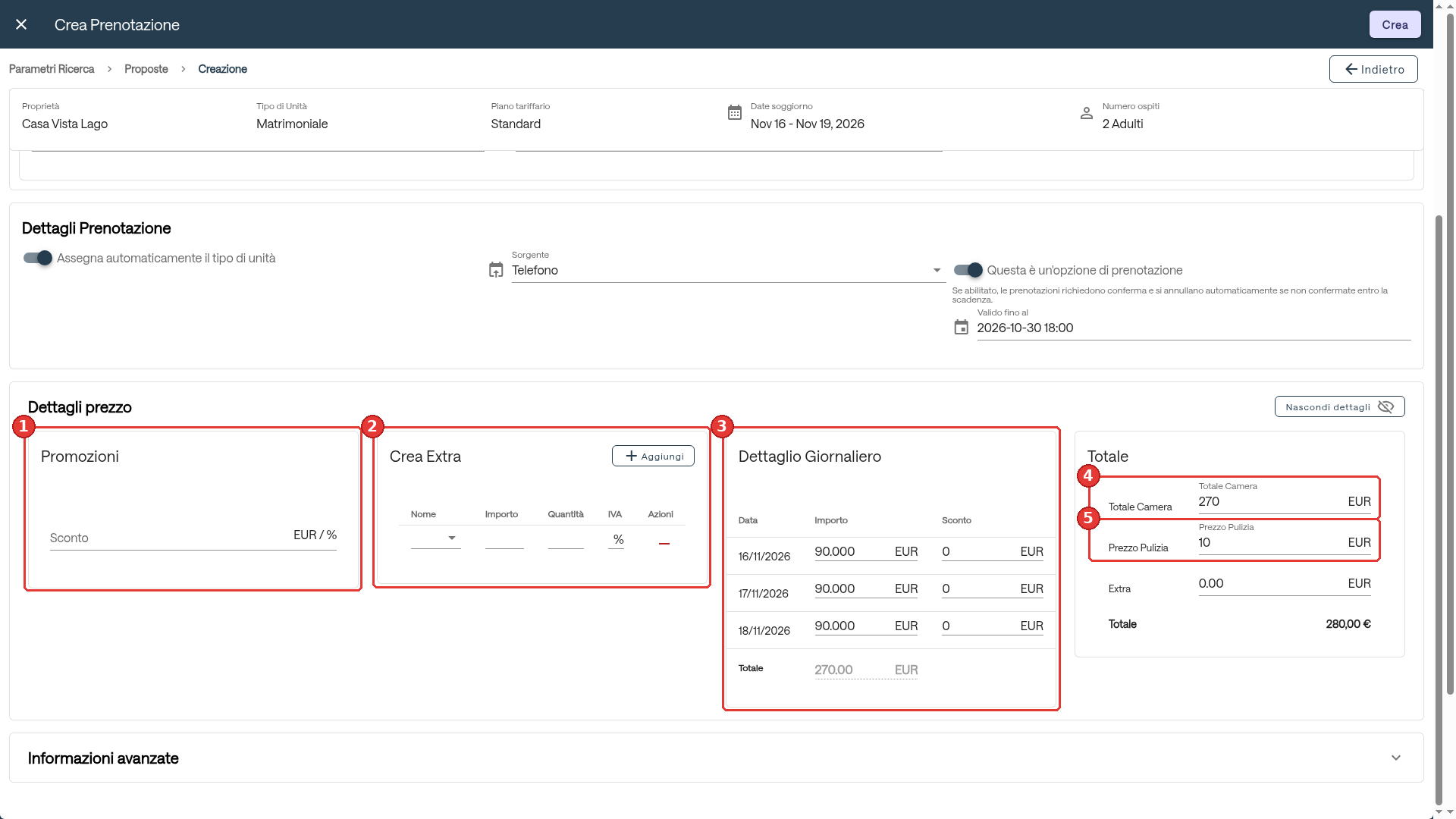
At the top of the name list is the Create button: it opens Create Property Extra and allows you to configure a new extra without leaving the booking.
The total of the extras appears in the Total box, in the Extras row (read-only). All steps of the full mode are in the guide How to create a booking from the Bookings list (full mode).
On an already created booking
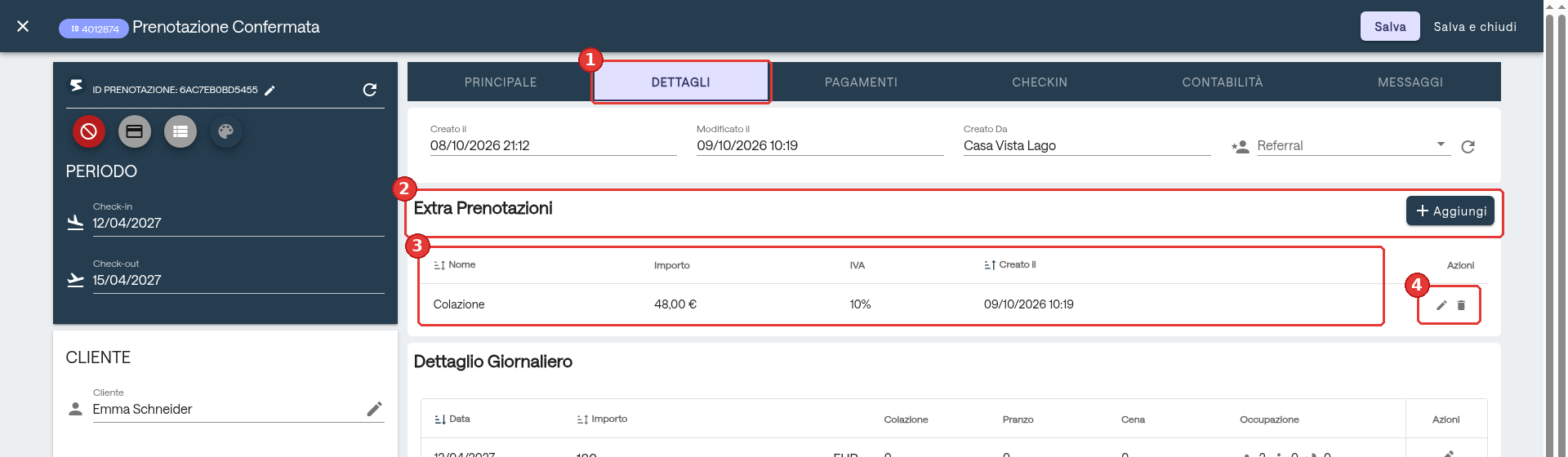
- Open the booking and go to the Details tab.
- In the Booking Extras section, click Add: Create Extra opens.
- In Select Available Extras, choose one of the property's active extras ("Default extras in property settings"): Name, Amount, and VAT fill in according to the Type, nights, and guests of the booking. For a non-configured item, leave the selection empty and fill in Name, Quantity, Amount (VAT included), and VAT yourself.
- If the extra is linked to a resource, check the resource dates.
- Click Create: the extra is saved immediately in the booking and the totals update, without needing to click Save.
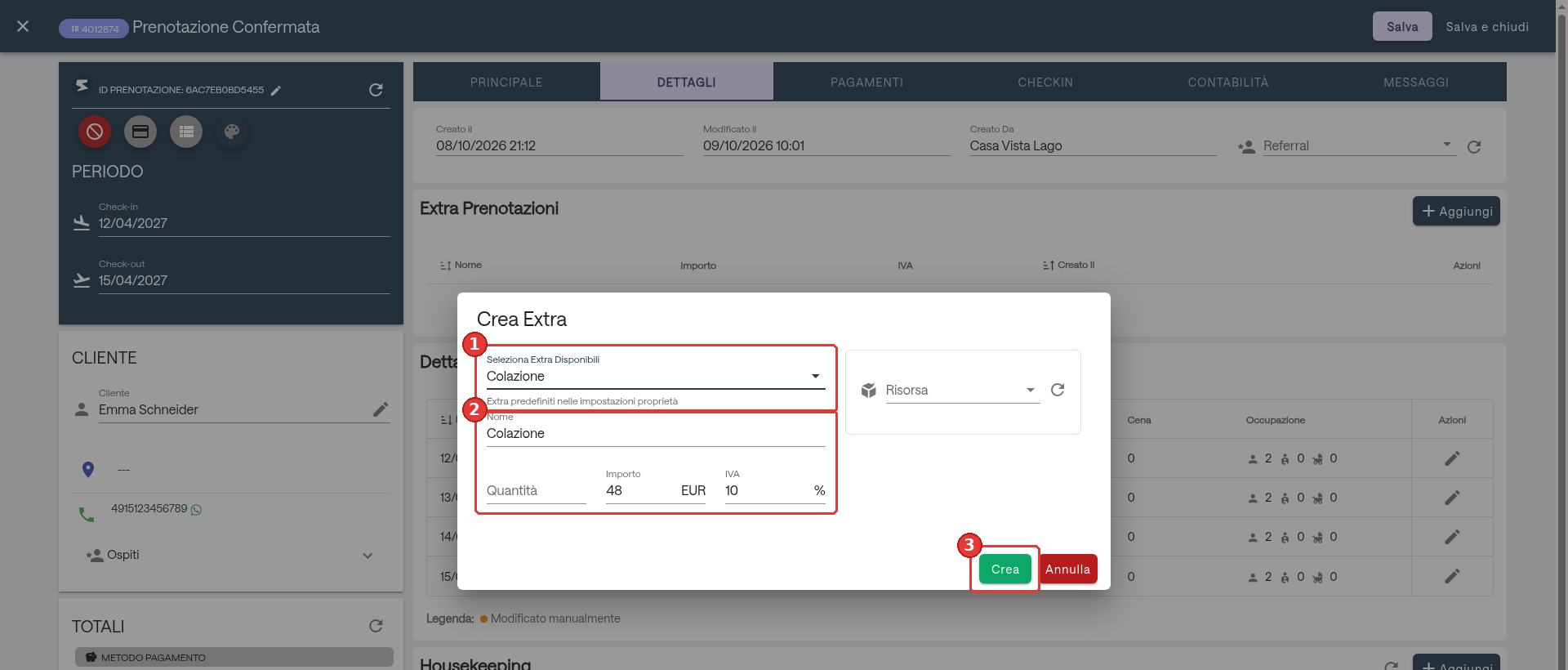
In the example, Breakfast (Per Person/Day, 8 €) on a booking of 2 guests and 3 nights is proposed at 48 €. The Select Available Extras list shows the extras in the order they were created, not in alphabetical order.
From a smartphone, the same section is found in the Payments tab of the booking.
The table shows Name, Amount (unit price × quantity), VAT, and creation date for each extra; use the pencil to edit it, and the trash can to delete it. The complete management of the tab is explained in the guide Managing a booking: the card and what you can do in each tab.
To add, modify, and delete booking extras, you need the permissions dedicated to booking extras.
Configured extra or manual entry?
Always prefer the configured extra: it has automatic calculation, the correct VAT, and remains linked to the catalog extra, so you can filter it in the Booking Extras Report. A manual entry is fine for an occasional service (e.g., "Damage repair"), but it appears in the report only without a filter for extras.
4. Modifying or removing an extra
When you add, modify, or delete an extra, SmartPMS immediately recalculates the booking totals:
Extras=sum of (Amount×Quantity) of all rows
| Total | Room Price + Cleaning Price + Extras |
To Pay=Total+City Tax−Payments
Example: room 400 €, cleaning 50 €, tax 12 €, paid 300 €; add Breakfast 8 € × 2 guests × 3 nights
| 1 | Extras: 8 € × 2 × 3 | 48.00 € |
| 2 | Total: 400 € + 50 € + 48 € | 498.00 € |
| 3 | To Pay: 498 € + 12 € − 300 € | 210.00 € |
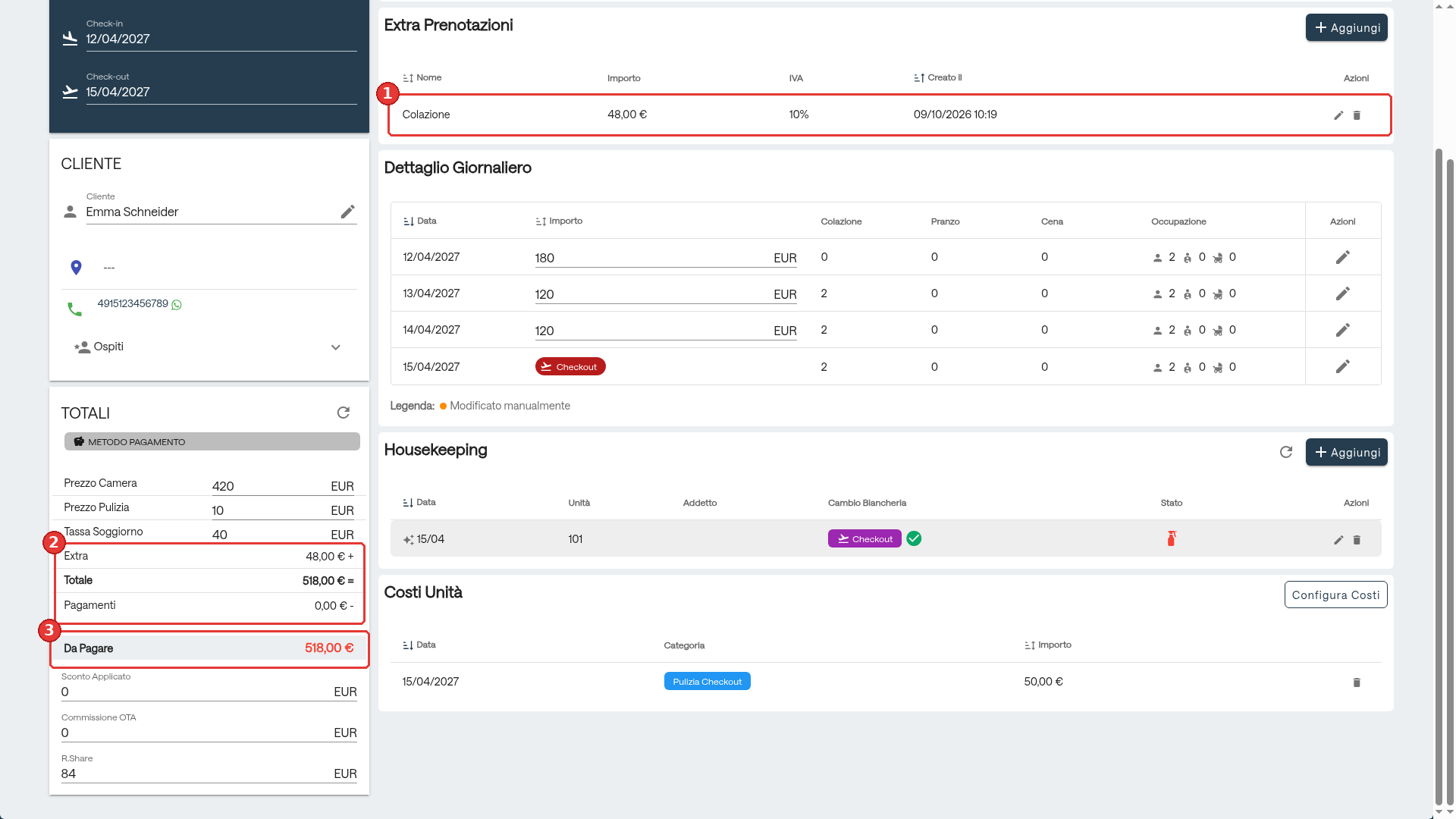
For Airbnb bookings, the portal commission is also subtracted from the To Pay. If the property's city tax is calculated as a percentage and the extra Contributes to the city tax base, the tax is also recalculated.
Things to know:
- Extras do not follow booking changes. If you change dates or number of guests, the already inserted extras maintain their amount and quantity. Open them with the pencil and correct them, or delete them and add them again from the catalog to recalculate them.
- Changing the extra in the settings does not change existing bookings. Each row retains the name, price, and VAT it had when it was added.
- A mandatory extra can be removed from a single booking: the mandatory nature applies to automatic insertion and the Booking Engine.
- An already registered payment does not change. If you remove an already paid extra, To Pay becomes negative: register the refund in the Payments tab. If you add an extra after an online payment, the additional amount is not collected automatically: create a payment request (see the guide Smartpay: how to configure it and how automatic payments work).
Extras arrived from portals
Extras communicated by a portal are managed like the others in the Booking Extras section. If a portal continues to sell an extra you no longer offer, it must be deactivated on the portal: see the guide How to remove an already sold extra from Booking.com bookings.
5. Extras in accounting
In the invoice and fiscal documents
When you create an invoice from a booking, each extra becomes an invoice row with the description "Booking ID - guest - extra name", Quantity, Unit Amount, and the extra's VAT. If the extra does not have a tax rate, the custom rate for property extras or the preferential VAT is used. From the invoice, the row passes to the receipt or the invoice.
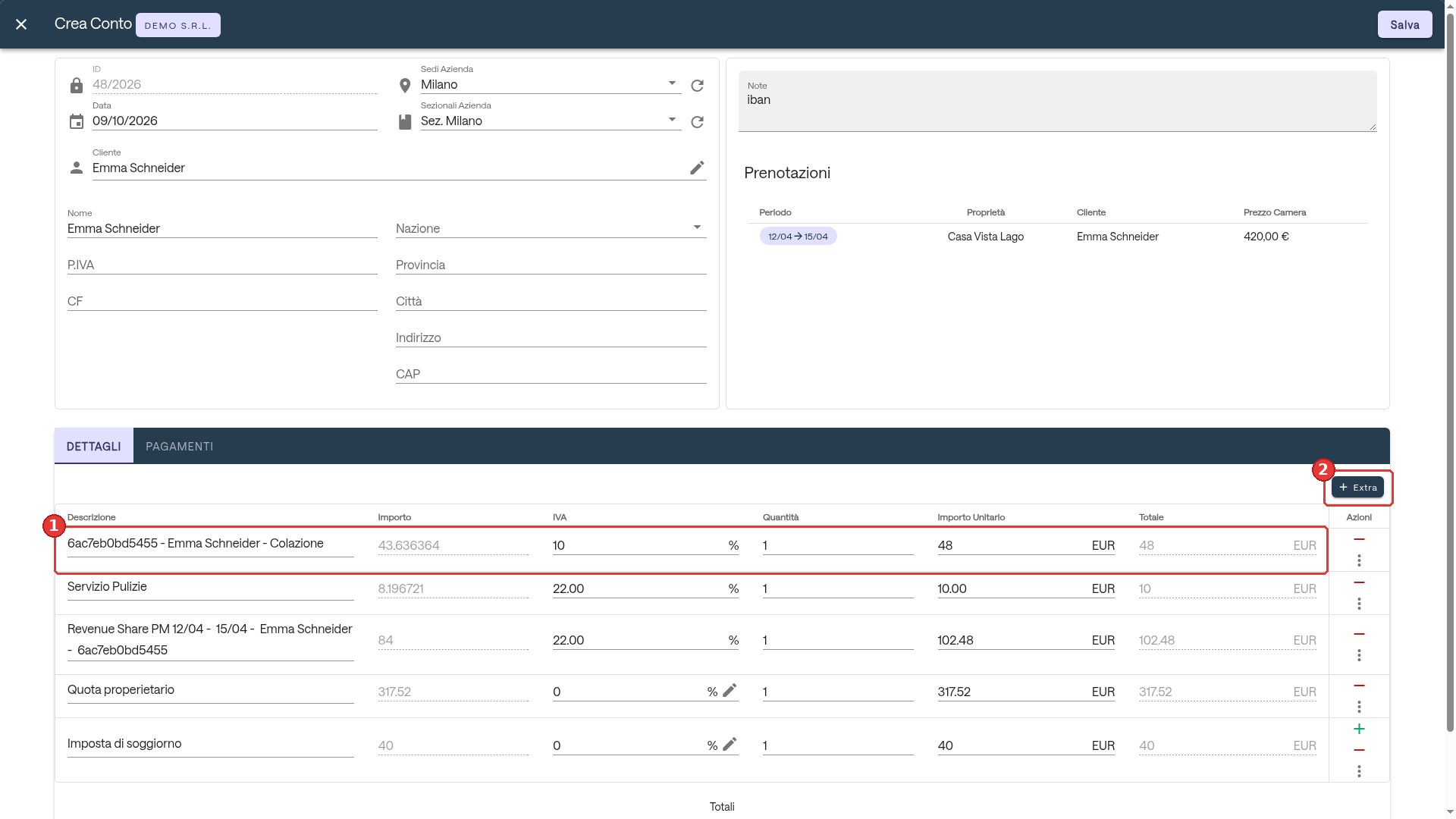
- The invoice copies the extras at the moment of creation: if you add an extra later, the already created invoice does not update. Add it also in the invoice (Actions > Edit) or document it with a separate invoice.
- The Extras button inside the invoice adds a row only to the invoice: the booking does not change, the booking's To Pay does not count it, and the extra does not appear in the Booking Extras Report. If you want to keep track of the extra in the booking, add it first in the booking and then create the invoice.
Partial invoices, balance invoices, and multiple invoices are explained in the guide Invoices: how to prepare invoices and receipts; tax rates and exemption types in the guide VAT in fiscal documents: tax rates, exemption types, and city tax.
In group bookings
Extras are always registered on the individual bookings of the group, room by room, not just in the multiple invoice. This way, each room has its correct total and To Pay, and the multiple invoice, when you import the bookings, automatically reports all extras. An extra inserted only in the multiple invoice does not update the bookings. The creation and management of groups are explained in the guide How to create and manage a group booking.
6. Checking sold extras
For the list of extras sold in a period (monthly counts, reports to suppliers or owners), use Report > Booking Extras: it lists the extra rows of confirmed bookings, filterable by property, extra, and check-in date, with Excel export. See the guide Booking Extras Report: list of sold extras.
Frequently asked questions
8Why does final cleaning appear twice in the total?
It happens when cleaning is configured in two places: as Cleaning Price of the category and as a mandatory extra (e.g., "Final cleaning"). Keep only one of the two settings:
- either zero out the category cleaning price and keep the extra;
- or keep the cleaning price and deactivate the extra (remove Mandatory or Active).
Already created bookings do not change: if needed, delete the double row from the Booking Extras section.
Can I use mandatory extras to let the guest choose an option (e.g., arrival time)?
No. Every Mandatory and Active extra is added always and in full: if you create three, the guest finds all three. Furthermore, extras always enter the booking total. Use mandatory extras only for services that must be paid by everyone (e.g., final cleaning) and optional ones for services the guest chooses.
Can I propose an extra only for one room or category?
No: the extra belongs to the property and is proposed for all its units. If a service applies only to some rooms (e.g., pets allowed only in one room), indicate it in the extra description and in the category description, or do not show it on the Booking Engine and add it manually only to the relevant bookings.
Can I put an "on request" extra on the Booking Engine, to be confirmed by me later?
No: the extra chosen online enters the booking and the total immediately. Alternatively, you can:
- write in the extra description that it is subject to availability and that you will confirm it;
- or deactivate Show on booking engine and add the extra manually to the booking when the guest asks for it.
I added an extra in the invoice but I don't see it in the booking or in the Booking Extras Report
The Extras button of the invoice adds a row only to the invoice: the booking, its To Pay, and the Booking Extras Report do not change. To have the extra also in the booking, add it from the Details > Booking Extras tab and then create (or modify) the invoice.
If the extra is in the booking but you don't find it in the report, remember that the From and To filters of the report refer to the booking's check-in date, not the day you added the extra.
In group bookings, where do I insert the extras?
In the individual bookings of the group, room by room, from the Booking Extras section. Register payments there as well and only then create the multiple invoice from Accounting > Invoices: by importing the bookings, the invoice reports all extras and payments. Extras inserted only in the multiple invoice do not update the bookings.
I added an extra after payment: how do I make the guest pay for it?
Adding an extra updates the To Pay, but does not create a payment request by itself. If you use Smartpay, create a payment request from the Payments tab of the booking with the extra amount and send the link to the guest: see the guide Smartpay: how to configure it and how automatic payments work. If the guest pays at the property, register the payment in the Payments tab.
Are extras chosen on the Booking Engine paid together with the booking?
Extras chosen by the guest, and mandatory ones, enter the booking total and the To Pay. The card payment requested by Smartpay on the Booking Engine, when the rate plan provides for the full amount, covers only accommodation and cleaning: extras and city tax remain in the To Pay and must be collected separately.
To collect them:
- create a payment request from the Payments tab of the booking with the remaining amount and send the link to the guest (see the guide Smartpay: how to configure it and how automatic payments work);
- or register the payment when the guest settles at the property.
If you want a fixed amount per booking to be included in the same charge as the accommodation, you can insert it in the Cleaning Price of the category instead of as an extra: in that case, it appears to the guest and in documents as cleaning. Remember to deactivate the extra, otherwise the amount is requested twice.
If you delete an extra from the booking, the already collected amount does not change: check the To Pay and possibly register a refund.
Related guides
Configuration
FAQ
How it works
Configuration
Configuration
Configuration