

How to connect TTLock locks to SmartPMS
How to connect TTLock locks and keypads to SmartPMS from the Internet of Things section: account and gateway, PIN rules, associating locks to units. It explains how the guest code is created, how to send it, validity times, access history, and what the integration allows and does not allow.
You are in the right place if…15 cases
- “How do I connect my TTLock locks to SmartPMS?”
- “I want the TTLock lock code to be generated automatically for every booking”
- “How do I send the TTLock code to the guest in the check-in email?”
- “In the self check-in completed email, the lock code appears empty or with a dash”
- “The TTLock code does not work on the keypad”
- “In the TTLock app, I see codes called reservation: what are they?”
- “Can I give the guest access to the main entrance or luggage locker with the same code?”
- “Can I open the TTLock door remotely from SmartPMS?”
- “How do I change the PIN length of TTLock locks?”
- “I connected TTLock today: are codes created even for bookings already in the calendar?”
- “What can the TTLock integration with SmartPMS do and what are its limits?”
- “Until what time does the TTLock code work after check-out?”
- “Do openings made with a TTLock fingerprint or badge appear in the SmartPMS history?”
- “The TTLock gateway was offline: is the guest code written later?”
- “In the booking history, I do not see the TTLock main entrance openings”
The integration between TTLock and SmartPMS automatically generates an access code (PIN) for each booking and writes it to the unit's locks for the duration of the stay. You can grant the guest access to both the room or apartment door and common doors, such as the main entrance or luggage locker, with a single code. Openings made with the code on the room or apartment door appear in the booking history. In the frequently asked questions at the bottom of the page, you will find a summary of what the integration allows you to do and its limitations.
Requirements
- A TTLock account with the Username and Password of the user who owns the locks.
- Locks already configured and working in the TTLock app.
- A TTLock Gateway (e.g., G2 or G3) online, connected to the locks: it is the gateway that carries the codes from the cloud to the lock and reports the openings. Without a reachable gateway, the code will not reach the lock.
Phase 1 – Create the TTLock account on SmartPMS
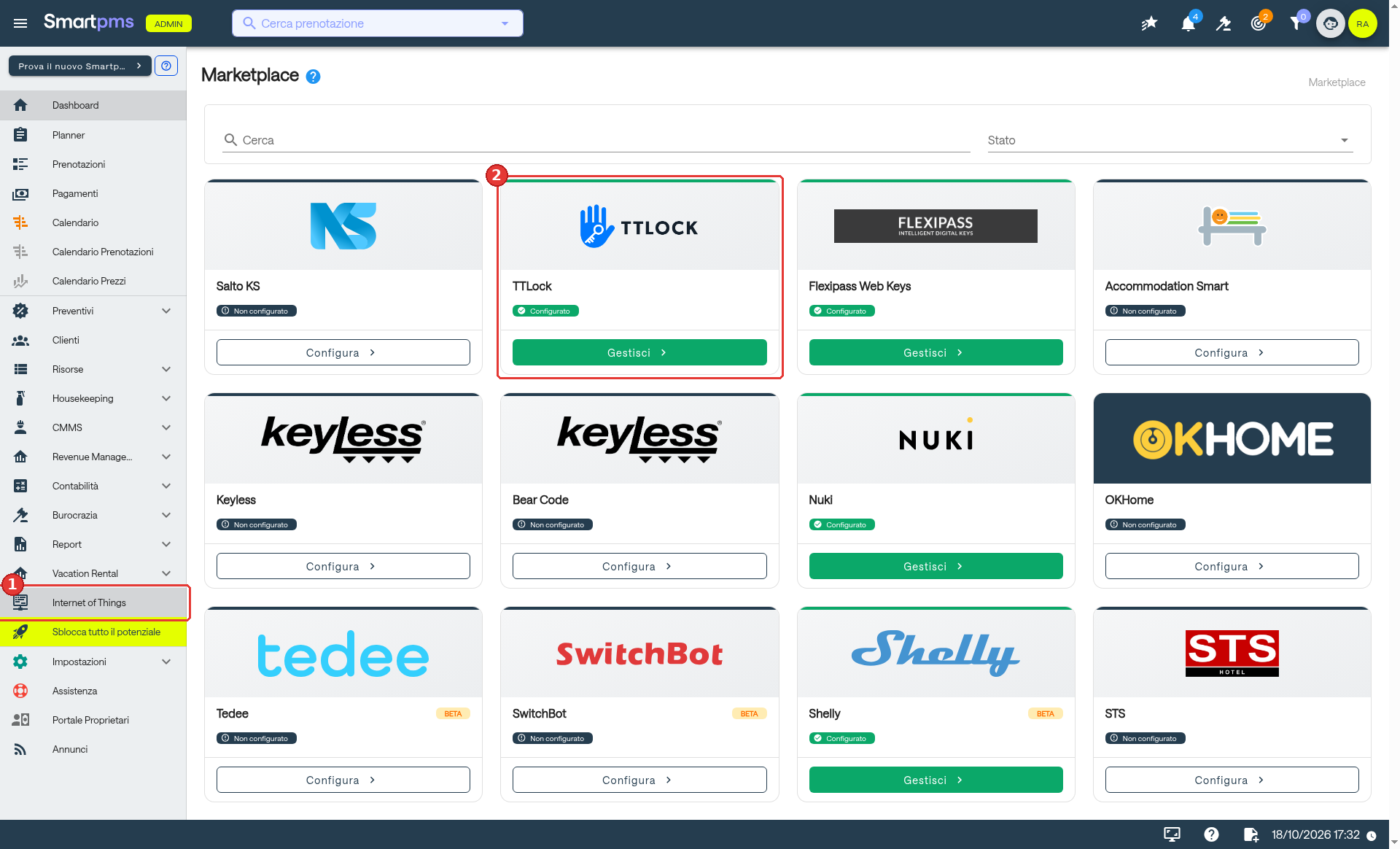
- From the left menu, open Internet of Things.
- Find the TTLock card and click Configure (or Manage if you already have an account).
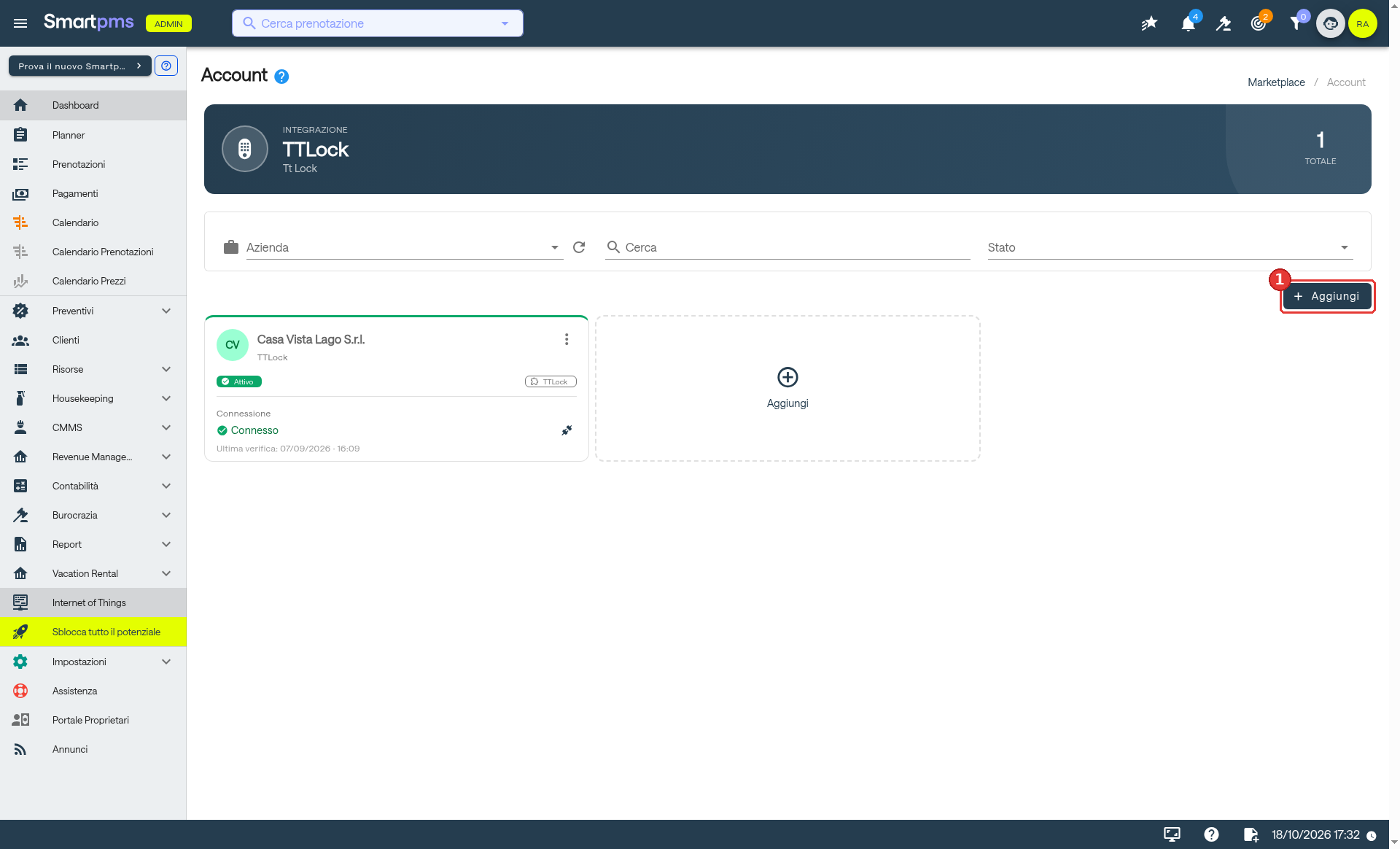
- Click + Add.
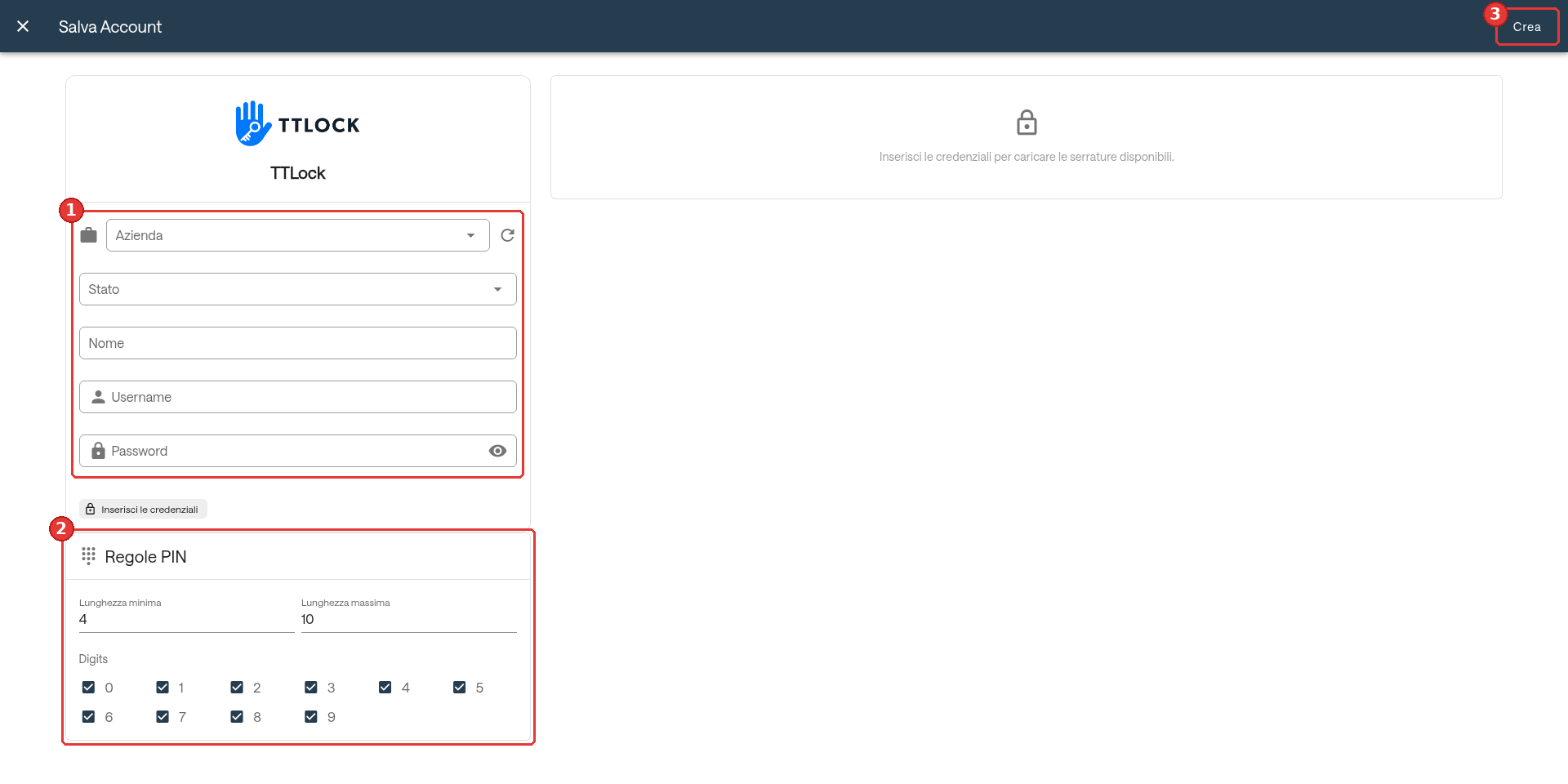
- Fill in the fields:
- Company: the company to which the units belong.
- Status: Active.
- Name: a recognizable name (e.g., TTLock – Property Name).
- Username and Password: the credentials of your TTLock account.
- If your locks only accept codes of a certain format, set the PIN Rules: Minimum length, Maximum length, and the allowed digits (Digits). By default, the code can have from 4 to 10 digits, from 0 to 9.
- Click Create. SmartPMS connects to TTLock with the credentials and loads the list of your locks: if the credentials are correct, the account will be Connected.
Phase 2 – Associate locks to units
- In the Units section of the account, click + Add and choose the Unit (room or apartment).
- In Locks, select the accesses that the guest of that unit should be able to use, for example, the main entrance or the luggage locker.
- In Room / Apartment lock, select the main door of the unit.
- Repeat for all units and click Save.
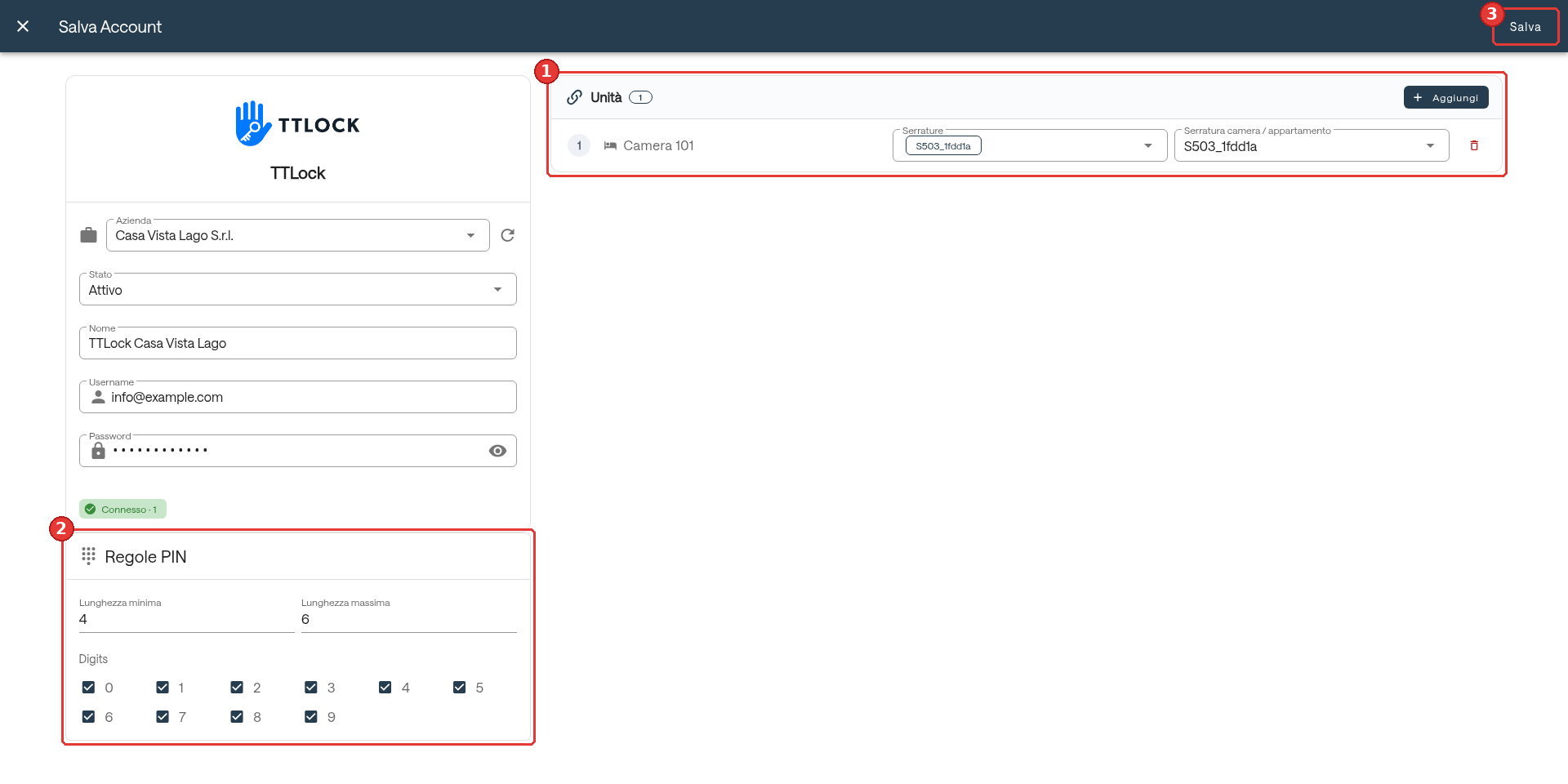
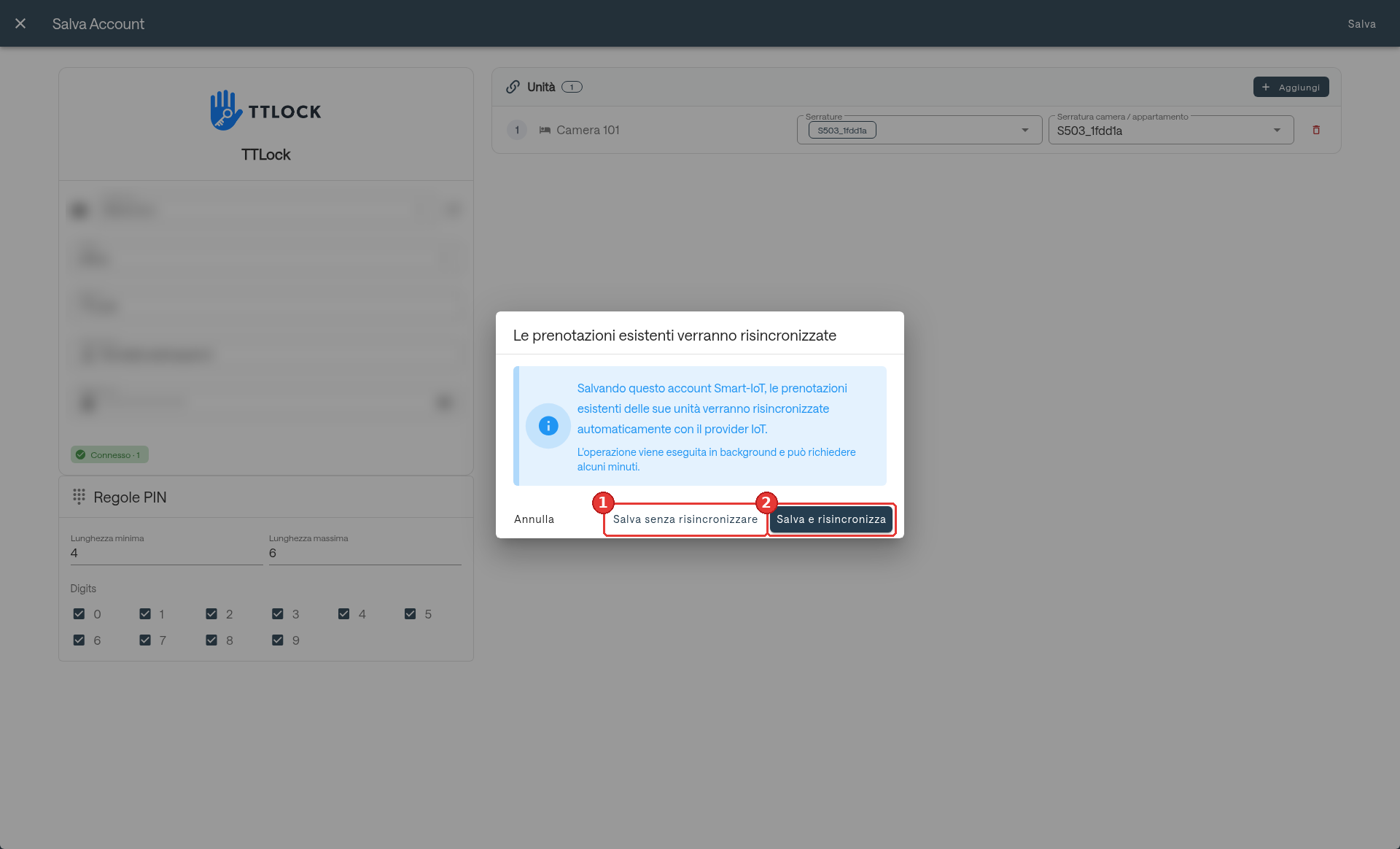
Upon saving, SmartPMS asks you what to do with the bookings already present in the calendar:
- Save and resynchronize: creates codes even for confirmed ongoing or future bookings of the associated units. The operation takes place in the background and may take a few minutes.
- Save without resynchronizing: saves only the account; codes will be created for bookings new or modified from this moment on.
Upon the first connection, or when you change the locks associated with a unit, choose Save and resynchronize.
Phase 3 – How the code works and how to send it to the guest
For each booking on an associated unit, SmartPMS generates a code according to the account's PIN Rules. The same code opens all locks associated with the unit: room door and common doors.
The code is written to the locks via the TTLock gateway: after the booking is created, it may take a few minutes before it works on the keypad. The code is created as soon as the booking is registered, not just close to arrival, but it only works during the validity hours described below. If the gateway is unreachable, SmartPMS automatically retries writing the code, with increasingly longer pauses up to one attempt per hour, until the booking ends. In the TTLock app, you will find it among the lock's codes with a name like reservation- followed by a number.
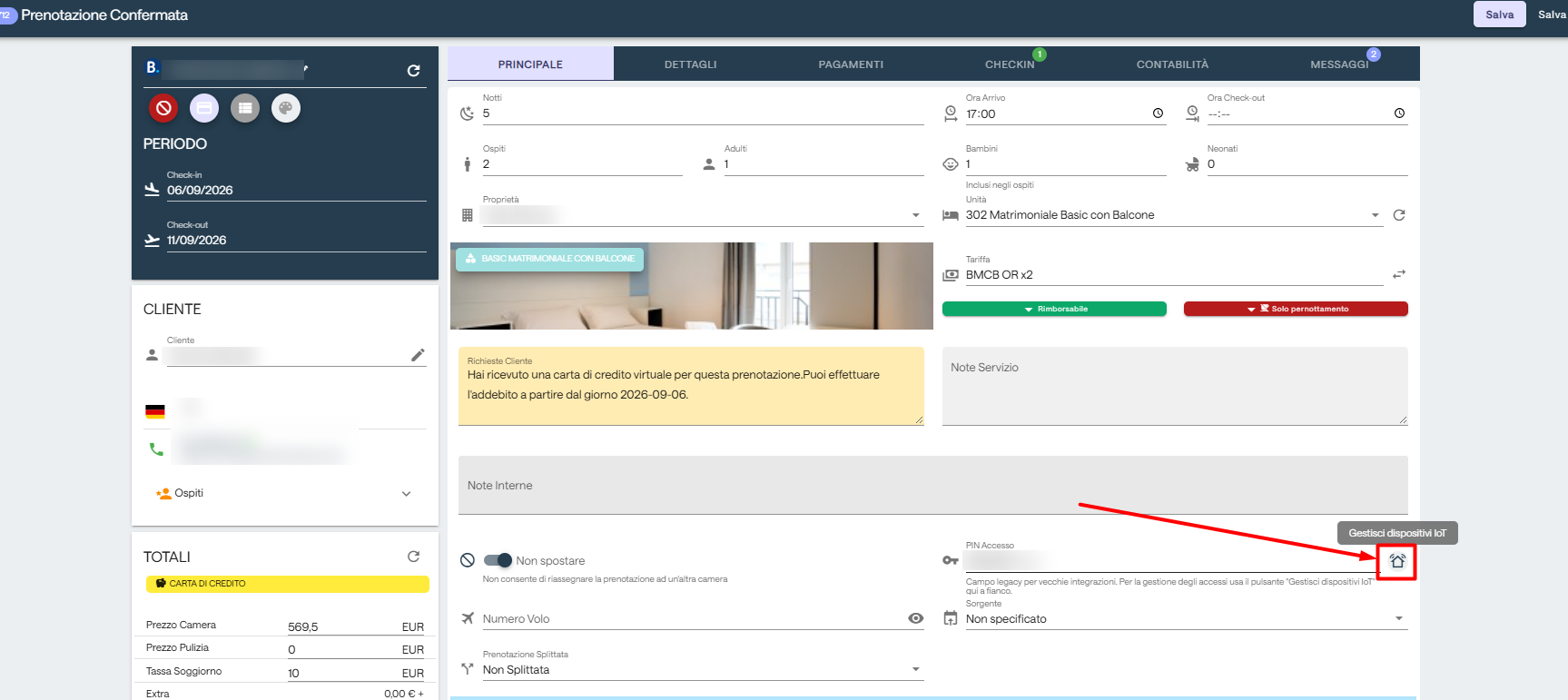
To see a booking's code:
- Open the booking from the Calendar.
- Click the device / house icon next to the PIN field to open Manage IoT devices: you will find the code for each unit lock, to be copied and shared with the guest.
To send it automatically, configure the template with the access instructions:
- Go to Settings → Properties and open the property settings.
- Open Message Templates and edit the access instructions template, with type Before check-in with completed self check-in or Self check-in completed.
- Insert the dynamic field Booking - Smart IOT Access PIN (
{{reservation_meta_smart_iot_pins}}): it prints one line for each associated lock, in the format lock name: code. - Activate Regenerate before sending and save the template.
Do not use the field Booking - Access PIN ({{reservation_pin}}): it only reads the PIN entered manually in the unit or booking and remains empty with TTLock.
Phase 4 – Code validity hours
The code works from the start of the check-in hour until the full hour of check-out: with check-in at 15:30 it works from 15:00, with check-out at 11:00 it works until 11:00, with check-out at 10:30 until 10:00. Check-in and check-out times are calculated in this order:
- the times set on the individual booking, in the Manage IoT devices window;
- if there are none, the check-in and check-out times of the property booking policy;
- if the property does not have a policy, those of the company booking policy (Settings → Companies → Booking policy).
To anticipate a guest's entry or postpone their exit, open Manage IoT devices from the booking, enter the times, and save. The new times apply to all locks associated with the unit. Once the validity ends, the code no longer opens the lock and is then automatically deleted. If the booking is cancelled, SmartPMS removes the code from the locks.
Opening history and remote opening
Openings made during the stay with the booking code on the room or apartment door appear in the booking's event history, usually within a few minutes. Openings on other locks associated with the unit (e.g., the main entrance or locker) and those made with a fingerprint, badge, or TTLock app are not recorded.
With TTLock, access is only possible with the code: from SmartPMS and the Guest Portal, it is not possible to open or close the lock remotely. If the guest needs help at the door, use the TTLock app.
Frequently asked questions
6In the TTLock app, I see codes called "reservation-" followed by a number: what are they?
These are the codes created by SmartPMS for guests. The number in the name is a technical identifier of the integration: it does not correspond to the booking number in SmartPMS nor to the portal booking code.
To understand which stay a code belongs to, open the unit lock in the TTLock app and look at the validity period (arrival → departure), then compare it with the booking code in Manage IoT devices. After departure, expired codes are automatically removed, so they may no longer appear in the list.
I am afraid of losing the codes already sent to guests: how do I save the TTLock account without touching the bookings?
Upon saving the account, SmartPMS asks you what to do with existing bookings:
- Save without resynchronizing: saves only the account and the association between units and locks. Existing bookings and their codes are not touched.
- Save and resynchronize: in addition to saving, it resends confirmed ongoing or future bookings of the associated units to TTLock, so they align with the new configuration. Cancelled, pending, or already concluded bookings are not resent.
If you only changed the account name or credentials and the locks associated with the units are the same, choose Save without resynchronizing. If, on the other hand, you added or changed locks (e.g., you associated a common door), choose Save and resynchronize, otherwise existing bookings will continue to use the old association.
In the message to the guest, multiple codes appear, each with the name of a lock: is this normal? And why does a dash appear with the Access PIN field?
Yes, it is normal. The Booking - Smart IOT Access PIN field ({{reservation_meta_smart_iot_pins}}) prints one line for each lock associated with the unit, in the format lock name: code. The code is the same on all lines: if three locks are associated with the unit (e.g., door, main entrance, and locker), you will see three lines with the same code.
The Booking - Access PIN field ({{reservation_pin}}), on the other hand, only reads the PIN entered manually in the unit or booking: with TTLock, that field is empty, and a dash appears in the message. For TTLock locks, always use {{reservation_meta_smart_iot_pins}}.
Besides in the message, where does the guest find the code? In the Guest Portal, I see the item "Digital key" but we don't use digital keys
In the booking's Guest Portal, the guest finds the code in the Digital key section, by clicking on Access code next to each lock. "Digital key" is the generic name of the section with guest accesses, used for all connected locks: for TTLock, it contains the code to be typed on the keypad.
The code is visible only from the check-in time to the check-out time of the booking (the same validity times as the code, see Code validity times). Before the check-in time or after check-out, the portal shows "No lock available for this booking": this is the expected behavior, so as not to show the code outside the stay.
With TTLock in the Guest Portal, there are no remote opening buttons: the guest enters only with the code. To be sure the guest has the code before arrival, also send it with an automatic message using the {{reservation_meta_smart_iot_pins}} field.
Is there a list that explains all the dynamic fields of the templates and what they are for?
Yes. The complete list of dynamic fields, divided by group (booking, client, property, unit...), is in the guide Automatic message templates: categories, types, and dynamic fields, among the guides linked to this page. There you will also find how to use Regenerate before sending, useful for all fields that may arrive after the booking, such as the lock code.
For TTLock locks, the most useful fields are Booking - Smart IOT Access PIN ({{reservation_meta_smart_iot_pins}}) and Client - Hub Link ({{client_hub_url}}), which takes the guest to the Guest Portal.
"Regenerate before sending" creates a new TTLock code every time the email is sent?
No. The option does not generate a new code: immediately before sending, it updates the dynamic fields of the message, so the Booking - Smart IOT Access PIN field takes the current booking code as it is at that moment. This also applies to TTLock locks.
A booking's code remains the same if the dates or locks associated with the unit change: SmartPMS updates the validity or writes it to the new locks. It changes if the booking moves to another unit or if a lock rejects the code because it already contains one with the same digits (this happens on common doors, which have the codes of all guests): in that case, SmartPMS automatically creates a new code for that booking and writes it to all its locks. Activate the option on the self check-in completed template: if the code is written or corrected after the message is scheduled, the guest receives the right one.
Related guides
Configuration
Configuration
Activation
Activation
Activation
Activation