

Company Sections: splitting accounts and fiscal documents by property or department
How to create Company Sections and associate them with properties to group accounts and fiscal documents by structure or department: filters in Accounting, document visibility for users, and linking to QuickBooks classes. It also explains the difference from accounting series, which determine numbering.
You are in the right place if…13 cases
- “Where are sections configured in SmartPMS?”
- “We have multiple properties and want to keep their accounting separate”
- “We need accounting departments or categories for documents”
- “How do I filter accounts and invoices by property?”
- “A collaborator should only see documents for their property”
- “What is the Company Sections field in property settings?”
- “What are sectionals? How are they used?”
- “I created a sectional by mistake, how do I delete it?”
- “I don't see the trash icon to delete the sectional”
- “I need to print the sectional on the PDF invoice”
- “I would like to distinguish the invoices of the two properties”
- “I need two sectionals with different numbering (1/SUB and 1/PM)”
- “The accountant wants the documents separated by property”
What are Company Sectionals for
A Company Sectional is an accounting label that you create for your company (e.g., Hotel Centro, Residence Lago, Restaurant) and associate with one or more properties. From that moment on, the accounts and tax documents of those properties carry the sectional, and you can use it to:
- filter accounts and tax documents in Accounting, so you only see and export those of a specific structure or department;
- limit visibility: each user sees the accounts and documents of the sectionals of the properties they have access to;
- separate accounting in QuickBooks, if you use the integration: each sectional can be linked to a QuickBooks class.
The sectional does not change the document number. To have a separate numbering (e.g., invoices 1/A2026 for one structure and 1/B2026 for another), you need accounting series, described in the dedicated guide. Always include the current year in the series code: with a code without a year, such as A, when the numbering restarts from 1, the first invoice of the new year would be duplicated and rejected by the Revenue Agency's system. The two settings can be used together.
1. Create sectionals
- Go to Settings > Companies and, on the company row, click Settings.
- In the Accounting section, on the Sectionals tab, click Configure.

- With Add, create a sectional for each structure or department you want to distinguish: in the Create Sectional window, enter the Name and click Create.
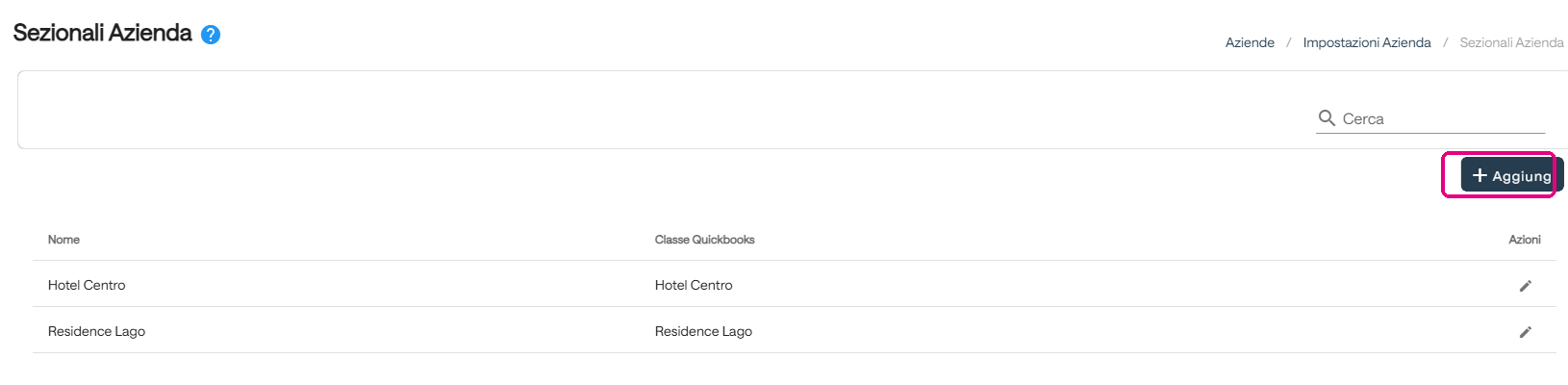
- If you have connected QuickBooks, also choose the QuickBooks Class to which the documents of that sectional should flow (see below). The field is always present in the window: if you do not use QuickBooks, leave it empty.
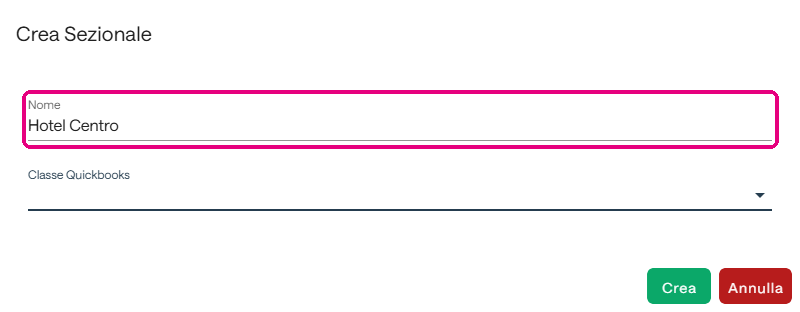
Choose names that you recognize at a glance in filters and exports: these are the ones you will see throughout the Accounting section.
2. Associate the sectional with the property
- Go to Settings > Properties and, on the property row, click Settings.
- In the Main Settings, on the Property Settings tab, click Configure: in the Property settings box on the right, fill in the Company Sectionals field by choosing the sectional. In the same box, you will also find the Company Locations field, which links the property to a company location: see the guide "Configuring the company to issue invoices and receipts in Italy".
- Click Edit to save.
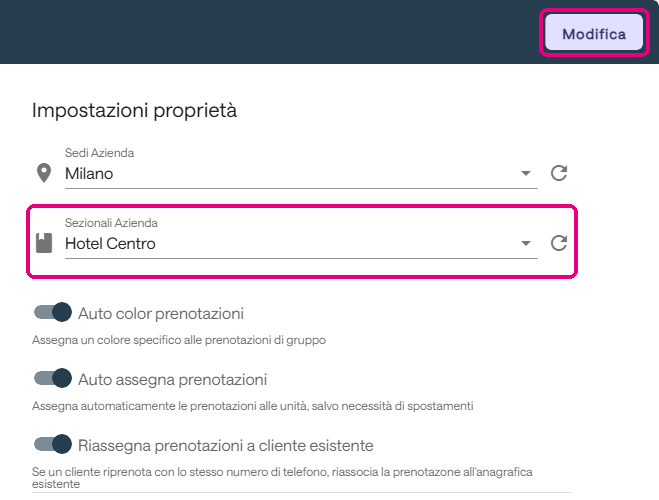
Each property has only one Company Sectional. Multiple properties can share the same sectional: for example, two apartments in the same building can be in a single sectional.
3. What happens after association
- When you create an account from a reservation of that property, the account automatically receives the property's sectional.

- In the creation and editing forms for accounts and tax documents, you will find the Company Sectionals field: you can choose or change the sectional of the individual document, or clear it.
- Credit notes generated from a document retain the sectional of the original document.
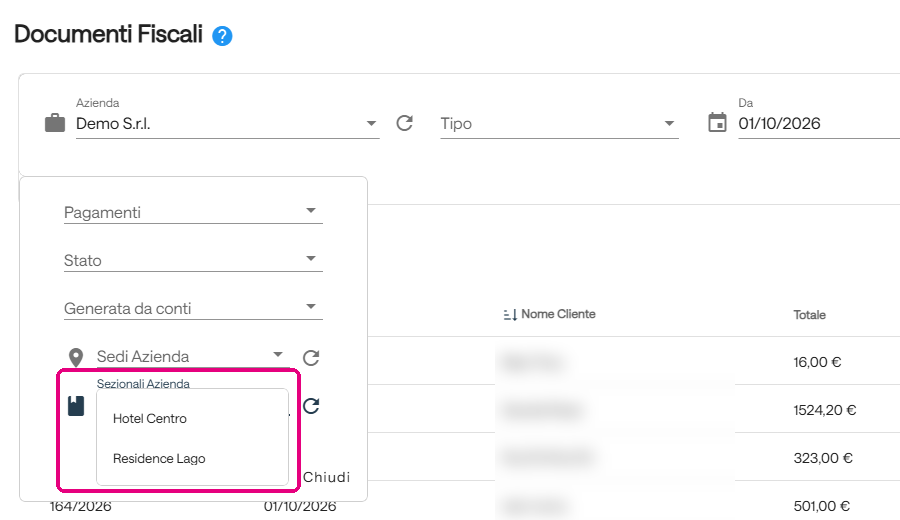
- In the lists of Accounts and Tax documents and in the Revenue Register (Accounting > Reports > Revenue Register), you will find the Company Sectionals filter in the More... menu above the list: it is activated after choosing the Company in the filters.
- In the export of tax documents, the name of the sectional for each document appears.
- Points of sale also have a Company Sectional field: fill it in if you want the sales of a point of sale to fall into the same sectional as the structure.
Visibility for users
A user sees accounts and tax documents:
- of the sectionals associated with the properties they have access to;
- that have no sectional.
This way, if a collaborator works only on one structure, in Accounting they only find the documents of that structure. Remember that documents without a sectional remain visible to all users of the company.
4. Sectionals and QuickBooks
If you use the integration with QuickBooks, the QuickBooks Class set on the sectional is applied to every line of the documents sent to QuickBooks (invoices, receipts, credit notes, and refunds). This is the way to obtain separate accounting by structure or department in QuickBooks, with reports by class.
Classes are synchronized from the QuickBooks connection page: if the class you are looking for does not appear in the list, synchronize them before modifying the sectional. Details are in the guide on QuickBooks integration.
Sectional or accounting series?
You need... | Use |
|---|---|
Filter and group documents by structure or department | Company Sectionals |
Let a user see only the documents of their structure | Company Sectionals |
A different class per structure in QuickBooks | Company Sectionals |
A separate tax numbering (e.g., | Accounting series |
Frequently asked questions
1Does the sectional appear on the PDF invoice or in the data sent to the Revenue Agency?
No. The Company Sectional is used to classify documents within SmartPMS: you use it to filter accounts and tax documents, to limit user visibility, and you find it in the export of tax documents from Accounting > Tax documents. It is not printed on the document PDF and is not part of the data transmitted to the Revenue Agency.
If you need to distinguish structures starting from the invoice number (e.g., 1/A2026 and 1/B2026), use a different accounting series for each structure, with the current year in the code. If your accountant needs to separate documents by structure, you can filter by sectional and export a file for each sectional with Export → Export headers or Export lines in Accounting > Tax Documents.
Related guides
Configuration
Activation
Configuration
Configuration
Configuration
Configuration