

Production Report: day-by-day occupancy and revenues
How to read the SmartPMS Production Report: for each day of the period, it shows occupancy, occupied rooms vs. sellable rooms, revenue per night, ADR, RevPAR, arrivals, departures, guests, and no-show. It explains how totals are calculated and why the numbers differ from Revenues and Daily Production.
You are in the right place if…6 cases
- “In the production report, total ADR and RevPAR are the same”
- “The ADR in the production report totals is incorrect”
- “Occupancy exceeds 100%”
- “The production report shows one extra room”
- “The numbers in the production report do not match the Revenues report”
- “What does 3/4 room occupancy mean”
Where to find it
The report can be opened from the menu Report > Production Report. It is visible to users with the view statistics permission.
Purpose
The Production Report offers a day-by-day view, by stay date, of the performance of one or more properties: how many rooms are occupied, how much they produced that night, ADR, RevPAR, arrivals, departures, guests present, and no-show. It is useful for the operational control of a period (typically a month). It is not an accounting report and does not compare different years: for annual comparison, use the Revenues Report.
How it works
Filters
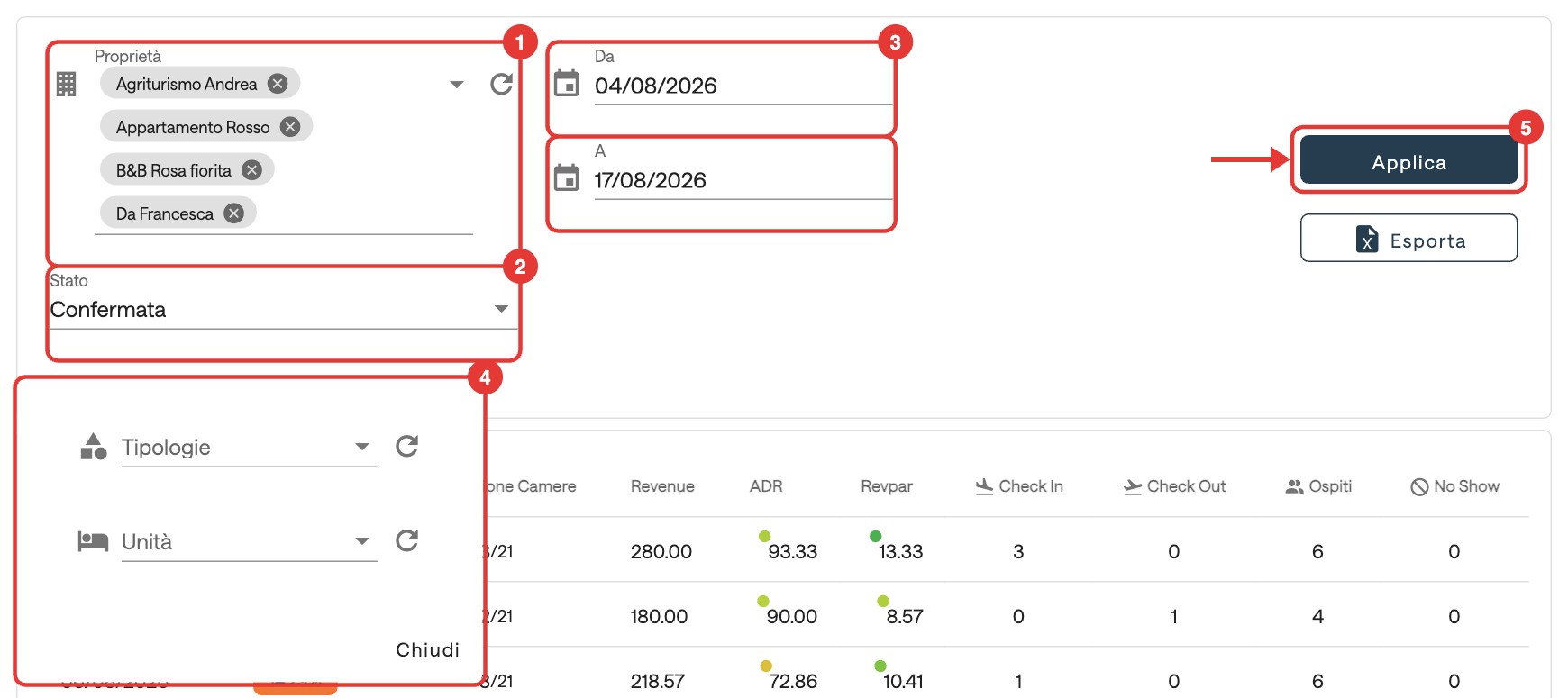
- Property: mandatory, you can select more than one.
- Status: default is Confirmed. If you clear the field, the report considers all statuses, including cancelled and pending bookings.
- From / To: when you choose the start date, the end date automatically sets to the last day of that month (you can change it).
- Additional filters: Categories and Units, to limit the report to a part of the property.
The report is calculated by clicking Apply.
Which bookings are counted
Only actual bookings are considered: blocks and calendar closures are not bookings. A booking occupies all nights from the arrival day (included) to the departure day (excluded).
Columns
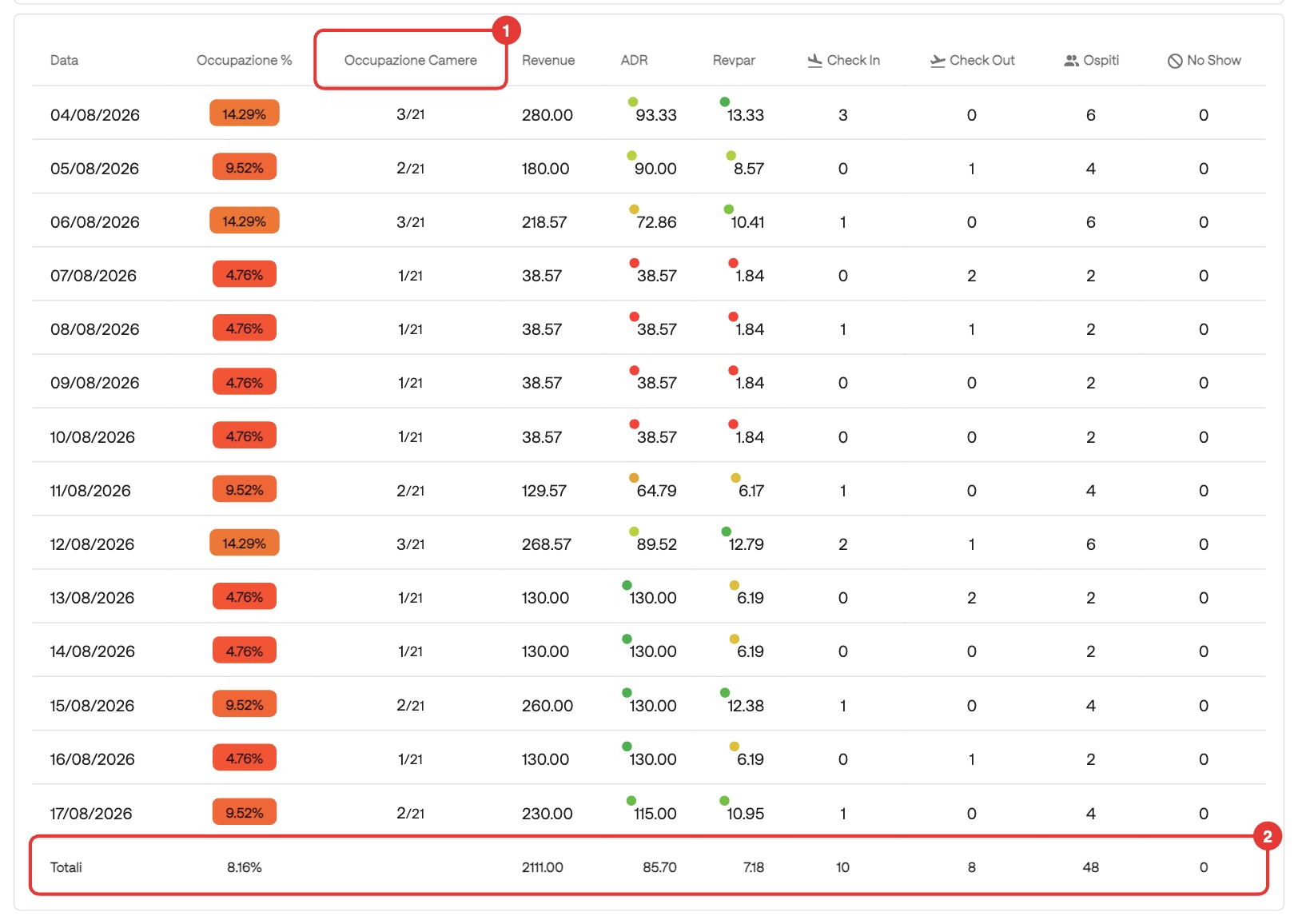
- Occupancy %: occupied rooms ÷ sellable rooms × 100.
- Room Occupancy: written as "occupied/sellable". Sellable rooms are the property units minus those with a confirmed calendar block that night. Jolly units (virtual support units) are not counted among sellable ones.
- Revenue: the sum of the stay price for that night for all bookings present. It is the price per night visible in the Daily Detail of the booking. It does not include extras or City tax, and OTA commissions are not subtracted.
- ADR: Revenue ÷ occupied rooms.
- Revpar: Revenue ÷ sellable rooms.
- Check In / Check Out: arrivals and departures of the day.
- Guests: guests present that night (occupancies, not distinct guests).
- No Show: bookings cancelled due to no-show with expected arrival that day.
Totals Row
- Revenue, arrivals, departures, guests, and no-show are sums of the days.
- Occupancy %, ADR, and RevPAR are the simple average of daily values, also counting days without occupancy.
Export
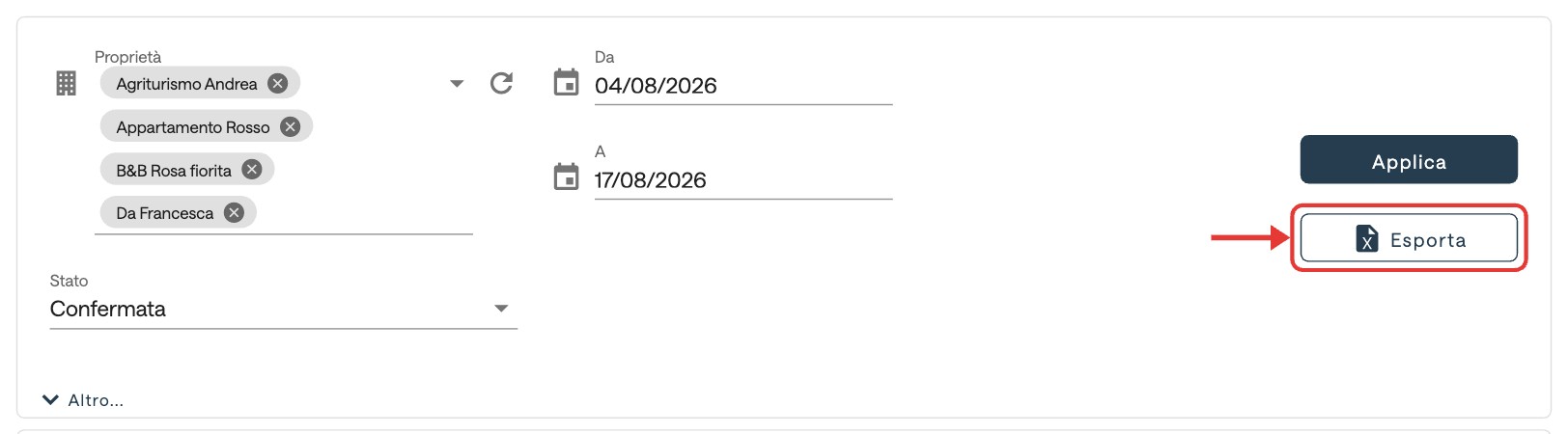
The Export button downloads an Excel file with one row per day and non-rounded values. The file does not contain the Totals row.
How to use it
- Open Report > Production Report.
- Select one or more properties.
- Leave the Status on Confirmed to see the final report.
- Set the period with From and To.
- If needed, open the additional filters and choose Categories or Units.
- Click Apply and, if you want to work on the data, Export.
Things to know
- ADR and RevPAR of Totals: these are the average of the values of individual days, not the ADR of the period. On days without occupancy, ADR and RevPAR are 0 and lower the average. With only one unit, daily ADR and RevPAR coincide on occupied days, so they appear equal in the Totals. For the ADR of the period, calculate sum of Revenue ÷ sum of occupied rooms from the export, or use the Revenues Report, which calculates a weighted ADR.
- Occupancy over 100%: this happens when there are bookings assigned to a jolly unit (they count as occupied but the jolly is not among the sellable ones), or when a block reduces sellable rooms while a booking still occupies that unit. Move bookings to real units to get correct data.
- Variable sellable rooms: the number of sellable rooms changes from one day to another if there are blocks or calendar closures. Units of an aggregated category are counted among sellable rooms.
- Multiple properties: amounts are summed without currency conversion. Analyze together only properties with the same currency.
- Difference with other reports:
- Daily Production uses the same base per night but adds treatments, extras, turnover, and payments.
- Revenues works by month, compares two years, does not remove blocks from available rooms, and calculates a weighted ADR.
For this reason, the three reports may show different values for the same period.
Frequently asked questions
2Why are ADR and RevPAR the same in the Production Report Totals?
In the Totals, ADR and RevPAR are the average of the values of each single day, including empty days. With only one unit, on occupied days ADR and RevPAR coincide and on free days they are both 0, so the average is identical. For the real ADR of the period, divide the sum of Revenue by the sum of occupied rooms (from the export), or use the Revenues Report.
Why does occupancy exceed 100%?
Bookings assigned to a jolly unit count as occupied rooms, but the jolly is not included among sellable rooms. The same happens if a unit is blocked on the calendar but still hosts a booking. Move the booking to a real unit or remove the block.
Related guides
How it works
How it works
How it works
How it works
How it works
How it works