

How to connect SmartPMS to QuickBooks and send invoices and receipts (Italy)
How to connect SmartPMS to QuickBooks Online for Italy: account connection, synchronization and mapping of VAT codes, items (including extras) and classes via Company Sections, sending invoices, credit notes and receipts, and choosing who transmits invoices to the SDI to avoid duplicate submissions.
You are in the right place if…16 cases
- “How do I connect QuickBooks to SmartPMS?”
- “How do I send invoices and receipts to QuickBooks?”
- “The same invoice arrived twice at the SDI”
- “How do I associate extras with QuickBooks products?”
- “I want to see revenues separated by property in QuickBooks”
- “Where do I set QuickBooks VAT codes?”
- “I made the connection with QuickBooks but I don't see any movements on QuickBooks”
- “I thought sending documents to QuickBooks was automatic”
- “In the mapping, I don't see the stay entries by channel (Expedia, Website, Airbnb)”
- “Refresh OAuth 2 Access token with Refresh Token failed: invalid_grant”
- “I cannot disconnect the QuickBooks account”
- “You must at least choose the mapping of the reservation item with a Quickbooks item”
- “Receipts do not arrive on QuickBooks even though I have set the VAT rates”
- “I cannot send the invoice to QuickBooks, VAT error”
- “Does QuickBooks not act as an intermediary for sending to the SDI?”
- “CiaoBooking and QuickBooks integration: Electronic Invoices and Receipts Management for Italy”
How the integration works
SmartPMS remains the place where you create accounts, invoices, and receipts. The integration with QuickBooks Online transfers fiscal documents to your QuickBooks account, already classified with the VAT codes, items, and classes you have chosen, so your accounting is updated without re-entering data.
For every document sent, the corresponding document is created in QuickBooks:
In SmartPMS | In QuickBooks |
|---|---|
Invoice | Invoice |
Credit note | Credit memo |
Receipt | Sales receipt |
Receipt cancellation | Refund receipt |
Before you start
- An active QuickBooks Online account, with a plan that allows connection with external applications.
- QuickBooks configured for Italian accounting: if you want QuickBooks to send electronic invoices to the SDI, you usually need an official QuickBooks Italy partner or an extension that enables sending.
- In QuickBooks, the VAT codes, the items (products and services) and, if you need them, the classes you want to use.
1. Connect the account
- In SmartPMS go to Settings > Companies, on the company row click Settings and, in the Accounting section, on the Quickbooks tab click Configure.

- On the Quickbooks Connect page click Connect and log in with your QuickBooks account, authorizing the connection.
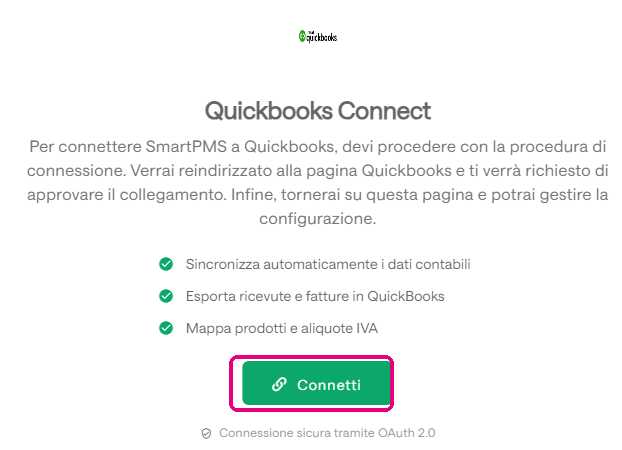
- Once back in SmartPMS, start the synchronization of accounts, VAT codes, items, and classes: SmartPMS reads the available elements for mapping from QuickBooks.
Then choose the QuickBooks Account for Receipts: this is the account where receipt payments and cancellation refunds are recorded.
Every time you create a new VAT code, item, or class in QuickBooks, synchronize again to see it in the mappings.
2. Map VAT codes
For each tax rate used in your documents (for example 10% and 22%) and for each document type, choose the corresponding QuickBooks VAT code. Do the same for exempt or non-taxable operations (N1, N2 natures and subsequent), if you use them. Which rates and natures to use in documents and where to set them on the rows: see the guide "VAT in fiscal documents: rates, exemption natures and City tax".
This is the most important mapping: QuickBooks calculates the tax starting from the VAT code of each row. If a rate used in a document is not mapped, that document cannot be sent correctly.
3. Associate items
Each row of a document is recorded in QuickBooks on an item (product or service).
- Associate an item with the fixed document entries: Booking on Receipt and Booking on Invoice (the stay, distinguished by document type), City tax, Cleaning fees, Revenue Share, Owner amount and Portal commissions, if you use them.
- Also set the Default Receipt Item and Default Invoice Item: they are used for rows that do not have a more specific item.
- The stay row always uses the same item per document type, regardless of the booking channel: there is no different entry for Booking.com, Airbnb, or website.
- In the extras list, which also shows the property for each extra, choose the QuickBooks item to record it on for each extra. You can use different items for breakfast, parking, transfer, or restaurant: in QuickBooks, you will have revenues broken down by service type.
4. Separate accounting by property with classes
If you manage multiple properties or departments, you can have their documents flow into different QuickBooks classes:
- Create the classes in QuickBooks and synchronize them in SmartPMS.
- In Settings > Companies, in the company Settings, on the Sectionals tab click Configure and set the QuickBooks Class on each Company Sectional.
- Associate the sectional to the properties from their main settings.
Each row of those properties' documents will arrive in QuickBooks with the sectional's class. By combining items and classes, you get revenues by service type and by property in QuickBooks.
5. Choose who sends invoices to the SDI
A digital invoice must reach the Exchange System (SDI) only once. Before starting, decide which of the two flows to use, and keep it the same for all invoices. If the same invoice arrives at the SDI twice (from SmartPMS and from QuickBooks), it is discarded as a duplicate (error 00404): see the guide "Electronic invoice discarded or not sent to the SDI: statuses, most common errors and how to resend it".
Flow A: QuickBooks sends
Suitable if QuickBooks is configured for sending to the SDI.
- Create the invoice in SmartPMS as usual.
- In Accounting > Fiscal documents, use Actions > Send to Quickbooks.
- QuickBooks receives the invoice and transmits it to the SDI.
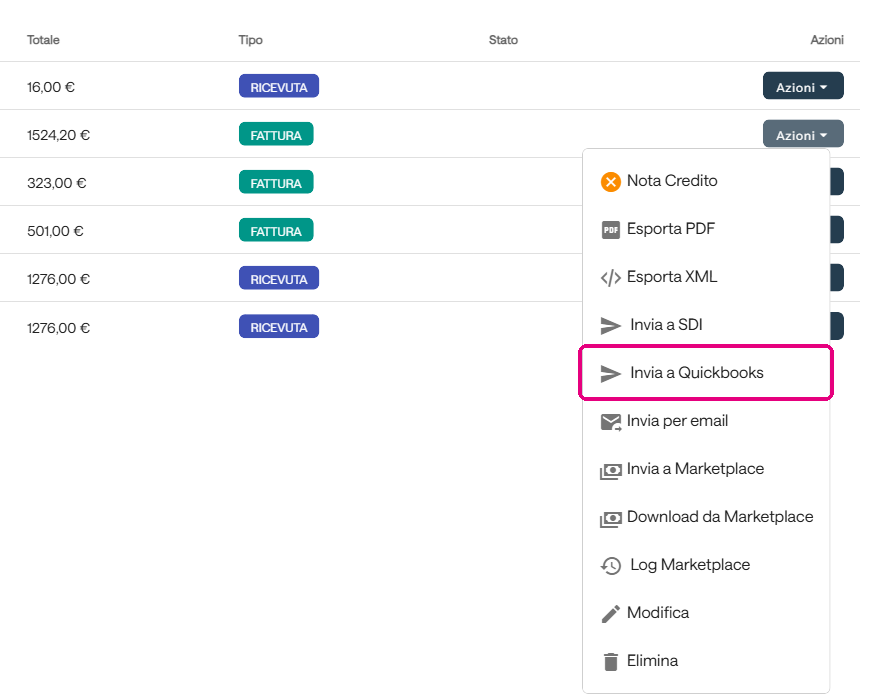
In this flow, do not use the send to SDI action in SmartPMS for the same invoice.
Flow B: SmartPMS sends, QuickBooks archives
Suitable if you transmit invoices to the SDI from SmartPMS.
- Create the invoice in SmartPMS.
- Send it to the SDI with Actions > Send to SDI.
- Then send it to QuickBooks with Actions > Send to Quickbooks, for accounting and archiving.
In this flow, QuickBooks must not be configured to send invoices to the SDI independently: otherwise, the same invoice would be transmitted twice.
Receipts
Receipts are also sent to QuickBooks with Actions > Send to Quickbooks: in QuickBooks, they are used for internal accounting and archiving. The transmission of receipts to the Revenue Agency, if active, remains managed by SmartPMS and not by QuickBooks.
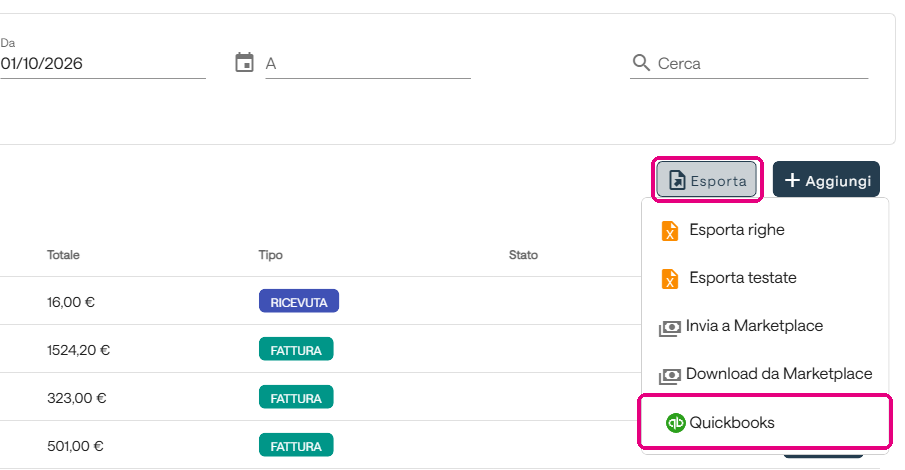
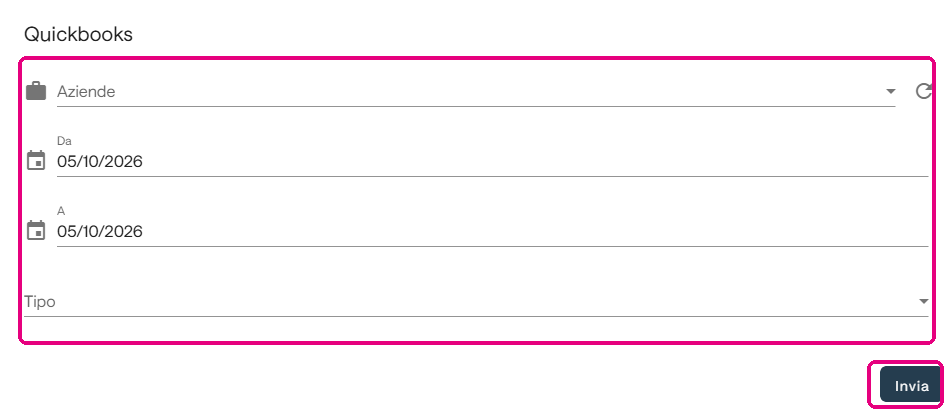
To send multiple documents to QuickBooks together, in Accounting > Fiscal documents click Export > Quickbooks: in the window choose Companies, the period (From and To) and the document Type, then click Send.
Frequently asked questions
7Do I need to send invoices already sent to the SDI by SmartPMS to QuickBooks as well?
If you use the flow where SmartPMS sends to the SDI, yes: send them to QuickBooks with Actions > Send to Quickbooks to have them in accounting. In this case, ensure that QuickBooks is not configured to transmit them to the SDI in turn.
Are receipts sent to QuickBooks transmitted to the Revenue Agency (Agenzia delle Entrate) by QuickBooks?
No. In QuickBooks, receipts are used for internal accounting and archiving. The electronic transmission of receipts to the Revenue Agency, if you use it, is managed by SmartPMS: the dedicated guide explains how to connect SmartPMS to the Revenue Agency.
I cannot send an invoice or a receipt to QuickBooks and the error mentions VAT: what should I check?
QuickBooks records each line with the VAT code you associated with its tax rate and document type. If there is a tax rate (for example 22%) or an exemption in the document that you have not mapped for that document type, the submission will fail.
- Open the document and note the tax rates and any exemption natures of the lines.
- Go to the company's QuickBooks page and add, in the VAT mapping, a row for each missing tax rate, choosing the correct QuickBooks VAT code. Invoices and receipts are mapped separately.
- Save the configuration and repeat Actions > Send to Quickbooks.
If the VAT code you need does not appear in the list, create it in QuickBooks and then synchronize again from the QuickBooks page.
I connected QuickBooks but I don't see any documents arriving: is the submission automatic?
No. The connection enables the integration, but documents must be sent to QuickBooks from SmartPMS. In Accounting > Fiscal Documents use Actions > Send to Quickbooks on the individual document, or Export > Quickbooks to send multiple documents for a period.
Before the first submission, verify that you have completed the mappings: VAT codes, items (at least those for the reservation on receipt and on invoice, or the default items) and, for receipts, the QuickBooks Account for Receipts. After submission, an indication appears next to the document that it has been transmitted to QuickBooks.
Can I have a different item in QuickBooks for the stay based on the channel (Booking.com, Airbnb, website)?
No. The stay line is recorded on the item chosen in Reservation on Receipt or Reservation on Invoice, depending on the document type, regardless of the reservation channel. We recommend creating a generic item in QuickBooks, for example "Stay", and associating it with both entries.
You can instead separate revenues by service type by associating different items to extras, City tax, cleaning fees, and portal commissions, and by property using classes on the Company Sections.
I receive the message "You must at least choose the mapping of the reservation item with a Quickbooks item": what does it mean?
It means that for a document line, SmartPMS cannot find any QuickBooks item to use. Each line searches, in order: the item associated with the extra, the item of the fixed entry (for example Reservation on Receipt or City tax) and finally the default item of the document type.
On the company's QuickBooks page, fill in at least Reservation on Receipt and Reservation on Invoice and the Default Items for receipts and invoices, save the configuration and repeat the submission.
Related guides
Configuration
Configuration
Activation
FAQ
Configuration
Configuration