

VAT in fiscal documents: rates, exemption types, and city tax
How to set VAT for bills, invoices, and receipts in SmartPMS: Property's default Preferential VAT and VAT Exclusion, custom VAT rates for rooms, cleaning, extras, and city tax, breakfast VAT separation, N1-N7 exemption types on 0% lines, city tax outside VAT scope, and flat-rate scheme.
You are in the right place if…15 cases
- “How do I set 10% VAT on stays and cleaning?”
- “I want the city tax to be outside the VAT scope on the invoice”
- “I set custom rates but the invoice doesn't apply 10%”
- “10% VAT rate not applied automatically to the stay”
- “On the stay invoice, I see 10% VAT and N4”
- “I cannot find the custom VAT rates”
- “The Custom VAT Rates card is greyed out, I cannot edit it”
- “How do I set N1 exemption as default for receipts?”
- “Where do I choose the exemption type (N1, N2, N4) on a 0% VAT line?”
- “I set N2.2 but the Revenue Agency receives N2”
- “I am on a flat-rate scheme, how do I remove VAT from invoices?”
- “I want prices sent to portals to already have 10% VAT added”
- “How do I separate breakfast VAT from stay VAT?”
- “Why is VAT deducted from the price instead of added?”
- “VAT exemption code for city tax on the receipt”
In this guide, you will find how SmartPMS determines the VAT rate for each line item in accounts, invoices, and receipts, where to set the property's default values, and how to choose the exemption nature (N1–N7) for lines without VAT.
The rates and natures to use depend on your business and tax regime: SmartPMS provides the tools to apply them but does not provide tax advice. Always verify the configuration with your accountant.
Invoices subject to split payment have a dedicated guide: see the guide "Invoices in split payment".
Before you begin
- The company and the property must already be configured (tax data, accounting series, connection with the Revenue Agency or the SDI). This is usually done by the Onboarding Specialist during the initial setup; for company data, see the guide "Configuring the company to issue invoices and receipts in Italy".
- To modify property settings, including Advanced Settings, you need a user with permission to edit properties.
- Have your accountant indicate the rates (for example, 10% for accommodation) and the exemption natures to use for items without VAT.
How VAT works in SmartPMS: prices are always VAT included
In SmartPMS, the amounts for bookings, accounts, and documents are always VAT included: VAT is deducted from the price, not added. In the table of lines for an account or document, the Amount column shows the taxable base, and the totals show Net, VAT, and Total.
VAT=amount × rate ÷ (100 + rate)
Example: stay of 3,000 € with 10% VAT
3,000 €×10÷110=272.73 €
Taxable base = 3,000 €−272.73 €=2,727.27 €
If you want the VAT to be 300 €, the price of the stay must be 3,300 €. There is no option that automatically adds VAT to calendar prices or those sent to portals: set prices already inclusive of VAT.
1. Set the property's default VAT
Preferential VAT is the rate that SmartPMS uses for all lines that do not have their own rate (room, cleaning, extras). Default VAT Exclusion is the exemption nature that is automatically assigned to lines with 0% VAT.
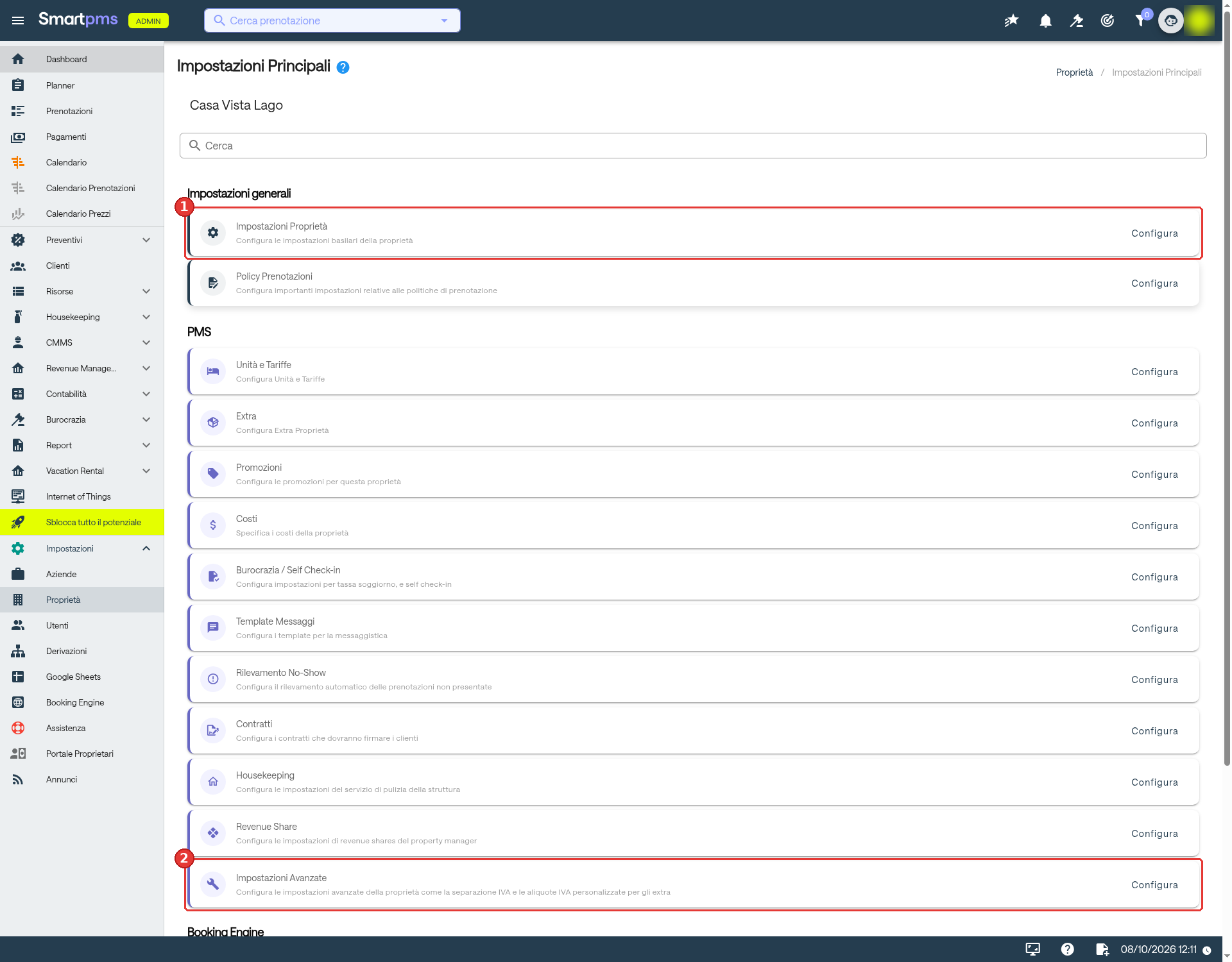
- Go to Settings > Property and click on Settings next to the property.
- On the Main Settings page, in the General settings section, click on the Property Settings card.
- In Preferential VAT, choose the rate for your main business (for example, IT - 10% for accommodation).
- In Default VAT Exclusion, choose the nature you want to assign to 0% lines (for example, N1 - excluded ex art.15, or the one indicated by your accountant).
- Click on Edit in the top right to save.
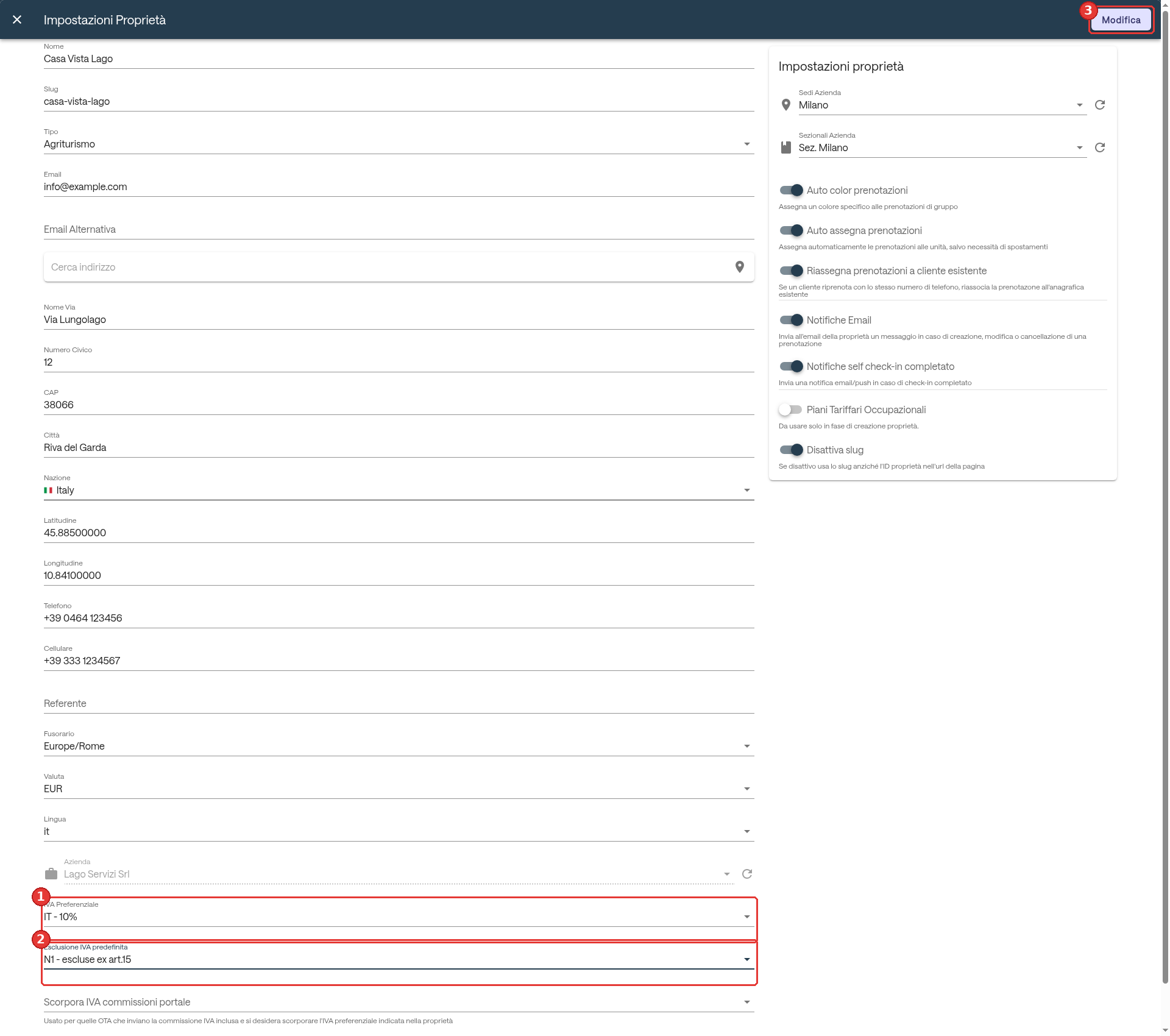
Expected outcome: new accounts created from bookings for this property apply the Preferential VAT to room, cleaning, and extra lines without their own rate; 0% lines receive the nature chosen in Default VAT Exclusion.
The Deduct portal commission VAT and Sum portal commission VAT fields in the same window only concern OTA commissions in Revenue Share: how to use them is explained in the guides "How to configure Revenue Share for Managers" and "How to configure Revenue Share for Property Managers".
Important: changes apply to accounts and documents created from that moment on. Accounts and documents already created do not change: if they must reflect the new configuration, they must be recreated.
2. Different rates per item: Custom VAT Rates
If some items have a different rate than the preferential one (for example, cleaning or extras at 22% with room at 10%), use Custom VAT Rates.
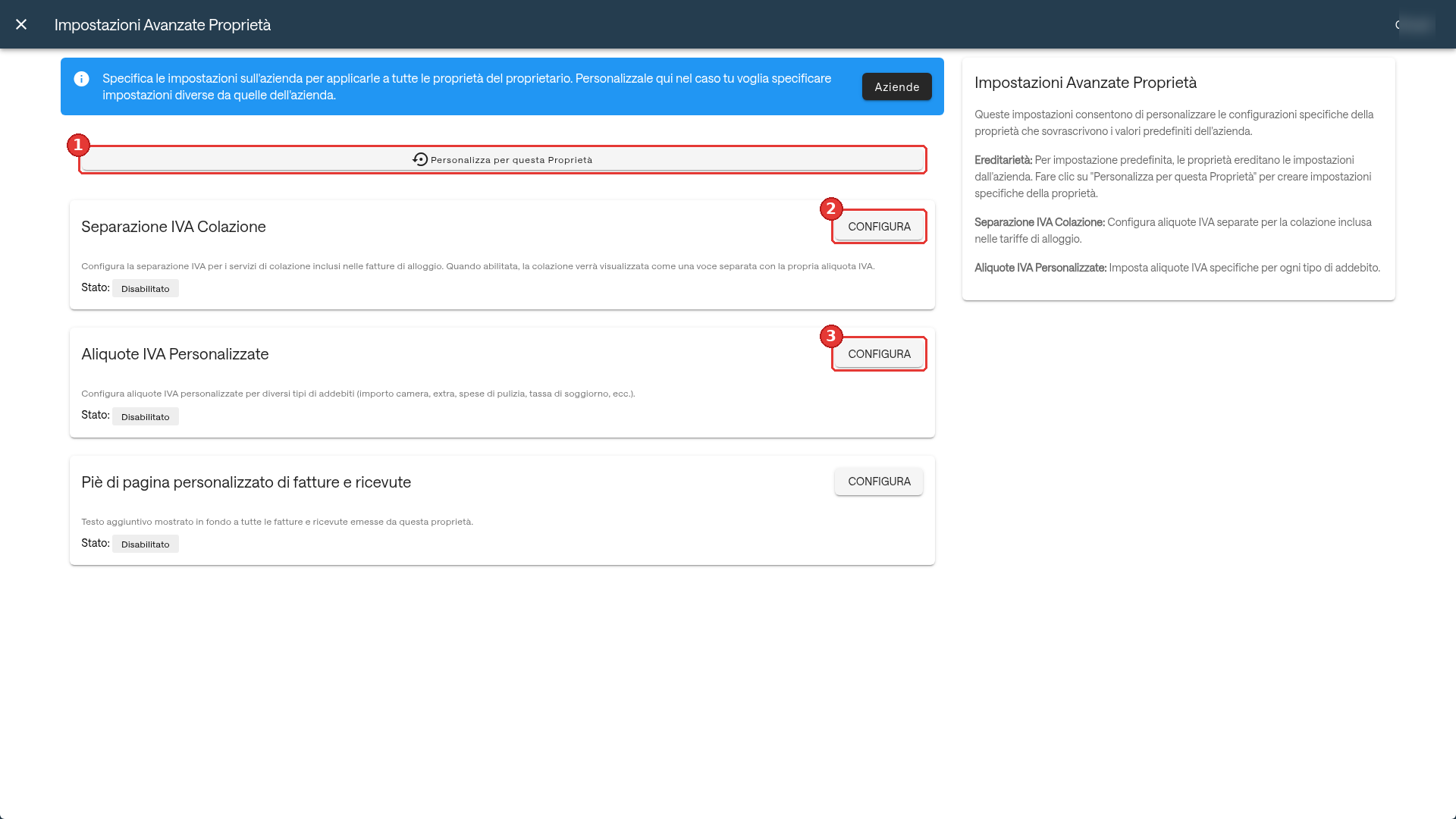
- Go to Settings > Property > Settings on the property and, in the PMS section, click on the Advanced Settings card.
- Property Advanced Settings opens. At the top, a blue box reminds you that company settings apply to all its properties; the Companies button leads to the company level.
- If the property still uses company settings, click on Customize for this Property. If the property is already customized, you will see Restore to Company Defaults instead, which resets the property to company values (this action cannot be undone).
- In the Custom VAT Rates card, click on CONFIGURE.
- In the Custom VAT Configuration window, enable Enable Custom VAT Rates (Yes). When you toggle the switch, the fields are pre-filled with the current default VAT: check them one by one.
- Fill in only the items that must have a different rate. Available fields are Room Amount, Extras, City tax, Cleaning fees, Revenue Share, Owner amount, and OTA commissions.
- Empty field = the item uses the property's Preferential VAT.
- Field at 0 = the item is issued at 0%, with the Default VAT Exclusion nature. Do not write 0 in fields that must have VAT: leave the field empty or write the rate.
- Click on Save. In the card, the status changes to Enabled.
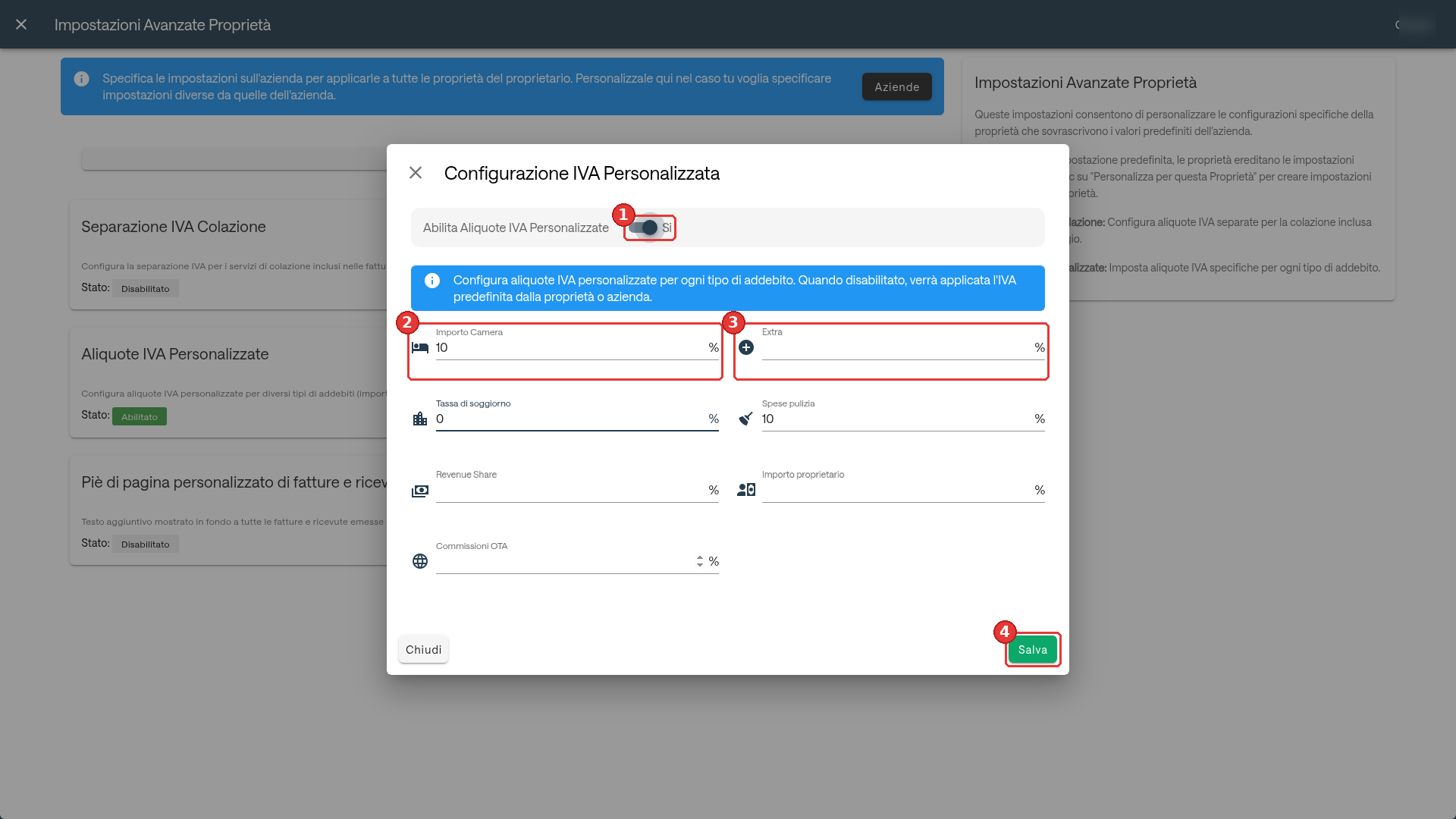
Messages you may see upon saving: "VAT rate cannot be negative", "VAT rate cannot exceed 100%", and "At least one VAT rate must be set when custom VAT is enabled".
If you turn off the switch, SmartPMS asks "Disable setting?": with Only disable, the rates remain saved but are not applied; with Delete configuration, they are erased.
Expected outcome: new accounts apply the custom rate to the corresponding item. Again, accounts and documents already created do not change.
3. Breakfast VAT separation
If the stay price includes breakfast and breakfast must appear in the document as a separate line with its own rate, use Breakfast VAT Separation.
- Open Property Advanced Settings as in point 2 (if needed, click on Customize for this Property).
- In the Breakfast VAT Separation card, click on CONFIGURE.
- Enable Enable Breakfast VAT Separation and fill in:
- Accommodation VAT Rate and Breakfast VAT Rate (for example, 10% and 10%, or as indicated by your accountant);
- Breakfast Amount per Person per Night (EUR), for example 8;
- Accommodation Description and Breakfast Description, i.e., the texts of the two lines in the document (for example, "Stay" and "Breakfast").
- Click on Save.
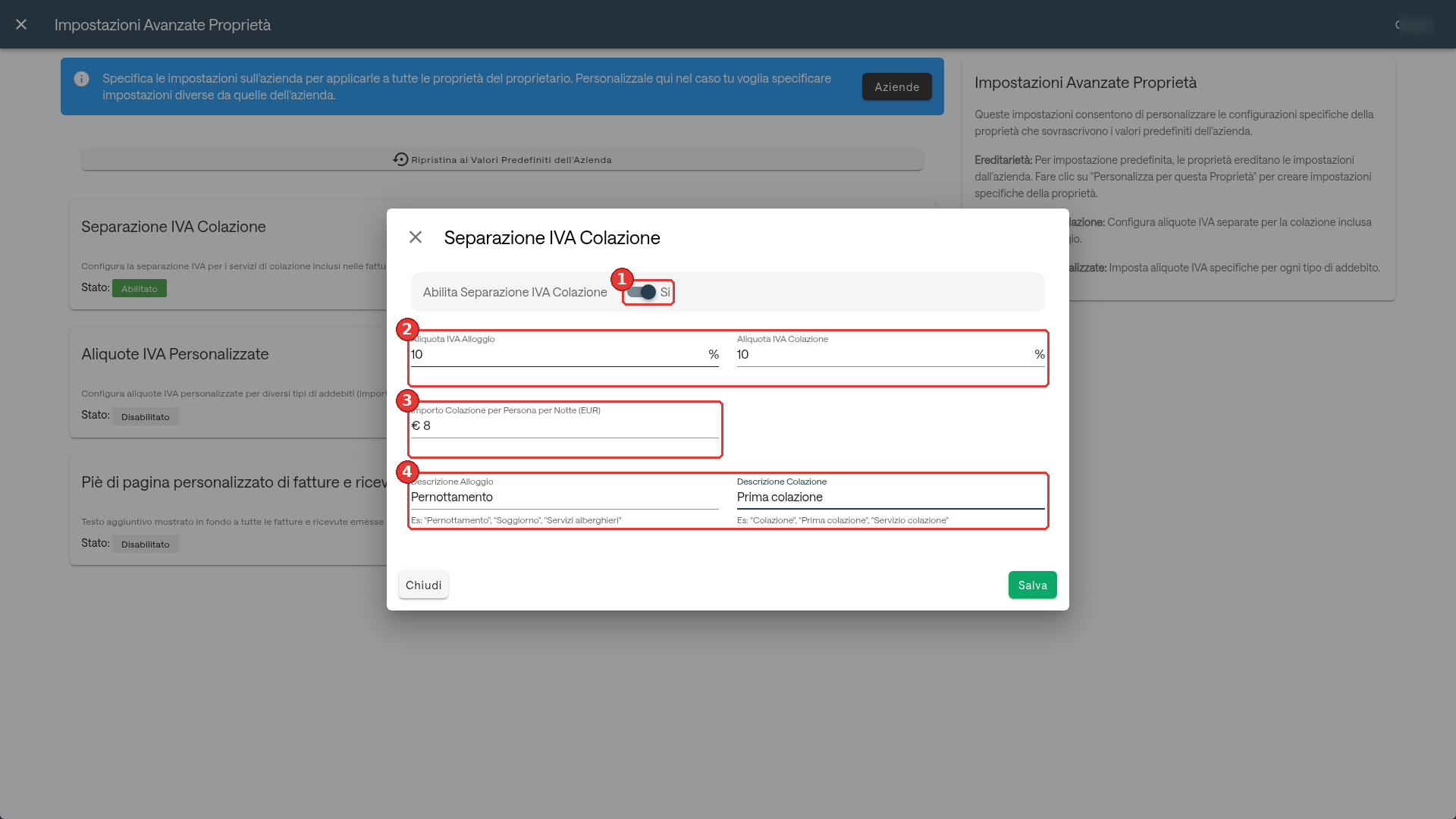
How it works:
- Separation applies only to bookings with a board type that includes breakfast.
- The breakfast line equals breakfast amount × guests × nights, with the Breakfast VAT Rate; the rest of the stay remains on the accommodation line with the Accommodation VAT Rate. If the Accommodation VAT Rate is empty, the custom Room Amount rate applies, or, if missing, the Preferential VAT.
- If the property does not have its own configuration, it inherits the company's (if configured).
- It is not available for properties with active Revenue Share: in that case, the card shows "Revenue share active - this setting will be ignored!".
- Changes apply to new bookings; existing documents remain unchanged.
Breakfast VAT Separation should not be confused with Deduct breakfast from the base of the City tax: the former splits the line in the document with two rates, the latter only concerns the calculation of the tax amount. For tax calculation, see the guide "Configuring the City tax and calculation methods in Self Check-in".
4. Which rate does each line receive
When you create an account from a booking, SmartPMS assigns the rate to each line in this order:
Line | Rate used (in order) | Nature if rate is 0% |
|---|---|---|
Room / stay | 1) Accommodation VAT Rate, if Breakfast VAT Separation is active and the booking has breakfast; 2) Custom "Room Amount" rates; 3) Preferential VAT | Default VAT Exclusion |
Breakfast | Breakfast VAT Rate, then the room rate | Default VAT Exclusion |
Cleaning | Custom "Cleaning fees" rates, then Preferential VAT | Default VAT Exclusion |
Extras | 1) VAT set on the booking extra; 2) custom "Extras"; 3) Preferential VAT | Default VAT Exclusion |
City tax | Custom "City tax", otherwise 0% | N1 |
OTA commissions, Revenue Share, Owner amount | Custom rates, then Preferential VAT (the Owner amount line is always 0% with N1) | — |
The nature is assigned only to 0% lines: on lines with VAT greater than zero, the field remains empty. How VAT is added to OTA commission and management fees in Revenue Share models is explained in the guides "How to configure Revenue Share for Property Managers" and "How to configure Revenue Share for Managers".
5. Choosing the exemption nature on a 0% line
In the account and fiscal document, on lines with 0 VAT, a pencil icon appears in the VAT field.
- Open the account, or the document being created or edited from Accounting > Fiscal Documents, Details tab.
- On the 0% line, click on the pencil in the VAT field.
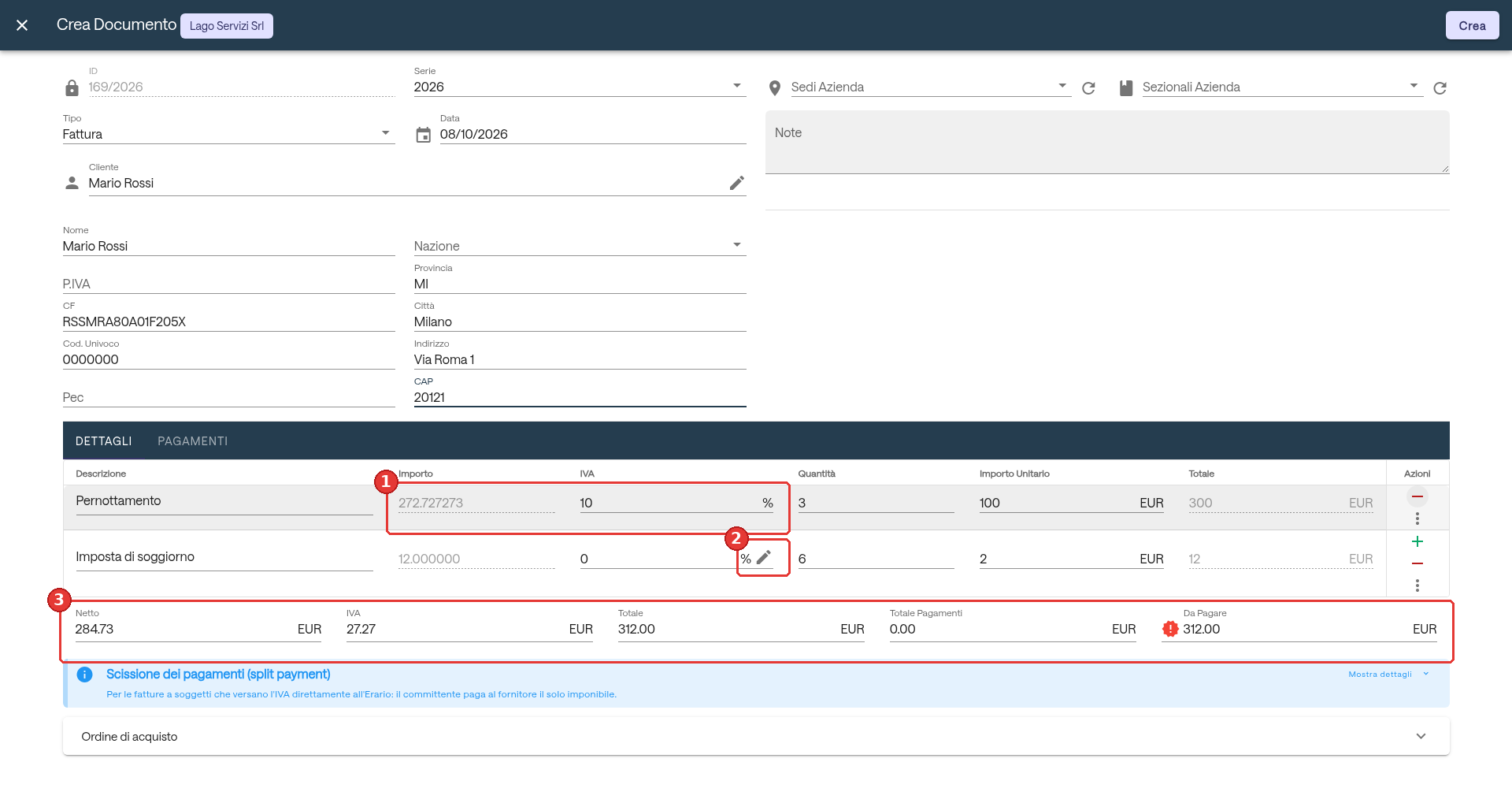
- In the VAT Exclusion window, choose the nature from the menu and click on Save. If you do not need to change anything, close with Cancel.
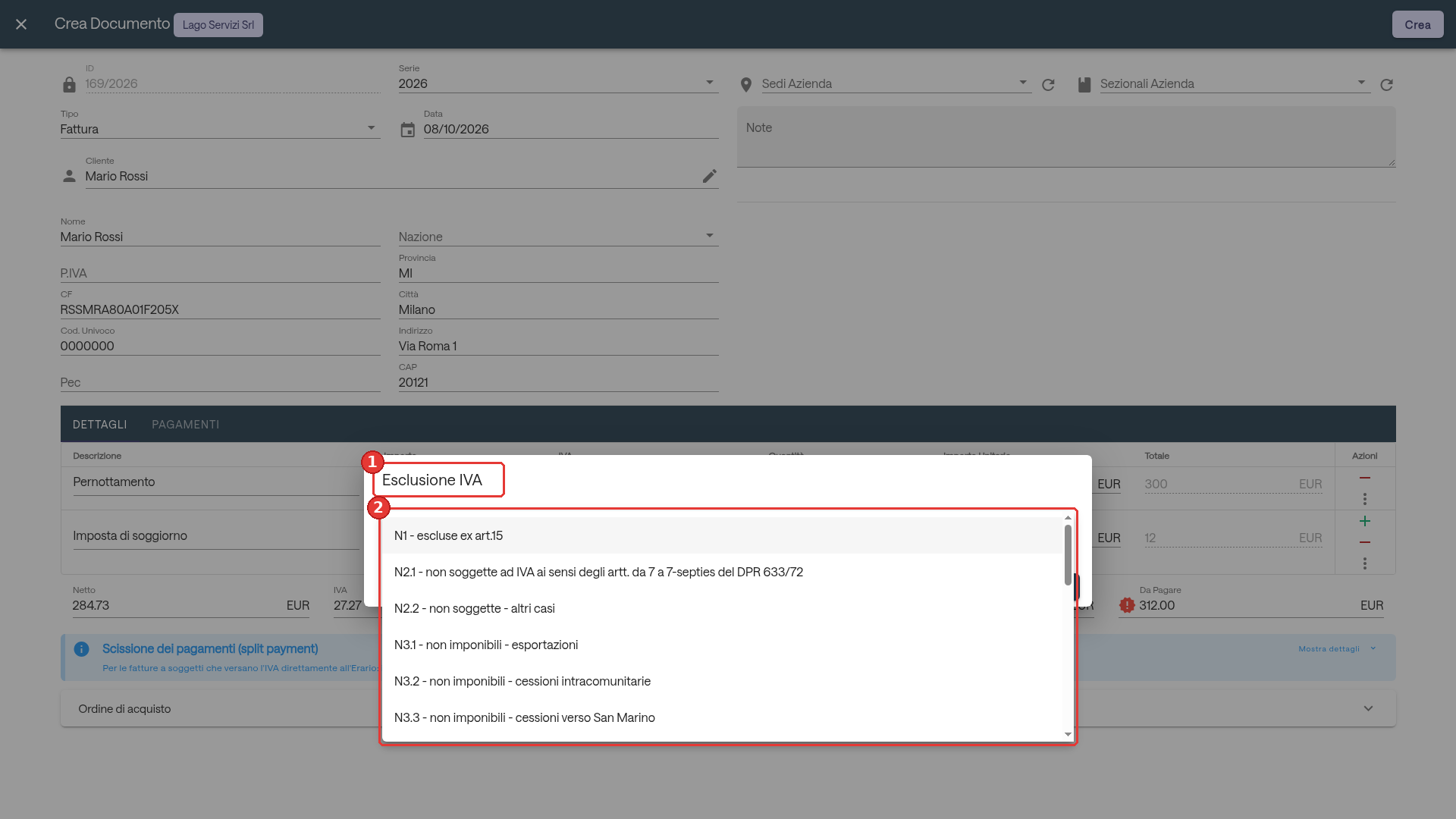
In the account, the same choice is also available from the ⋮ menu of the line, in the Account Details window, VAT Exclusion field.
Practical rule: when you create an account, invoice, or receipt, 0% lines already receive the property's Default VAT Exclusion. Do not open the pencil if you do not need to change the nature: the window does not re-propose the default nature, so if you open and save it, you must select the correct item yourself.
Available natures:
- Invoices and credit notes: N1 - excluded ex art.15; N2.1 and N2.2 (not subject); from N3.1 to N3.6 (non-taxable); N4 - exempt; N5 - margin scheme / VAT not shown on invoice; from N6.1 to N6.9 (reverse charge); N7 - VAT paid in another EU state.
- Receipts: N1 - excluded ex art.15; N2 - not subject; N3 - non-taxable; N4 - exempt; N5 - margin scheme / VAT not shown on invoice; N6 - reverse charge; N7 - VAT paid in another EU state.
On receipts, the Revenue Agency only accepts the generic code: if the line has a sub-code (for example N2.2), it automatically becomes N2 in the transmitted receipt. On invoices, the sub-code remains unchanged.
In the electronic invoice, the nature is transmitted only for lines with a 0 rate. If you change a line's rate after creating it, recreate the account and document instead of modifying them, so the rate and nature remain consistent even in the PDF.
For mapping rates and natures to external software, see the guides "Accounting Marketplace: exporting documents to Danea Easyfatt and in electronic invoice XML" and "How to connect SmartPMS to QuickBooks and send invoices and receipts (Italy)".
6. City tax in the document
- The City tax appears as a separate line (for example "City tax"), only if the booking has a City tax amount.
- Usually, the line is at 0% with nature N1 (outside VAT scope), or with the rate from the "City tax" field of Custom VAT Rates. Leave that field empty or at 0 if the tax must remain outside the VAT scope.
- The tax included in portal rates appears as a "City tax included in the rate" line, always at 0% with N1.
- The City tax is not part of the turnover on which Revenue Share is calculated.
- Calculation of the amount, exemptions, and base deductions of the tax: see the guide "Configuring the City tax and calculation methods in Self Check-in".
- To issue the tax in a separate document from the stay, see the guide "Accounts: how to prepare invoices and receipts". In the Property Manager model, to include or exclude the tax from your document, see "How to configure Revenue Share for Property Managers" (Step 7).
- Receipts do not accept 0.00 € lines: see the guide "How to issue a fiscal receipt and send it to the Revenue Agency".
7. Flat-rate scheme or exempt business
In SmartPMS, there is no "flat-rate" switch in the property's VAT settings. To issue documents without VAT:
- Set Preferential VAT to 0 (see point 1).
- In Default VAT Exclusion, choose the nature indicated by your accountant. On invoices, you can also choose the sub-code (for example N2.2); on receipts, the generic code is transmitted.
- Set the company's Tax Regime: see the guide "Configuring the company to issue invoices and receipts in Italy".
- For the mandatory wording on all documents, use the Notes field of the accounting series (guide "Accounting series: how to number invoices, receipts, and accounts", section "Fields of a series") or the footer (guide "How to add a custom footer to invoices and receipts"). When you create or modify a series, include the year in the code (for example A2026): with codes without a year, when numbering restarts, the Revenue Agency rejects the invoice as a duplicate.
8. Revenue stamp
The revenue stamp is due on invoices with amounts without VAT exceeding 77.47 €. In SmartPMS, it is indicated manually, document by document: it is not activated automatically and does not depend on the tax regime set in the company.
- Create the invoice (from the account or from Accounting > Fiscal Documents).
- When the sum of the amounts of lines with 0% VAT exceeds the threshold, the Virtual Stamp switch appears under the document notes. Enable it.
- In the Stamp Amount field, write the amount of the revenue stamp (today 2.00 €): with the switch active, the field is mandatory.
- Create the invoice.
Expected outcome: in the electronic invoice file, it is indicated that the stamp is paid virtually, with its amount, and the wording "Revenue stamp paid virtually" appears on the PDF.
Things to know:
- The switch is available only on Italian invoices: it does not appear on receipts and credit notes.
- The Stamp Amount is not added to the invoice total and is not charged to the customer. If you want to charge it to the guest, add a specific line (for example "Revenue stamp", 0% VAT) with the nature indicated by your accountant.
- If the invoice has already been created without a stamp and has not yet been sent to the SDI, you can activate it with Actions > Edit.
Frequently asked questions
9How do I set 10% VAT on stays and cleaning and city tax outside the VAT scope?
Go to Settings > Property > Settings for the property, open Property Settings and set Preferential VAT to IT - 10%, then click on Edit. Room, cleaning, and extras without their own rate will be output at 10%.
City tax is already output at 0% with type N1: no further action is needed. If you use Custom VAT Rates, leave the City tax field empty or at 0.
If some items must have a different rate (e.g., extras at 22%), use Custom VAT Rates in Advanced Settings. Settings apply to bills created from that moment on: existing bills must be recreated.
I set custom rates but the invoice doesn't apply 10%: why?
There are three most frequent causes:
- The field is at 0 instead of empty. In Custom VAT Configuration, a field at 0 makes the item output at 0%. To use Preferential VAT, leave the field empty, or write the rate directly (e.g., 10).
- The property uses company settings. In Property Advanced Settings, click on Customize for this Property before configuring the individual property's rates.
- The bill was created before the change. Bills and documents already created do not change: recreate them after saving the configuration.
On the stay invoice, I see 10% VAT and N4: is it correct?
The type (N1, N4…) is only for 0% lines. If you see it next to 10%, the line was created at 0% (it received the property's Default VAT Exclusion, e.g., N4) and only later took the 10%.
This usually happens when the Room Amount field of Custom VAT Rates is at 0 instead of empty, or when Preferential VAT was at 0.
How to correct:
- Check Preferential VAT and Default VAT Exclusion in Property Settings.
- In Advanced Settings > Custom VAT Rates, leave the Room Amount field empty, or write 10.
- Recreate the bill and document instead of editing them.
If the invoice has already been transmitted, consider that in the electronic invoice, the type is transmitted only for lines with 0 rate. For doubts about an already sent document, contact support.
I cannot find the Custom VAT Rates: where are they?
They are not in the Property Settings window, but in Advanced Settings:
- Go to Settings > Property and click on Settings next to the property.
- In the PMS section, click on the Advanced Settings card.
- If the property uses company settings, click on Customize for this Property.
- In the Custom VAT Rates card, click on CONFIGURE.
If the Advanced Settings card does not appear, your user does not have permission to edit properties: ask the account administrator.
How do I set the exemption (e.g., N1) as default for receipts and invoices?
Go to Settings > Property > Settings for the property, open Property Settings and choose the type in Default VAT Exclusion, then click on Edit.
The chosen type is automatically assigned to all 0% lines of new bills, invoices, and receipts (room, extras, cleaning). City tax receives N1.
On lines that already have the correct type, do not open the pencil in the VAT field: if you open and save it, you must select the right item again yourself.
I set N2.2 but the Revenue Agency receives N2: why?
This is the expected behavior. The receipt (commercial document) only accepts the generic type code: a sub-code like N2.2 or N3.1 is transmitted as N2 or N3.
On invoices, however, the sub-code (e.g., N2.2) is maintained.
I am on a flat-rate scheme: how do I remove VAT from invoices and receipts?
- In Settings > Property > Settings > Property Settings, set Preferential VAT to 0 and in Default VAT Exclusion choose the type indicated by your accountant, then click on Edit.
- Set the company's Tax Regime as explained in the guide "Configurare l'azienda per emettere fatture e ricevute in Italia".
- For the mandatory wording, use the Notes field of the accounting series or the custom footer. In the series, include the year in the code (e.g., A2026), so the numbering does not repeat over the years and the Revenue Agency does not reject the invoice as a duplicate.
Bills already created must be recreated after the change.
Can I make SmartPMS add 10% VAT to prices sent to portals?
No. In SmartPMS, prices are always VAT included: VAT is deducted in documents, not added. Set prices already including VAT in the calendar and rate plans.
For example, if you want to collect 300 € of 10% VAT, the stay price must be 3.300 € (taxable 3.000 € + VAT 300 €).
How does city tax appear on the invoice or receipt?
As a separate line, with 0% VAT and type N1 (outside VAT scope), or with the rate from the City tax field if you use Custom VAT Rates. The line appears only if the booking has a city tax amount.
To issue the tax in a separate document from the stay, see the guide "Conti: come preparare fatture e ricevute".
Related guides
Configuration
Configuration
Configuration
Configuration
Configuration
Configuration