

How to issue a fiscal receipt and send it to the Revenue Agency (Agenzia delle Entrate)
How to issue a fiscal receipt (online commercial document) in SmartPMS from a booking account or from Fiscal Documents and send it to the Revenue Agency: difference between fiscal and non-fiscal receipts, checks before sending (date, tax rates, amounts, payments), deposits, receipt for the City tax, and status verification.
You are in the right place if…16 cases
- “How do I create a fiscal receipt from SmartPMS?”
- “I want to issue a receipt for a booking and send it to the Revenue Agency”
- “How do I create a receipt without using the account?”
- “I don't see the Send Receipt button, there is only Create”
- “I want to create a non-fiscal receipt but the Send Receipt button appears”
- “The Send Receipt button is greyed out and cannot be clicked”
- “Error: The amount must equal the paid amount”
- “Are receipts sent automatically for every booking?”
- “Can I issue a receipt with yesterday's date?”
- “It asks for the guest's tax code to issue the receipt”
- “The receipt comes out empty without lines and amounts”
- “How do I create a receipt for a deposit or down payment?”
- “Receipt only for the City tax”
- “How do I verify that the receipt has reached the Revenue Agency?”
- “The receipt has no status, it does not appear as sent”
- “Online commercial document: how to issue it”
The fiscal receipt you issue from SmartPMS is an online commercial document: upon confirmation, SmartPMS transmits it directly to the Revenue Agency (Agenzia delle Entrate) using your company's Fisconline/Entratel credentials. In this guide, you will find how to issue it starting from a bill or from scratch, what checks SmartPMS performs before sending, how to manage deposits and City tax, and how to verify that the receipt has been received.
First of all: fiscal receipt or non-fiscal receipt?
You do not choose this in the form: it is decided by the company issuing the receipt.
- If the company is Italian and has saved Entratel/Fisconline credentials, in the top right of the Create Document screen you will find the Send Receipt button: the receipt is fiscal and is sent to the Revenue Agency as soon as you confirm.
- If the company does not have the credentials, you will find the Create button instead: the receipt is only saved in SmartPMS, is non-fiscal, and is not transmitted.
Consequently, from a company connected to the Revenue Agency, you cannot issue a receipt without sending it. If you need a non-fiscal document (for example, a summary for the guest), use the Bill, which is never transmitted.
Sending occurs only upon confirmation. SmartPMS does not generate or send receipts automatically for bookings (nor at check-out): you issue every receipt yourself, from the bill or from Fiscal Documents. There is no such thing as a "draft" receipt to be sent later.
Before you begin
- Accounting module active and a user with permissions to create (and send) fiscal documents: without permissions, the Receipt and Invoice buttons do not appear.
- Company connected to the Revenue Agency: Fisconline/Entratel credentials entered and verified with a green status. If you manage multiple companies (including sub-companies), each company that issues receipts must have its own credentials. The procedure is in the guide "How to connect SmartPMS to the Revenue Agency for sending receipts"; the company data required is in the guide "Configuring the company to issue invoices and receipts in Italy".
- Receipt series configured, with the year in the code (for example R2026): with codes without the year, when the numbering restarts, the Revenue Agency rejects the document as a duplicate. See the guide "Accounting series: how to number invoices, receipts, and bills".
1. Issue the receipt from a booking (recommended path)
Starting from the bill is the fastest way: lines, customer, and payments are copied into the receipt.
- Open the booking and go to the Accounting tab. You will find the Bills, Fiscal Documents, and Owner Documents sections.
- In the Bills section, create the booking bill (or open the existing one). How to create a single, partial (deposit), or multiple bill is explained in the guide "Bills: how to prepare invoices and receipts".
- In the bill row, under the Convert column, click Receipt (next to Invoice).
- The Create Document screen opens, already filled with the customer, lines (Details tab), and payments (Payments tab). Check them as indicated in step 3.
- Click Send Receipt in the top right and confirm with Yes in the Send Receipt window ("Are you sure you want to send the receipt to the Revenue Agency?").
Expected outcome: the receipt appears in Fiscal Documents (in the booking and in Accounting → Fiscal Documents) with type RECEIPT and green status Receipt Sent.
The same Receipt button is also found in Accounting → Bills, in the Convert column of each bill. Only one document can be created from the same bill: a second attempt is blocked with the message "You cannot create two documents from the same bill".
2. Issue a receipt without a bill
If you are not starting from a booking (for example, for an over-the-counter sale), create the receipt from scratch:
- From the side menu, go to Accounting → Fiscal Documents.
- Click the Add button in the top right and choose Receipt (the other options are Invoice and Credit Note).
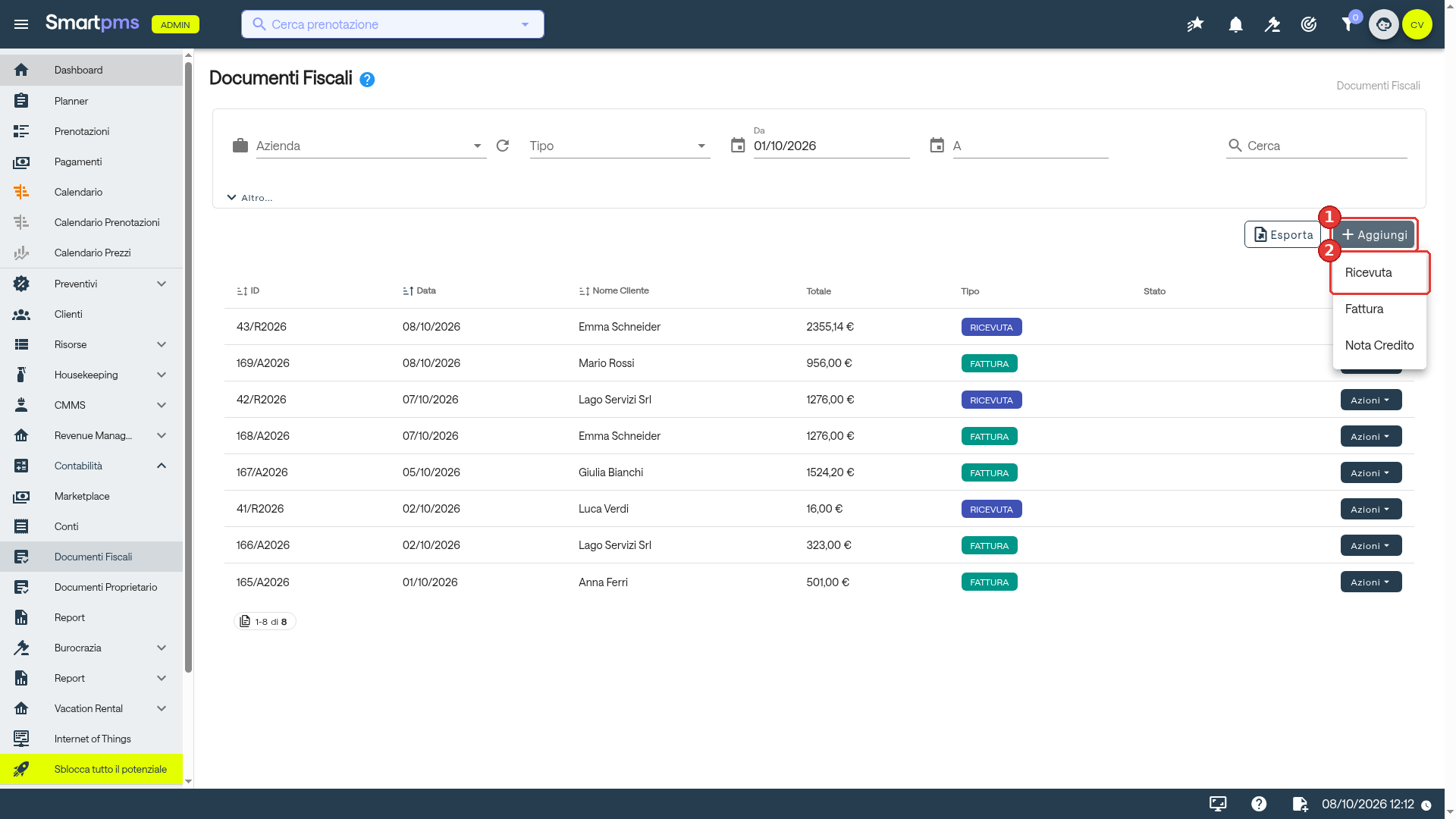
- An empty Create Document screen opens: select the Customer (mandatory), add the lines in the Details tab with the + button, and the payments in the Payments tab with Add.
- Click Send Receipt and confirm with Yes.
The form created from here always starts empty: lines and amounts are copied automatically only when you start from the Receipt button of a bill.
3. Check the Create Document screen
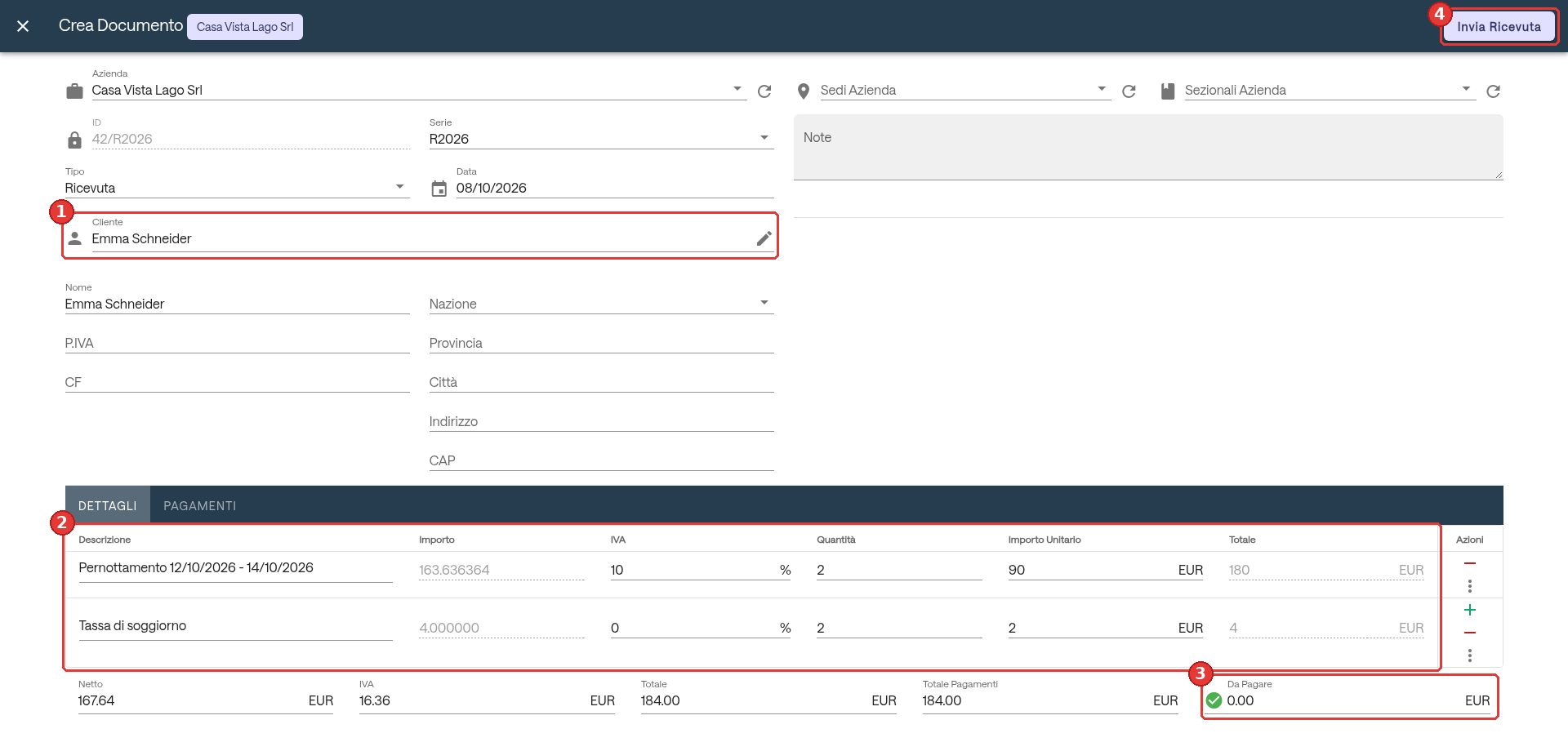
Before sending, check these points:
- Customer: this is the receipt holder. For a receipt, the customer's name is sufficient: the guest's tax code (codice fiscale) is not mandatory and is not transmitted to the Revenue Agency. If you want to address it to another person or company, change the customer before sending (in the bill or in the form).
- Lines (Details tab): for each line, indicate Description, VAT (%), Quantity, and Unit Price (VAT included); Amount (net) and Total are calculated automatically.
- To Pay: must be 0.00 (green icon). If an amount remains to be paid, read step 5.
- Send Receipt: the button in the top right. If you see Create instead, the chosen company is not connected to the Revenue Agency (see the final section "Non-fiscal receipt").
In the left column, you will also find Company and Series (by clicking the company name in the title, you can change the issuing company); on the right, Company Branches, Company Sections, Notes, and, for companies connected to the Revenue Agency, the optional Lottery Code field.
The Revenue Agency rules that SmartPMS checks
For a receipt sent to the Revenue Agency, SmartPMS verifies, before sending:
- Date = today. The fiscal receipt always has the date of the day of issuance: it cannot be backdated or postdated.
- Allowed VAT rates: 0, 4, 10, and 22%. Different rates are rejected.
- Lines at 0% VAT: the property's default VAT exclusion is applied, except for the City tax line, which always receives the N1 nature. Do not modify it unless you need to change it from the default: if you change it on a line, the first item in the list is set instead of the default. Natures and rates are explained in the guide "VAT in fiscal documents".
- Amounts greater than zero. Amount, quantity, and unit price of each line must be positive: no zero lines or negative lines (a discount is not inserted as a negative line, but by reducing the line amount).
- Total equal to paid, unless you activate Send as fully paid (step 5).
4. Enter payments
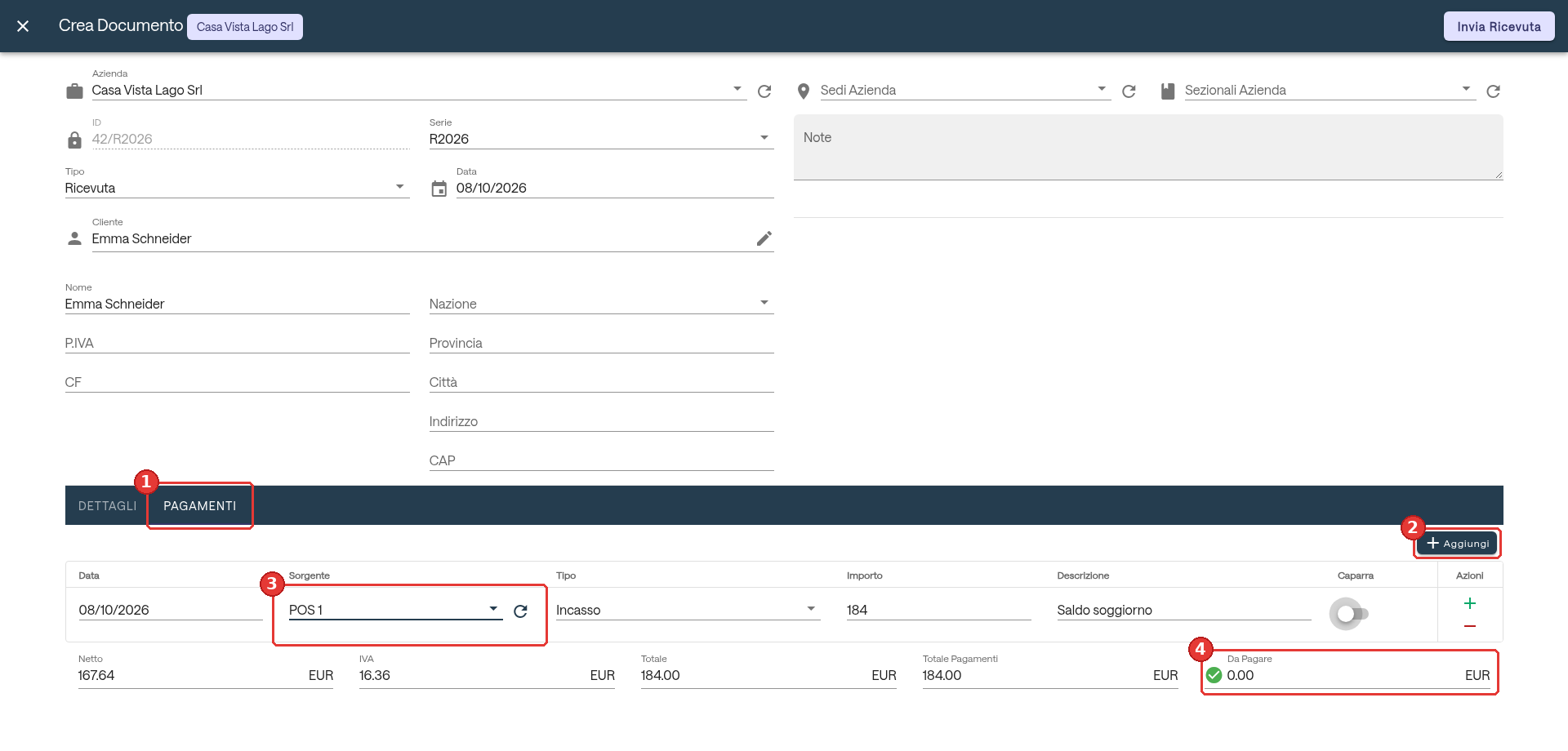
- Open the Payments tab.
- If the payment is not already there (you start from a bill without payments or from Fiscal Documents), click Add.
- Choose the Source of the payment and indicate the Amount. The source decides how the Revenue Agency records the collection: cash as a cash payment, other sources (POS, bank transfer, Smartpay, Stripe…) as an electronic payment.
- Check that To Pay is 0.00.
If the payments exceed the total, To Pay becomes negative and the Send Receipt button remains disabled until you correct the amounts.
5. Deposits and partial payments: "Send as fully paid"
If you confirm a receipt with To Pay greater than zero, the warning "Attention. You are about to send an UNPAID document. The uncollected amount affects the management of receipts." appears in the Send Receipt window, along with the Send as fully paid switch ("Set as fully paid with electronic instruments").
- Switch off: the submission is rejected with the error "The amount must equal the paid amount".
- Switch on: the missing amount is declared to the Revenue Agency as collected via electronic instruments. Activate it only if the entire amount has actually been collected.
For a deposit, you have two paths:
- issue the receipt only for the collected amount with a partial bill, then a balance bill for the rest (see the guide "Bills: how to prepare invoices and receipts");
- or issue a single final receipt at the balance.
6. Verify that the receipt has arrived
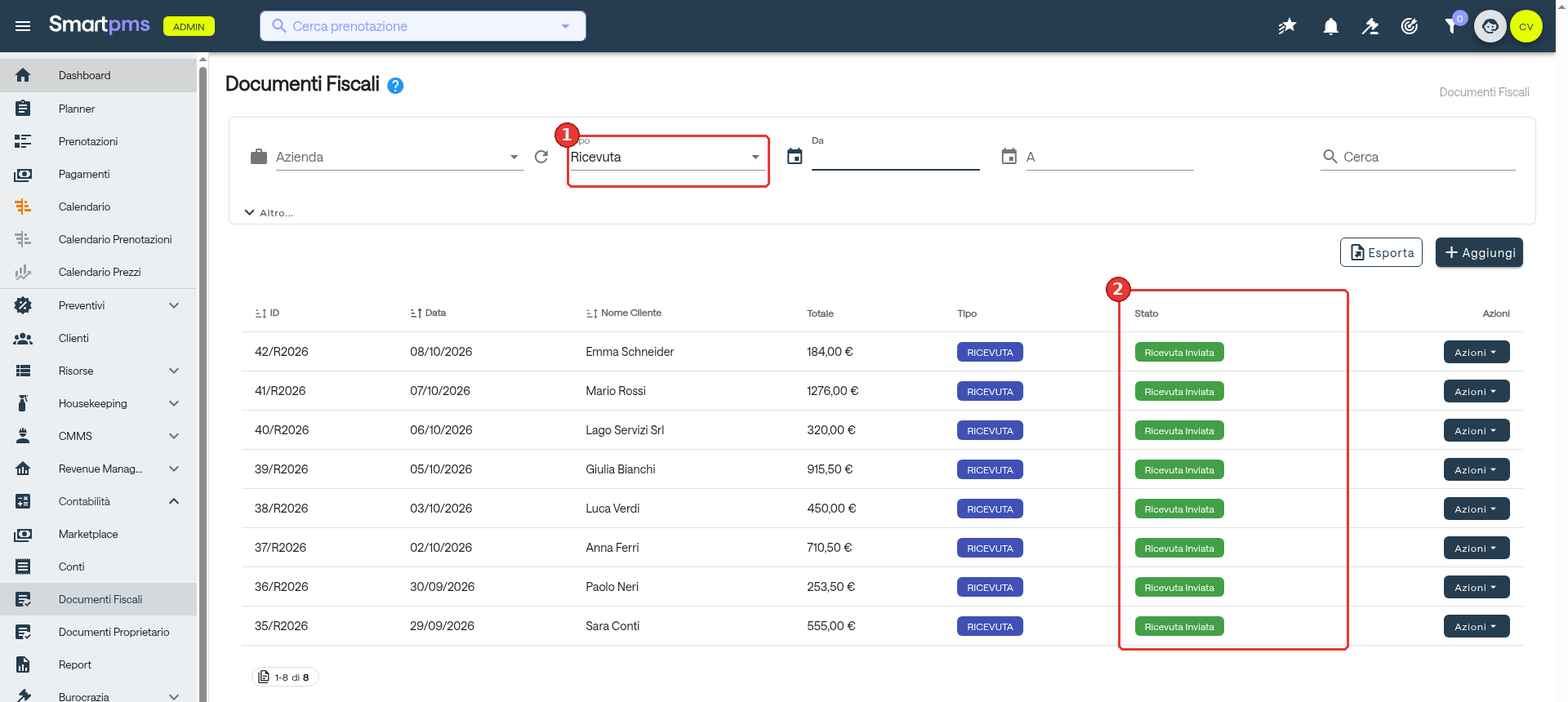
- Go to Accounting → Fiscal Documents (or the Accounting tab of the booking) and, if you want, filter Type = Receipt.
- Look at the Status column:
- Receipt Sent (green): the Revenue Agency has accepted the receipt;
- Error (red): the submission was not successful;
- Receipt Cancelled / Cancellation Sent: the receipt has been cancelled (see the guide "Correcting an already issued invoice or receipt");
- no status: the receipt is non-fiscal (created with Create) and has not been transmitted.
- By opening a sent receipt (Actions → Edit), you will find the Revenue Agency No. field, with the number that the Agency has assigned to the commercial document. It is different from the receipt number in SmartPMS: the reason is explained in the guide "Accounting series: how to number invoices, receipts, and bills".
A sent receipt can no longer be modified or deleted ("You cannot delete or modify a sent receipt"): to correct it, a cancellation is required (guide "Correcting an already issued invoice or receipt").
To check the receipt also on the Revenue Agency website (Invoices and receipts → Online Commercial Document → Visualization), follow the "Check receipts on the Revenue Agency website" section of the guide "How to connect SmartPMS to the Revenue Agency for sending receipts". The other functions in the list (filters, PDF, email sending, export) are in the guide "Fiscal documents and Receipt Register: searching, exporting, printing, and sending by email".
If the submission is not successful
If the Revenue Agency rejects the submission, an error message appears upon confirmation and the receipt is not saved. Correct the cause and then create the receipt again (from the bill or from Fiscal Documents).
- Credential or fiscal data errors (PASSWORD_EXPIRED, AUTH_ERROR, FAILED_LOGIN_ATTEMPTS, INVALID FISCAL IDENTIFIERS, EF0 'Denomination', error 503): causes and solutions are in the "Common errors" table of the guide "How to connect SmartPMS to the Revenue Agency for sending receipts".
- "Incomplete company data": complete the company data as indicated in the guide "Configuring the company to issue invoices and receipts in Italy".
- "The amount must equal the paid amount": see step 5.
Receipt for City tax only
- With the connection to the Revenue Agency active, even a Receipt that contains only the City tax line is sent to the Agency (the line has 0% VAT). There is no option to issue a receipt without sending it.
- If you need a non-fiscal receipt for the tax, issue a Bill with only the City tax line: it is a non-fiscal document, it is printed or sent to the guest and is never transmitted. For the stay, issue the fiscal receipt instead. Before adopting this solution, verify with your accountant or the Municipality that the bill is accepted as a receipt.
- How to prepare a bill with only the tax (partial bill) is in the guide "Bills: how to prepare invoices and receipts"; how the tax amount is calculated is in the guide "Configuring the City tax and calculation methods in Self Check-in".
Non-fiscal receipt (company not connected to the Revenue Agency)
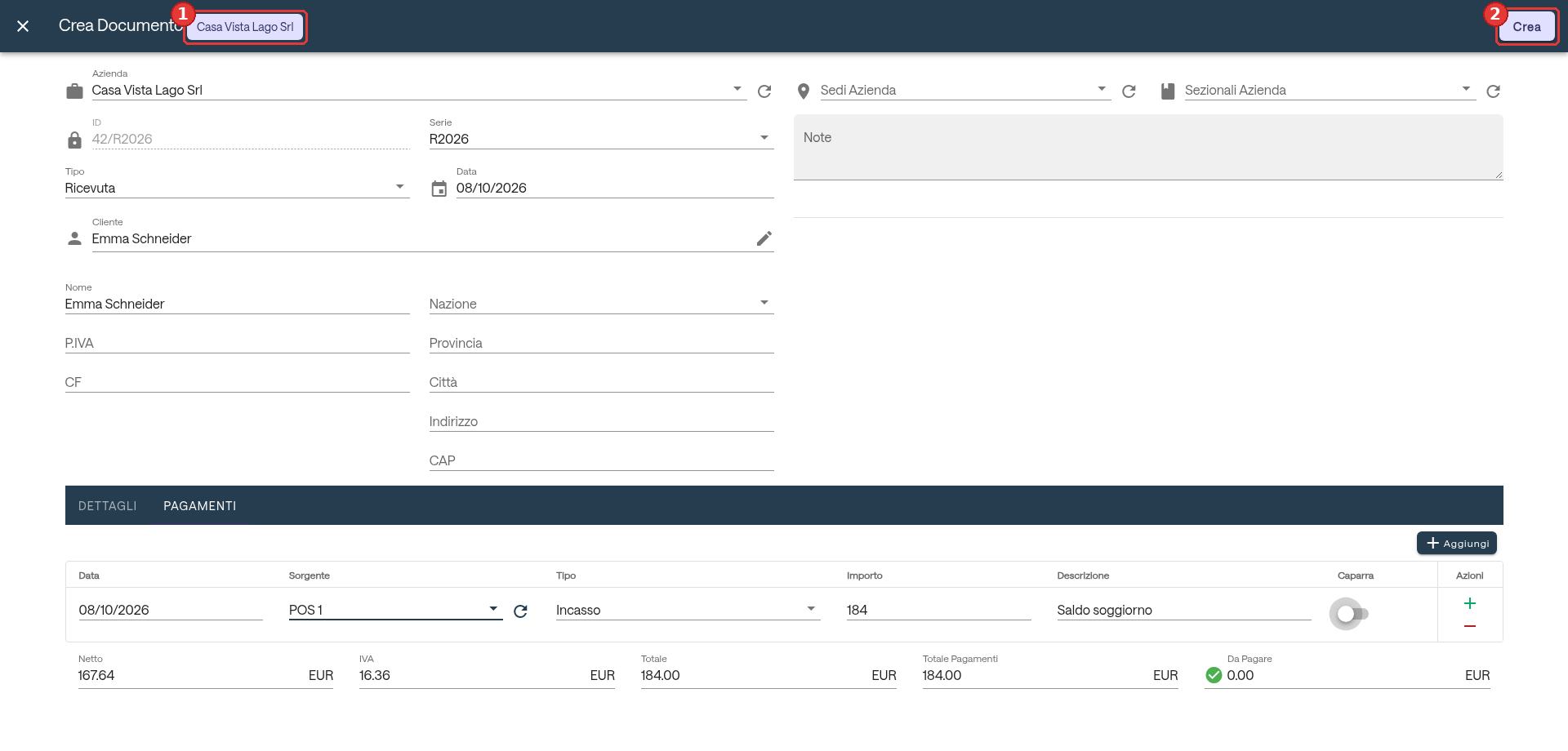
If the issuing company does not have Fisconline/Entratel credentials, the path is the same (from the bill or from Fiscal Documents) but:
- in the screen title, you see the name of the issuing company: check that it is the right one (by clicking it, you can change it);
- in the top right, the button is called Create: the receipt is saved without a submission window, without a Lottery Code field, and remains in SmartPMS without status.
If you need a fiscal receipt, first complete the connection of the company to the Revenue Agency and then issue the receipt.
Frequently asked questions
10The receipt is not sent and a Revenue Agency error appears (PASSWORD_EXPIRED, AUTH_ERROR, INVALID FISCAL IDENTIFIERS, EF0, 503): what should I do?
These are errors returned by the Revenue Agency, almost always related to Fisconline/Entratel credentials (password expired every 90 days, incorrect PIN or password, too many attempts) or the company's fiscal data. Causes and solutions are in the "Common errors" table of the guide "How to connect SmartPMS to the Revenue Agency for sending receipts".
When the submission is rejected, the receipt is not saved: after correcting the cause, create the receipt again, from the account or from Accounting → Fiscal Documents.
If the error is "Incomplete company data", complete the company data as indicated in the guide "Configuring the company to issue invoices and receipts in Italy".
Are receipts generated and sent automatically for every booking?
No. SmartPMS does not create receipts automatically, neither at booking nor at check-out: you issue every receipt yourself, from the Receipt button of the account (booking Accounting tab or Accounting → Accounts) or from Accounting → Fiscal Documents → Add → Receipt.
The only automatic step is the submission: when you confirm Send Receipt, SmartPMS immediately transmits the receipt to the Revenue Agency. There is no draft receipt to be sent later.
It asks for the guest's tax code to issue the receipt: is it mandatory?
No. For receipts, the customer's tax code is not mandatory and is not transmitted to the Revenue Agency: the customer's name is enough. The tax code is needed for invoices to Italian private individuals (see the guide "How to issue an electronic invoice and send it to the SDI").
If the tax code field still appears in red on a receipt and blocks the submission, contact support indicating the booking or the account.
The receipt comes out empty, without the account lines and amounts: why?
Lines, customer, and payments are copied into the receipt only when you create it from the Receipt button of the account (Convert column, in the booking Accounting tab or in Accounting → Accounts). If you create it from Accounting → Fiscal Documents → Add → Receipt, the form starts empty and lines and payments must be entered manually.
If the receipt comes out empty even starting from the Receipt button of the account, close the screen without sending, clear the browser cache, and try again; if the problem persists, contact support.
How do I verify that the receipt has reached the Revenue Agency and where do I find the number it gave it?
In SmartPMS:
- Go to Accounting → Fiscal Documents (or the booking Accounting tab): the accepted receipt has the green status Receipt Sent.
- Open the receipt with Actions → Edit: in the Revenue Agency No. field, you will find the number assigned by the Agency to the commercial document.
That number is different from the receipt number in SmartPMS and this is normal: the reason is explained in the guide "Accounting series: how to number invoices, receipts, and accounts". To check the receipt also on the Agency's website, follow the "Check receipts on the Revenue Agency website" section of the guide "How to connect SmartPMS to the Revenue Agency for sending receipts".
Can I issue a receipt with yesterday's date (or another day)?
No. The fiscal receipt (online commercial document) always has the date of the day you issue it: for receipts sent to the Revenue Agency, SmartPMS does not accept dates other than today. Issue the receipt with today's date.
Who is the receipt addressed to? Can I address it to a company or another person?
The receipt is addressed to the Customer chosen in the document (or in the account you start from), not automatically to the booking name. To address it to another person or company, change the customer in the account before clicking Receipt, or in the Customer field of the Create Document screen, before sending: after sending, the receipt can no longer be modified.
Can I make a receipt only for the City tax without sending it to the Revenue Agency?
With the connection to the Revenue Agency active, every Receipt is sent, even if it contains only the City tax line. If you need a non-fiscal receipt for the tax, issue an Account with only the tax line: it is a non-fiscal document, you can print it or send it to the guest and it is never transmitted. For the stay, issue the fiscal receipt.
How to prepare the account with only the tax is explained in the guide "Accounts: how to prepare invoices and receipts". Before adopting this solution, verify with your accountant or the Municipality that the account is accepted as a receipt.
Related guides
Activation
Configuration
Configuration
Configuration
Configuration
Configuration