

Bills: how to prepare invoices and receipts
How to prepare the bill from which to issue a receipt or an invoice in SmartPMS: single bill from the booking, partial bill for deposit, down payment or city tax only, balance bill, multiple bill for multiple rooms or bookings, splitting between two payers, payments, Amount to Pay, discounts and checking collections in the CashFlow.
You are in the right place if…23 cases
- “How do I create a single invoice for three rooms for the same customer?”
- “I want to make a single receipt for two bookings”
- “How do I create a bill from the booking?”
- “How do I issue a receipt only for the deposit or the down payment?”
- “Receipt only for the city tax without the total stay”
- “I need to make two invoices to two different companies for the same booking”
- “Split a room bill into two receipts”
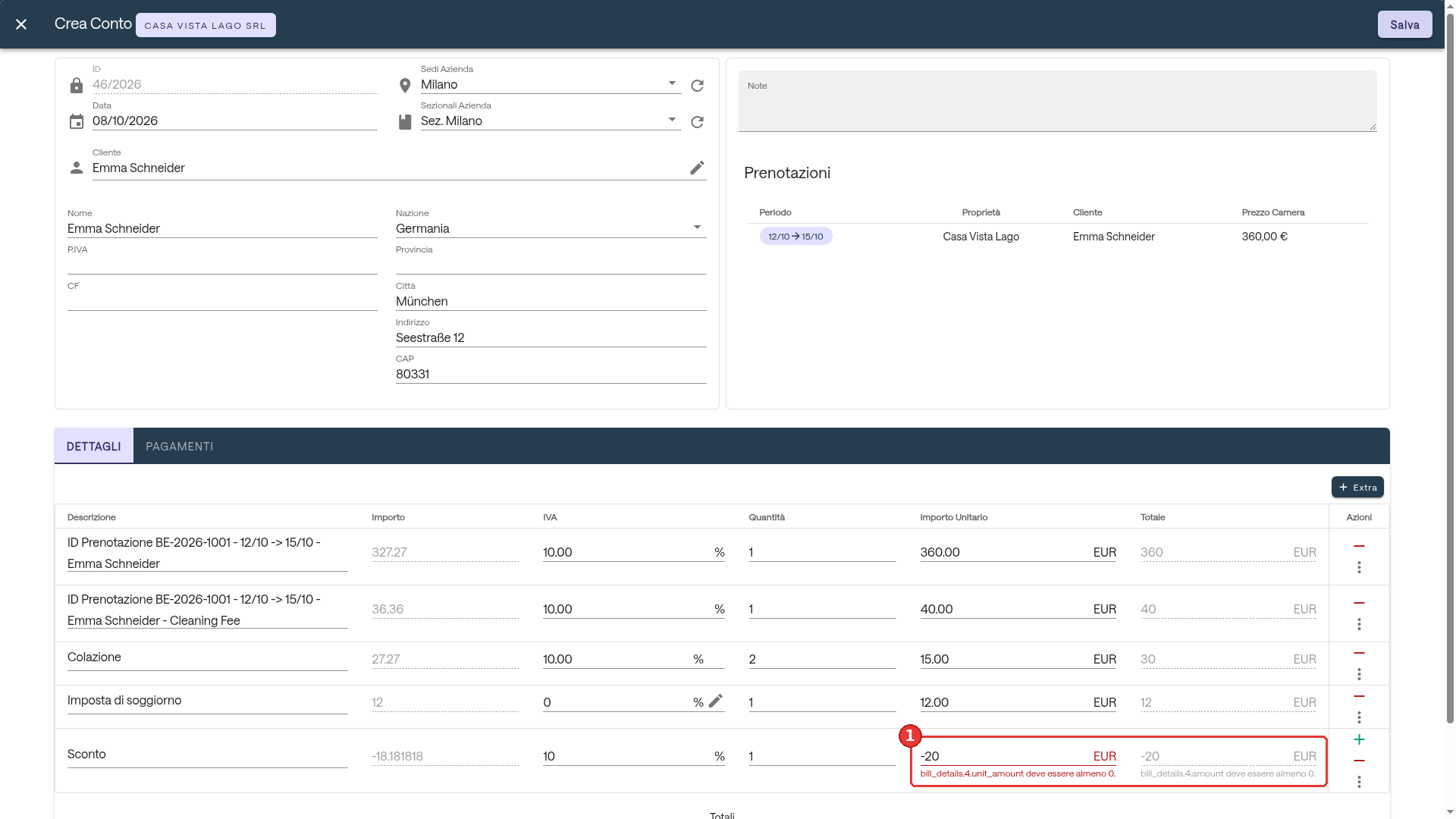
- “I cannot apply a discount, the negative row gives an error”
- “bill_details.4.unit_amount must be at least 0.”
- “I recorded a payment but it does not appear in the bill”
- “The multiple bill is settled but the bookings show as to pay”
- “In the multiple bill, the room price is negative”
- “I have already made the single bills, how do I combine them into a single invoice?”
- “In the balance receipt, the city tax is full again”
- “I cannot delete a payment, it says it is fiscalized”
- “Do I have to go through the bill to issue an invoice or receipt?”
- “The invoice is paid but the booking still has a balance to pay”
- “How do I make an invoice without a booking?”
- “I need to make an invoice for a customer who does not have a booking”
- “I want to issue a receipt for a service sold without a stay”
- “Free invoice from Fiscal Documents without a bill”
- “Why do bookings appear as "To be paid" even though the split bill is settled?”
- “Guide to creating a split bill”
The bill is the preparation document from which you issue a receipt or an invoice. It is not a fiscal document: it is never transmitted to the Revenue Agency (Agenzia delle Entrate) nor to the SDI. You use it to decide what to document (rows and amounts), to whom to address it (customer), and which collections to link (payments). When the bill is ready, you can convert it into a Receipt or Invoice with one click.
In this guide, you will find how to create a single bill, a partial bill (deposit, down payment, city tax only), the balance bill, a multiple bill for several rooms or bookings, and how to manage payments, the To Pay balance, and CashFlow.
How the bill works
- One bill, one document. From one bill, you issue only one fiscal document, either a receipt or an invoice. If you try to create a second one from the same bill, you will receive the message "You cannot create two documents from the same bill".
- The bill copies data at the time of creation. Rows and payments are taken from the booking when you create the bill: if you subsequently modify the booking or record a new payment, the already created bill does not update automatically.
- Booking, bill, and document payments are distinct records. Upon bill creation, booking payments are copied into the bill; the document inherits the bill's payments. A payment indicated only in the bill or only in the document does not appear in the Payments tab of the booking.
- Fiscalized payment. When a booking payment is imported into a bill or a document, it is marked as fiscalized: it cannot be imported again into another bill and cannot be deleted.
- To Pay of the bill = Total − Total Payments. When it is 0.00, the bill is considered paid.
Before you start
- Subscription with the Accounting module active and a user with permissions to view and create bills; to issue documents, you also need the permission to create fiscal documents (without it, the Receipt and Invoice buttons will not appear).
- Company with at least one Bill series (without a series, the bill number remains empty and Save will not activate) and with the Receipt and Invoice series to issue documents. Include the year in the series code (e.g., A2026, R2026): with codes without a year, when the numbering restarts, the Revenue Agency will reject the invoice as a duplicate. The initial configuration is performed by the Onboarding Specialist; details are in the guide "Accounting series: how to number invoices, receipts, and bills".
- At least one booking: the bill is always created starting from one or more bookings. For a document without a booking, use Accounting > Fiscal Documents > Add.
- Company data (master data, locations, tax regime): see the guide "Configuring the company to issue invoices and receipts in Italy".
1. Where to find bills
- Accounting > Bills: the list of all company bills, with filters for Company, Status, From, To, and Search. The From filter starts from today's date: to see older bills, clear it with the x or choose a previous date. The filter for sectionals is in Other... (see the guide "Company sectionals: splitting bills and fiscal documents by structure or department").
- Booking > Accounting: the bills and fiscal documents for that booking.
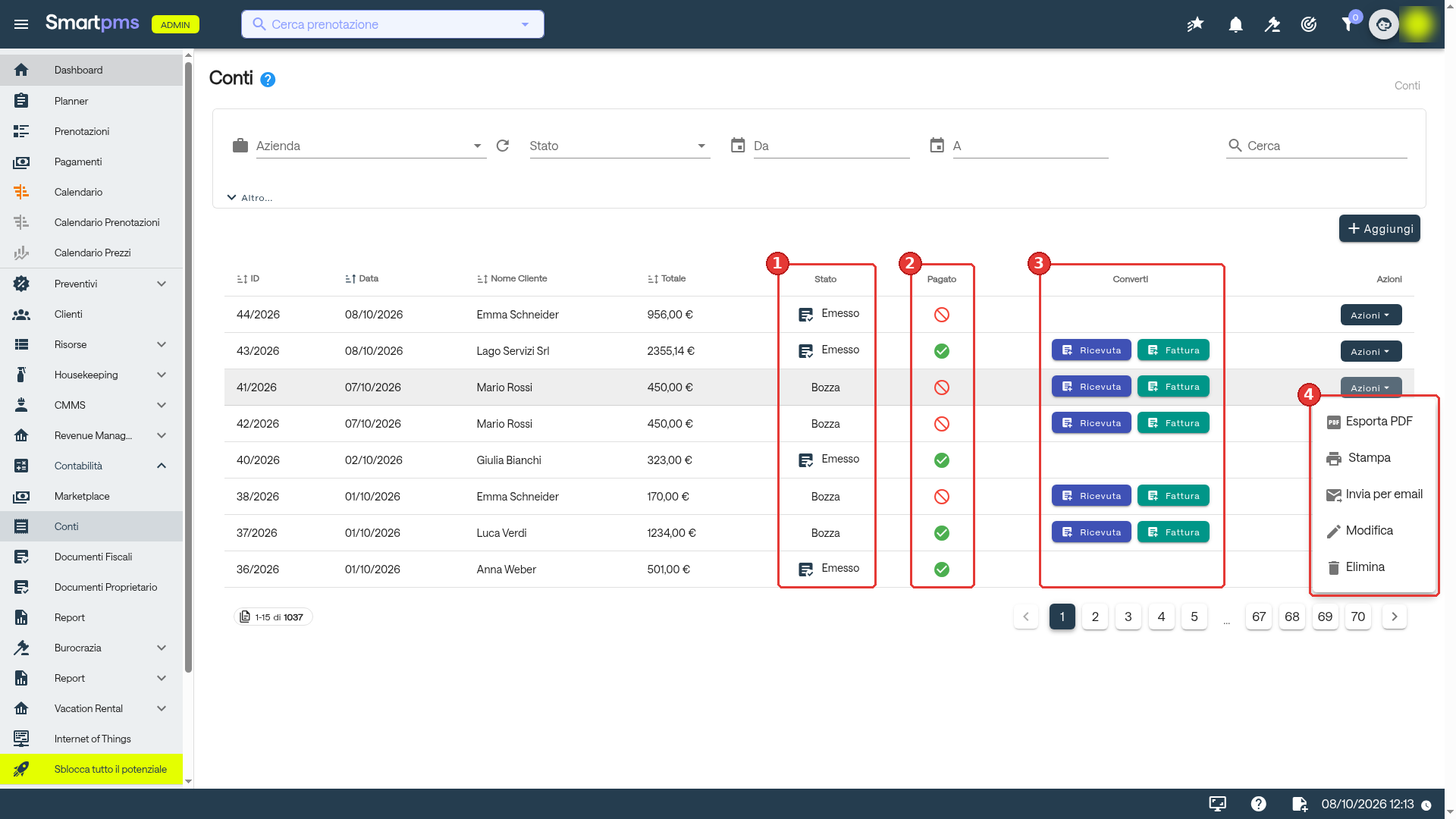
In the list, for each bill, you will find:
- Status: Draft if no document has been issued from the bill yet, Issued if there are linked documents (click the icon next to it to open Linked Documents).
- Paid: green checkmark if To Pay is 0, red symbol if there is still an amount to collect.
- Convert: the Receipt and Invoice buttons to issue the document from the bill. They disappear when the bill already has a valid document.
- Actions: Export PDF, Print, Send by email, Edit, and Delete. A bill from which you have already issued a document cannot be deleted ("You cannot delete a bill with documents"), but it remains editable: changes to the bill do not change the already issued document.
2. Create a single bill from a booking
This is the most common case: one bill for the entire booking, addressed to the guest or a company.
- Open the booking and go to the Accounting tab.
- In the Bills section, click + Add.
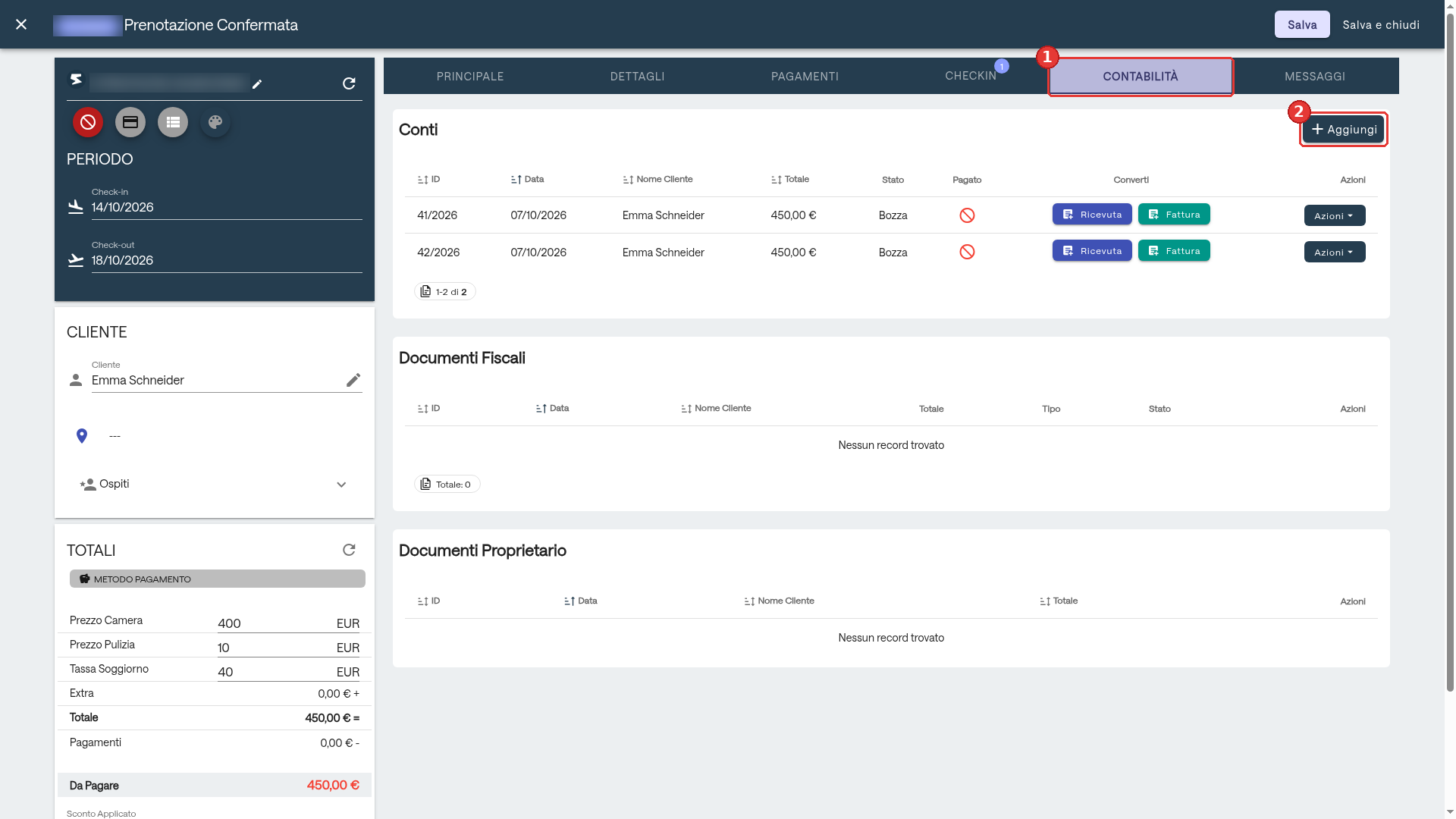
Expected result: the Create Bill page opens full-screen, with the company name in the title and the customer, booking, rows, and payments already filled in.
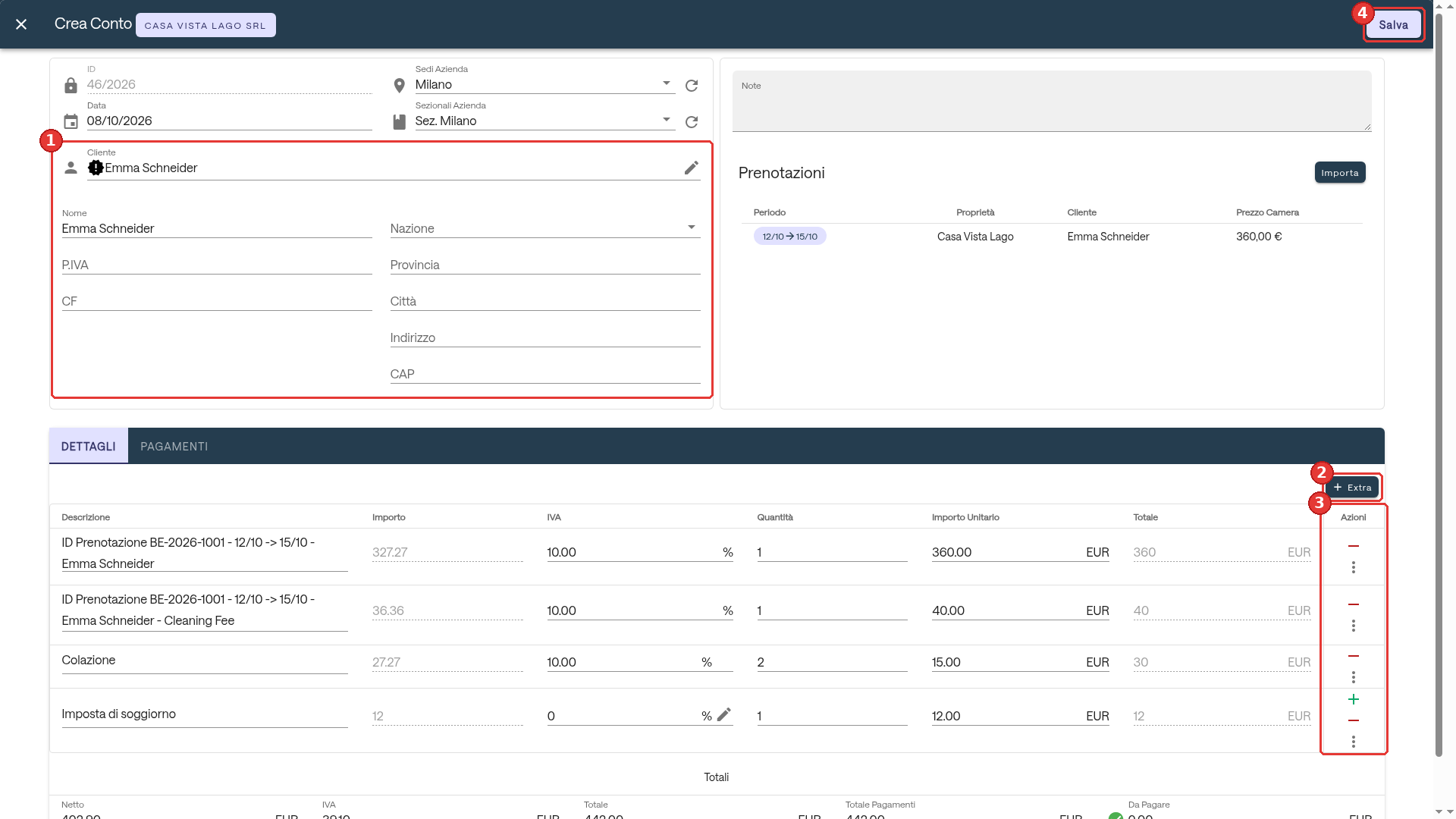
- Check the header: ID (bill number and series, proposed automatically), Date, Company Locations, Company Sectionals, Customer, and customer data (Name, VAT ID, Tax Code, Country, Province, City, Address, ZIP), Notes. To address the bill to another person or company, change the Customer (search by name by typing at least 3 letters): the data to indicate for individuals, companies, and entities is in the guide "How to issue an electronic invoice and send it to the SDI". ID field and "invalid" number: guide "Accounting series: how to number invoices, receipts, and bills"; Company Sectionals field: guide "Company sectionals: splitting bills and fiscal documents by structure or department".
- Check the Details tab: SmartPMS automatically creates a row for the stay ("Booking ID … - dd/mm -> dd/mm - guest name"), cleaning fees, every extra, and the City tax row with the booking's tax amount. For each row, you will find Description, Amount (net, calculated), VAT (%), Quantity, Unit Amount (VAT included), and Total.
- To add a property extra, use the Extra button at the top right.
- In the Actions column: + adds a row, − removes it, ⋮ opens the row detail.
- On rows with 0% VAT, the VAT Exclusion pencil appears: rates and natures are explained in the guide "VAT in fiscal documents".
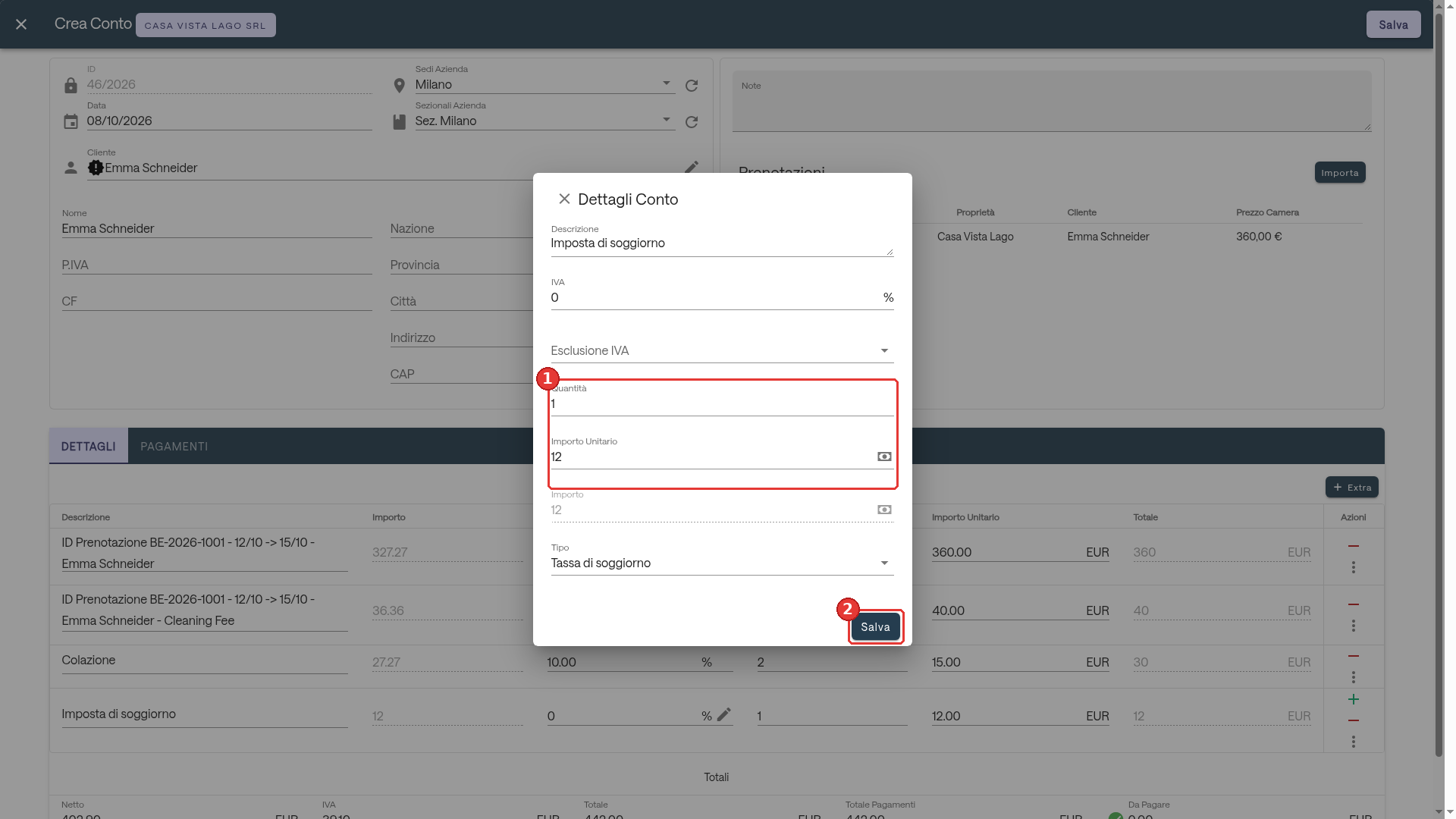
- If you want to edit a row more conveniently, click ⋮: the Bill Details window opens with Description, VAT, VAT Exclusion, Quantity, Unit Amount, Amount, and Type. Modify the values and confirm with Save in the window.
- Check the Payments tab (see chapter 3) and the Totals bar at the bottom: Net, VAT, Total, Total Payments, and To Pay.
- Click Save at the top right.
Expected result: the bill appears in the Bills section of the booking and in Accounting > Bills with Draft status; if To Pay is 0, the Paid column shows the green checkmark.
- To issue the document, click Receipt or Invoice in the Convert column (chapter 8).
The city tax amount in the bill row is the one from the booking at the time of creation. If it is incorrect, correct it in the booking before creating the bill, as explained in the guide "Configuring city tax and calculation methods in Self Check-in".
3. Payments in the bill
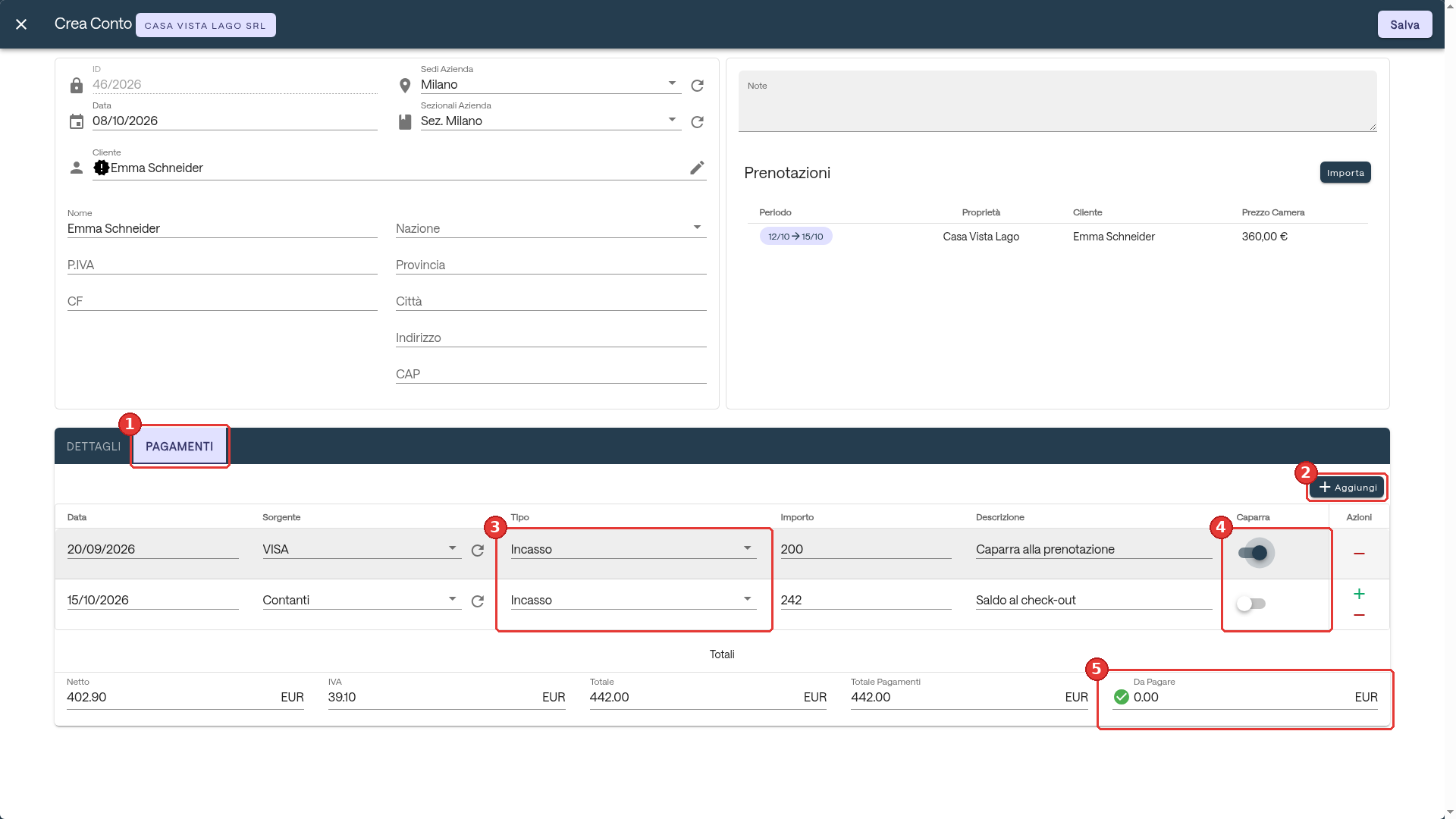
- Open the Payments tab of the bill.
- Upon creation, you will find the booking payments that have not yet been fiscalized already imported, with manual or successful status. Payments recorded as Security Deposit ("Flow related to a security deposit. It cannot be imported into bills.") or Customer Deposit ("Flow held by the reception on behalf of the customer. It cannot be imported into bills.") are not imported.
- To record a collection only in the bill, click Add: fill in Date, Source, Type (Collection or Refund), Amount, and Description.
- Activate Deposit if the collection occurred before the fiscal document (down payment or advance).
- Check To Pay in the Totals: at 0.00, the bill is considered paid.
Things to know:
- If you modify a payment imported from the booking, the warning "You are modifying an imported payment" appears.
- Payment recorded after creating the bill: it does not enter the bill automatically. Open the bill from Accounting > Bills > Actions > Edit, Payments tab, and add it with Add. There is no need to delete and recreate the bill.
- Refund: in the bill, add a row with Type = Refund, which reduces the Total Payments. On the booking, the refund is recorded from the Payments tab (menu ⋮ of the payment > Refund). If the refund concerns an already issued document, see the guide "Correcting an already issued invoice or receipt".
- Deposits: record them in the booking as Security Deposit (Booking > Payments > Add, Create Payment window). This way, they do not enter the bill or the fiscal document.
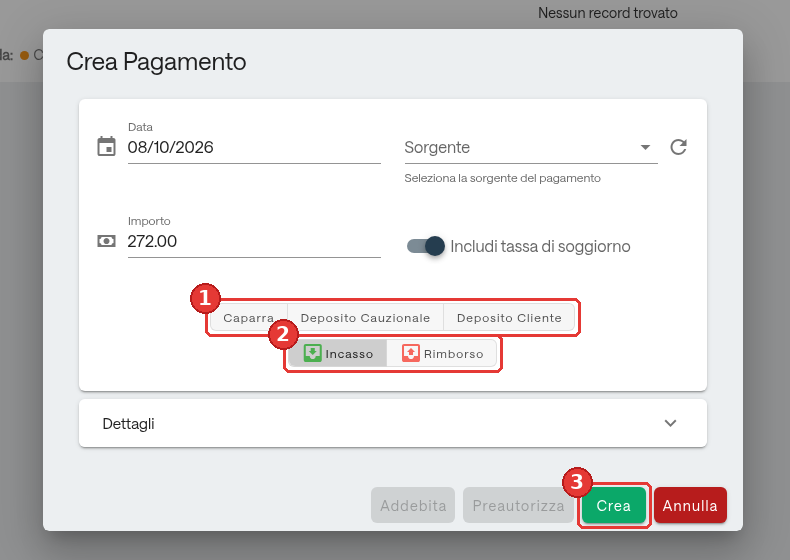
4. Partial bill: advance, deposit, city tax only, or a single extra
Use a partial bill when you want to document only a part of the booking, for example, the deposit collected at the time of booking or just the city tax.
- Booking > Accounting > + Add.
- In the Details tab, keep only what you want to document:
- Deposit or advance: keep the stay row and reduce the Unit Amount to the collected amount (e.g., 150.00 out of 600.00); remove the other rows with −.
- City tax only: keep only the City tax row and remove the others.
- Only an extra added after the first document: keep only the extra row.
- In the Payments tab, keep only the collection that corresponds to this document and remove the others with −. If it is a deposit, activate Deposit.
- Check that To Pay is 0.00 and click Save.
- Issue the document from Convert. The rules for the receipt (date, amounts, unpaid document warning, and Send as fully paid switch) are in the guide "How to issue a fiscal receipt and send it to the Revenue Agency".
The balance bill
When the guest pays the remainder, create a new bill on the same booking (Accounting > + Add).
- The stay amount already documented in previous bills is automatically deducted.
- City tax, cleaning fees, and extras are not deducted: if you had already included them in the first bill, remove them or reduce the amount before saving. Always check the City tax row: only the residue yet to be documented should be left.
- Payments already used in the first bill are fiscalized and are not imported again; those recorded afterwards are. Check the Payments tab anyway before saving.
5. Multiple bill: one invoice or receipt for multiple rooms or bookings
Use the multiple bill when you want a single document for multiple bookings of the same customer, even on different dates (e.g., a company booking three rooms).
- Go to Accounting > Bills and click + Add.
- Choose the Customer (the company or group leader). The Import button activates only after choosing the customer.
- In the Bookings box, on the right, click Import.
- In the Import window, search for bookings with the From, To, Source, Status, and Search filters (pre-filled with the customer's name: clear it if the bookings are addressed to different names) and with No. Items. The From filter starts from the first day of the current month: for previous bookings, change the date.
- Check the bookings (the box in the header selects them all) and confirm with the green Import button.
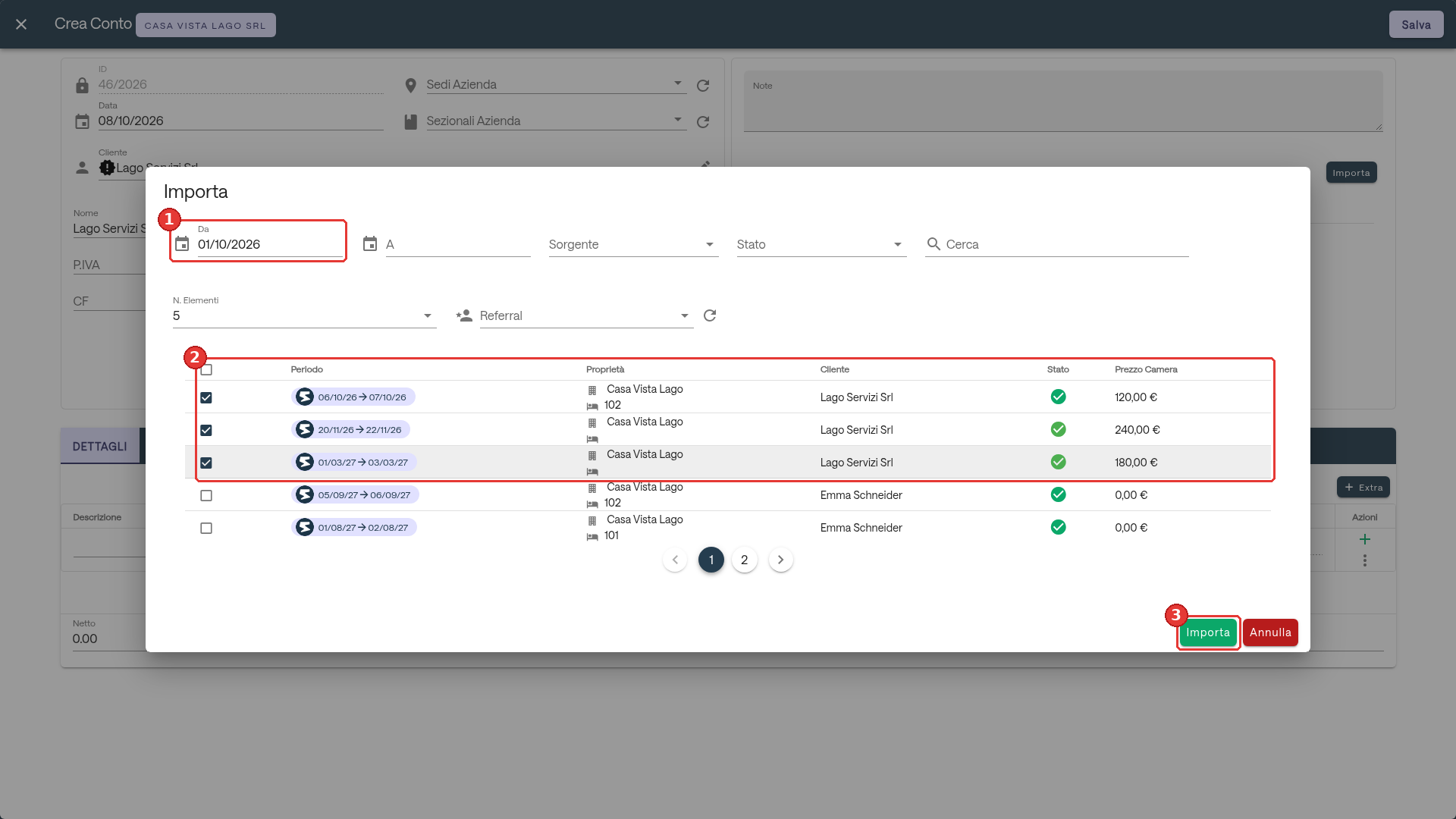
- Check the Details tab (one stay row for each booking, plus cleaning, extras, and a single City tax row with the tax of all bookings) and the Payments tab (imported from all bookings).
- Click Save, then Convert > Receipt or Invoice.
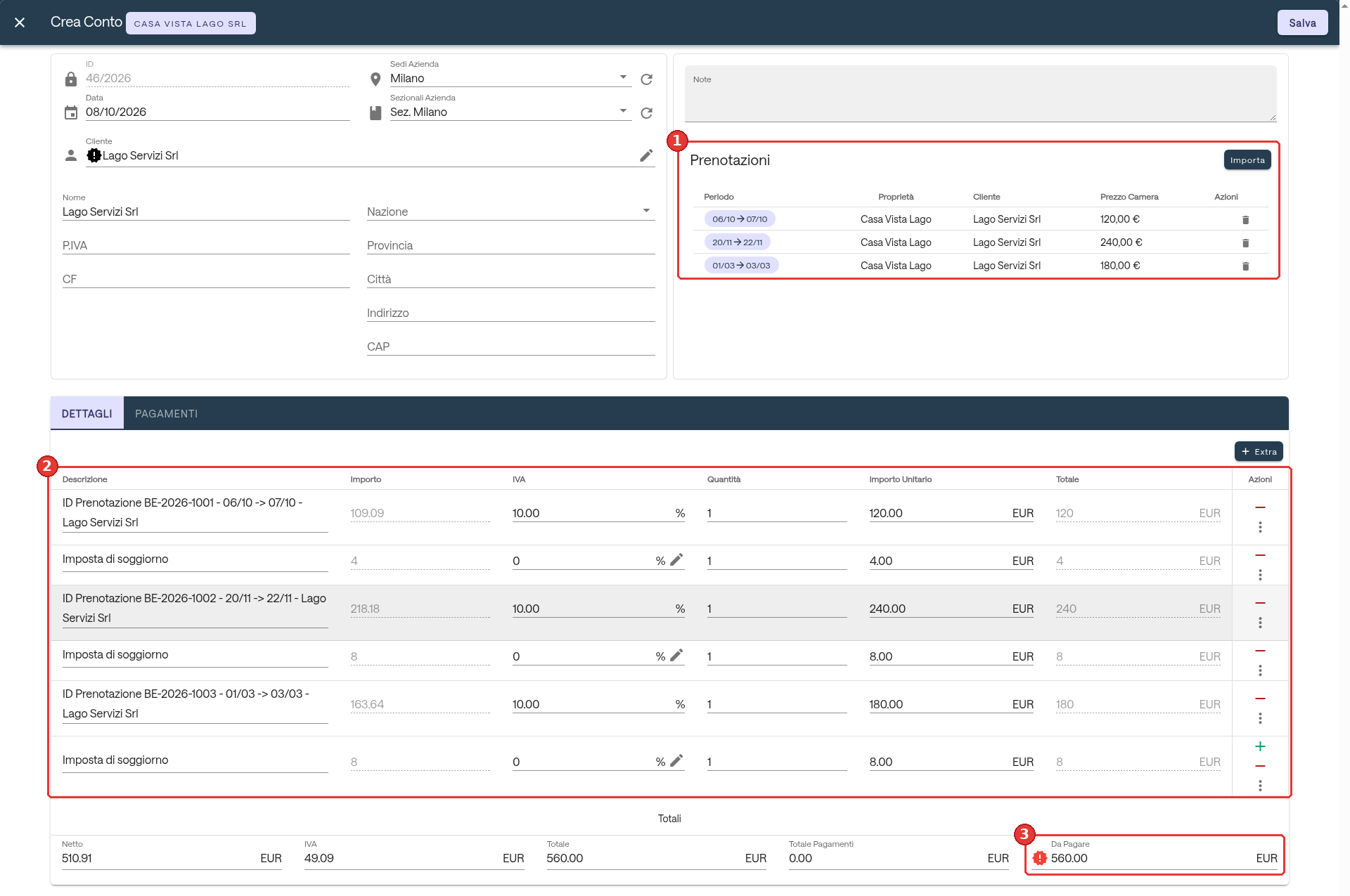
To add other bookings to an already saved bill: Accounting > Bills > Actions > Edit > Import. Only rows and payments from new bookings are imported. With the trash icon in the Bookings box, remove a booking and its rows.
From the Accounting tab of a single booking, the Import button is not there: the multiple bill is created from Accounting > Bills.
If the rooms are part of a group booking, you can also open the group booking and, in the Accounting tab, click + Add: the bill is pre-filled with all the rooms in the group.
Two important rules:
- Create the multiple bill directly. If you first create single bills on the same bookings, the multiple bill deducts the already documented stay and shows unexpected amounts or negative room prices. If the single bills do not have documents, delete them (Actions > Delete) and then create the multiple bill.
- Record payments in individual bookings before creating the multiple bill. This way, each booking is paid and the bill imports them all. If, instead, you enter the collection in the Payments tab of the multiple bill before the first save, SmartPMS reports it on the bookings as "Imported from bill", divided in proportion to how much each still has To pay at that moment; if the tax or prices of the bookings do not match the bill rows, or you modify them later, small residues or surpluses remain. A collection added later, with Actions > Edit, remains only in the bill and the bookings continue to appear as To Pay.
6. Splitting a booking between two payers or into two receipts
To invoice the same booking to two companies, or split a room bill into two receipts, create two partial bills:
- First bill: Booking > Accounting > + Add. Address the bill to the first person or company, leave its share in the Details (reduce the Unit Amount or remove rows) and its collection in the Payments. Save and issue the document.
- Second bill: + Add again. The already documented stay is deducted; address the bill to the second person or company and remove tax, cleaning, or extras already included in the first bill. Check payments, save, and issue.
7. Discounts and rounding: no negative rows
The bill does not accept rows with a negative amount. If you enter a "Discount" row at -20.00 and save, the save is blocked with "Validation error" and below the row appears "bill_details.4.unit_amount must be at least 0." (the number indicates the row position).
To apply a discount:
- reduce the Unit Amount of the stay row (or another row) by the discount amount;
- or correct the Room Price in the booking before creating the bill;
- if you want the discount to be read in the document, indicate it in the Description of the row (e.g., "… - 20 € discount applied").
Rows at 0 € are also not allowed, for example, a purely descriptive row "Discount" or "Free stay": in the invoice and receipt, there is no discount row, so the discount is always applied by reducing the amount of a row.
8. From bill to receipt or invoice
- In the Convert column of the bill (in the booking or in Accounting > Bills), click Receipt or Invoice.
- The document opens with the customer, rows, and payments of the bill: check it and complete the issuance.
How to proceed:
- Receipt: guide "How to issue a fiscal receipt and send it to the Revenue Agency".
- Invoice: guide "How to issue an electronic invoice and send it to the SDI".
- Correcting an already issued document (credit note, receipt cancellation) and what happens to the bill: guide "Correcting an already issued invoice or receipt".
If you want to document only the amount actually collected (for example, the receipt of a successful online payment), prepare a partial bill (chapter 4).
You can issue a document even without a bill, from Accounting > Fiscal Documents > Add: in that case, rows and payments must be entered manually.
9. Checking collections in the Payments CashFlow
the Payments CashFlow report shows you what each collection is linked to: useful for understanding which payments are already documented and which are not.
- Go to Accounting > Report > Payments CashFlow.
- Choose Companies, From, and To and click Apply (with Export you download the list).
- With Other... open additional filters: Deposit, Security Deposit, Customer Deposit, Fiscalized, Debit/Credit, Sources, and Property.
- Read the Associated To and Associated Ref columns:
- Bookings: payment recorded on the booking;
- Bill: payment recorded in the bill;
- Document: payment recorded in the fiscal document (the Type column indicates Receipt or Invoice).
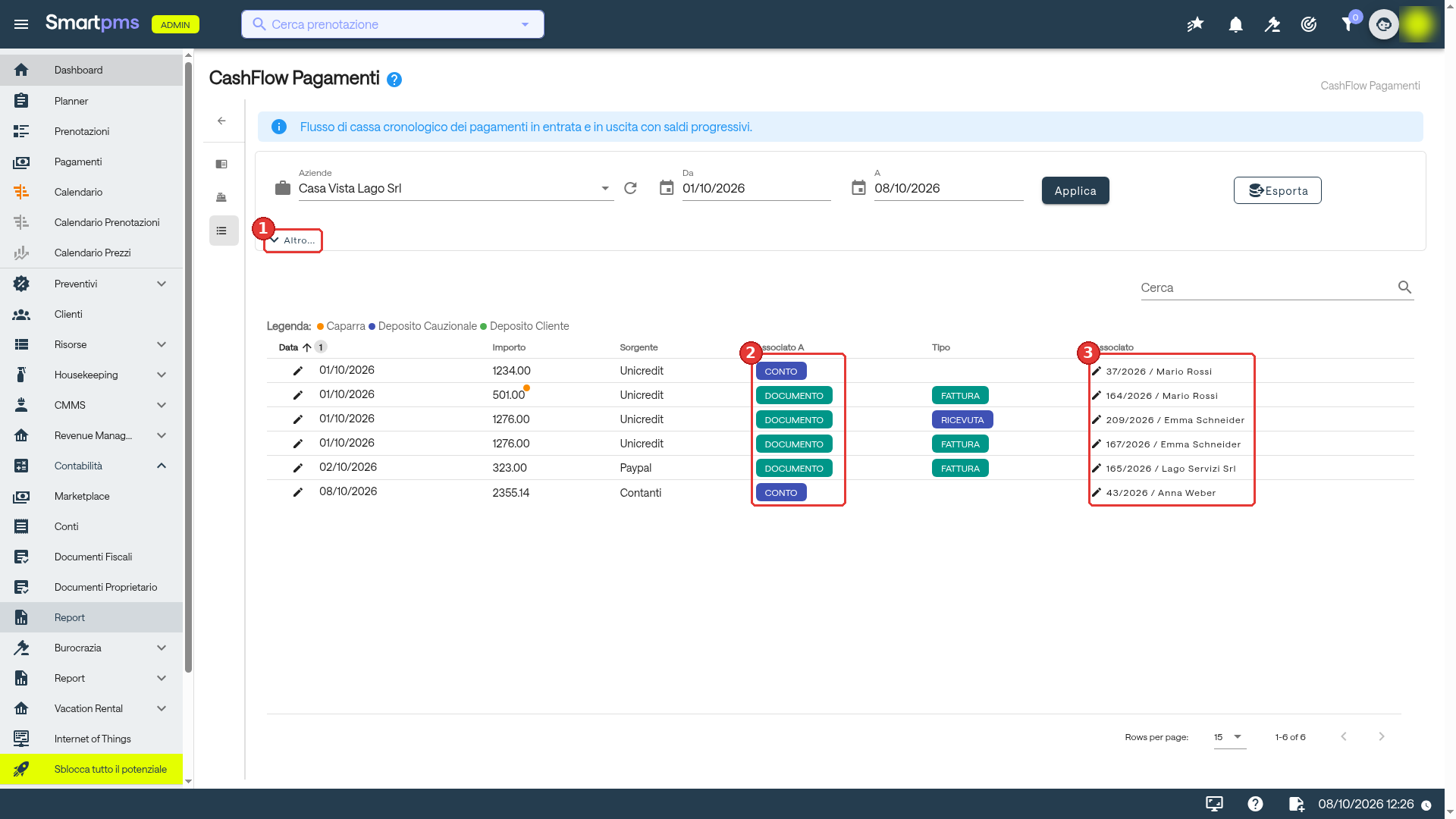
By clicking the reference in Associated Ref, you open the booking, bill, or document. To find booking collections not yet documented, use the Fiscalized filter.
To find unpaid stays, instead, use the Bookings list with the payment status filter (Unpaid / Partially paid): the booking balance depends on the payments recorded on the booking, not those of the bill.
Frequently asked questions
13How do I create a single invoice (or receipt) for multiple rooms or multiple bookings for the same guest?
You need a multiple bill:
- Go to Accounting > Bills and click + Add.
- Choose the Customer (company or group leader).
- In the Bookings section, click Import, search for the bookings (the From filter starts from the first day of the month: change it for previous bookings), check them, and confirm with Import.
- Check the rows and payments, click Save, and then Invoice or Receipt in the Convert column.
If the rooms are in a group booking, alternatively open the group booking and in the Accounting tab click + Add: the bill is pre-filled with all the rooms in the group.
Create the multiple bill before any single bill for the same bookings and record payments in the individual bookings before creating it.
How do I issue a receipt only for the deposit (or only for the city tax) without the total stay amount?
Create a partial bill:
- Booking > Accounting > + Add.
- In the Details tab, leave only the row to be documented: for the deposit, the stay row with the Unit Amount reduced to the collected amount; for the tax, only the City tax row. Remove the other rows with −.
- In the Payments tab, leave only the corresponding collection (activate Deposit if it is a deposit) and check that To Pay is 0.00.
- Save and issue the document from Convert.
At the final balance, create a new bill: the already documented stay is deducted, while tax, cleaning, and extras must be removed manually if they were already in the first bill. VAT rate and nature for the tax row: guide "VAT in fiscal documents".
I cannot apply a discount: the negative row gives the error "bill_details.4.unit_amount must be at least 0."
The bill does not accept rows with a negative amount: this is why saving is blocked with "Validation error" and the message below the row (the number indicates the row position).
To apply the discount:
- reduce the Unit Amount of the stay row (or another row) by the discount amount;
- or correct the Room Price of the booking before creating the bill;
- to show the discount in the document, write it in the Description of the row.
Rows at 0 € are also not allowed: you cannot insert a discount row in an invoice or receipt.
I recorded a payment but it does not appear in the bill: do I have to recreate the bill every time?
No. The bill imports the booking payments only at the moment you create it: a payment recorded later does not enter automatically.
- Go to Accounting > Bills (or the Accounting tab of the booking) and open the bill with Actions > Edit.
- In the Payments tab, click Add and enter the date, source, type, and amount.
- Check To Pay and save.
The payment added by editing the bill remains on the bill and is not reported on the booking: if the collection is not already recorded there, add it also from Booking > Payments > Add.
The multiple bill is settled but the bookings still show as "To pay": why?
The balance of each booking depends on the payments recorded on the booking. If the collection was added to the multiple bill after saving it for the first time (with Actions > Edit), it remains only in the bill: the bill and the document appear paid, but the individual bookings do not. A collection entered instead in the Payments tab before the first save is reported on the bookings as "Imported from bill" and divided among them in proportion to the To pay of each (see the FAQ on small residuals or surpluses after paying the multiple bill).
How to avoid it
- The cleanest way is one bill for each booking: each bill imports the payments of its booking and the balance remains aligned.
- If you need a single document for multiple bookings, record the payments in each booking first (Booking > Payments > Add) and only then create the multiple bill: it imports them all.
How to fix an already created multiple bill
- Case A, document not yet transmitted (empty Status column in Accounting > Fiscal Documents, or no document issued): delete the document (Actions > Delete), then delete the multiple bill (Accounting > Bills > Actions > Delete). Record the collections in each booking, checking first in the Payments tab that there are no "Imported from bill" payments for the same amount, and recreate the multiple bill.
- Case B, document already transmitted: correct it first with a credit note (invoice) or with Cancel Receipt (receipt), as explained in the guide "Correcting an already issued invoice or receipt". Then proceed as in case A: delete the bill, record the collections in the bookings, and recreate the bill.
Do not record again in the bookings a collection that is already documented in a valid document without correcting the document first: the same collection would be counted twice in the cash reports.
Extra sold after having already documented the entire stay
If the stay has already been accounted for and documented in full and only later you sell an extra, there is no need to touch the existing document: record the payment of the extra in the booking (Booking > Payments > Add), create a new bill from the booking leaving only the extra row and the new payment, and issue the invoice or receipt from that bill (see chapter 4, "Only an extra added after the first document").
I cannot delete a duplicate payment: it says "You cannot delete a fiscalized payment"
The payment has been imported into a bill or a fiscal document and is therefore fiscalized: a fiscalized payment cannot be deleted.
- Check in Accounting > Reports > Payments CashFlow what it is linked to (Associated To and Ref Associated columns).
- If it is in a bill without documents, remove the payment from the bill (Actions > Edit, Payments tab, − button) or delete the bill: the payment becomes non-fiscalized and deletable.
- If it is in an already issued document, the document must first be corrected (credit note or cancellation): see the guide "Correcting an already issued invoice or receipt".
The payment with the description "Imported from bill" is the copy created by the system of a collection inserted in the bill: it is not a second collection.
Manually removing the Fiscalized status (only in special cases)
If the payment appears fiscalized but is no longer linked to any bill or document (for example a duplicate left after a correction), you can remove the status manually:
- Open the booking, Payments tab, and on the payment click ⋮ > Edit.
- In the Edit Payment window, open the Details panel and turn off the Fiscalized switch ("The payment has been imported into a bill or document in order to be fiscalized").
- Save: now the payment can be deleted.
The switch is active only for users with payment management permission: if you see it greyed out, ask your account administrator.
Attention: this operation only changes the status of the payment in the booking, it does not remove it from the bill or the document. For this reason, a payment still linked to a bill must not be defiscalized: first remove it from the bill or delete the bill (and correct the document, if already issued). Otherwise, the booking, bill, and CashFlow will no longer be aligned and the same collection can be counted twice in the accounting reports. If you cannot understand where the duplicate comes from, contact support.
In the multiple bill, the amounts are strange or the room price is negative
This happens when other bills already exist on the same bookings: the new bill deducts the already documented stay.
- Open each booking, Accounting tab, and check which bills exist.
- Delete the bills without documents (Actions > Delete) and recreate the multiple bill.
- Do not issue two documents for the same stay: if a document has already been issued, correct it first (guide "Correcting an already issued invoice or receipt").
I need to make two invoices to two different companies for the same booking (or split a room bill into two receipts)
Create two partial bills on the same booking:
- Booking > Accounting > + Add: address the bill to the first company, leave its share in the Details (reduce the Unit Amount or remove rows) and its collection in the Payments. Save and issue.
- + Add again: the already documented stay is deducted. Address the bill to the second company, remove tax, cleaning, or extras already inserted in the first bill, check the payments, save and issue.
In the multiple bill, I don't see the pencil to edit the rows
Bill rows are edited directly in the table fields (Description, VAT, Quantity, Unit Amount) or with the ⋮ button in the Actions column, which opens the Bill Details window. The pencil appears only in the VAT column of rows with 0 VAT and is used to choose the VAT Exclusion.
Alternatively, correct the prices in the bookings before importing them into the bill.
I made a refund or returned the security deposit but the bill does not deduct it
- Security deposit: record it in the booking as Security Deposit (Booking > Payments > Add, Create Payment window). Security deposits do not enter bills or documents, so they do not need to be reversed.
- Refund made after creating the bill: open the bill with Actions > Edit, Payments tab, click Add and choose Type = Refund: it reduces the Total Payments.
If the refund concerns an already issued document, see the guide "Correcting an already issued invoice or receipt".
How do I issue the receipt or invoice for a No-show already paid?
When you mark a booking as No-show, the booking is cancelled. You have two paths:
- restore the booking from the operations menu (Restore Booking) and create the bill as usual;
- or create the document without a bill from Accounting > Fiscal Documents > Add, with a "No-show penalty" row.
In both cases, document only the amount actually collected.
Can I add a payment to an already issued invoice?
Yes, on invoices. Even after issuance, and even if the invoice is already Delivered, the document payments remain editable:
- Go to Accounting > Fiscal Documents (or the Accounting tab of the booking) and, on the invoice row, click Actions > Edit.
- The rows in the Details tab remain locked. Open the Payments tab and click Add.
- Indicate date, source, Collection type, and amount, then save with Edit at the top right.
The To Pay of the invoice updates and, if the amount covers the residue, the invoice appears paid. No credit note is needed: payments do not change the transmitted fiscal document.
Record the same collection also on the booking. The payment added to the invoice remains only on the document and does not reach the booking, which would continue to appear To pay. Add it also from Booking > Payments > Add.
Receipts already sent to the Revenue Agency, however, cannot be modified: in that case, record the collection only on the booking.
I recorded the payment on the multiple bill and each booking in the group has a small residue to pay or an excess payment: why?
If at the first save of the multiple bill the Payments tab already contains a collection, SmartPMS also reports it on the individual bookings of the bill: in the Payments tab of each, a payment appears with the description "Imported from bill". The amount is divided in proportion to how much each booking still has To pay at that moment.
Booking share=bill payment×Booking To pay÷sum of Bookings To pay
Example: bill paid 1,451.40 €, three bookings with To pay 481.80 €, 481.80 € and 475.80 € (sum 1,439.40 €)
1,451.40×481.80÷1,439.40=485.82 € paid on a total of 481.80 €, i.e., 4.02 € in excess
The division is done only once, at the first save of the bill. Small residuals or surpluses therefore remain when:
- the total of the bill is different from the sum of the To pay of the bookings, for example, because the City tax row of the bill does not correspond to the tax of the bookings;
- after saving, you modify a booking (city tax, price, extra): the already divided payment is not recalculated.
The collections added later, by opening the bill with Actions > Edit, remain only in the bill and are not reported on the bookings.
The bill and the fiscal document remain correct: the residuals concern only the way the collection was divided among the bookings.
To avoid it:
- correct city tax, prices, and extras on the bookings before creating the multiple bill, and check that the bill rows correspond before saving it;
- when possible, record the collections directly in the individual bookings, as indicated in chapter 5.
If the residuals are already present and you want to zero them out on the individual bookings, contact support.
Related guides
Configuration
Configuration
Configuration
Configuration
Configuration
Configuration