

Multiple Smartpay accounts: add or duplicate an account to collect payments with different rules or bank accounts per property
For those who have already activated Smartpay: how to add a second account or duplicate an existing one to apply different collection rules to some properties or collect payments into a different bank account, choosing whether to keep the same payout account and settings, and how to move properties to the new account.
You are in the right place if…10 cases
- “I want different payment rules for just one property”
- “How do I add a second Smartpay account?”
- “How do I duplicate a Smartpay account?”
- “I want to collect payments into a different bank account for one of my properties”
- “I want to request a security deposit only for some properties”
- “Can I have multiple Smartpay accounts within the same company?”
- “What does 'Where I receive money' mean when duplicating an account?”
- “What does 'Keep automations unchanged' mean when I duplicate an account?”
- “Do I need to redo the Stripe verification for a second Smartpay account?”
- “I want to separate the collections of one property from the others”
Smartpay settings (when to request payment, security deposit, excluded channels) apply to all properties linked to the same account. If you want to handle one or more properties differently, or have their collections arrive in a different account, you can create a second Smartpay account and link those properties to it.
This guide is for those who have already activated Smartpay at least once. If you still need to activate it, start with the activation guide.
1. When you need a second account
Each Smartpay account has two unique aspects:
- where the money arrives: the payment account verified with Stripe, with its IBAN where you receive bank transfers;
- how it collects: the account Settings, i.e., the Booking payment request method, the security deposit, the collection confirmation email, and the booking sources to exclude.
You need a second account when you want to change at least one of these two things for only some properties. Some examples:
- one property needs to request a security deposit and others do not;
- for one property you want to collect everything upon confirmation, for others follow the rate plan;
- an apartment belongs to a different owner and its collections must arrive in another account.
If you just need to change the deposit, refundability, or balance due date, you do not need a second account: these rules depend on the property's Rate plan, not the Smartpay account.
All accounts must belong to the same company. If you work with multiple companies, each one has its own accounts.
2. Where to manage accounts
Go to Settings > Companies, click Settings on the company, and in the Smartpay configuration card, click Configure.
You will find the list of the company's accounts with their name, the properties they are applied to, the status, the payment request method, and the POS terminals.
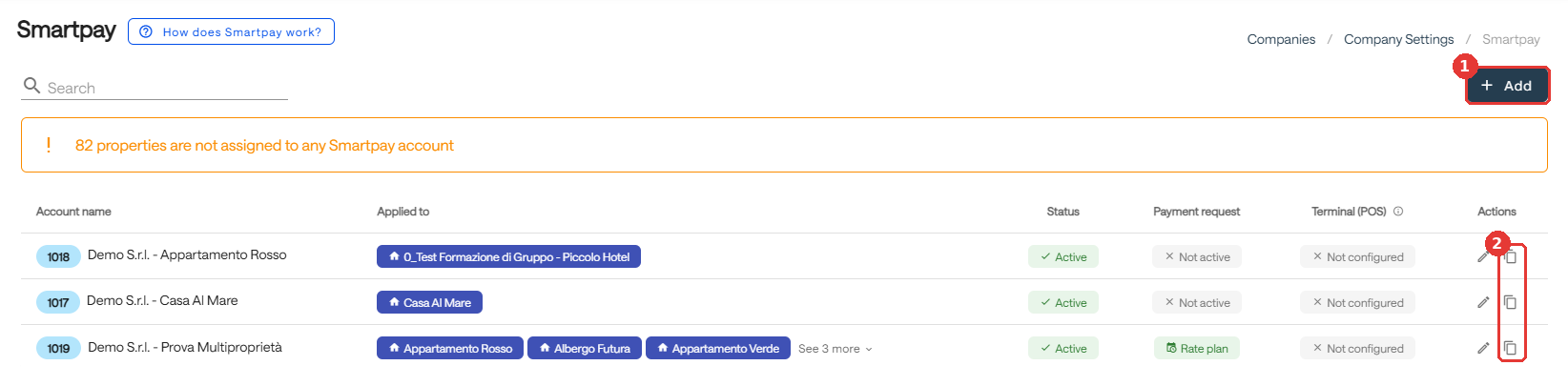
From here you have two paths:
- + Add (1), at the top right: create a new account from scratch;
- Duplicate (2), the icon with two sheets in the Actions column: create a new account starting from one you already have, keeping what you choose.
3. Duplicating an existing account
This is the fastest way when the new account is similar to one you already have.
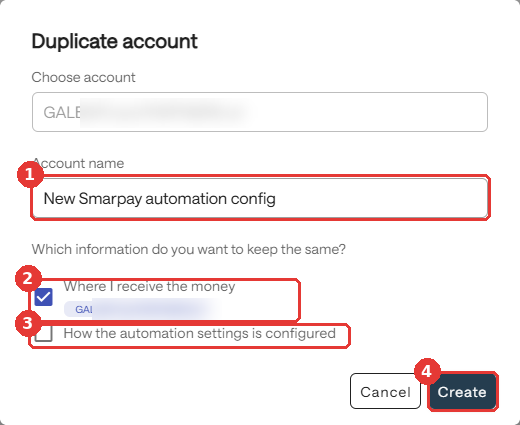
- In the row of the starting account, click the Duplicate icon in the Actions column.
- In the Duplicate account window, check the account in Choose account and, in Account name (1), write the name of the new account. The starting name followed by "(copy)" is proposed: change it to a name you recognize, for example, the property name.
- In Which information do you want to keep unchanged? check the options you want to copy, Where I receive money (2) and How automations are configured (3), explained below, and click Create (4).
- The account setup wizard opens, already at the right step based on the chosen options. Complete the missing steps, choose the properties in Linked properties, and save.
Where I receive money
- Checked: the new account uses the same payment account as the starting account. You do not need to redo the verification with Stripe and bank transfers arrive on the same IBAN. The setup wizard skips the Account details step.
- Unchecked: the new account has its own payment account. At the Account details step, you link and verify a new Stripe account, with the holder's data and the IBAN on which to receive this account's bank transfers.
Check it if you only want different rules for some properties. Leave it empty if the collections for those properties must arrive in another account or to another holder.
How automations are configured
- Checked: the new account starts with the same Settings as the starting account: Booking payment request method, security deposit and pre-authorization amount, Apply to bookings created before Smartpay activation, collection confirmation email, and booking sources to exclude.
- Unchecked: the settings start from the initial values, with the payment request set to Not active, and you choose them.
In both cases, before saving you can return to the Settings step and change what you need: usually, this is the very rule you want to be different for the new properties.
What happens based on the options
- Both checked: same account and same settings. The setup wizard opens on Linked properties. Useful if you want to start from an identical copy and change only a few settings.
- Only Where I receive money: same account, settings to be chosen. It opens on Settings.
- Only How automations are configured: new account, copied settings. It starts from Account details with the Stripe verification.
- Neither: equivalent to creating an account from scratch.
4. Adding an account from scratch
With + Add, the same setup wizard used for the first activation opens: Account details with the Stripe verification and the new account's IBAN, then Settings and Linked properties. The steps are described in the Smartpay activation guide.
5. Choosing the properties for the new account
Properties are never copied from the starting account: you choose them in the Linked properties step. Each property can be linked to only one Smartpay account.
When you check a property (1) already linked to another Smartpay account, the Property already assigned (2) warning appears immediately, asking if you want to move it to the new account.
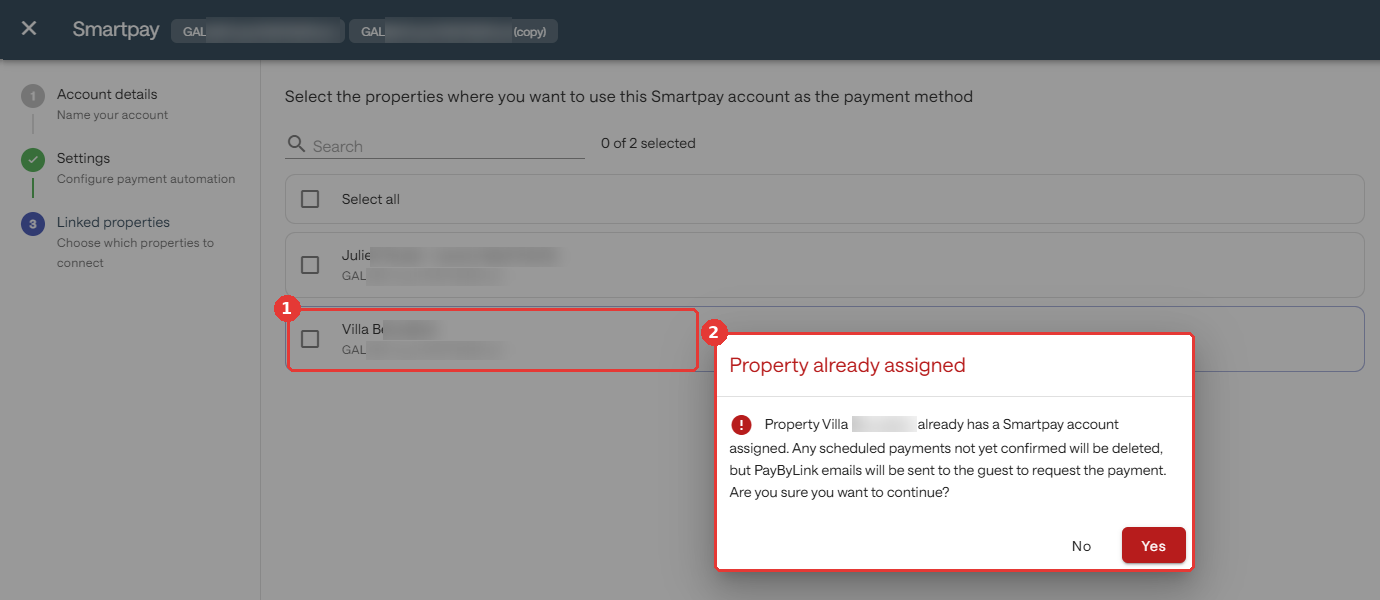
If you choose No, the property remains on the current account. If you confirm with Yes:
- payments already collected remain where they are;
- scheduled and not yet collected payments are canceled and recreated on the new account, and guests receive a new payment link;
- from new bookings onwards, the property follows the new account's settings.
To avoid double links for guests, move properties at a time with few pending payments, or notify guests with upcoming arrivals.
6. Before saving: recommended checks
- Apply to bookings created before Smartpay activation: if active, it also applies to bookings already present in the properties you link to the new account, which will receive payment requests. If you copied the automations, check this option.
- Booking Engine: if properties collect from the booking page, the payment request must not be set to Not active and the Booking Engine source must not be excluded.
- Quotes: if you exclude the Quotes source to hold the card as a guarantee, do so on every account.
After saving, in the account list, check the column with the properties to which each account is applied.
Frequently asked questions
4If I duplicate while keeping 'Where I receive money', do I have to redo the company verification with Stripe?
No. The new account uses the same already verified payment account as the starting account: you are not asked for a new verification and bank transfers arrive on the same IBAN. Verification is only needed if you leave the option empty or if you create the account from scratch with + Add.
I duplicated the account with the same automations: can I change the settings only for the new account?
Yes. The copied settings are just the starting point: you can modify them in the Settings step before saving, or afterwards, by opening the new account in Smartpay Configuration. The changes apply only to the properties linked to that account; the starting account does not change.
When duplicating an account, are the linked properties also copied?
No. The new account is created without properties: you choose them in the Linked properties step. If you choose a property already linked to another account, it is moved to the new one: scheduled payments not yet collected are recreated on the new account and guests receive a new payment link.
I only want a different deposit for one property: do I have to create a second Smartpay account?
No. Deposit, refundability, and balance due date depend on the Rate plan, which is already different for each property: you modify them in Settings > Properties > Property settings > Units and Rates > Rate plans. A second account is needed when you want to change the account settings (payment request method, security deposit, excluded sources) or the bank account where the money arrives.
Related guides
Activation
Activation
Configuration
Configuration
Configuration
Configuration