

Accounting Marketplace: exporting documents to Danea Easyfatt and electronic invoice XML
How to activate the Italian integrations Danea Easyfatt and Electronic Invoicing (IT) from the Accounting Marketplace: account creation, mapping of VAT codes for tax rates and exemptions (N1-N7), and exporting fiscal documents to the management software or as an XML package for the accountant.
You are in the right place if…12 cases
- “The accountant asks me for the XMLs of the electronic invoices”
- “How do I pass SmartPMS invoices to Danea Easyfatt?”
- “Where do I map the VAT codes for Easyfatt?”
- “Can I download all the invoices of a month in a single file?”
- “How can I export all the XML invoice files together to give to the accountant?”
- “Do I have to download the invoices one by one or is there a way to do them all together?”
- “In the bulk export, the Electronic Invoicing account does not appear”
- “Fatture in Cloud does not recognize the file of invoices downloaded from SmartPMS”
- “I sent to Marketplace but nothing arrives in Danea”
- “I need to enter the invoices into my management software for the VAT declaration”
- “Bulk Export of XML Invoices”
- “How can I configure and use the integration with Danea Easyfatt?”
What it is for
The Accounting Marketplace gathers integrations that transfer fiscal documents from SmartPMS to other accounting tools. For Italy, the following are available:
- Danea Easyfatt: to download invoices, credit notes, and receipts in an XML file in Danea Easyfatt format, already classified with your VAT codes, to be imported into the management software. There is no direct submission: the file is downloaded from SmartPMS and imported into Easyfatt.
- Electronic Invoicing (IT): to download XML files of invoices and credit notes, individually or collected in a single zip archive for a date range, to be delivered to your accountant or imported into another invoicing software. Receipts are not included in this export.
Both integrations work on the documents you issue in SmartPMS: they do not change the numbering, series, or content of the documents.
Before you begin
- You need access to the Accounting area with an administrator user.
- Verify that in Settings → Companies, on your company row under Actions → Edit, in the Accounting panel, the Tax Regime is filled in: this is a mandatory field for the electronic invoice XML file. If it is missing, Export XML and the download with Electronic Invoicing (IT) (single or bulk) will fail, and the error «Missing Tax Regime in company data» will be reported. For the complete company configuration, see the guide "Configuring the company to issue invoices and receipts in Italy".
- Keep the list of VAT codes used by your management software or indicated by your accountant at hand, for tax rates (e.g., 22%, 10%) and for exempt or non-taxable operations (nature N1-N7).
How to activate it
- In the side menu, open Accounting → Marketplace.
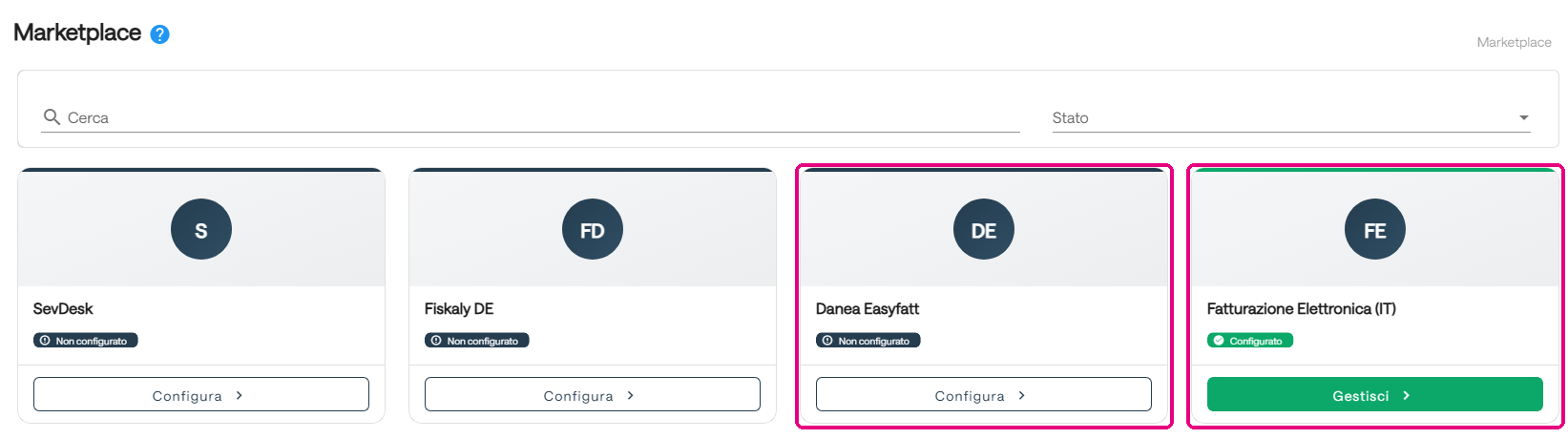
- Select the Danea Easyfatt or Electronic Invoicing (IT) tab and click Configure (if the integration is already configured, the button is called Manage).
- Click Add to open the Save Account module.
- Choose the Company and set the Status to Active.
- Only for Danea Easyfatt: fill in the VAT code mapping. For each tax rate and each exemption nature you use, indicate the corresponding code in Easyfatt: document lines are exported with the code you set here. Which natures to use and where to set them on the lines: see the guide "VAT in fiscal documents: rates, exemption natures, and City tax". For Electronic Invoicing (IT), only Company and Status are needed.
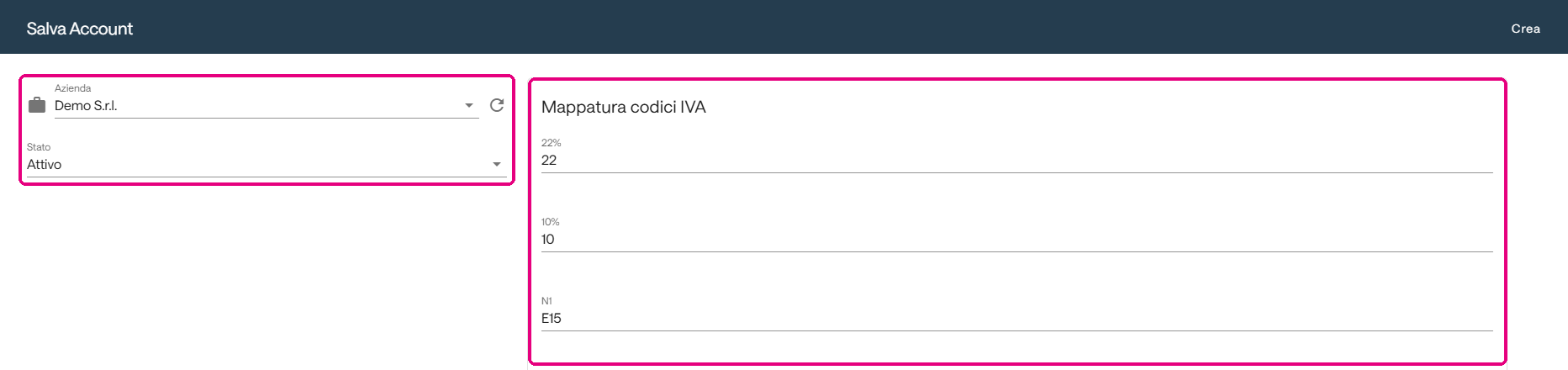
- Click Create to save the account.

If you use a tax rate or exemption that you have not mapped, the lines with that rate will not have a destination code: complete the mapping before exporting.
Exporting documents
With Danea Easyfatt and Electronic Invoicing (IT), documents are not sent automatically nor with the Send to Marketplace button: they are downloaded when you need them, from the Accounting → Fiscal documents area.
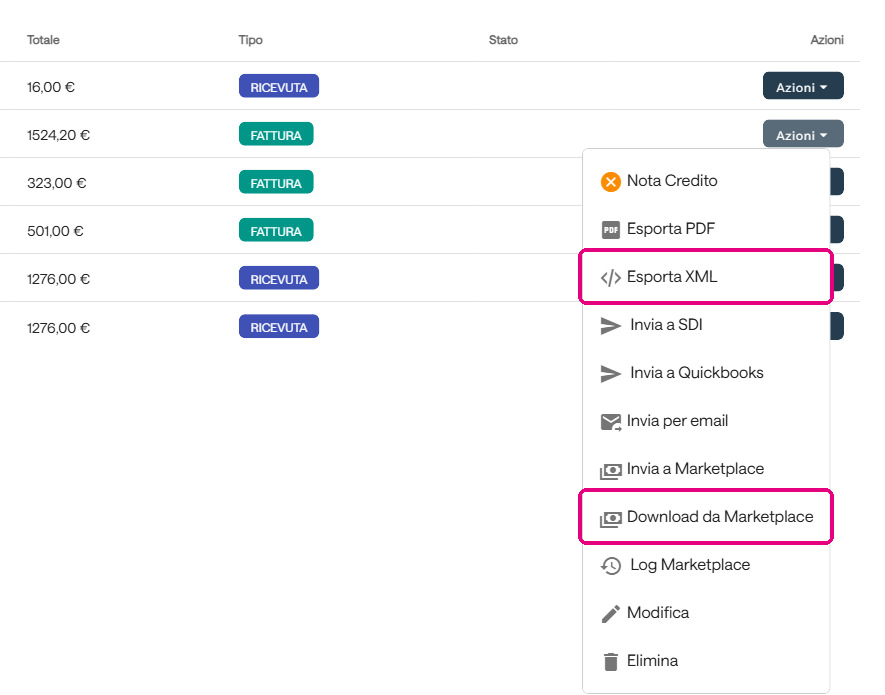
A single document: in the document row, open Actions → Download from Marketplace, choose the account (Danea Easyfatt or Electronic Invoicing (IT)), and download the file.
Multiple documents together:
- At the top above the list, click Export → Download from Marketplace.
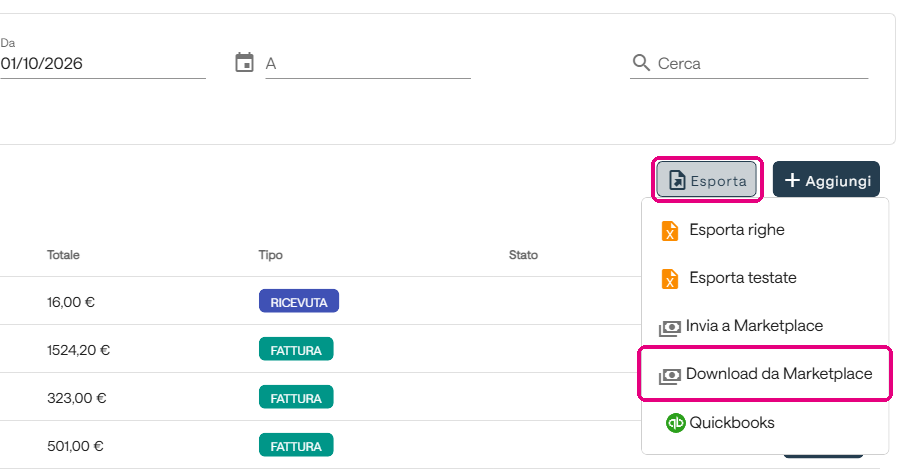
- Choose Companies, the Document Type (e.g., Invoice or Credit note), the date range (From and To), and the Account.
- Click Download at the bottom of the window.
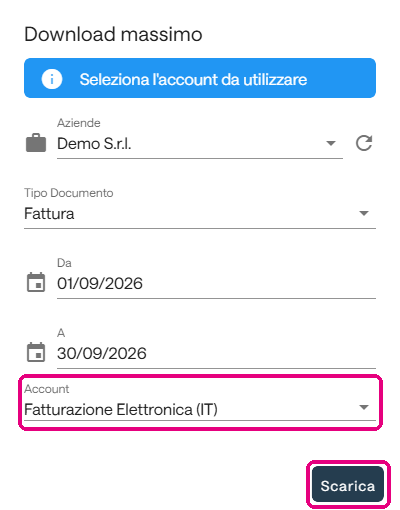
With Electronic Invoicing (IT), you get a zip archive with an XML file for each document in the period: before importing them into another software, extract the zip and upload the individual .xml files. With Danea Easyfatt, you get the XML file to import into Easyfatt.
For an Excel list of invoices and receipts (with customers' Tax Code and VAT number), use Export → Export headers in Accounting > Fiscal Documents instead: see the guide "Fiscal documents and Revenue register: searching, exporting, printing, and sending by email".
For a single invoice, you can also use Actions → Export XML. After downloading the XML, the submission of that invoice to the SDI from SmartPMS is blocked to prevent the same invoice from being sent twice.
The block also applies when you download the invoice with Download from Marketplace (single or bulk): if the invoice had not yet been sent, from that moment it is marked as «Downloaded» and can no longer be sent to the SDI from SmartPMS. If you have already sent it, downloading the XML changes nothing. If you want SmartPMS to transmit it, send the invoice first with Actions > Send to SDI and download the XML afterwards. If an invoice is marked as «Downloaded» and you can no longer send it, see the guide "Electronic invoice rejected or not sent to the SDI: statuses, common errors, and how to resend it".
Frequently asked questions
3The accountant wants the XMLs of all the invoices for the month: how do I download them?
Activate the Electronic Invoicing (IT) integration once from Accounting → Marketplace (Configure → Add, choose the Company, Active Status, save). Then, from Accounting → Fiscal Documents, click Export → Download from Marketplace, choose the Company, Document Type (Invoice or Credit Note), the date range, and the Electronic Invoicing (IT) account: you will get a zip archive with one XML file for each document to send to the accountant. If the accountant's software does not accept the zip, extract it and upload the individual .xml files. Receipts are not included in this export.
In the Download from Marketplace window, the Account field is empty or the export contains no files: what should I check?
Check these points:
- In Accounting → Marketplace → Electronic Invoicing (IT) (or Danea Easyfatt) → Configure, there is an account for the same Company you chose in the window, with Active Status.
- In the window, you have chosen a Document Type managed by the integration: with Electronic Invoicing (IT) only Invoice or Credit Note, because receipts are not included in this export.
- In the date range, there are documents of that type already issued for that company.
- In Settings → Companies, on your company's row Actions → Edit, Accounting panel, the Tax Regime is filled in: without it, the download with Electronic Invoicing (IT) stops and «Missing Tax Regime in company data» is reported.
If everything is correct and the account still does not appear, contact support indicating the company, document type, and period.
Can I use the XML export to import invoices into Fatture in Cloud, Aruba, or another software?
Yes. There is no direct connection with these software, but electronic invoice XMLs downloaded from SmartPMS can be imported into programs that accept the standard format.
- With the bulk export (Export → Download from Marketplace, Electronic Invoicing (IT) account) you get a zip archive: if the software asks for individual files, extract the zip and upload the .xml files.
- With Actions → Export XML on a single invoice, you get a single file: save it as is, without opening or printing it, so that the name ends with .xml.
Remember that after downloading the XML of an invoice, sending that invoice to the SDI from SmartPMS is blocked: send it from the software into which you import it.
Related guides
Activation
Configuration
Activation
FAQ
Configuration
Configuration