

Correcting an already issued invoice or receipt: credit note, receipt cancellation, modification and deletion
How to correct an already issued invoice or receipt in SmartPMS: when to use Edit, Delete, Credit Note, or Cancel Receipt based on the document status, how to issue a total or partial credit note, cancel a receipt sent to the Revenue Agency (Agenzia delle Entrate), manage a partial refund, and issue the correct document.
You are in the right place if…18 cases
- “I made a mistake on a receipt already sent to the Revenue Agency, how do I correct it?”
- “I need to issue an invoice but I have already issued the receipt”
- “How do I create a credit note for an invoice?”
- “I want to reverse only part of the invoice with a partial credit note”
- “How do I cancel a fiscal receipt?”
- “I cannot delete the invoice”
- “You cannot delete or modify a sent document”
- “I refunded part of the stay: how do I make a partial return of the receipt?”
- “After the credit note, the account reopened and I cannot close it”
- “I cancelled the receipt but I cannot issue a new one”
- “I issued the invoice instead of the receipt, how do I fix it?”
- “Can I modify an invoice already delivered to the SDI?”
- “I cancelled the receipt on the Agency website but it still shows as sent in the software”
- “Reversal or correction of an invoice issued with wrong data”
- “You cannot create two documents from the same account”
- “Can I cancel a credit note already sent?”
- “Why do I receive an error when I attempt to cancel a receipt (online commercial document) issued by CiaoBooking?”
- “Issuance of Credit Note”
An invoice transmitted to the SDI or a receipt transmitted to the Revenue Agency (Agenzia delle Entrate) is already in your tax drawer: they cannot be deleted or modified. They must be reversed with a new fiscal document (a credit note for the invoice, a cancellation for the receipt) and then the correct document must be issued. Only documents that have remained in the management software, never sent or downloaded, can be modified or deleted.
To choose the right path, you need two pieces of information, which you can find in Accounting > Fiscal Documents: the Type of document (invoice, receipt, credit note) and its Status (Status column; empty if the document has never been sent).
Which action to use
Situation | What to do | Why |
|---|---|---|
Invoice or credit note with an empty Status column (never sent to the SDI nor downloaded as XML) | Edit or Delete | The document has never left the management software |
Downloaded invoice (XML exported) | Do not delete. If you have uploaded that XML to the Agency portal or given it to your accountant for submission, issue a Credit Note; otherwise, contact support | The Downloaded status blocks deletion and submission: see the guide "How to issue an electronic invoice and send it to the SDI" |
Document Sent, Delivered or Delivery failed invoice | Credit Note (total or partial), then new invoice | A transmitted invoice cannot be deleted or modified |
Invoice or credit note in Error (rejected by the SDI) | Correct with Edit and resend with Send to SDI: the number remains the same | See the guide "Electronic invoice rejected or not sent to the SDI: statuses, common errors and how to resend it" |
Receipt Receipt Sent with an error (amount, line, payment method, header, date) | Cancel Receipt, then create the correct receipt | A sent receipt cannot be modified or deleted |
Receipt to be replaced with an invoice | Cancel Receipt, then issue the Invoice | Only one fiscal document is valid for each account |
Invoice issued by mistake instead of a receipt | Empty status: Delete. Otherwise, total Credit Note. Then issue the receipt | — |
Partial refund of a sent receipt | Partial return on the Revenue Agency portal, or cancellation and new receipt | SmartPMS always cancels the entire receipt |
Partial refund of an invoice | Partial Credit Note | — |
Before you start
- All correction actions are in the Actions button of each row in Accounting > Fiscal Documents. The same list is also available in the reservation, Accounting tab, Fiscal Documents box.
- You need the permissions of your user role: Cancel Documents to cancel a receipt, Delete Documents to delete a document, in addition to the permissions for creating and modifying documents and Send Documents for submission. If an item does not appear in the Actions menu, ask your account administrator.
- To cancel a receipt, you need an active connection to the Revenue Agency: see the guide How to connect SmartPMS to the Revenue Agency for sending receipts. The initial configuration (company, series, connections with SDI and Revenue Agency) is performed by the Onboarding Specialist.
1. Reversing an invoice with a credit note
The credit note (document type TD04) reverses all or part of an already transmitted invoice. It must be created from the invoice to be reversed, so SmartPMS automatically retrieves the customer, lines, and fiscal data.
- Go to Accounting > Fiscal Documents (or the Accounting tab of the reservation). On the invoice row, click Actions (1) and then Credit Note (2).
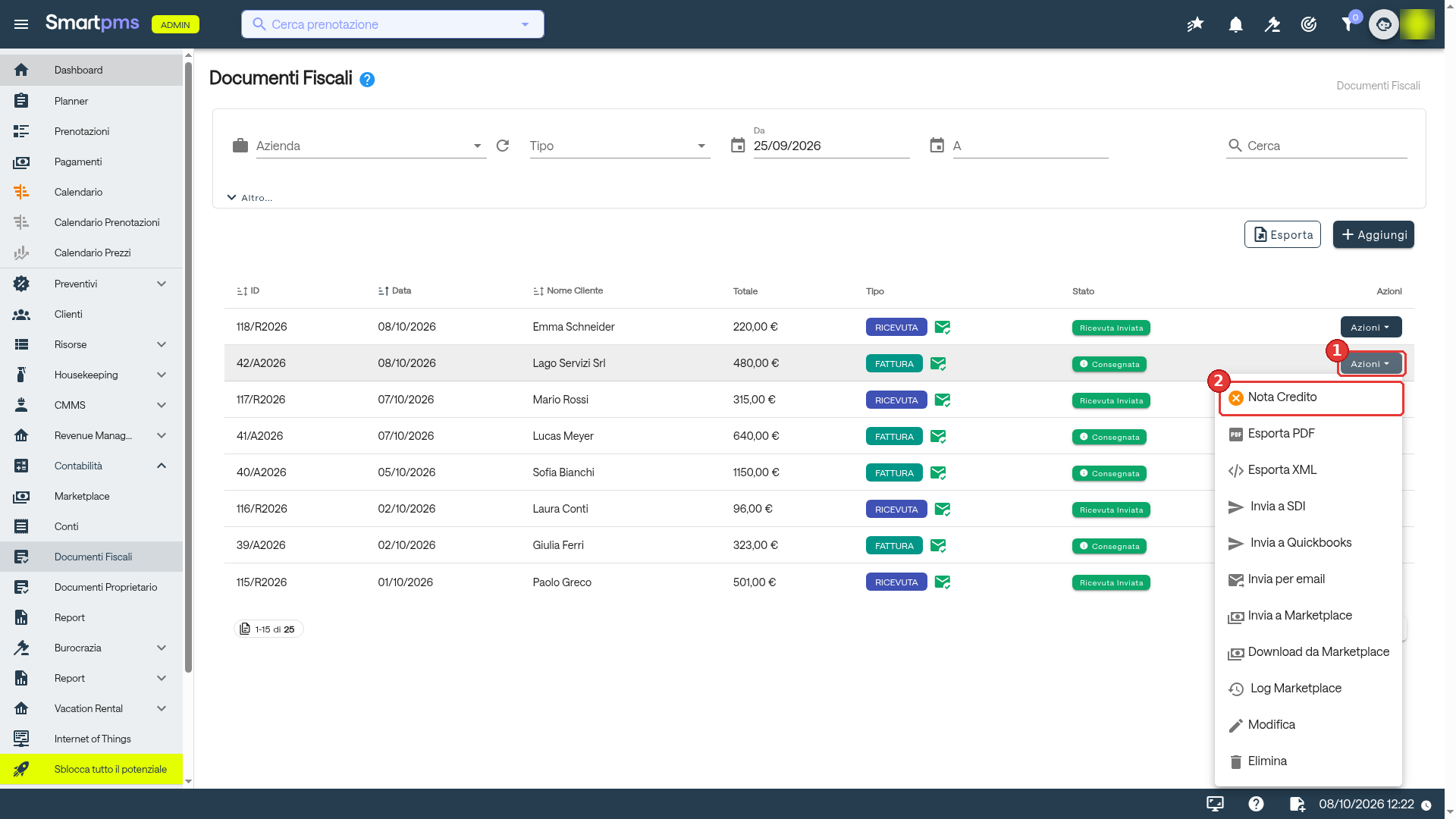
Always use Actions > Credit Note on the invoice, not the Add button at the top: with Add, you create an empty credit note, not linked to the invoice, to be filled out manually.
- The Create Document window opens with Type = Credit Note (1) and Date = today (2). Customer and fiscal data (VAT number, tax code, unique code or PEC, address) are retrieved from the invoice (3), along with lines, payments, notes, split payment, and CIG/CUP.
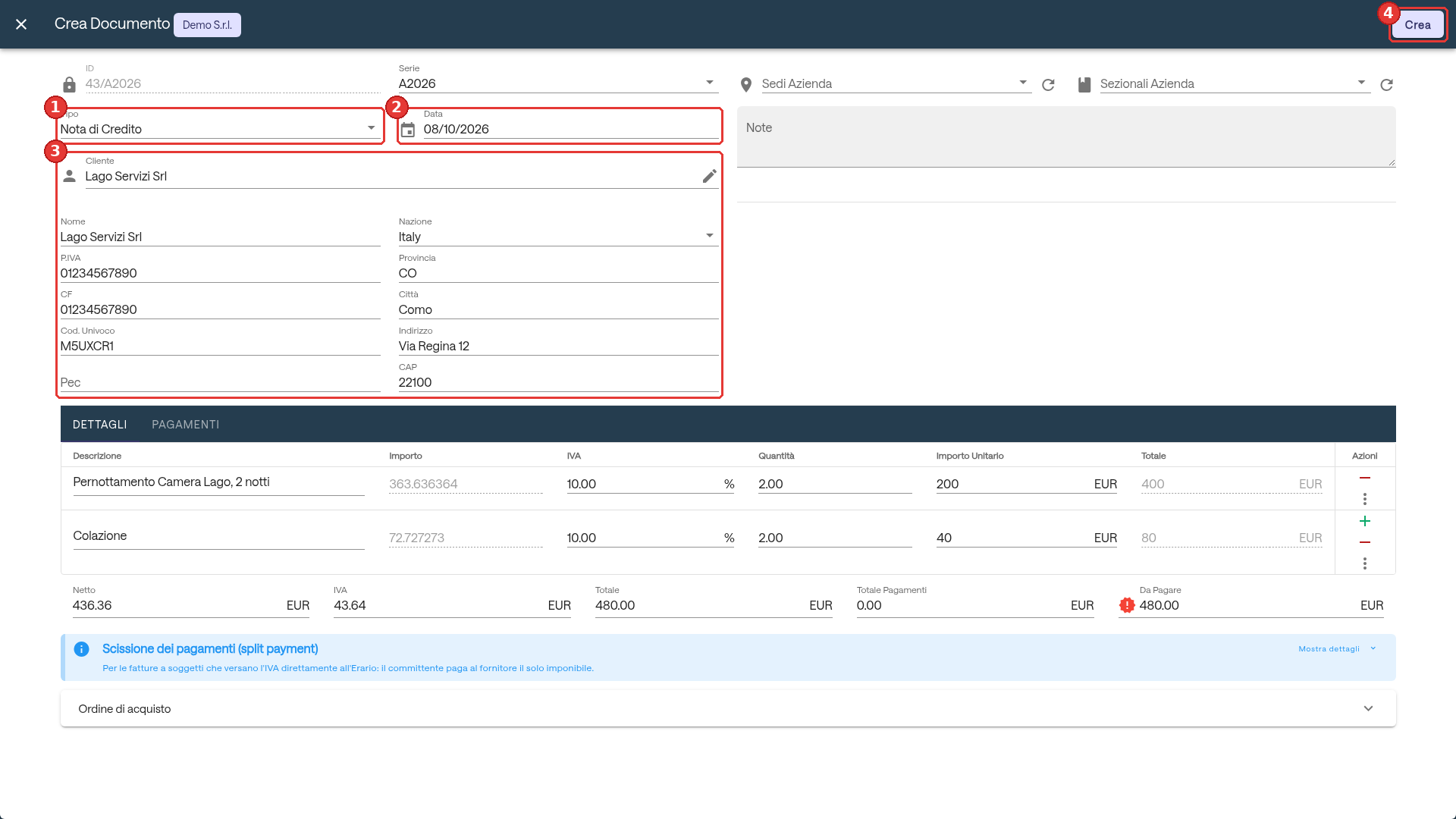
- Check the Series field. Credit notes use Invoice-type series: you can leave the invoice series or choose a series dedicated to credit notes (for example
NC2026). Always include the year in the series code (for exampleA2026): with codes without a year, when the numbering restarts from 1, the Revenue Agency rejects the document as a duplicate. How to create and number series is explained in the guide Accounting series: how to number invoices, receipts, and accounts. - Choose what to reverse in the Details tab:
- Total credit note: leave all lines as they are.
- Partial credit note: remove the lines not to be reversed with the red − icon in the Actions column (1); the icon only appears if there are at least two lines. Alternatively, reduce the Quantity (2) or Unit Amount of a line, or add a single line with + (for example "Partial reversal") with the amount to be reversed. The Total (3) recalculates itself and is not editable; the tax rate is changed in the VAT column.
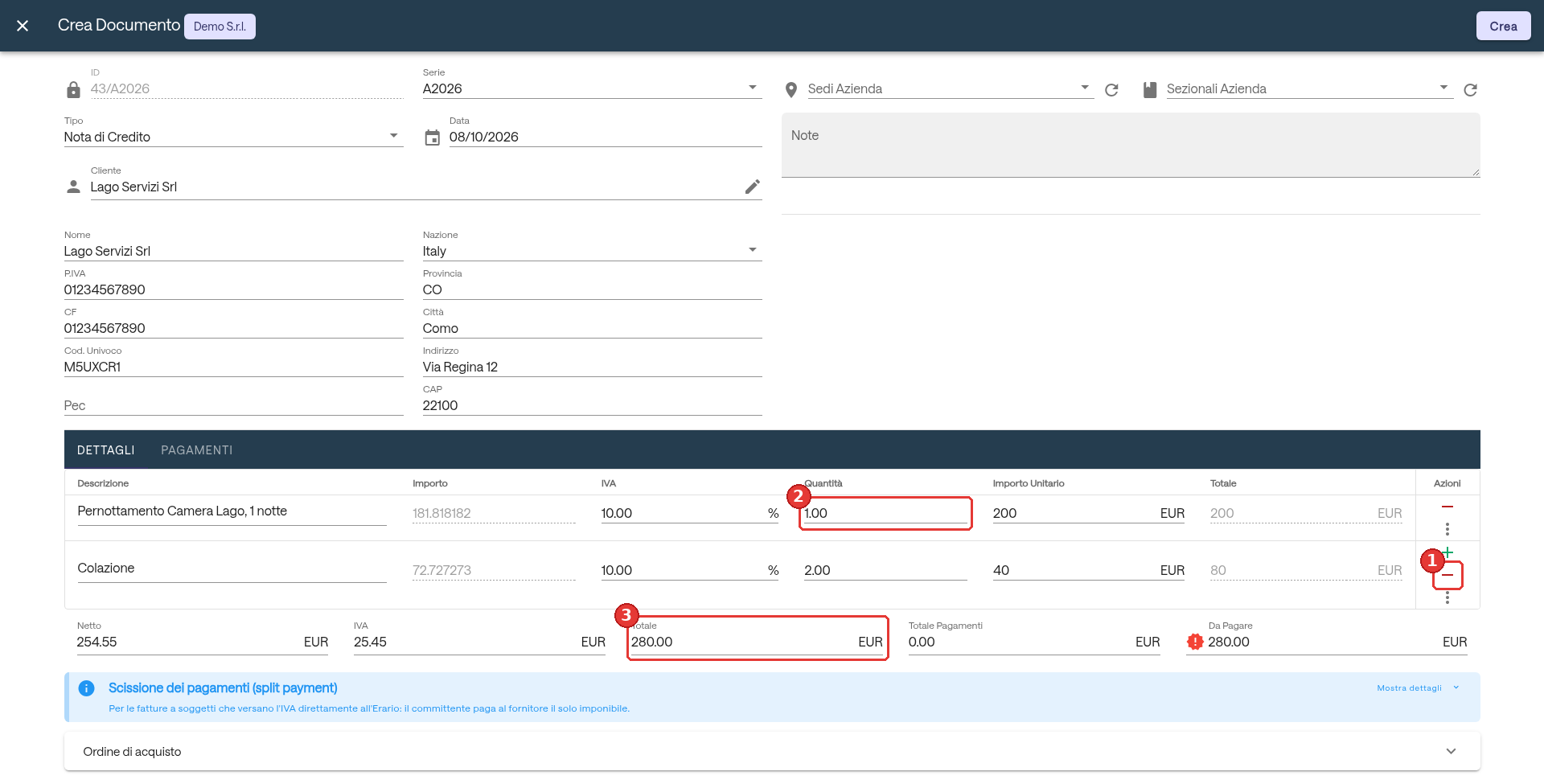
- In the Payments tab, you will find the payments recorded on the invoice, copied automatically: leave them as they are, do not remove or change them. If you add a payment with Add, the Type proposed for a credit note is Refund.
- Click Create at the top right (4 in the second image). The credit note appears in the list as CREDIT NOTE, with an empty Status column, and is linked to the same account as the invoice.
- Send it to the SDI like an invoice: on the credit note row, click Actions > Send to SDI and confirm. Statuses, submission rules, and the XML export alternative are explained in the guides "How to issue an electronic invoice and send it to the SDI" and "Electronic invoice rejected or not sent to the SDI: statuses, common errors and how to resend it".
If the credit note is rejected by the SDI (status Error), it is corrected with Edit and resent with the same number, like an invoice. If you do not want to resend it, contact support: a credit note with a status cannot be deleted from the management software.
Issuing the correct invoice
After the total credit note, the account no longer has a valid document: in Accounting > Accounts, the Receipt and Invoice buttons reappear on its row in the Convert column (1). This is the expected behavior and is intended to allow you to re-issue the correct document.
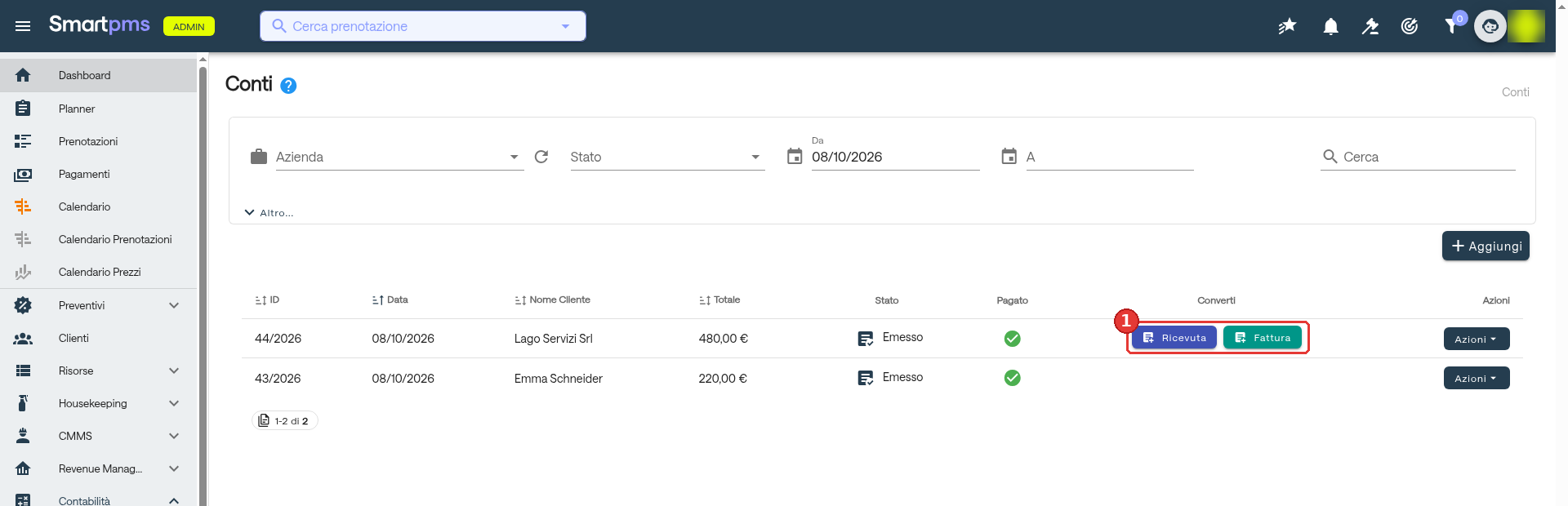
You have two paths:
- correct the account (Actions > Edit on the account row) and click Invoice on the same account;
- or create a new account from the reservation (Accounting tab, Accounts box, Add button) and import the payments.
The new invoice gets a new number: the number of the reversed invoice is not reused. How to prepare the account is explained in the guide "Accounts: how to prepare invoices and receipts".
Invoice to be redone with split payment: issue the total credit note, set the split payment on the customer (see the guide "Split payment invoices") and issue the new invoice. The credit note created via Actions > Credit Note maintains the split payment and CIG/CUP of the original invoice.
2. Canceling a receipt sent to the Revenue Agency
A receipt transmitted to the Agency (status Receipt Sent) cannot be modified or deleted: it must be canceled and then a new one created.
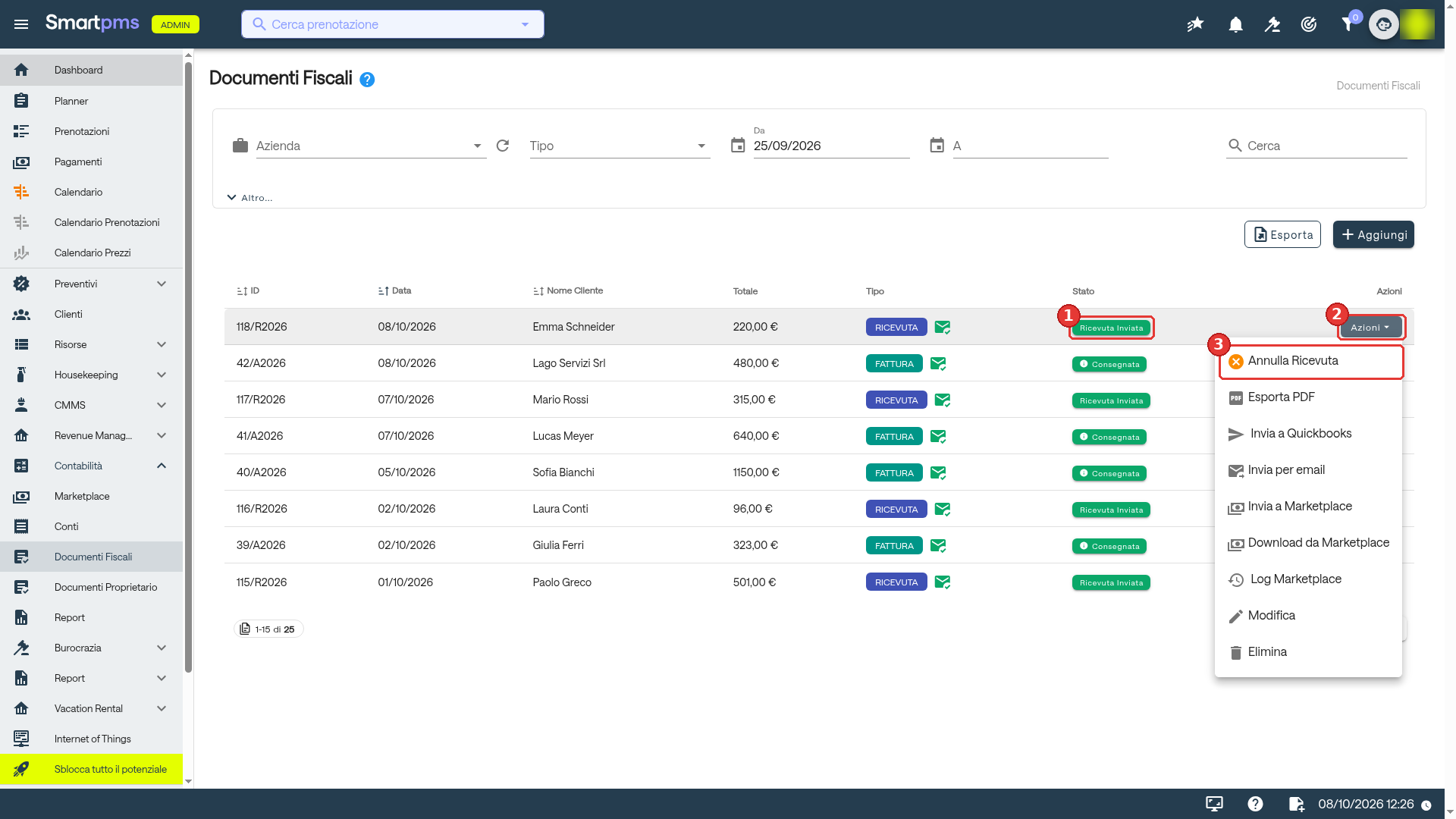
- In Accounting > Fiscal Documents, check that the receipt is in Receipt Sent status (1). On its row, click Actions (2) and then Cancel Receipt (3). The item only appears on receipts in Receipt Sent status.
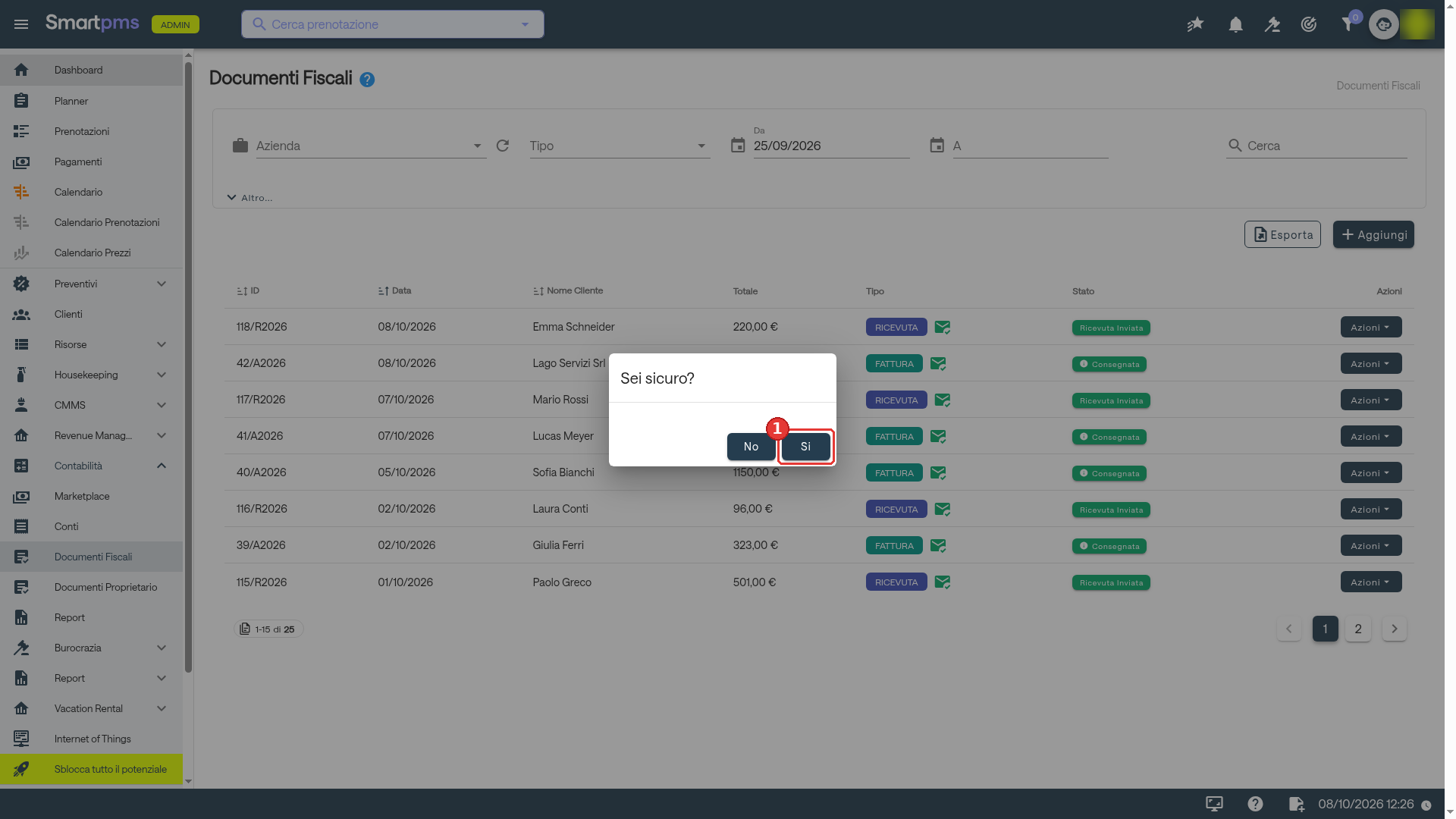
- In the Are you sure? window, click Yes (1). A reason for the cancellation is not required.
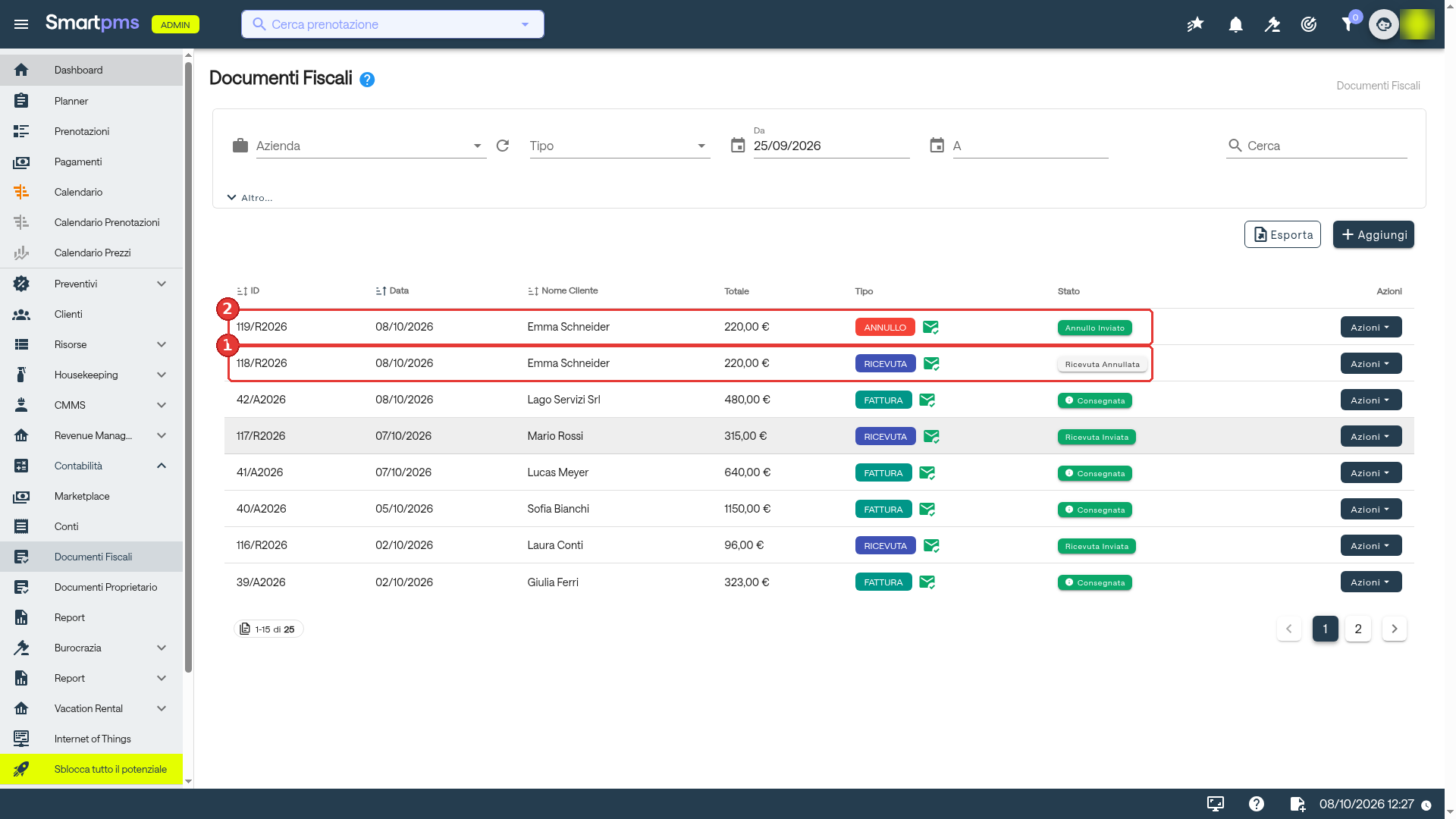
- SmartPMS transmits the cancellation of the entire receipt to the Revenue Agency. At the end, in the list:
- the original receipt changes to Receipt Canceled status (1), with a paid amount of zero;
- a new document of type CANCELLATION (2) appears, with today's date, the same lines, and Cancellation Sent status. The cancellation uses Receipt-type series.
The submission happens in the background: if the status does not change immediately, refresh the list after a few moments. The account payments that were imported into the receipt become available again for a new document. If the Agency rejects the cancellation, the receipt changes to Error status: check the connection with the Agency (guide How to connect SmartPMS to the Revenue Agency for sending receipts) and contact support. A receipt that has already been canceled cannot be canceled a second time: the message «Receipt already canceled» appears.
- Issue the correct document:
- after the cancellation, the Receipt and Invoice buttons reappear on the account of the receipt in the Convert column: you can re-issue from the same account, no need to create a new one;
- if necessary, correct the account first with Actions > Edit (lines, extras, payments);
- in the Payments tab of the account, check that the payments to be reported on the document are present;
- issue the Receipt or the Invoice.
Alternatively, you can create a new account from the reservation (Accounting tab, Accounts box, Add button).
Only one fiscal document is valid for each account: if there is still a valid receipt on the account, the message «You cannot create two documents from the same account» appears. The rules for the new receipt (today's date, amounts greater than zero, payments) are in the guide "How to issue a fiscal receipt and send it to the Revenue Agency". If the Agency returns an error upon creation, the receipt is not saved: resolve the cause and create the receipt again.
Always cancel from SmartPMS. A cancellation made only on the Revenue Agency portal does not update the receipt in the management software, which remains in Receipt Sent status: in that case, contact support to align it.
3. Partial refund: the return of a receipt
From SmartPMS, Cancel Receipt always reverses the entire receipt: partial returns are not done from the management software. You have two alternatives:
- Partial return on the Revenue Agency portal: in Invoices and fees > Fees > Online commercial document, recall the receipt with the number assigned by the Agency, shown on the receipt PDF, and record the return. How to get to that section is explained in the guide How to connect SmartPMS to the Revenue Agency for sending receipts (point 5). The difference between the SmartPMS number and the Agency number is explained in the guide Accounting series: how to number invoices, receipts, and accounts.
- Cancellation and new receipt: cancel the receipt from SmartPMS (point 2) and issue a new receipt for the correct amount.
Refunding the payment to the guest is a collection operation, not a fiscal document: record it in the reservation or account as explained in the guide "Accounts: how to prepare invoices and receipts". A receipt does not accept negative amounts: before issuing the new receipt, remove the refunded payment from the account.
4. Modifying a document
Actions > Edit opens the Edit Document window; it is saved with the Edit button at the top right.
- If the Status column is empty, the document can be modified freely.
- With Downloaded, Receipt Sent, or Receipt Canceled status, the fields are locked. The Unlock button is explained in the guide "How to issue an electronic invoice and send it to the SDI".
- The Type of document cannot be changed: to switch from receipt to invoice (or vice versa), the document is canceled or reversed and a new one is issued.
- On an already issued invoice, even Delivered, you can add a collection from the Payments tab (Add, then save with Edit): the lines in Details remain locked and a credit note is not needed. The payment remains on the document and does not reach the reservation: record it also from Reservation > Payments > Add (see the guide "Accounts: how to prepare invoices and receipts").
- Sent or canceled receipts and cancellations cannot be modified: the message «You cannot delete or modify a sent receipt» appears.
Modifying an invoice already delivered to the SDI in SmartPMS does not change the fiscal invoice: the recipient and the Revenue Agency have already received the transmitted version. To correct it, a credit note is needed (point 1). Modification is for documents never sent and for invoices in Error status to be corrected before resending.
5. Deleting a document
- On the document row, click Actions > Delete.
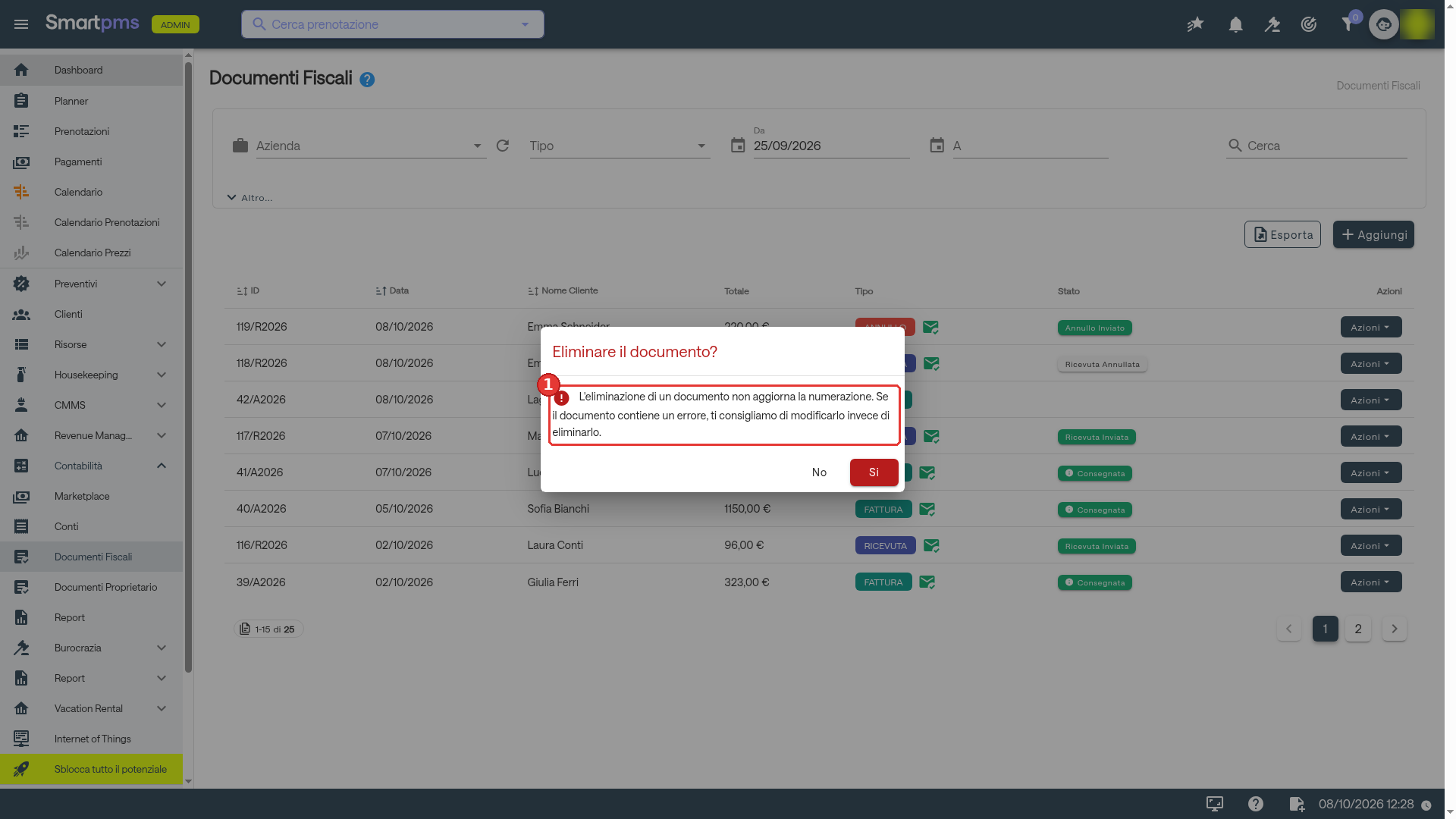
- The Delete the document? window opens with the warning «Deleting a document does not update the numbering. If the document contains an error, we recommend modifying it instead of deleting it.» (1). Click Yes to confirm.
Deletion removes the document from the management software, disconnects it from the reservation, and makes the account payments available again. It does not transmit anything to the SDI or the Revenue Agency.
- You can delete only documents with an empty Status column. With any status, even Downloaded or Error, the message «You cannot delete or modify a sent document» appears.
- The series counter does not go back: if you want to reuse the number of a document never sent or downloaded, follow the guide Accounting series: how to number invoices, receipts, and accounts (FAQ "I deleted the last invoice: why doesn't the next one take that number?").
Delete, Cancel Receipt, and Credit Note compared
Action | What happens | When |
|---|---|---|
Delete | The document disappears from the management software, no transmission | Document never sent or downloaded |
Cancel Receipt | SmartPMS transmits the cancellation to the Agency and creates the CANCELLATION document | Receipt in Receipt Sent status |
Credit Note | New fiscal document to be sent to the SDI | Already transmitted invoice |
What happens to the account and payments
- After the credit note, the note is linked to the same account as the invoice and the account shows the Receipt and Invoice buttons again: this is expected and allows you to re-issue the correct document. There is no command to "close" the account: if you do not need to re-issue anything, leave it as is.
- After the receipt cancellation, the canceled receipt has a paid amount of zero and the account payments can be imported into a new document.
- After deletion, the account payments become available again, as after cancellation, but without any transmission.
- The payment indicated while creating a document remains recorded on the document and does not appear among the reservation payments: see the guide "Accounts: how to prepare invoices and receipts".
Frequently asked questions
12I made a mistake on a receipt that has already been sent (a line item, breakfast to be removed, payment method, header): how do I correct it?
A receipt with the status Receipt Sent has already been transmitted to the Revenue Agency (Agenzia delle Entrate): it cannot be modified or deleted.
- In Accounting > Fiscal Documents, on the receipt row, click Actions > Cancel Receipt and confirm with Yes.
- Correct the booking (lines, extras, payments, payment method).
- The Receipt and Invoice buttons will reappear on the cancelled receipt's account: correct the account if necessary (Actions > Edit) and check in the Payments tab that the payments to be carried over are present. You can reissue from the same account or create a new one from the booking.
- Issue the new receipt.
The original receipt changes to Receipt Cancelled status and the CANCELLATION document appears in the list.
I need to issue an invoice but I have already issued the receipt: can I link the invoice to the receipt without cancelling it?
No. Only one fiscal document is valid for each account, and an invoice cannot be issued "on top of" a receipt already transmitted to the Revenue Agency.
- Cancel the receipt: Actions > Cancel Receipt and confirm with Yes.
- Issue the Invoice from the account, using the customer's billing details.
As long as there is a valid receipt on the account, the message «You cannot create two documents from the same account» will appear.
How do I issue a credit note? Can I make it partial and change the amount?
Yes. In Accounting > Fiscal Documents, on the row of the invoice to be reversed, click Actions > Credit Note: the Create Document window opens with the customer, lines, and fiscal data taken from the invoice.
- For a total credit note, leave the lines as they are.
- For a partial credit note, in the Details tab, remove the lines not to be reversed with the − icon, or reduce the Quantity or Unit Amount, or add a line with the amount to be reversed using +. The Total is recalculated automatically.
Click Create and then send the credit note with Actions > Send to SDI.
I created the credit note but the incorrect invoice still appears as valid: why?
Check how the credit note was created. It must be created from the invoice to be reversed using Actions > Credit Note: this way it is linked to the invoice and its account. A credit note created with the Add button is a separate document, not linked to the invoice.
If the credit note was created with Add or appears linked to another invoice, contact support before issuing other documents. Remember that the new corrected invoice always gets a new number.
After the credit note, the account reopened and I cannot close it
This is the expected behavior. An invoice reversed by a total credit note is no longer a valid document for that account, so in Accounting > Accounts the Receipt and Invoice buttons reappear: they are used to issue the correct document.
If you need to reissue, click Invoice or Receipt on the account (after correcting it) or create a new account. If you do not need to reissue anything, leave the account as is: there is no command to close it.
It won't let me delete the invoice: «You cannot delete or modify a sent document» appears
You can only delete documents with an empty Status column, i.e., never sent or downloaded. Deletion is blocked for any other status:
- Error (rejected by the SDI): do not delete it, correct it with Actions > Edit and resend it with Actions > Send to SDI; the number remains the same. See the guide "Electronic invoice rejected or not sent to the SDI: statuses, common errors and how to resend it".
- Document Sent, Delivered or Delivery failed: issue a credit note.
- Downloaded: contact support (see the guide "How to issue an electronic invoice and send it to the SDI").
I refunded part of the stay: how do I make a partial return of the receipt?
From SmartPMS, cancellation always reverses the entire receipt. For a partial refund, you have two options:
- register the partial return on the Revenue Agency portal, in Invoices and fees > Fees > Online commercial document, by recalling the receipt with the Agency number shown on the PDF;
- or cancel the receipt from SmartPMS (Actions > Cancel Receipt) and issue a new receipt for the correct amount.
The refund of the payment to the guest is recorded separately, in the booking or in the account: it does not generate a fiscal document.
The refund does not appear in the receipt and the account does not close to zero
The refund is a negative payment movement, not a document line: the receipt does not accept negative amounts and therefore does not report it.
- On the fiscal side, reverse the refunded part with the return on the Agency portal or with the cancellation and a new receipt.
- On the account side, remove the refunded payment from the account before issuing the document: how to manage account payments is explained in the guide "Accounts: how to prepare invoices and receipts".
I cancelled the receipt on the Revenue Agency website but it still shows as sent in SmartPMS
A cancellation made only on the Agency portal does not update the software: the receipt remains in Receipt Sent status and the account does not allow issuing a new document. Contact support indicating the receipt, so the status can be aligned.
For the future, always cancel from SmartPMS with Actions > Cancel Receipt: the cancellation is transmitted to the Agency and the software updates itself.
Is the cancellation valid even if the receipt is from last month?
Yes, you can cancel a receipt from a previous month from SmartPMS as well. The cancellation is transmitted to the Revenue Agency with today's date and the new receipt will also have the date of the day you issue it. Discuss the accounting treatment of the two documents with your accountant.
Cancel Receipt goes into error and the receipt changes to Error status: what do I do?
It rarely happens: normally, cancellation from SmartPMS is successful and is always the preferred path, because it also updates the software. If the Revenue Agency rejects the cancellation, check in this order:
- Expired Fisconline credentials. The Fisconline password must be renewed periodically: if it has expired, the Agency rejects the submission. Access the Agency portal, renew the password, update the credentials in the connection as explained in the guide How to connect SmartPMS to the Revenue Agency for sending receipts and then contact support indicating the receipt: with the receipt in Error status, the Cancel Receipt item no longer appears, so the cancellation must be repeated with the help of support.
- Agency limit for some types of VAT numbers. For some fiscal positions, the Agency does not accept the cancellation transmitted by software. In this case, the cancellation is done manually on the Agency portal, in Invoices and fees > Fees > Online commercial document, recalling the receipt with the Agency number shown on the PDF:
- on the same day of issuance use Cancellation;
- from the day after use Return.
After a cancellation or return made on the portal, contact support indicating the receipt: in SmartPMS its status does not update automatically and must be aligned before issuing the correct document.
I sent a credit note by mistake: can I cancel it?
It depends on the status of the credit note. You can find it in the Status column in Accounting > Fiscal Documents.
- Empty status: the note has never been transmitted to the SDI, even if you have already sent it by email to the customer. You can delete it with Actions > Delete or correct it with Actions > Edit.
- Document Sent, Delivered or Delivery failed: the note has already been transmitted to the SDI. It cannot be cancelled, neither from the software nor from the Revenue Agency portal. To cancel its effect, you must issue a new document for the same amount. After the credit note, the Invoice and Receipt buttons reappear on the account in Accounting > Accounts: from there you can issue the new invoice, which takes a new number. The software does not issue debit notes. Discuss which document to use in your case with your accountant.
- Error: the note was rejected by the SDI and therefore is not considered issued. If you want to correct it, use Actions > Edit and then Actions > Send to SDI. If you no longer want to send it, contact support: with a status, the note cannot be deleted from the software.
Related guides
Configuration
FAQ
Configuration
Configuration
Configuration
Configuration