

How to configure Revenue Share for Managers
How to set up VAT on OTA commissions, the owner's master data, your management fee, extra costs, and the Management Report when the owner collects bookings directly and you invoice your share.
You are in the right place if…13 cases
- “I am a manager and I need to invoice my commission to the owner”
- “How do I calculate my management fee on bookings collected by the owner?”
- “In the management report, the Booking commission is without VAT”
- “The OTA commissions I corrected by hand have disappeared from the report”
- “How do I show the flat-rate tax (cedolare secca) in the report to the owner?”
- “The total manager commission does not add up”
- “How do I calculate the manager's commission with a custom formula?”
- “I want to apply my commission on everything the guest pays”
- “My commission has a minimum per booking”
- “Where did the Deduct commissions and Include extras options go?”
- “How do I regenerate the revenue share after changing the rule?”
- “Revenue Share for Managers”
- “In "whose name" should I create online listings when I manage a property on behalf of third parties?”
This guide is dedicated to Managers who use SmartPMS. Unlike a Property Manager, in this role you provide a management service to the property owner but you do not collect the amounts from the guests.
The typical flow is as follows: the owner collects the full amount of the booking directly from the portals or from the guest; you, as the Manager, periodically issue an invoice to the owner for your management fee and for any costs anticipated on their behalf. The owner remains the only party formally exposed to the guest and to the State, for example for issuing receipts, paying the flat-rate tax (cedolare secca), sending guest registration (Schedine Alloggiati) to Alloggiati Web, and ISTAT communications.
A correct configuration allows you to automatically calculate the management commission due for each booking, to generate precise reports to provide to the owner, and to prepare a clear basis for invoicing your services.
Step 1: verify the property's VAT and commissions
This step is crucial, especially if your commission is based on what remains net to the owner once OTA commissions are deducted: it tells the system how to treat portal commissions for VAT purposes.
- Go to Settings > Property, open the property and click CONFIGURE in the Property Settings card.
- In the Main Settings, scroll to the sections related to VAT. Preferential VAT (in the property settings) is the default rate for room, cleaning, and extra lines in documents: if you set 22% without custom rates, the stay also comes out at 22%. For different rates per item, use the Advanced Settings of the property (custom VAT rates). The same Preferential VAT is also the rate that SmartPMS adds to the OTA commission of the portals selected in Sum portal commission VAT (point 3), when the booking comes from the portal: if the commissions are at 22% but the stay must be invoiced with a different rate, leave Preferential VAT at 22% and set the room rate in the custom VAT rates (see the guide "VAT in fiscal documents: rates, exemption types, and City tax").
- Sum portal commission VAT: activate this toggle only for portals that communicate the commission already VAT-exempt and apply it only on the invoice, such as Booking.com. Do not select Airbnb: its commissions are communicated to you with VAT already included, typically 15% plus VAT.
- Click EDIT at the top right to save.
Attention: the Sum portal commission VAT function only applies from the moment you activate it onwards. For bookings already received from Booking.com, you will have to manually modify the OTA Commissions amount in the booking details, at the bottom right in the totals table, by multiplying it by 1.22.
Step 2: verify that the company assigned to the property is the owner's master data
Each property must be associated with a Company master data that represents the owner, not you as the manager.
- Go to Settings > Property, open the property and click CONFIGURE in the Property Settings card.
- In the Main Settings, scroll to the Company field: it must show the owner's master data.
- If this is not the case, contact SmartPMS support indicating the details of the correct owner to be associated with the property.
In the Manager model, you do not need to fill in the Owner section of the Revenue Share page: it is designed for Property Managers, who pay the net amount to the owner and manage their withholding tax.
Step 3: define the amount rules (your commission)
Here you establish how your management fee is calculated.
- Go to Settings > Property, open the property and click CONFIGURE in the Revenue Share card.
- In the Amount rules tab, click Add.
- Period: activate Seasonal and indicate the From and To dates if the fee is only valid for a period (the check-in date counts).
- Calculation > Type: choose between Percentage, Amount (fixed, per night, or per booking, to be indicated in Calculated on), and Formula.
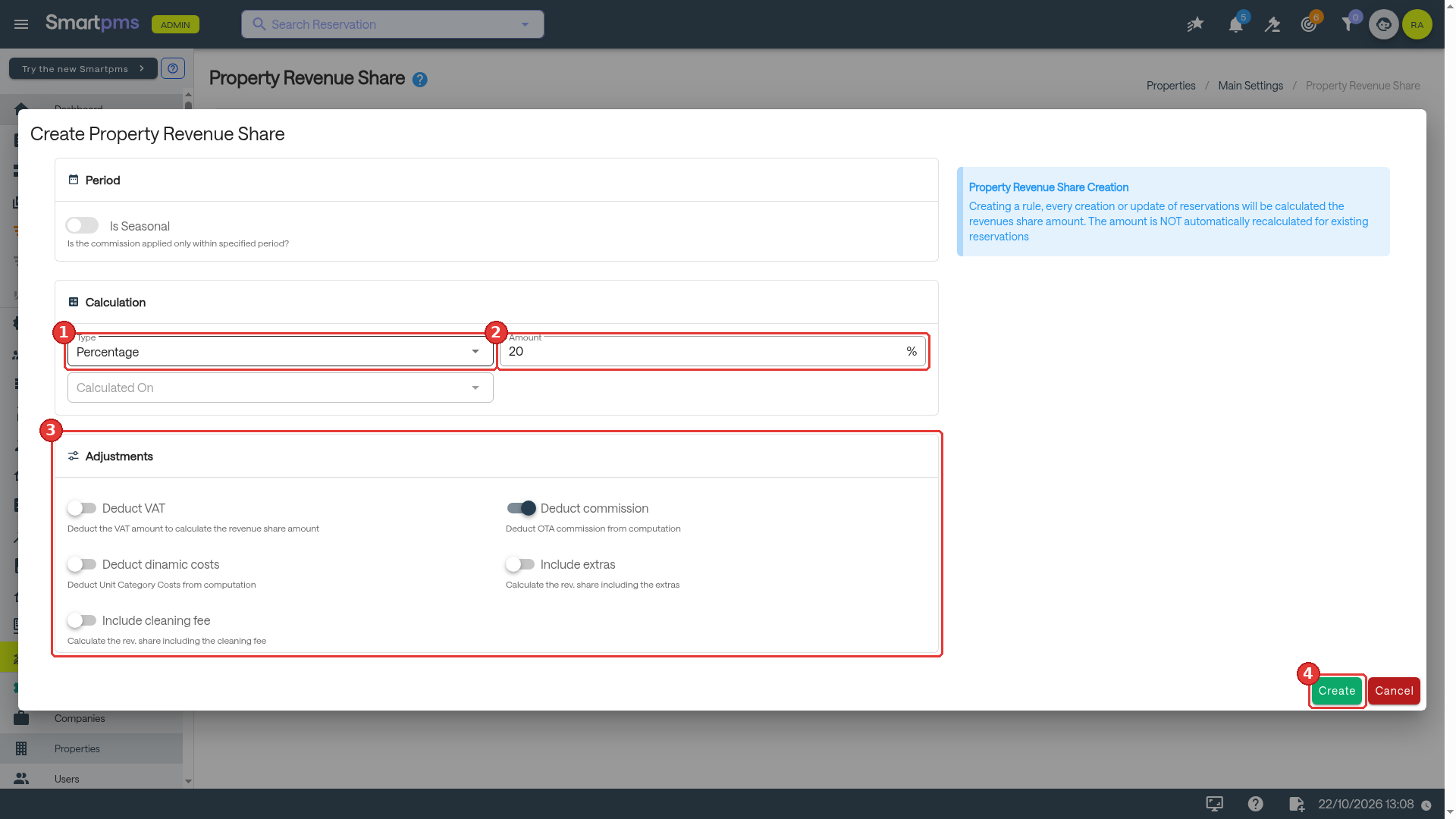
Percentage or fixed amount rule
Choose the Type (1), enter the Amount (2) (for example 20 for 20%), and adjust the calculation base with the Adjustments (3):
- Exclude VAT: calculates the percentage on the amount without the property's VAT.
- Deduct commissions: calculates your percentage net of the OTA commission (on a €100 booking with a €10 Booking commission, your fee is calculated on €90).
- Deduct dynamic costs: calculates the percentage net of the booking's dynamic costs.
- Include extras (only for percentages): adds the extras sold to the guest to the base, useful when the owner also collects the extras and your commission also applies to them.
- Include cleaning price (only for percentages): adds the cleaning paid by the customer to the base.
Click Create (4).
Rule with custom formula
With the Formula type, you write how to calculate your commission yourself, combining booking data: useful when the agreement with the owner is not a simple percentage.
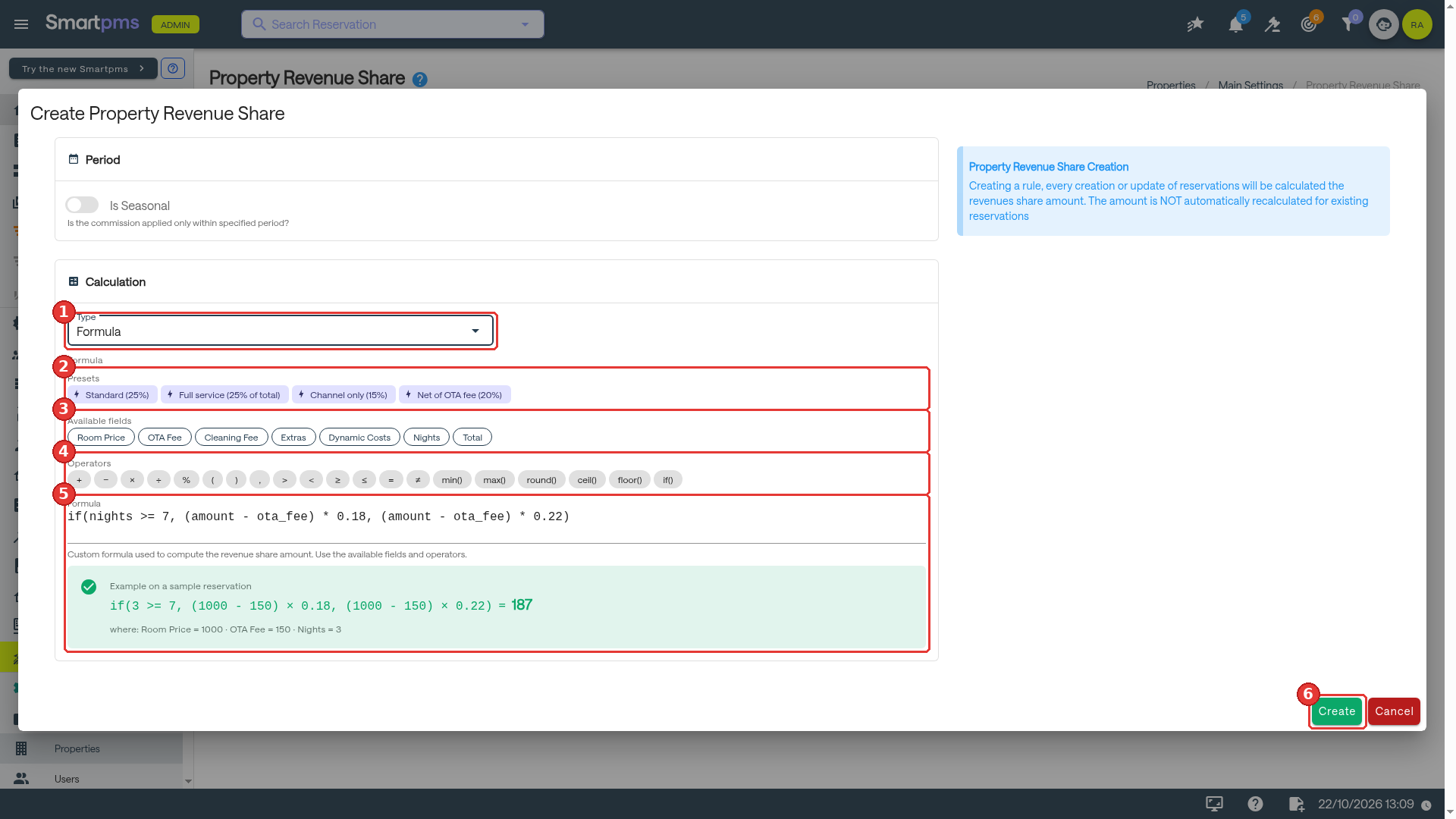
- In Type choose Formula (1). The Adjustments disappear: with the formula, you decide what goes into the calculation.
- Start from a Preset (2) or write the formula from scratch.
- Enter the data by clicking on the Available fields (3) and the Operators (4).
- Check the preview (5) and click Create (6).
The fields are: Room Price amount, OTA Commission ota_fee, Cleaning Price cleaning_fee, Extras extras, Dynamic Costs unit_category_costs, Nights nights, and Total total_gross (room price + cleaning + extras, without City tax). You can use + - * /, parentheses, comparisons, and the functions min(), max(), round(), ceil(), floor(), and if(condition, value if true, value if false). Percentages are written as decimals (0.20, not 20%) and decimals with a dot.
Examples (4-night booking: room €1,000, cleaning €80, extras €50, OTA commission €150):
Agreement with the owner | Formula | Commission |
|---|---|---|
20% of the room price net of OTA commission | | €170.00 |
20% of everything the guest pays (room, cleaning, extras) | | €226.00 |
15% of the room price plus €10 per night | | €190.00 |
20% net of OTA, but at least €150 per booking | | €170.00 |
18% for 7-night stays, otherwise 22% | | €220.00 |
| Total = €1,000 + €80 + €50 | €1,130 |
€1,130×20%=€226.00
The guides on Revenue Share for Property Managers contain other formula examples and the most common errors.
Step 4: add extra costs to be charged to the owner
In addition to your management fee, you can charge other extra costs, such as cleaning or other expenses anticipated on behalf of the owner.
- Go to Settings > Property, open the property and click CONFIGURE for the Costs card, then CONFIGURE next to Dynamic Costs.
- Click + ADD.
- Choose the Accommodation Type, the Type (e.g., Per Checkout for final cleaning), and assign a Category (e.g., Checkout Cleaning).
- Competence: always select Owner. The cost will be deducted from their net and added to your management fee.
- Fill in Description and Amount and choose VAT included: if the guest pays €50 for final cleaning, those €50 already include VAT. Attention: with VAT excluded, in the Management Report the cost is increased by the property's Preferential VAT: for example, €50 VAT excluded with 22% VAT becomes €61.
- Click CREATE and repeat for each dynamic cost, type, or property to which it applies.
Note on flat-rate tax (cedolare secca): managers are often asked how to show the owner a preview of this cost, even if you don't apply it directly. You can do this by creating a dynamic cost with Type Percentage on total, Category Commissions, Competence Owner, Description Cedolare, and Amount equal to the flat-rate tax percentage, for example 21.
Step 5: regenerate your management fee and dynamic cost data
The rules and costs apply themselves to new bookings and those that are modified. To recalculate existing bookings, you need to regenerate the data.
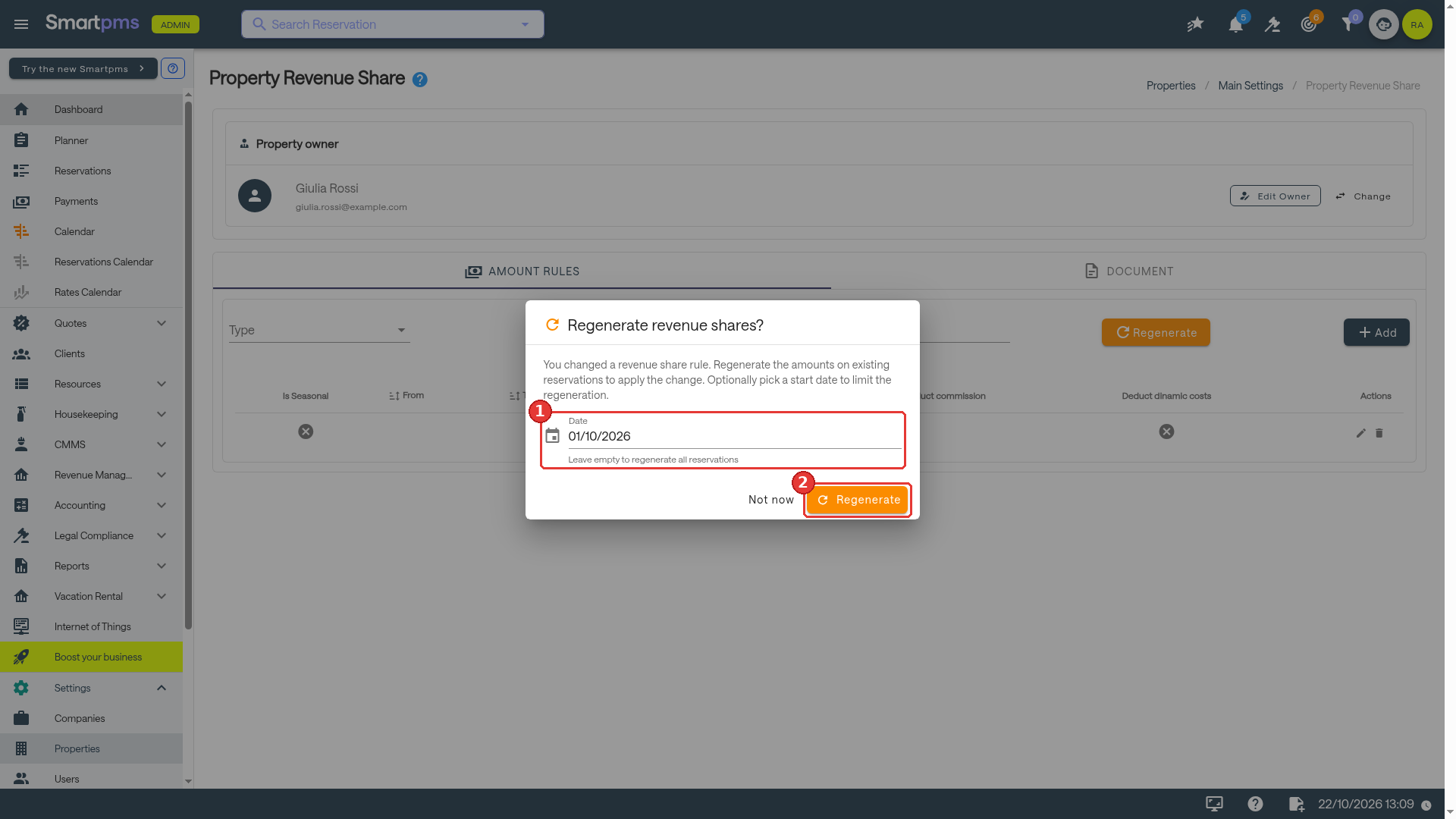
- Revenue Share: every time you create, modify, or delete a rule, the Regenerate revenue shares? window appears. Enter in the Date (1) field a date prior to the check-in of the bookings to be recalculated (e.g., January 1st of the current year) and click Regenerate (2). Always enter a date: bookings with a check-in equal to or later are recalculated. If you choose Not now, you can regenerate at any time from the Amount rules tab with the Date and Regenerate fields above the list of rules.
- Dynamic Costs: go to Settings > Property > Settings > Costs > Dynamic Costs, set a date in the Date field equal to or earlier than the one used for the Revenue Share and click REGENERATE.
Regeneration can take a few minutes depending on the number of bookings involved. Reports are only for consulting data: they do not have a button to regenerate them.
Step 6: use the Management Report for verification
For the Manager model, the correct report to consult is not the Revenue Share but the Management Report.
- Go to Reports > Management Report.
- Select Property and Period, then click APPLY.
- Analyze the Bookings table: the OTA Commission column shows the cost of the portal commission, 22% VAT included if you correctly followed Step 1; the Cleaning and service costs column adds the costs configured in Step 4; the Manager Commission column shows your management fee.
- The summary at the top shows the totals: Manager Amount, i.e., how much you will invoice or request from the owner, and Owner Amount, the final net that remains for them.
You can export the report to Excel for custom calculations, or print it directly.
Frequently asked questions
5Why are the OTA commissions of Airbnb and Booking.com treated differently for VAT purposes?
Airbnb communicates the commission already including VAT, typically 15% plus VAT, while Booking.com communicates it VAT-exempt and applies it only on the invoice at the time of charging. For this reason, in Step 1 of the configuration, the Sum portal commission VAT option must be activated only for portals like Booking.com and must never be selected for Airbnb.
If you have doubts about how this affects the reverse charge in your specific case, check with your accountant: SmartPMS provides you with the correct setting, but it does not replace tax advice.
The OTA Commission item in the Management Report shows a different amount from the original booking on Booking.com: why?
If you have recently activated Sum portal commission VAT, remember that the function only applies to bookings received from that moment onwards.
For bookings received from Booking.com before activation, the OTA Commissions amount in the individual booking details (bottom right in the totals table) must be corrected manually by multiplying it by 1.22.
How do I show the owner a preview of the flat-rate tax (cedolare secca) cost in the Management Report, even if I don't apply it directly?
Even if as a Manager you do not withhold the flat-rate tax, you can show an estimate to the owner by creating a dedicated dynamic cost: Type Percentage on total, Category Commissions, Competence Owner, Description Cedolare, and Amount equal to the flat-rate tax percentage, for example 21.
In this way, the owner sees a realistic preview in the report of how much the State will withhold, while remaining the party who actually pays it.
The total Manager Commission does not correspond to what I expect to invoice the owner: what should I check?
First, check the rule in the Amount rules tab (Settings > Property > CONFIGURE in the Revenue Share card): percentage, fixed amount, or formula. For percentages, look at the Adjustments (Exclude VAT, Deduct commissions, Deduct dynamic costs, Include extras, Include cleaning price); for formulas, reopen the rule and check the calculation in the preview.
Then verify the dynamic costs with Owner Competence that you have configured: they are added to your management fee in the Manager Amount of the report. If you modified the configuration after receiving the bookings, regenerate the data from Settings > Property > CONFIGURE next to Revenue Share (Date field and REGENERATE button) before comparing the totals.
Booking extras are not included in the calculation of my commission nor in the owner's amount: why?
By default, extras (late check-out, bike rental, additional cleaning, baby cot, and similar) remain outside the Revenue Share calculation: your commission is calculated on the price of the stay and the owner's amount in the Management Report starts from room price and cleaning, never from extras.
If your commission must also apply to extras (e.g., because the owner collects them together with the stay), activate Include extras in the rule's Adjustments (Settings > Property > CONFIGURE next to Revenue Share, Amount rules tab), or use a Formula type rule with the Extras field, for example (amount + extras) * 0.20. Include extras is designed precisely for this model: it adds the extras to the base of your percentage. However, extras still do not appear in the owner's amount of the report, so your fee on the extras is subtracted from that amount.
If instead an extra must count as part of the rent, i.e., add to the owner's amount as well as to your commission base:
- Do not register it as a separate extra (if you have already added it, remove it, so the guest doesn't pay for it twice).
- Add its amount to the Room Price of the booking (e.g., from €1,000 to €1,085 for €85 of extras) and save.
For Booking.com or Airbnb bookings, make this change only after the guest's departure, because before that the portal may revert the Room Price to the original value. After changing the rule, regenerate the data from Settings > Property > CONFIGURE next to Revenue Share, with a date prior to check-in in the Date field, and click REGENERATE.
Related guides
Configuration
Configuration
Configuration
Configuration
Configuration