

Feratel Meldewesen: electronic guest registration (Meldeschein and Gästekarte) with SmartPMS
How the Feratel Meldewesen integration works in SmartPMS, the mandatory electronic guest registration in Austria (Meldeschein, Gästemeldung) and the Gästekarte at the tourist office: codes to request, configuration in Bureaucracy (Rechtskonformität) > Marketplace > Feratel, automatic and manual submission, printing the Meldeschein for signature, Gästekarte, logs, and common errors. This does not concern Feratel Deskline, the sales channel connected via Channel Manager.
You are in the right place if…7 cases
- “How do I activate Feratel for guest registration (Meldeschein / Gästemeldung)?”
- “Where do I enter the Feratel Gemeinde-ID and Immobilien-ID?”
- “The Gästemeldung is not reaching Feratel / the Tourismusverband”
- “The guest did not receive the Gästekarte via email”
- “How do I print the Meldeschein for the guest to sign?”
- “Feratel rejects the submission: Meldeschein number already used or invalid Nummernkreis”
- “I see duplicate registrations for the same guest in the Feratel WebClient”
Feratel Meldewesen: electronic guest registration
In Austria, every accommodation facility must register its guests with the municipal tourist office (Tourismusverband / Meldebehörde) by filling out the Meldeschein, the guest registration form. In many municipalities, registration takes place electronically via Feratel Meldewesen, the system that the tourist office also uses for the city tax (Kurtaxe) and for the Gästekarte, the guest card with local benefits.
SmartPMS is directly connected to Feratel Meldewesen: it sends guest data automatically, allows you to print the pre-filled Meldeschein for signature, and lets you check the status of every submission.
⚠️ Feratel Meldewesen is not Feratel Deskline. Feratel offers two different services, which are configured in different sections in SmartPMS and are independent of each other: >- Feratel Meldewesen (this guide): registers guests with the tourist office (Meldeschein, Gästekarte, city tax). It is configured in Bureaucracy (Rechtskonformität) > Marketplace > Feratel. You need the Gemeinde-ID and Immobilien-ID provided by the tourist office.- Feratel Deskline (sales channel): sells rooms through the tourist destination portal (prices, availability, bookings). It is configured in the Channel Manager, with Hotel Code and interface activation from the Feratel WebClient. >The Feratel web portal is called "feratel Deskline WebClient" even when you only use it for Meldewesen: the portal name does not indicate which of the two services you are using. What matters is where you configure it in SmartPMS.
📌 Before you start
- Contact your tourist office (Tourismusverband). Inform them that you use SmartPMS for electronic guest registration and ask them to enable the property for submission from the PMS. In the Feratel interface list, SmartPMS appears under the name Ciaobooking (VT: CiaoBooking). If you previously used another PMS, the tourist office must update the connection on their end.
- Get the property codes:
- Gemeinde-ID: the municipality code.
- Immobilien-ID: the property number (Betriebsnummer).
- Optional: the Meldeschein number range (Nummernkreis) assigned to your property. If you have properties in different municipalities, request the codes from each competent tourist office.
- Check the Property Country in the SmartPMS property settings: it must be Austria.
- Units already created in SmartPMS: every unit to be registered must be linked to the Feratel account.
⚙️ Feratel account configuration
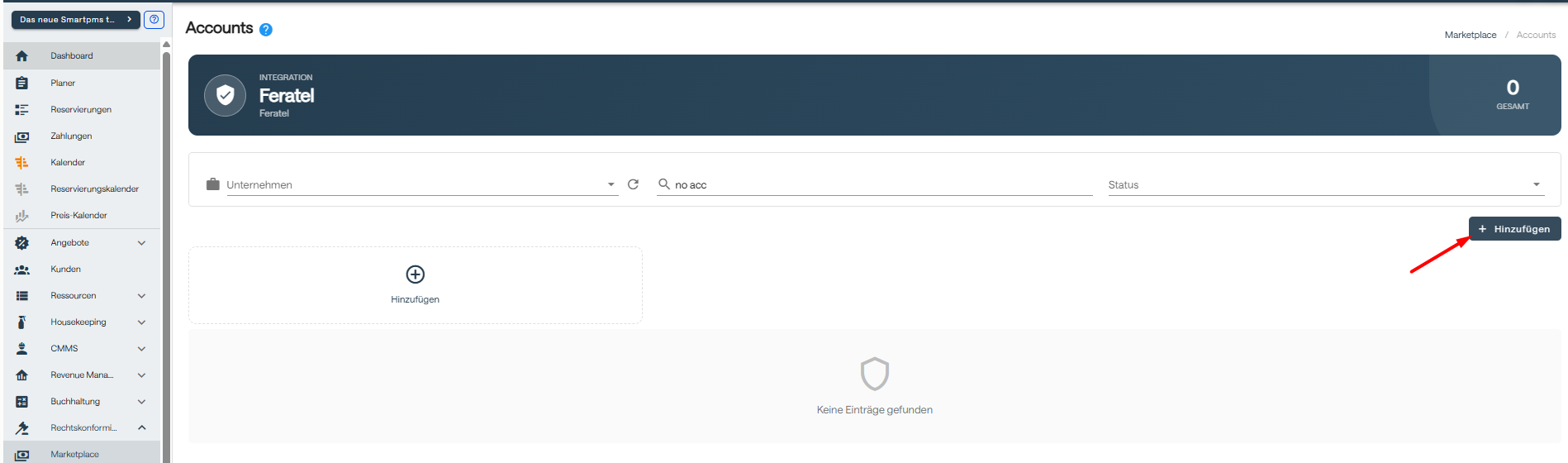
- In the left menu, open Bureaucracy (Rechtskonformität) > Marketplace and select Feratel.
- Click Add (Hinzufügen).
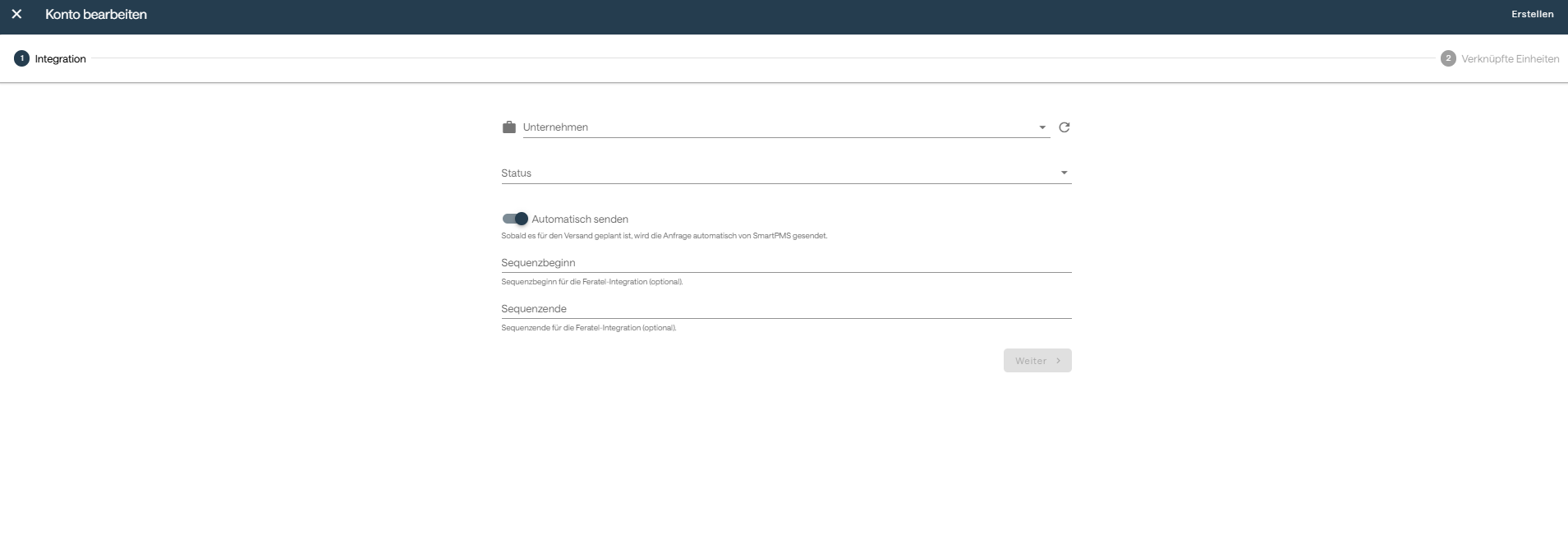
- In the Integration step, fill in:
- Company (Unternehmen): the company the property belongs to.
- Status: Active.
- Automatic submission (Automatisch senden): activate this to have SmartPMS send data daily on its own (recommended).
- Sequence start date / Sequence end date (Sequenzbeginn / Sequenzende), optional: the first and last Meldeschein number of the range assigned to your property by the tourist office. Despite the Italian label saying "Date", these are numbers, not dates. If left empty, SmartPMS uses the ranges Feratel has registered for the property.
- Click Next (Weiter) and, in the Linked units (Verknüpfte Einheiten) step, link the units using the Connect (Verbinden) field or all together with Bulk add (Massenhinzufügung). For each unit, indicate:
- Immobilien-ID: the property number, exactly as communicated by the tourist office (without prefixes or added characters).
- Gemeinde-ID: the municipality code. A unit can be linked to only one Feratel account.
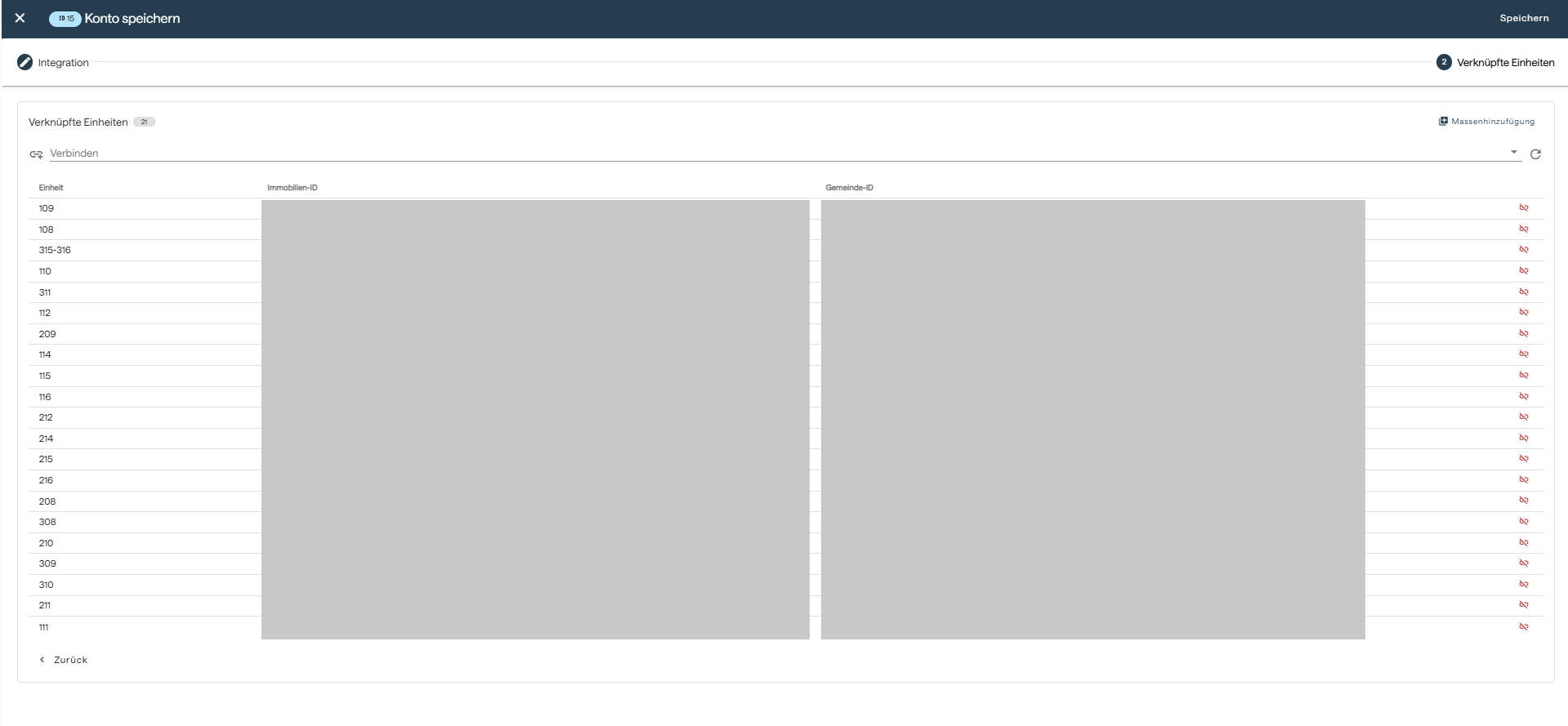
- Click Save (Speichern). The account will appear with the status Active (Aktiviert).
You do not need any Feratel "company" code: SmartPMS identifies itself to Feratel with its own PMS code. If you manage multiple properties with different Immobilien-IDs or number ranges, create a separate Feratel account for each property.
👤 Guest data
SmartPMS sends guests entered in the guest group of the Check-in tab of the booking (not just the customer profile). For a valid registration, at least the following are required for the main guest:
- first and last name;
- date of birth;
- residential address with Country and ZIP code.
If available, gender, nationality, document type and number, email, and phone are also sent. Data can come from the Self Check-in completed by the guest or be entered by the reception.
- Guest category (Gastart). Each municipality defines its own categories for the city tax (adult, child, youth...). SmartPMS assigns the category automatically based on age, using the categories your municipality has configured on Feratel; without a date of birth, the guest is registered as an adult. Categories that do not depend on age (e.g., students, people with disabilities, business trips) cannot be selected from SmartPMS.
- Main guest. This is the guest with the type Head of family (Familienoberhaupt) in the group; if not indicated, SmartPMS uses the first adult guest.
🔄 How submission works
- Automatic submission. With Automatic submission active, SmartPMS sends registrations from the previous day every morning around 5:30 AM: arrivals as check-ins and departures as check-outs. This is why the result of an arrival appears in the logs the next morning, and a last-minute booking received during the day is sent the following morning.
- Self Check-in does not send to Feratel immediately. When the guest completes the Self Check-in, the data is saved in SmartPMS and transmitted with the next automatic submission or a manual submission.
- Corrections. If you modify guest data after submission, SmartPMS sends the registration again. If the data has not changed, the submission is skipped (in the logs you will find "Duplicate delivery skipped locally"): this is normal.
- Final registration. When the registration is marked as arrived ("angereist") or the departure has been accepted on Feratel, the record is locked and Feratel no longer accepts changes from SmartPMS (see FAQs on error 70).
- Meldeschein numbers. Each registration consumes a number from the range assigned to the property. SmartPMS manages them automatically and, when the range is running out, asks Feratel for a new block. Feratel grants it automatically only when more than 60% of the assigned numbers have been used; otherwise, the new range must be requested from the tourist office and entered in Sequence start date / Sequence end date.
⚠️ Only one registration channel. When the SmartPMS integration is active, register guests only from SmartPMS. If the same guests are also registered with the Feratel pre-check-in link, manually in the Feratel WebClient, or from another PMS, duplicate registrations will appear on Feratel with numbers that do not belong to the range used by SmartPMS, and subsequent submissions may be rejected (number already used, record locked, or manually modified).
📤 In the booking: manual submission, Meldeschein, and Gästekarte
In the Check-in tab of the booking, below the guest list, you will find the Feratel row with the integration Status and the Last submission status (Status der letzten Übermittlung).
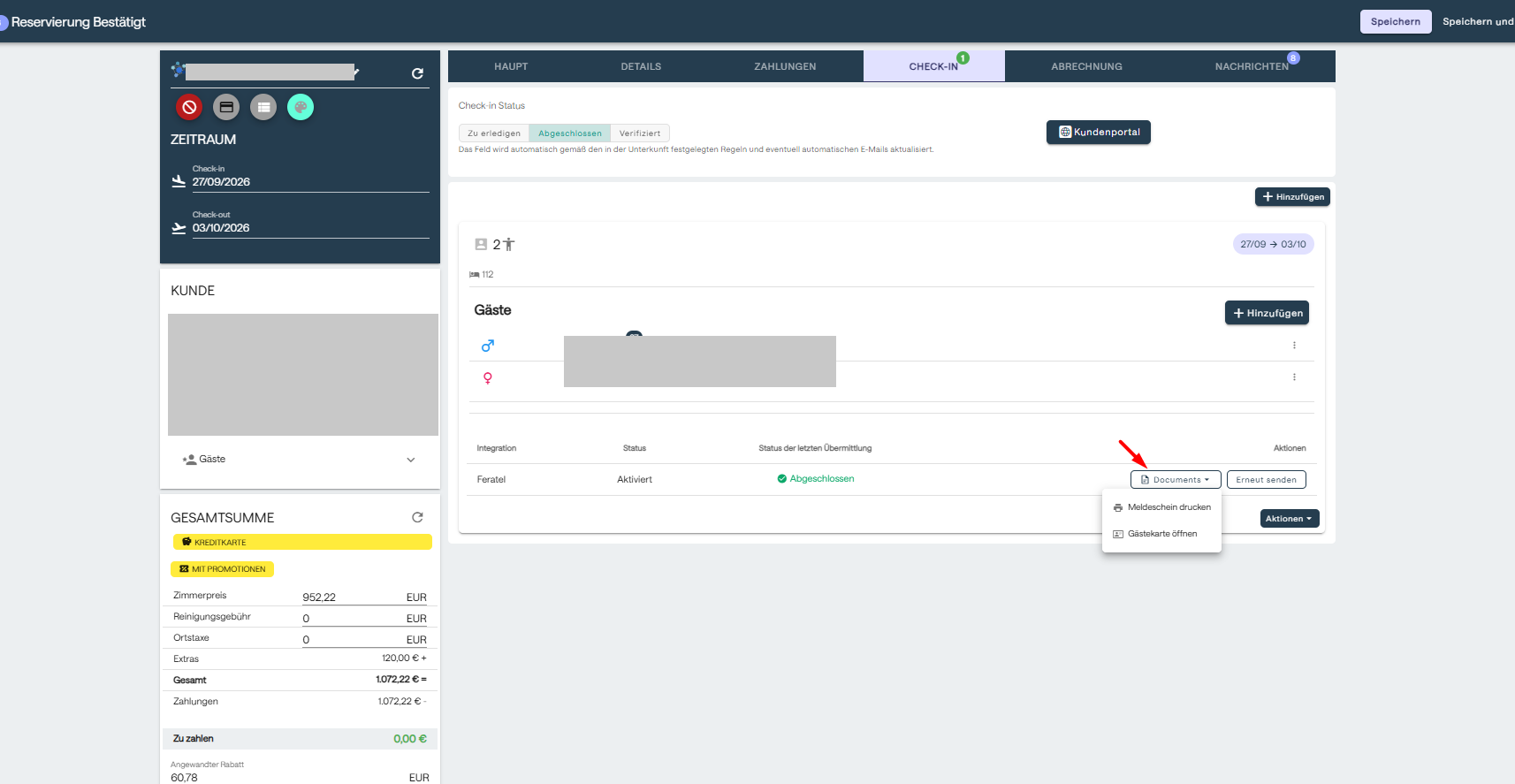
- Manual submission (button on the right in the row): sends the registration for this check-in immediately without waiting for the automatic submission. Use it after a correction or if guest data has changed after the first submission. After a successful submission, the button becomes Resend (Erneut senden). The submission happens in the background: if the status does not update, reload the page after a few seconds.
- Documents menu, next to the submission button:
- Print registration form (Meldeschein drucken): opens the pre-filled Meldeschein, ready to be printed and signed by the guest. If the booking is not yet registered, SmartPMS registers it on Feratel first and then opens the form. You can reprint it whenever you want: it does not create a second registration. The form opens in a new browser tab and may ask you to log in to the Feratel WebClient.
- Open guest card (Gästekarte öffnen): opens the guest's Gästekarte, if Feratel has issued it.
As long as there is at least one guest in the Check-in tab group, the actions in the Feratel row are available.
Registering a guest at reception who did not complete Self Check-in
When needed: the guest arrives without having completed the Self Check-in. SmartPMS does not have their data yet, so it cannot register them on Feratel or prepare the Meldeschein. In this case, the reception enters the data and the form is printed on the spot.
- Open the booking and go to the Check-in tab.
- In the Guests (Gäste) section, click + Add (Hinzufügen) and enter the data from the guest's document: at least first name, last name, date of birth, and residential address with Country and ZIP code. Repeat for every guest, including children.
- In the Feratel row, open the Documents menu and choose Print registration form (Meldeschein drucken). SmartPMS sends the registration to Feratel immediately, without waiting for the automatic submission, and opens the filled Meldeschein in a new tab.
- Print the form, have the guest sign it, and keep it as required by your tourist office.
If you enter the guests but do not print the form, the registration is still sent with the automatic submission. However, the signed Meldeschein must still be collected: you can print it at a later time using the same menu item. The signature collected in the SmartPMS Self Check-in is not carried over to the Feratel form.
🎫 Gästekarte (guest card)
The Gästekarte is issued and sent by Feratel, not by SmartPMS. Feratel sends it to the guest via email on the day of arrival, if:
- the registration was sent with the guest's email;
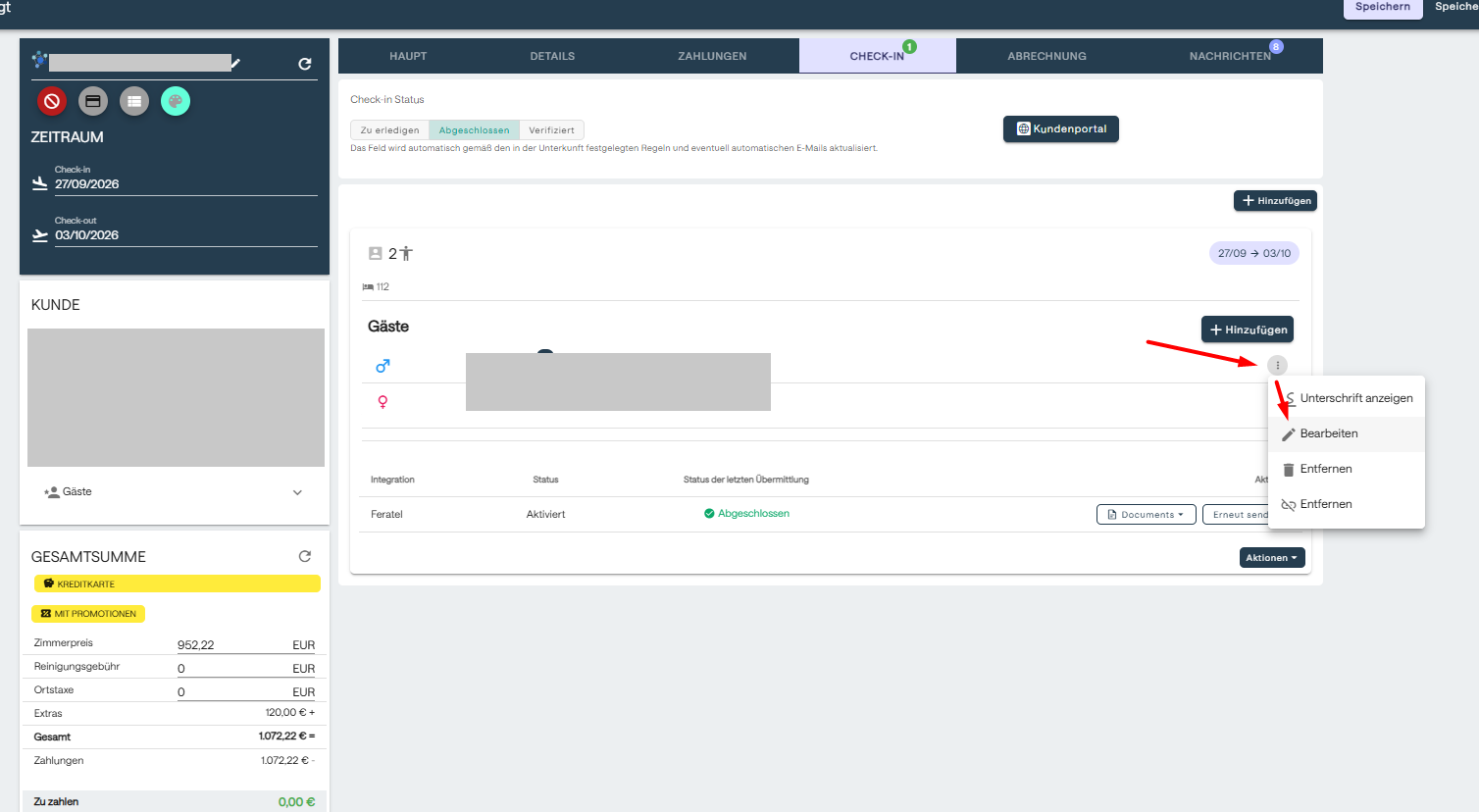
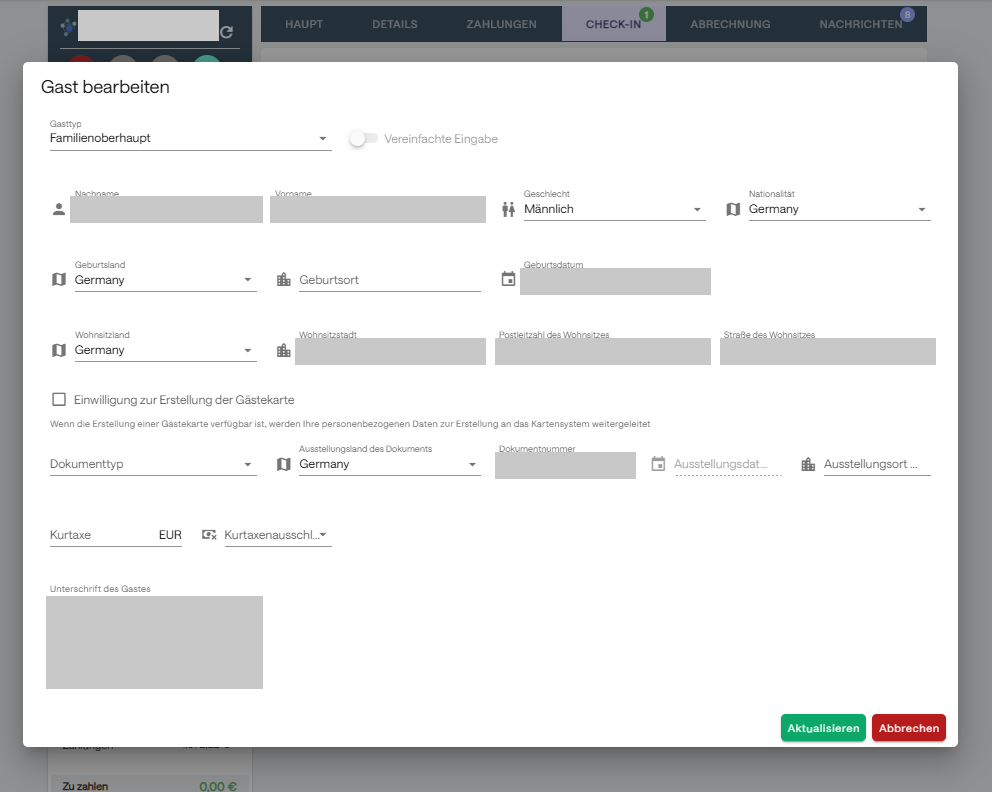
- the guest has given consent for the Gästekarte. In the Self Check-in, there is a dedicated checkbox; at reception, you set it by editing the guest in the Check-in tab: guest's three-dot menu > Edit (Bearbeiten) > Einwilligung zur Erstellung der Gästekarte checkbox (consent to the creation of the Gästekarte) > Update (Aktualisieren).
Without consent or email, Feratel does not produce or send the card. If you activate consent after submission, use Resend in the Feratel row.
🛠️ From the Feratel account: manual submission, logs, and diagnostics
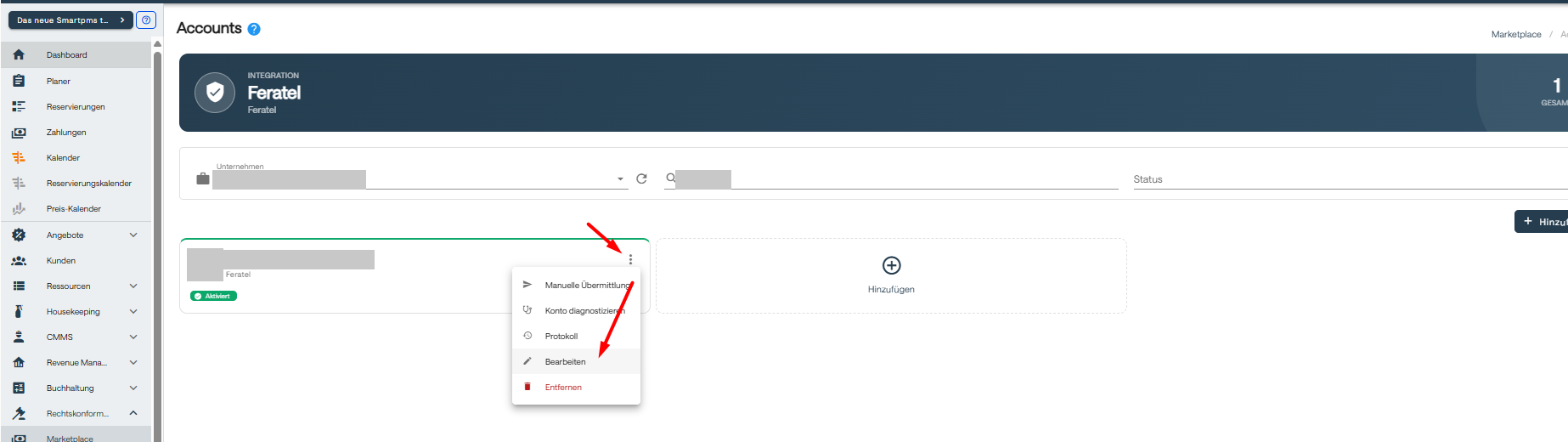
In Bureaucracy > Marketplace > Feratel, the three-dot menu of the account card contains:
- Manual submission (Manuelle Übermittlung): resends registrations for a specific date. Use it for corrections or to realign a day.
- Account diagnostics (Konto diagnostizieren): a read-only check that verifies property codes and connection on Feratel, available number ranges, and recurring errors. It does not change anything and you can use it at any time.
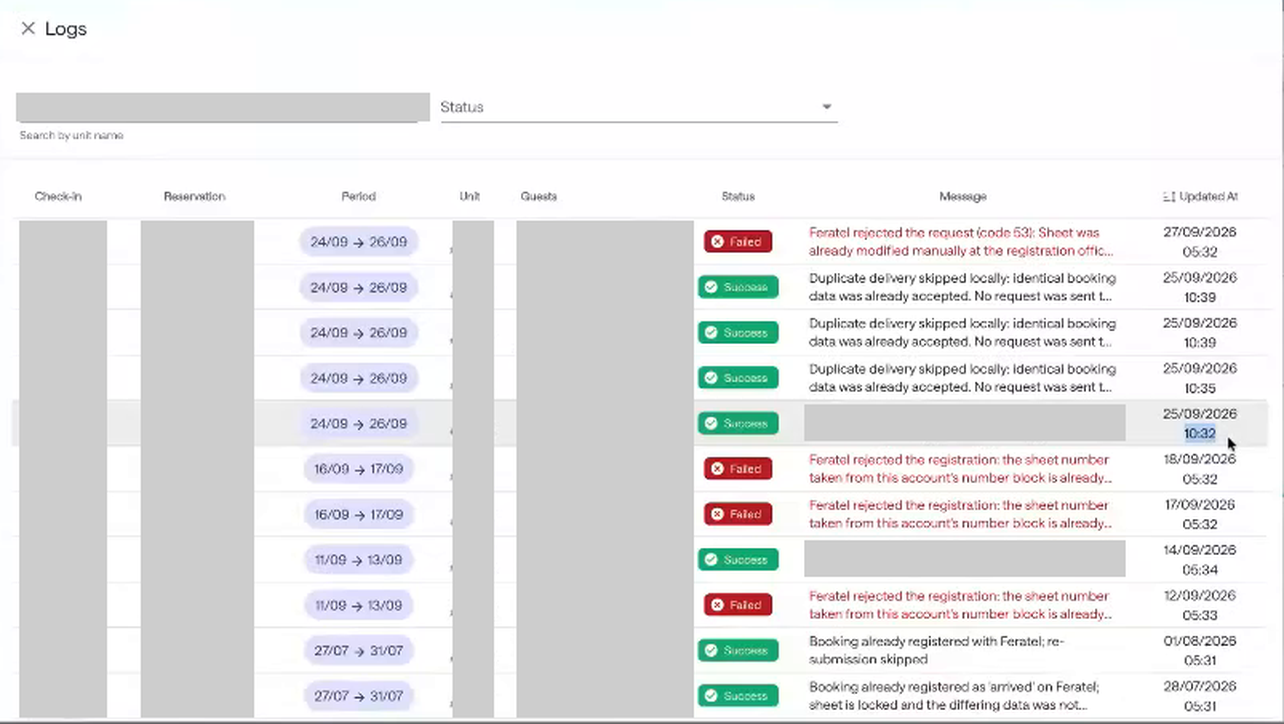
- Logs (Protokoll): the result of every submission, with status (Pending, In progress, Completed, Failed, Retry) and the Feratel message. You can filter by unit name and status.
- Edit (Bearbeiten): to change automatic submission, number ranges, or linked units.
- Remove (Entfernen): deletes the account.
Frequently asked questions
7At what time does SmartPMS send guest data to Feratel? And what about a last-minute booking?
Automatic submission starts every morning around 5:30 AM and transmits arrivals and departures from the previous day. A booking received during the day is therefore registered the following morning. If you need to register a guest immediately, use Manual submission or Print registration form in the Feratel row of the Check-in tab.
I have multiple properties (or different Immobilien-IDs): how do I configure them?
Create a separate account for each property in Bureaucracy > Marketplace > Feratel, each with its own number range (Sequence start/end date) and only the units of that property, each with its own Immobilien-ID and Gemeinde-ID. A unit can belong to only one account.
Guest registrations are not reaching Feratel: what should I check?
- In the account Log, look at the message of the last submission.
- Verify in Edit > Linked units that the Immobilien-ID and Gemeinde-ID are exactly those communicated by the tourist office, without extra prefixes or characters.
- Ask the tourist office to confirm that the property is enabled for the Ciaobooking (VT: CiaoBooking) interface and that it has an active Meldeschein number range.
- Check that the booking has guests in the Check-in tab group.
- Use Account diagnostics and then Manual submission to recover pending registrations.
Feratel rejects the submission because the Meldeschein number is already used or not assigned to the property (error 13, 29, or number already used).
The used number does not belong to the range assigned to the property by the tourist office, or it has already been occupied by another registration (e.g., done manually in the WebClient or by another system). Ask the tourist office for the updated Nummernkreis, enter it in the account's Sequence start date / Sequence end date (Edit), and redo the Manual submission of the booking. If the error persists after updating the range, contact support indicating the booking.
In the logs, I see "Sheet was already modified manually at the registration office" (error 53).
The registration was modified manually at the tourist office or in the Feratel WebClient and can no longer be updated by SmartPMS. If the data in the WebClient is correct, no further action is needed; otherwise, correct it with the tourist office. It may also appear in the logs during the departure day submission: if the arrival is completed, the registration remains valid.
I moved a booking to a unit of another property and the registration does not start for the new property.
The check-in remains linked to the original unit. In the Check-in tab, create a new check-in for the new unit, move the guests there, and then use Manual submission: the registration will be sent with the new property's codes.
Can I deactivate automatic submission and send only manually?
Yes. In Bureaucracy > Marketplace > Feratel, account menu > Edit, turn off Automatic submission (Automatisch senden) and save. From that moment on, SmartPMS will not send anything on its own: you will have to use Manual submission from the account or the individual booking. Do not send the same guests from the Feratel WebClient to avoid duplicates.
Related guides
Activation
Activation
Activation
Activation
Activation