

How to generate the DAC7 declaration for owners
How to prepare and generate the DAC7 declaration of payments made to owners in SmartPMS: cadastral data of units, owner profiles, Revenue Share settlements, creation of the annual declaration, checking values by quarter, and exporting the XML file to be delivered to your accountant.
You are in the right place if…12 cases
- “How do I make the DAC7 declaration with SmartPMS?”
- “My accountant is asking for the DAC7 XML file”
- “I need to report the compensation paid to owners to the Revenue Agency”
- “Where do I enter the land registry data for DAC7?”
- “I cannot find the Vacation Rental menu or the DAC7 item”
- “The DAC7 declaration is empty or an owner is missing”
- “The DAC7 amounts do not match those I paid to the owners”
- “I paid the deposit and balance to the owner at two different times”
- “Can I manually modify the DAC7 amounts before exporting it?”
- “How do I enter owner settlements for DAC7”
- “Generate the DAC7 file by January 31st”
- “Generation of the DAC7 Declaration on Smartpms”
The European DAC7 directive requires those who manage rentals on behalf of third parties to report the compensation paid to property owners to the Revenue Agency. SmartPMS prepares this report starting from the Revenue Share settlements you record for each owner and produces the XML file to be delivered to your accountant or tax intermediary, who handles the electronic submission.
The declaration is annual and summarizes, for each owner and each unit, the amounts divided by quarter.
Before you begin
- Revenue Share must be configured and active: follow the guide How to configure Revenue Share for Property Managers.
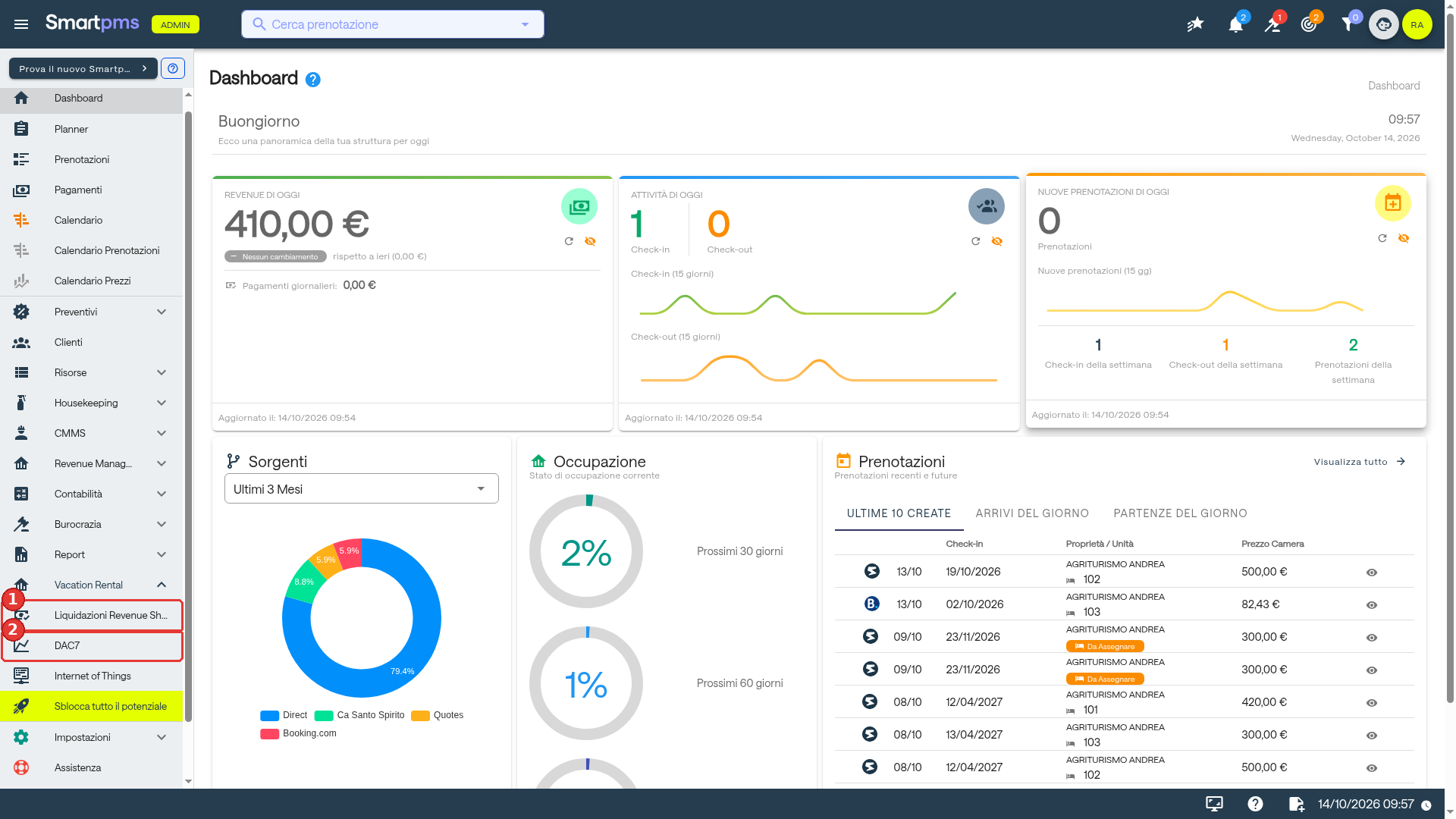
- The Vacation Rental menu item must be present in the sidebar, with the sub-items Owner Revenue Share Settlements and DAC7. If you do not see it, contact support to activate it on your account.
1. Check company data
The XML file lists the company you operate as a Property Manager as the sender, with its tax code (or, if unavailable, the VAT number), the certified email (PEC), and the registered office address: without a tax code or VAT number, the file cannot be generated. This data must be identical to that registered with the Revenue Agency.
Company name, VAT number, address, and PEC are modified from the Smartness platform, not from SmartPMS: SmartPMS receives them automatically, and a change made directly in the management software would be overwritten.
- Open platform.smartness.com/account/billing (menu Administration → Billing → Overview).
- In the Profiles box, select the company profile and click the edit pencil in the top right.
- Check the company name, VAT number, PEC, and address, correct if necessary, and save. After a few minutes, the data will arrive in SmartPMS.
The company tax code is filled in SmartPMS, under Settings → Companies → Actions → Edit → Details: for a company (Srl, Snc, Sas...), enter the company's tax code, which usually coincides with the VAT number, and not the personal one of the legal representative. For details, see the guide Configuring the company to issue invoices and receipts in Italy.
2. Complete the owner profiles
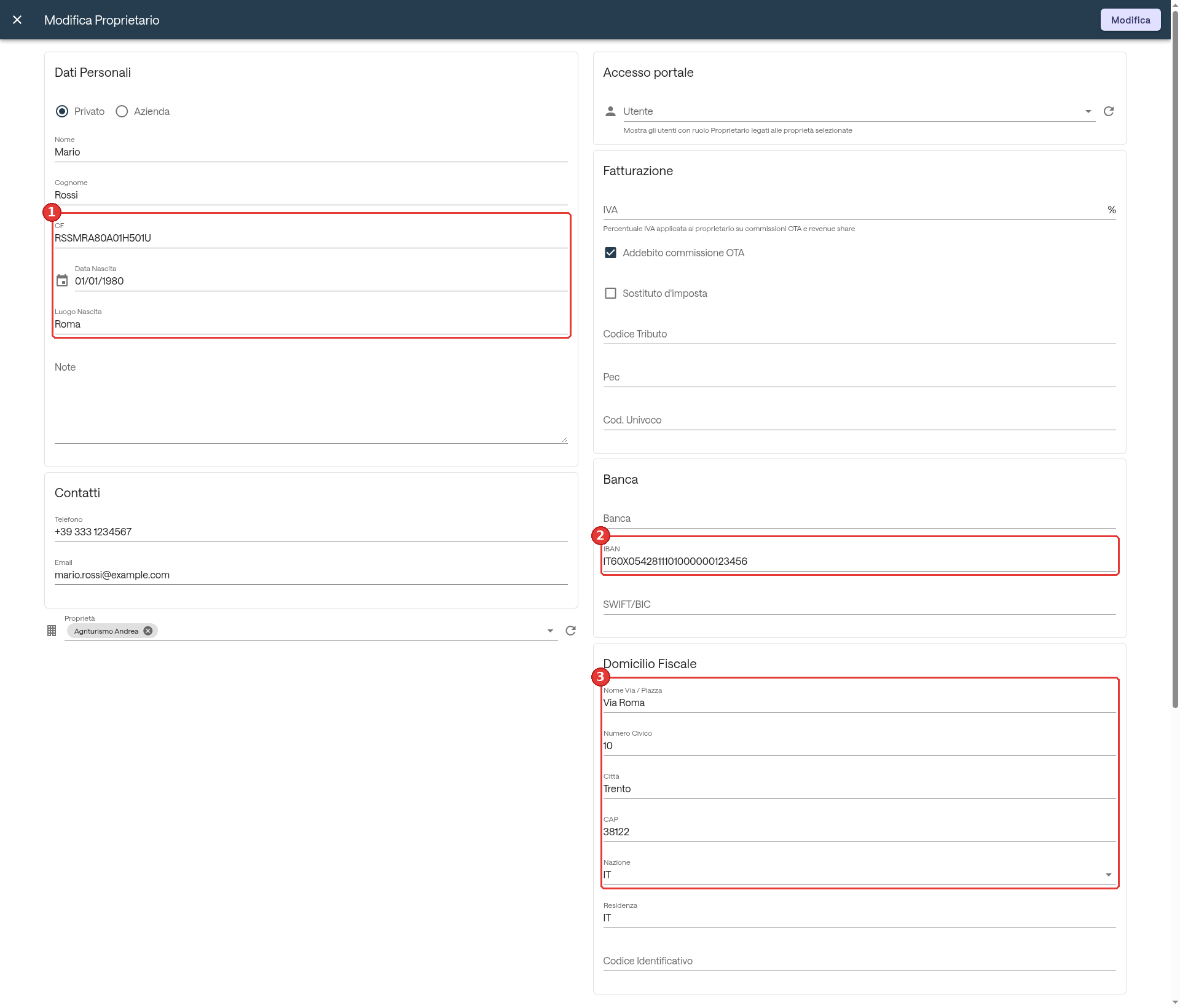
Each owner appears in the declaration with their personal and tax data. Go to Settings > Companies > Settings of your company and, in the Vacation Rental section, open Owner Profiles. For each owner, click View and check:
- Tax code (or VAT number for companies), date, and place of birth: both date and place must be filled in.
- IBAN of the account where you receive payments.
- Tax domicile: street, house number, city, postal code, and Country (for Italy, select IT).
Click Edit to save.
3. Enter the land registry data for each unit (one-time only)
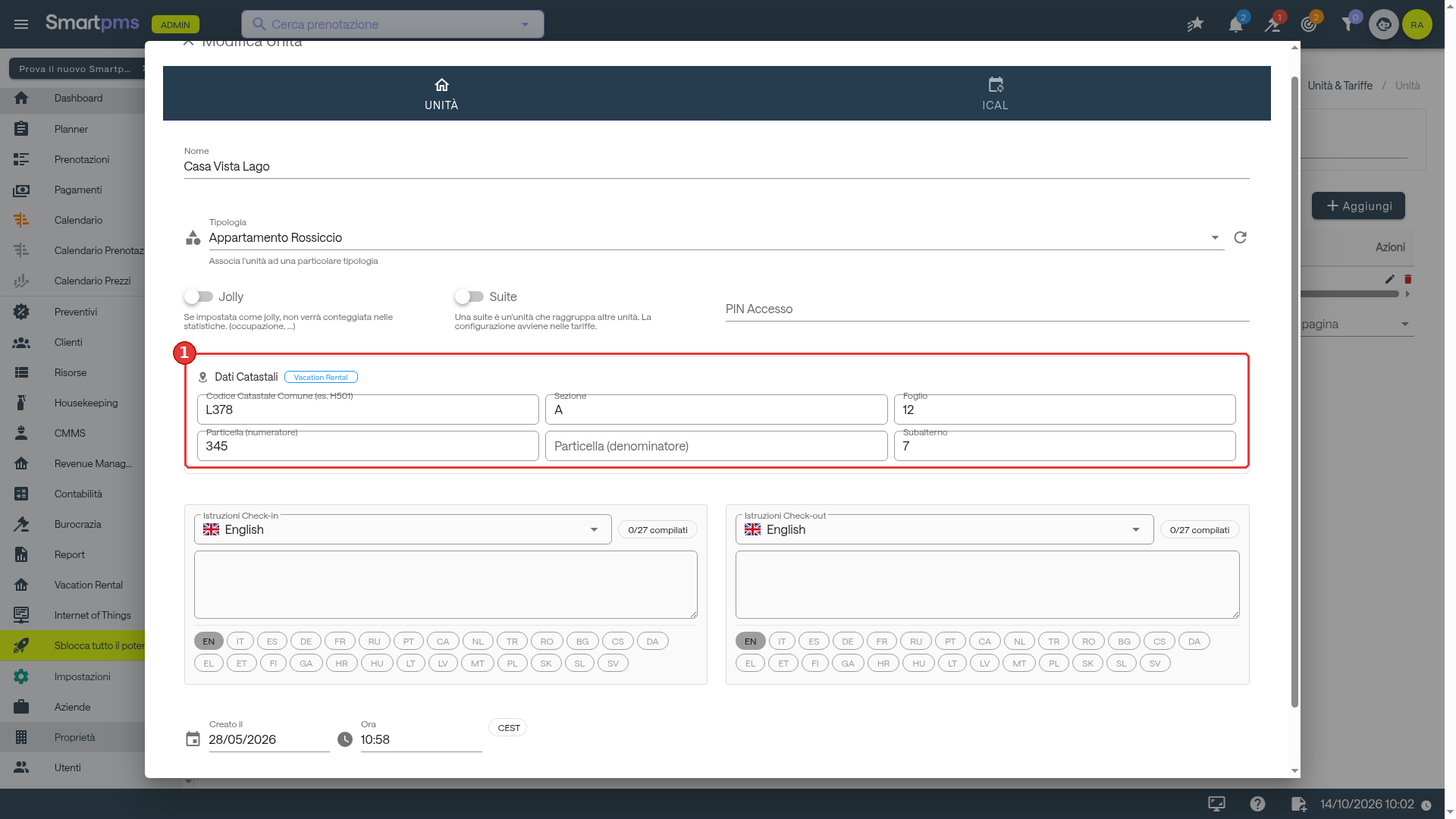
The DAC7 must indicate the rented property. Open Settings > Properties, click Settings on the property, then Units and Rates > Units and click the pencil icon next to the unit. Alternatively, from the Tape Chart click the bed icon next to the unit name.
In the Land Registry Data section, fill in the following by copying them from the land registry certificate:
- Municipal Land Registry Code (e.g., H501 for Rome);
- Section, if present in the certificate;
- Sheet (Foglio);
- Parcel (Numerator): for Italian properties, only the numerator is used; the Parcel (denominator) field remains empty;
- Subaltern.
Always write letters in uppercase (e.g., H501, not h501) and click Edit to save.
4. Record settlements to owners
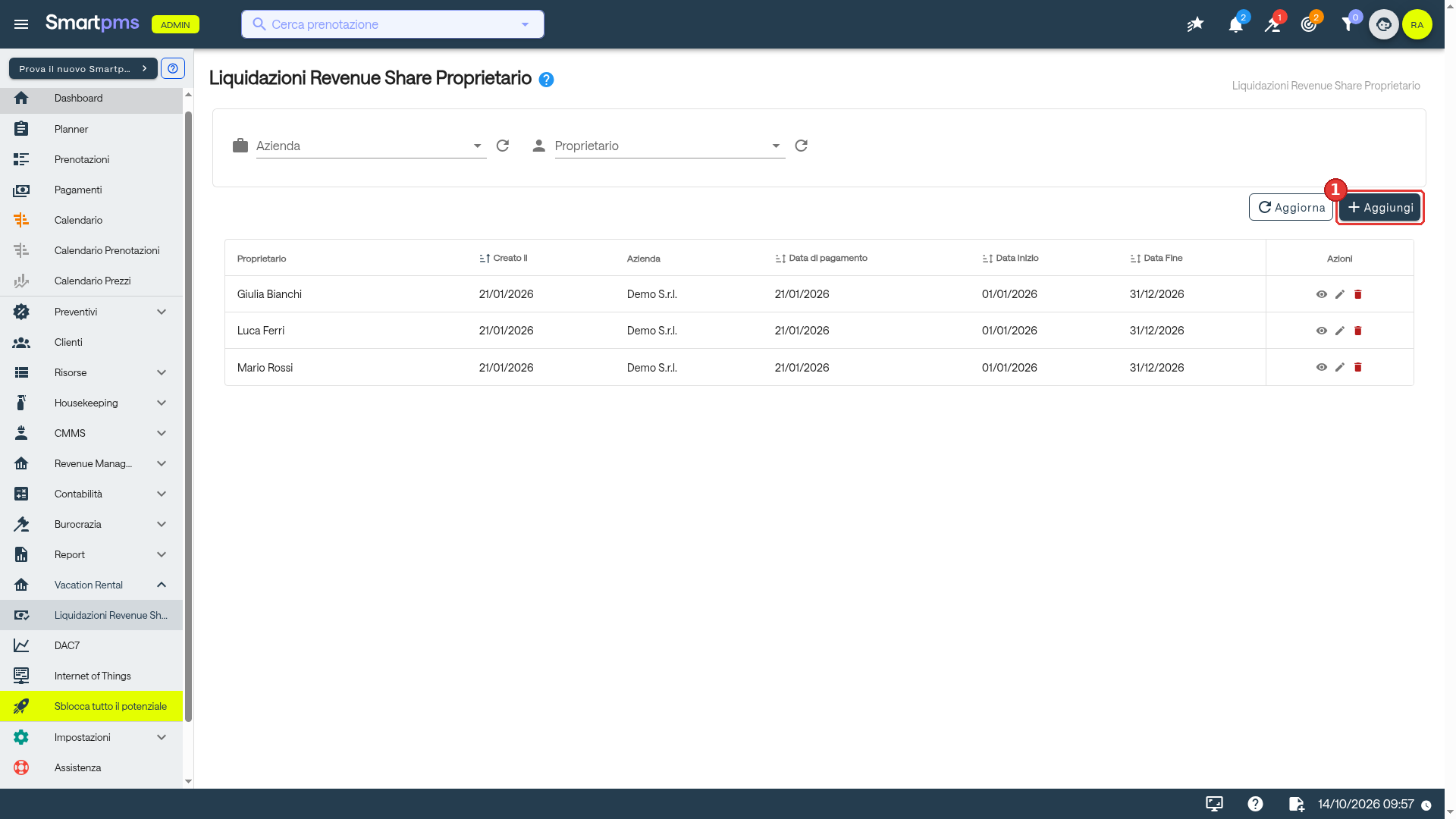
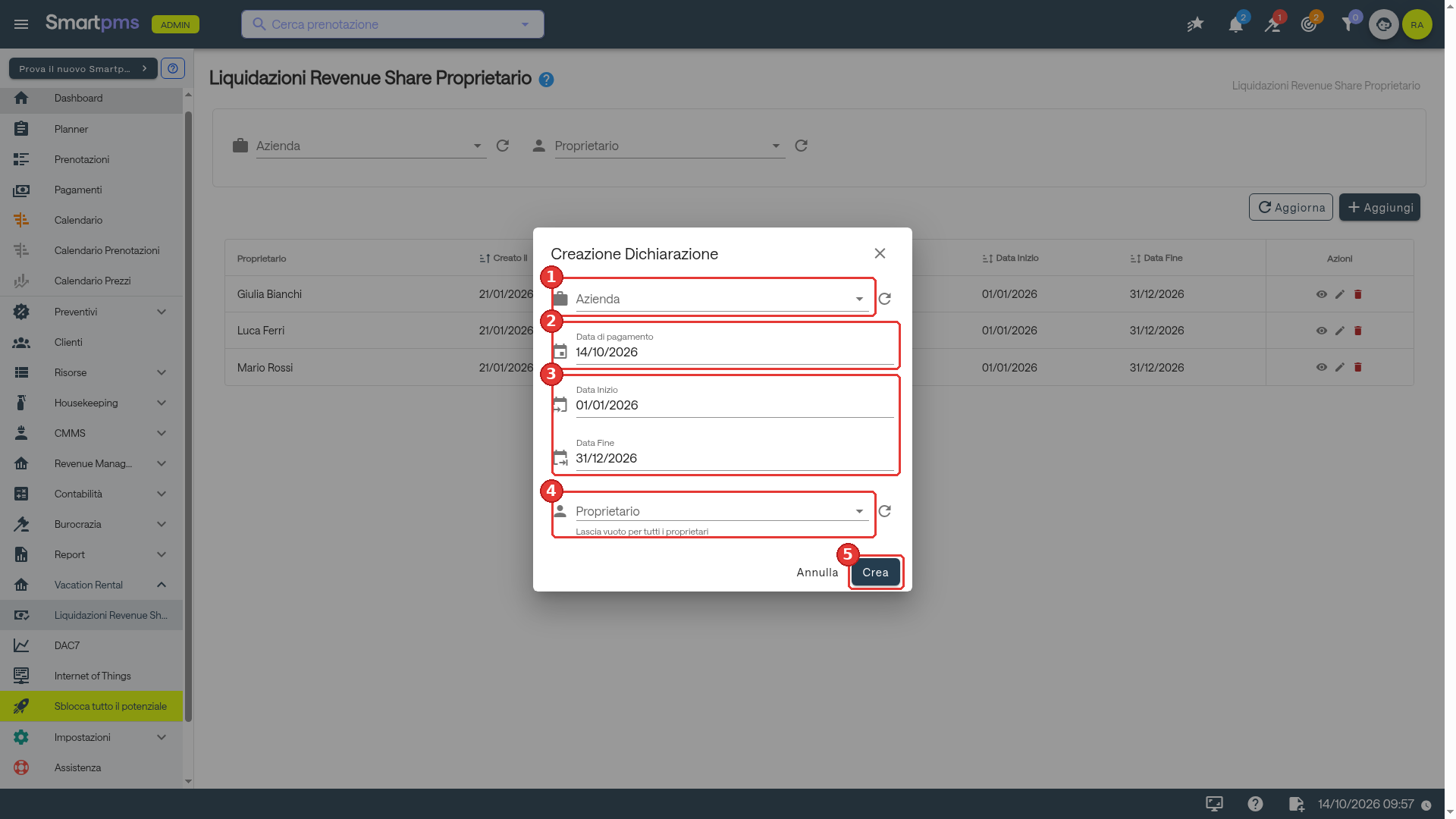
The DAC7 is based on the sums you have actually paid to the owners, so each payment must be recorded as a settlement. Go to Vacation Rental > Owner Revenue Share Settlements and click Add.
In the window, fill in:
- Company: the company you operate as a Property Manager.
- Payment date: the day you paid the owner. This date determines in which year and in which quarter the amount ends up in the declaration.
- Start Date and End Date: the period covered by the payment. Bookings whose stay falls even partially within the period are included (not just the check-in date).
- Owner: if you leave it empty, SmartPMS creates a separate settlement for each owner of the company. If there are two owners with the same name in the Owner Profiles, they appear identical in the menu: make sure to choose the one associated with the property, otherwise the settlement will be empty.
- Click Create.
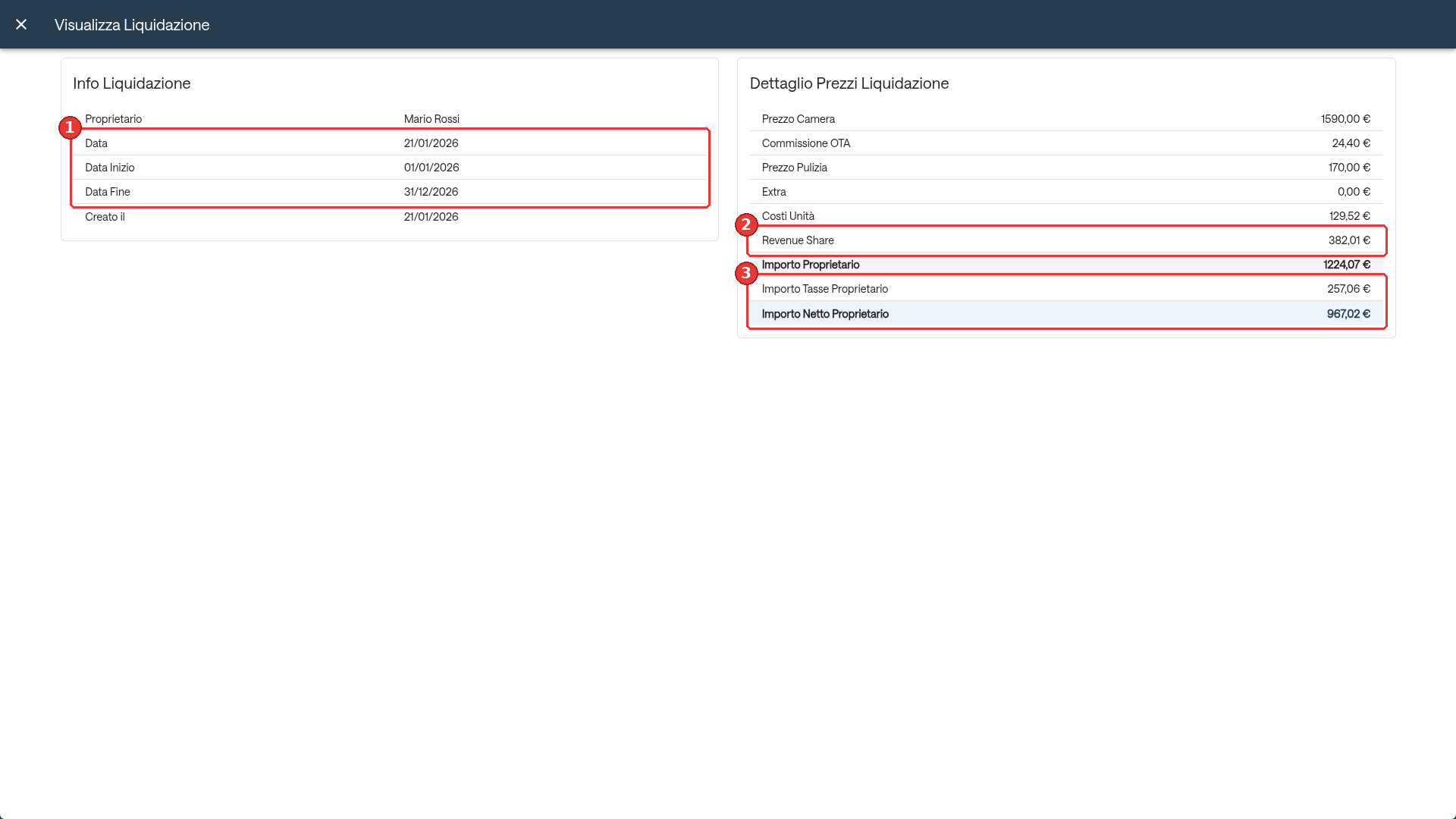
The amount is calculated automatically at the time of creation: it is the sum of the owner net from the Revenue Share report of confirmed bookings, with an assigned unit, in that owner's properties, with a stay in the indicated period. Bookings already included in another settlement are excluded, so the same stay is not paid twice. If the owner has multiple units, the amounts are summed.
Before creating settlements, ensure that the Revenue Share values are updated: if you have changed VAT, percentages, or costs, open Settings > Properties, enter the property settings, open Revenue Share, and use Regenerate, indicating in the Date field a day prior to the bookings to be recalculated. The settlement reads the values only when you create it: if you regenerate later, delete the settlement and create it again. With the eye icon, you can see the settlement detail: your share (Revenue Share), the taxes withheld from the owner (Owner Tax Amount, for example, the cedolare secca if Tax substitute is active in the profile), and the Owner Net Amount.
Record settlements as you pay the owners, for example, every month: at the end of the year, you will have everything ready.
5. Create the DAC7 declaration
Go to Vacation Rental > DAC7 and click Add.
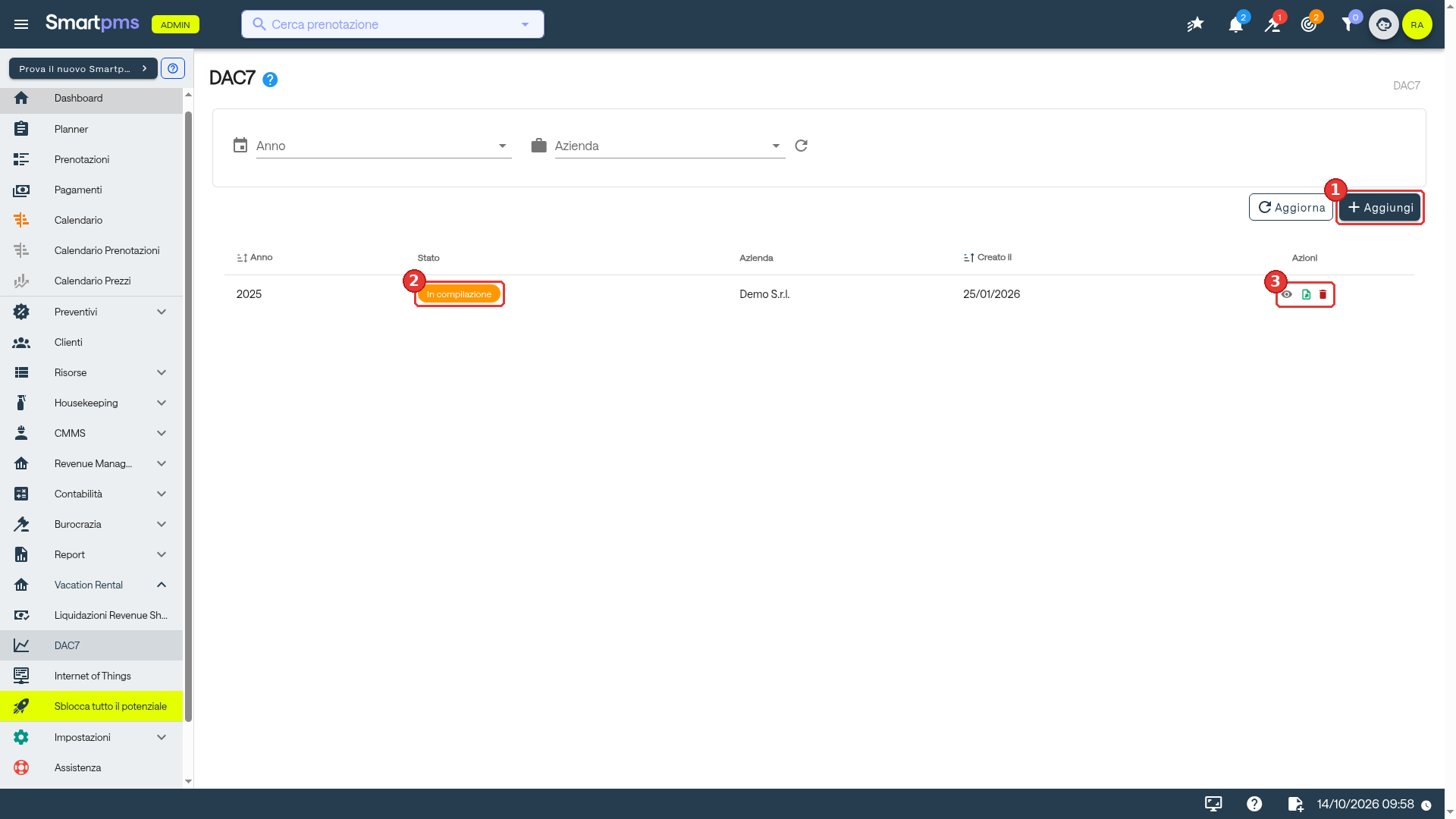
The creation takes place in two steps:
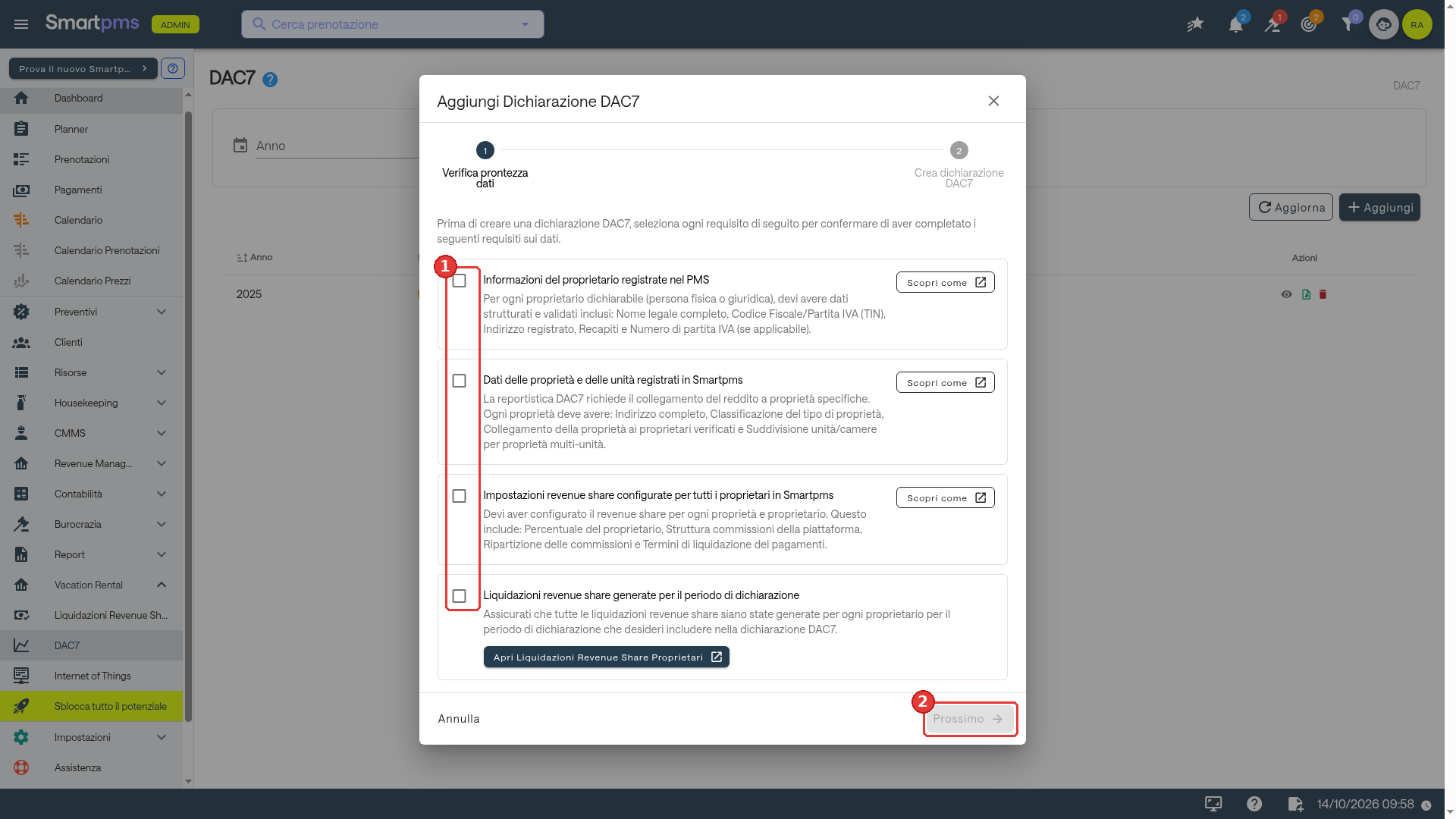
- Data readiness check: check the four confirmations (owner profiles, property and unit data, Revenue Share configured, settlements generated for the period). Each item has a link to the guide or the corresponding page. When all are checked, click Next.
- Create DAC7 declaration: select the Company and the Year of the declaration, then click Complete.
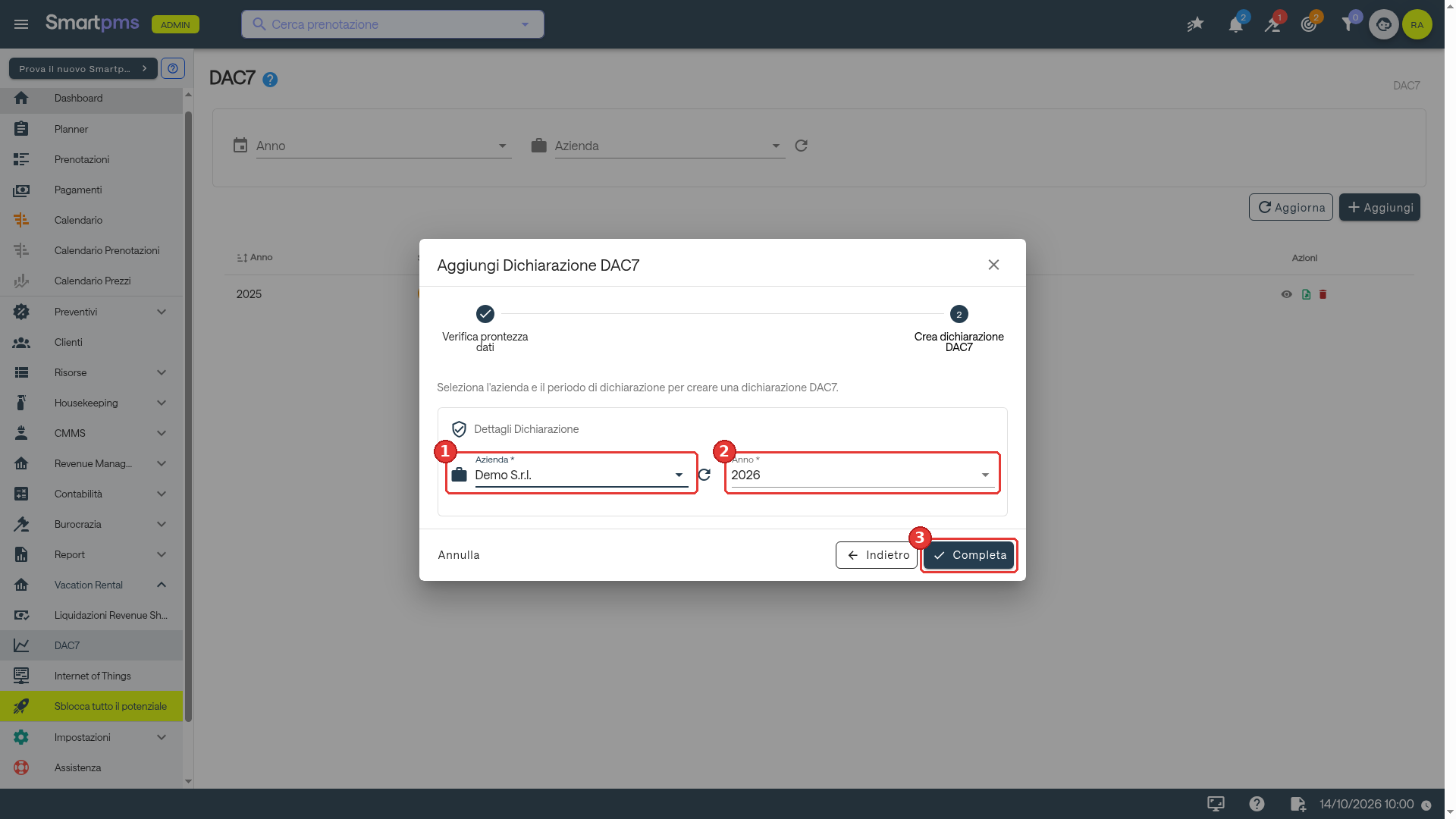
SmartPMS collects all the company's settlements with a payment date in the chosen year and creates a row for each combination of owner and unit. You can create only one declaration per company and per year: the new declaration appears in the list with the status In compilation.
6. Check and, if necessary, correct the values
In the list, click the eye icon to open the declaration. For each owner and unit, you will find the values for the four quarters (Q1–Q4):
Column | What it contains |
|---|---|
Period | The quarter's compensation: the sum of the owner net of the settled bookings |
Number of Activities | The number of bookings settled in the quarter |
Commissions | Your share of Revenue Share withheld |
Taxes | The taxes withheld from the owner |
Number of Contracts | The total number of bookings for the year |
Duration of Contracts | The total number of nights rented in the year |
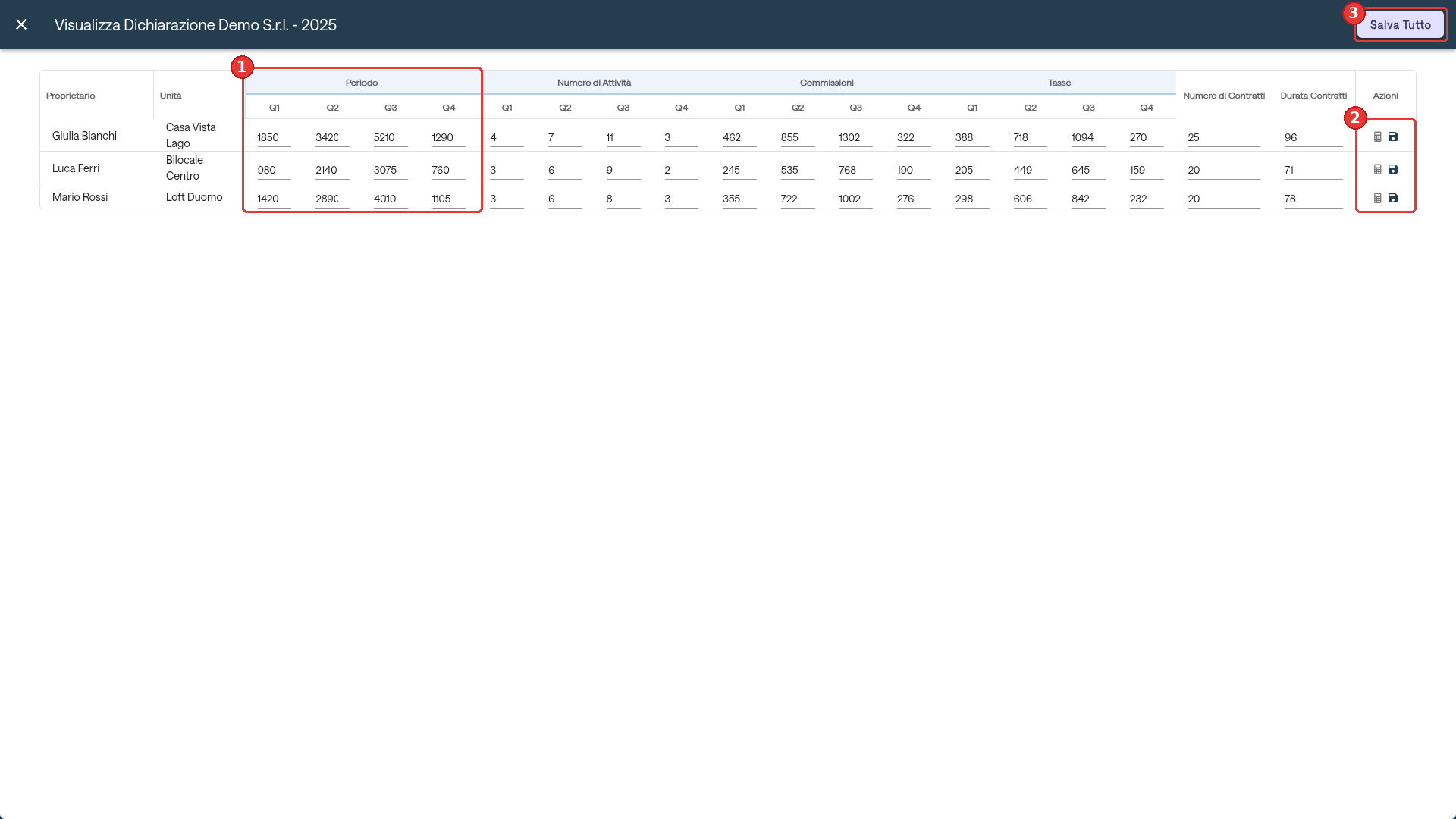
Each cell is editable: correct the value and save the row with the disk icon, or save all rows together with Save All. The changes apply only to the declaration: the settlements and bookings remain unchanged. With the calculator icon, the Calculated Values window opens, with the values calculated automatically: you can restore them to the row with Restore Values.
The amounts are read from the settlements at the time of creation. If you add or modify a settlement after creating the declaration, delete the declaration with the trash icon and create it again.
7. Export the XML file
In the list of declarations, click the XML export icon (the green sheet next to the eye): the file is downloaded to your computer, and the declaration status changes from In compilation to Exported. Each export regenerates the file with the current personal and land registry data, so if you correct an owner's profile or a unit's land registry data, just export again without recreating the declaration.
Deliver the file to your accountant or tax intermediary: SmartPMS does not send the declaration to the Revenue Agency. If your accountant reports missing or incorrect data, correct it in the profile or in the unit's land registry data and export the file again.
Frequently asked questions
6I created the DAC7 declaration but it is empty or an owner is missing: why?
The declaration includes only owners who have at least one settlement with a payment date in the chosen year. In Vacation Rental > Owner Revenue Share Settlements check that:
- a settlement exists for that owner;
- the payment date falls within the year of the declaration (a January 2026 payment for 2025 bookings ends up in the 2026 DAC7);
- the owner is associated with the property in the Owner Registry;
- when opening the settlement with the eye icon, the amounts are not zero. If they are, check that you have chosen the right owner and that there are confirmed bookings with an assigned unit in the period; if everything is correct, contact support.
After correcting, delete the declaration and create it again.
I paid the owner a deposit and then the balance: how do I record the settlements?
DAC7 assigns each amount to the quarter of the payment date.
- If the deposit and balance fall in the same quarter, you can record a single settlement for the entire period.
- If they fall in different quarters, create two settlements: the first with the period covered by the deposit and the deposit payment date, the second with the remaining period and the balance date.
Alternatively, you can correct the quarterly amounts directly in the declaration before exporting it.
For a private owner, the settlement shows an Owner Tax Amount: is this correct?
Yes. If Tax Withholding Agent is active in the Owner Registry, SmartPMS calculates the withholding tax (flat tax/cedolare secca) that you withhold and shows it in Owner Tax Amount. In the DAC7 declaration, this value appears in the Taxes column.
I modified a settlement after creating the DAC7 declaration: does it update automatically?
No: the amounts are read from the settlements only when you create the declaration. Delete it with the trash icon and create it again. Personal and land registry data, however, are read at every XML file export.
Why am I asked for the sheet, parcel, and subaltern in the unit?
These are the land registry data of the property, required by the DAC7 declaration. They are only needed if you generate the DAC7: if you do not need to submit it, you can leave them blank.
Related guides
Configuration
Configuration
Configuration
Configuration
Configuration
How it works