

Electronic invoice rejected or not sent to the SDI: statuses, most common errors, and how to resend it
How to check if an electronic invoice has been sent, delivered, or rejected by the Exchange System (SDI) in Accounting > Fiscal Documents: meaning of statuses and colors, Document sending details window, why «Send to SDI» does not start (12-day limit, Downloaded status), most common rejection errors (00200, 00404, PA signature), and how to correct and resend the rejected invoice with the same number.
You are in the right place if…15 cases
- “The invoice was rejected by the SDI, what should I do?”
- “I received an «Invoice rejection» email: how do I correct and resend it?”
- “How do I know if the electronic invoice has been accepted or delivered?”
- “There is nothing written in the Invoice Status column”
- “The invoice shows an Error in red”
- “You cannot send this document to the SDI”
- “I click on Send to SDI, confirm, but nothing happens”
- “The invoice has been stuck on Document Sent or Queued for sending for days”
- “On the Revenue Agency portal, the invoice is delivered, but in the management software, it is in error”
- “Error 00200 File not compliant with the format, element 'Description' is not valid”
- “Invoice rejected as duplicate, error 00404”
- “Invoice to the Public Administration rejected due to the signature”
- “Should I delete the rejected invoice or change its number?”
- “The invoice shows Failed delivery: do I need to redo it?”
- “The invoice is older than 12 days and I cannot send it”
When you send an electronic invoice from the management software, the Revenue Agency's Exchange System (SDI) checks it and returns an outcome: delivered, not delivered, or rejected. In this guide, you will find where to read the outcome, what each status means, and how to correct and resend a rejected invoice.
The complete procedure for issuance and the first sending is in the guide "How to issue an electronic invoice and send it to the SDI".
Before you begin
- Sending to the SDI applies to companies based in Italy and for Invoice and Credit Note type documents. Receipts follow a different path: see the guide How to connect SmartPMS to the Revenue Agency for sending receipts.
- The SDI functionality must be active in your subscription: it is activated by the Onboarding Specialist during configuration. How to configure the company is explained in the guide "Configuring the company to issue invoices and receipts in Italy".
- Invoices do not go out on their own: each invoice must be sent via Actions > Send to SDI.
1. Where to see the sending outcome
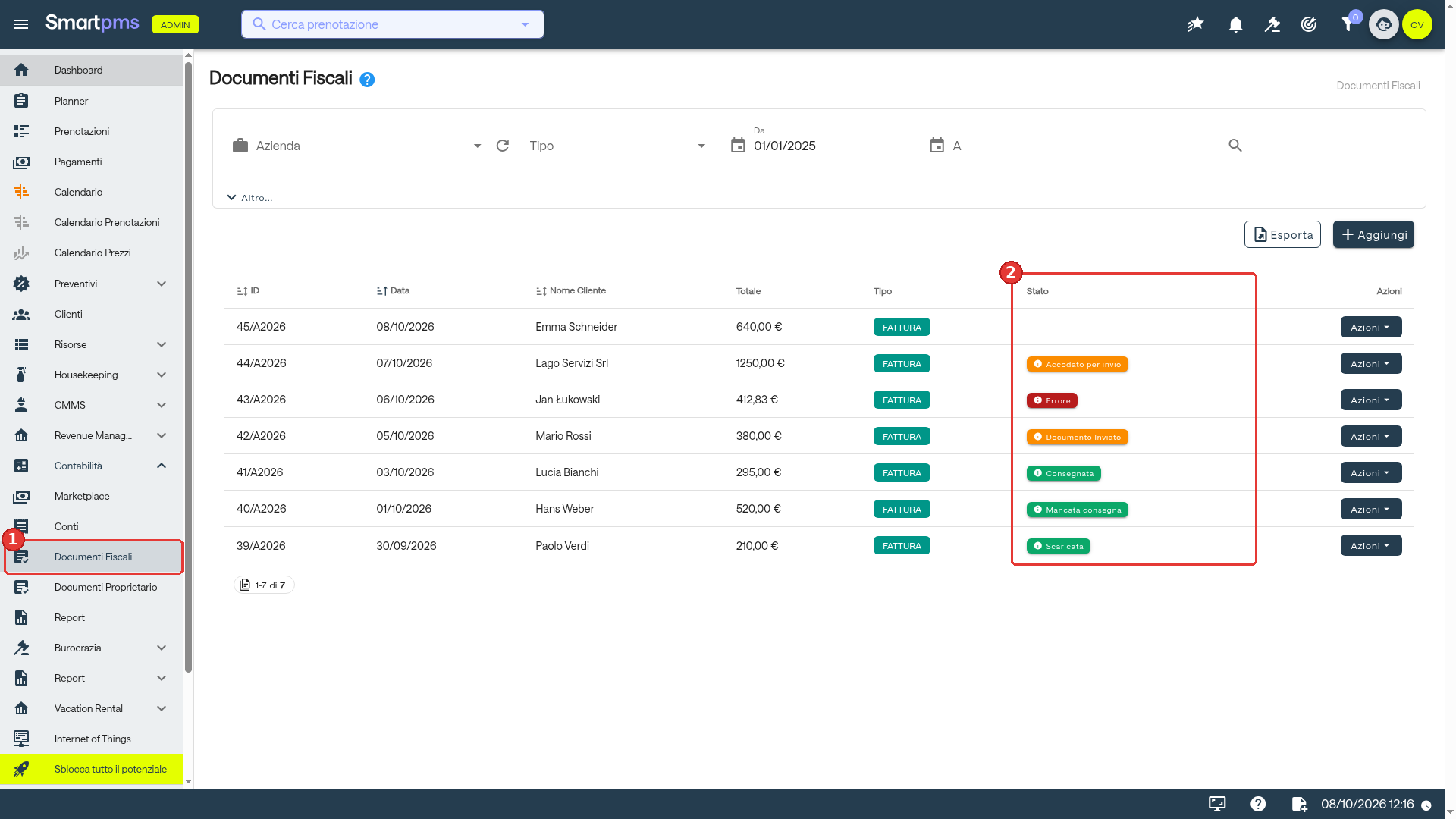
- Go to Accounting > Fiscal Documents.
- Search for the invoice and look at the Status column. The outcome appears as a colored button; if the column is empty, the invoice has never been sent.
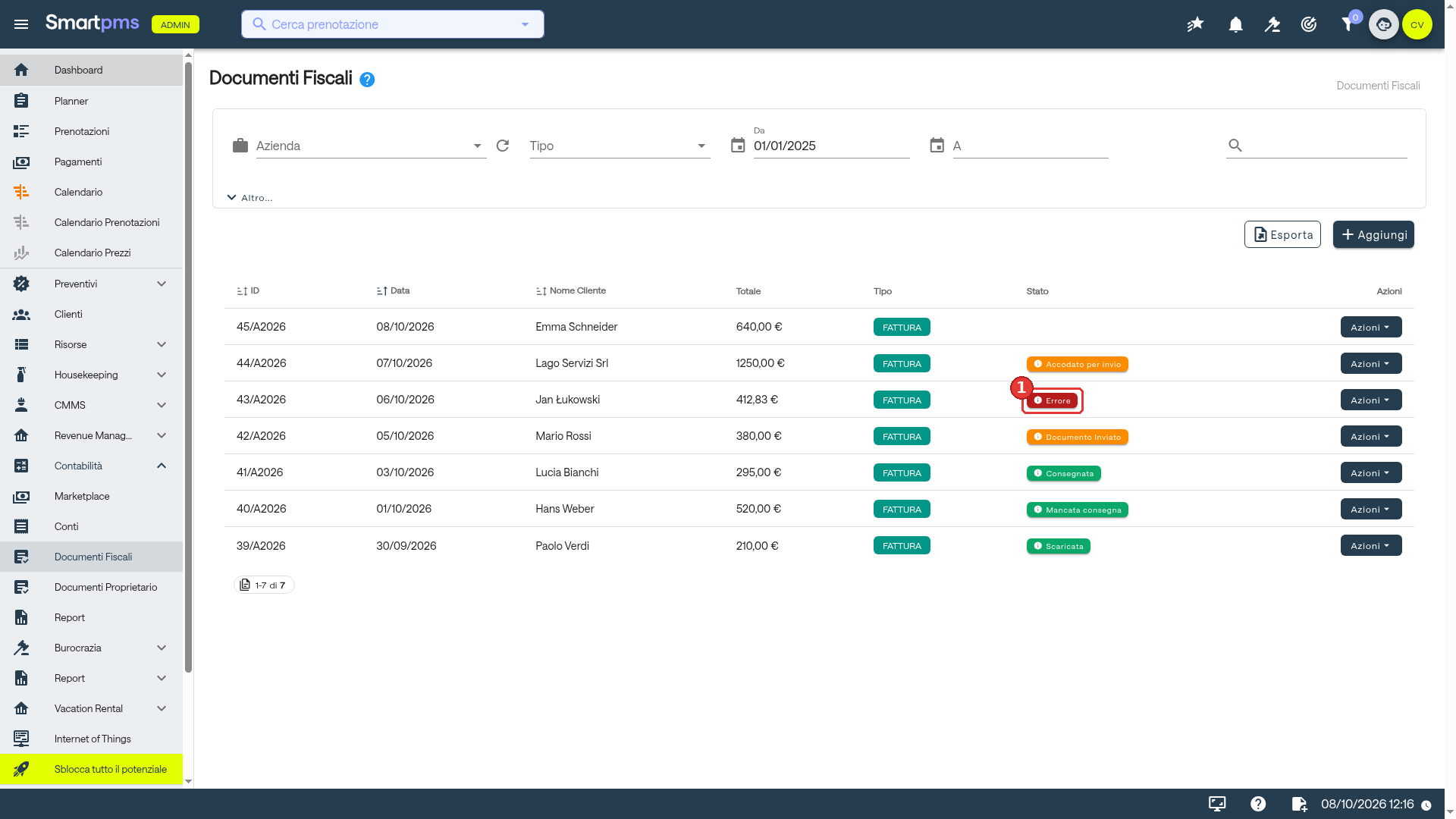
- Click on the invoice status button (for example, the red Error button).
The Document sending details window opens: on the left, you will find the type, number, date, amount, and customer name; on the right, the explanation of the outcome. In case of rejection, the note is divided into four parts: Problem detected, the data to verify in the PMS, a practical suggestion, and an invitation to resend the invoice after correction. Click Close to return to the list.
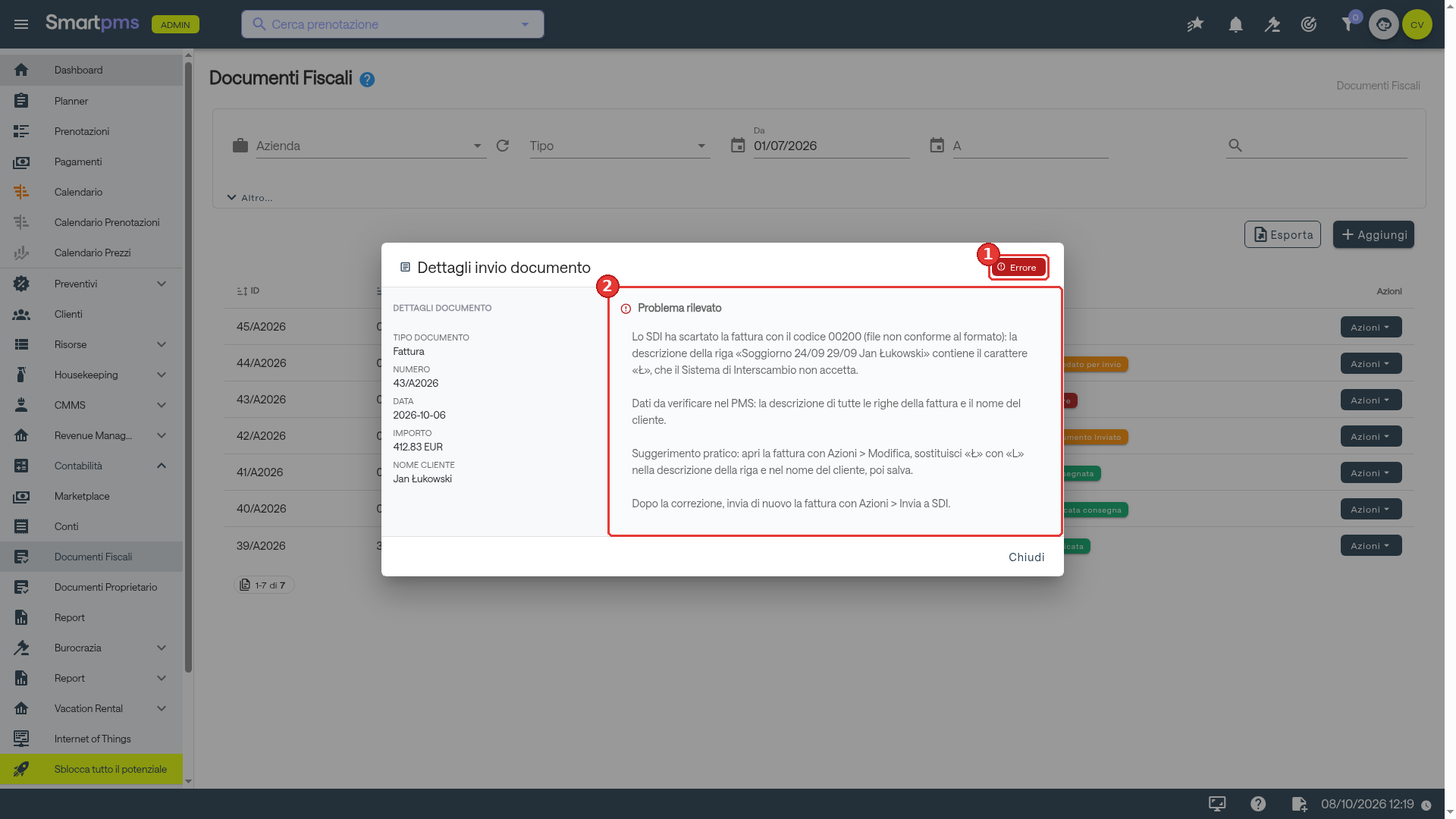
When an invoice is rejected, users with the accounting role also receive the notification "Invoice … rejected by the SDI" and the company receives a rejection email.
2. What each status means
Status in Status column | Color | What it means | What you need to do |
|---|---|---|---|
(empty) | – | The invoice has been created but has never been sent | Send it with Actions > Send to SDI, within 12 days from the invoice date |
Queued for sending | orange | The invoice has been taken over and is in the queue for transmission | Wait: it usually changes to Document Sent in a few seconds |
Document Sent | orange | The invoice has been transmitted to the SDI, which has yet to return the outcome | Wait for the outcome |
Delivered | green | The SDI has accepted and delivered it to the recipient | Nothing: the invoice is issued |
Failed delivery | green | The SDI accepted it but could not deliver it (e.g., private customer or inactive mailbox). The invoice is still issued and is available in the customer's reserved area on the Revenue Agency website | Do not resend it. If you want, send the customer a PDF copy |
Error | red | The invoice was rejected by the SDI, or the sending failed | Read the reason in Document sending details, correct and resend (see point 4) |
Downloaded | green | The XML file of the invoice was downloaded before sending. It does not mean it was sent | See the FAQ "The invoice shows Downloaded in green and I cannot send it" |
In the Status column, the word "Rejected" does not exist: an invoice rejected by the SDI appears as Error in red.
3. When you can use «Send to SDI»
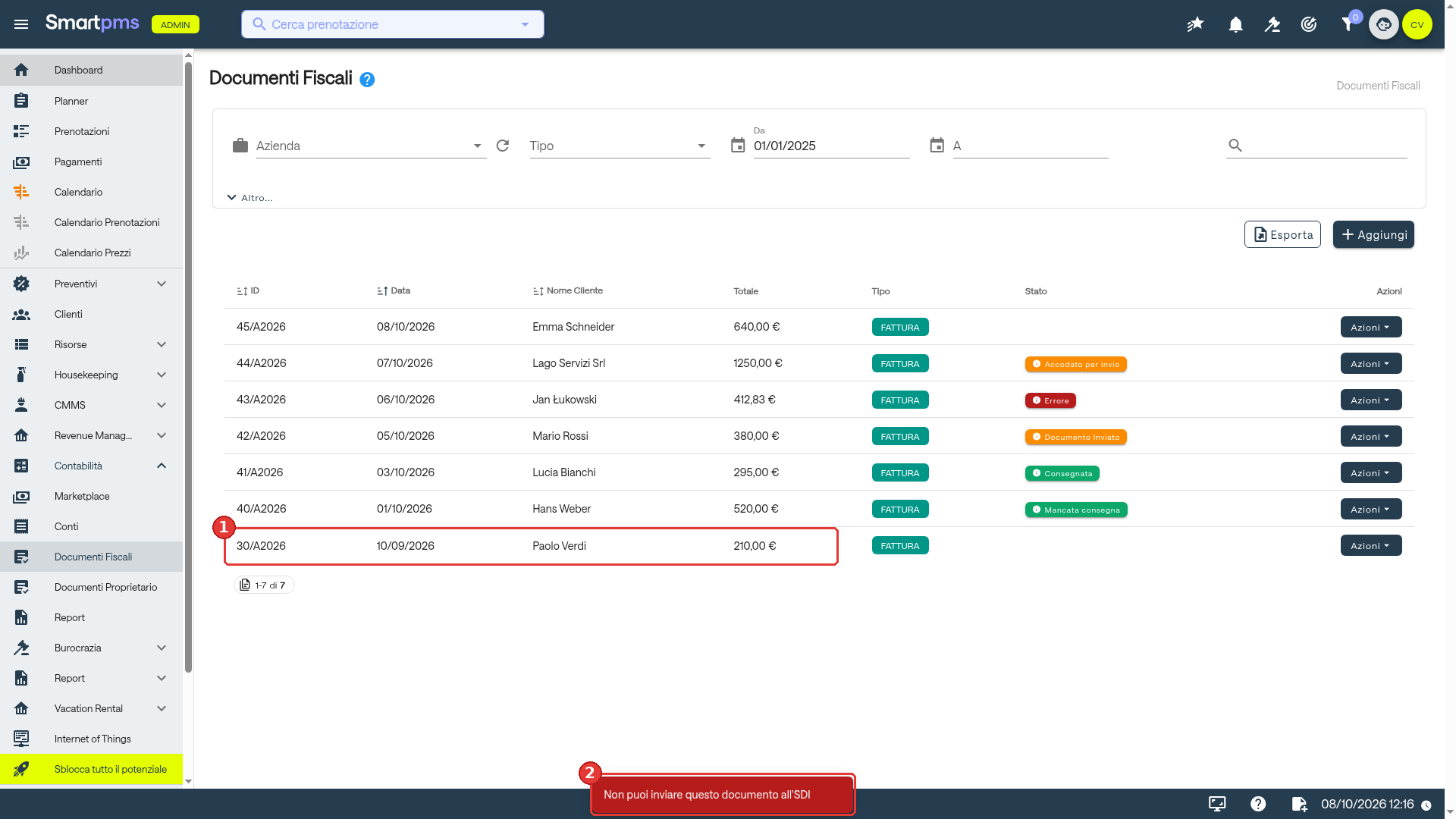
The Actions > Send to SDI button sends the invoice only if:
- the Status column is empty or in Error;
- the invoice date is not in the future and is not older than 12 days compared to today.
With the statuses Queued for sending, Document Sent, Delivered, Failed delivery, and Downloaded, sending is blocked to prevent the same invoice from arriving at the SDI twice. If one of the conditions is not met, the message "You cannot send this document to the SDI" appears at the bottom.
4. How to correct and resend a rejected invoice
A rejected invoice by the SDI is not considered issued: it must not be deleted or renumbered. You correct the data that caused the rejection and resend the same invoice, with the same number.
- In Accounting > Fiscal Documents, click on the Error button of the invoice and read in Document sending details which data to correct.
- On the invoice row, click Actions > Edit.
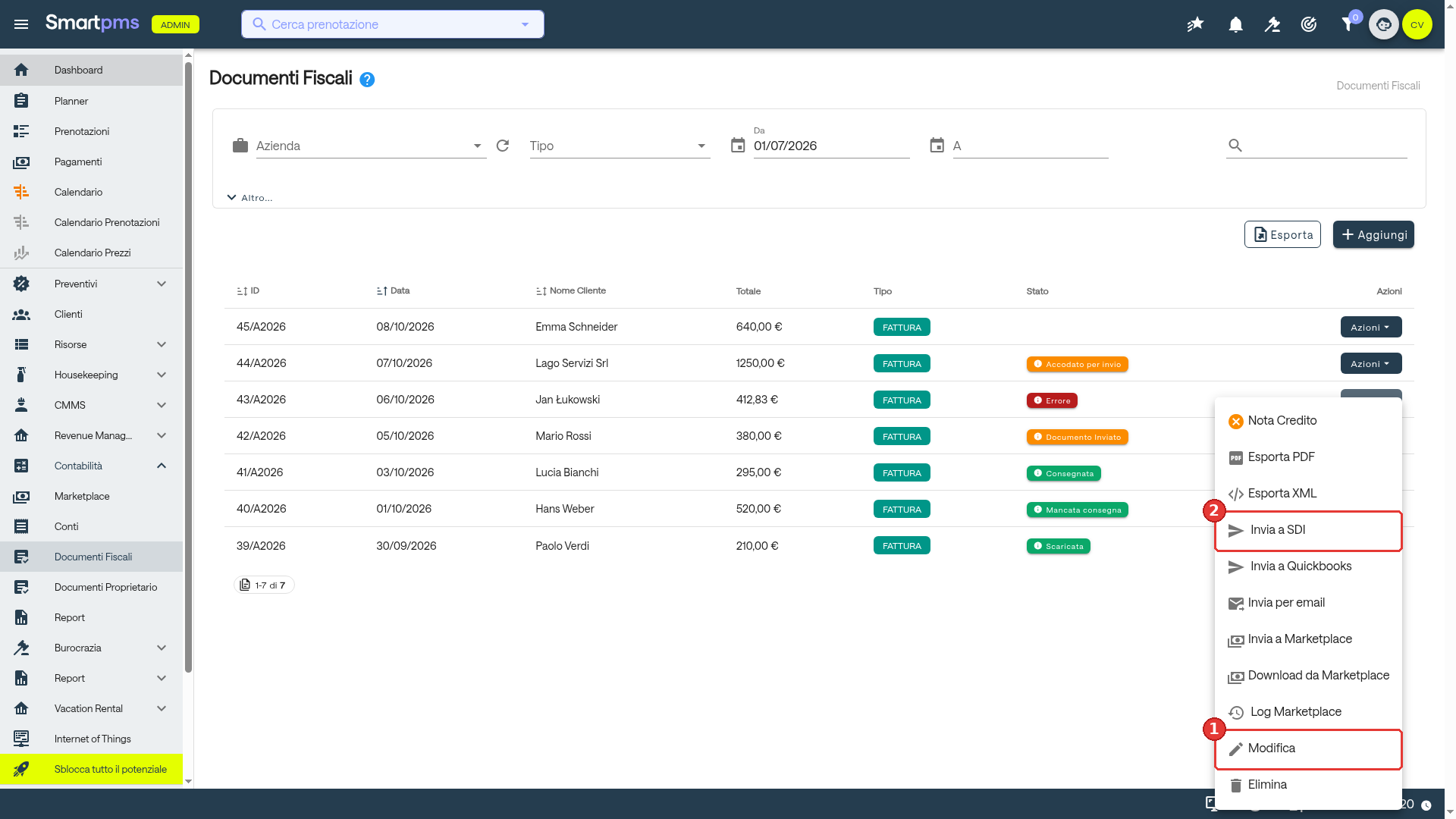
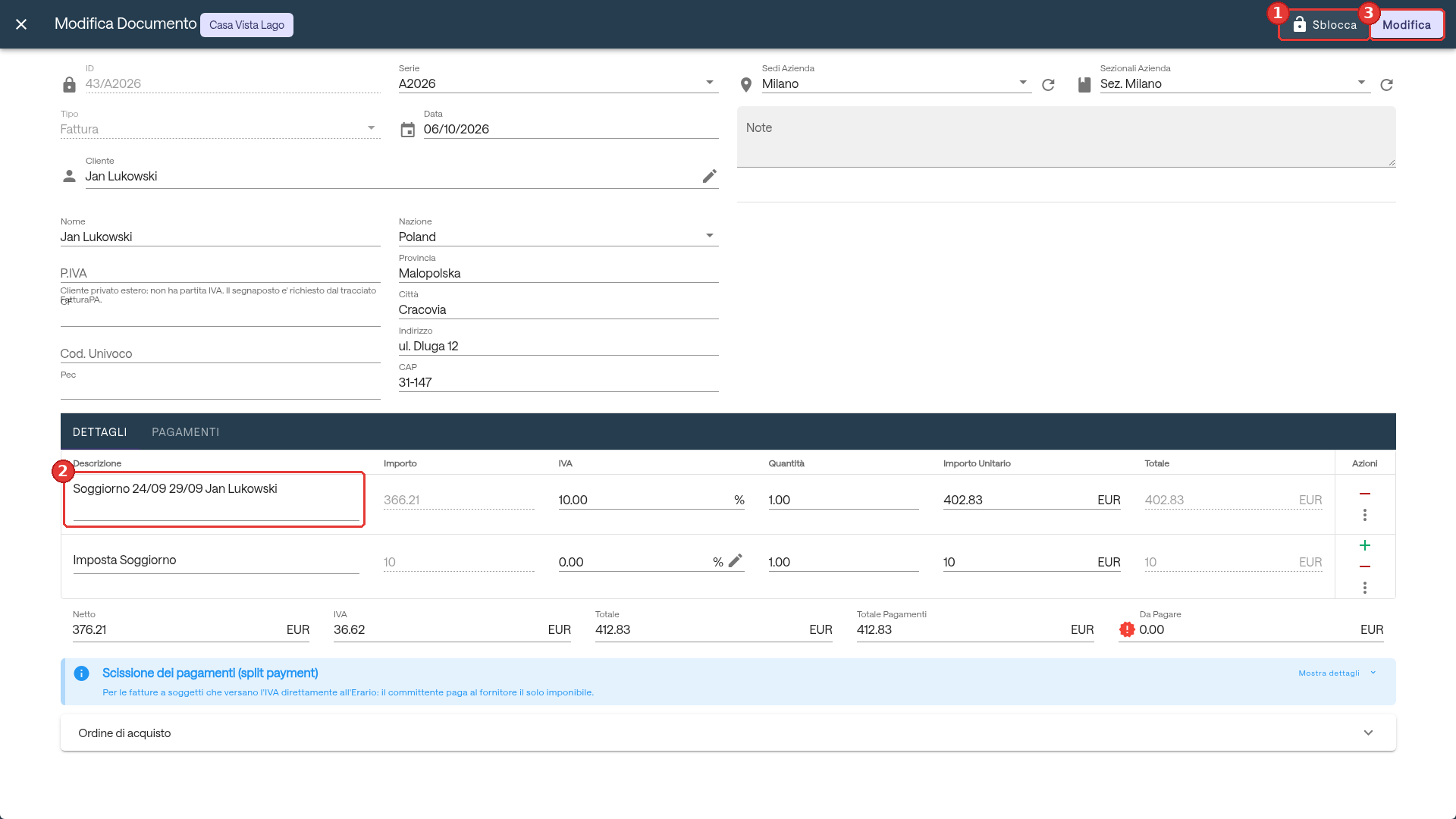
- To correct the rows (description, amounts, VAT), first click Unlock in the top right: the rows of an already sent invoice are locked to prevent accidental changes. Customer data (name, address, country) is corrected from the fields in the upper part or with the pencil next to the Customer field: how to fill them out for each type of customer is explained in the guide "How to issue an electronic invoice and send it to the SDI". If the Unlock button is not clickable, your user does not have the necessary permissions: ask your account administrator.
- Correct the data indicated in the note, for example, the Description of the row.
- Click Edit in the top right to save. Saving is not enough: the invoice remains in Error until you send it again.
- On the same row, click Actions > Send to SDI and confirm. The status changes to Queued for sending and then to Document Sent.
- Wait for the outcome: the status updates itself to Delivered or Failed delivery. If it returns to Error, open the details again: the SDI has found another piece of data to correct.
After clicking Send to SDI, wait for the outcome before reopening the invoice for editing, and reload the page before doing so: this way you always work on the updated status.
Resending is subject to the same 12-day rule on the invoice date: if the rejected invoice has an older date, contact support (see FAQs).
If the invoice has already been delivered and the data is wrong, it should not be resent: a credit note is needed. See the guide "Correcting an already issued invoice or receipt".
5. Most common rejections and where to correct them
Rejection code or message | Most frequent cause | Where to correct |
|---|---|---|
00200 "File not compliant with the format … element 'Description' is not valid" | Characters not allowed in descriptions or customer name: non-Latin letters (e.g., "Ł" in a Polish name), apostrophes and typographic quotes (’ “ ”), long dashes, text pasted from other programs | Actions > Edit: rewrite descriptions and name by hand with simple characters, then resend |
00305 / 00311 / 00417 and similar (recipient code, VAT number or customer tax code not valid) | Errors in customer master data: VAT number written with "IT" in front, incorrect tax code, missing recipient code, country not filled in | Customer data in the invoice: see the guide "How to issue an electronic invoice and send it to the SDI" |
Errors on the data of the company issuing the invoice (IdCodice or IdTrasmittente not valid, VAT number and tax code not consistent, missing tax regime) | Your company's tax data incomplete or written incorrectly | See the guide "Configuring the company to issue invoices and receipts in Italy". Company name, VAT number, and address are modified from the Billing section of the Smartness platform, as explained in the guide How to connect SmartPMS to the Revenue Agency for sending receipts, or by asking support |
00404 duplicate invoice | The SDI has already received an invoice with the same number, date, and issuer | Do not resend it: see the dedicated FAQ |
00102 "File not intact (invalid signature)" | Invoice to a Public Administration, which requires a digital signature | See the dedicated FAQ |
6. If the outcome on the Revenue Agency portal is different
The outcome you see on the Fatture e Corrispettivi portal, in the issued invoices section, is the official one. If it is different from what is shown in the management software (e.g., delivered on the portal but in Error in the management software), do not resend the invoice: contact support with a screenshot of the portal so the status can be aligned.
Frequently asked questions
12Where can I see if the invoice was accepted or rejected by the SDI?
Go to Accounting > Fiscal Documents and look at the Status column of the invoice: Delivered or Failed delivery (green) mean the SDI accepted it; Error (red) means it was rejected or the sending failed; Queued for sending and Document Sent (orange) mean the outcome has not arrived yet.
Click on the status button to open Document sending details, with the explanation of the outcome. In case of rejection, you also receive the notification "Invoice … rejected by the SDI" and an email.
How do I correct and resend a rejected invoice? Do I need to delete it or change its number?
No. An invoice rejected by the SDI is not considered issued: it must not be deleted or renumbered, and there is no need to change its date.
- In Accounting > Fiscal Documents, click on the Error button and read in Document sending details which data to correct.
- Click Actions > Edit; to correct the rows, first click Unlock.
- Correct the data (e.g., the description of a row or customer data) and click Edit to save.
- Click Actions > Send to SDI on the same invoice: it is transmitted with the same number.
Resending is possible if the invoice date is not older than 12 days; otherwise, contact support.
The invoice shows «Downloaded» in green and I cannot send it
The Downloaded status appears when you download the XML file of the invoice before sending it to the SDI. From that moment, the management software blocks sending to prevent the invoice from arriving at the SDI twice (once from the downloaded file, once from the management software). The green color only indicates that the download was successful: it does not mean the invoice was sent.
- If you did not upload that XML file to the Revenue Agency portal nor gave it to the accountant for sending, ask support to unlock the invoice: then you can send it with Actions > Send to SDI.
- If you have already uploaded it to the portal, the invoice is already at the SDI: it must not be sent again.
For the future, download the XML after sending the invoice. For exporting XML files to the accountant, see the guide Accounting Marketplace: exporting documents to Danea Easyfatt and in electronic invoice XML.
The invoice has been stuck on «Document Sent» or «Queued for sending» for days
Normally, the SDI outcome arrives in a few minutes, but in some cases, the SDI takes a few days.
- Check on the Fatture e Corrispettivi portal of the Revenue Agency, among the issued invoices.
- If the invoice is there, contact support to align the status in the management software.
- If it is not there, contact support without issuing a new invoice: a second invoice for the same service risks being rejected as a duplicate or billing the same stay twice.
With these statuses, the Send to SDI button is blocked: it is not possible to resend the invoice on your own.
On the Revenue Agency portal, the invoice is delivered but in the management software it shows Error (or vice versa)
The outcome you see on the Fatture e Corrispettivi portal is the official one. The status in the management software cannot be changed on your own: contact support with a screenshot of the invoice on the portal so the status can be aligned. Do not resend the invoice if it is already shown as delivered on the portal.
«You cannot send this document to the SDI» appears: the invoice is more than 12 days old
The management software allows sending an invoice to the SDI only if its date is not in the future and is not older than 12 days compared to today. The same message appears if the invoice already has a status other than empty or Error (e.g., Downloaded or Document Sent).
If the invoice is older than 12 days, contact support, which can send it for you.
I click on «Send to SDI», confirm, but nothing happens and I see no errors
Usually, the invoice cannot be sent for one of these reasons:
- the status is Downloaded (the XML was downloaded before sending);
- the status is already Queued for sending, Document Sent, Delivered, or Failed delivery;
- the invoice date is older than 12 days or is in the future.
Check the status and date in Accounting > Fiscal Documents and compare them with the rules in point 3 of the guide. If the status is empty or Error and the date is recent, contact support.
Error 00200 «File not compliant with the format … element 'Description' is not valid»
The SDI only accepts simple characters. The 00200 rejection on the Description indicates that an invoice row (or the customer name) contains characters that are not allowed, for example:
- non-Latin letters, such as "Ł" in a Polish name;
- apostrophes and typographic quotes (’ “ ”) and long dashes (–);
- text pasted from other programs.
Italian, German, French, and Spanish accented letters (à è é ö ü ç ñ) and the slash "/" are allowed.
- Open the invoice with Actions > Edit and click Unlock.
- Rewrite the description of each row by hand and, if necessary, the customer name with simple characters (e.g., "Ł" becomes "L"). The stay row description does not update by correcting the customer name: it must be corrected by hand.
- Click Edit to save and then Actions > Send to SDI: saving alone does not resend the invoice.
- Correct the name in the reservation as well, so that subsequent invoices do not pick up the character.
The invoice to a Public Administration was rejected due to signature problems (00102)
Invoices to a Public Administration (with a 6-character office code) must be digitally signed, and the management software does not apply the signature.
- If the customer is not a Public Administration, open the invoice with Actions > Edit, set the customer as a private individual or company with their 7-character recipient code, save, and resend with Actions > Send to SDI.
- If the customer is indeed a Public Administration, download the XML with Actions > Export XML, sign it with your digital signature device, and send it from the Fatture e Corrispettivi portal. After the download, the status becomes Downloaded and sending from the management software remains blocked: this is the expected behavior, because you transmit the invoice yourself from the portal.
The SDI rejected the invoice as a duplicate (00404)
The 00404 rejection means that the SDI has already received an invoice with the same number, date, and issuer. This usually happens when:
- the invoice has already been sent in another way (for example, by uploading the XML to the portal, through your accountant, or from QuickBooks);
- the same invoice was resent multiple times in quick succession;
- the accounting series does not contain the year and, with the numbering starting from 1, the number coincides with that of an invoice from the previous year.
Do not resend it: check on the Fatture e Corrispettivi portal if the invoice is already issued and, if it is, contact support to align the status.
To avoid this, always include the year in the series code (for example A2026): see the guide Accounting series: how to number invoices, receipts, and accounts. If you also use QuickBooks, choose only one system that transmits to the SDI, as explained in the guide How to connect SmartPMS to QuickBooks and send invoices and receipts (Italy).
The invoice shows «Failed delivery»: do I need to redo it or resend it?
No. Failed delivery means that the SDI accepted the invoice but could not deliver it to the recipient (e.g., a private customer or an inactive PEC mailbox). The invoice is still issued and the customer finds it in their reserved area on the Revenue Agency website. It must not be resent or redone: if you want, send them a PDF copy.
«Bad Request» or another technical message appears in the sending details
In this case, the invoice was not rejected by the SDI: the sending failed due to a communication error, usually temporary. The status is Error, so you can try again with Actions > Send to SDI without changing anything. If the message repeats, contact support.
Related guides
Configuration
Configuration
Configuration
Configuration
Configuration
Activation